Messaging diagnostics dashboard
The Messaging Diagnostics dashboard provides a high-level breakdown of message sending outcomes, allowing you to spot trends and diagnose potential issues in your messaging setup. This dashboard can help you understand why messages from your campaigns or Canvases may not have been sent as expected.

The Messaging Diagnostics dashboard is generally available. Contact your customer success manager if you’re interested in getting access to the feature.

To access the Messaging Diagnostics dashboard, you need the “View Dashboard Reports” user permission for your workspace.
Key concepts
Sent and delivered
It is crucial to understand that this dashboard reports on how Braze internally processed a message, not the message’s final delivery status.
A message marked as “sent” in this dashboard means Braze successfully processed and dispatched the message. For most channels, this means Braze handed off the message to the relevant third-party sending partner. However, it does not guarantee final delivery to the user’s device.
When Braze “sends” a message, the final delivery may depend on external services. Consider the following examples for each channel.
| Channel | Example of final delivery |
|---|---|
| Content Cards | The card was sent and is eligible for viewing. |
| Braze hands the message to an email service provider (ESP). The ESP is then responsible for the final delivery. That ESP, for example, may report a “bounce” if the email address is invalid or the inbox is full. | |
| In-app messages | The message was viewed by the user and an impression was logged. |
| LINE | The message was successfully handed off to a sending partner. |
| Push | Braze hands the message to the appropriate push notification service (such as Apple Push Notification service for iOS or Firebase Cloud Messaging for Android). That service is responsible for the final delivery of the notification to the device. |
| SMS/MMS/RCS | Braze hands the message to an SMS gateway (like Twilio). That gateway is responsible for the final delivery to the mobile carrier. |
| Webhooks | The webhook request was made successfully, returning a 2xx response. |
| The message was successfully handed off to a sending partner. |
Data freshness
The frequency at which data in this dashboard updates may fluctuate based on system load. While update frequency is not guaranteed, it is likely less than an hour in most cases.
Configuring the dashboard
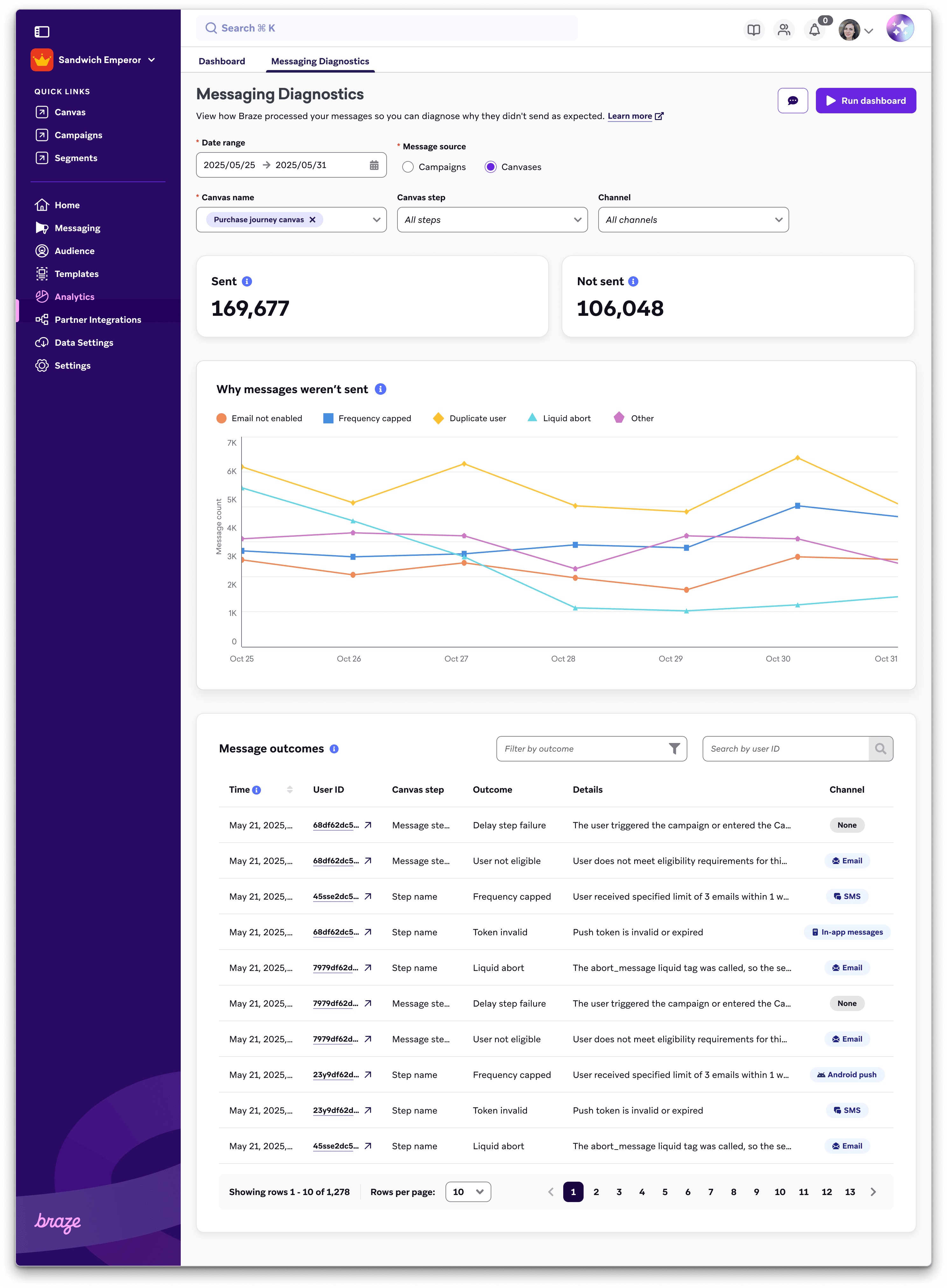
You can access the diagnostics dashboard by going to Analytics > Dashboard Builder and selecting Messaging Diagnostics from the list of Braze-created dashboards.
To run the dashboard and view your data:
- Choose either Campaigns or Canvases as the source for your dashboard reports.
- Select one or more campaigns or Canvases.
- Select Run Dashboard to load the data for your selected filters.
Interpreting the data
The dashboard surfaces up to only the last seven days of data. All timestamps display in your workspace’s time zone.
Summary tiles
At the top of the page, there are key summary tiles for your selected timeframe that show:
- Sent: The total count of messages that Braze successfully processed and sent.
- Email, SMS/MMS/RCS, WhatsApp, LINE, and push: The message was successfully handed off to a sending partner.
- Webhooks: The webhook request was made successfully, returning a
2xxresponse. - Content Cards: The card was sent and is eligible for viewing.
- In-app messages: The message was displayed to the user.
- Not Sent: The total count of messages that were aborted. This includes Canvas audience members who didn’t enter the Canvas or exited the Canvas because they experienced a step failure or met exit criteria while performing an exit event.
Message outcomes over time
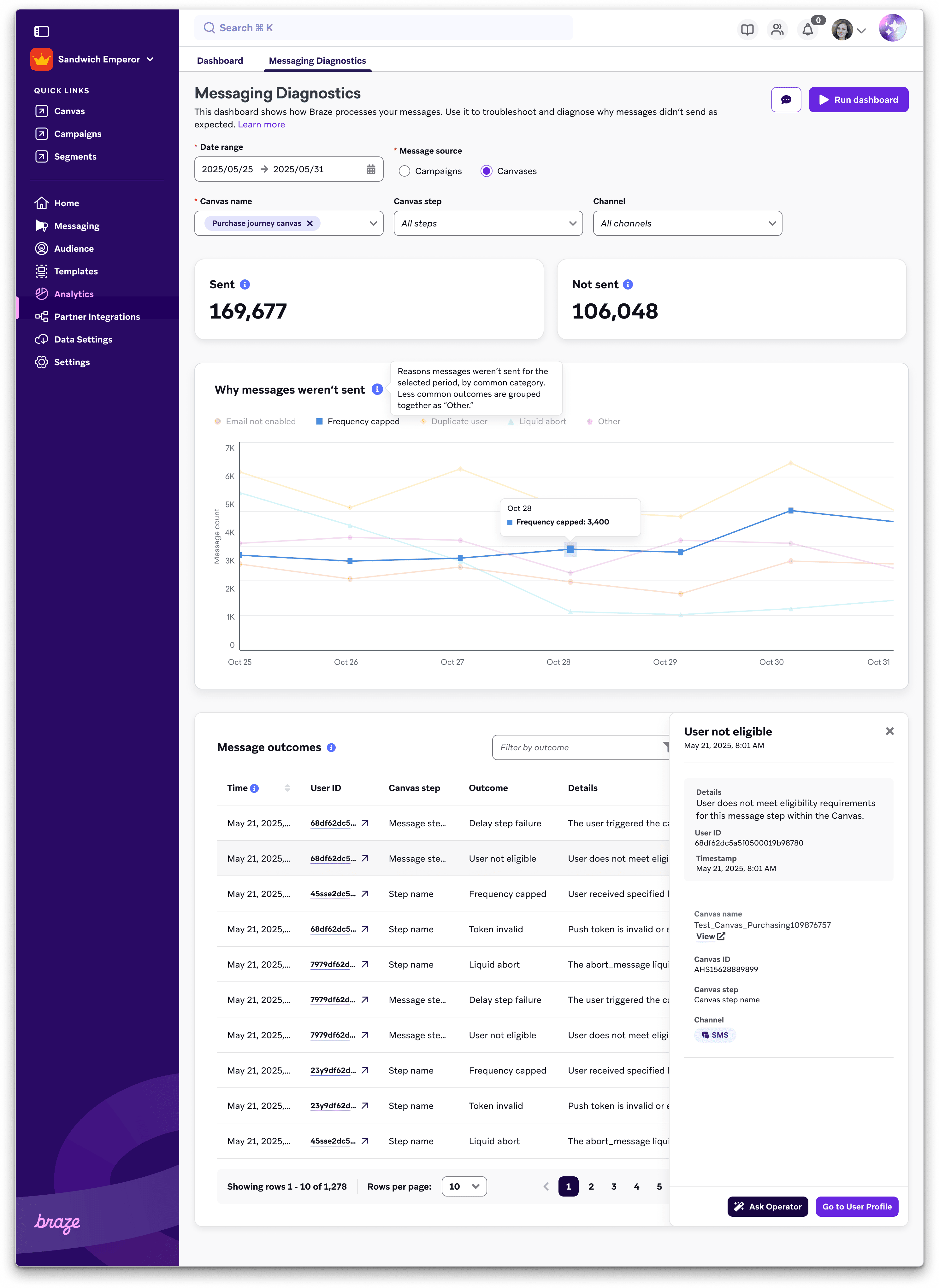
This time series chart shows an hourly breakdown of why a message was aborted or why a user was dropped from a Canvas. Outcome labels in this chart are normalized dashboard labels, not raw event payload values. This chart doesn’t display the number of sends.
Message outcomes granular log
The dashboard shows a granular table of individual message outcomes for your selected filters and time range. Use this table to review specific records, including the timestamp, user ID, Canvas step, outcome, details and channel.
You can filter the table to focus on specific records:
- Filter by outcome: Select an outcome from the outcome filter to show only rows with that outcome (for example,
Frequency cappedorUser not eligible for channel). - Search by user ID: Enter a user ID in the search field to show rows for that specific user.
When you apply both filters, the table returns rows that match both the selected outcome and the entered user ID.
Select a row in the table to open the details panel. The details panel provides additional context about that outcome and Ask Operator provides remediation guidance to help you troubleshoot the underlying issue.
Channel filters apply to outcomes that are tied to a specific messaging channel. Some outcomes are channel-agnostic, so they can still appear in aggregate views even when you apply a channel filter.
Abort outcomes
The following definitions explain the abort outcomes shown on the dashboard. Outcomes are grouped by category to make it easier to find the one you’re investigating.
Abort outcomes in Messaging Diagnostics are human-readable dashboard labels. In Currents message engagement events, abort information is represented with fields such as abort_type and abort_log. Because these datasets have different representations and processing paths, counts or naming can differ between Currents and Messaging Diagnostics.
Content and rendering
| Abort outcome | Explanation |
|---|---|
| Content Card expired | The Content Card expired before the user saw it. |
| Content Card invalid | The Content Card had errors and was not sent to the user. Some common reasons for this include:
|
| Connected Content failed | Braze tried to send the message, but Connected Content failed after the maximum number of retries (default is five). Note: This count represents the number of messages aborted due to reaching the maximum number of retries, not the total number of failed Connected Content requests. |
| In-app-message rendering timeout | After multiple attempts to retry, the Liquid could not be rendered and timed out. |
| Liquid abort | The abort_message Liquid tag was called, so the send was canceled. |
| Liquid rendering timeout | It took too long to render the Liquid template. Most likely to occur for Banners, in-app messages, and email. |
| Liquid syntax error | The Liquid template had a parsing error, so the message was canceled. |
| Media URL failure | Braze could not process the media URL in the message. This can happen when the URL is blocked, invalid, times out, returns an invalid HTTP status, or fails SSL validation. |
Campaign and Canvas state
| Abort outcome | Explanation |
|---|---|
| Delay step failure | The Delay step failed, causing the user to exit the Canvas. This failure could happen when:
|
| Exception or exit event | The user was previously eligible to receive the message, but either
|
| Inactive campaign | The campaign was stopped while the message was in-flight, so it was aborted. |
| Inactive Canvas | The Canvas was stopped before the user entered the journey. |
| Inactive Canvas step | This can occur in the Canvas if:
|
| Volume limited | The campaign met the set volume limit, so the send was canceled. |
Rate limiting and timing
| Abort outcome | Explanation |
|---|---|
| Frequency capped | The user already received the maximum number of messages allowed per your workspace’s frequency capping rules, so the send was canceled. |
| Quiet Hours abort | Quiet Hours was enabled for the campaign or Canvas step with the fallback set to Abort message. The user triggered the campaign or entered the Canvas Message step during Quiet Hours, so the message was aborted. However, this doesn’t exit the user from the Canvas. |
| Rate limited over 72 hours | The message was throttled for longer than 72 hours due to delivery speed rate limits, so the send was aborted. |
User eligibility and profile
| Abort outcome | Explanation |
|---|---|
| Duplicate user identifier | Multiple users with a matching identifier (such as external ID, email address, phone number) were eligible to receive this message. To prevent duplicate sends to the same user, this message was aborted. |
| User failed pre-check for Message step | Braze runs a first-pass set of basic pre-checks for audience eligibility, re-eligibility, and channel eligibility before full delivery validations for a Canvas Message step. This outcome means the user or message failed one of those checks so the message was aborted for that step. |
| User failed pre-check for triggered message | Braze runs a first-pass set of basic pre-checks for audience eligibility, re-eligibility, and channel eligibility before creating a message to send from this trigger. This outcome means that the user or message failed one of those checks so the message was aborted. |
| User no longer eligible | The user was initially in the target audience, but no longer matched the audience criteria before Braze sent the message or entered the user into the Canvas. The time between the user initially meeting the audience criteria and falling out of audience could be due to delays from:
|
| User not eligible for step | The user didn’t meet the set delivery validations for the Message step or was part of a suppression list. Depending on the Delivery validations settings, the user may have exited the Canvas or proceeded to the next step. |
| User not re-eligible | The user was eligible to receive the message or enter the Canvas, but the send was canceled because of re-eligibility or re-entry settings. This can happen if the user has already received the campaign or entered the Canvas too recently, if another send for the same campaign is already in progress for this user, or if re-eligibility or re-entry is turned off. |
| User profile not found | The user either never existed or no longer exists in Braze. Some common cases include:
|
Channel and delivery
| Abort outcome | Explanation |
|---|---|
| Partner delivery error | Braze attempted to send this message to your delivery partner for 24 hours, but the partner returned temporary errors for the entire window. |
| Push credentials invalid | The push credentials for this app are missing or invalid, so the send was canceled. Update your credentials in App Settings. |
| Subscription group failure | The message could not be sent because of subscription-group or messaging-service configuration issues. Common reasons include missing sending numbers for SMS or WhatsApp, or unsupported MMS on the configured messaging service. |
| User not eligible for channel | The user is not eligible to receive this message on the selected channel. Common reasons include missing or invalid channel identifiers, no eligible push tokens, subscription state restrictions, unsupported channel capability, or blocked countries for phone-based channels. |
| Webhook failed | The webhook received an unsuccessful response code (non-2xx). Common error codes might be 4XX client errors, 5XX server error or timeout, or 598 Host Unhealthy or requests halted briefly. |
Frequently asked questions
What does a “pre-check” failure mean?
A “pre-check” refers to a high-speed, bundled validation check that runs at the very beginning of a pipeline stage (such as a message being triggered or the sending of a Canvas Message step). Think of it as an early exit designed for maximum speed. Instead of running many separate, resource-intensive checks (like validating every detail of a user’s profile), Braze bundles several basic validations into one “first pass”.
If a user fails this single bundled check, they are dropped immediately. This bundled approach allows Braze to process massive volumes of messages at high speed and can contribute to faster, more stable performance for your campaigns and Canvases by reducing processing latency for each message.
What does an “other” abort outcome mean?
These are aborts that don’t fall into existing dashboard categories. If you still notice a large proportion of aborts with “Other”, contact Braze Support for further assistance.
Why is the sum of Not Sent and Sent lower than my expected audience size?
This can happen for several reasons:
- Audience criteria: Fewer users than expected may have satisfied the audience criteria (for example, they weren’t in the segment or didn’t have the necessary attributes) when the campaign or Canvas was launched.
- Processing in progress: Messages may still be actively processing. Users may still be in earlier steps of the Canvas and have not reached any Message steps.
- Data freshness: The dashboard data updates approximately every 15 minutes, but this is not a guarantee. The newest data for this campaign or Canvas may not have reached the dashboard yet.
- Edge cases: There is a small chance you are encountering an edge case that is not captured in this dashboard at this time. If you suspect this is the case, contact Braze Support.
Why is the sum of Not Sent and Sent greater than the audience for a campaign and Canvas?
This can occur for the following reasons:
- Multi-channel messages: The campaign or Canvas step was configured to send on multiple channels (such as SMS and email). A single user can receive a “sent” outcome for one channel (such as email) and an “abort” outcome for another (such as “User not eligible for channel”). In this case, that one user would be counted twice in the chart: once as a “sent” and once as an “abort.”
- Example: You send a push campaign to 100 users, targeting both iOS and Android. If a user has only an iOS device, they receive the iOS push (“sent”) but also trigger an abort for the Android push (“User not eligible for channel”).
- Multiple Message steps (Canvas only): Your Canvas may have more than one Message step in a given path. This dashboard aggregates all outcomes, so a single user could be counted multiple times if they pass through multiple Message steps within the selected time range.
- Test messages: Test sending (which is counted in the dashboard) is making the total counts higher than the audience size.