Create an SMS, MMS, or RCS message
Create personalized SMS, MMS, and Rich Communication Services (RCS) messages in campaigns or Canvas. The selected subscription group determines which message types and senders are available.
Prerequisites
Before you start, make sure you have the following:
| Requirement | Description |
|---|---|
| Sender setup | Complete sender setup. To send MMS, your subscription group needs an MMS-enabled phone number. To send RCS, complete RCS setup and add a verified RCS sender. |
| Subscription group | Create a subscription group that contains the senders for this message. |
| User phone numbers and consent | Import users’ phone numbers and collect the appropriate SMS, MMS, and RCS opt-ins. |
| Campaign or Canvas | Use a campaign for a single targeted message or Canvas for a multi-step user journey. |
| Message or Action Credits | Confirm that your account has credits available. Sending SMS, MMS, and RCS messages from Braze uses these credits. |
Create a message
Step 1: Choose where to build your message
- Go to Messaging > Campaigns and select Create Campaign.
- Select SMS/MMS/RCS, or, for campaigns targeting multiple channels, select Multichannel Campaign.
- Name your campaign something clear and meaningful.
- Add Teams and Tags as needed.
- Tags make your campaigns easier to find and use in reports.
- Add and name the variants for your campaign. You can include SMS/MMS and RCS variants in the same campaign. For more information, see Multivariate and A/B testing.

If your campaign variants have similar content, compose the first message before adding more variants. You can then select Copy from Variant from the Add Variant dropdown.
- Create your Canvas using the Canvas composer.
- After you’ve set up your Canvas, add a step in the Canvas builder. Name your step something clear and meaningful.
- Choose a step schedule and specify a delay as needed.
- Filter your audience for this step as necessary. You can further refine the recipients of this step by specifying segments and adding additional filters. Audience options will be checked after the delay at the time messages are sent.
- Choose your advancement behavior.
- Choose any other messaging channels which you would like to pair with your message.
Step 2: Select a subscription group and message type
Select the Subscription Group that contains the sender for this message. Braze uses the selected group when calculating the reachable audience and determining send-time eligibility.
The subscription group you select determines which message types are available in the composer:
| Subscription group type | Available message types |
|---|---|
| SMS-only | SMS |
| SMS with MMS-enabled numbers | SMS and MMS |
| RCS-enabled with a verified RCS sender | RCS and SMS when the group also contains an SMS sender. MMS is also available when that sender is MMS-enabled. |
Add at least one SMS sender to an RCS subscription group so you can send an SMS fallback when RCS delivery fails.
If the subscription group supports both protocols, select SMS/MMS or RCS. For RCS, select Text, Media, or Card.
Step 3: Compose your message
The fields and limits in the composer depend on the message type you selected.
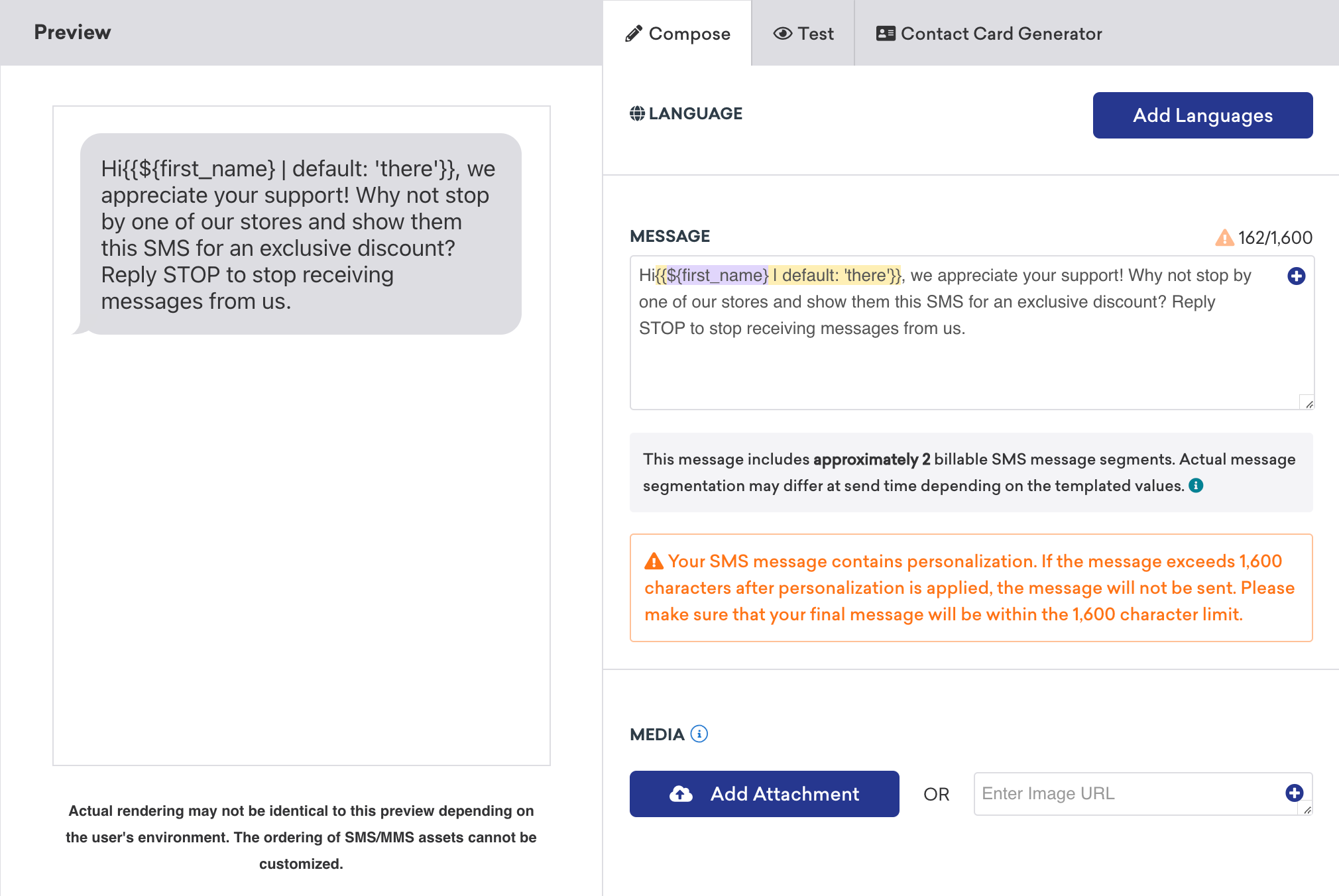
SMS and MMS fields and settings
| Field or setting | Description |
|---|---|
| Language | Insert language-specific content into the message. |
| Message | Enter up to 1,600 characters, including Liquid, Connected Content, and emojis. The composer estimates the encoding, character count, and number of billable SMS segments. An MMS message can contain media without a message body. |
| Media | For an MMS-enabled subscription group, add one PNG, JPEG, or GIF image from the media library or by URL. You can add a vCard instead of an image. |
| Link shortening | Shorten HTTP and HTTPS URLs and track engagement with unified link shortening. |
SMS messages use GSM-7 or UCS-2 encoding and are charged per message segment. A single character can change the encoding and increase the number of billable segments. For encoding rules, segment sizes, and the segment calculator, see SMS and RCS billing calculators.
MMS media specifications
MMS messages support a single image per message. Only MMS-enabled subscription groups can send images.
| Property | Recommendation |
|---|---|
| Size | 600 KB or smaller for reliable carrier delivery. The composer blocks uploads larger than 1 MB. |
| File types | PNG, JPEG, GIF |
For carrier file size limits and throughput, refer to MMS message limits and throughput.
To send business details that users can save to their device contacts, see Contact cards. Sending a contact card is charged as an MMS.

If you are pulling in images with Connected Content or Liquid, ensure that your image URL begins with https://. Using http:// will crash your app.
MMS availability and rendering depend on the receiving carrier. When a carrier cannot accept MMS, the media becomes a link in the SMS body through the provider. Avoid sending MMS to Google Voice numbers because its limited MMS support can cause unreliable delivery.
When a user sends inbound media, Braze exposes its URLs in Currents SMS inbound events and through {{sms.${inbound_media_urls}}} in Liquid.
RCS message types
| Message type | Fields and settings | Limits and behavior |
|---|---|---|
| Text | Required message body, optional suggested replies or Open URL actions, optional SMS fallback, and link shortening | The message body can contain up to 1,600 or 3,072 characters, depending on the SMS service provider. Add up to five suggestions. |
| Media | Required image, video, document, or audio; optional message body; optional suggestions, SMS fallback, and link shortening | The message body can contain up to 1,600 or 3,072 characters, depending on the provider, and is billed as an additional RCS message. Add up to five suggestions. Not all providers support standalone Media messages (for example, Twilio). |
| Card | Media card or text-only card, title, description, buttons, optional suggestions, and optional SMS fallback | The title can contain up to 200 characters. The description can contain up to 1,600 or 2,000 characters, depending on the provider. Add between one and four buttons. See Provider support for Card messages for layout and field availability. |
RCS message billing depends on the message type and content. For basic, rich, and rich card billing rules, see RCS message billing.
Card layouts
RCS Card messages combine media, text, and buttons into a single unit. Choose a layout in the composer:
| Card layout | Required fields | Optional fields |
|---|---|---|
| Text-only | Title, description, and at least one card button | Up to three additional card buttons, suggestions outside the card (when supported), and SMS fallback |
| Media | Image, GIF, or video and at least one card button | Title, description, up to three additional card buttons, suggestions outside the card (when supported), and SMS fallback |
Use Liquid to personalize card titles, descriptions, media, and buttons. URLs entered as plain text in the title or description aren’t clickable—add an Open URL card button instead.
Suggestions can be suggested replies, which pre-populate the user’s text input, or Open URL actions. Add up to 25 characters of text to each suggestion and a URL of up to 2,048 characters to each Open URL action.
SMS fallback for RCS messages
When RCS delivery fails, you can automatically send your message as SMS instead. To enable SMS fallback:
- In the composer, go to the Fallback option section.
- Turn on Send SMS if RCS fails.
- Compose your SMS fallback message (up to 1,600 characters).
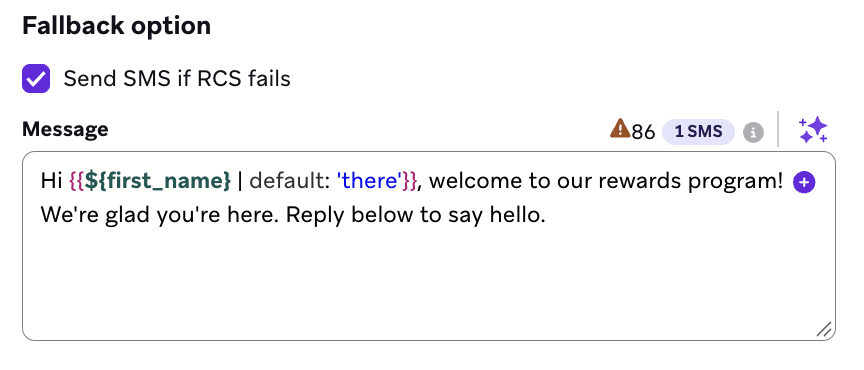
The selected subscription group must contain an SMS sender for SMS fallback to work. When enabled, a character counter shows how many SMS segments your fallback message uses. Link shortening applies only to links in the SMS fallback body, not to card button URLs.
SMS fallback is available for all RCS message types (Text, Media, and Card). For more information about how SMS fallback works with events and segmentation, see RCS setup.
Provider support for Card messages
Availability of RCS message types and Card options depends on your SMS service provider. The composer displays only supported types and fields.
| Capability | Infobip | Twilio |
|---|---|---|
| Standalone Media message type | Supported | Not supported |
| Text-only card layout | Supported | Not supported |
| Media card layout | Supported | Supported |
| Suggestions outside the card | Supported | Not supported |
| Card buttons | Supported (1–4) | Supported (1–4) |
| Description character limit | Up to 2,000 characters | Up to 1,600 characters |
RCS media specifications
The composer accepts a media URL with up to 1,000 characters. Available formats and maximum file size depend on the SMS service provider.
| File type | Specifications |
|---|---|
| All | Maximum file size is 16 MB or 100 MB, depending on the provider. |
| Image | JPEG, JPG, GIF, PNG |
| Video | H263, M4V, MP4, MPEG, MPEG-4, WEBM |
| Document | PDF. Available for Media messages, but not media cards. |
| Audio | AAC, MP3, MPEG, MP4, 3GPP, OGG. Provider support varies. |
If you are pulling in images with Connected Content or Liquid, ensure that your image URL begins with https://. Using http:// will crash your app.
Personalization
Use Liquid, Connected Content, emojis, and language-specific content to personalize your message. Include a default value for Liquid personalization so profiles with incomplete data don’t receive blank content.
To create message copy from a prompt, use Generate copy with Operator.
For languages written from right to left, see Creating right-to-left messages.
Create conversational message workflows (RCS)
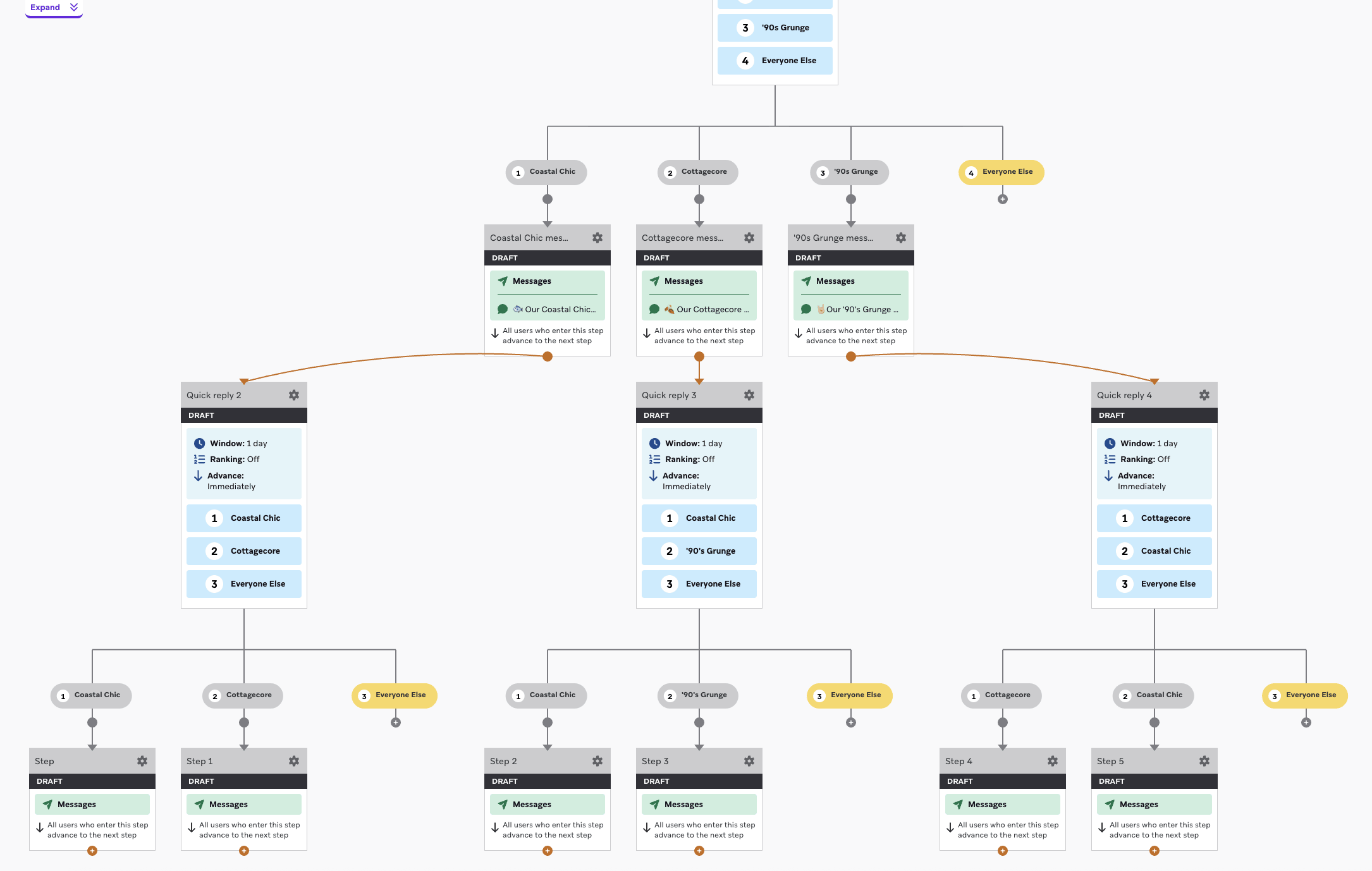
Conversational message workflows let you respond dynamically to users, creating a back-and-forth messaging experience. To build a workflow, create a Canvas and then combine suggested replies with Action Paths to direct your workflow based on which reply a user selects.
- In the Canvas builder, create an RCS message step with multiple suggested replies.
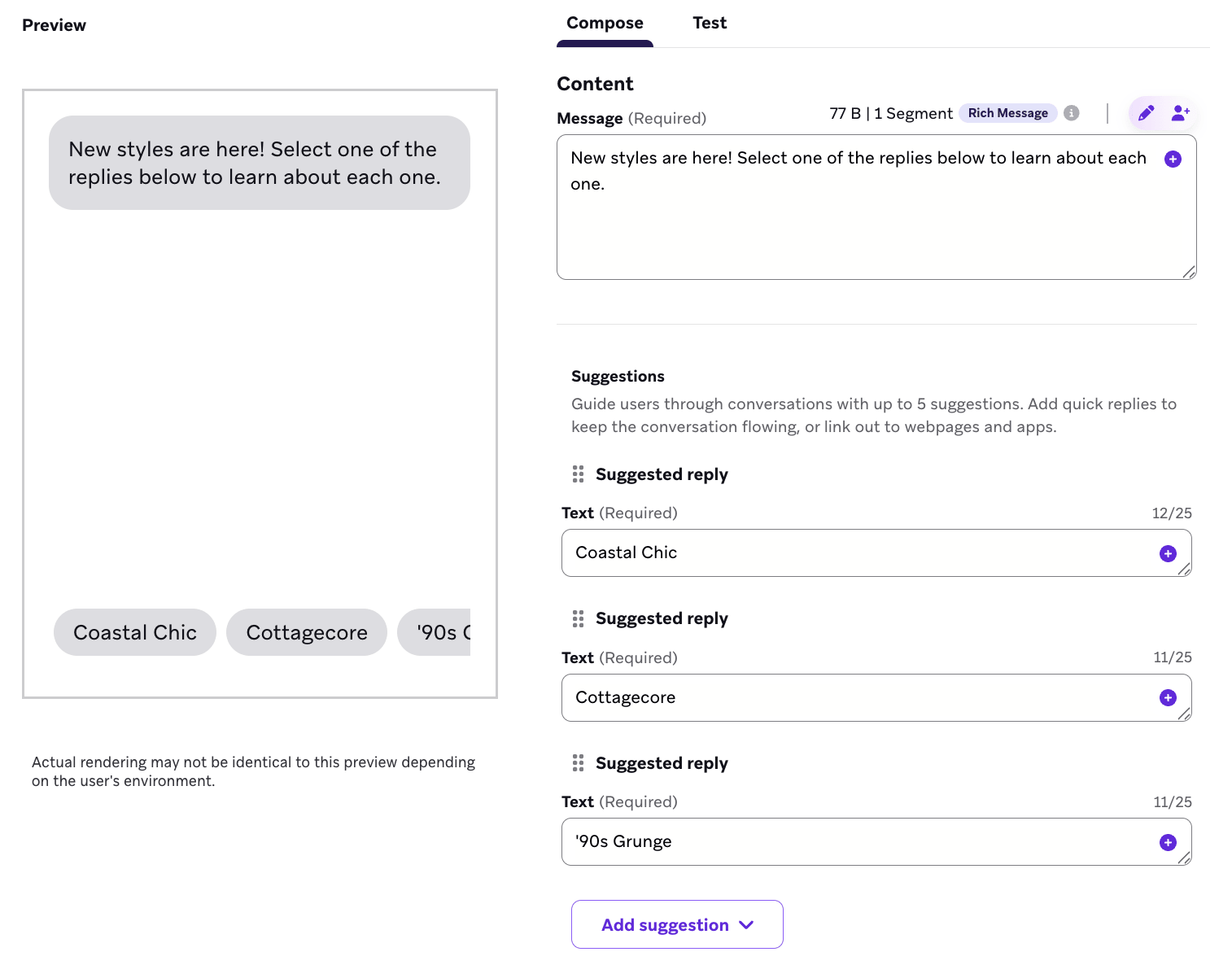
- Connect that message to an Action Paths step with an action group for each suggested reply.
- For each action group:
- Select the trigger Send an SMS inbound message.
- Set the message body to be the same as the corresponding suggested reply.
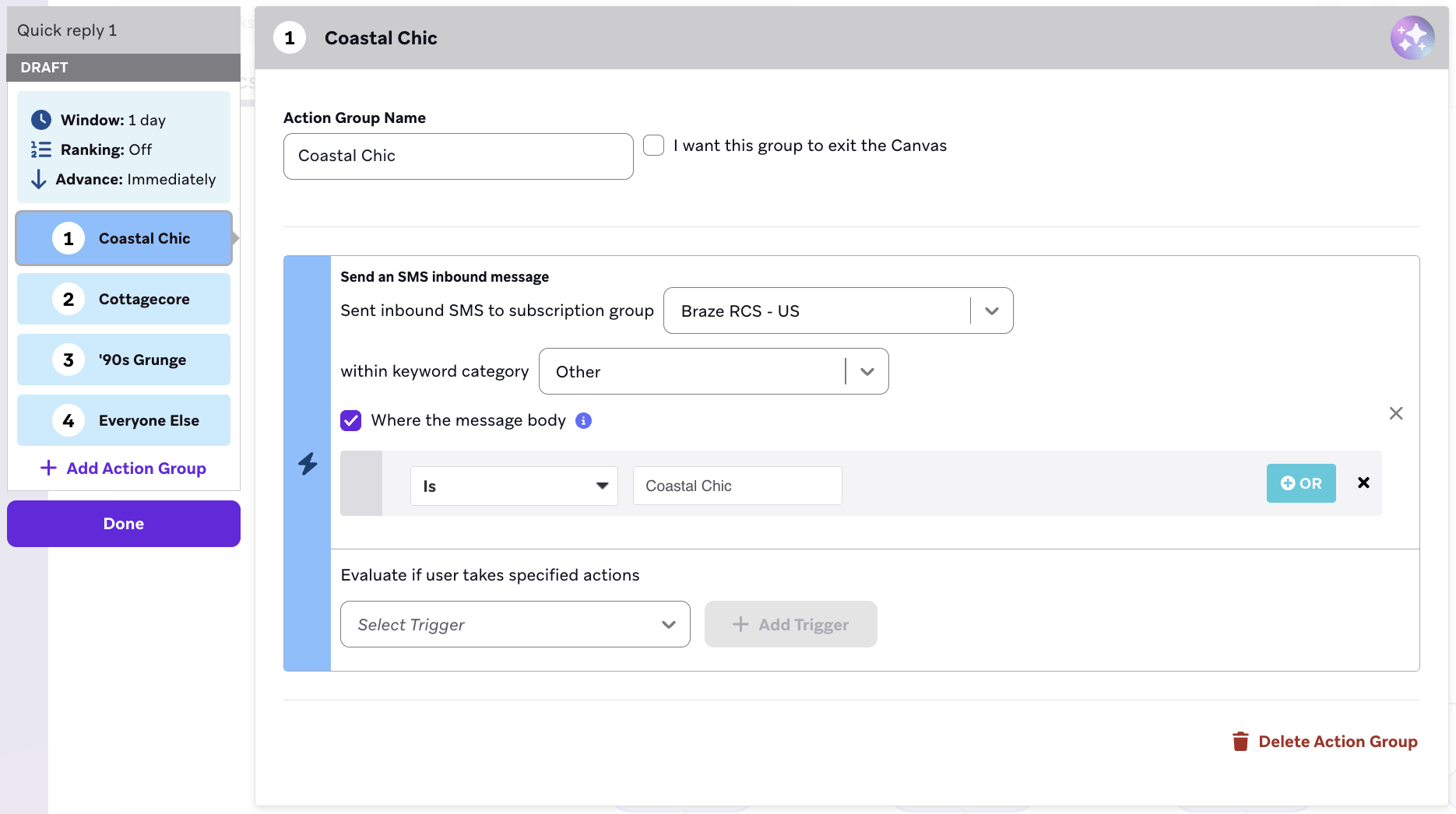
- Connect each action group to an RCS message step, and then add content based on the associated suggested reply.
- Continue the conversational workflow by adding suggested replies to any follow-up messages.
- Repeat steps 2–4 until the workflow is complete.
Step 4: Configure link shortening
Turn on Link shortening to shorten HTTP and HTTPS URLs and track clicks for SMS, MMS, and supported RCS links. Unified link shortening uses a single personalized link format for SMS and RCS and includes user-level click data for segmentation and retargeting.
Braze shortens up to 25 links in a message. A URL longer than 4,000 characters can’t be shortened and causes the message to fail at send time. For supported URLs, Liquid behavior, testing requirements, custom domains, and retargeting, see Link shortening.
Step 5: Preview and test your message
Go to the Test tab to preview the message as a user or send a test SMS, MMS, or RCS message to a content test group or individual user.
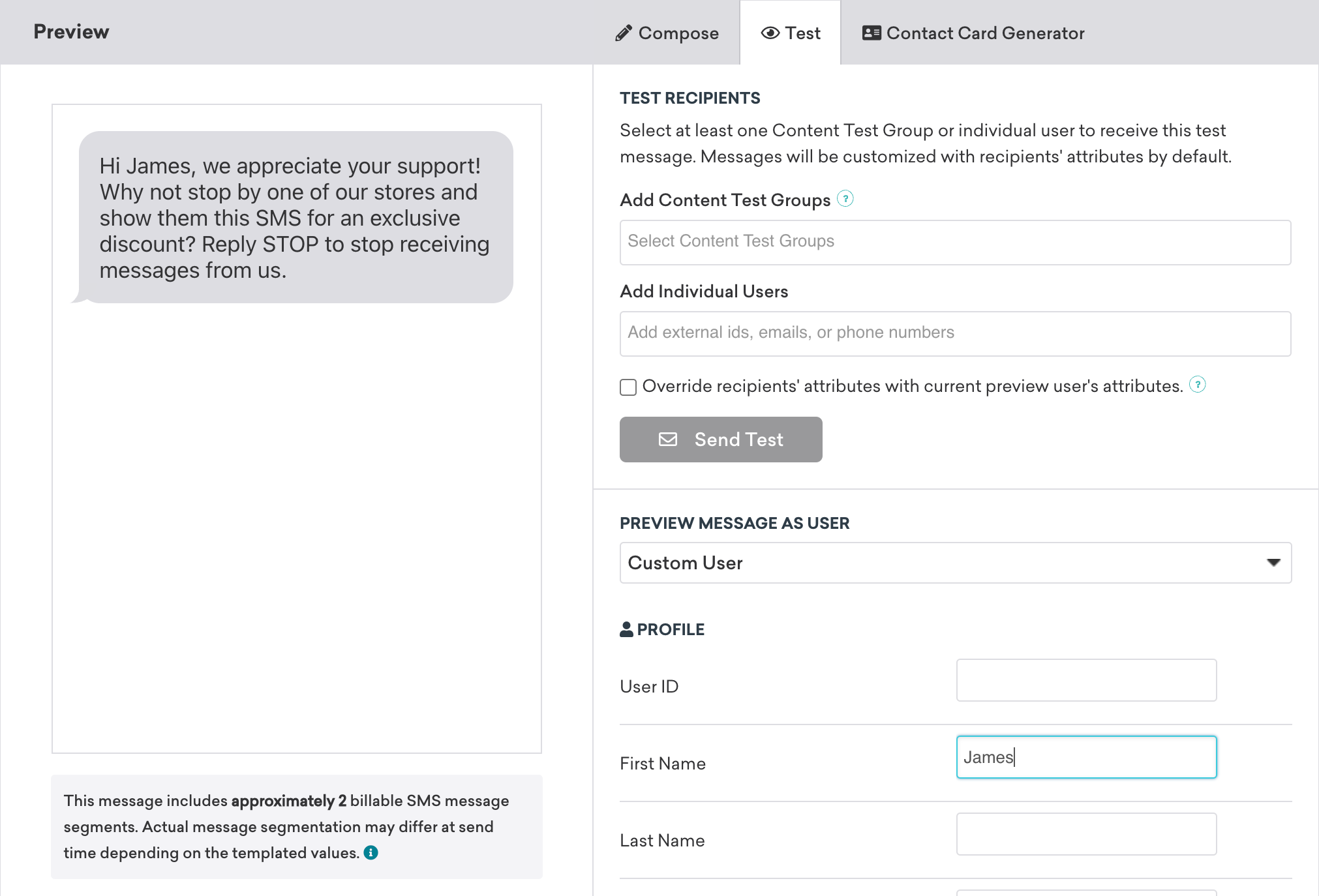
For MMS, the receiving phone determines whether the media appears before or after the message body.

Because RCS rendering is controlled by the user’s operating system, device manufacturer, carrier, and messaging app (for example, Google Messages vs. Apple Messages), message appearance can vary. The preview shown in Braze may not exactly match what an end user receives. Validate the final rendering on real devices whenever possible. For details about RCS rendering on iOS devices, see Why doesn’t my RCS message render accurately on iOS devices?. For GIFs in rich cards, see Why do GIFs in RCS rich cards appear static on iOS?.
For more information, see Send test messages.
Step 6: Build the remainder of your campaign or Canvas
Choose a delivery schedule or trigger
Deliver messages at a scheduled time or in response to an action or API trigger. For scheduling and trigger options, see Schedule your campaign.
Configure delivery controls such as re-eligibility and frequency capping. For action-based delivery, set the campaign duration and Quiet Hours. For SMS sending-time compliance, see Comply with SMS sending times.
Choose users to target
Target users by selecting segments and filters. Braze calculates exact segment membership before sending the message.
The selected subscription group filters for subscribed users. SMS and MMS recipients also need a valid phone number. RCS recipients need an RCS-capable device and carrier connection; use an SMS fallback to reach eligible users when RCS delivery fails.
Your message will only be sent to users who already match the conditions you set in the Target Audience step. After that, they still need to meet the trigger you define in the Schedule Delivery step. Think of the target audience as a waiting room—only people already inside can move forward when the next action happens.
For click and interaction targeting, see User retargeting.
Choose conversion events
Use conversion events to measure actions after a user receives the campaign. Set a conversion window of up to 30 days.
Complete the remaining sections of your Canvas. For entry schedules, audience settings, and sending controls, see Create a Canvas.
Step 7: Review and deploy
After you’ve finished building your campaign or Canvas, review its details and test the message before sending it.
After launch, use SMS, MMS, and RCS reporting to review message performance.
Things to know
- SMS is charged per message segment, MMS at its own rate, and RCS per message type. Review the SMS and RCS billing calculators before sending.
- MMS supports one image or vCard. Carrier support determines whether recipients receive media or an image link.
- RCS capabilities and limits vary by SMS service provider. The composer displays only the options available for the selected subscription group.
- You can send a pre-recorded voicemail as audio in an RCS Media message.
- Rendering and interaction behavior vary by device, carrier, operating system, and messaging app.