Set up RCS
This article covers the requirements needed to get your RCS channel up and running.
Setting up RCS is as straightforward as setting up SMS. Keep reading to learn how you can begin sending rich and interactive messages.
Step 1: Meet the eligibility criteria
To be eligible for sending RCS with Braze, your business must meet three criteria upfront:
- Your current Braze contract must include Message Credits.
- You must send your RCS messages to one of the following Braze-supported countries:
- United States
- United Kingdom
- Germany
- Mexico
- Sweden
- Spain
- Singapore
- Brazil
- France
- Italy
- Colombia
- You must procure a $0 RCS SKU(s) in your contract.
Step 2: Register an RCS-verified sender
Before you can send RCS messages, you must register an RCS-verified sender. This is the representation of your brand that users will see on their mobile devices, which includes your brand’s name, logo, a verification badge, and an optional tagline. The RCS-verified sender reinforces customer trust and confirms your messages come from an authenticated source.
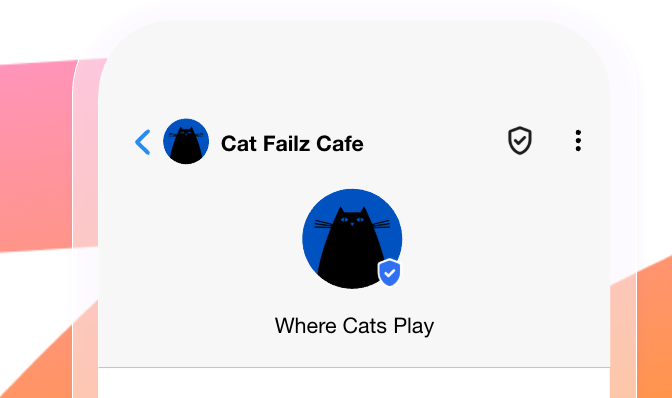
After you have added the RCS SKU(s) to your order form, Braze will be notified and will contact you with RCS sender registration information. The format of these will depend on the countries you wish to send RCS messages to.
When you’ve submitted your completed forms to Braze, we will complete the registration process on your behalf.
Step 2.1: Set up SMS fallbacks for RCS subscription groups
Because current carrier coverage varies by country, and user hardware and software support vary by individual, SMS fallback is a key component of having a successful RCS program today. We recommend setting up SMS fallback. If a carrier doesn’t support RCS or a user’s device is unable to receive RCS messages, SMS fallback will send your message regardless, so that you never miss an important moment with your users.
We highly recommend reviewing your current SMS opt-in experience, subscription groups, and audience segmentation before deploying your first RCS campaign. If needed, your customer success manager is always available to provide guidance and help you navigate the setup process.
Timeline for carrier approval
The timeline for carrier approval varies by country and can also vary within a country. Keep in mind that the RCS market is still in its infancy, so carrier and aggregator processes are rapidly evolving. In the United States, Braze estimates that carrier approval turnaround time for an RCS-verified sender typically falls within the 4—6 week range, with a test sender typically approved within one week.
When your RCS-verified sender is approved, our operations team will update your subscription groups as needed to confirm they have the RCS sender included in them.
Step 3: Set up subscription groups
Depending on your integration, Braze can add RCS-verified senders to your existing SMS subscription groups or set up new ones. For detailed setup instructions, refer to SMS and RCS subscription groups.
Migrating SMS traffic to RCS
If you have separate SMS and RCS subscription groups, you can migrate users from SMS to RCS using a one-step Canvas.
Braze recommends that you test sending RCS to smaller volumes of users initially and migrate more users to the RCS subscription group over time. For example, if you have 1,000,000 users subscribed to an SMS subscription group, this could look like first migrating all users to the new subscription group and then segmenting on a smaller audience of 50,000 to 100,000 (5-10%) to test the RCS messages.
Step 1: Create a Canvas and fill out the Entry Schedule
Create a Canvas and name it something easily identifiable (such as “SMS-RCS Subscription Group User Transfer”). Then, schedule the campaign whenever is convenient for you.
Step 2: Define your audience
Define your audience using one of the following methods. Next, go to the Send Settings step and select Users who are subscribed or opted-in.
| Method | Description |
|---|---|
| Create a segment | Build a segment that includes all users in a subscription group or a subset using segmentation filters (such as a random 5-10%). Segments update before each send to reflect your current user base. |
| Apply campaign or Canvas filters | Refine the audience in the Target Audience step of your campaign or Canvas. Adjust targeting options without leaving the page for added flexibility. |
Step 3: Configure a User Update step
Add a User Update Step to your Canvas. In the step, open the Advanced JSON Editor and input the following (for the unique user identifier field, we recommend using the braze_id field):
1
2
3
4
5
6
7
8
9
10
11
12
13
14
{
  "attributes": [
    {
      "braze_id": "{{${braze_id}}}",
      "subscription_groups": [
        {
          "subscription_group_id": "xxxxxxxx-xxxx-xxxx-xxxx-xxxxxxxxxxx",
          "subscription_state": "subscribed",
          "use_double_opt_in_logic": true
        }
      ]
    }
  ]
}
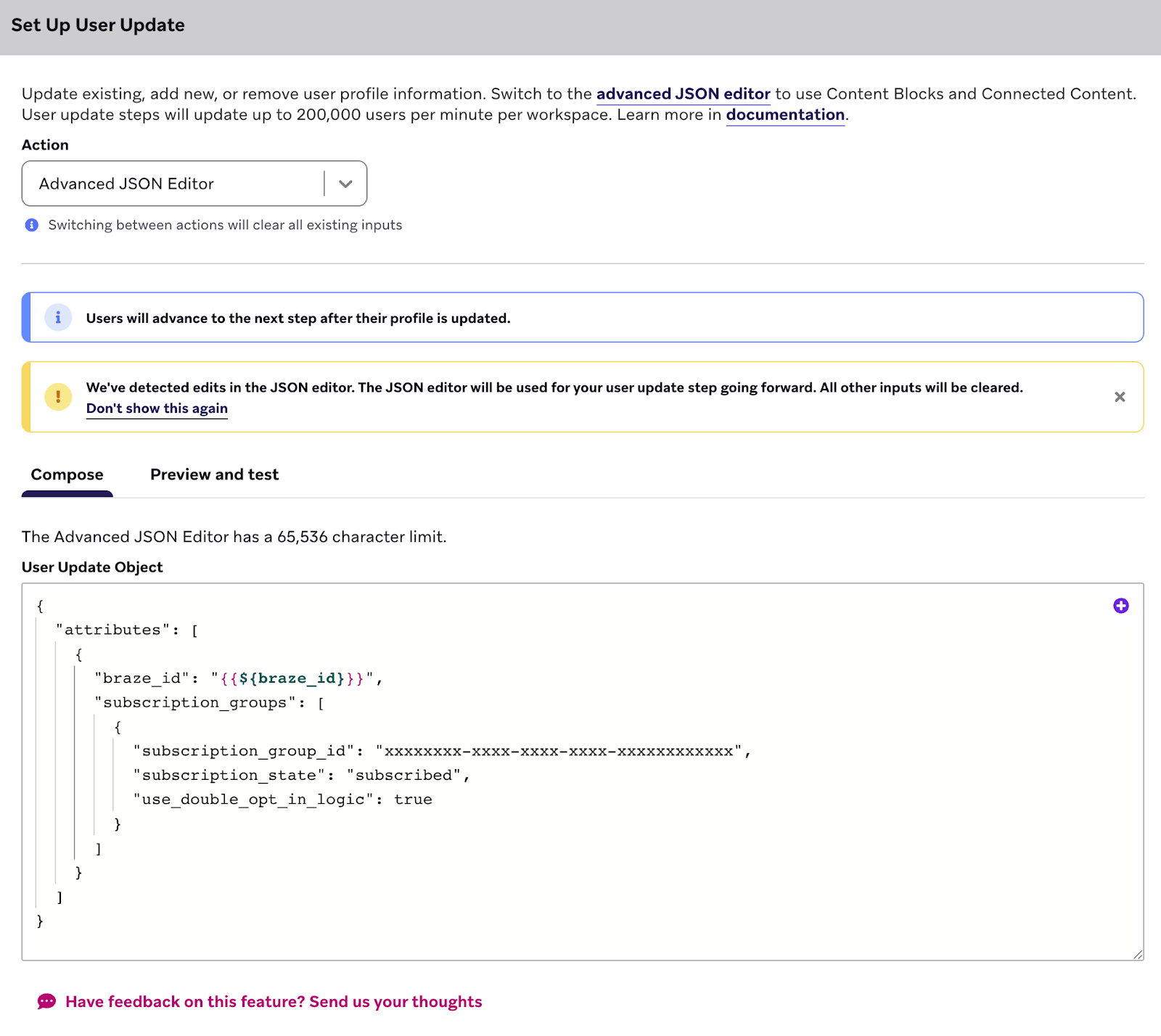
Step 4: Test the Canvas
We highly recommend testing your Canvas to confirm it works as expected before sending it to your broader audience.
Step 5: Launch your Canvas
After you have successfully tested your Canvas, go ahead and launch it for your subset of users!
To confirm that your users were successfully migrated, we recommend checking a few individual user profiles that were updated. In the Engagement tab, look for Contact Settings and scroll to view the subscription groups the user is subscribed to. The RCS subscription group toggle should now be on.
 Edit this page on GitHub