Reviewing BrazeAI Operator actions
Learn how to review and approve actions when BrazeAI OperatorTM proposes changes in the dashboard.
How action cards work
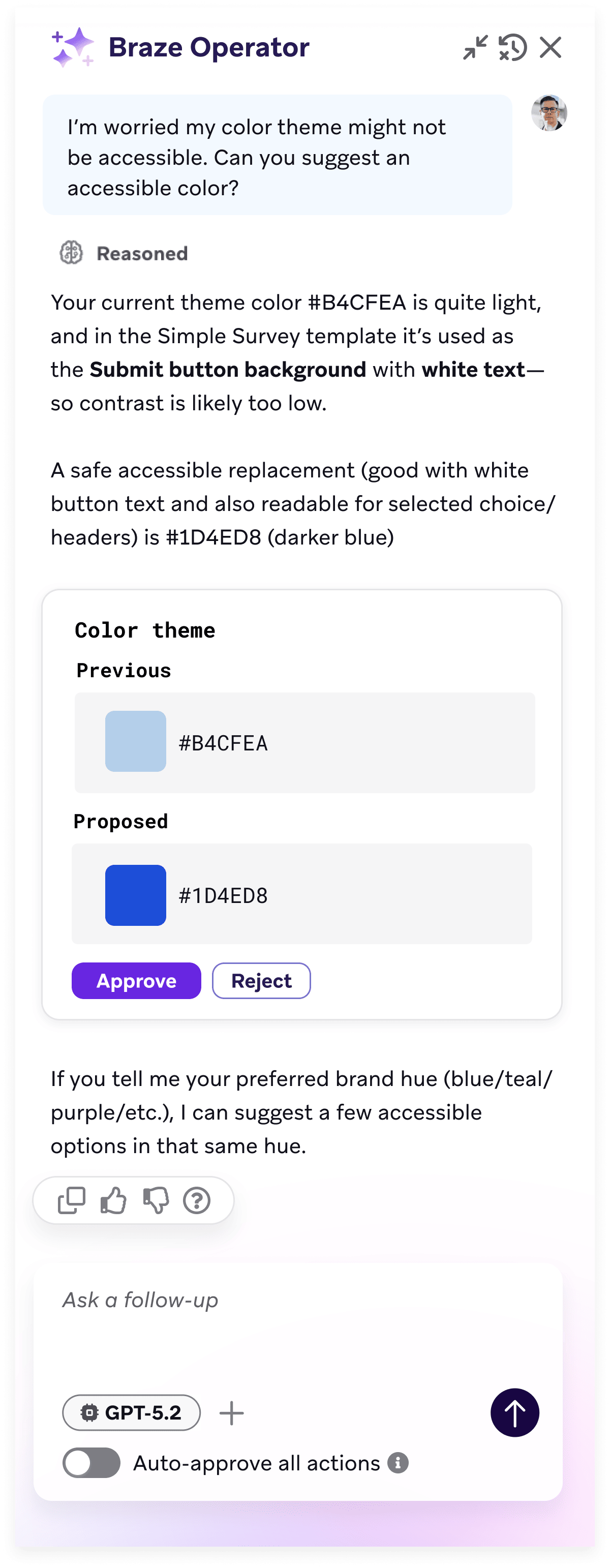
When Operator proposes changes in the dashboard (such as filling in form fields, updating settings, or generating images), it presents each change as an action card for review.
- Operator summarizes the plan: Operator explains what it plans to do before showing action cards.
- Individual action cards appear: Each proposed change is presented as a separate card that shows what Operator wants to change or do in the dashboard. For changes to existing values, both the previous value and the proposed value are shown side by side for comparison.
- Review and approve: Review each card and either approve or decline it.
- Action executes: Approved actions are executed in Braze. Declined actions are not applied.
If an action fails after approval, Operator will notify with details about the failure.
Availability
Action cards are supported in the following editors and pages.
- Message editors:
- In-app messages (traditional editor only)
- Content Cards
- Email (HTML editor only)
- Push notifications
- SMS/MMS/RCS
- Webhooks
- Create custom agent page
On other pages, Operator provides a list of steps to follow in the UI instead of taking action itself. Operator functionality is regularly being improved, and expanded coverage for create tools is expected.
Modify a plan
To modify Operator’s plan, first approve or reject the pending actions. Then describe the desired change in a new chat message.
Approved actions can’t be undone through Operator. Describe the new change to Operator or make changes manually in the dashboard.
Auto-approve actions
The Auto-approve actions toggle is located in the Operator chat panel.
- On: Operator’s suggested actions execute immediately without requiring manual approval. Some actions still require explicit approval for safety, such as generating images or making modifications to workspace-level settings.
- Off (default): All proposed actions follow the manual review process described.
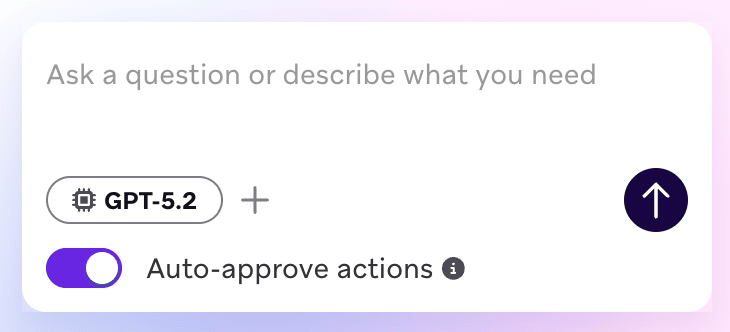
Auto-approve resets when you refresh the page, open a new tab, or log out and back in. Moving between pages in the dashboard does not reset it. Auto-approve can be turned off at any time.
For information about restricting Operator access and auditing team usage, see Data privacy and security.