Frequently asked questions
This page provides answers to frequently asked questions about the media library in Braze.
General
Are there storage limits for images within the media library?
No, there are no storage limits for assets within the media library. However, there are size limits for assets (maximum 5 MB).
Are there expiration dates for uploaded assets?
No, assets uploaded to the media library are retained for the entire duration of your contract with Braze.
Can I upload video assets?
No, the media library doesn’t support video files. Host these externally, or on a platform such as YouTube.
Can I crop all image types?
No, the media library doesn’t support cropping GIF images.
How do I copy the URL of an image uploaded to the media library?
To copy the URL of an image uploaded to the media library, navigate to Content > Media Library. Hover over the image you want to reference, then select the Copy Image URL icon to copy the image URL to your clipboard.
Can I use SVG images in email?
SVG images are not recommended for email due to limited support across email clients. Gmail and several other major email providers do not render SVG images, which can result in broken or missing images for recipients. For reliable email rendering, use PNG, JPEG, or GIF formats instead.
How do I crop an existing image?
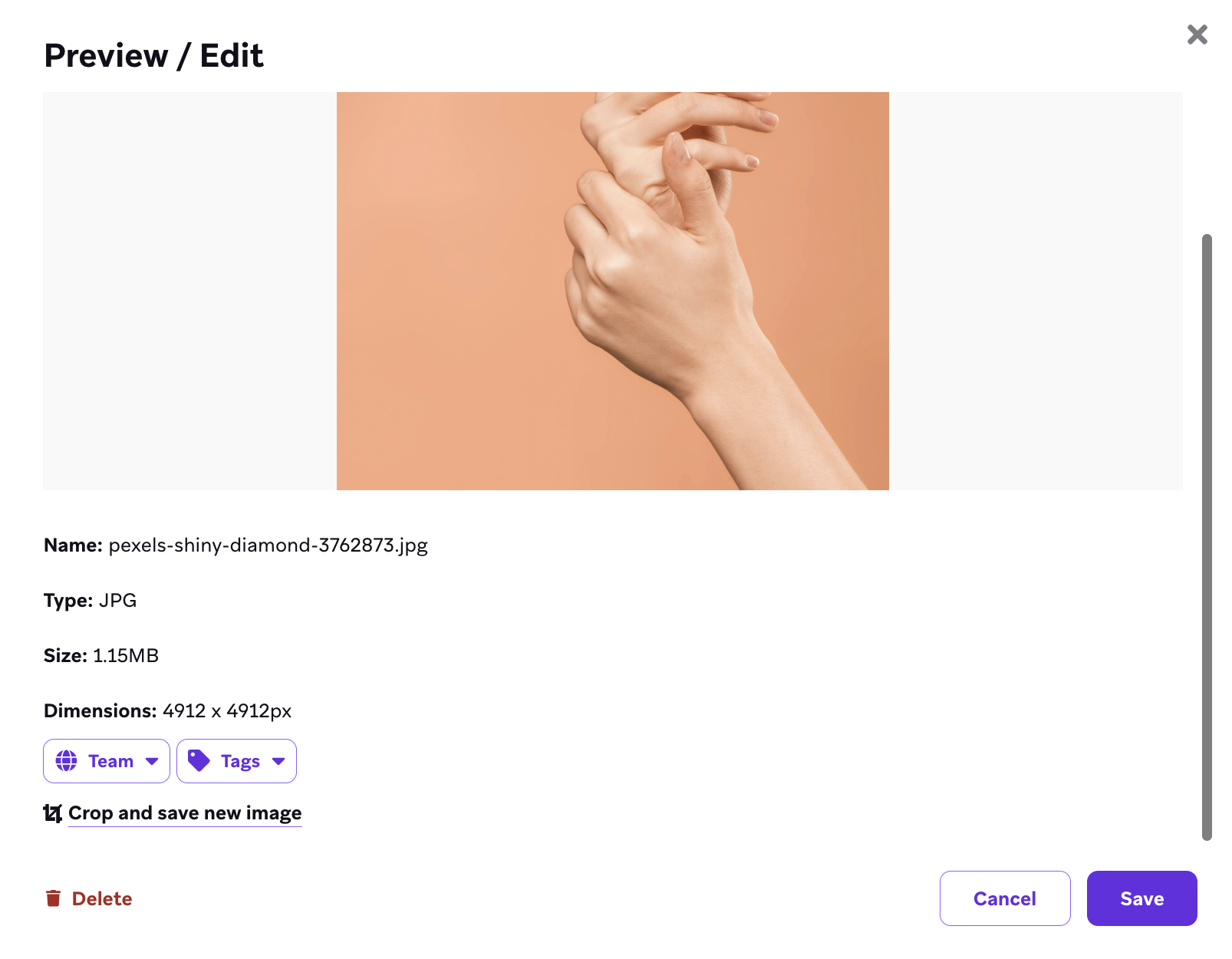
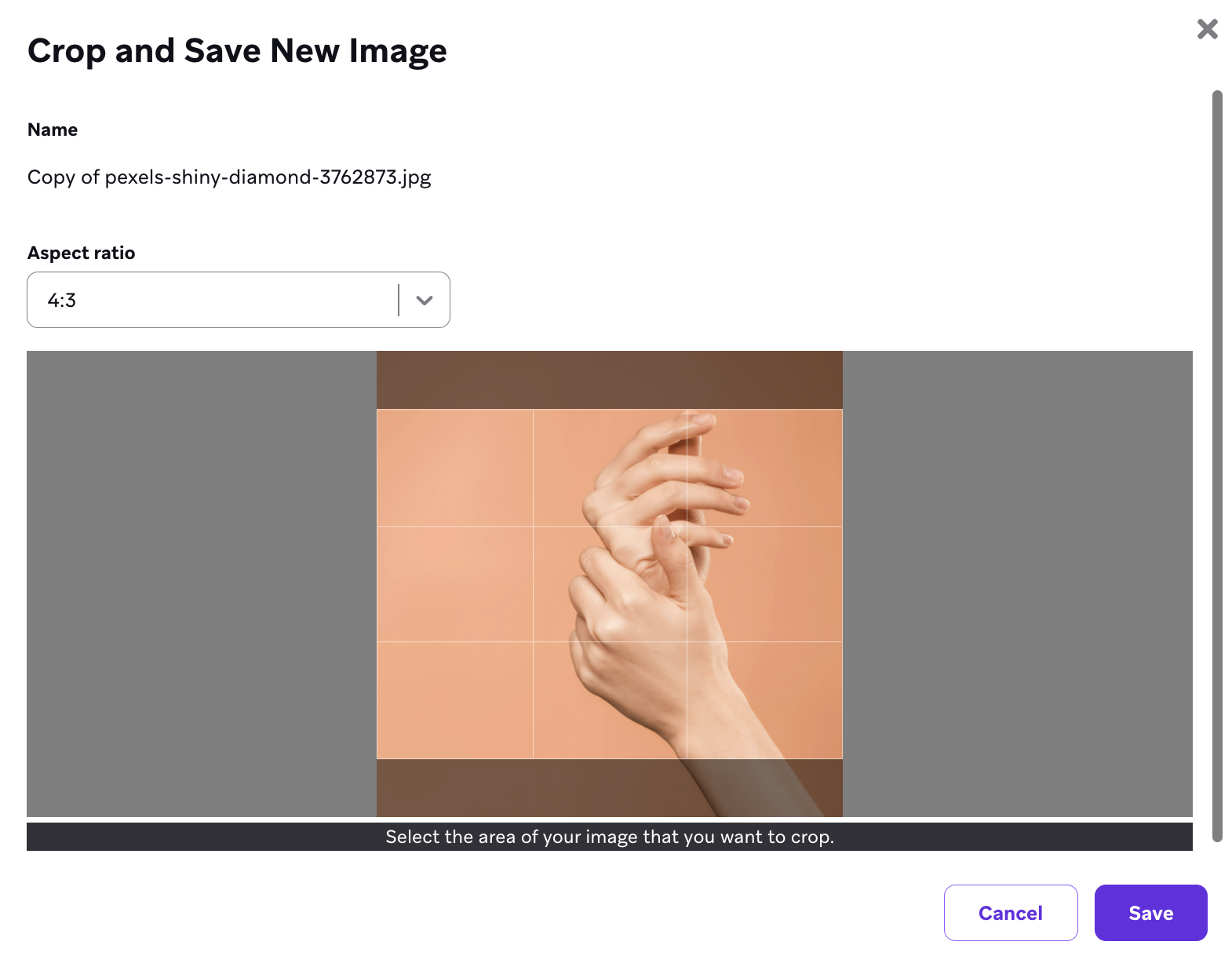
You can crop an existing image by selecting the image from the media library and clicking Crop & Save New Image.
The cropping composer opens, where you can select your ratio type and edit the name of the new image. When you select Save, you can use your new image.
My image keeps timing out when I try to upload it. What can I do about this?
This can happen for a variety of reasons, but a common solution is to make sure your image is optimized before attempting to upload it. This means running your image through an image optimizer such as ImageOptim.
Additionally, if your image was built in Photoshop (or similar software) and has many layers, merging and reducing the number of layers can also help.
I see an “Unexpected Error” when uploading an image even though it’s under 5 MB and in a supported format. What’s wrong?
This can happen for two main reasons:
- Invalid metadata in the file: The software Braze uses to process images may reject files with invalid or incompatible metadata. In some cases, the file may also be processed in a way that pushes it over the 5 MB limit. Try using a different image (for example, re-export or re-save the image from your image editor) or an image from another source.
- Special characters in the file name: File names that contain special characters (such as
&or%) can cause the upload to fail. Rename the file to use only letters, numbers, hyphens, or underscores, then try uploading again.
Why can’t I upload any image I want into the push composers?
This is because most composers have restrictions on the image ratio size that is allowed.
Generate an image using AI
You can generate images from Content > Media Library by selecting Generate with Operator. You need the “Edit Media Library Assets” permission. If you don’t see the option, contact your Braze account team. For steps and policy details, see Generate images with BrazeAI and Generating images with BrazeAI.
What happens when I delete an image from the media library?
Deleting an asset removes it from the media library UI, but Braze keeps the file hosted at its existing URL, so active campaigns and Canvases that reference that URL continue to load the image. To permanently remove an asset from Braze hosting, contact Braze Support. To update what recipients see without changing URLs in every message, use Replace a file instead.
Can I change image assets in emails that have already been sent?
You can update the image in an already-sent email by replacing the file at its existing URL. The asset’s URL and ID stay the same, so any message that references it, including already-sent emails, reflects the new file. Some recipients may still see the previous image if it was already cached on their device before you made the change, so this doesn’t guarantee every recipient sees the update immediately.
Does Braze cache images added through an external URL in Content Cards and in-app messages?
It depends on the channel:
- Content Cards and traditional in-app messages (modal, slideup, and fullscreen): Yes. When you set up the message, Braze copies the image to its own CDN. The image in the message is served from that copy, so changing or deleting the original source (such as removing the asset from an S3 bucket) doesn’t affect Content Cards that have already been created or sent.
- HTML in-app messages and drag-and-drop in-app messages: No. Braze does not cache the image. The message loads the image directly from the URL you provided, so changing or removing the source URL breaks the image in live campaigns.
- Email: Behavior depends on how the image was added. For more information, see Can I change image assets in emails that have already been sent?.
Can I create vanity URLs for media library image assets?
Vanity URLs for Media Library assets aren’t supported because custom URLs would break CDN delivery. You can replace an image at its existing URL when campaigns already reference that URL. For more information, see Replace a file.
Why does Chrome save JPEG or PNG images as WebP files?
When using Chrome to save images from the media library, the browser may automatically convert JPEG or PNG files to WebP format. This is Chrome’s default behavior for image downloads and is not specific to Braze. If you need to save images in their original format, try using a different browser such as Safari or Firefox.