Troubleshoot push
Use this page to troubleshoot push delivery, click behavior, and credential issues. For SDK-specific setup, see Troubleshoot push notifications for the Braze SDK. For error codes, see Common push error messages.
Start here: Match your symptom
| Symptom | Go to |
|---|---|
| User didn’t receive a push notification | Missing push notifications |
| Push notifications arrive late | Delayed push notifications |
| Push sends slower than expected | Push notifications are sending slower than expected |
MismatchSenderID error (Android) |
Error: MismatchSenderID |
| Tapping a push doesn’t open the app | Clicking a push notification doesn’t open the app |
| Push links open in the app instead of the browser | Push clicks unexpectedly open in app |
| Web push permissions or delivery issues | Web push notifications aren’t behaving as expected |
Need to migrate from .p12 to .p8 (iOS) |
Migrate to a .p8 authentication key |
| Specific push error code in logs | Push error messages |
Standard investigation path
Use this workflow when a user or test device didn’t receive a push. Start at step 1.
- Confirm the user is push subscribed or opted in and has a valid push token in the Engagement tab of their profile.
- Confirm the user is in the campaign or Canvas target audience at send time (segments update in real time).
- Check global frequency caps, rate limits, and control group assignment for the campaign or Canvas.
- Confirm you’re using the correct push type for the device (for example, Android, iOS, or Kindle).
- For internal testing, confirm the tester is logged into the correct app on the device.
- If delivery still fails, review Common push error messages or contact Braze Support with the campaign or Canvas ID, user ID, and timestamp with timezone.
Missing push notifications
Symptom: A user didn’t receive an expected push notification.
If push notifications are not arriving as expected, work through the following checks:
- Push subscription status
- Segment
- Push notification caps
- Rate limits
- Control group status
- Valid push token
- Push notification type
- Current app
Push subscription status
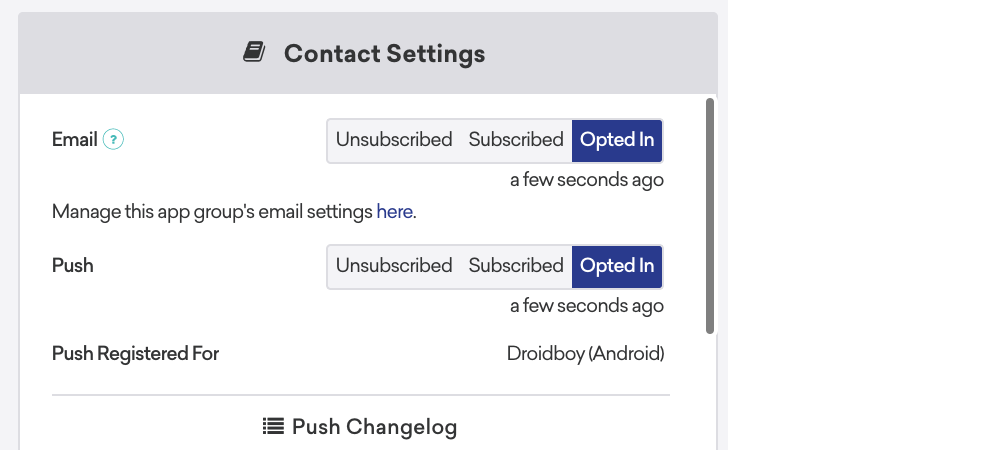
Pushes can be sent only to subscribed or opted-in users. In the User Profile, open the Engagement tab and confirm that you are actively registered for push in the workspace you are testing. If you are registered for multiple apps, they are listed in Push Registered For:
You can also export user profiles with Braze export endpoints:
Either endpoint returns a push token object that includes push enablement information per device.
Segment
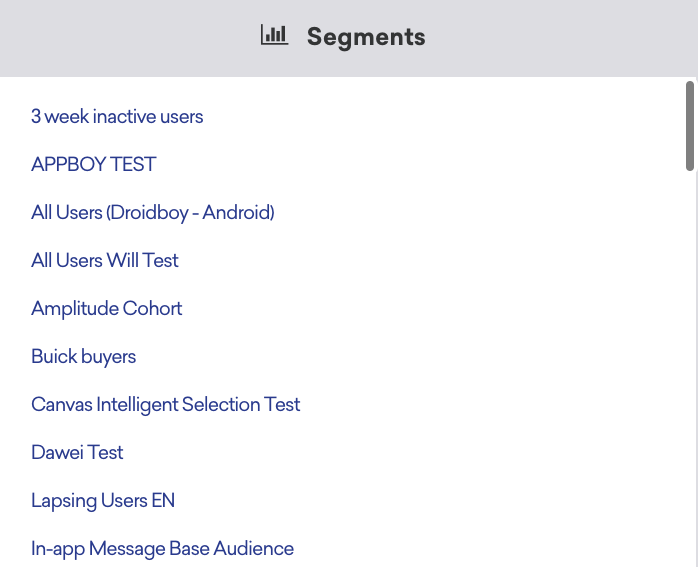
Confirm that you are in the segment you are targeting (if this is a live campaign and not a test). In the User Profile, you can see which segments the user currently matches. Segment membership updates in real time.
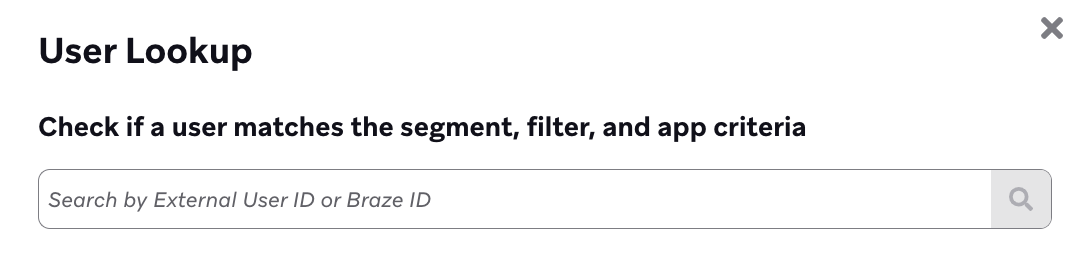
You can also confirm that the user is part of the segment by using User Lookup when creating a segment. User Lookup accepts only external_id or braze_id—not email addresses or phone numbers. To search by email, phone, push token, or user alias, see Search Users.
Push notification caps
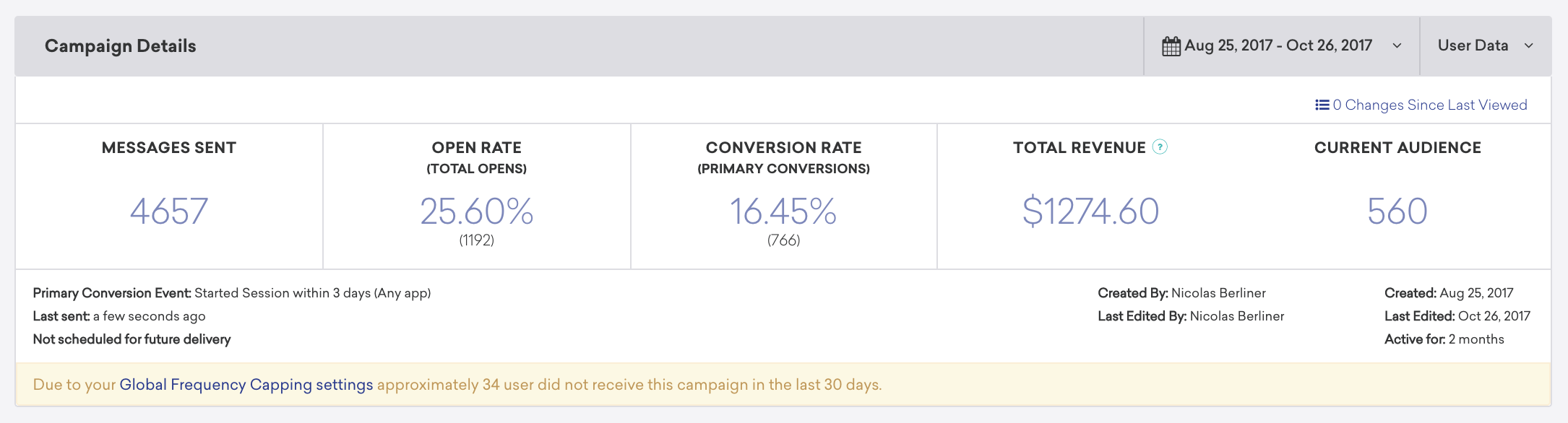
Check the global frequency caps. It’s possible you did not receive the push notification because your workspace has global frequency capping in place and you’ve already hit your push notification cap for the specified time frame.
On the campaign Analytics page, check for a frequency capping banner showing approximately how many users didn’t receive the campaign in the last 30 days. To investigate individual sends, use the Messaging Diagnostics dashboard and filter by Frequency capped. To review or change rules, see global frequency capping.
Rate limits
If you have a rate limit set for your campaign or Canvas, you might stop receiving messages after you exceed that limit. For more information, see Rate limiting.
Control group status
If this is a single-channel campaign or a Canvas with a control group, you might be in the control group.
- Check the variant distribution to see if there is a control group.
- If so, create a segment that filters for in campaign control group, then export the segment and check whether your user ID is on the list.
Valid push token
A push token is an identifier that senders use to target a specific device with a push notification. Without a valid push token, Braze cannot send a push to that device.
Braze stores up to 20 devices per user profile. When a 21st device registers, the oldest device is removed (first in, first out, or FIFO). Calling changeUser() in the SDK re-registers the current device on the profile.
Push notification type
Use the push type that matches the device or platform you are targeting. For example, use a Kindle push notification for Fire TV, not an Android push campaign. For Android devices, use an Android push notification rather than an iOS push campaign.
For platform-specific troubleshooting workflows, see:
Current app
When you test push with internal users, confirm that the intended recipient is signed in to the correct app. Otherwise, they might not receive the push, or they might receive one you did not expect based on segmentation.

If you’re sending push messages with images on Android, FCM can sometimes discard the image and only display the text in the push message. This issue is usually caused by server connectivity issues.
Error: MismatchSenderID
Symptom: Android push fails with a MismatchSenderID error.
MismatchSenderID indicates an authentication failure with Firebase Cloud Messaging (FCM). Confirm your Firebase sender ID and FCM API key are correct.
To find the proper Firebase Server Key and replace it:
- Go to the Firebase console for your app.
- Under Project Overview, select Project Settings.
- In the Cloud Messaging tab, check that the Sender ID listed with the API keys matches the one in Braze (in Settings > App Settings > Cloud Messaging API Key).
Do not change your Sender ID in your Braze dashboard. Doing so causes existing push registrations to be invalidated. If the Sender ID does not match, you must find your Firebase project with the matching Sender ID.
- Copy the Server Key under Project credentials.
- In Braze, go to Settings > App Settings, select your app, and paste the server key into the Cloud Messaging API Key field (replacing the outdated key).
- Select Save.
- To verify, send a test push to a device before and after changing the API key without opening the application. This helps confirm that users continue to receive push notifications without requiring a new push registration ID (push token) to be generated.
Troubleshooting scenarios
Delayed push notifications
Symptom: Push notifications arrive later than expected.
Your push notifications can be delayed for these reasons:
- A weak data connection on the device
- Custom code in the app that can suppress Braze push notifications
- User preferences for push notifications in the device’s settings
- Message priority of the push when created in the campaign or Canvas
- Traffic delays or issues with the push service providers (FCM and APNs)
Push notifications are sending slower than expected
Symptom: Campaign or Canvas push sends take longer than expected to complete.
Confirm that your push notification setup follows these best practices:
- If you’re sending to large audiences without considering push-enabled status, this may lead to a slower sending speed. Instead, consider sending to push-enabled users only to reduce the size of your audience.
- If possible, try to schedule your campaigns ahead of time rather than immediately.
- If you’re targeting a larger number of users with push notifications in a Canvas, you can anticipate that subsequent message steps in the Canvas will require different processing times than a campaign that sends to users immediately. In this case, campaigns would typically finish sending before a Canvas, as the first “step” of a Canvas is to check whether users qualify for the specific user journey.
Clicking a push notification doesn’t open the app
Symptom: Tapping a push notification doesn’t open the app or navigate as configured.
If clicking a push notification doesn’t open your app, check the following based on your platform.
Android
- Verify on-click behavior: Confirm that the campaign is configured to open the app when clicked.
- Check deep link handling: In your
braze.xmlfile, check whethercom_braze_handle_push_deep_links_automaticallyis set totrueorfalse.- If set to
true, the Braze SDK handles deep links directly and the app should open as expected. - If set to
false, your app needs a broadcast receiver to listen for and handle push received and opened intents. Verify that this receiver is implemented correctly.
- If set to
- Collect verbose logs: Enable verbose logging, reproduce the issue, and provide the logs along with your
braze.xmlandAndroidManifest.xmlto Braze Support.
iOS
- Verify on-click behavior: Confirm that the campaign is configured to open the app when clicked.
- Check push integration: Deep linking from a push into the app is automatically handled by the Braze standard push integration. Confirm that the integration is implemented correctly, including any custom delegate handling.
- Collect verbose logs: Enable verbose logging, reproduce the issue, and provide the logs to Braze Support.
Push clicks unexpectedly open in app
Symptom: Links in push notifications open inside the app instead of the device’s web browser.
If you’re experiencing issues with links in push notifications unexpectedly opening in your app instead of your web browser, there may be an issue with your campaign configuration or SDK implementation. Use the following steps for help.
Verify on-click behavior
In your campaign or Canvas step, double-check that Open web URL inside mobile app is not selected. If it is, clear the selection and relaunch.
The default interaction for the on-click behavior “Open web URL” differs by SDK version. For SDK versions iOS 2.29.0 and Android 2.0.0 and higher, this option is selected by default and web URLs open in a web view within the app. Prior to these versions, this option is cleared by default and web URLs open in the device’s default web browser.
If this is not the issue, there may be a problem with your push implementation.
Double-check push integration
If links in your push notifications are opening in the app unexpectedly, it might be due to issues with your push notification integration or customization settings. Follow these steps to troubleshoot:
- Review the push delegate implementation: Ensure that the Braze push delegate is implemented correctly. For detailed instructions, see the integration guide for push notifications for your platform.
- Inspect custom link handling: Check if the app includes custom handling for all
https://links. Custom configurations might override default behaviors. Collaborate with your development team to review and adjust these settings if necessary. - Verify iOS push registration: For iOS, revisit step 1 of the push integration guide on registering push notifications with APNs. Ensure your delegate object is assigned synchronously before the app finishes launching. This step should be completed in the
application:didFinishLaunchingWithOptions:method. - Test your integration: After making adjustments, test the push notification behavior on both iOS and Android devices to confirm the issue is resolved.
Deep links with app still running in the background (iOS)
If deep links work when the app is not running or when the link is used directly, but not when the application is already running in the background, the issue may be related to how the app handles the link. Check whether you’re using any third-party libraries that use method swizzling. We recommend turning swizzling off, as it can cause issues with deep link implementations.
Migrate to a .p8 authentication key
Symptom: You need to migrate iOS push credentials from a legacy certificate to a .p8 key, or push delivery failed after a credential change.
Apple .p8 authentication keys are the required approach for APNs push in Braze. Unlike legacy certificate file types, .p8 keys don’t expire and support all of your apps under a single key, eliminating the need for annual certificate renewals and reducing the risk of push delivery failures.
If you’re currently using a .p12 or .pem certificate, migrate to a .p8 key as soon as possible. For instructions on creating and uploading a .p8 key, see Upload your APNs push certificate. For Apple’s guidance on generating a .p8 key from your developer account, see Communicate with APNs using authentication tokens.
.p8 keys versus .p12 certificates
Use the following table to compare credential types, expiration, and how each appears in the dashboard.
| Credential | Expiration | Dashboard status indicator |
|---|---|---|
.p8 authentication key |
Does not expire | No green status indicator (this is expected) |
.p12 push certificate |
Expires yearly | Green indicator when the certificate is valid |
When you replace a .p12 certificate with a .p8 key (or upload a new credential), push delivery can pause briefly while Braze processes the change. Plan updates during a maintenance window when possible.
In Settings > App Settings > Push Notification Settings, confirm that App Bundle ID, Team ID, and Key ID (for .p8 keys) match the values in your Apple Developer account. Multiple Braze workspaces can use the same Apple push credential when the iOS app bundle ID is identical; the credential environment (development versus production) must match how the app was built.
Apps on Braze Swift SDK 10.0.0 or later can use Dynamic APNs gateway management, which routes tokens to the correct APNs environment automatically.
Web push notifications aren’t behaving as expected
Symptom: Browser push notifications don’t display, or site permissions appear stuck.
If you’re experiencing issues with push notifications in your browser, you may need to reset your site’s notification permissions and clear your site’s storage. Use the following steps for help.
Reset Chrome on desktop
- Next to your URL in the Chrome browser, select the View Site Information slider icon.
- Under Notifications, select Reset permission.
- Open Chrome DevTools. The following are the relevant shortcuts per operating system.
| OS | Keyboard shortcuts |
|---|---|
| Mac | Fn + F12Ctrl + Shift + I |
| Windows | F12Ctrl + Shift + I |
- In DevTools, navigate to the Application tab.
- In the sidebar, select Storage.
- Select Clear site data.
- Chrome will prompt you to reload the page to apply your updated settings. Select Reload.
Your push permissions are now reset. Open a new tab to your site and try it out.
Reset Chrome on Android
If you have a notification from your site visible in your Android notification drawer:
- From the push notification, select Settings and select Site settings.
- From Site settings, tap Clear & Reset.
If you don’t have a notification from your site open:
- Open Chrome on Android.
- Tap the menu.
- Go to Settings > Site Settings > Notifications.
- Verify notifications are set to Ask before sending (recommended).
- Find your site on the list.
- Select the entry and tap Clear and Reset.
Your push permissions are now reset. Open a new tab to your site and try it out.
Reset Firefox on desktop
- Next to your site URL, select or .
- Under Permissions, next to Receive Notifications, select Clear permission to clear notification permissions.
- On the same menu, select Clear Cookies and Site Data.
- In the dialog to confirm your choice, select OK.
Your push permissions are now reset. Open a new tab to your site and try it out.
Reset Firefox on Android
To reset push permissions on Android, see Clear your browsing history and other personal data in Mozilla Support.
Reset Safari on macOS
These steps are for macOS only, as Apple doesn’t support Web Push for Safari on Windows.
- Open Safari.
- From the menu bar on Mac, go to Safari > Settings > Websites > Notifications.
- Select your site from the list.
- Select Remove to delete notification permissions for the site.
- Then, go to Privacy > Manage Website Data.
- Select your site from the list.
- Select Remove, or to remove all site data, select Remove All.
- Select Done.
Your push permissions are now reset. Open a new tab to your site and try it out.
Push open metrics
Braze logs a Direct Open when a user taps the notification and your app starts a session. Expanding a rich push notification without opening the app does not log a Direct Open.
If a user opens your app after receiving a push without tapping the notification, Braze may log an Influenced Open instead. For definitions and reporting, see Influenced opens.
Push error messages
Symptom: You see a specific push error code (for example, DEVICE_UNREGISTERED, Unregistered, or NotRegistered).
For definitions of common push error codes (including DEVICE_UNREGISTERED, NotRegistered, and Unregistered), see Common push error messages.
When FCM returns errors such as DEVICE_UNREGISTERED or NotRegistered, Braze typically removes the affected push token from the user profile. That removal often indicates the app was uninstalled or the token is no longer valid. Uninstall tracking campaigns use the same token-removal logic at scale.