Workspace messaging rate limits
Use workspace messaging rate limits to regulate the delivery rate of your outgoing messages from your platform to make sure your users are receiving the messages they need to.

Workspace messaging rate limits are rolling out gradually. You may not see these settings in your dashboard yet.
How it works
Workspace messaging rate limits apply to the aggregate of messages sent in your workspace. By setting and optimizing a rate limit at the workspace level, you can better control the outgoing traffic of your Braze messages, preventing any potential spikes in demand that could affect server performance.

Keep in mind that messages sent using API messaging endpoints like /messages/send and /messages/schedule/create are also counted and impacted by workspace messaging rate limits.
The total count of messages sent per minute do not exceed the configured workspace rate limits. There is no particular ordering of which campaigns dispatch within the first few minutes as opposed to the later minutes.
For example, let’s say you have a workspace messaging rate limit of 100,000 messages per minute, and the following messages are all processing at 12 pm:
| Campaign | Number of messages | Send time |
|---|---|---|
| Campaign 1 | 100,000 | 12 pm |
| Campaign 2 | 100,000 | 12 pm |
| Campaign 3 | 100,000 | 12 pm |
The messages are dispatched over a 3-minute interval.
Messages are processed in parallel. When processed, messages are scheduled out to respect the workspace messaging rate limit on a first-come, first-served basis. This means that in this example, the messages sent out each minute are a varying mix from Campaigns 1, 2, and 3 that add up to 100,000.
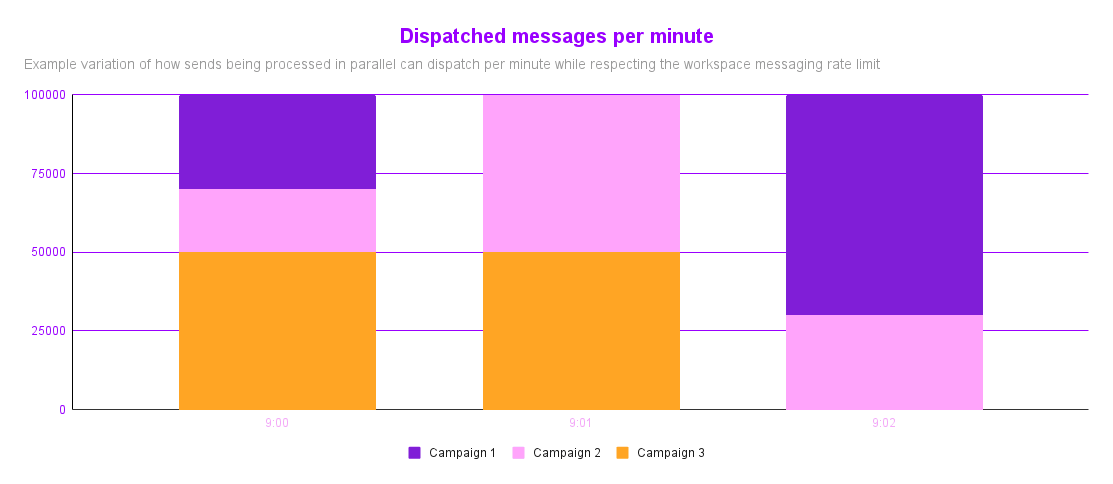
Consider the next example with a workspace messaging rate limit of 100,000 messages per minute, with the following messages set up:
| Campaign | Number of messages | Send time |
|---|---|---|
| Campaign 1 | 1,000,000 | 9 am |
| Campaign 2 | 1,000,000 | 9:05 am |
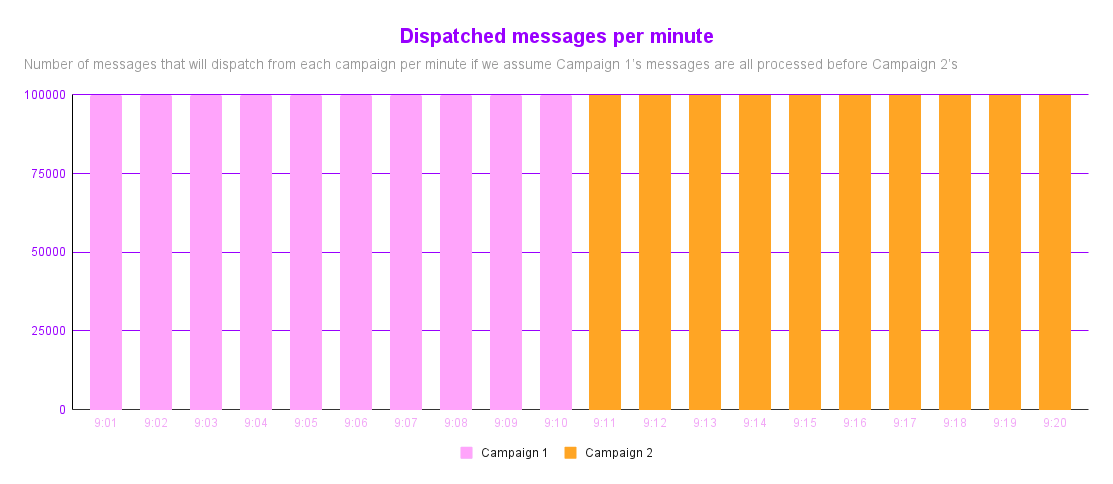
The following is the expected dispatch schedule and messages sent per minute:
- Campaign 1 would be scheduled 9 am–9:10 am, with 100,000 messages sent per minute.
- Campaign 2 would be scheduled to dispatch 5 minutes after its original dispatch time, 9:10 am–9:20 am, with 100,000 messages sent per minute.
After you set the workspace messaging rate limit, you can increase it. However, every message already processed before the increase uses the previously set limit.
Setting your workspace messaging rate limit
- In the Braze dashboard, go to Settings > Workspace Settings > Messaging Rate Limits.
- Select + Add rate limit, then select a messaging channel.
- For Messages per minute, enter the rate limit.
- Select Save.
Things to know
The rate limit is applied to the dispatch, meaning the start of the message send attempt. When there are fluctuations in the time it takes for the send to complete, the number of completed sends may slightly exceed the rate limit in some minutes. Over time, the number of sends per minute average out to no more than the rate limit.
When a campaign or Canvas has its own rate limit set and a workspace-level rate limit that applies, both are applied. For example, if a campaign has a rate limit of 500,000 but, due to workspace rate limits, it can only send 100,000 messages per minute at this time, then the workspace rate limit takes effect.
Braze tries to evenly distribute the message dispatches throughout the minute, but can’t guarantee this. For example, if you have a campaign with a rate limit of 500,000 messages per minute, we’ll try to distribute the 500,000 messages evenly through the minute (about 8,400 messages per second), but there may be some variation in the per-second rate.
Note that you can still set individual rate limits in your campaigns and Canvases. These are applied independently of workspace messaging rate limits.
Webhook sending capacity
For webhook campaigns without a delivery speed rate limit, Braze does not apply a default channel rate limit, so sends can proceed at high throughput. Actual volume depends on several factors, including server latency, Connected Content usage, and the send speed of the external system receiving the webhooks. If your webhook campaign does not have a rate limit, prepare your servers for high-volume traffic. Otherwise, apply a rate limit to control the flow of messages.
Messages not included in the workspace messaging rate limits
- Messages sent using Transactional Email campaigns are not included in the workspace messaging rate limits. This means they are rate-limited and are not counted toward any set workspace messaging rate limits.
- Messages to Seed Groups and test sends are not included in the workspace messaging rate limits. This means they are not rate-limited and are not counted toward any set workspace messaging rate limits.
- SMS auto-responses are not included in the workspace messaging rate limits. This means they are not rate-limited and are not counted toward any set workspace messaging rate limits.
- Workspace messaging rate limits aren’t supported for in-app messages, feature flags, and Banners.