Set up orchestration
Decisioning agents need to connect to a Customer Engagement Platform (CEP) to orchestrate communications once they have ingested customer data and personalized at a 1:1 level. This article explains how to set up the integration for each supported CEP.
Supported CEPs
Decisioning Studio Pro supports the following Customer Engagement Platforms:
| CEP | Integration type | Setup complexity |
|---|---|---|
| Braze | Native API integration | Low (recommended) |
| Salesforce Marketing Cloud | Native API events + Journeys | Medium |
| Klaviyo | Native API events + Flows | Medium |
| Other CEPs | Custom (recommendation file) | High |
Select your CEP below to get started with the integration setup.
Setting up Braze integration
Follow these steps to integrate a Braze Decisioning Studio agent with Braze’s orchestration capabilities (Braze’s services team will be available to help):
Step 1: Create an API key
Go to Settings > API Keys, then create a new key with the following permissions:
| Permission | Purpose | Required? |
|---|---|---|
/users/track |
Updates custom attributes on user profiles, in addition to creating temporary user profiles when using test sends. | ✓ |
/users/delete |
Deletes temporary user profiles that were created while using test sends. | Only for test sends |
/users/export/segment |
Updates the available audience communications every morning by exporting the list of users from each selected segment. | ✓ |
/users/export/ids |
Retrieves a list of identifiers when targeting users using an external_id instead of a segment. Since Decisioning Studio doesn’t accept Personally Identifiable Information (PII), you’ll need to ensure your fields_to_export parameter returns only non-PII fields. |
|
Only if using external_ids |
||
/messages/send |
Sends recommended variants at the recommended time using API Campaigns that are configured for Decisioning Studio’s experimenter. | ✓ |
/campaigns/list |
Retrieves the list of active campaigns and extracts available email content for experimentation. | ✓ |
/campaigns/data_series |
Exports aggregated campaign data to enable reporting, validation, and troubleshooting in Decisioning Studio, so you can compare reporting values and analyze baseline performance. While not required, this permission is recommended. |
|
/campaigns/details |
Retrieves HTML content, subject line, and image resources from existing Campaigns for experimentation. | ✓ |
/canvas/list |
Retrieves the list of active Canvases to extract available email content for experimentation. | ✓ |
/canvas/data_series |
Exports aggregated canvas data for reporting and validation, especially when BAU is orchestrated via Canvas. While not required, this permission is recommended. |
|
/canvas/details |
Retrieves HTML content, subject line, and image resources from existing Canvases for experimentation. | ✓ |
/segments/list |
Retrieves all existing segments as potential target audiences for the Decisioning Studio experimenter. | ✓ |
/segments/data_series |
Exports segment size information, which is shown in Decisioning Studio when selecting an audience. | ✓ |
/segments/details |
Retrieves segment details such as entry and exit criteria to help understand changes in audience size or performance. | |
/templates/email/create |
Creates copies of selected base HTML templates with dynamic placeholders (Braze liquid tags) for experimentation, avoiding changes to the originals. | ✓ |
/templates/email/update |
Pushes updates to Decisioning Studio-created template copies when experimentation criteria change, such as call-to-actions. | ✓ |
/templates/email/info |
Retrieves information about Decisioning Studio-created templates in your Braze instance. | ✓ |
/templates/email/list |
Validates that templates were successfully copied over to your Braze instance. | ✓ |
Step 2: Set up API-triggered campaigns
Set up an API-triggered campaign for each base template with API trigger properties for all optimized dimensions.
A base template is any template that the Decisioning Agent might use for orchestrating messages. A Decisioning Agent might have 1 base template or multiple, in which case choosing the right base template for each customer will be one of the decisions the agent personalizes.
Step 3: Configure re-eligibility
Ensure all API-triggered campaigns allow users to become re-eligible within 15 minutes.
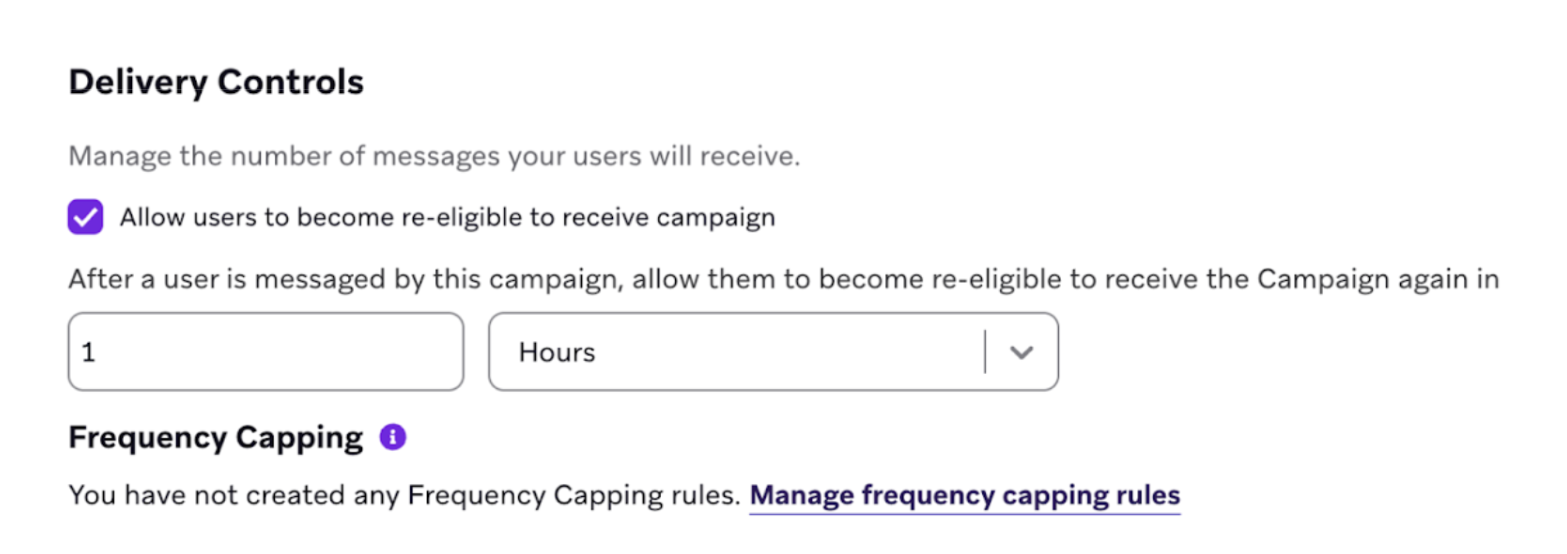
While the Decisioning Studio agent will never send the same campaign more than once a day, you will want to have the ability to send the same campaigns multiple times in a day for testing purposes.
Step 4: Add dynamic placeholders
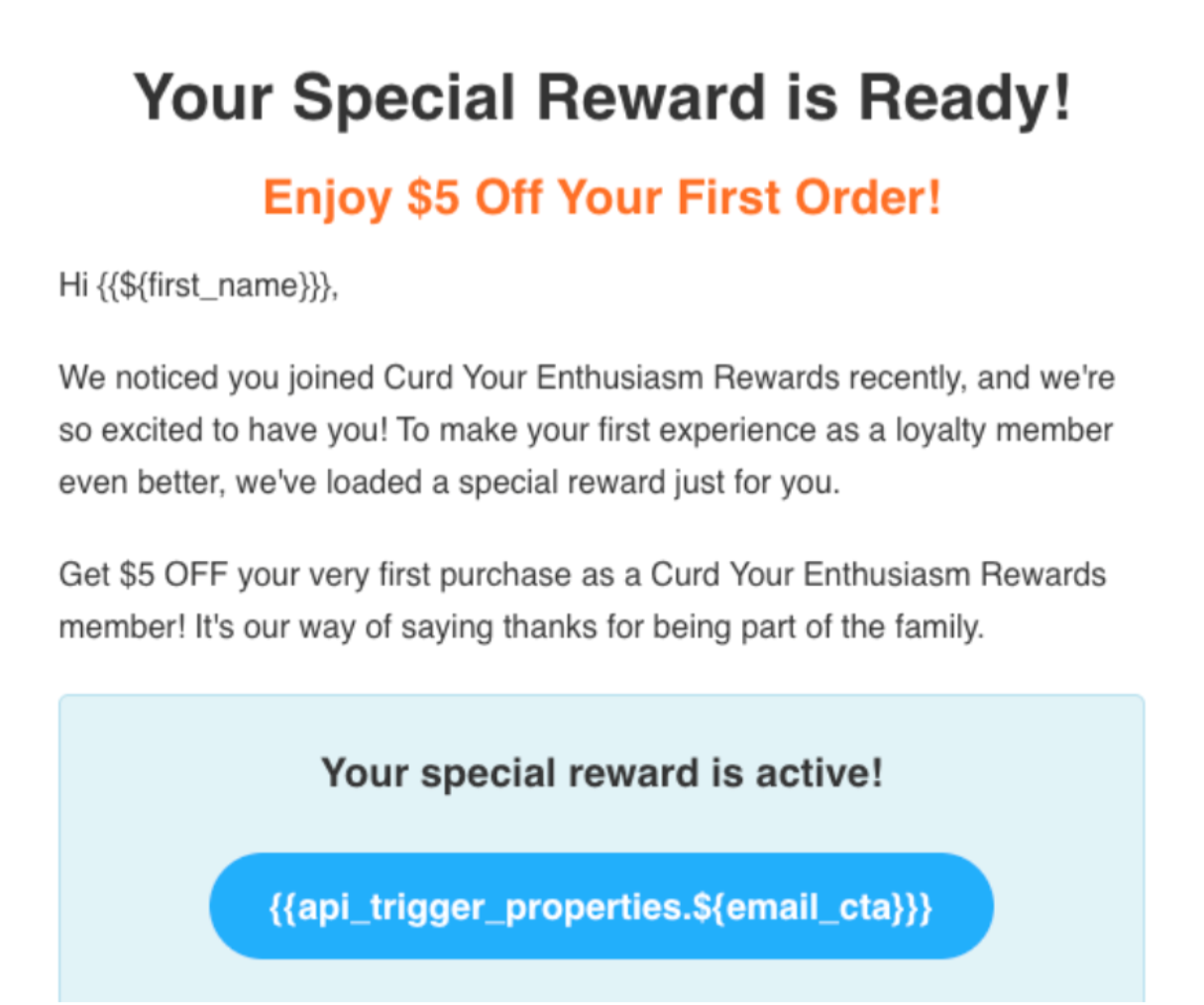
These serve as dynamic placeholders for decisions that the Decisioning Studio agent is optimizing.
Example 1: Email Campaign
Suppose the Decisioning Studio agent is optimizing an email campaign. This might be configured like this:
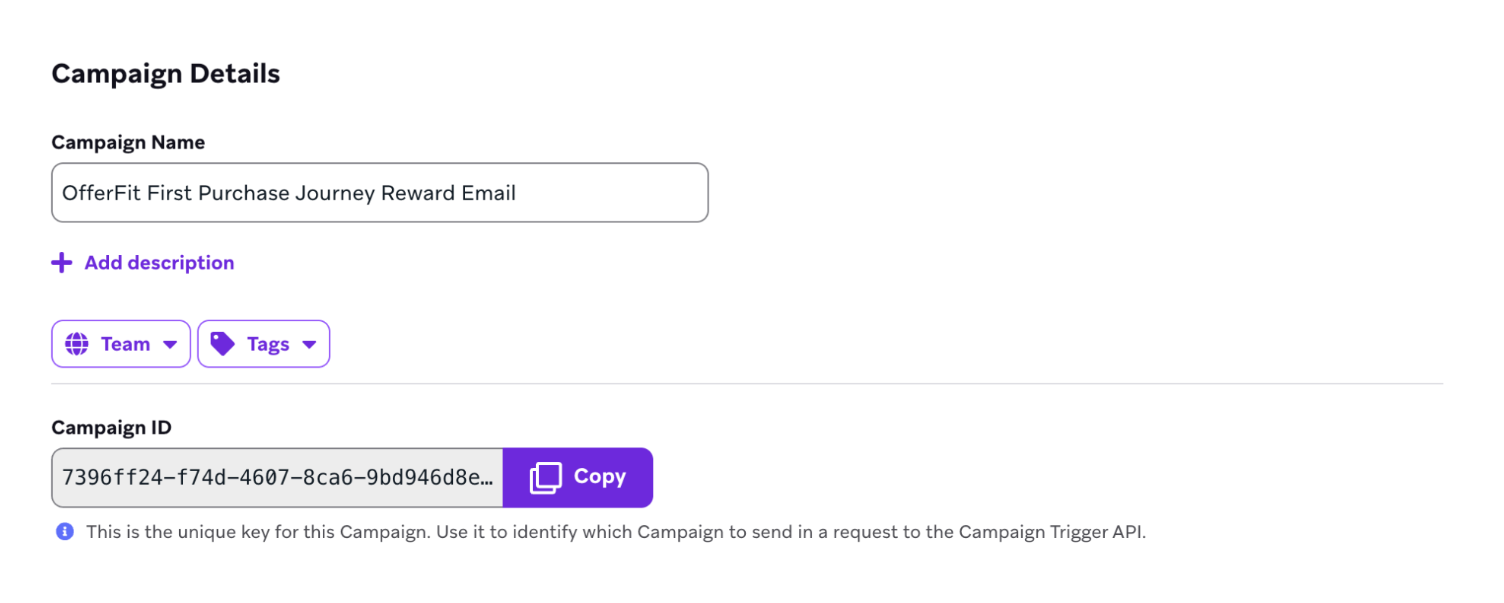
Supposing the agent is optimizing for choice of templates and Call to Action (CTA) message, then an API-triggered campaign should be created for each template, and the CTA section of one template might look like:
Example 2: Push campaign
Suppose a Decisioning Studio agent is optimizing the message of a Push campaign. This might be configured like this:
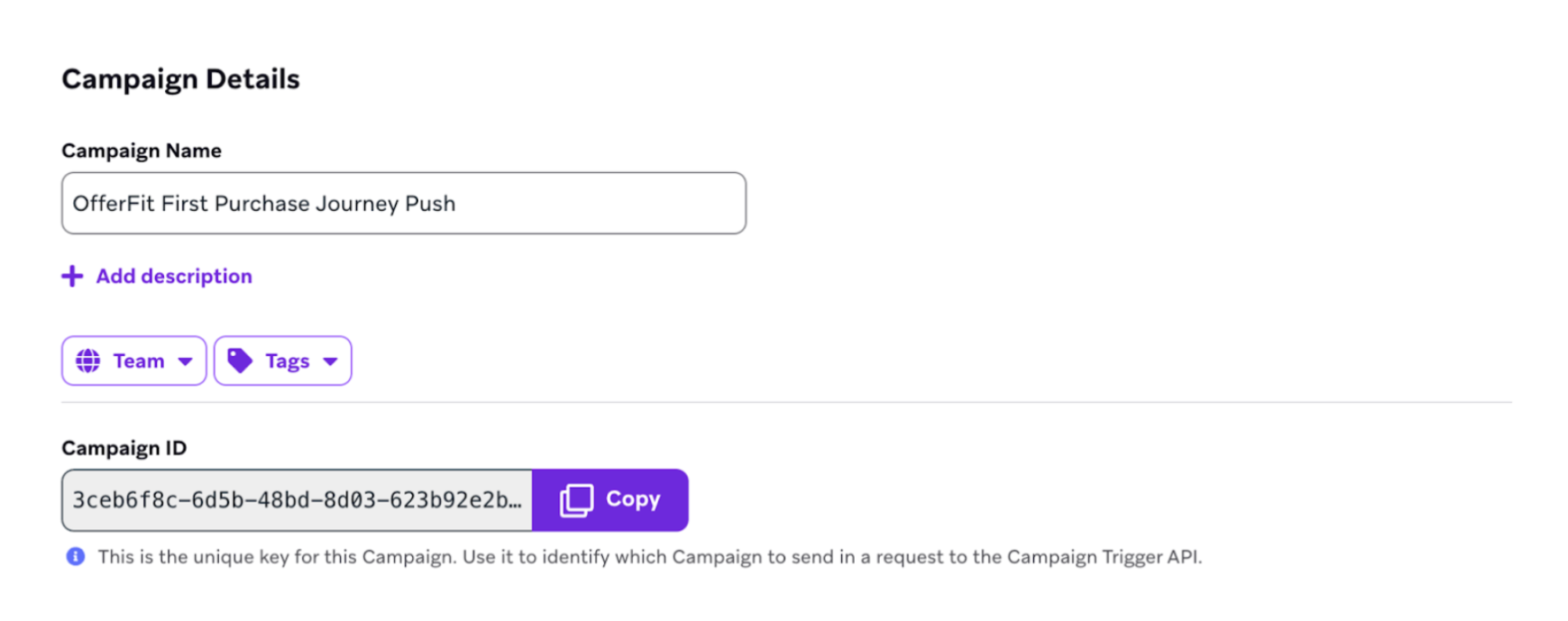
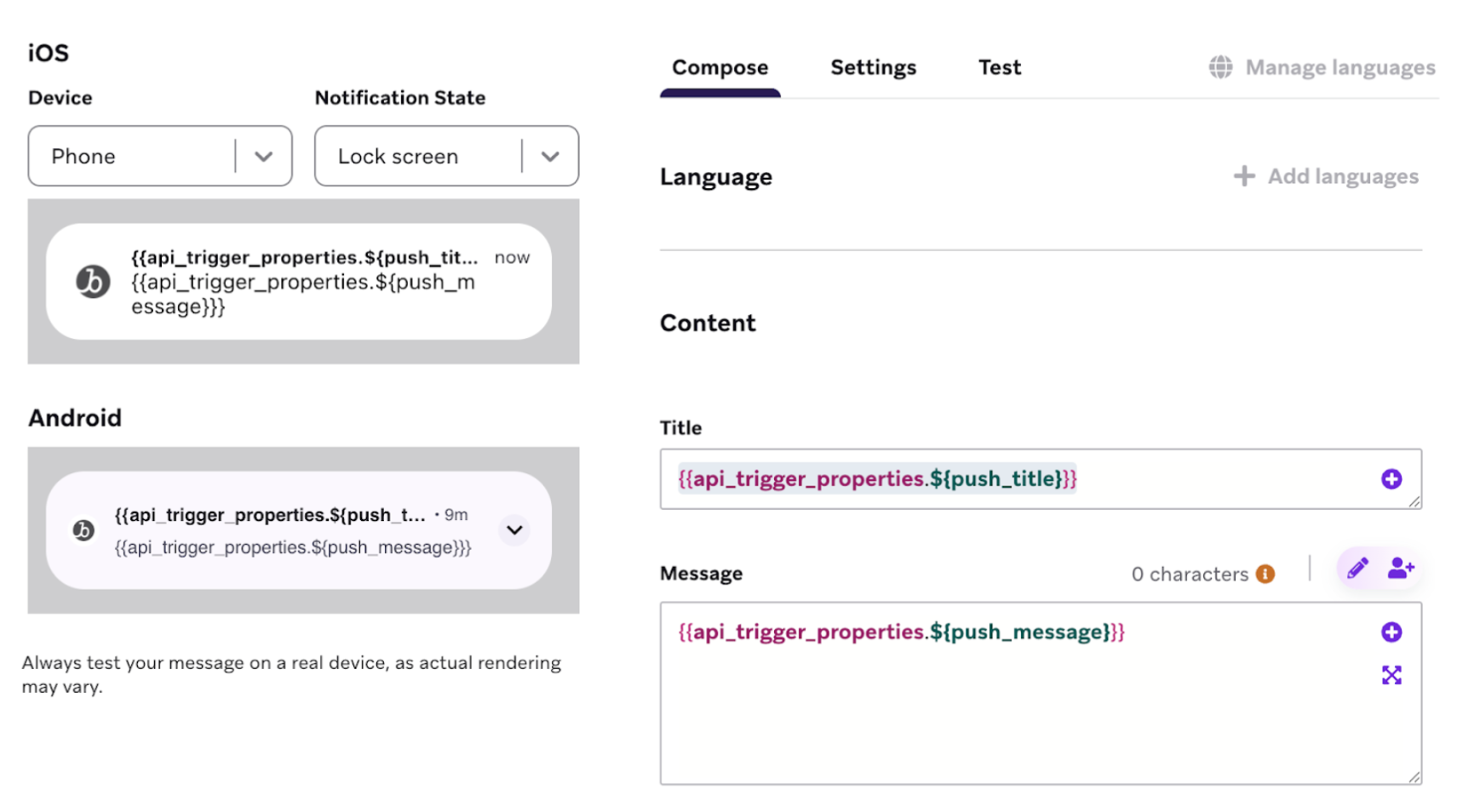
Resulting in the following message:
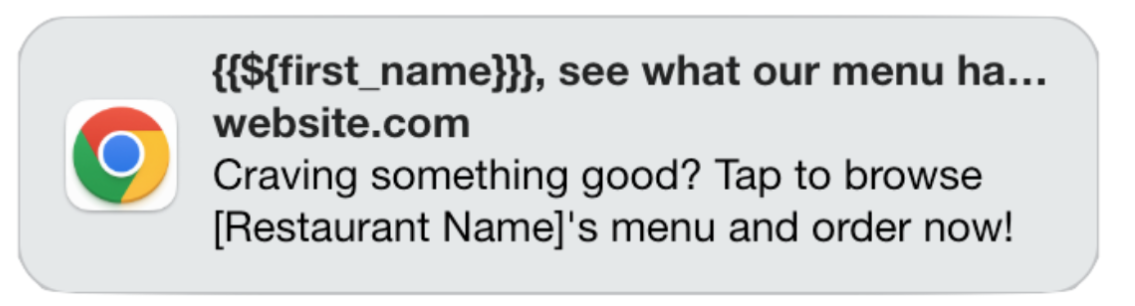
Example 3: SMS Campaign
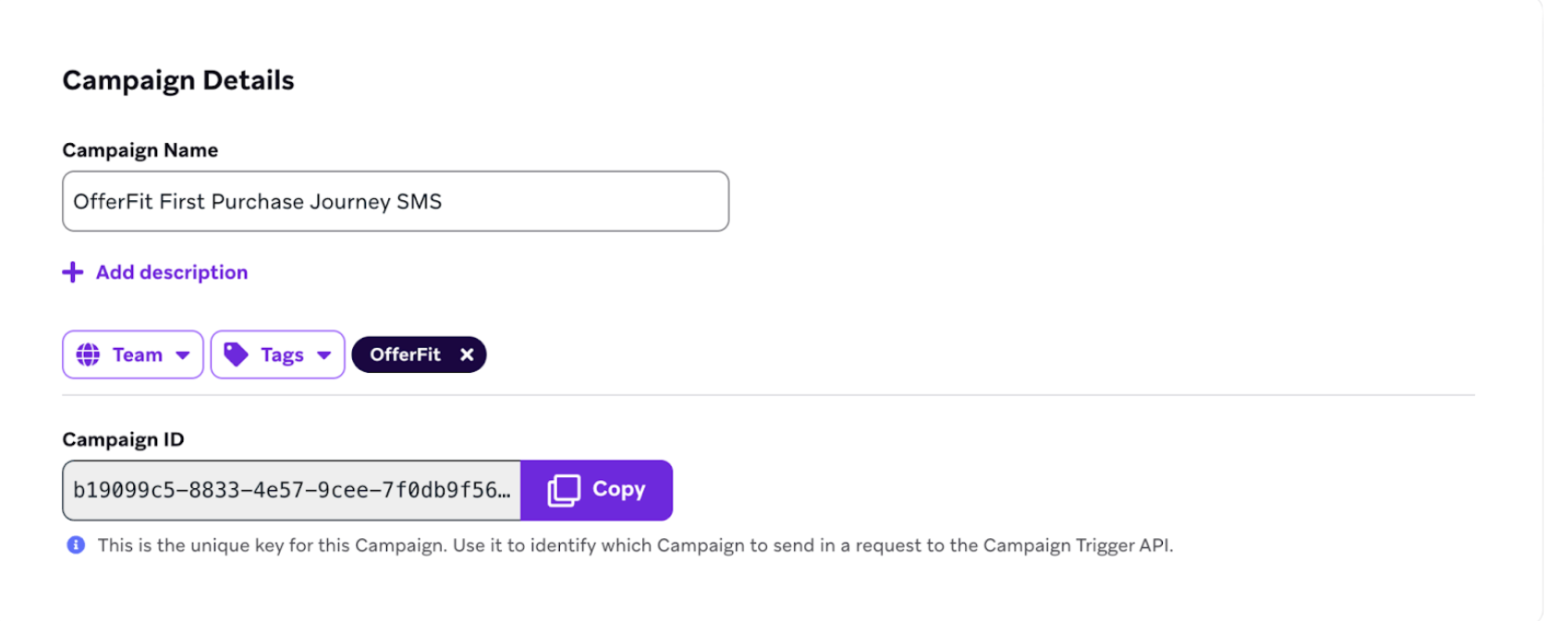
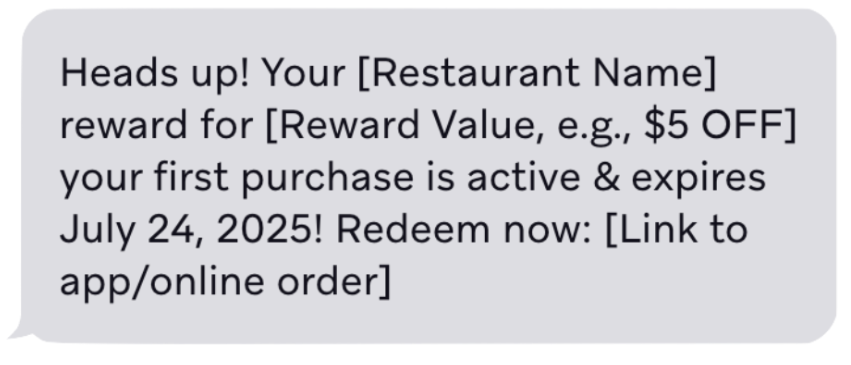
Suppose that the Decisioning Studio agent is optimizing for fields in an SMS campaign. This might be configured like this:
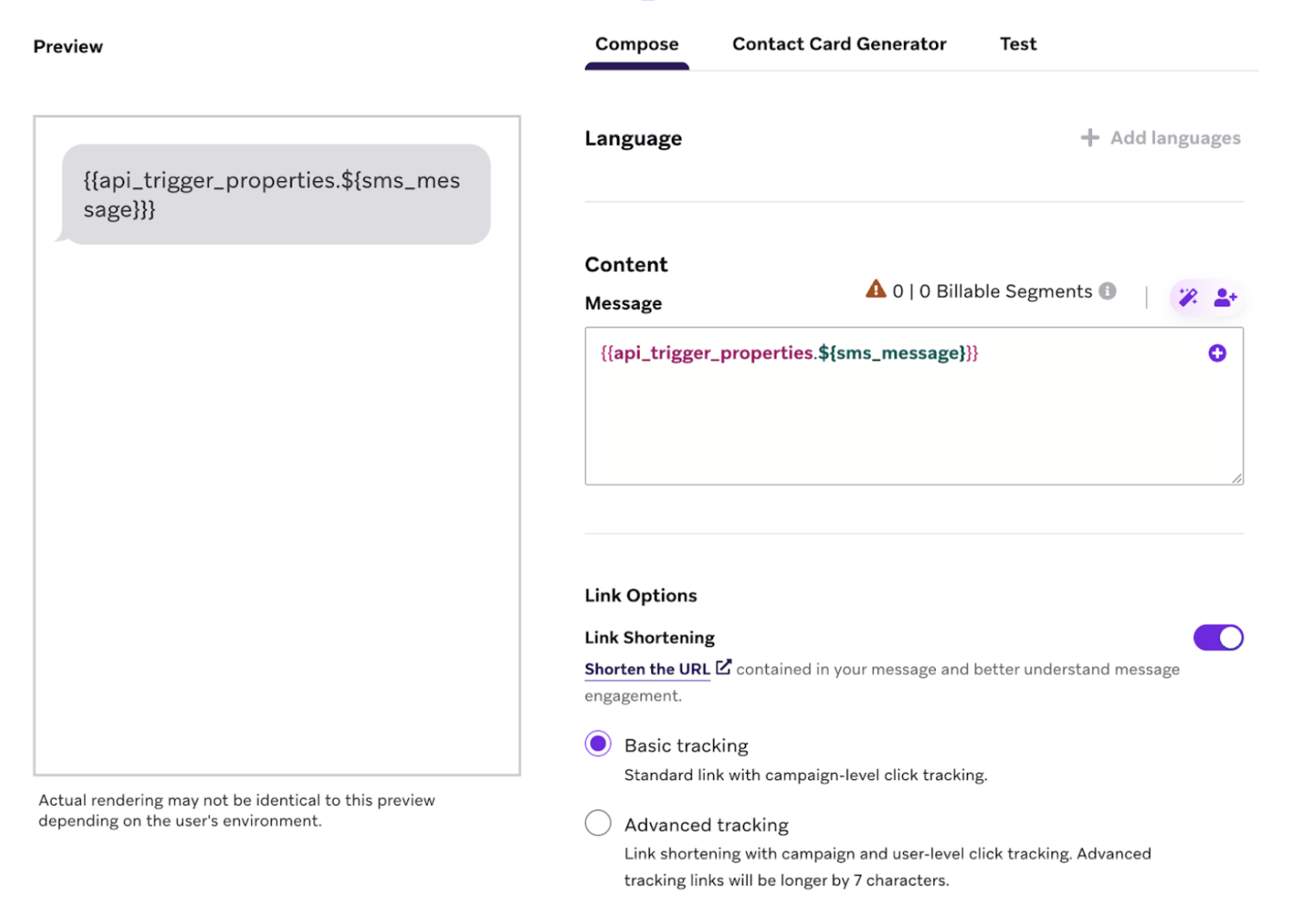
Resulting in the following message:
Setting up SFMC integration
Decisioning Studio Pro supports native integration with Salesforce Marketing Cloud. Decisioning Studio triggers API events into a journey with data required to populate dynamic elements.
The orchestration setup for SFMC is similar for both Decisioning Studio Pro and Decisioning Studio Go. For detailed steps to configure the SFMC integration, follow the SFMC instructions in the Decisioning Studio Go documentation.
Setting up Klaviyo integration
Decisioning Studio Pro supports native integration with Klaviyo. Decisioning Studio triggers API events into a flow with data required to populate dynamic elements.
The orchestration setup for Klaviyo is similar for both Decisioning Studio Pro and Decisioning Studio Go. For detailed steps to configure the Klaviyo integration, follow the Klaviyo instructions in the Decisioning Studio Go documentation.
Setting up other CEP integrations
Decisioning Studio can integrate with any customer engagement platform. However, this may require some custom engineering work from your team, since Decisioning Studio cannot trigger communications directly.
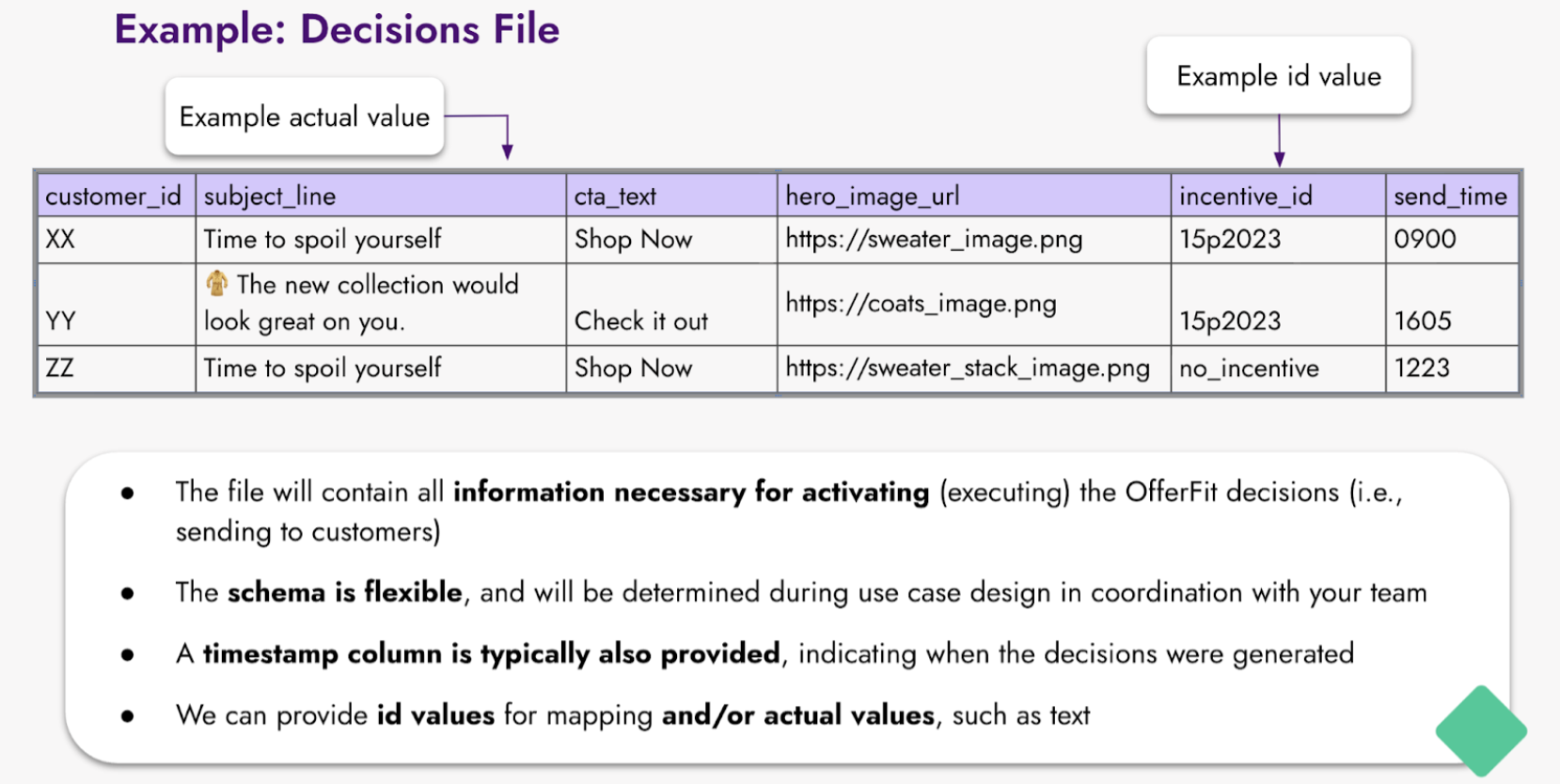
In this scenario, the agent will deliver a “recommendation file.” This file contains rows for each customer, with columns that indicate all of the personalized decisions for that customer.
For example, the following recommendation file:
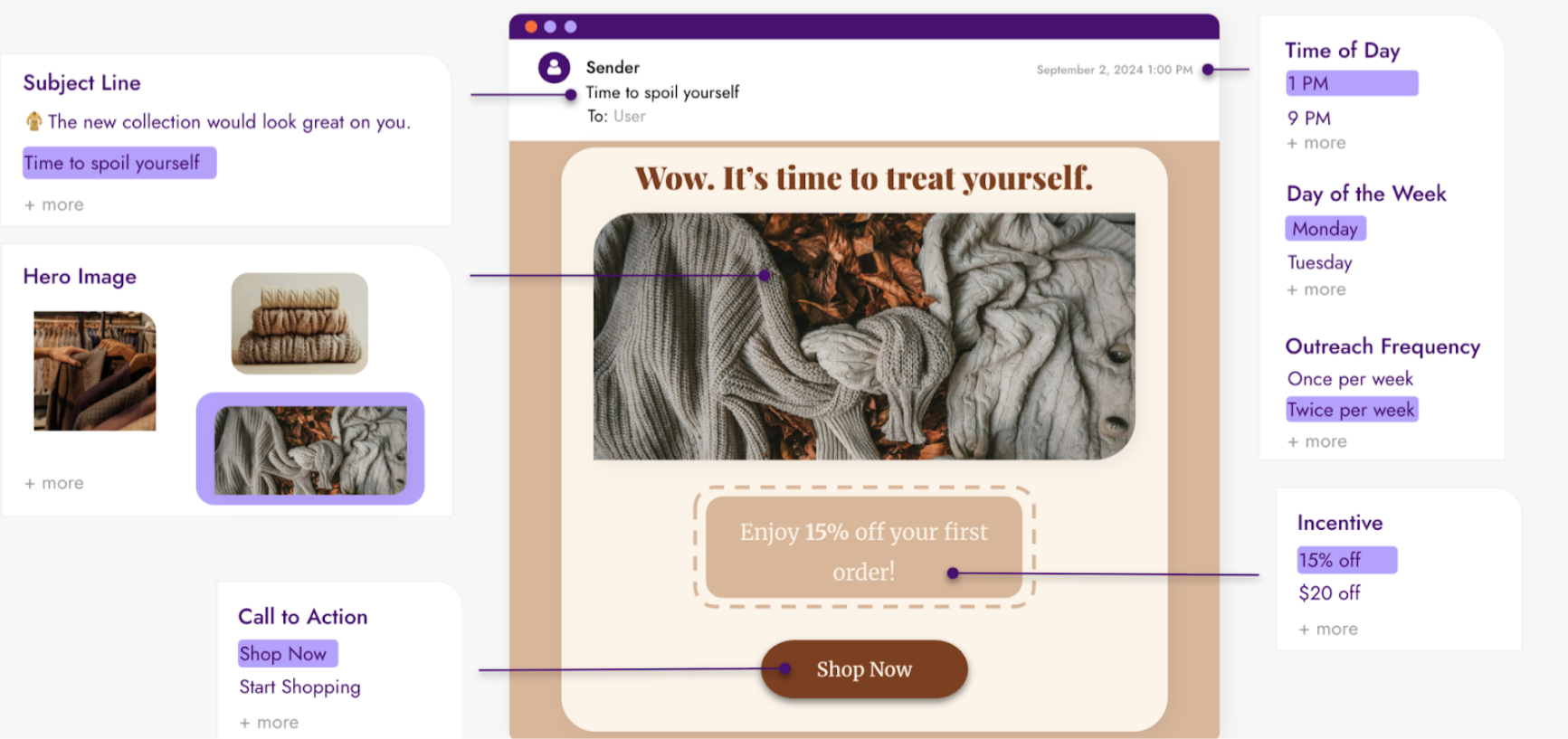
Might be used to optimize an email campaign that looks like the following:
Next steps
After setting up orchestration, proceed to design your agent:
 Edit this page on GitHub