Automated IP warming
Use automated IP warming to gradually ramp email volume from a new IP address to build sender reputation with inbox providers.
Automated IP warming is currently in early access. Contact your Braze account manager if you’re interested in participating in the early access.
How it works
You can use automated IP warming to gradually increase your daily send volume, allowing inbox providers to learn and trust your sending patterns. When you add a domain to your workspace, you can select the Automated IP Warming tile in the Pick up where you left off section of your home dashboard, and this tile remains here for 60 days.
Braze sends to your most engaged subscribers first, which allows daily volume to grow at a pace that matches best practices. Then, Braze tracks engagement and deliverability signals. If Braze detects any issues, the system adjusts your schedule automatically.
You can perform only one IP warming.
Prerequisites
To perform automated IP warming, you must have the following:
- Verified subdomain and active IP addresses
- Permissions to view and launch an IP warmup
- “View Usage Data” to view the IP warming section
- “View Email Templates” to view and select the email templates for IP warming
- “Manage Email Settings” to launch the IP warmup
- “Access Campaigns”
- “Approve and Deny Campaigns” if the approval workflow for campaigns is turned on
- Braze automatically approves the campaigns created from automated IP warming on your behalf.
Set up an automated IP warming plan
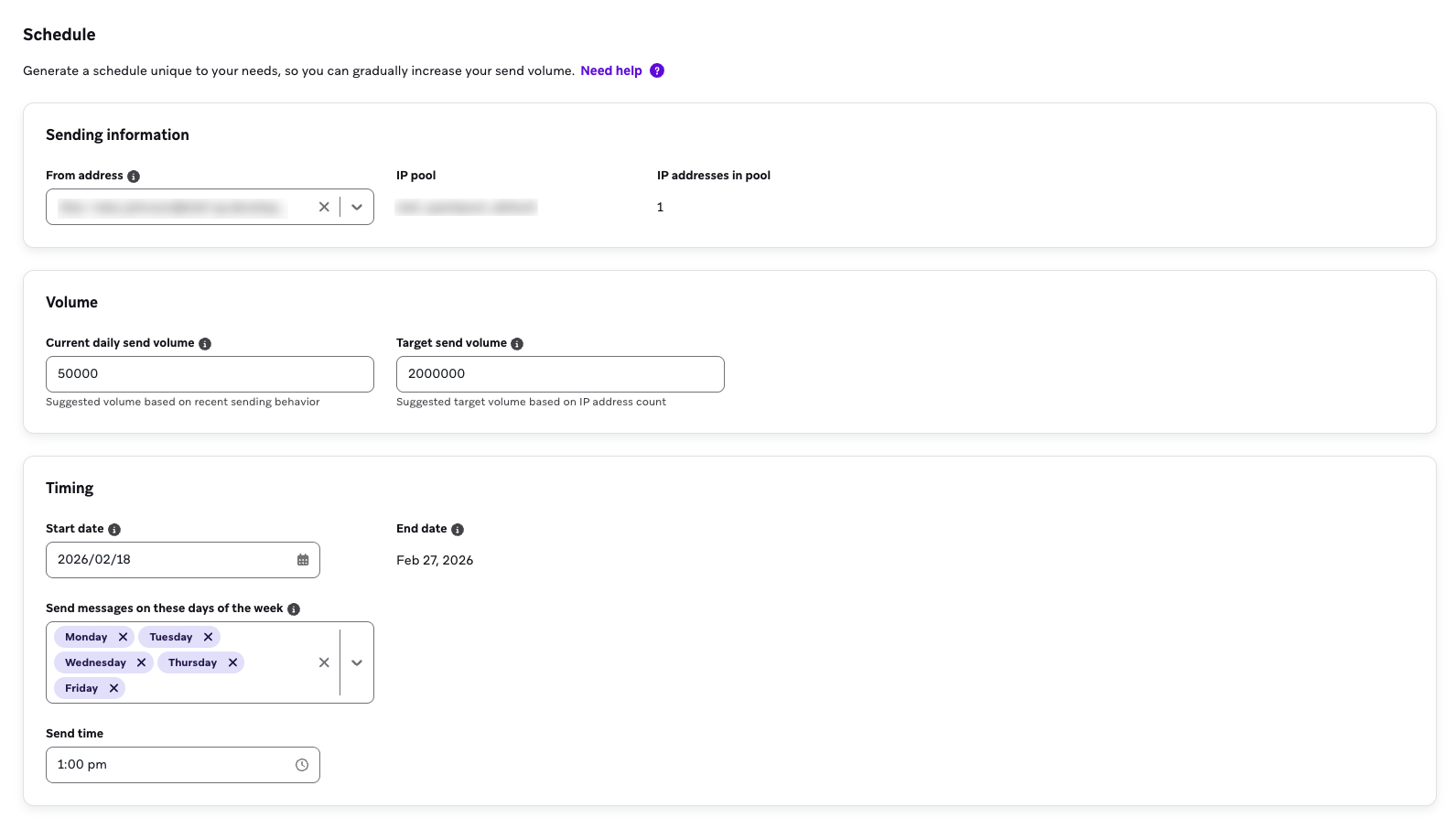
Step 1: Set a schedule
- In the Sending information section, select the From address to warm IP addresses for.
- Enter the current daily send volume and target send volume.
- Select the start date for automated IP warming. This date must be at least one day after the plan is launched.
- Enter the send time. This sends the messages in the company’s time zone.
- Select Next: Segments to continue the setup.
Step 2: Select and rank segments
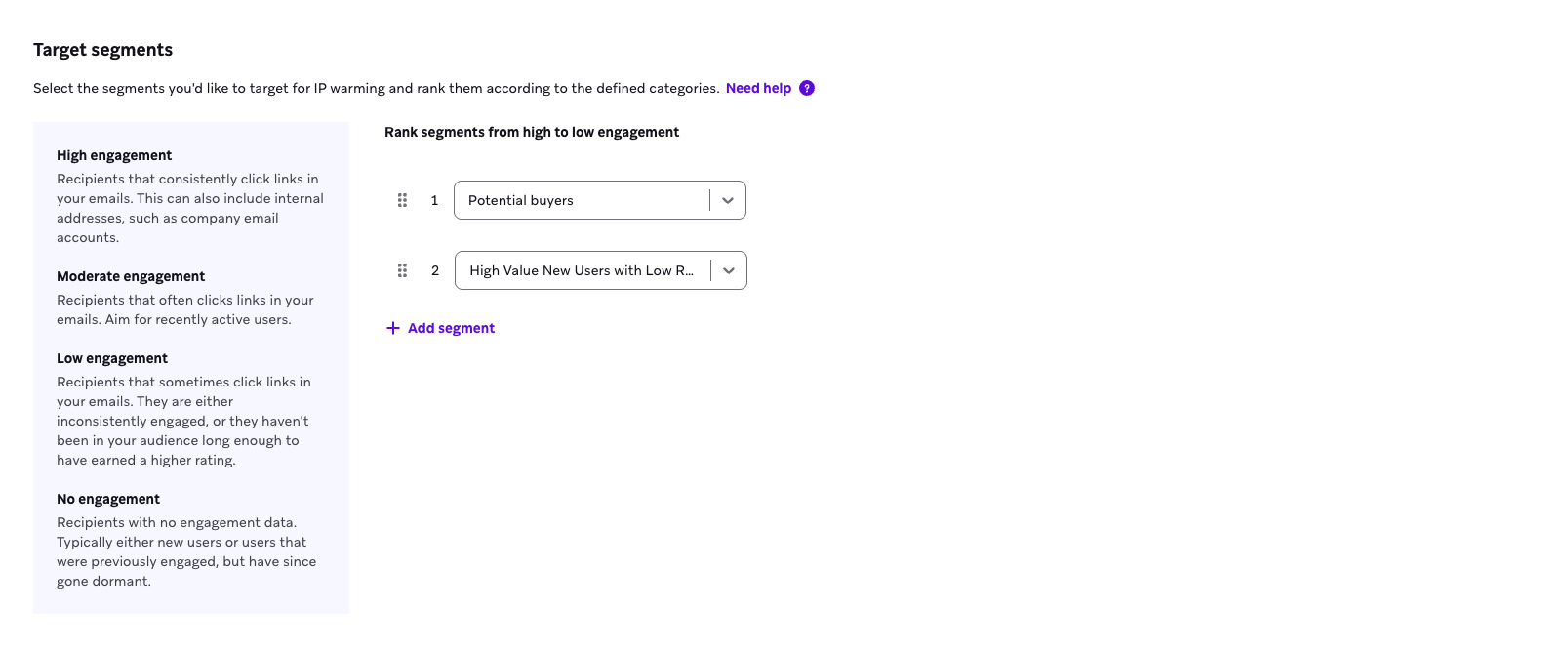
- Next, select the segments to target. During IP warming, Braze starts sending to your highest engaged users and gradually increases send volume over time and slowly adds in segments with less engagement.
- Then, drag and drop the segments to rank them from high to low engagement. High engagement includes recipients who consistently open and click on your emails. Low engagement includes recipients who are inconsistent in their engagement with your emails or haven’t engaged with your emails in a very long time.
- Select Next: Messages to continue the setup.
Step 3: Select the messages to send
- Select Select email templates.
- Choose the email templates for the messages to send. The content you send during IP warming should encourage opens and clicks. We recommend choosing content that has had good reception in the past. For example, you can use promotional offers to encourage immediate engagement and purchases.
- Select Select templates. Braze calculates the number of required templates before you can launch. We recommend providing more templates than the minimum required to allow the system to adjust for deliverability issues without stopping.
- After adding the required number of templates, select Next: Summary.
Changes made to the campaigns created from the IP warming tool (such as changing the scheduled date, segment, volume) will not be reflected on the IP warming Summary page.
Step 4: Review and launch
Review the details of your IP warming plan. Then, select Launch.
During active IP warming
IP warming campaigns are created 1 to 2 days in advance, unless you are launching an IP warmup the next day. These campaigns are automatically named with the following format: IP Warming Day [X] - [Date] - [Template Name].
When the targeted daily send goal is reached, the system stops sending for that day to protect your reputation.
The system monitors your health based on the following industry benchmarks:
- Delivery rate drops less than or equal to 90%
- Open rate less than 10%
- Bounces greater than 5%
- Spam complaint rates greater than 0.04%
If stats are below our benchmarks, the system holds volume the next day rather than increasing the volume to mitigate risk to your sender reputation.
Stop an IP warmup plan
Braze allows you to stop the IP warming and the creation of future campaigns, but if a campaign is already active or scheduled for the next 24 to 48 hours, you may need to stop the specific campaign manually. Stopping an IP warming plan also stops all associated campaigns.
However, when stopped, the IP warmup cannot be resumed. Instead, you must set up a new plan to pick up from where you left off by:
- Downloading the existing data for your stopped plan to keep for your record, as once you start a new IP warmup, the previous tracker will be removed
- Updating the Current daily send volume to the most recent volume
- Adding a filter to a segment if you plan to use the same segment from the last IP warmup by excluding users that have already received previous campaigns
When an IP warmup completes
IP warming is marked as completed when the last day of IP warming ends at midnight in your company’s time zone. For example, if the last campaign sent in the IP warming plan sends at 8 pm, then the plan is marked as done after four hours.
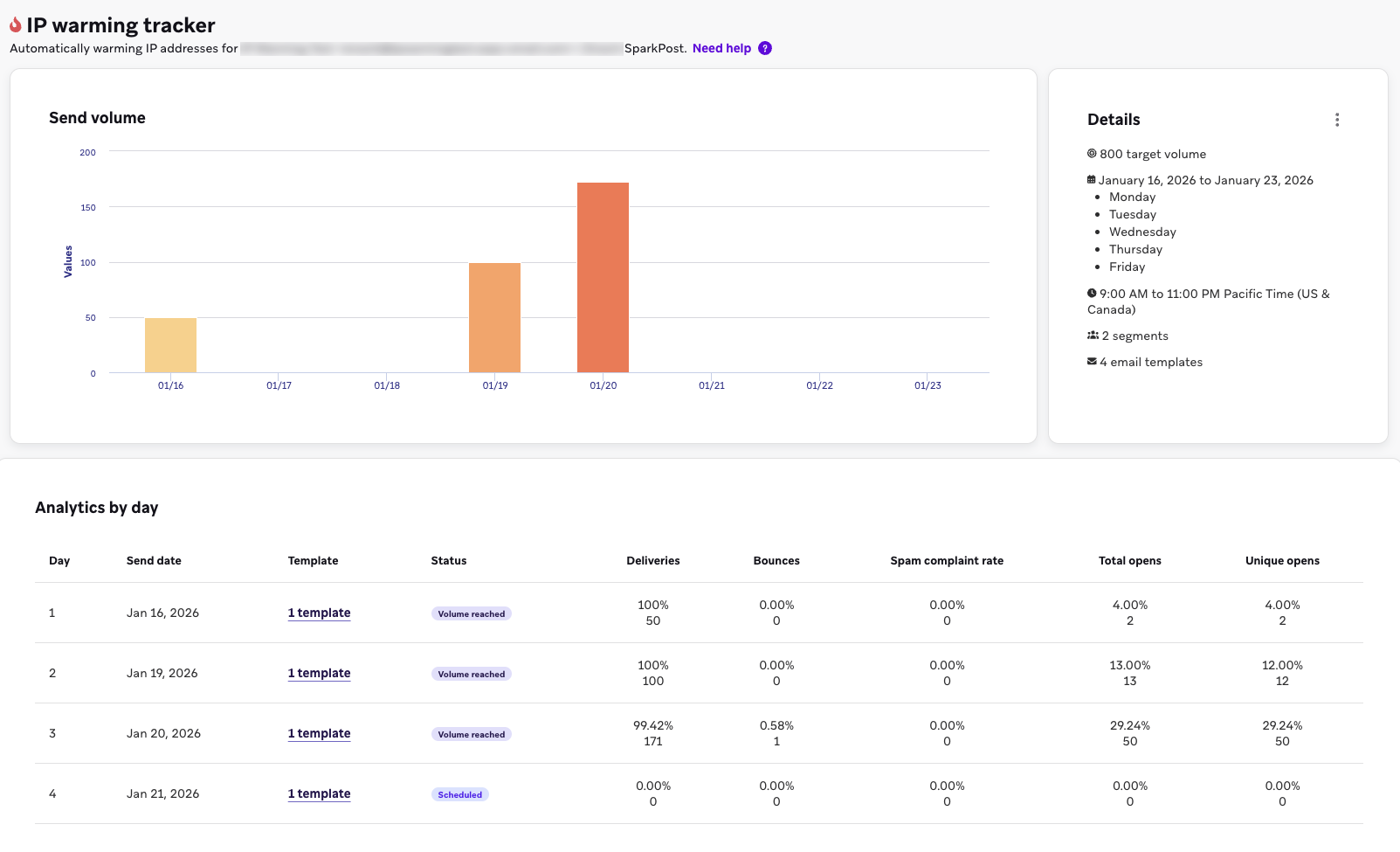
The tracker stays on the homepage for 90 days after the plan ends. After 90 days, the tracker is removed. Downloading the data includes these standard email metrics:
- Sent
- Delivered
- Bounces
- Spam reports
- Total opens
- Unique opens
- Clicked
- Unsubscribed
If a day includes multiple campaigns used to meet volume requirements, these are aggregated in the daily view.
 Edit this page on GitHub