WhatsApp carousel templates
WhatsApp carousel templates allow you to create interactive, multi-card messages that users can swipe through. Each carousel can contain up to 10 cards with images or videos, along with customizable buttons for engagement. This feature is ideal to showcase your products and services, or multi-step content in a visually engaging format.
WhatsApp carousel templates are in early access. Contact your customer success manager if you’re interested in participating in this early access.
Prerequisites
Before creating carousel templates, you need:
- An active WhatsApp Business Account (WABA) connected to Braze
- Appropriate subscription groups configured within your WABA
- Media assets (images or videos) ready for upload
- Braze permissions for non-admin users
- For users to create new templates in the Template Builder:
- “View WhatsApp Message Templates”
- “Edit WhatsApp Message Templates”
- For users to compose campaigns or Canvases with carousel templates:
- “View WhatsApp Message Templates”
- For users to create new templates in the Template Builder:
- An understanding of Liquid templating (optional, for dynamic content)
All phone numbers and subscription groups within the same WhatsApp Business Account (WABA) share templates. If you have multiple subscription groups within one WABA, they can all access the same carousel templates; however, templates are not shared across different WABAs.
Create a carousel template
You can create carousel templates within Braze with the WhatsApp template builder. When you create templates, Braze validates your content to meet Meta’s criteria.
When creating a template in Braze, you can either use:
- Liquid you expect to use when sending the message. Braze saves this for future reference.
- Generic variables like
{{1}}.
{% %} Liquid tags are not supported in the template builder because they don’t pass Meta’s content criteria.
After the template is submitted, it appears in the WABA’s template list and is reviewed within 24 hours. However, a review often occurs within a few minutes.
Step 1: Access the template builder
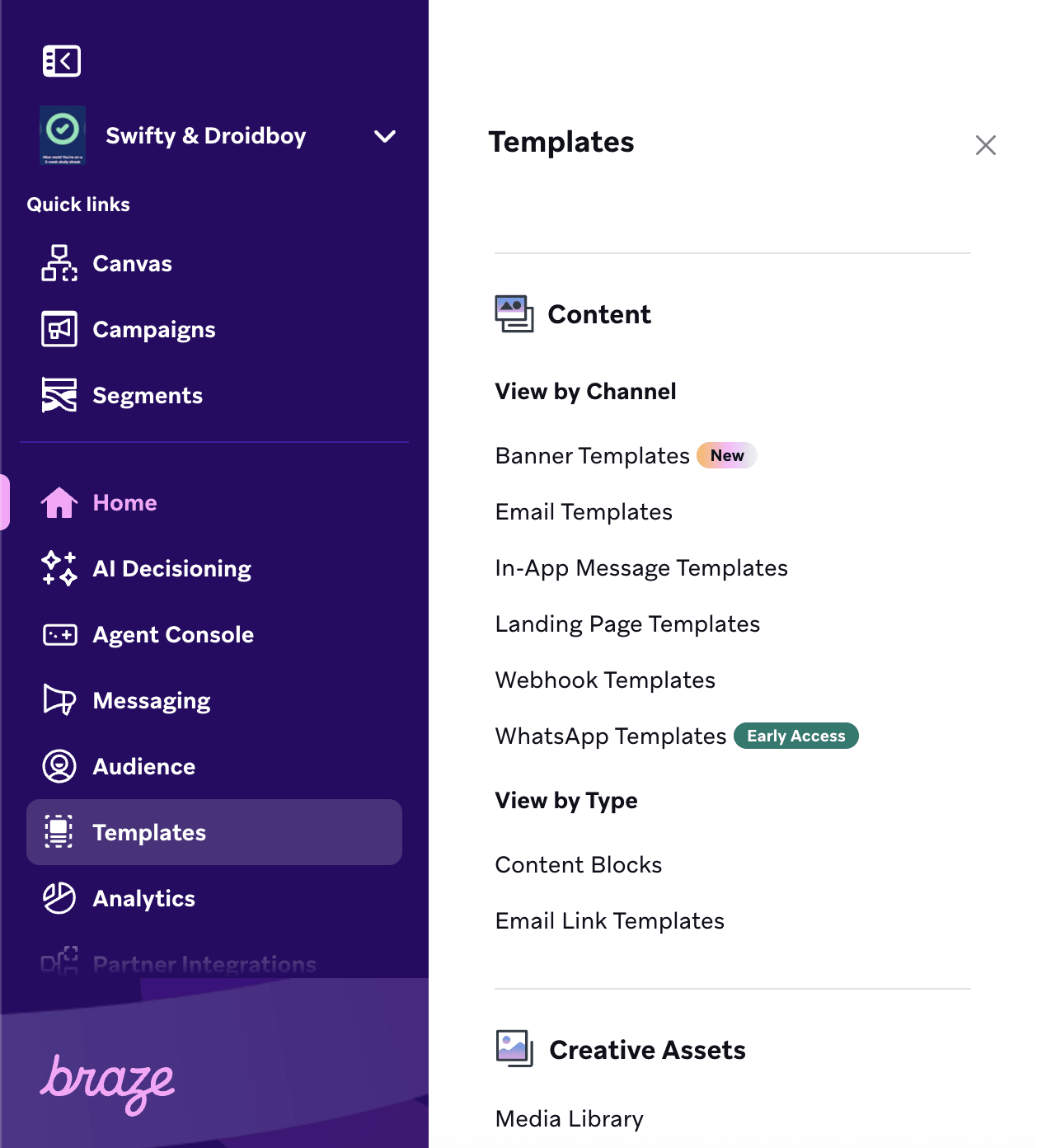
- In Braze, go to Templates.
- Select WhatsApp Templates from the available options.
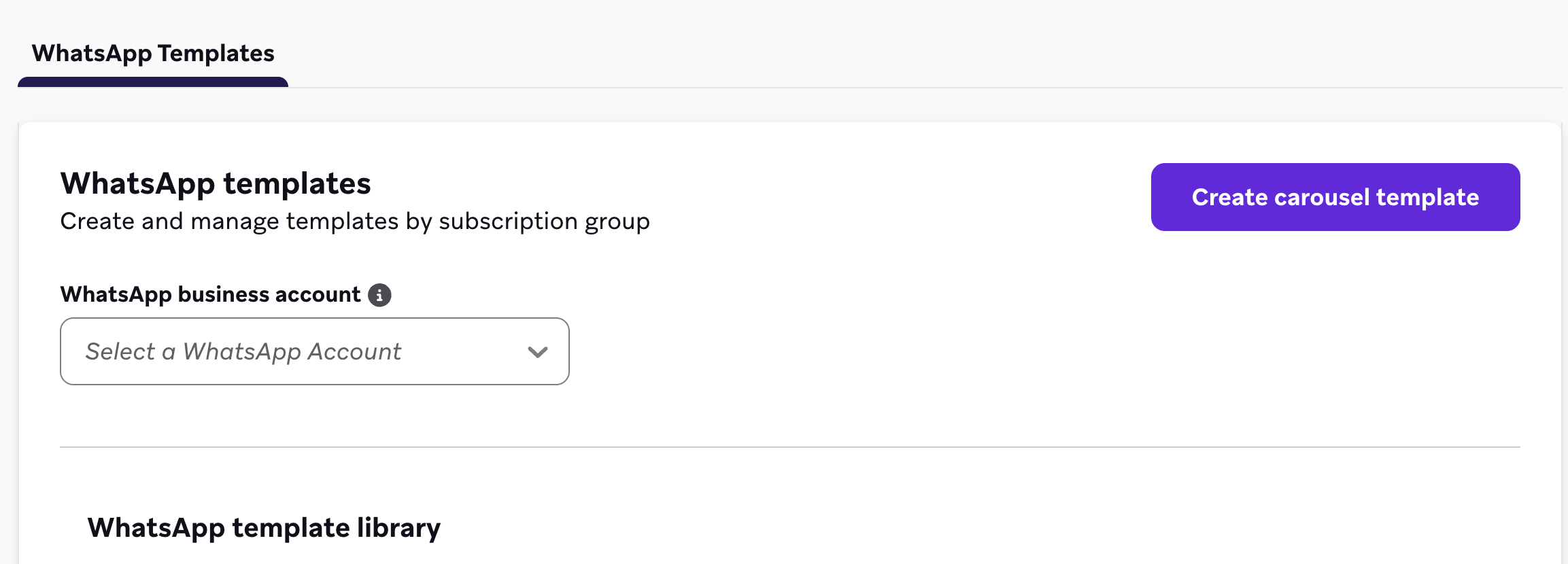
- Select Create Carousel Template.
Step 2: Configure template settings
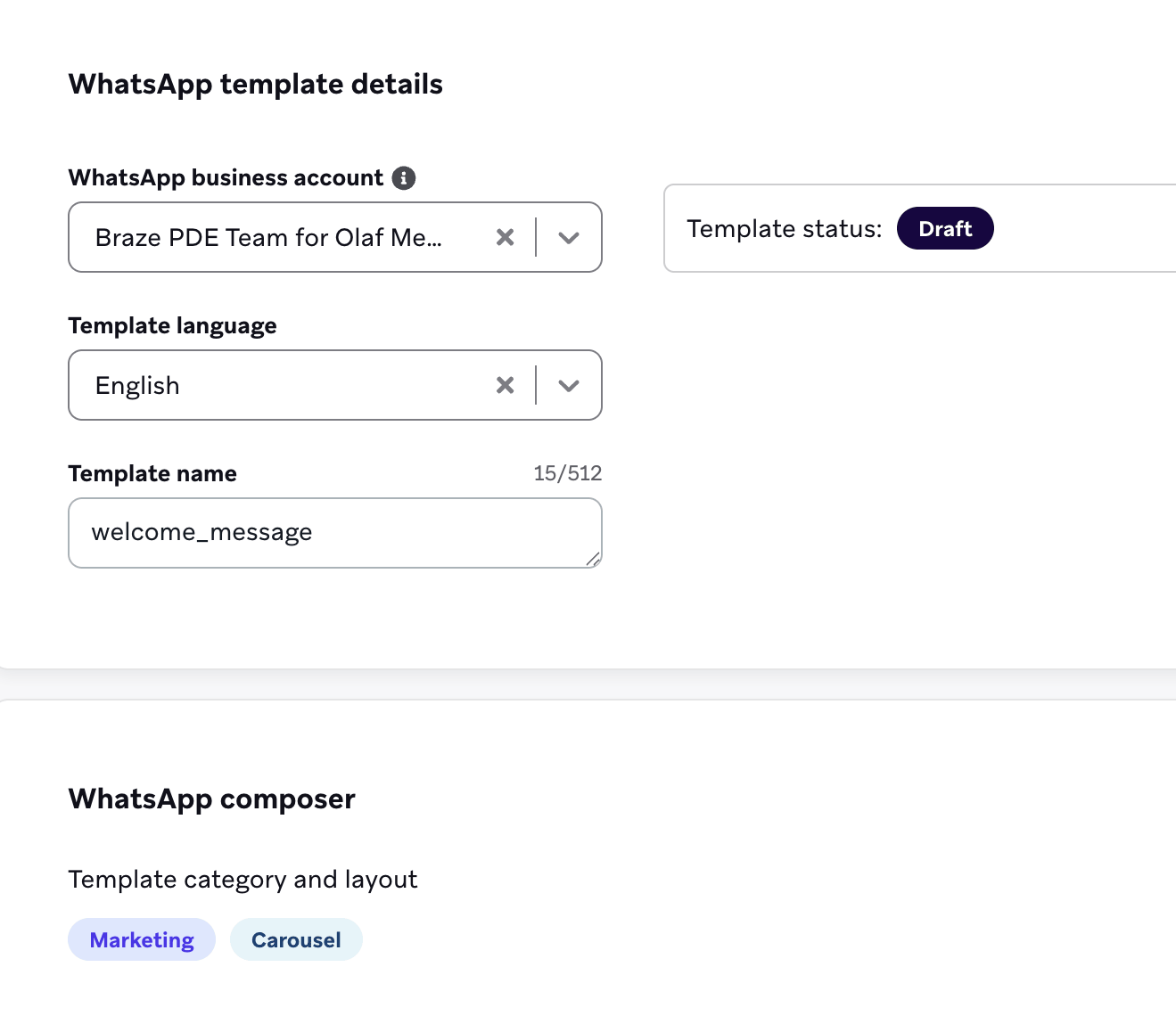
Fill the required fields.
| Field | Description |
|---|---|
| WhatsApp Business Account | Select the WABA where this template will be stored. Remember that all subscription groups and phone numbers within this WABA will have access to the template. |
| Template Language | Select the language for your template. Meta restricts templates to a single language, so choose the language your audience will see. |
| Template Name | Enter a descriptive name that will help you identify this template later. Template names cannot contain spaces—use underscores or remove spaces entirely (such as carousel_example or carouselexample). |
| Category | Automatically set to Marketing. All carousel messages are categorized as marketing messages. |
Step 3: Add body content
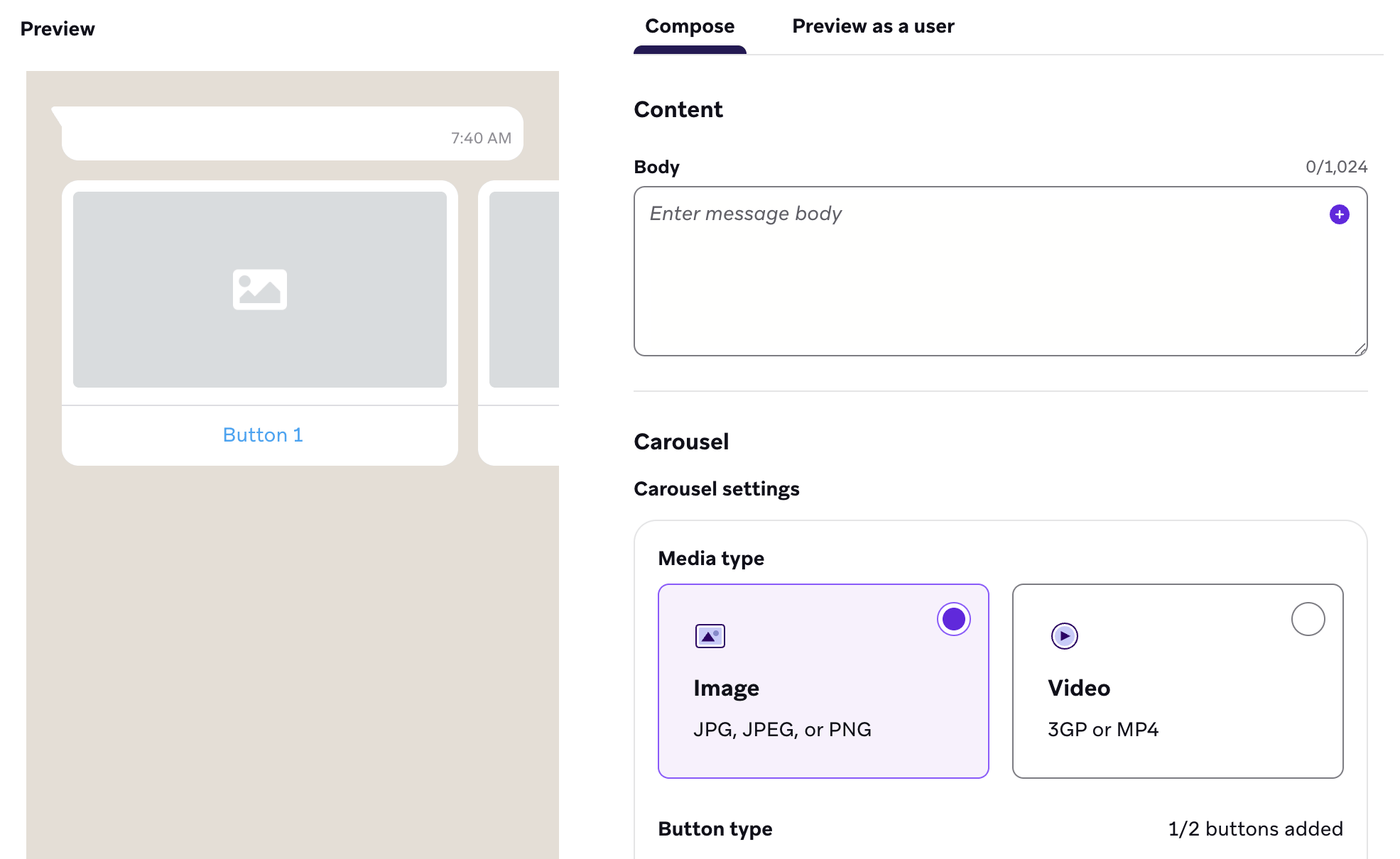
Every carousel message must begin with body content, which is text that appears above the carousel cards.
You can include Liquid variables for personalization, such as {{first_name}}, which creates an empty variable slot that can be filled with dynamic content or modified later when using the template in campaigns. Variables cannot be placed at the very beginning or end of the body content.
Step 4: Configure carousel settings
Before creating individual cards, define the overall carousel structure with carousel settings. These settings apply to all cards and cannot be changed after template submission.
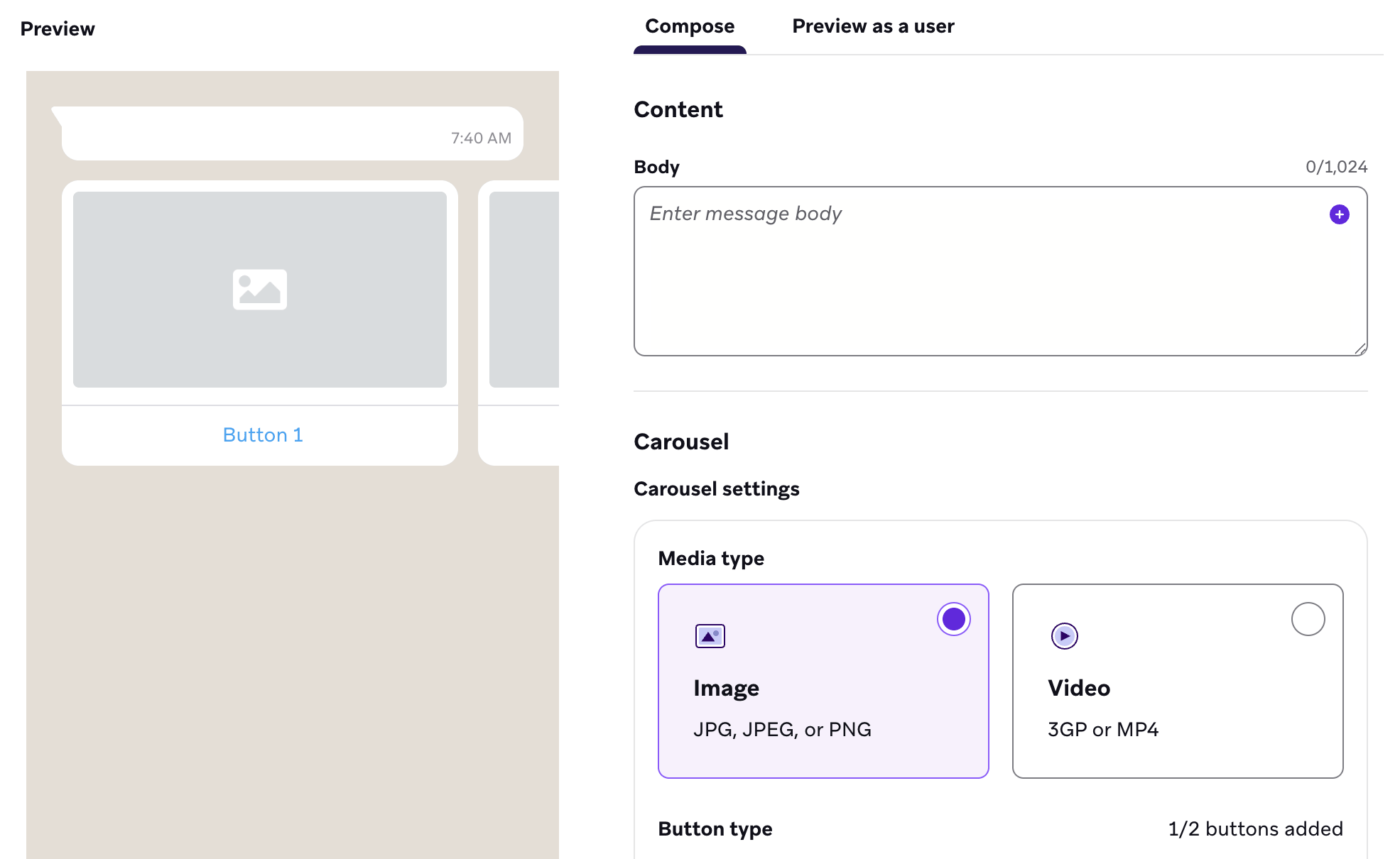
Media Type
Choose the media type: Image or Video. This is used for all cards.
Button Configuration
Choose the button type: Quick Reply, Phone Number, or Visit Website. This configuration is used for all cards. Then, select up to two buttons per card.
Step 5: Create carousel cards
Now you can create individual carousel cards. All cards maintain the same shape and structure. You can add up to 10 cards, but you must add at least two cards.
You cannot change the number of cards after submitting the template to Meta for review.
- Upload an image or video, depending on your selected media type.
- Add card text or a description.
- Configure button text and actions.
- Add Liquid variables where needed. You can add them wherever there is a + plus button.
Use Liquid variables strategically to personalize content like discount percentages, product names, or user-specific offers. Variables can be added to card text, button text, and URLs.
Step 6: Preview and submit
- Use the Preview section to view how your carousel will appear to users.
- Select Submit to Meta for review for Braze to send the template to Meta for approval.
- Approval typically takes a few minutes, but may take up to 24 hours.
- Check the template status in your Templates list on the WhatsApp template page or Canvas and campaign selector.
Test sending is not available until after Meta approves the template. The template status shows as Draft during creation and changes to Approved after Meta completes the review.
Use carousel templates
After your carousel template is approved by Meta, you can use it in campaigns and Canvases. The process is similar for both message types.
Step 1: Create a WhatsApp message
- In Braze, go to Campaigns or Canvases and create a WhatsApp message.
- Select the subscription group that corresponds to your template’s WhatsApp Business Account (WABA).
If you have multiple WhatsApp Business Accounts, select a subscription group from the same WABA where the template was created. Templates are not shared across WABAs, but are shared across all subscription groups and phone numbers within the same WABA.
Step 2: Select your carousel template
- Search for your template by name (such as “carousel_example”).
- Verify the template status is Approved.
- Select the template to load it into the message composer.
Step 3: Customize dynamic content
When your template loads, it contains locked and editable content.
- Static text (any content submitted without variables) is locked and cannot be edited.
- The number of carousel cards is fixed.
- Media type and button configuration cannot be changed.
- Any field with a variable can be modified with different Liquid.
- If you submitted the template with Liquid (for example,
{{first_name}}), Braze automatically preserves and displays that Liquid. - You can change the Liquid to different variables (for example, switch from
{{first_name}}to{{last_name}}). - Images with variables can be made dynamic by using URLs with Liquid.
- You can upload new images from the Braze media library instead of using the submitted media.
Example
For example, let’s say your template includes a discount percentage variable: {{discount_percentage}}. In the campaign, you can keep this or change it to {{custom_attributes.vip_discount}}. Meta only requires that the variable slot is filled—the specific Liquid used is flexible.
Step 4: Launch your campaign or Canvas
After composition, proceed with your campaign or Canvas launch workflow, including testing. The carousel template functions like any other WhatsApp message template.
Best practices
Content guidelines
- Body content placement: Variables cannot be placed at the end of body content. Add at least one word or punctuation mark after each variable.
- Consistent card structure: All cards must have the same shape, media type, and button configuration. Plan your content accordingly.
- Optimal card count: While you can create up to 10 cards, consider the user experience. Too many cards can be overwhelming; 3–5 cards work well for most use cases.
- Default values: When using Liquid variables, always provide default values for an accurate preview. This helps confirm that the message displays appropriately if certain user profile data is missing.
WhatsApp Business Accounts and subscription groups
- Understand template sharing: Templates are shared across all subscription groups within the same WhatsApp Business Account (WABA) but not across different WABAs. Plan accordingly if you manage multiple WABAs.
- Organize by WABA: If you have multiple WABAs, consider organizing your templates by business account to avoid confusion when selecting templates in campaigns.
Testing and approval
- Preview before submission: Always preview your templates to catch any errors before submitting to Meta for approval.
- Plan for approval time: While approval usually takes only a few minutes, factor in potential delays when planning campaign launches.
- Test thoroughly: After approval, test your carousel with actual user data to confirm all variables populate correctly and the user experience is seamless.
Troubleshooting
| Issue | Solution |
|---|---|
| Template not appearing in campaign | Verify that the selected subscription group belongs to the same WABA as the template. Also, check that the template status is Approved and not still in Draft or Pending status. |
| Cannot place variable at end of body | Move the variable earlier in the text and add at least one character or punctuation mark after it. This is a Meta requirement for WhatsApp templates. |
| Variables not populating in test | Ensure your Liquid syntax is correct and that the attributes exist in your user profiles. Check for typos in variable names and verify that default values are set where appropriate. |
| Template name has spaces | Template names cannot contain spaces. Use underscores instead (template_name) or remove spaces entirely (templatename). |
| Cannot change number of cards | The number of cards is fixed when you create the template and cannot be changed after submission. If you need a different number of cards, you’ll need to create a new template. |
 Edit this page on GitHub