Use case: Segment with nested custom attributes
These use cases show how to segment users with nested custom attributes in Braze, and contain sample JSON and dashboard workflows you can adapt to your own data.
Let’s say you are on a marketing team for a music streaming app, and you want to send messages based on a user’s nested custom attributes, such as account objects with balances and types. These use cases demonstrate a variety of ways your team can use nested custom attributes in segments, and teach you how to:
- Configure a nested custom attribute segment filter, validate paths, and choose comparators that match each property’s data type.
- Know when to use Day of Year versus Time operators for nested date values, and how Multi-Criteria Segmentation matches users when at least one object in an array meets all listed criteria.
- Generate a schema for an object or object array, explore it in the dashboard, and finish a segment (for example, users with balance under 100) using the path picker instead of typing paths from memory.
Filter by nested custom attributes
Let’s build a segment based on a nested custom attribute to target your users who played their most played song more than 300 times.
Step 1: Add the filter
Select the Nested Custom Attributes filter to expose a dropdown from which you can select a specific nested custom attribute. We’ll select the most_played_song, which contains data on a user’s most played song.
Step 2: Select the property
Select the Property within the nested custom attribute that you want to filter by. We’ll select play_analytics.count, which tracks how many times a user played their most played song.
Step 3: Select a comparison and nested custom attribute value
When filtering by nested custom attributes, your property’s data type determines the comparators you can filter by. For example, because play_analytics.count is a number, you can select a comparator under the Number category.
To filter by users who played their most played song at least 300 times, select the More than comparison, then enter “300” for the value.
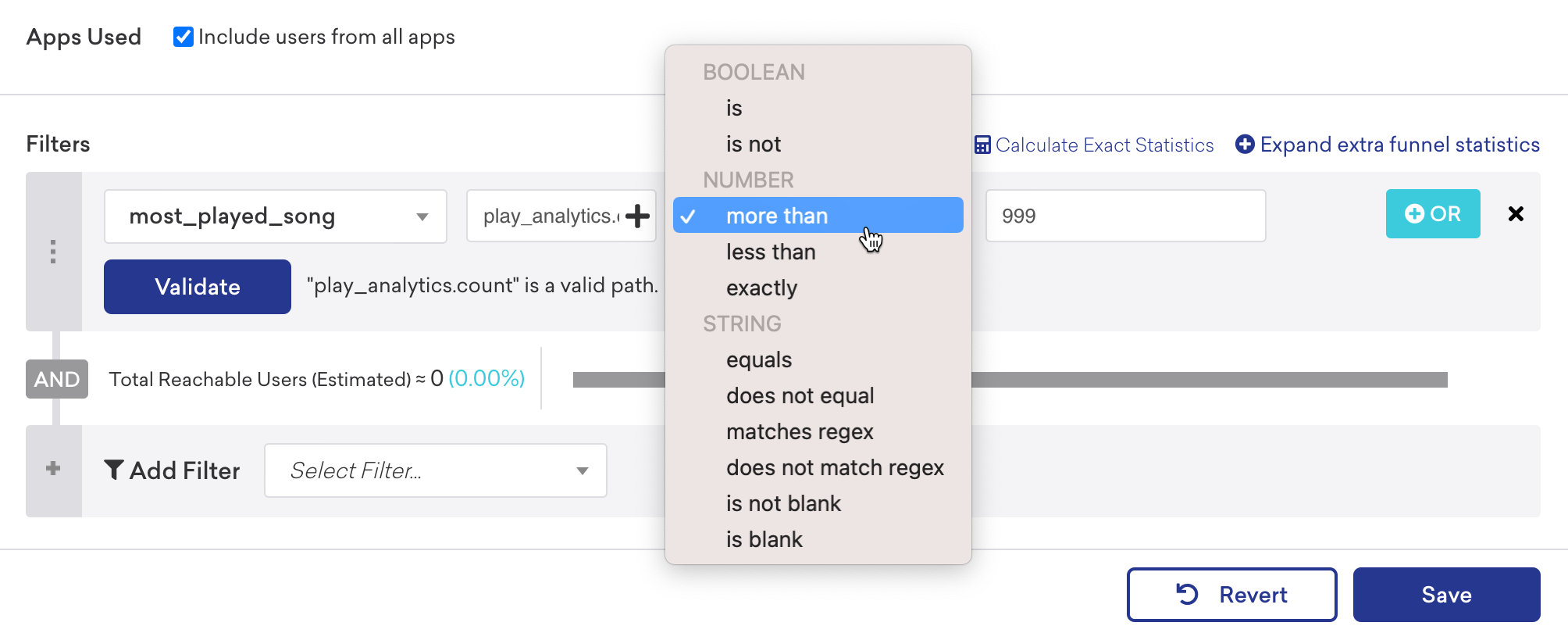
Filter for Time data types
When filtering a nested time custom attribute, you can choose to filter with operators under the Day of Year or Time categories when comparing the date value.
If you select an operator under the Day of Year category, only the month and day are checked for comparison instead of the full timestamp of the nested custom attribute value. Selecting an operator under the Time category compares the full timestamp, including the year.
Use multi-criteria segmentation
Use Multi-Criteria Segmentation to create a segment that matches multiple criteria within a single object. This qualifies the user into the segment if they have at least one object in the array that matches all the criteria specified. For example, users only match this segment if their key is not blank, and if their number is more than 0.
Copy Liquid for segment
You can also use the Copy Liquid for segment feature to generate Liquid code for this segment and use that in a message. For example, let’s say you have an array of account objects and a segment that targets customers with active taxable accounts. To get customers to contribute to the account goal associated with one of their active and taxable account, you’ll want to create a message to nudge them.
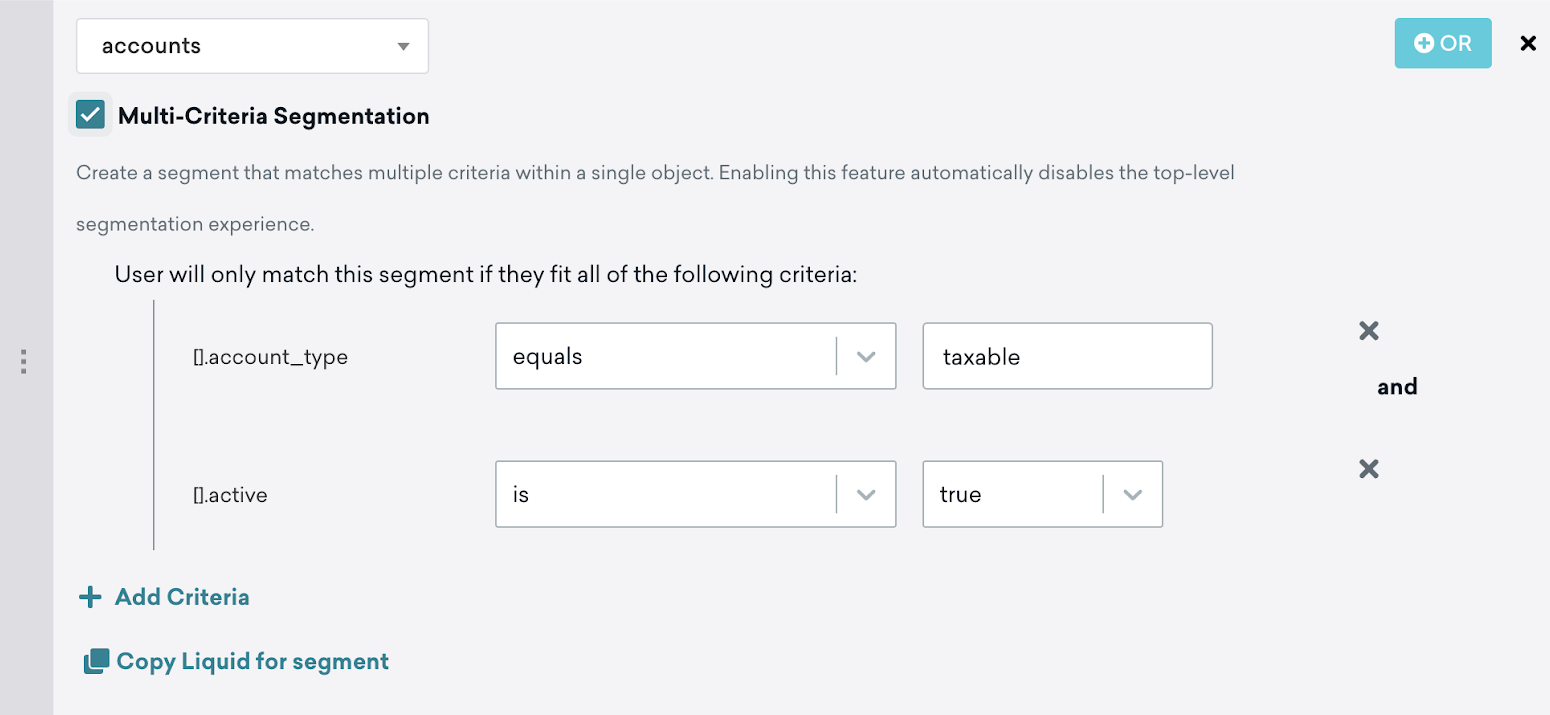
When you select Copy Liquid for segment, Braze automatically generates Liquid code that returns an object array that only contains accounts that are active and taxable.
1
2
3
4
5
6
7
{% assign segmented_nested_objects = '' | split: '' %}
{% assign obj_array = {{custom_attribute.${accounts}}} %}
{% for obj in obj_array %}
  {% if obj["account_type"] == 'taxable' and obj["active"] == true %}
    {% assign segmented_nested_objects = obj_array | slice: forloop.index0 | concat: segmented_nested_objects | reverse %}
  {% endif %}
{% endfor %}
From here, you can use segmented_nested_objects and personalize your message. In this example, we want to take a goal from the first active taxable account and personalize it:
1
Get to your {{segmented_nested_objects[0].goal}} goal faster, make a deposit using our new fast deposit feature!
This returns the following message to your customer: “Get to your retirement goal faster, make a deposit using our new fast deposit feature!”
Generate a schema using the nested object explorer
You can generate a schema for your objects to build segment filters without needing to memorize nested object paths.
Step 1: Generate a schema
For example, suppose we have an accounts object array that we’ve just sent to Braze:
1
2
3
4
5
6
7
8
{"accounts": [
  {"type": "taxable",
  "balance": 22500,
  "active": true},
  {"type": "non-taxable",
  "balance": 0,
  "active": true}
]}
In the Braze dashboard, go to Data Settings > Custom Attributes.
Search for your object or object array. In the Attribute Name column, select Generate Schema.

It may take a few minutes for your schema to generate depending on how much data you’ve sent us.
After the schema has been generated, a new plus button appears in place of the Generate Schema button. You can click on it to see what Braze knows about this nested custom attribute.
During schema generation, Braze looks at previous data sent and builds an ideal representation of your data for this attribute. Braze also analyzes and adds a data type for your nested values. This is done by sampling the previous data sent to Braze for the given nested attribute.
For our accounts object array, you can see that within the object array, there’s an object that contains the following:
- A boolean type with a key of
active(regardless of if the account is active or not) - A number type with a key of
balance(balance amount in the account) - A string type with a key of
type(non-taxable or taxable account)
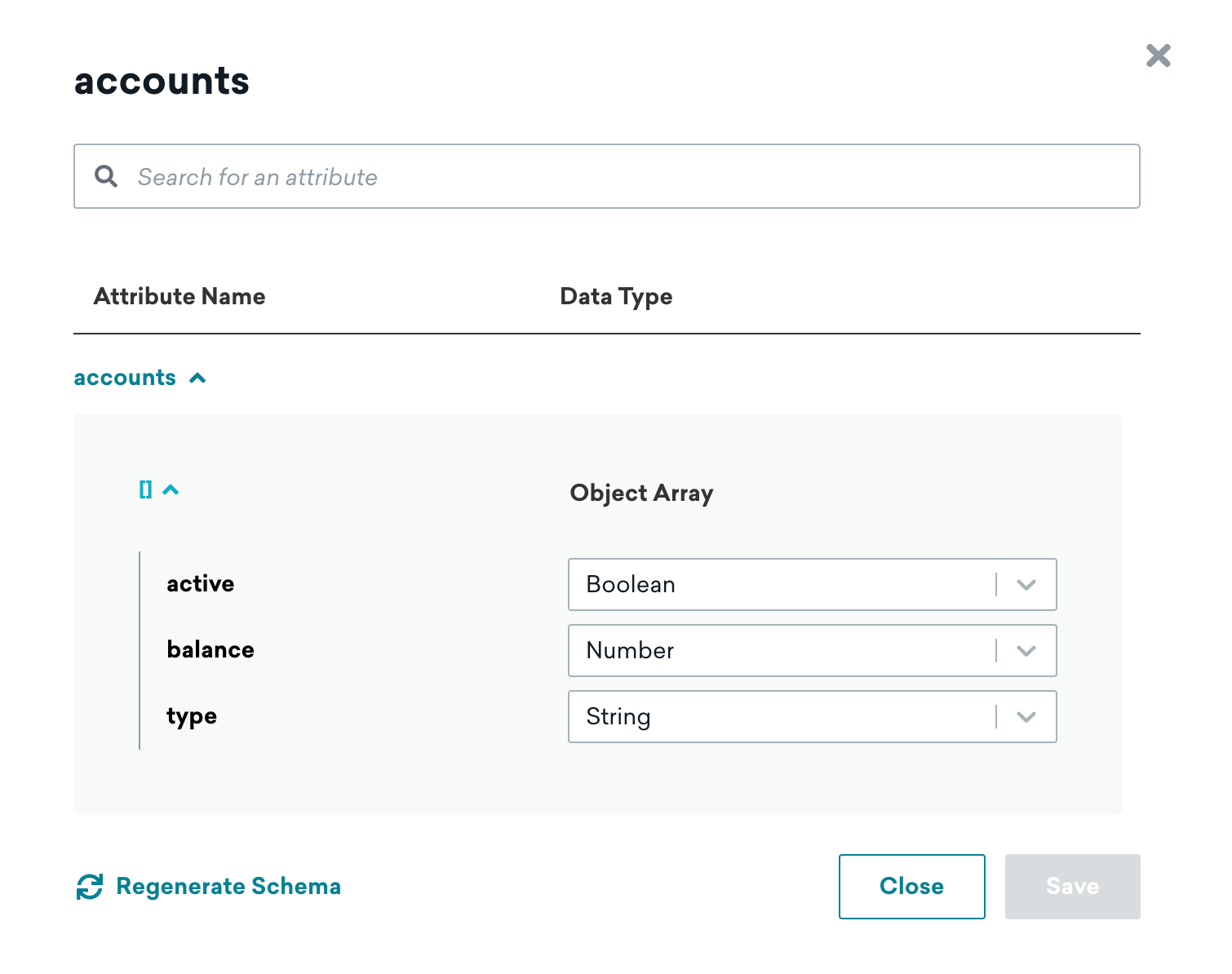
Now that we’ve analyzed and built a representation of the data, let’s build a segment.
Step 2: Build a segment
Let’s target customers who have a balance of less than 100 so that we can send them a message nudging them to make a deposit.
Create a segment and add the filter Nested Custom Attribute, then search for and select your object or object array. Here we’ve added the accounts object array.

Select the plus button in the path field. This opens a representation of your object or object array. You can select any of the listed items and Braze inserts them into the path field for you. In this example, we need to get the balance. Select the balance as the path (in this case, [].balance) is automatically populated in the path field.
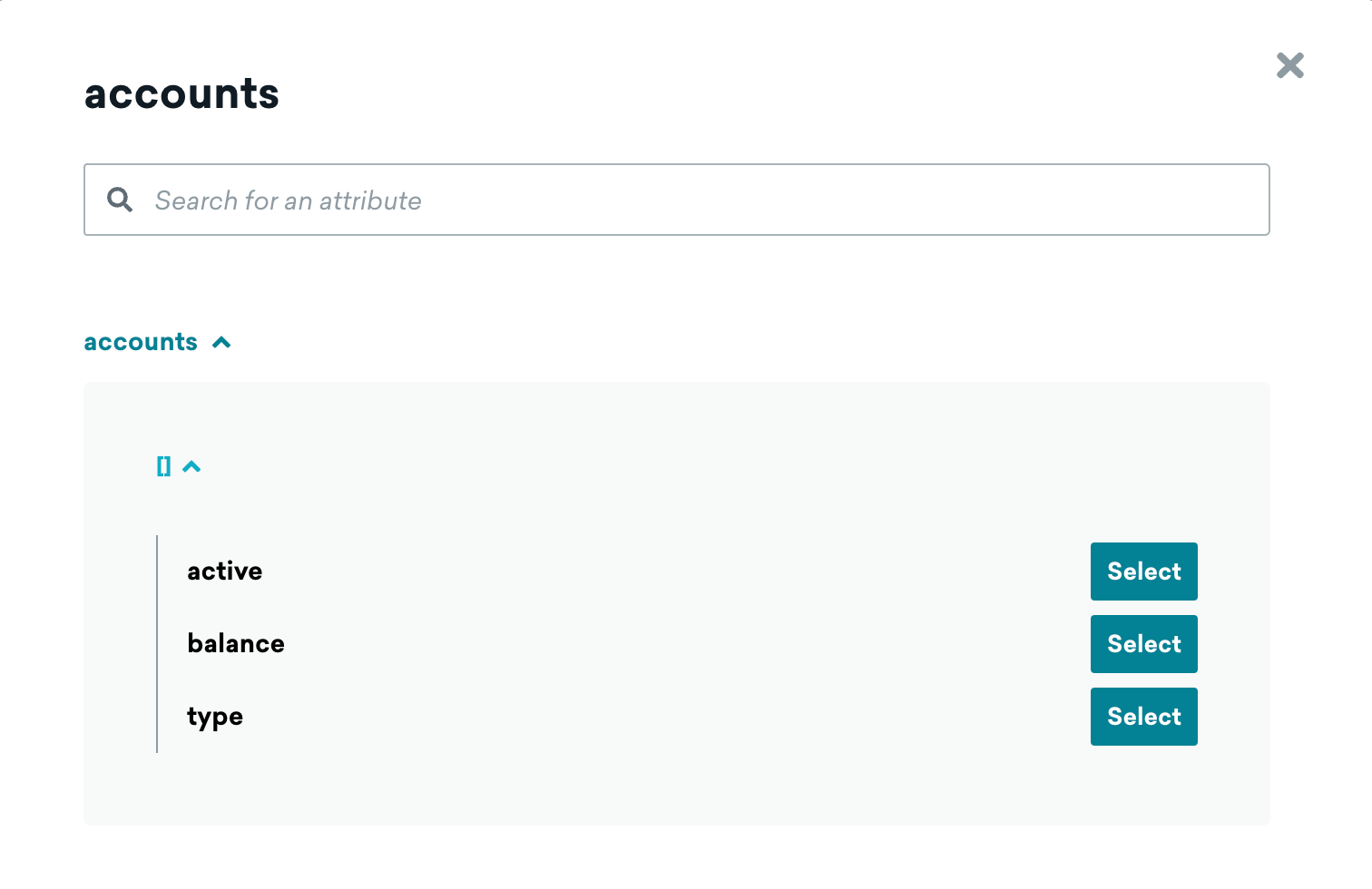
Select less than as the comparator, then enter “100” as the balance value.

That’s it! You just created a segment using a nested custom attribute, all without needing to know how the data is structured. The nested object explorer in Braze generated a visual representation of your data and allowed you to explore and select exactly what you needed to create a segment.