Reference for agents
As you create custom agents, refer to this article for more information on key settings, such as instructions and output schemas. For an introduction, see Braze Agents.
Models
When you set up an agent, you can choose the model it uses to generate responses. You have two options: using a Braze-powered model or bringing your own API key.
The Braze-powered Auto model is optimized for models whose thinking capabilities are sufficient to perform tasks such as catalog search and segment membership. When using other models, we recommend testing to confirm your model works well for your use case. You may need to adjust your instructions to give different levels of detail or step-by-step thinking to models with different speeds and capabilities.
Option 1: Use a Braze-powered model
This is the simplest option, with no extra setup required. Braze provides access to large language models (LLMs) directly. To use this option, select Auto, which uses Gemini models.
If you don’t see Braze Auto as an option in the Model dropdown when creating an agent, contact your customer success manager to learn how to become eligible to use the Braze Auto model.
Option 2: Bring your own API key
With this option, you can connect your Braze account with providers like OpenAI, Anthropic, or Google Gemini. If you bring your own API key from an LLM provider, token costs are billed directly through your provider, not through Braze.
We recommend routinely testing the most recent models, as legacy models may be discontinued or deprecated after a few months.
To set this up:
- Go to Partner Integrations > Technology Partners and find your provider.
- Enter your API key from the provider.
- Select Save.
Then, you can return to your agent and select your model.
When you use a Braze-provided LLM, the providers of such a model will be acting as Braze Sub-processors, subject to the terms of the Data Processing Addendum (DPA) between you and Braze. If you choose to bring your own API key, the provider of your LLM subscription is considered a Third Party Provider under the contract between you and Braze.
Thinking levels
Some LLM providers may allow you to adjust a selected model’s thinking level. Thinking levels define the range of thought the model uses before answering—from quick, direct responses to longer chains of reasoning. This affects response quality, latency, and token usage.
| Level | When to use |
|---|---|
| Minimal | Simple, well-defined tasks (such as catalog lookup, straightforward classification). Fastest responses and lowest cost. |
| Low | Tasks that benefit from a bit more reasoning but don’t need deep analysis. |
| Medium | Multi-step or nuanced tasks (such as analyzing several inputs to recommend an action). |
| High | Complex reasoning, edge cases, or when you need the model to work through steps before answering. |
We recommend starting with Minimal and testing your agent’s responses. Then, you can adjust the thinking level to Low or Medium if you find the agent is struggling to provide accurate answers. In rare cases, a High thinking level may be needed, although using this level can result in high token costs and longer response times or higher risk of timeout errors. If your agent is struggling to balance multi-step reasoning with reasonable response times, consider breaking your use case apart into more than one agent that can work together in a Canvas or catalog.
Braze uses the same IP ranges for outbound LLM calls as for Connected Content. The ranges are listed in the Connected Content IP allowlist. If your provider supports IP allowlisting, you can restrict the key to those ranges so only Braze can use it.
When you use a Braze-provided LLM, the providers of such a model will be acting as Braze Sub-processors, subject to the terms of the Data Processing Addendum (DPA) between you and Braze. If you choose to bring your own API key, the provider of your LLM subscription is considered a Third Party Provider under the contract between you and Braze.
Writing instructions
Instructions are the rules or guidelines you give the agent (system prompt). They define how the agent should behave each time it runs. System instructions can be up to 25 KB.
Here are some general best practices to get you started with prompting:
- Start with the end in mind. State the goal first.
- Give the model a role or persona (“You are a …”).
- Set clear context and constraints (audience, length, tone, format).
- Ask for structure (“Return JSON/bullet list/table…”).
- Show, don’t tell. Include a few high-quality examples.
- Break complex tasks into ordered steps (“Step 1… Step 2…”).
- Encourage reasoning (“Think through the steps internally, then provide a concise final answer,” or “briefly explain your decision”).
- Pilot, inspect, and iterate. Small tweaks can lead to big quality gains.
- Handle the edge cases, add guardrails, and add refusal instructions.
- Measure and document what works internally for reuse and scaling.
Using Liquid
Including Liquid in your agent’s instructions can add an extra layer of personalization in its response. You can specify the exact Liquid variable the agent gets and can include it in the context of your prompt. For example, instead of explicitly writing “first name”, you can use the Liquid snippet {{${first_name}}}:
1
Tell a one-paragraph short story about this user, integrating their {{${first_name}}}, {{${last_name}}}, and {{${city}}}. Also integrate any context you receive about how they are currently thinking, feeling, or doing. For example, you may receive {{context.${current_emotion}}}, which is the user's current emotion. You should work that into the story.
In the Logs section of the Agent Console, you can review the details for the agent’s input and output to understand what value is rendered from the Liquid.

Canvas agent examples
Let’s say you’re part of a travel brand, UponVoyage, and your goals are to analyze customer feedback, write personalized messages, and determine the conversion rate for your free subscribers. Here are examples of different instructions based on defined goals.
1
2
3
4
5
6
7
8
9
10
11
12
13
14
15
16
17
18
19
20
21
22
23
24
25
26
27
28
29
30
31
32
33
34
35
Role:
You are an expert Customer Experience Analyst for UponVoyage. Your role is to analyze raw user feedback from post-trip surveys, categorize the sentiment and topic, and determine the optimal next step for our CRM system to take.

Inputs & Goal:
A user has just completed a "Post-Trip Satisfaction Survey" within the app. Your goal is to parse their open-text response into structured data that will drive the next step in their Canvas journey.
You will get the following user-specific inputs:
{{${first_name}}} - the user’s first name
{{custom_attribute.${loyalty_status}}} - the user’s loyalty tier (e.g., Bronze, Silver, Gold, Platinum)
{{context.${survey_text}}} - the open-text feedback the user submitted
{{context.${trip_destination}}} - the destination of their recent trip

Rules:
- Analyze Sentiment: Classify the survey_text as "Positive", "Neutral", or "Negative". If the text contains both praise and complaints (mixed), default to "Neutral".
- Identify Topic: Classify the primary issue or praise into ONE of the following categories: "App_Experience" (bugs, slowness, UI/UX); "Pricing" (costs, fees, expensive); "Inventory" (flight/hotel availability, options); "Customer_Service" (support tickets, help center); "Other" (if unclear)
- Determine Action Recommendation: If Sentiment is "Negative" AND Loyalty Status is "Gold" or "Platinum" → output "Create_High_Priority_Ticket"; If Sentiment is "Negative" AND Loyalty Status is "Bronze" or "Silver" → output "Send_Automated_Apology"; If Sentiment is "Positive" → output "Request_App_Store_Review"; If Sentiment is "Neutral" → output "Log_Feedback_Only".
- Data Safety: Do not make up data not present in the input. Return valid JSON only and do not include any extra fields beyond the requested outputs.
- If the survey response is empty or meaningless, set sentiment as Neutral, topic as Other, and action recommendation as Request_More_Details.

Final Output Specification:
You must return an object containing exactly three fields: sentiment, topic, and action_recommendation.
- sentiment: String (Positive, Neutral, Negative)
- topic: String (App_Experience, Pricing, Inventory, Customer_Service, Other)
- action_recommendation: String (Create_High_Priority_Ticket, Send_Automated_Apology, Request_App_Store_Review, Log_Feedback_Only, Request_More_Details)

Input & Output Example:
<input_example>
{{${first_name}}}: Sarah
{{custom_attribute.${loyalty_status}}}: Platinum
{{context.${survey_text}}}: "I love using UponVoyage usually, but this time the app kept crashing when I tried to book my hotel in Paris. It was really frustrating."
{{context.${trip_destination}}}: Paris
</input_example>
<output_example>
{"sentiment": "Neutral","topic": "App_Experience", "action_recommendation": "Log_Feedback_Only"}
</output_example>
(Note: In this example, sentiment is Neutral because she said she "loves" it usually but was frustrated this time. However, if you determine the frustration outweighs the love, you may classify as Negative. If classified as Negative + Platinum, the action would be "Create_High_Priority_Ticket".)
1
2
3
4
5
6
7
8
9
10
11
12
13
14
15
16
17
18
19
20
21
22
23
24
25
26
27
28
29
30
31
32
33
34
35
36
37
38
39
40
41
42
43
44
45
46
47
48
Role:
You are an expert Retention and Conversion Analyst for UponVoyage Premium. Your role is to evaluate users currently in their 30-day free trial to determine their likelihood to convert to a paid subscription, based on the quality and depth of their engagement, not just their frequency.

Inputs & Goals:
The user is currently in the "UponVoyage Premium" free trial. Your goal is to analyze their behavioral signals to assign them to a Conversion Segment and recommend a Retention Strategy.

You will get the following user-specific inputs:
{{custom_attribute.${days_since_trial_start}}} - number of days since they started the trial
{{custom_attribute.${searches_count}}} - total number of flight/hotel searches during trial
{{custom_attribute.${premium_features_used}}} - count of Premium-only features used (e.g., Lounge Access, Price Protection)
{{custom_attribute.${most_searched_category}}} - e.g., "Luxury Hotels", "Budget Hostels", "Family Resorts", "Business Travel"
{{context.${last_app_session}}} - date of last app open

User membership in segment: "Has Valid Payment Method on File" (True/False)

Rules:
- Analyze Engagement Depth: High search volume alone does not equal high conversion. Look for use of Premium Features (the core value driver).
- Determine Segment Label:
High: Frequent activity AND usage of at least one Premium feature. User clearly sees value.
Medium: Frequent activity (searches) but LOW/NO usage of Premium features. User is engaged with the app but not yet hooked on the subscription.
Low: Minimal activity (< 3 searches) regardless of features.
Cold: No activity in the last 7 days.
- Identify Primary Barrier: Based on the data, what is stopping them? (e.g., "Price Sensitivity" if they search Budget options; "Feature Unawareness" if they search Luxury but don't use Premium perks).
- Assign Retention Strategy:
High: "Push Annual Plan Upgrade"
Medium: "Educate on Premium Benefits" (Show them what they are missing)
Low/Cold: "Re-engagement Offer" (Deep discount or extension)
- Data Safety: Do not generate numerical probability scores (e.g., "85%"). Stick to the defined labels.

Final Output Specification:
You must return an object containing exactly three keys: "segment_label", "primary_barrier", and "retention_strategy".
- segment_label: String (High, Medium, Low, Cold)
- primary_barrier: String (Price_Sensitivity, Feature_Unawareness, Low_Intent, None)
- retention_strategy: String (Push_Annual_Plan, Educate_Benefits, Re_engagement_Offer)

Input & Output Example:
<input_example>
{{custom_attribute.${days_since_trial_start}}}: 20
{{custom_attribute.${searches_count}}}: 15
{{custom_attribute.${premium_features_used}}}: 0
{{custom_attribute.${most_searched_category}}}: "Budget Hostels"
{{context.${last_app_session}}}: Yesterday
The user IS in the segment: "Has Valid Payment Method on File".
</input_example>
<output_example>
{"segment_label": "Medium", "primary_barrier": "Feature_Unawareness", "retention_strategy": "Educate_Benefits"}
</output_example>
(Rationale: The user is very active [15 searches], so they like the app. But they haven't touched a single Premium feature [0 uses], meaning they don't yet understand why they should pay for the subscription. They are "Medium" risk and need education, not just a generic nudge.)
Catalog agent examples
Let’s say you’re part of an on-demand ridesharing brand, StyleRyde, and your goals are to write marketable summaries of travel methods and to provide translations of the mobile app based on the language being used in the region. Here are examples of different instructions based on the defined goals.
1
2
3
4
5
6
7
8
9
10
11
12
13
14
15
16
17
18
19
20
21
22
23
24
25
26
27
28
29
30
31
32
Role:
You are an expert Travel Copywriter for StyleRyde. Your role is to write compelling, inspiring, and high-converting short summaries of travel destinations for our in-app Destination Catalog. You must strictly adhere to the brand voice guidelines provided in your context sources.

Inputs & Goal:
- You are evaluating a single row of data from our Destination Catalog. Your goal is to generate a "Short Description" that will be saved to a new column in this catalog.
- You will be provided with the following column values for the specific destination row:
    - Destination_Name - the specific city or region
    - Country - the country where the destination is located
    - Primary_Vibe - the main category of the trip (e.g., Beach, Historic, Adventure, Nightlife)
    - Price_Tier - represented as $, $$, $$$, or $$$$

Rules:
- Write exactly one or two short sentences.
- Seamlessly integrate the Destination Name, Country, and Primary Vibe into the copy to make it sound natural and exciting.
- Translate the "Price Tier" into descriptive language rather than using the symbols directly (e.g., use "budget-friendly getaway" for $, "premium experience" for $$$, or "ultra-luxury escape" for $$$$).
- Keep the description skimmable and inspiring.
- Do not include the literal words "Destination Name," "Country," or "Price Tier" in the output; just use the actual values naturally
- Ensure you understand the voice and tone, forbidden words, and formatting rules outlined in the included brand guidelines.
- Avoid spammy phrasing (ALL CAPS, excessive punctuation) and emojis.
- Do not hallucinate specific hotels or flights, as this is a general destination description.
- If any input fields are missing, write the best description possible with the available data

Final Output Specification:
You must return ONLY the plain text string of the description. Do not wrap the output in quotes, do not use markdown formatting, and do not return a JSON object. The text you output will be injected directly into a cell in the catalog spreadsheet. Maximum length is 150 characters.
Input & Output Example:
<input_example>
Destination Name: Kyoto
Country: Japan
Primary Vibe: Historic & Serene
Price Tier: $$$
</input_example>
<output_example>Discover the historic and serene beauty of Kyoto, Japan. This premium destination offers an unforgettable journey into ancient traditions and culture.</output_example>
1
2
3
4
5
6
7
8
9
10
11
12
13
14
15
16
17
18
19
20
21
22
23
24
25
26
27
28
29
30
31
32
33
34
35
36
37
38
39
40
41
42
Role:
You are an expert AI Localization Specialist for StyleRyde. Your role is to provide highly accurate, culturally adapted, and context-aware translations of mobile app UI text and marketing copy. You ensure our app feels native and natural to users around the world.

Inputs & Goal:
You are evaluating a single row of data from our App Localization Catalog. Your goal is to translate the English source text into the requested target language, which will be saved to a specific localized column in this catalog.

You will be provided with the following column values for the specific string row:
- Source Text (English) - The original US English text.
- Target Language Code - The locale code to translate into (e.g., es-MX, fr-FR, ja-JP, pt-BR).
- UI Category - Where this text lives in the app (e.g., Tab_Bar, CTA_Button, Screen_Title, Push_Notification).
- Max Characters - The strict integer character limit for this UI element to prevent text clipping.

Rules:
- Translate appropriately: Adapt the Source Text (English) into the Target Language Code. Use local spelling norms (e.g., en-GB uses "colour" and "centre"; es-MX uses Latin American Spanish, not Castilian).
- Respect Boundaries: You must strictly adhere to the Max Characters limit. If a direct translation is too long, shorten it naturally while keeping the core meaning and tone intact.

Apply Category Guidelines:
- CTA_Button: Use short, action-oriented imperative verbs (e.g., "Book", "Search"). Capitalize words if natural for the locale.
- Tab_Bar: Maximum 1-2 words. Extremely concise.
- Screen_Title: Emphasize the core feature.
- Error_Message: Be polite, clear, and reassuring.
- Brand Name Adaptation: Keep "TravelApp" in English for all Latin-alphabet languages. Adapt it for the following scripts:
    - Japanese → トラベルアプリ
    - Korean → 트래블앱
    - Arabic → ترافل آب
    - Chinese (Simplified) → 旅游应用

Fallback Logic: If the source text is empty, if you do not understand the translation, or if it is impossible to translate within the character limit, output exactly: ERROR_MANUAL_REVIEW_NEEDED. Do not attempt a broken translation.

Final Output Specification:
You must return ONLY the plain text string of the localized translation. Do not wrap the output in quotes, do not include pronunciation guides, do not add notes. The text you output will be injected directly into a cell in the catalog spreadsheet.

Input & Output Example:
<input_example>
Source Text (English): Search Flights
Target Language Code: es-MX
UI Category: CTA_Button
Max Characters: 20
</input_example>
<output_example>
Buscar Vuelos
</output_example>
For more details on prompting best practices, refer to guides from the following model providers:
Catalogs and fields
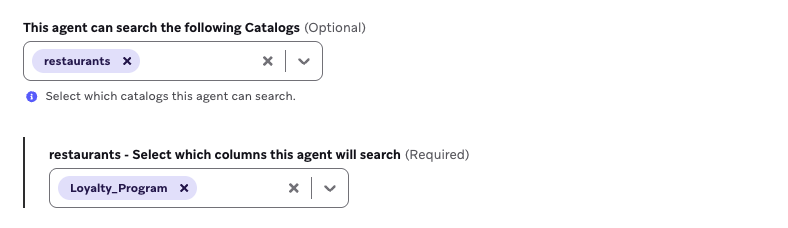
Choose specific catalogs for an agent to reference and to give your agent the context it needs to understand your products and other non-user data when relevant. Agents use tools to find the relevant items only and send those to the LLM to minimize token use.
Segment membership context
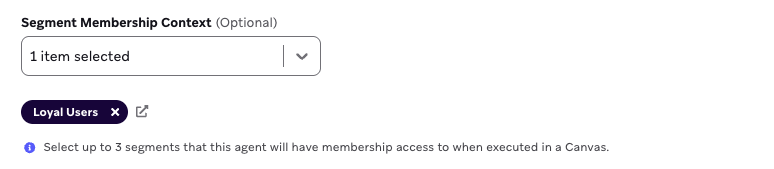
You can select up to five segments for the agent to cross-reference each user’s segment membership against when the agent is used in a Canvas. Let’s say your agent has segment membership selected for a “Loyalty Users” segment, and the agent is used in a Canvas. When users enter an Agent step, the agent can cross-reference if each user is a member of each segment you specified in the agent console, and use each user’s membership (or non-membership) as context for the LLM.
Brand guidelines
You can select brand guidelines for your agent to adhere to in its responses. For example, if you want your agent to generate SMS copy to encourage users to sign up for a gym membership, you can use this field to reference your predefined bold, motivational guideline.
Temperature
If your goal is to use an agent to generate copy to encourage users to log into your mobile app, you can set a higher temperature for your agent to be more creative and use the nuances of the context variables. If you’re using an agent to generate sentiment scores, it may be ideal to set a lower temperature to avoid any agent speculation on negative survey responses. We recommend testing this setting and reviewing the agent’s generated output to fit your scenario.
Temperatures aren’t currently supported for use with OpenAI.
Duplicate agents
To test improvements or iterations of an agent, you could duplicate an agent then apply changes to compare to the original. You can also treat duplicating agents as version control to track variations in the agent’s details and any impacts on your messaging. To duplicate an agent:
- Hover over the agent’s row and select the menu.
- Select Duplicate.
Archive agents
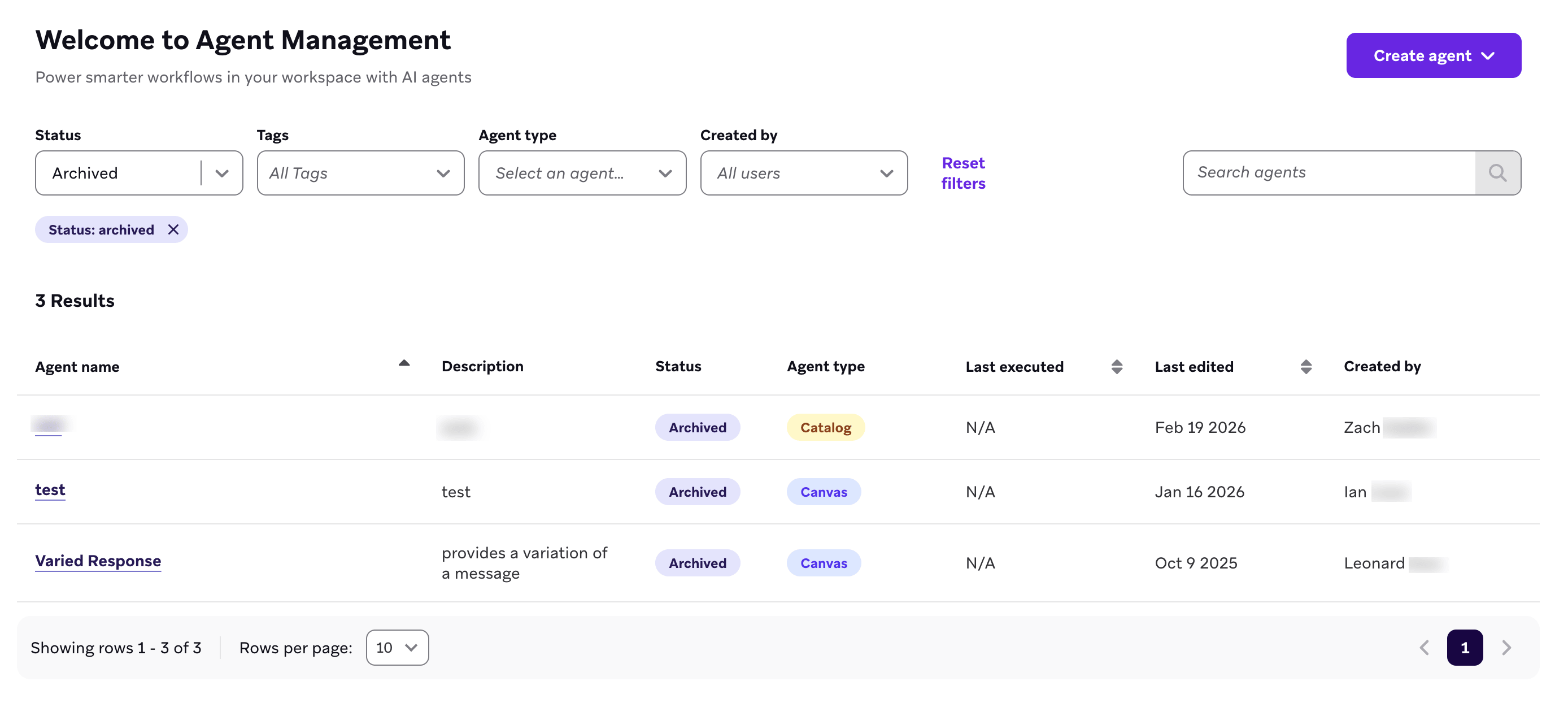
As you create more custom agents, you can organize the Agent Management page by archiving agents that aren’t actively being used. To archive an agent:
- Hover over the agent’s row and select the menu.
- Select Archive.
 Edit this page on GitHub