Multi-language messages
After adding locales to your workspace, you can target users in different languages all within a single push, email, webhook, banner, in-app message, or Content Block.
Prerequisites
| Feature | Required user permissions |
|---|---|
| Multi-language locales | You need these permissions to create and manage multi-language locales:
|
| Feature | Required user permissions |
|---|---|
| Templates | You need these permissions for the template type you want to add locales and translations to:
|
Use locales
Step 1: Set up locales
Before you can add translations to a message, you must first create the locales you want to support. Locales define the language (and optionally region) variants available for messaging.
Step 2: Mark content for translation
Wrap text you want to translate with the Liquid translation tags {% translation your_id_here %} and {% endtranslation %} and assign a tag ID. Translation tag IDs must be unique within a message. Consider using semantic ID names that plainly describe the text, such as {% translation header %}. If the message includes Content Blocks, see Content Blocks containing translation for how uniqueness applies.
Here is an example message marked for translation: {% translation greeting %}Hello!{% endtranslation %}

Highlight the text you want to translate and use the keyboard shortcut Cmd + Alt + L (macOS) or Ctrl + Alt + L (Windows) to wrap in translation tags.
This shortcut works in all channels that support multi-language messaging except for the drag-and-drop editors for email and Content Blocks. For those, use the Add personalization button to add translation tags.
Localize URLs
When translating content, URLs require special handling to prevent broken links.
Standard (static) URLs
Static URLs are entered manually in the editor (for example, https://example.com). We also recommend the following:
| Recommendation | Reasoning |
|---|---|
Keep the protocol (https://) outside of translation tags. Wrap only the domain and path (for example, example.com/en). |
Translators may accidentally alter or remove special characters, causing broken links. |
Do not include query parameters inside translation tags (for example, ?utm_source=promo). |
Translators may accidentally alter or remove special characters, resulting in broken links. |
A standard URL that follows both recommendations is:
<a href="https://{% translation id_1 %}example.shop.com{% endtranslation %}">Visit our store</a>
Liquid-generated URLs
If your URL is generated with Liquid (for example, {% landing_page_url %}), we recommend the following:
| Recommendation | Reasoning |
|---|---|
| Wrap the Liquid-generated URL in translation tags only if it must be localized. | Liquid syntax must be carefully preserved to render correctly. |
Do not include query parameters (for example, ?utm_source=promo) inside translation tags. |
Translators may accidentally alter or remove special characters, resulting in broken links. |
A Liquid-generated URL that follows both recommendations is:
<a href="{% translation id_1 %}{% landing_page_url xyz %}{% endtranslation %}">View details</a>

If you are using email link tracking (link aliasing or link templates), additional configuration is required when URLs are wrapped in translation tags.
HTML attributes and structure
Only wrap human-readable text in translation tags. Avoid wrapping HTML attributes (such as class, style, or id) or other structural code. HTML attributes control layout, styling, and functionality. Wrapping them in translation tags can break formatting or styles in localized versions of your message.
This text is correctly wrapped:
<p class="headline" style="color: red;">
{% translation id_1 %}Welcome to our sale{% endtranslation %}
</p>
Incorrectly wrapped text
This text is incorrectly wrapped:
{% translation id_1 %}
<p class="headline" style="color: red;">
Welcome to our sale
</p>
{% endtranslation %}
Step 3: Add locales to your message
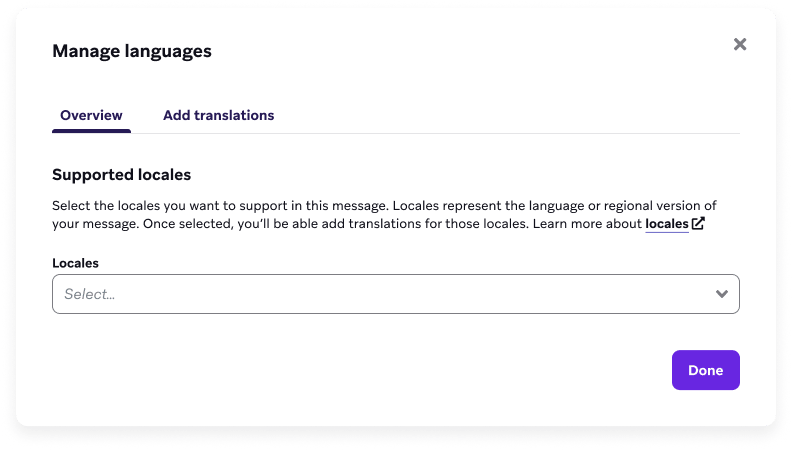
After adding translation tags to your message, select Manage languages in the editor (Languages in the drag-and-drop editors for email and Content Blocks) and select at least one locale you want to add translations for.
Content Blocks containing translation
Content Blocks with translation tags behave differently depending on whether the block has its own saved translations:
| Content Block state | Where translations are managed |
|---|---|
| Translation tags, but no locales or saved translations | Parent message’s Manage languages CSV |
| Translation tags with locales and saved translations | Content Block’s own CSV or translation API |
Content Blocks with saved translations
If your message contains Content Blocks that already have translations saved, you do not need to re-upload those translations. Saved translations are automatically applied when the Content Block is added to your message. Those blocks keep their own tag IDs, which don’t need to be unique against the parent message. For how to save translations on the block itself, see Save translations in Content Blocks.
In the Manage languages modal, Content Blocks with saved translations appear in the list, alongside the locales they support. This allows you to see which parts of your message are already localized before adding new translations.
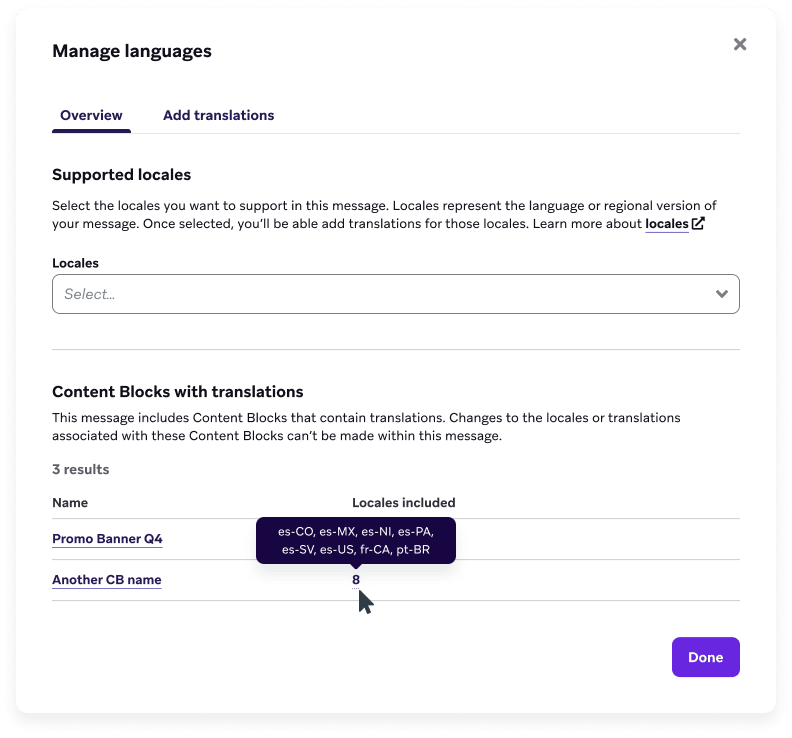
Make sure each Content Block includes translations for every locale added to your message. If a Content Block is missing translations for one of the locales you added, it shows in its original language for users in that locale.
Content Blocks with translation tags only
When a Content Block has translation tags but no locales or saved translations, its tags are treated as untranslated source content in the parent message. The parent’s Manage languages export includes those tags, and the parent CSV must supply their translations. Those tags must be unique against other tags in the parent message.
If you reuse an untranslated Content Block in another message, that second message must also provide translations for the block’s tags. To avoid providing translations in every message that uses a Content Block, add locales and translations directly to the Content Block itself.
Step 4: Add translations
After selecting locales, add translations to your message using one of the following methods:
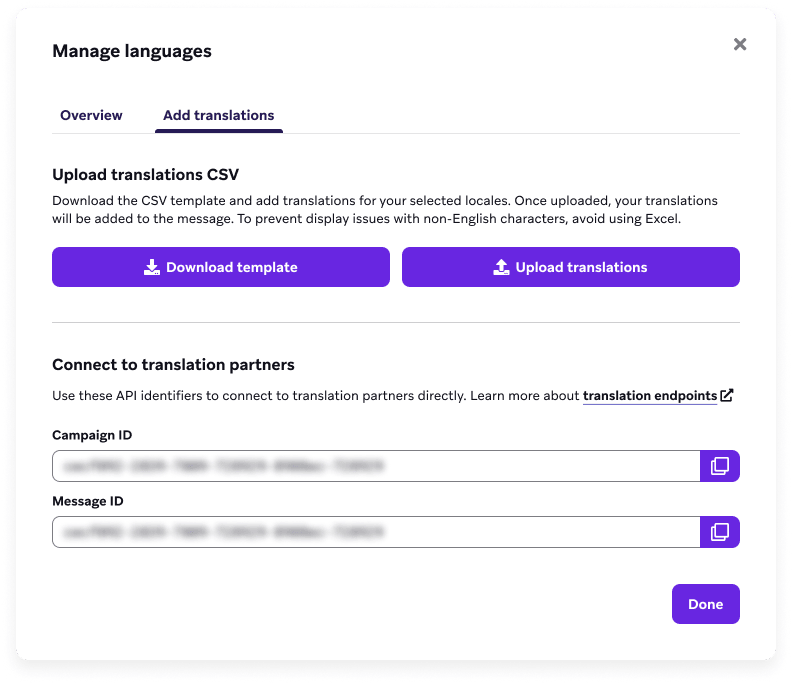
Select Download template to download a CSV containing a matrix of your selected translation IDs and locales.
To prevent display issues with non-English characters, avoid using Excel for your translation CSV.
When you fill out the template, translate only the text content for each locale. If HTML tags are present in the downloaded template, leave them unchanged and translate only the text within the tags.
For example, if the template contains:
<p style="margin:0;margin-bottom:0">A charming bakery dedicated to crafting artisanal breads.</p>
Only translate the text A charming bakery dedicated to crafting artisanal breads. and keep the HTML tags <p style="margin:0;margin-bottom:0"> and </p> as is.
Then, upload the completed file and translations will be applied to your message.
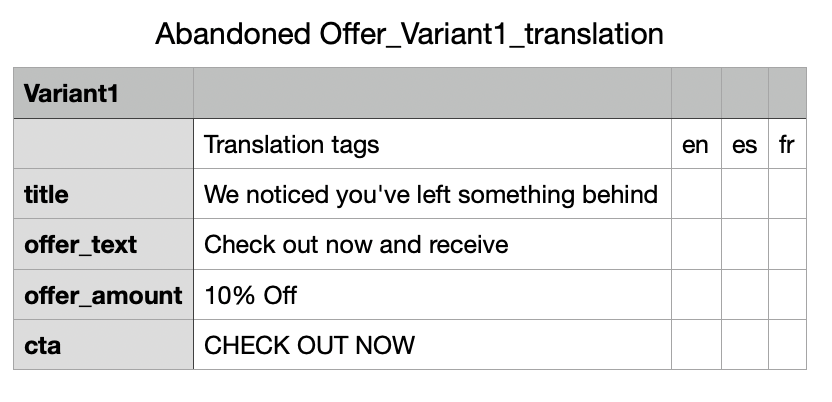
Use a partner translation API to manage and update translations in your campaigns, Canvases, Content Blocks, email templates, and webhook templates. This is useful if you use an external system for localization or want to directly connect with a translation partner.
To use the translations endpoints with Canvases, include the following parameters:
workflow_idstep_idmessage_variation_id

When using the translation API with Canvas steps that were created after the Canvas launched, the message_variation_id that you pass into the API will be empty or blank.
Step 5: Preview translations
To preview your message, select the Multi-Language User option from the Preview as User dropdown. This lets you switch between different locale definitions to preview all translations of your message.

Manage translations
Duplicate Canvas steps or campaigns, and translations
When you duplicate a Canvas step, campaign, or variation, translations are included. This is also true when copying across workspaces, so long as the locales are defined in that destination workspace. Be sure to review and update translations accordingly when making modifications to your Canvas or campaign.
Save translations in Content Blocks
Content Blocks support multi-language in the same way as messages. When creating or editing Content Blocks, you can tag content for translation, add locales, and upload translations using a CSV or the translation API.
Saved translations remain associated with the Content Block. When the block is added to a message, its translations are automatically included.
Right-to-left messages
When filling in the translation file for languages that are written from right-to-left (like Arabic), wrap the translation with span so that it is properly formatted:
{% translation your_id_here %}<span dir='rtl'>default text</span>{% endtranslation %}
Email link tracking
In email campaigns, Braze tracks links by adding tracking information (query parameters) to each URL. This behavior supports both link aliasing and link templating.
When a URL is wrapped in translation tags, Braze may not be able to determine where to add this tracking information. To ensure this works correctly, you must include a special character at the end of the URL to indicate where tracking should be added.
URLs use two special characters to control how this works:
?adds tracking to a URL that does not already have it.&adds additional tracking if a?is already present in the URL. A URL can only contain one?.
| URL | Contains ? |
Description | Example |
|---|---|---|---|
| Standard URL | No | Add ? after the closing translation tag if the URL does not already contain one. |
<a href="https://{% translation id_1 %}example.com{% endtranslation %}?">Shop Now</a> |
| Standard URL | Yes | Use & at the end of the URL (after the closing translation tag) if it already contains ?. |
<a href="https://{% translation id_1 %}example.com{% endtranslation %}?ref=4&">Shop Now</a> |
| Liquid generated | No | Use ? after the closing translation tags if the generated URL does not already contain one. |
<a href="{% translation id_1 %}{{ product_url }}{% endtranslation %}?">Shop Now</a> |
| Liquid generated | Yes | Use & after the closing translation tag if the generated URL already contains a ?. |
<a href="{% translation id_1 %}{% landing_page_url xyz %}{% endtranslation %}&">Shop Now</a> |
Language settings and accessibility
Start with Accessibility language in Accessibility for WCAG context, channel and editor behavior (including landing pages), and message-level Accessibility settings.
When you use multi-language messages, align accessibility language with each locale so localized sends declare the appropriate language.
Configure the accessibility language
You can set accessibility language at two levels:
Message level
At the message level, set accessibility language in the Accessibility section of your message settings. For selecting a language, using Liquid, and limitations by channel, refer to Accessibility language.
Locale level
For multi-language messages, set accessibility language for each locale in Localization Settings. You can use {{accessibility_language}} in the Accessibility section so document or card language maps to those locale values.
Whether that token appears by default for new messages depends on the channel and editor. For example, in-app messages and Banners behave differently from landing pages and drag-and-drop emails. Refer to Accessibility language for details.
Frequently asked questions
What are the limits for translation tags?
When using translation tags, the following limits apply:
- Each message can have up to 200 translation tags.
- Each default text (the content between translation tags) can have up to 2,000 characters.
- The translations per locale can have up to 409,600 bytes (approximately 409.6 KB).
Why am I receiving an error when downloading multi-language email templates?
If you encounter errors when downloading multi-language email templates, the translation tags may be wrapping HTML attributes or CSS styling that conflict with how Braze processes email bodies.
Braze treats the HTML body and plaintext body as separate components of the same message. When translation tags include href references and CSS styling, this can lead to conflicting tags that prevent the template from being downloaded correctly.
To resolve this:
- Exclude
hrefreferences and CSS styling from translation tags. - Wrap only human-readable text content in translation tags, as described in HTML attributes and structure.
- For URLs, follow the guidance in Localize URLs.
Can I make a change to the translated copy in one of my locales?
Yes. First, make the edit in the CSV, then upload the file again to make a change to the translated copy.
Does Braze provide translations?
No. You must provide your own translations either by uploading a CSV or using the translation API.
Can I nest translation tags?
No.
Can I wrap entire HTML messages in a translation tag?
No. As a best practice, you should only wrap human-readable text or content that must be localized. This helps prevent broken formatting, links, or other non-text elements.
Additionally, consider wrapping smaller, semantically-related pieces of text to create accurate translations and avoid performance or size limitations.
Can I make a change to the translated copy in one of my locales?
Yes. If using a CSV, first make the edit in the file, then upload it again to make a change to the translated copy. If using the translation API, use the Update endpoints to make changes.
What validations or extra checks does Braze do?
| Scenario | Validation in Braze |
|---|---|
| A message contains two or more matching translation IDs that map to different text. | This translation file won’t be downloaded. |
| A translation file is missing one or more translation tag IDs. | This translation file won’t be uploaded. |
| A translation file contains locales that are missing from the message. | This translation file won’t be uploaded. |
| Translation tags must be added to a message before downloading the translation template. | This translation file won’t be downloaded. |
| Translation tags found in your uploaded file are missing from your message. | Extra translations won’t be saved to the message. |
A message contains one or more broken Liquid tags. To open tags use {% translation your_id_here %}, close translation tags with {% endtranslation %}. |
This translation file won’t be downloaded. |
| A translation file contains default text that doesn’t match what’s in the message. | Translations are added, but original message text is not updated. |
| One or more of the locales in a message have been deleted in settings and no longer exist. | Translations that have already been added continue to exist within the message. If deleted from the message, translations are lost. |
| Translation tags contain full URLs or Liquid-generated URLs. | Translation tags containing URLs are identified in case issues with broken links or link tracking occur. |
| Translation tags include query parameters. | Translation tags containing query parameters are identified in case issues with broken links or link tracking occur. |
| Translation tags contain HTML attributes or structures. | Translation tags containing HTML attributes or structures are identified in case issues with styles and formatting occur. |