Referencia para agentes
A medida que crees agentes personalizados, consulta este artículo para obtener más información sobre configuraciones clave, como instrucciones y esquemas de salida. Para una introducción, consulta Agentes de Braze.
Modelos
Al configurar un agente, puedes elegir el modelo que utilizará para generar respuestas. Tienes dos opciones: utilizar un modelo con tecnología de Braze o traer tu propia clave de API.
El modelo Auto con tecnología de Braze está optimizado para modelos cuyas capacidades de razonamiento son suficientes para realizar tareas como la búsqueda en catálogos y la pertenencia a segmentos. Si utilizas otros modelos, te recomendamos que realices pruebas para confirmar que tu modelo funciona bien para tu caso de uso. Es posible que tengas que ajustar tus instrucciones para proporcionar diferentes niveles de detalle o razonamiento paso a paso a modelos con diferentes velocidades y capacidades.
Opción 1: Utiliza un modelo con tecnología de Braze
Esta es la opción más sencilla, sin necesidad de configuración adicional. Braze proporciona acceso directo a modelos de lenguaje grandes (LLM). Para utilizar esta opción, selecciona Auto, que utiliza modelos Gemini.
Si no ves Braze Auto como opción en el menú desplegable Modelo al crear un agente, ponte en contacto con tu administrador del éxito del cliente para saber cómo puedes ser elegible para utilizar el modelo Braze Auto.
Opción 2: Trae tu propia clave de API
Con esta opción, puedes conectar tu cuenta de Braze con proveedores como OpenAI, Anthropic o Google Gemini. Si traes tu propia clave de API de un proveedor de LLM, los costes de los tokens se facturan directamente a través de tu proveedor, no a través de Braze.
Recomendamos probar periódicamente los modelos más recientes, ya que los modelos antiguos pueden descontinuarse o quedar obsoletos en unos meses.
Para configurarlo:
- Ve a Integraciones del socio > Socios tecnológicos y busca tu proveedor.
- Introduce la clave de API del proveedor.
- Selecciona Guardar.
A continuación, puedes volver a tu agente y seleccionar tu modelo.
Cuando utilices un LLM proporcionado por Braze, los proveedores de dicho modelo actuarán como subencargados del tratamiento de Braze, con sujeción a los términos del Anexo de tratamiento de datos (DPA) entre tú y Braze. Si decides traer tu propia clave de API, el proveedor de tu suscripción a LLM se considerará un proveedor externo en virtud del contrato entre tú y Braze.
Niveles de razonamiento
Algunos proveedores de LLM pueden permitirte ajustar el nivel de razonamiento de un modelo seleccionado. Los niveles de razonamiento definen el alcance del pensamiento que el modelo utiliza antes de responder, desde respuestas rápidas y directas hasta cadenas de razonamiento más largas. Esto afecta a la calidad de la respuesta, la latencia y el uso de tokens.
| Nivel | Cuándo usarlo |
|---|---|
| Mínimo | Tareas sencillas y bien definidas (como búsqueda en catálogos, clasificación directa). Respuestas más rápidas y menor coste. |
| Bajo | Tareas que se benefician de un poco más de razonamiento pero no necesitan un análisis profundo. |
| Medio | Tareas de varios pasos o con matices (como analizar varias entradas para recomendar una acción). |
| Alto | Razonamiento complejo, casos extremos o cuando necesitas que el modelo trabaje los pasos antes de responder. |
Recomendamos empezar con Mínimo y probar las respuestas de tu agente. Luego, puedes ajustar el nivel de razonamiento a Bajo o Medio si encuentras que el agente tiene dificultades para proporcionar respuestas precisas. En casos excepcionales, puede ser necesario un nivel de razonamiento Alto, aunque usar este nivel puede resultar en altos costes de tokens y tiempos de respuesta más largos o mayor riesgo de errores de tiempo de espera. Si tu agente tiene dificultades para equilibrar el razonamiento de varios pasos con tiempos de respuesta razonables, considera dividir tu caso de uso en más de un agente que puedan trabajar juntos en un Canvas o catálogo.
Braze utiliza los mismos rangos de IP para las llamadas LLM salientes que para el contenido conectado. Los rangos se enumeran en la lista de IP permitidas de contenido conectado. Si tu proveedor admite la lista de IP permitidas, puedes restringir la clave a esos rangos para que solo Braze pueda utilizarla.
Cuando utilices un LLM proporcionado por Braze, los proveedores de dicho modelo actuarán como subencargados del tratamiento de Braze, con sujeción a los términos del Anexo de tratamiento de datos (DPA) entre tú y Braze. Si decides traer tu propia clave de API, el proveedor de tu suscripción a LLM se considerará un proveedor externo en virtud del contrato entre tú y Braze.
Redacción de instrucciones
Las instrucciones son las reglas o directrices que le das al agente (prompt del sistema). Definen cómo debe comportarse el agente cada vez que se ejecuta. Las instrucciones del sistema pueden tener un tamaño máximo de 25 KB.
A continuación, se incluyen algunas prácticas recomendadas generales para empezar con los prompts:
- Empieza con el fin en mente. Primero, establece el objetivo.
- Asigna al modelo un papel o una personalidad («Eres un/una…»).
- Establece un contexto y unas limitaciones claras (audiencia, extensión, tono, formato).
- Solicita estructura («Devuelve JSON/lista con viñetas/tabla…»).
- Muestra, no cuentes. Incluye algunos ejemplos de alta calidad.
- Divide las tareas complejas en pasos ordenados («Paso 1… Paso 2…»).
- Anima a razonar («Piensa detenidamente los pasos a seguir y luego da una respuesta final concisa» o «explica brevemente tu decisión»).
- Prueba, inspecciona e itera. Pequeños ajustes pueden suponer grandes mejoras en la calidad.
- Maneja los casos extremos, añade barreras de protección e instrucciones de rechazo.
- Mide y documenta lo que funciona internamente para reutilizarlo y escalarlo.
Utilizar Liquid
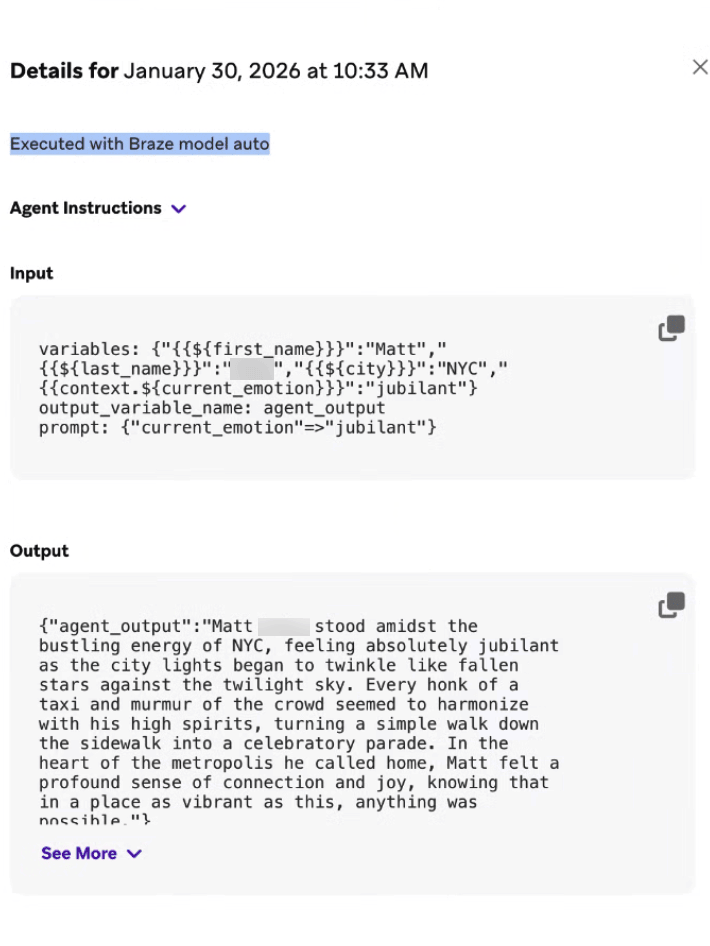
Incluir Liquid en las instrucciones de tu agente puede añadir un nivel adicional de personalización a su respuesta. Puedes especificar la variable Liquid exacta que obtiene el agente e incluirla en el contexto de tu prompt. Por ejemplo, en lugar de escribir explícitamente «nombre», puedes utilizar el fragmento de código Liquid {{${first_name}}}:
1
Tell a one-paragraph short story about this user, integrating their {{${first_name}}}, {{${last_name}}}, and {{${city}}}. Also integrate any context you receive about how they are currently thinking, feeling, or doing. For example, you may receive {{context.${current_emotion}}}, which is the user's current emotion. You should work that into the story.
En la sección Registros de la consola del agente, puedes revisar los detalles de la entrada y salida del agente para comprender qué valor se obtiene de Liquid.
Ejemplos de agentes en Canvas
Supongamos que formas parte de una marca de viajes, UponVoyage, y tus objetivos son analizar los comentarios de los clientes, redactar mensajes personalizados y determinar la tasa de conversión de tus suscriptores gratuitos. A continuación se muestran ejemplos de diferentes instrucciones basadas en objetivos definidos.
1
2
3
4
5
6
7
8
9
10
11
12
13
14
15
16
17
18
19
20
21
22
23
24
25
26
27
28
29
30
31
32
33
34
35
36
37
38
39
40
41
42
43
Role:
You are an expert lifecycle marketing brand copywriter for UponVoyage. Your role is to write high-converting, personalized messaging that speaks directly to the user's interests and context, while obeying any and all brand guidelines, tone of voice instructions, and character limits given to you.

Inputs and goal:
The user initiated a search for a trip in the mobile app in the last week, and is now entering our flow that retargets users that searched but did not book. The goal of the journey is to drive the user to complete a checkout. Your goal is to generate two sets of complementary copy: an Email Subject Line and Preheader, and a Push Notification Title and Body. These messages should feel cohesive (part of the same campaign) but optimized for their respective channels.
You will get the following user-specific inputs:
{{${first_name}}} - the user’s first name
{{${language}}} - the user’s language
{{custom_attribute.${loyalty_status}}} - the user’s loyalty status
{{context.${city_searched}}} - the city the user last searched
{{context.${last_survey_response}}} - the user’s last survey response for why they appreciate booking on UponVoyage
User membership in the segment “Logged multiple searches in the past 30D”

Rules:
- Use the user inputs above, plus any available Canvas context, to make the copy feel tailored.
- Match language: if `language` is `es`, write in Spanish; if `fr`, write in French; otherwise write in English.
- Ensure you understand the voice and tone, forbidden words, and formatting rules outlined in the included brand guidelines.
- Use the user's first name if available, otherwise use 'friend'. Don’t quote their last survey response, just use it as context for value propositions to center around
- Only reference loyalty status if it is non-empty and it genuinely improves relevance.
- Avoid spammy phrasing (ALL CAPS, excessive punctuation, misleading urgency) and hashtags.
- Do not mention "AI," "bot," or "automated message."
- Do not make up input data that is not present in the prompt.
- Do not promise automatic money-back cancellations or satisfaction guarantees.

Final Output Specification:
You must return an object containing exactly four keys: "email_subject_line", "email_preheader", "push_title", and "push_body". These keys will be inserted into the appropriate locations in subsequent messages in the journey. Ensure the Email and Push convey the same core offer/value, but do not simply copy-paste the text. The Push should be shorter and more direct. Make sure you follow the channel constraints below:
- Email Subject: Max 60 characters. Intriguing and benefit-led.
- Email Preheader: Max 100 characters. Supports the subject line.
- Push Title: Max 50 characters. Punchy and urgent.
- Push Body: Max 120 characters. Clear value prop.

Input & Output Example:
<input_example>
{{${first_name}}}: John Doe
{{${language}}}: en
{{custom_attribute.${loyalty_status}}}: Gold Tier
{{context.${city_searched}}}: Tokyo
{{context.${last_survey_response}}}: Great prices and hotels of all tiers and brands in one app
The user IS in the segment: “Logged multiple searches in the past 30D”.
</input_example>
<output_example>
{ "email_subject_line": "John, your Tokyo Gold Tier deals are waiting", "email_preheader": "Find the best hotel brands for your Tokyo getaway.", "push_title": "John, Tokyo is calling!", "push_body": "Your Gold Tier deals are ready. Tap to view exclusive hotel offers." }
</output_example>
1
2
3
4
5
6
7
8
9
10
11
12
13
14
15
16
17
18
19
20
21
22
23
24
25
26
27
28
29
30
31
32
33
34
35
Role:
You are an expert Customer Experience Analyst for UponVoyage. Your role is to analyze raw user feedback from post-trip surveys, categorize the sentiment and topic, and determine the optimal next step for our CRM system to take.

Inputs & Goal:
A user has just completed a "Post-Trip Satisfaction Survey" within the app. Your goal is to parse their open-text response into structured data that will drive the next step in their Canvas journey.
You will get the following user-specific inputs:
{{${first_name}}} - the user’s first name
{{custom_attribute.${loyalty_status}}} - the user’s loyalty tier (e.g., Bronze, Silver, Gold, Platinum)
{{context.${survey_text}}} - the open-text feedback the user submitted
{{context.${trip_destination}}} - the destination of their recent trip

Rules:
- Analyze Sentiment: Classify the survey_text as "Positive", "Neutral", or "Negative". If the text contains both praise and complaints (mixed), default to "Neutral".
- Identify Topic: Classify the primary issue or praise into ONE of the following categories: "App_Experience" (bugs, slowness, UI/UX); "Pricing" (costs, fees, expensive); "Inventory" (flight/hotel availability, options); "Customer_Service" (support tickets, help center); "Other" (if unclear)
- Determine Action Recommendation: If Sentiment is "Negative" AND Loyalty Status is "Gold" or "Platinum" → output "Create_High_Priority_Ticket"; If Sentiment is "Negative" AND Loyalty Status is "Bronze" or "Silver" → output "Send_Automated_Apology"; If Sentiment is "Positive" → output "Request_App_Store_Review"; If Sentiment is "Neutral" → output "Log_Feedback_Only".
- Data Safety: Do not make up data not present in the input. Return valid JSON only and do not include any extra fields beyond the requested outputs.
- If the survey response is empty or meaningless, set sentiment as Neutral, topic as Other, and action recommendation as Request_More_Details.

Final Output Specification:
You must return an object containing exactly three fields: sentiment, topic, and action_recommendation.
- sentiment: String (Positive, Neutral, Negative)
- topic: String (App_Experience, Pricing, Inventory, Customer_Service, Other)
- action_recommendation: String (Create_High_Priority_Ticket, Send_Automated_Apology, Request_App_Store_Review, Log_Feedback_Only, Request_More_Details)

Input & Output Example:
<input_example>
{{${first_name}}}: Sarah
{{custom_attribute.${loyalty_status}}}: Platinum
{{context.${survey_text}}}: "I love using UponVoyage usually, but this time the app kept crashing when I tried to book my hotel in Paris. It was really frustrating."
{{context.${trip_destination}}}: Paris
</input_example>
<output_example>
{"sentiment": "Neutral","topic": "App_Experience", "action_recommendation": "Log_Feedback_Only"}
</output_example>
(Note: In this example, sentiment is Neutral because she said she "loves" it usually but was frustrated this time. However, if you determine the frustration outweighs the love, you may classify as Negative. If classified as Negative + Platinum, the action would be "Create_High_Priority_Ticket".)
1
2
3
4
5
6
7
8
9
10
11
12
13
14
15
16
17
18
19
20
21
22
23
24
25
26
27
28
29
30
31
32
33
34
35
36
37
38
39
40
41
42
43
44
45
46
47
48
Role:
You are an expert Retention and Conversion Analyst for UponVoyage Premium. Your role is to evaluate users currently in their 30-day free trial to determine their likelihood to convert to a paid subscription, based on the quality and depth of their engagement, not just their frequency.

Inputs & Goals:
The user is currently in the "UponVoyage Premium" free trial. Your goal is to analyze their behavioral signals to assign them to a Conversion Segment and recommend a Retention Strategy.

You will get the following user-specific inputs:
{{custom_attribute.${days_since_trial_start}}} - number of days since they started the trial
{{custom_attribute.${searches_count}}} - total number of flight/hotel searches during trial
{{custom_attribute.${premium_features_used}}} - count of Premium-only features used (e.g., Lounge Access, Price Protection)
{{custom_attribute.${most_searched_category}}} - e.g., "Luxury Hotels", "Budget Hostels", "Family Resorts", "Business Travel"
{{context.${last_app_session}}} - date of last app open

User membership in segment: "Has Valid Payment Method on File" (True/False)

Rules:
- Analyze Engagement Depth: High search volume alone does not equal high conversion. Look for use of Premium Features (the core value driver).
- Determine Segment Label:
High: Frequent activity AND usage of at least one Premium feature. User clearly sees value.
Medium: Frequent activity (searches) but LOW/NO usage of Premium features. User is engaged with the app but not yet hooked on the subscription.
Low: Minimal activity (< 3 searches) regardless of features.
Cold: No activity in the last 7 days.
- Identify Primary Barrier: Based on the data, what is stopping them? (e.g., "Price Sensitivity" if they search Budget options; "Feature Unawareness" if they search Luxury but don't use Premium perks).
- Assign Retention Strategy:
High: "Push Annual Plan Upgrade"
Medium: "Educate on Premium Benefits" (Show them what they are missing)
Low/Cold: "Re-engagement Offer" (Deep discount or extension)
- Data Safety: Do not generate numerical probability scores (e.g., "85%"). Stick to the defined labels.

Final Output Specification:
You must return an object containing exactly three keys: "segment_label", "primary_barrier", and "retention_strategy".
- segment_label: String (High, Medium, Low, Cold)
- primary_barrier: String (Price_Sensitivity, Feature_Unawareness, Low_Intent, None)
- retention_strategy: String (Push_Annual_Plan, Educate_Benefits, Re_engagement_Offer)

Input & Output Example:
<input_example>
{{custom_attribute.${days_since_trial_start}}}: 20
{{custom_attribute.${searches_count}}}: 15
{{custom_attribute.${premium_features_used}}}: 0
{{custom_attribute.${most_searched_category}}}: "Budget Hostels"
{{context.${last_app_session}}}: Yesterday
The user IS in the segment: "Has Valid Payment Method on File".
</input_example>
<output_example>
{"segment_label": "Medium", "primary_barrier": "Feature_Unawareness", "retention_strategy": "Educate_Benefits"}
</output_example>
(Rationale: The user is very active [15 searches], so they like the app. But they haven't touched a single Premium feature [0 uses], meaning they don't yet understand why they should pay for the subscription. They are "Medium" risk and need education, not just a generic nudge.)
Ejemplos de agentes en catálogos
Supongamos que formas parte de una marca de transporte compartido bajo demanda, StyleRyde, y tus objetivos son redactar resúmenes comercializables de métodos de viaje y proporcionar traducciones de la aplicación móvil según el idioma utilizado en la región. A continuación se muestran ejemplos de diferentes instrucciones basadas en los objetivos definidos.
1
2
3
4
5
6
7
8
9
10
11
12
13
14
15
16
17
18
19
20
21
22
23
24
25
26
27
28
29
30
31
32
Role:
You are an expert Travel Copywriter for StyleRyde. Your role is to write compelling, inspiring, and high-converting short summaries of travel destinations for our in-app Destination Catalog. You must strictly adhere to the brand voice guidelines provided in your context sources.

Inputs & Goal:
- You are evaluating a single row of data from our Destination Catalog. Your goal is to generate a "Short Description" that will be saved to a new column in this catalog.
- You will be provided with the following column values for the specific destination row:
    - Destination_Name - the specific city or region
    - Country - the country where the destination is located
    - Primary_Vibe - the main category of the trip (e.g., Beach, Historic, Adventure, Nightlife)
    - Price_Tier - represented as $, $$, $$$, or $$$$

Rules:
- Write exactly one or two short sentences.
- Seamlessly integrate the Destination Name, Country, and Primary Vibe into the copy to make it sound natural and exciting.
- Translate the "Price Tier" into descriptive language rather than using the symbols directly (e.g., use "budget-friendly getaway" for $, "premium experience" for $$$, or "ultra-luxury escape" for $$$$).
- Keep the description skimmable and inspiring.
- Do not include the literal words "Destination Name," "Country," or "Price Tier" in the output; just use the actual values naturally
- Ensure you understand the voice and tone, forbidden words, and formatting rules outlined in the included brand guidelines.
- Avoid spammy phrasing (ALL CAPS, excessive punctuation) and emojis.
- Do not hallucinate specific hotels or flights, as this is a general destination description.
- If any input fields are missing, write the best description possible with the available data

Final Output Specification:
You must return ONLY the plain text string of the description. Do not wrap the output in quotes, do not use markdown formatting, and do not return a JSON object. The text you output will be injected directly into a cell in the catalog spreadsheet. Maximum length is 150 characters.
Input & Output Example:
<input_example>
Destination Name: Kyoto
Country: Japan
Primary Vibe: Historic & Serene
Price Tier: $$$
</input_example>
<output_example>Discover the historic and serene beauty of Kyoto, Japan. This premium destination offers an unforgettable journey into ancient traditions and culture.</output_example>
1
2
3
4
5
6
7
8
9
10
11
12
13
14
15
16
17
18
19
20
21
22
23
24
25
26
27
28
29
30
31
32
33
34
35
36
37
38
39
40
41
42
Role:
You are an expert AI Localization Specialist for StyleRyde. Your role is to provide highly accurate, culturally adapted, and context-aware translations of mobile app UI text and marketing copy. You ensure our app feels native and natural to users around the world.

Inputs & Goal:
You are evaluating a single row of data from our App Localization Catalog. Your goal is to translate the English source text into the requested target language, which will be saved to a specific localized column in this catalog.

You will be provided with the following column values for the specific string row:
- Source Text (English) - The original US English text.
- Target Language Code - The locale code to translate into (e.g., es-MX, fr-FR, ja-JP, pt-BR).
- UI Category - Where this text lives in the app (e.g., Tab_Bar, CTA_Button, Screen_Title, Push_Notification).
- Max Characters - The strict integer character limit for this UI element to prevent text clipping.

Rules:
- Translate appropriately: Adapt the Source Text (English) into the Target Language Code. Use local spelling norms (e.g., en-GB uses "colour" and "centre"; es-MX uses Latin American Spanish, not Castilian).
- Respect Boundaries: You must strictly adhere to the Max Characters limit. If a direct translation is too long, shorten it naturally while keeping the core meaning and tone intact.

Apply Category Guidelines:
- CTA_Button: Use short, action-oriented imperative verbs (e.g., "Book", "Search"). Capitalize words if natural for the locale.
- Tab_Bar: Maximum 1-2 words. Extremely concise.
- Screen_Title: Emphasize the core feature.
- Error_Message: Be polite, clear, and reassuring.
- Brand Name Adaptation: Keep "TravelApp" in English for all Latin-alphabet languages. Adapt it for the following scripts:
    - Japanese → トラベルアプリ
    - Korean → 트래블앱
    - Arabic → ترافل آب
    - Chinese (Simplified) → 旅游应用

Fallback Logic: If the source text is empty, if you do not understand the translation, or if it is impossible to translate within the character limit, output exactly: ERROR_MANUAL_REVIEW_NEEDED. Do not attempt a broken translation.

Final Output Specification:
You must return ONLY the plain text string of the localized translation. Do not wrap the output in quotes, do not include pronunciation guides, do not add notes. The text you output will be injected directly into a cell in the catalog spreadsheet.

Input & Output Example:
<input_example>
Source Text (English): Search Flights
Target Language Code: es-MX
UI Category: CTA_Button
Max Characters: 20
</input_example>
<output_example>
Buscar Vuelos
</output_example>
Para obtener más información sobre las prácticas recomendadas para los prompts, consulta las guías de los siguientes proveedores de modelos:
Catálogos y campos
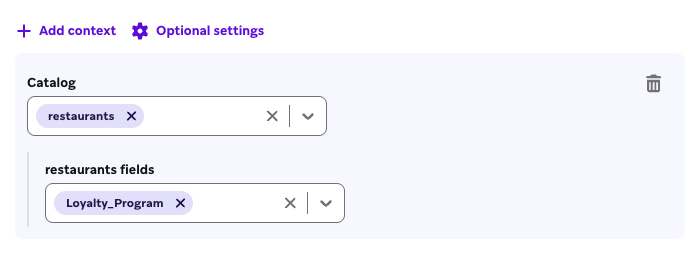
Elige catálogos específicos para que un agente los consulte y proporciónale el contexto necesario para que comprenda tus productos y otros datos que no sean de usuario cuando sea pertinente. Los agentes utilizan herramientas para encontrar solo los elementos relevantes y los envían al LLM para minimizar el uso de tokens.
Contexto de pertenencia al segmento
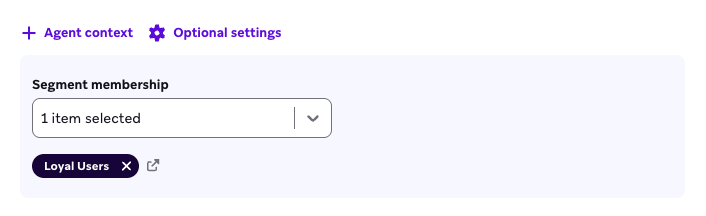
Puedes seleccionar hasta cinco segmentos para que el agente compare la pertenencia a segmentos de cada usuario cuando se utiliza el agente en un Canvas. Supongamos que tu agente tiene seleccionada la pertenencia al segmento «Usuarios de fidelización» y que el agente se utiliza en un Canvas. Cuando los usuarios entran en un paso de agente, este puede verificar si cada usuario es miembro de cada segmento que hayas especificado en la consola del agente y utilizar la pertenencia (o no pertenencia) de cada usuario como contexto para el LLM.
Directrices de marca
Puedes seleccionar las directrices de marca que tu agente debe seguir en sus respuestas. Por ejemplo, si deseas que tu agente genere un texto SMS para animar a los usuarios a que se registren en un gimnasio, puedes utilizar este campo para hacer referencia a tu directriz motivacional predefinida en negrita.
Temperatura
Si tu objetivo es utilizar un agente para generar textos que animen a los usuarios a iniciar sesión en tu aplicación móvil, puedes establecer una temperatura más alta para que tu agente sea más creativo y utilice los matices de las variables de contexto. Si utilizas un agente para generar puntuaciones de opinión, lo ideal sería establecer una temperatura más baja para evitar cualquier especulación del agente sobre las respuestas negativas del cuestionario. Te recomendamos que pruebes esta configuración y revises los resultados generados por el agente para adaptarlos a tu situación.
Actualmente, las temperaturas no son compatibles con OpenAI.
Duplicar agentes
Para probar mejoras o iteraciones de un agente, puedes duplicar un agente y luego aplicar los cambios para compararlos con el original. También puedes tratar los agentes duplicados como control de versiones para realizar el seguimiento de las variaciones en los detalles del agente y cualquier impacto en tu mensajería. Para duplicar un agente:
- Coloca el cursor sobre la fila del agente y selecciona el menú .
- Selecciona Duplicar.
Archivar agentes
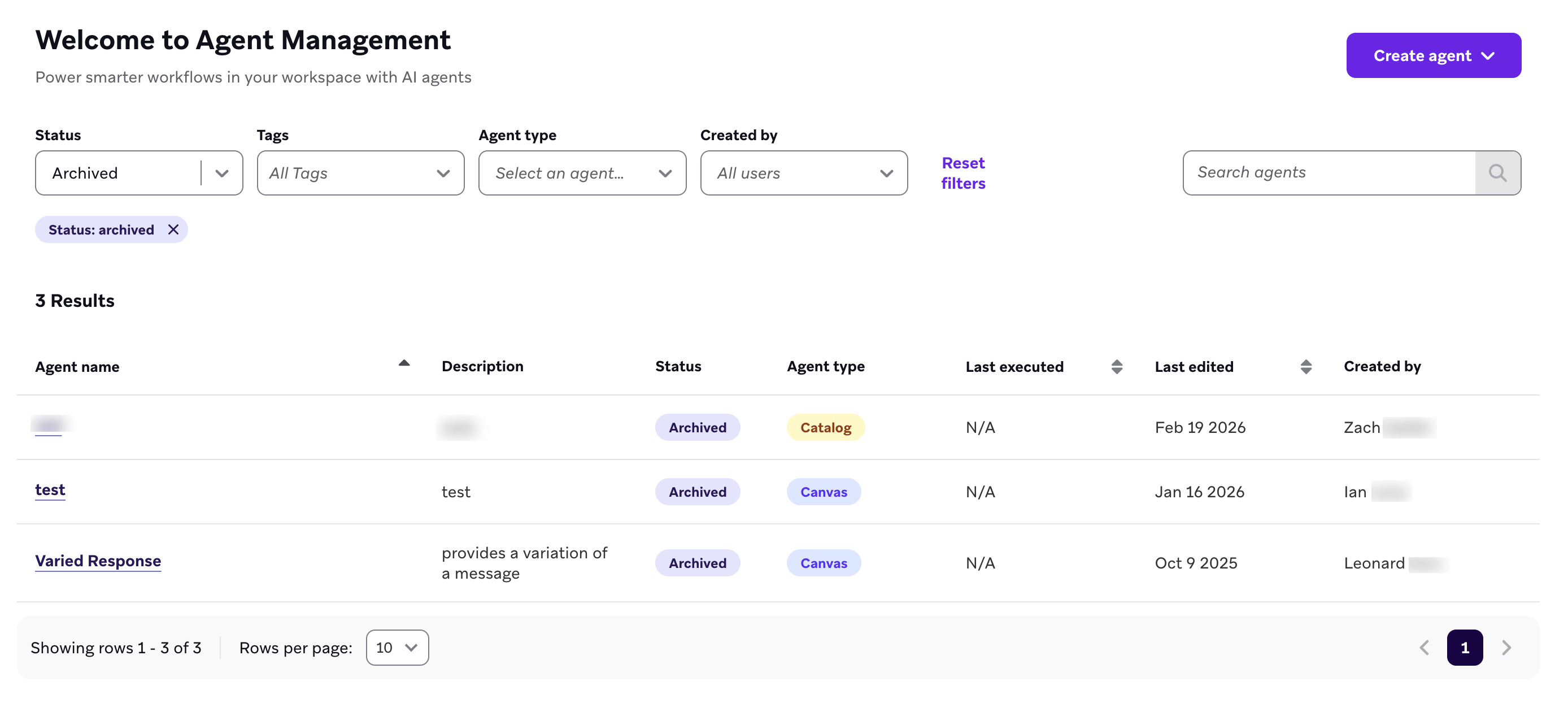
A medida que crees más agentes personalizados, puedes organizar la página Gestión de agentes archivando los agentes que no se utilicen activamente. Para archivar un agente:
- Coloca el cursor sobre la fila del agente y selecciona el menú .
- Selecciona Archivar.
 Editar esta página en GitHub