Set up KakaoTalk
This article covers how to set up the KakaoTalk messaging channel in Braze, including how to set up users, reconcile user IDs, and create KakaoTalk test users.
Prerequisites
| Requirement | Description |
|---|---|
| Account with a supported KakaoTalk partner | An account with a supported KakaoTalk partner, CJ OliveNetworks or Infobip, is required to use the KakaoTalk messaging channel. |
| KakaoTalk Business channel | Your KakaoTalk account must be a KakaoTalk Business channel to send KakaoTalk messages through Braze. When you create an account, its default status is basic. To make your account a Business channel, you’ll need to verify your business and provide relevant documentation. |
| KakaoTalk Sender Key | A valid KakaoTalk Sender Key. |
| Contact phone number | A contact phone number for your KakaoTalk channel’s administrator. |
Types of KakaoTalk accounts
| Account type | Description |
|---|---|
| Basic channel | A standard KakaoTalk channel that any organization can set up. It enables broadcast messaging and 1:1 chat through KakaoTalk. |
| Business channel | An upgraded, business-verified KakaoTalk channel that requires an application and verification process. It offers enhanced features, such as
|
Apply for a business channel
Before starting the application, gather the following business documentation:
- Korean Business Registration Certificate
- ID of the Business Representative
- Employment Certificate
- Industry-specific Licenses
The information on your KakaoTalk Channel (such as channel name, profile image, and others) must exactly match the information on your official submitted documents.
After gathering your documentation, follow these steps:
- Log into the KakaoTalk Channel Admin Center.
- Select the existing KakaoTalk channel you wish to upgrade.
- In the Management (관리) section, select the option for Business Channel Application (비즈니스 채널 신청).
- Select the Apply or Request button (신청) to begin the process.
- Provide the required information.
- Wait for a notification with the review results.
Integrate KakaoTalk
Step 1: Connect the KakaoTalk channel to Braze
- Go to Partner Integrations > Technology Partners and select your KakaoTalk provider.
- Gather the required credentials for your provider (see below), then enter them into the Technology Partners page and save.
- Use the newly saved credentials for sending.
CJ OliveNetworks
Go to your Comm.One dashboard and gather the following information.
| Field | Location |
|---|---|
| Comm.One Login ID (로그인 아이디) | Select your profile. |
| Sender Key (발신프로필 키) | Go to Template Management (템플릿 관리) > Sender Profile Management (발신프로필 관리). |
| Channel name (카카오톡 채널 프로필명) | In your Comm.One dashboard, go to Template Management (템플릿 관리) > Sender Profile Management (발신프로필 관리). |
| Sender number (연락처) |
|
| Credential (ID) & Password (비밀번호) | Go to the same location for the Sender number (사업자 등록번호), then go to API > Brand Message (브랜드 메시지). |
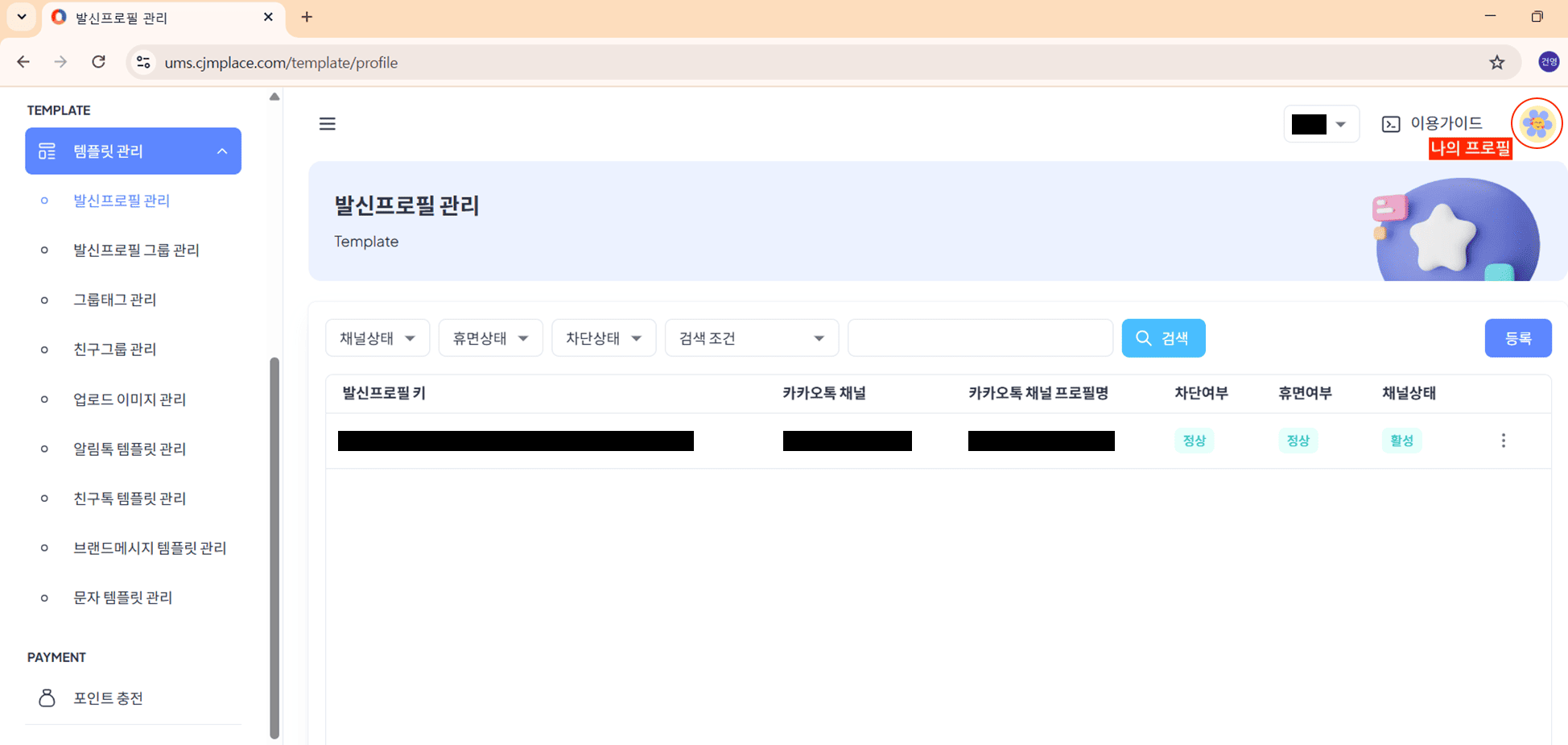
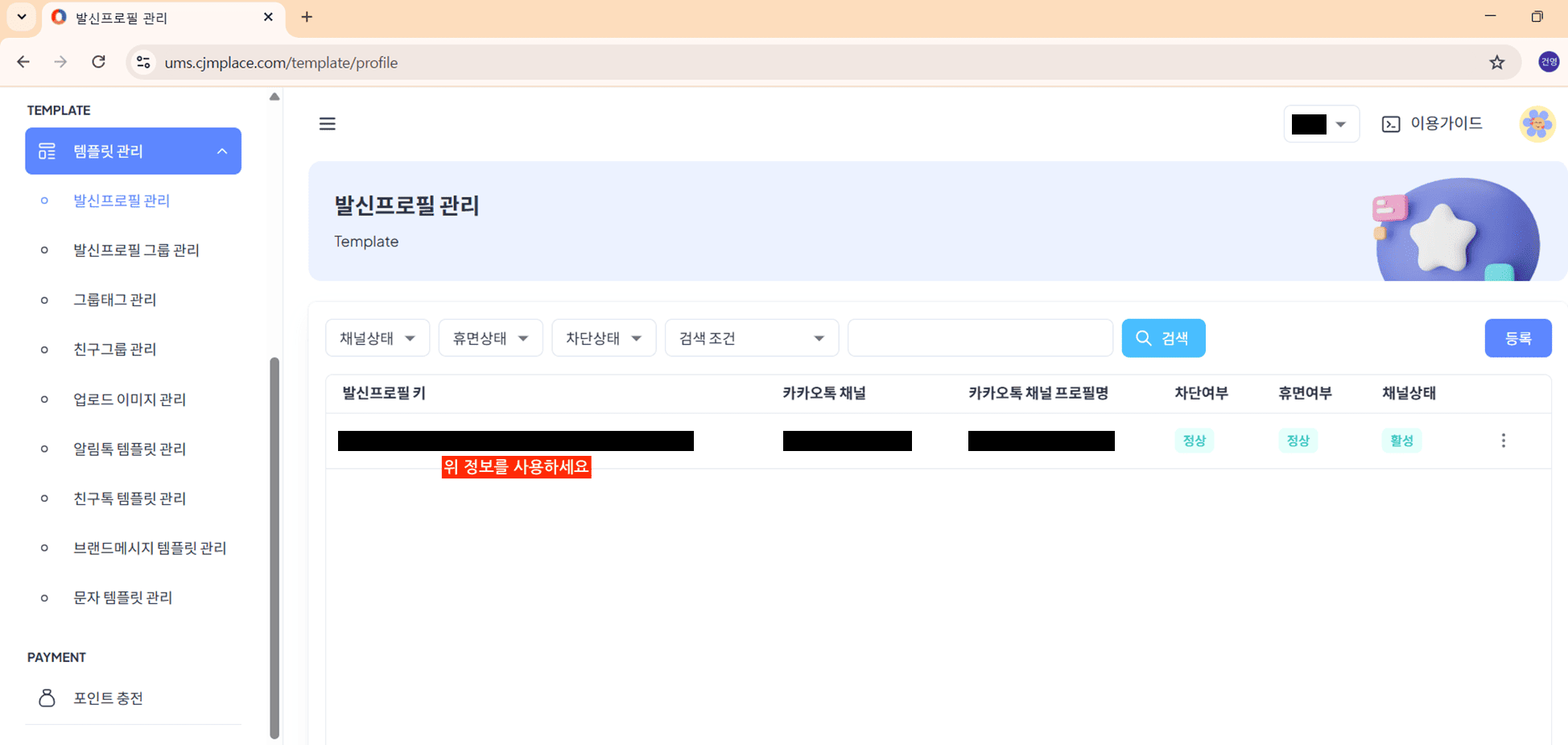
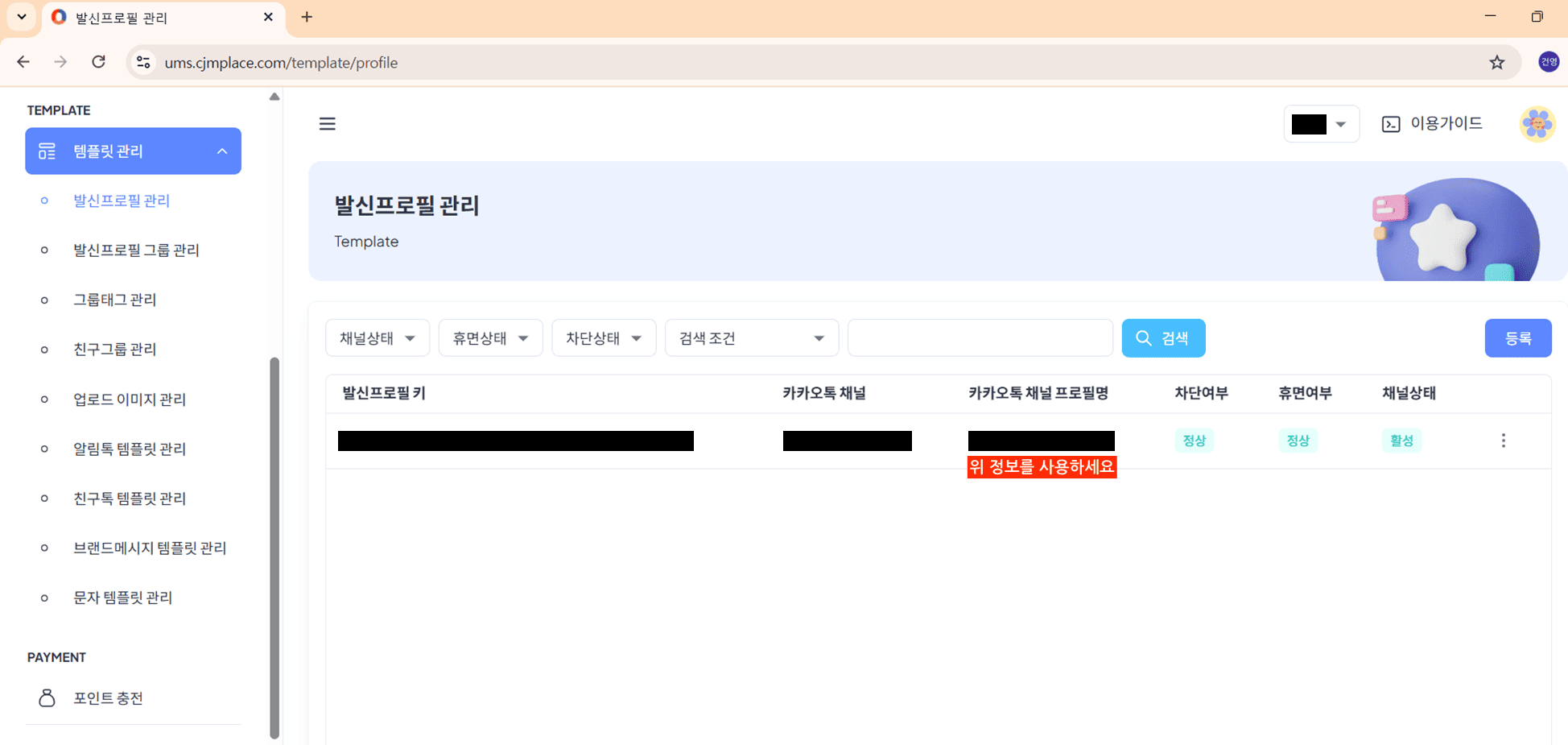
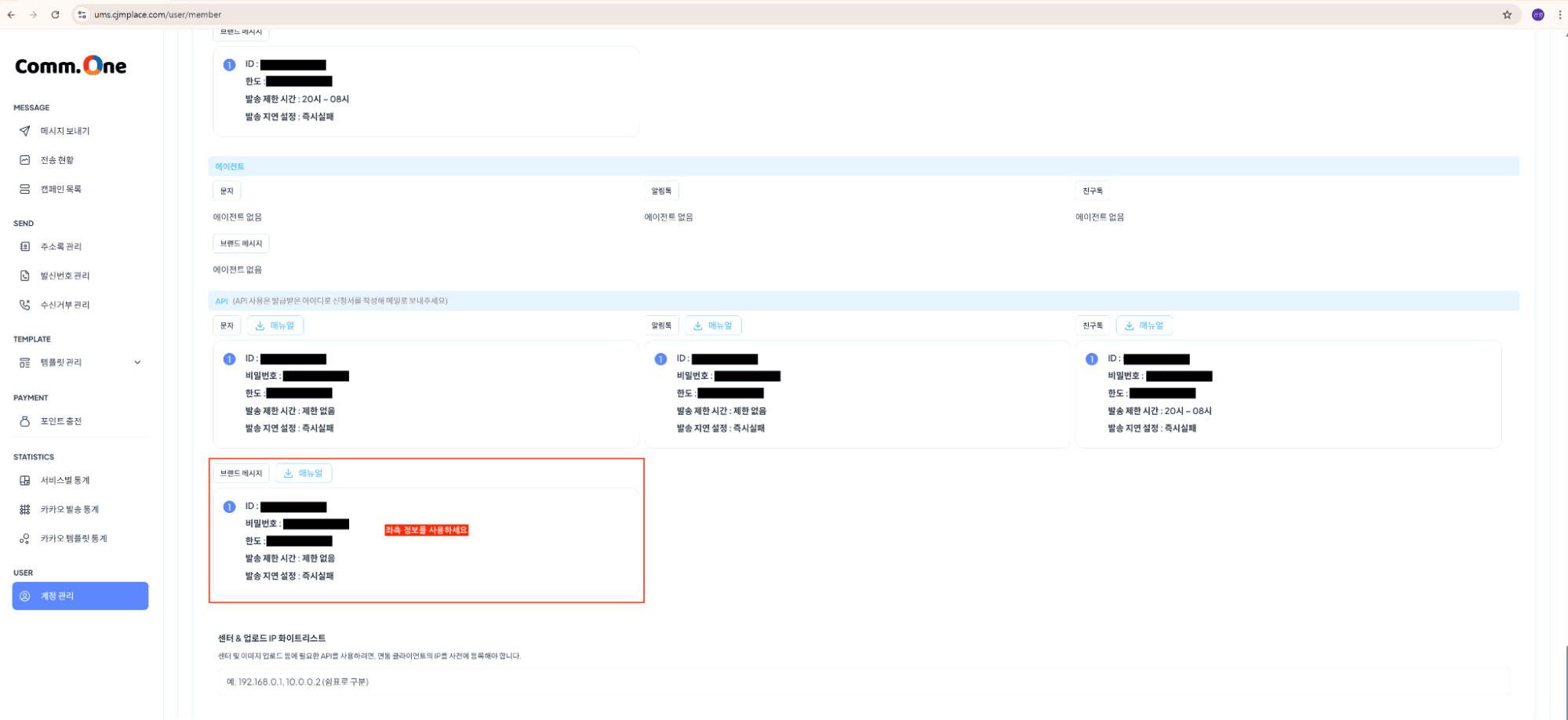
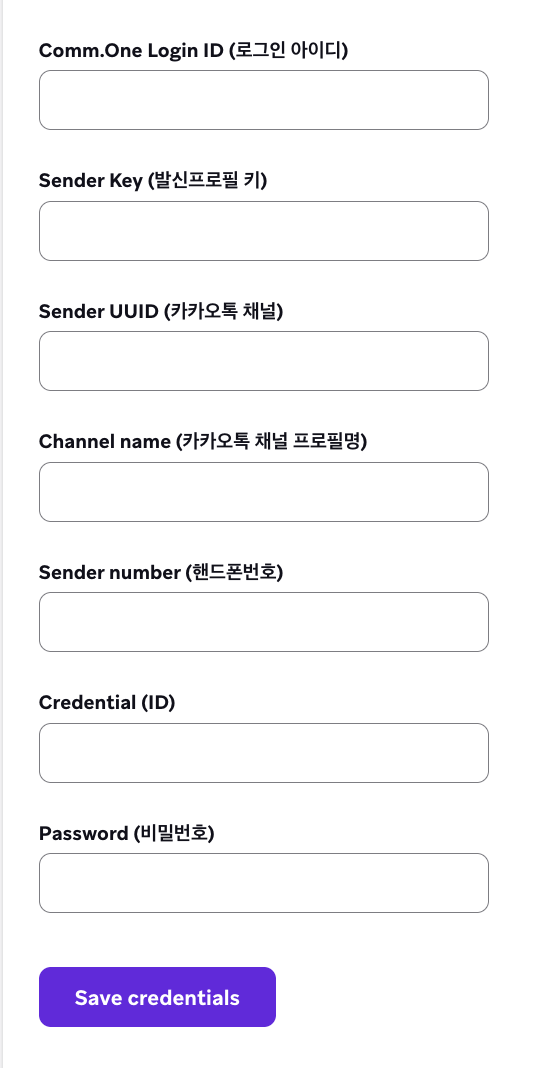
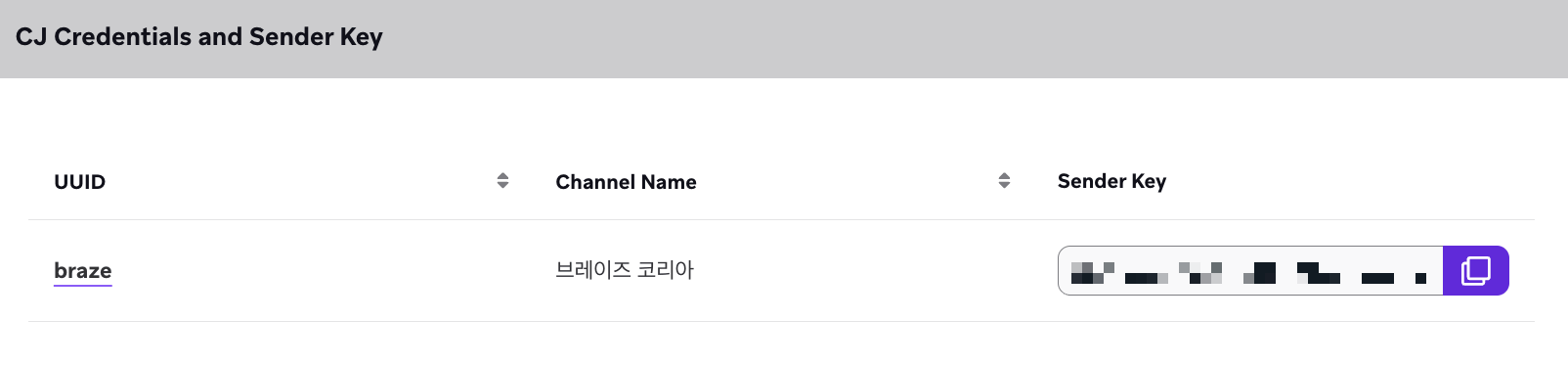
Only the channels mapped to a single common ID can be registered.
Infobip
Go to your Infobip dashboard and gather the following information.
| Field | Location |
|---|---|
| API Base URL | Select Developer Tools > API Keys. |
| API Key | Select Developer Tools > API Keys. |
| Sender name / Sender key | Select Channels and Numbers > Channels, then select the Senders tab. |
| Sender profile UUID | Provided directly by Infobip. Contact Infobip if you don’t have this information. |
| Channel name | Provided directly by Infobip. Contact Infobip if you don’t have this information. |
Set user profiles
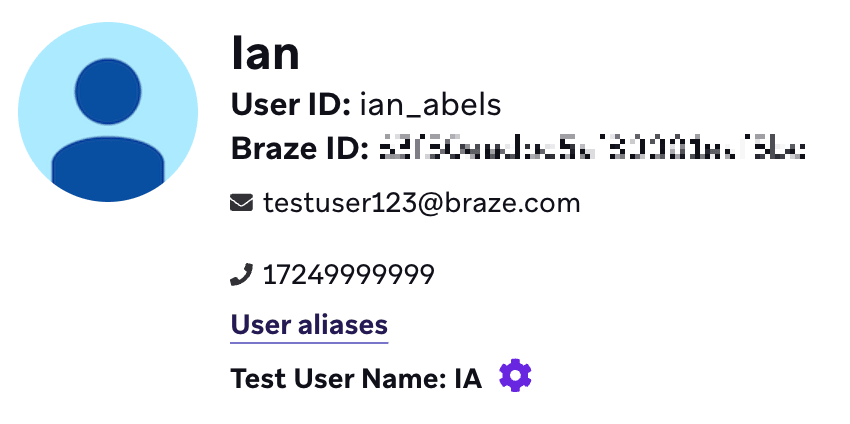
User profiles must have phone numbers to message them through KakaoTalk. Phone numbers are shown on the user profile and in the format that they are provided. Currently, unlike SMS or WhatsApp, KakaoTalk uses the standard phone field (and not a number that has been changed into the E.164 format).
Import phone numbers
Import phone numbers by uploading a CSV or using the API to create a user.
 Edit this page on GitHub