Context variables
Context variables are temporary pieces of data you can create and use within a user’s journey through a specific Canvas. They enable you to personalize delays, segment users dynamically, and enrich messaging without altering a user’s profile information permanently. Context variables exist only within the Canvas session and do not persist across different Canvases or outside the session.
How context variables work
Context variables can be set in two ways:
- At Canvas entry: When users enter a Canvas, data from the event or API trigger can automatically populate context variables.
- In a Context step: You can define or update context variables manually inside the Canvas by adding a Context step.
Each context variable includes:
- A name (such as
flight_timeorsubscription_renewal_date) - A data type (such as number, string, time, or array)
- A value you assign using Liquid or through the Add Personalization tool.
When defined, you can use a context variable throughout the Canvas by referencing it in this format: {{context.${example_variable_name}}}.
For example, {{context.${flight_time}}} could return the user’s scheduled flight time.
Each time a user enters the Canvas—even if they have entered it before—the context variables will be redefined based on the latest entry data and Canvas setup. This stateful approach allows each Canvas entry to maintain its own independent context, allowing users to have multiple active states within the same journey while retaining the specific context for each state.
For example, if a customer has two upcoming flights, they’ll have two separate journey states running simultaneously—each with its own flight-specific context variables like departure time and destination. This allows you to send personalized reminders about their 2 pm flight to New York while sending different updates about their 8 am flight to Los Angeles tomorrow, so that each message stays relevant to the specific booking.
Considerations
You can define up to 10 context variables per Context step. Each variable name can be up to 100 characters and must use only letters, numbers, or underscores.
Context variable definitions can be up to 10,240 characters. If you pass context variables into an API-triggered Canvas, they share the same namespace as variables created in a Context step. For example, if you send a variable purchased_item in the /canvas/trigger/send endpoint context object, you can reference it as {{context.${purchased_item}}}. If you redefine that variable in a Context step, the new value will override the API value for that user’s journey.
You can store up to 50 KB per Context step, distributed across up to 10 variables. If the total size of all variables in a step exceeds 50 KB, any variables that exceed the limit will not be evaluated or stored. For example, if you have three variables in a Context step:
- Variable 1: 30 KB
- Variable 2: 19 KB
- Variable 3: 2 KB
Variable 3 will not be evaluated or stored because the sum of the previous variables exceeds 50 KB.
Data types
Context variables that are created or updated in the step can be assigned the following data types.
Context variables have the same expected formats for data types as custom events.
When using the array type, Braze tries to parse the value as JSON, which allows arrays of objects to be successfully created. If the objects within your arrays are not valid JSON, the result will be a simple array of strings.
For nested objects and array of objects, use the as_json_string Liquid filter. If you’re creating the same object in a Context step, you’ll need to render the object using as_json_string, such as {{context.${object_array} | as_json_string }}
| Data type | Example variable name | Example value |
|---|---|---|
| Boolean | loyalty_program | true |
| Number | credit_score | 740 |
| String | product_name | green_tea |
| Array | favorite_products | ["wireless_headphones", "smart_homehub", "fitness_tracker_swatch"] |
| Array (of objects) | pet_details | [ |
| Time (in UTC) | last_purchase_date | 2025-12-25T08:15:30:250-0800 |
| Object (flattened) | user_profile | { |
By default, the time data type is in UTC. If you use a string data type to store a time value, you can define the time as a different time zone like PST.
For example, if you’re sending a message to a user the day before their birthday, you would save the context variable as a time data type because there’s Liquid logic associated with sending the day before. However, if you’re sending a holiday message on Christmas Day (December 25), you wouldn’t need to reference the time as a dynamic variable, so using a string data type would be preferable.
For object data types, you can use dot notation to specify a path through the data. For example, if your Context step defines a context variable order_summary with this structure:
1
2
3
4
5
{
  "shipping": {
    "carrier": "overnight"
  }
}
In an Audience Paths or Decision Split filter, enter the path as the context variable name using dot notation (for example, order_summary.shipping.carrier). When the filter is evaluated, Braze resolves that path to the value overnight.
In Liquid (such as in a Message step), use {{context.${order_summary}.shipping.carrier}} instead.
Using context variables
You can use context variables anywhere you use Liquid in a Canvas, such as in Message and User Update steps, by selecting Add Personalization. For in-app messages and Banners in Message steps, you can select context variables to determine when the message should expire.
For example, let’s say you want to notify passengers about their VIP lounge access before their upcoming flight. This message should only be sent to passengers who purchased a first-class ticket. A context variable is a flexible way to track this information.
Users will enter the Canvas when they purchase a plane ticket. To determine lounge access eligibility, we’ll create a context variable called lounge_access_granted in a Context step, then reference that context variable in subsequent steps of the user journey.
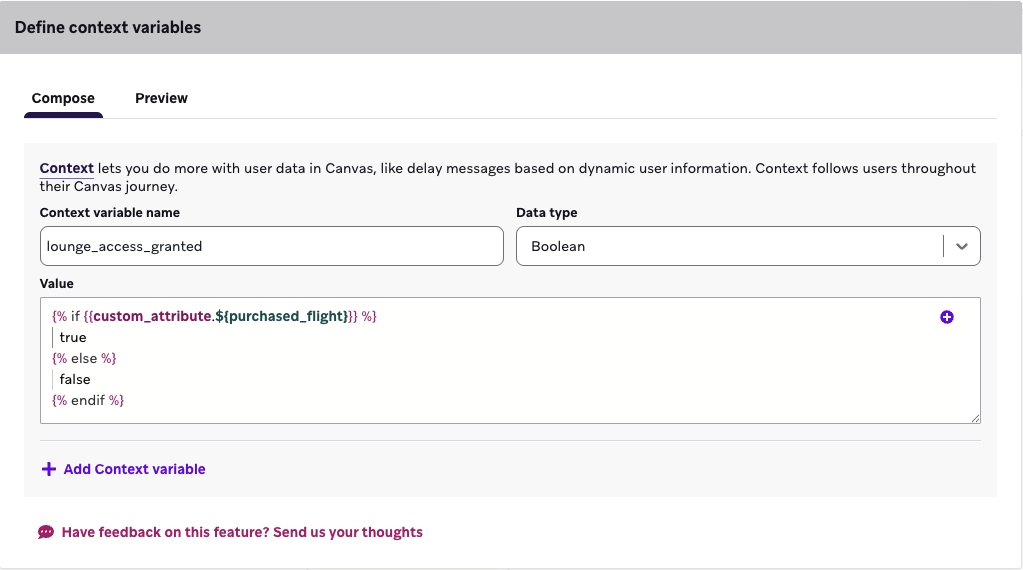
In this Context step, we’ll use {{custom_attribute.${purchased_flight}}} to determine if the type of flight they’ve purchased is first_class.
Next, we’ll create a Message step to target users where {{context.${lounge_access_granted}}} is true. This message will be a push notification that includes personalized lounge information. Based on this context variable, the eligible passengers will receive the relevant messages before their flight.
- First-class ticket passengers will receive: “Enjoy exclusive VIP lounge access!”
- Business and economy ticket passengers will receive: “Upgrade your flight for exclusive VIP lounge access.”
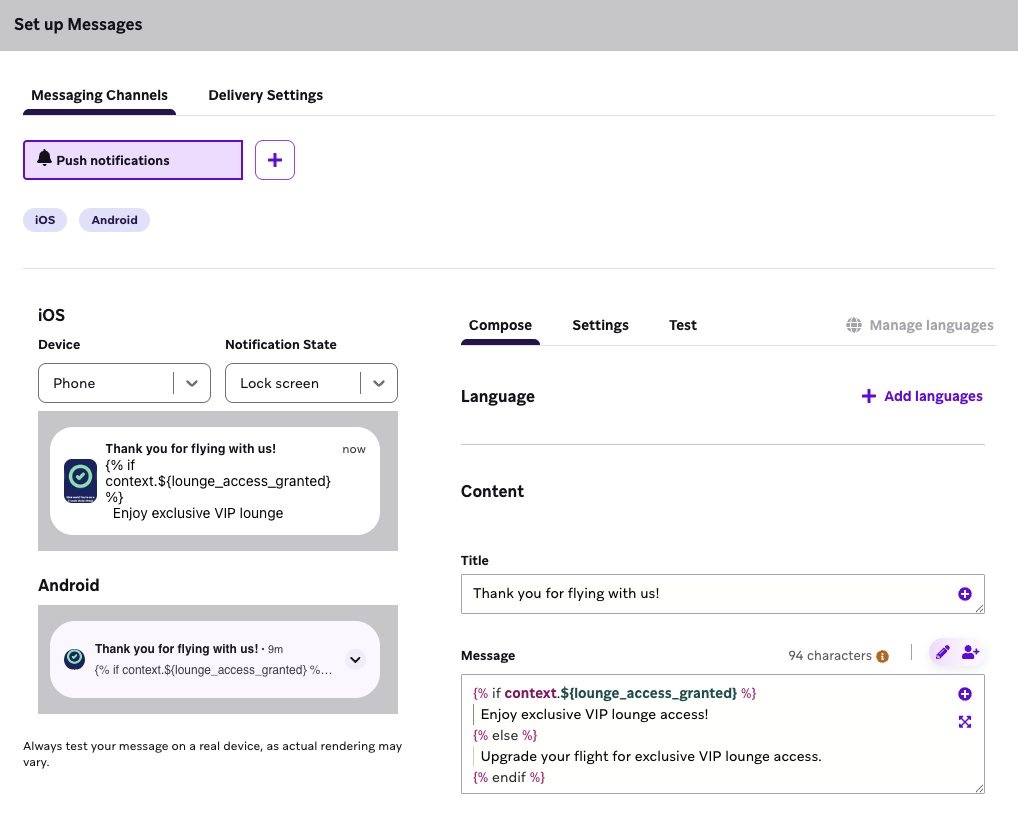
You can add personalized delay options with the information from the Context step, meaning you can select the variable that delays users.
For Action Paths and exit criteria
You can leverage comparing property filters with either context variables or custom attributes in these trigger actions: Perform Custom Event and Make Purchase. These action triggers also support property filters for both basic and nested properties.
- When comparing against basic properties, the available comparisons will match the type of the property defined by the custom event. For example, string properties will have exactly equal, regex matches. Boolean properties will be true or false.
- When comparing against nested properties, types are not pre-defined, so you can select comparisons across multiple data types for booleans, numbers, strings, time, and day of year, similar to the comparisons for nested custom attributes. If you select a data type that doesn’t match the actual data type of the nested property at the time of comparison, the user will not match the Action Path or exit criteria.
Action Path examples
For custom attribute comparisons, we’ll use the custom attribute value at the time the action is performed. This means a user won’t match the Action Path group if a user doesn’t have this custom attribute populated at the time of comparison, or if the custom attribute value doesn’t match the defined property comparisons. This is the case even if the user would have matched when they entered the Action Path step.
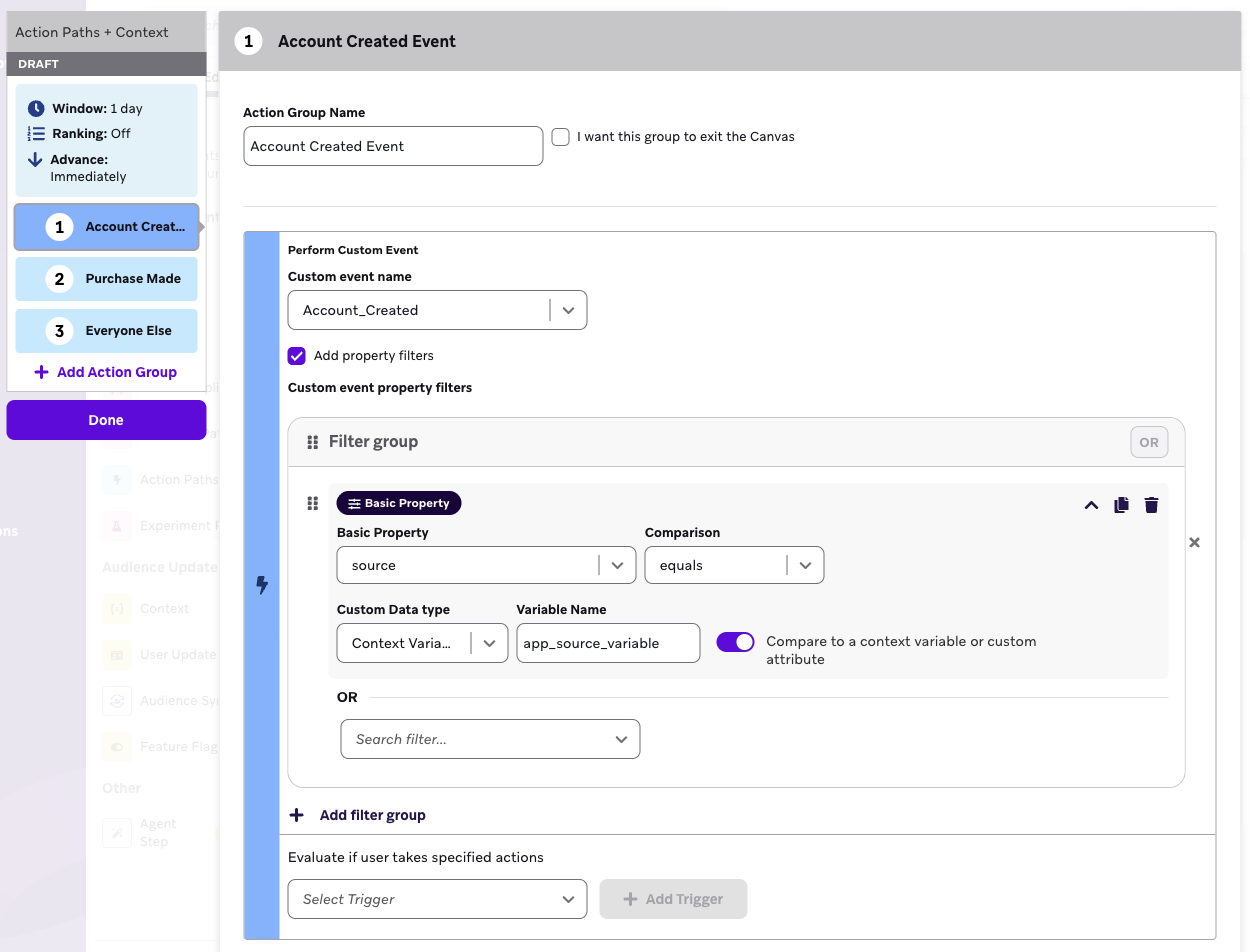
The following Action Path is set up to sort users who performed the custom event Account_Created with the basic property source to the context variable app_source_variable.
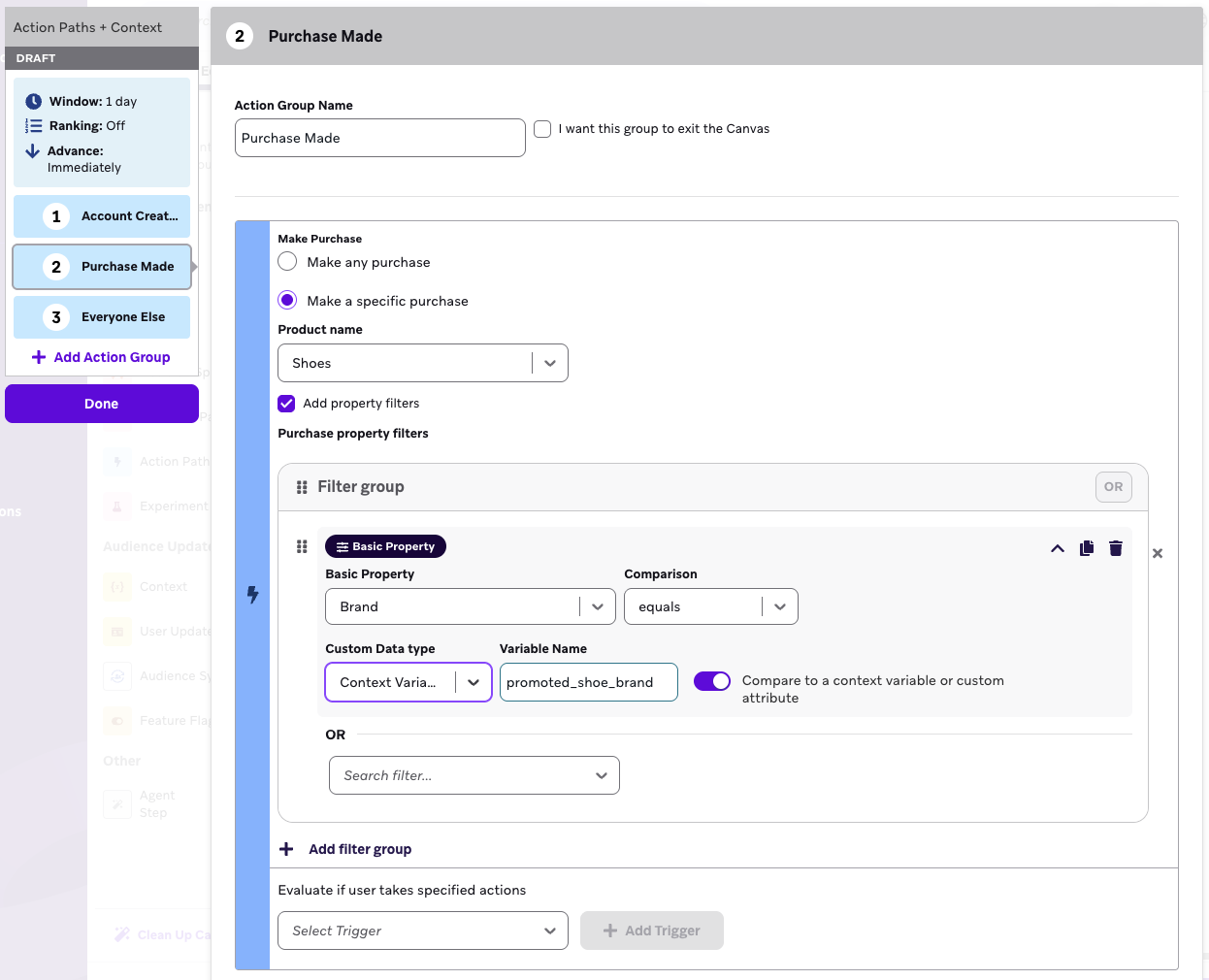
The following Action Path is set up to match the basic property brand for the specific product name shoes to a context variable promoted_shoe_brand.
Exit criteria examples
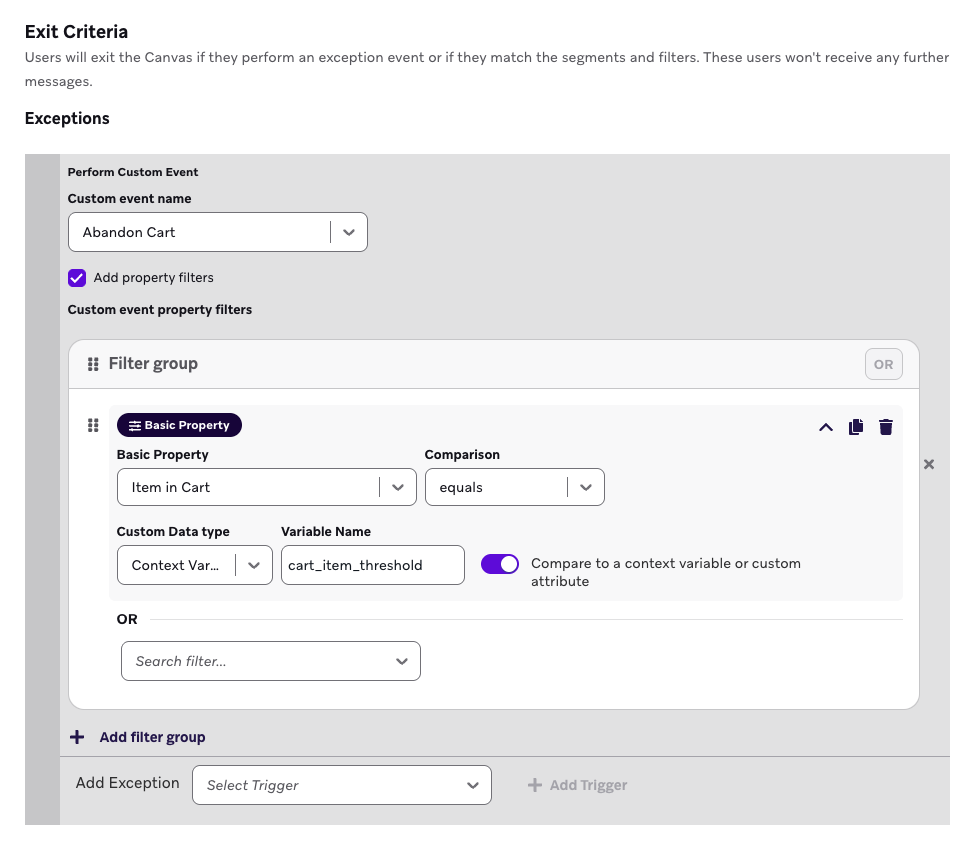
The exit criteria state that at any point in a user’s journey in the Canvas, they’ll exit the Canvas if:
- They perform the custom event Abandon Cart, and
- The basic property Item in Cart matches the string value of the context variable
cart_item_threshold.
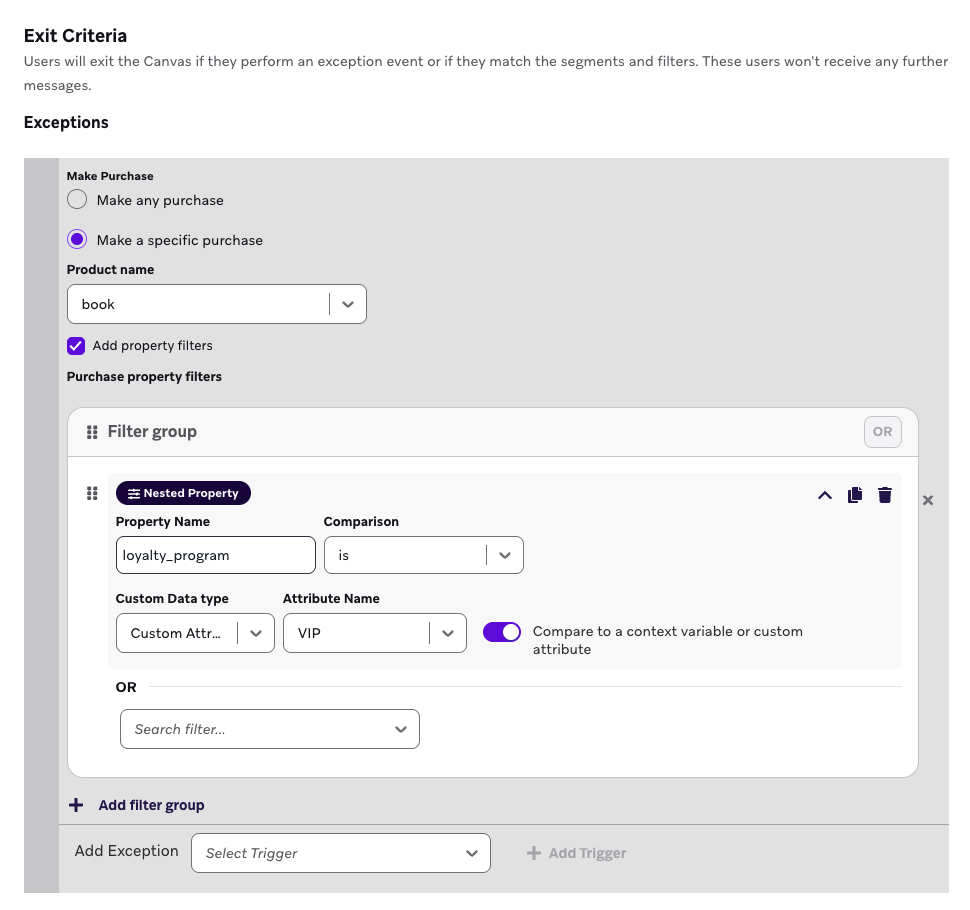
The exit criteria state that at any point in a user’s journey in the Canvas, they’ll exit the Canvas if:
- They make a specific purchase for the “book” product name, and
- That purchase’s nested property “loyalty_program” is equal to the user’s custom attribute “VIP”.
Set an expiration
For Banners and in-app messages in a Canvas Message step, select A duration after the step is available for expiration, then turn on Personalize duration to drive the availability window from a context variable—for example, to match a promotion or booking duration from a Context step.
Personalize duration applies to that duration-based expiration option. If you choose On a specific date and time instead, set the expiration using the date and time controls.
Action Path delays
In an Action Paths step, under Evaluation Window, turn on Personalize delay to set how long users are held in the step from a context variable. Use this when the wait period should differ per user based on details such as tier or region.
Context variable filters
You can create filters that use previously declared context variables in Audience Paths and Decision Split steps.
Context variable filters are only available for Audience Paths and Decision Split steps.
Context variables are declared and only accessible in the scope of a Canvas, meaning they can’t be referenced in segments. Context variable filters function similarly in Audience Paths and Decision Split steps—Audience Path steps represent multiple groups, while Decision Split steps represent binary decisions.
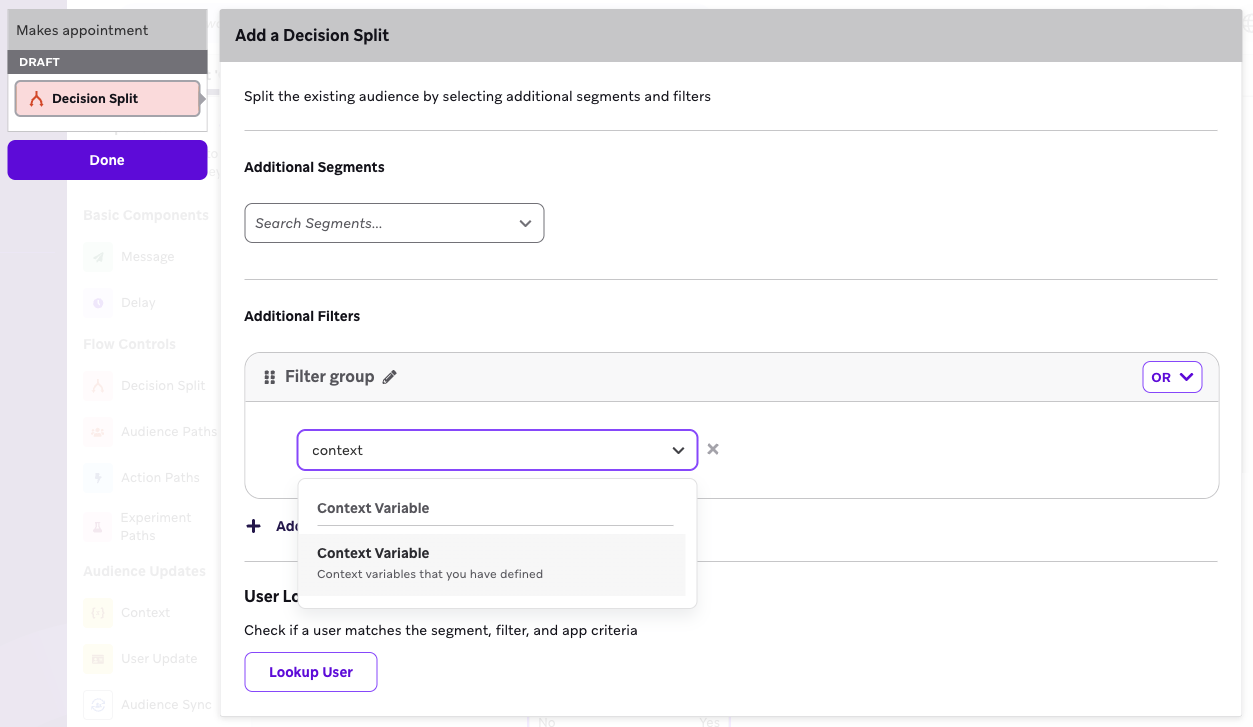
Similar to how Canvas context variables have pre-defined types, the comparisons between context variables and static values must have matching data types. The context variable filter allows comparisons across multiple data types for booleans, numbers, strings, time, and day of year, similar to the comparisons for nested custom attributes.
Use the same data type for your context variable and comparison. For example, if your context variable is a time data type, use time comparisons (such as “before” or “after”). Using mismatching data types (such as string comparisons with a time context variable) may cause unexpected behavior.
Choosing between “Day of year” and “Time” filter types: When filtering context variables that contain dates, choose the correct comparison type based on whether the date repeats every year:
- Use “Day of year” when the date repeats every year (for example, birthdays, anniversaries, or holidays like Christmas). This comparison type calculates based on the day of the year (1-365/366), ignoring the year component.
- Use “Time” when the date is an absolute date that doesn’t repeat (for example, contract end dates, appointment dates, or subscription renewal dates). This comparison type calculates based on the full timestamp, including the year.
Using “Day of year” for absolute dates can produce incorrect or unexpected results because the calculation ignores the year component. For example, if you’re comparing a future contract end date in April to determine if it’s within 63 days, using “Day of year” may incorrectly match dates because it only compares day numbers (119 vs 359) without considering that April is actually 188 days away.
General guideline: Does the date repeat every year? Yes → Use “Day of year”. No → Use “Time”.
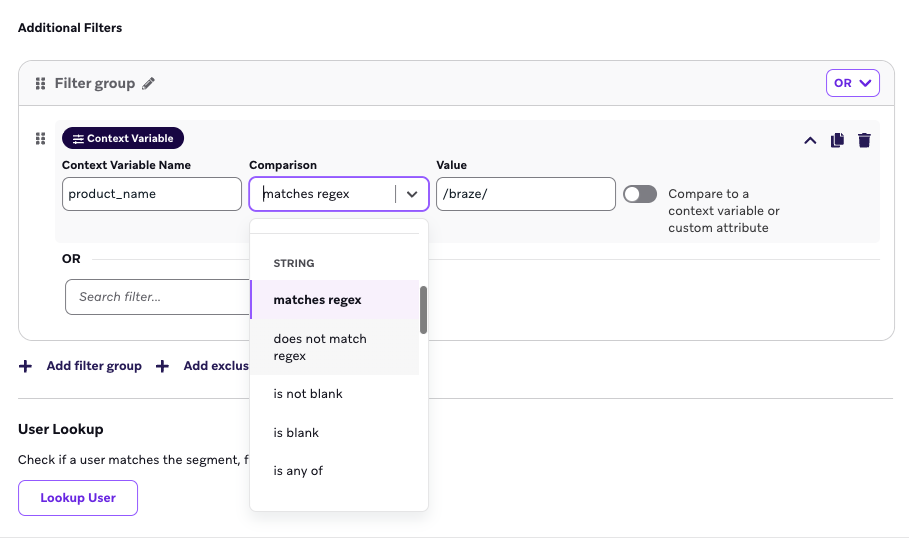
Here is an example of a context variable filter comparing the context variable product_name to the regex /braze/.
Comparing to context variables or custom attributes
By selecting the Compare to a context variable or custom attribute toggle, you can construct context variable filters that compare against previously-defined context variables or user custom attributes. This can be useful for performing comparisons that are dynamic per user, like API-triggered context, or to condense complex comparison logic defined across context variables.
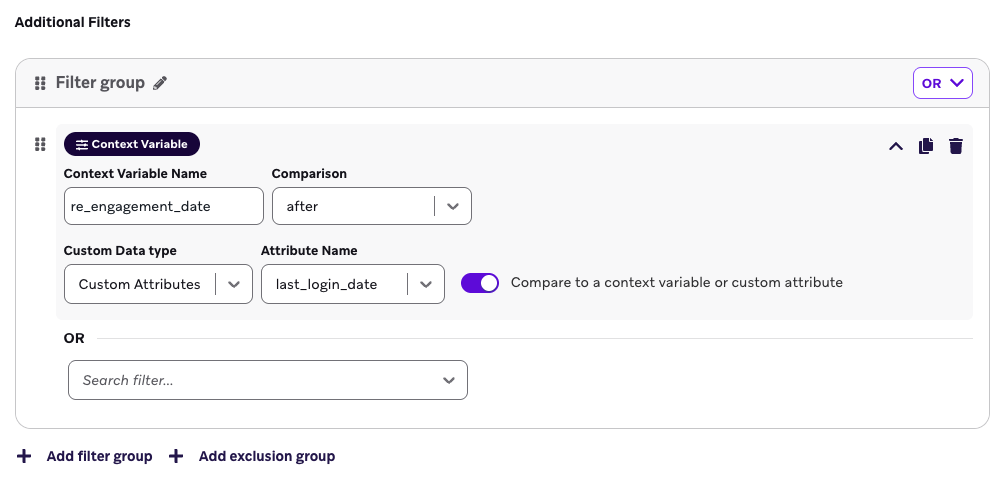
Let’s say you want to send a personalized reminder to users after a dynamic period of inactivity, which includes anyone who hasn’t logged into your app in the last three days, should receive a message.
You have a context variable re_engagement_date that is defined as {{now | minus: 3 | append: ' days'}}. Note that 3 days can be a variable amount that is also stored as a user’s custom attribute. So if the re_engagement_date is after the last_login_date (stored as a custom attribute on the user profile), they’ll be sent a message.
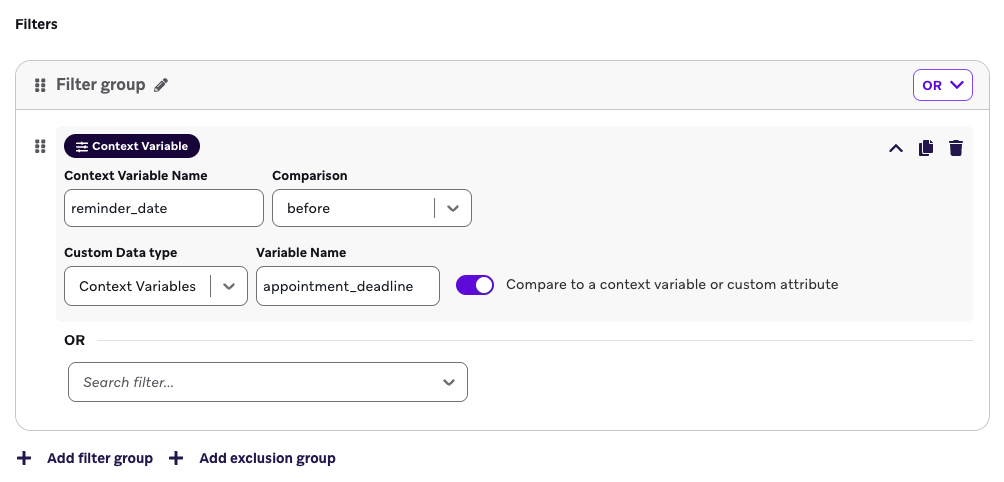
The following filter compares the context variable reminder_date to be before the context variable appointment_deadline. This can help group users in an Audience Paths step to determine whether they should receive additional reminders before their appointment deadline.
Time zone consistency standardization
While most event properties using the timestamp type are already in UTC in Canvas, there are some exceptions. With the addition of Canvas Context, all default timestamp event properties in action-based Canvases will consistently be in UTC. This change is part of a broader effort to ensure a more predictable and consistent experience when editing Canvas steps and messages. Note that this change will impact all action-based Canvases, whether the specific Canvas is using a Context step or not.
In all circumstances, we strongly recommend using Liquid time_zone filters for timestamps to be represented in the desired time zone. You can reference this frequently asked question in the Context step article for an example.
 Edit this page on GitHub