Performance report
The performance report shows how your decisioning agent performs compared to control groups. This guide explains what each section of the report represents, how metrics are calculated, and how to interpret the results.
How the report is built
Your performance report is built in layers, entirely customized to your use case. Working in collaboration with your team:
- Braze defines what counts as an action (such as a send, click, purchase, or conversion).
- Braze defines how to measure that action daily (volume, revenue, unique people, and similar).
- Braze defines the business metric you want to see (such as conversion rate or revenue per user).
- Time rules and segmentation are applied.
- The Performance tab displays the results.
Nothing in the dashboard creates new data. It visualizes stored daily results based on those definitions.
Date range and comparison groups
At the top of the dashboard, you choose:
- Date range: The time period for the report.
- Comparison groups: The groups being compared (such as Decisioning Studio versus Business as Usual).
- Aggregation: The chart aggregation setting (Daily, 7-day rolling, or 30-day rolling).
- Segments: Any applied segments. These are custom-configured with your AI Expert Services team.
- Timeline events: Whether to overlay configured timeline events on the chart to help you understand changes or events that could impact performance.
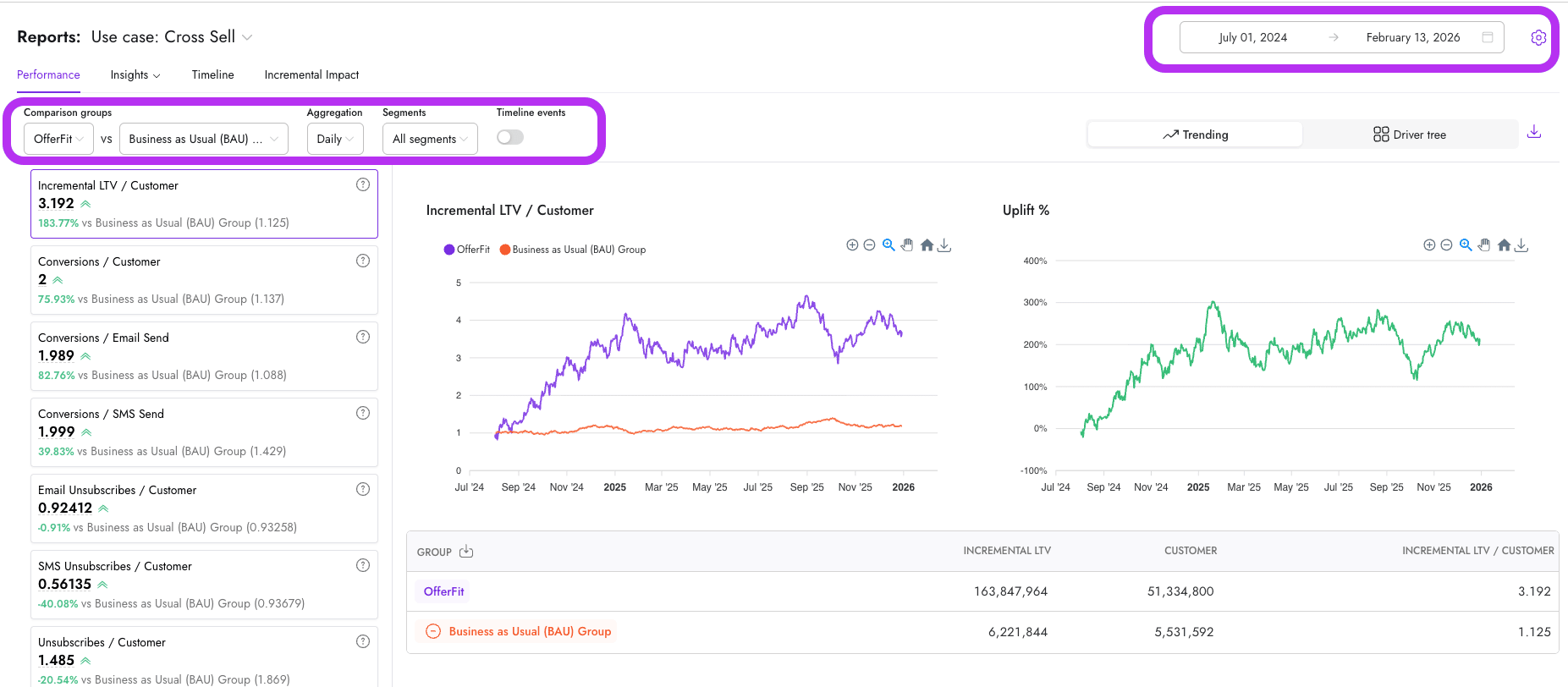
These selections determine which days are included, which groups are compared, how the trend line is smoothed, and which population you’re viewing.
Changing the aggregation setting (such as 7-day rolling) only affects the chart display. It does not change stored data.
If you can’t select a recent date from the date picker, that date is likely disabled to reflect a temporary data delay. It typically takes a few days to get data from your CDP into Decisioning Studio reliably.
KPI cards
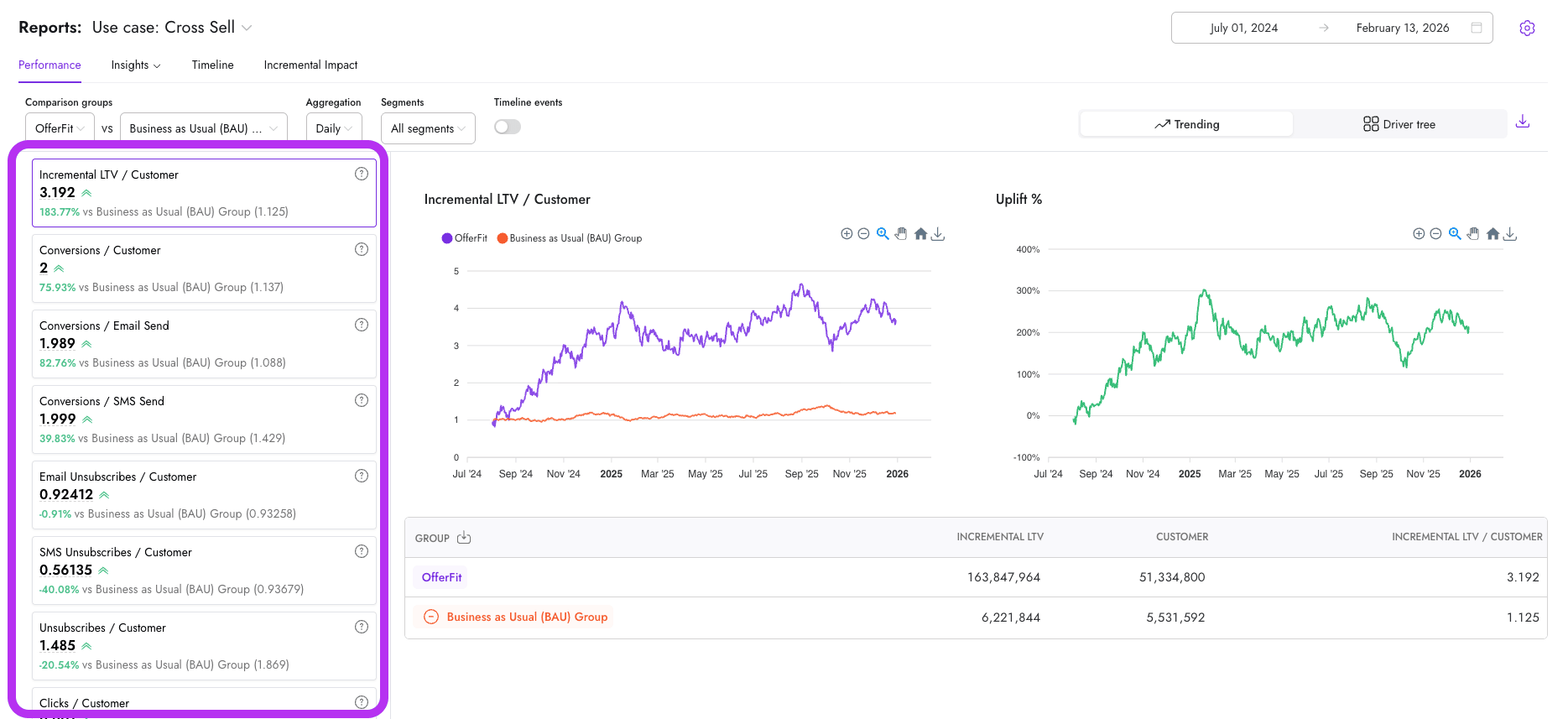
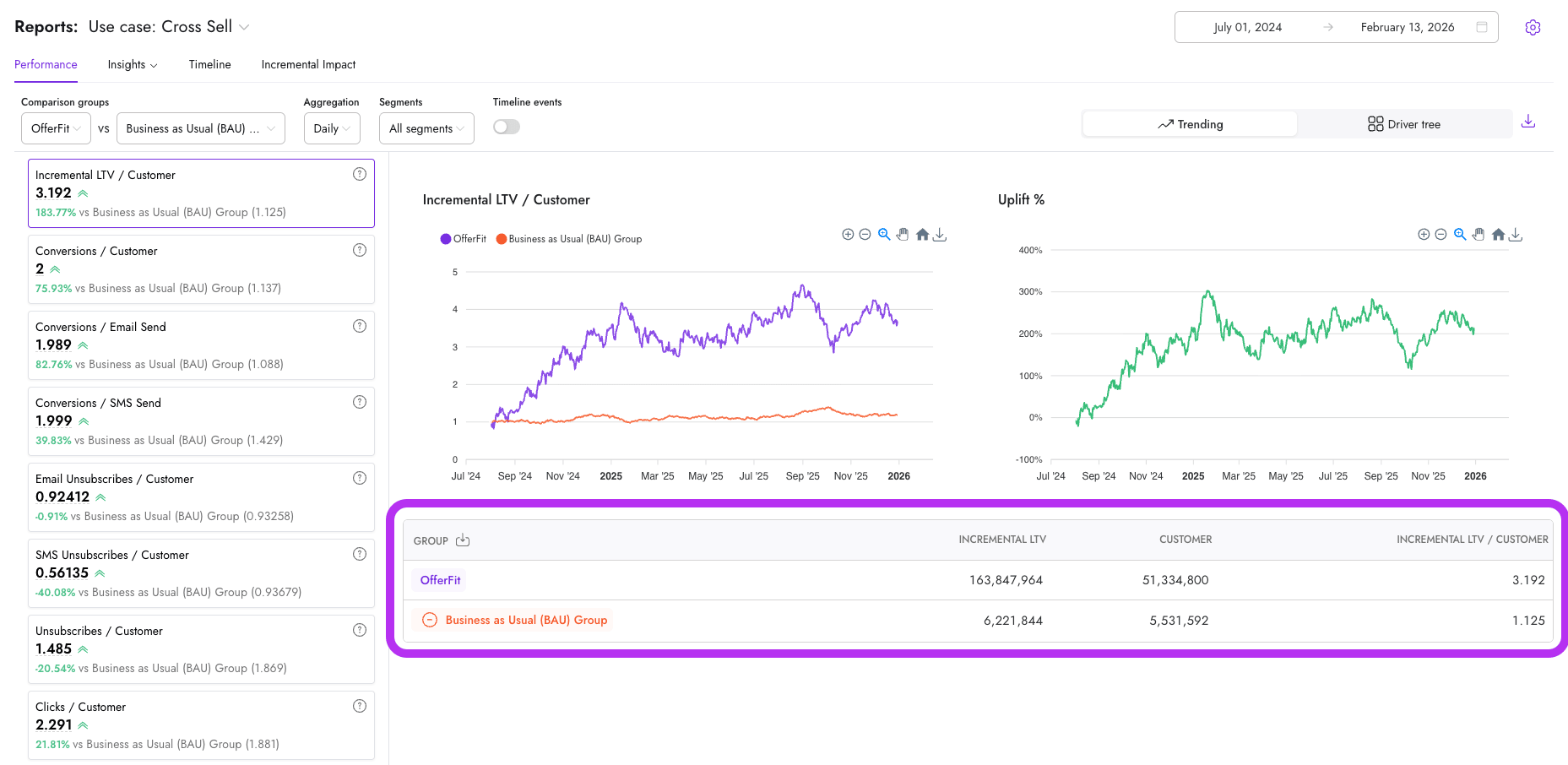
The KPI cards on the left side of the report show the key performance indicators configured for your use case, such as:
- Incremental LTV / Customer
- Conversions / Customer
- Unsubscribes / Customer
Each card represents the KPI calculated across the entire selected date range. This is a full-period value, not a daily average. For example, if you see “Incremental LTV / Customer = 3.192”, that reflects performance across the whole selected window.
KPI trend chart
Use the chart to understand trends over time, performance shifts, and seasonality or timing effects. Use the KPI card to understand the overall impact across the full window. The center chart shows the same KPI as the top card, but calculated per day. Each point represents that day’s KPI value. If you have 7-day rolling selected, each point reflects a rolling average, which smooths daily volatility.
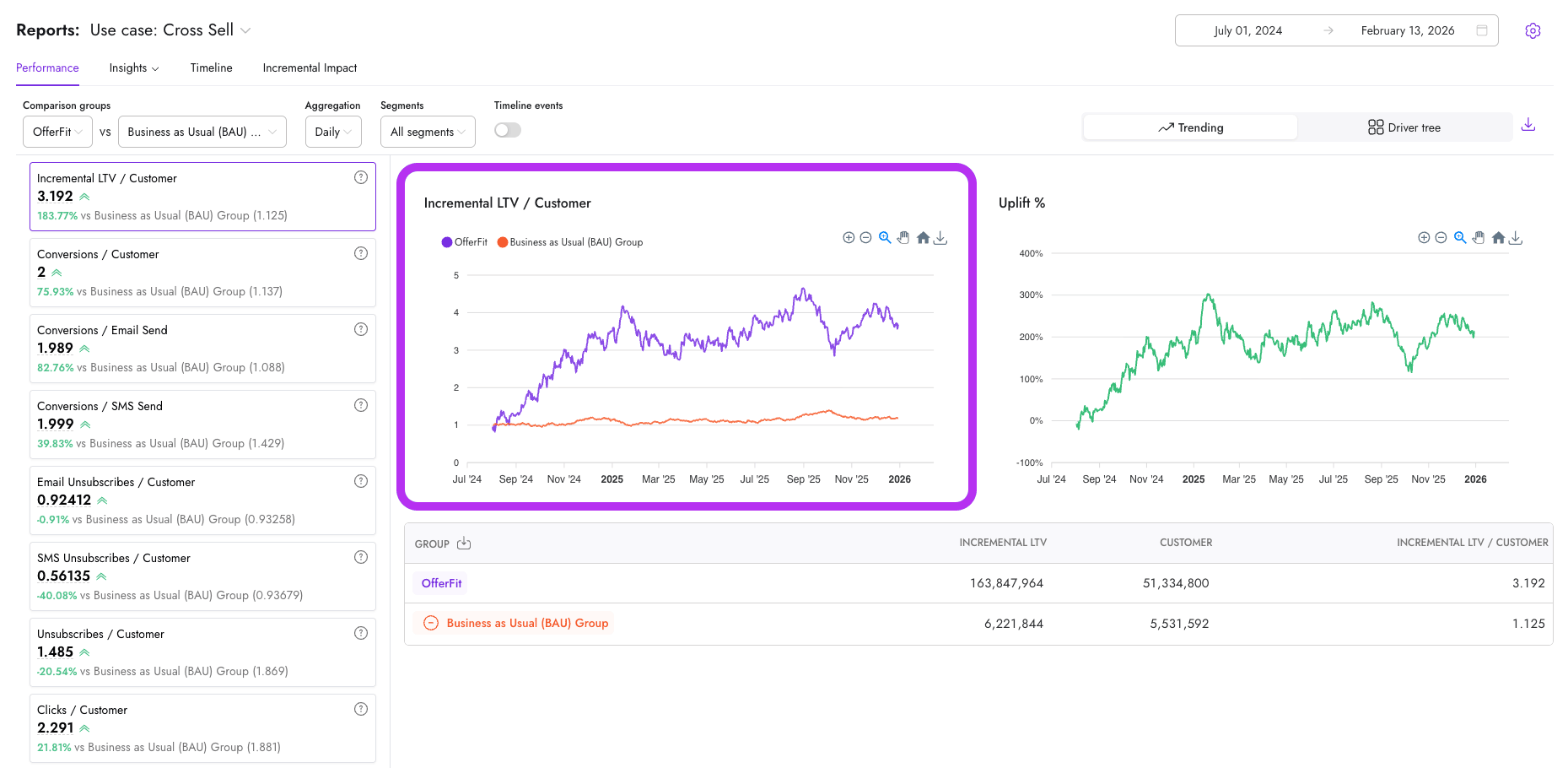
The chart and KPI card are designed to show different things. The chart shows daily performance (“How did you perform each day?”). The KPI card shows full-period performance (“How did you perform across the entire period?”). For rate metrics, they answer different questions.
Consider the following example with these conversion rate:
- Day 1: 10 conversions out of 100 customers = 10%
- Day 2: 2 conversions out of 10 customers = 20%
The chart shows both. The KPI card recalculates across both days combined (12 conversions / 110 customers = 10.9%), not an average of 10% and 20%.
Uplift chart
The uplift chart shows the percentage difference between your comparison groups. It is calculated as: (Primary Group - Comparison Group) / Comparison Group. This is calculated dynamically based on the KPI chart values.
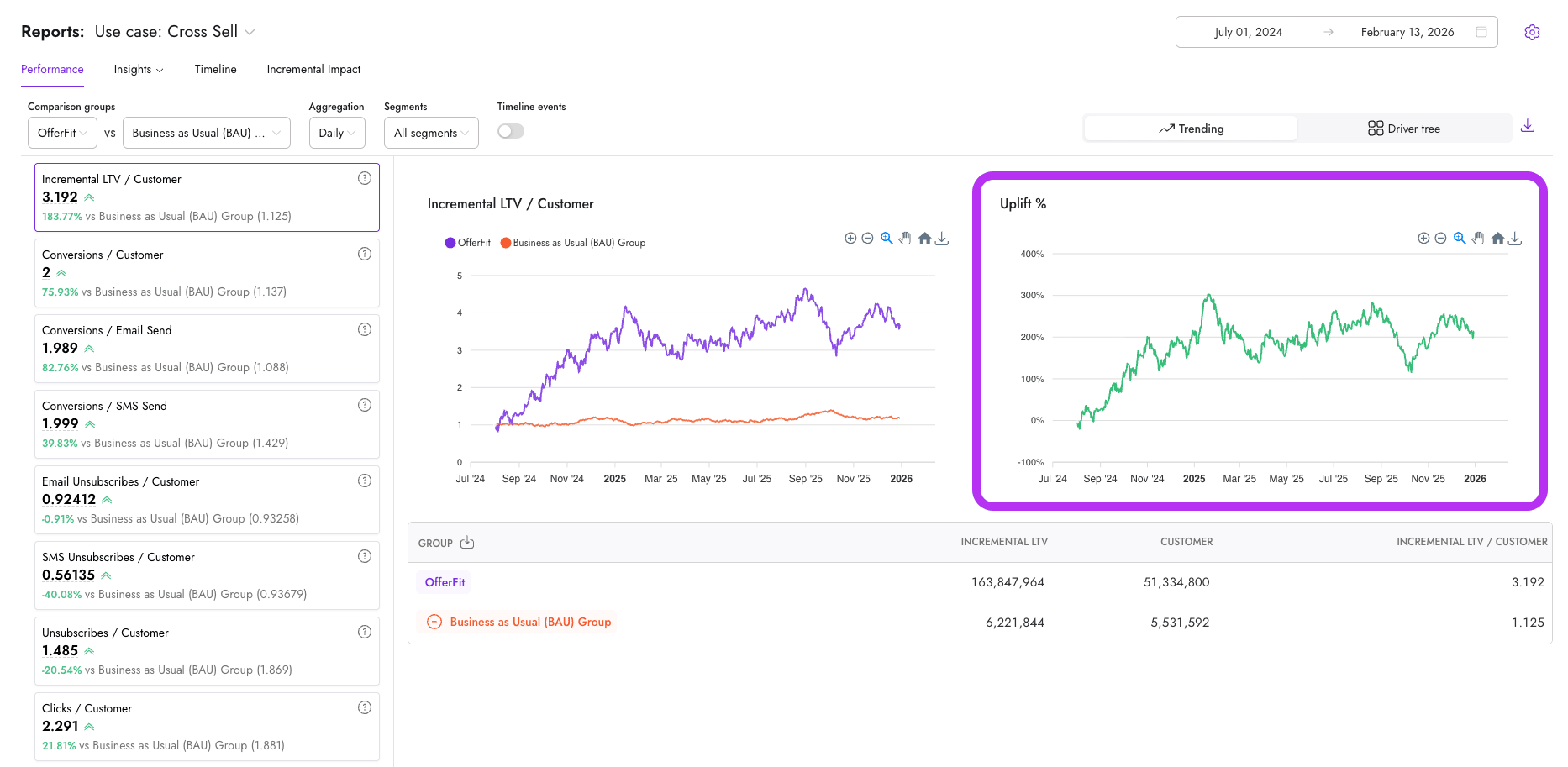
Uplift is not stored. It is computed from the KPI results. If uplift changes, it’s because the underlying KPI changed.
Aggregate table
The table at the bottom of the report shows raw totals across the selected date range, such as:
- Total incremental LTV
- Total customers
- Derived KPI value
This section reinforces the relationship between the different views:
- The KPI card is a window-level calculation.
- The chart is a daily calculation.
- The*table shows the underlying totals driving the KPI.
Driver tree
The driver tree breaks a KPI into its component drivers. For example, Incremental LTV / Customer may break into:
- Conversions / Customer
- Revenue per Conversion
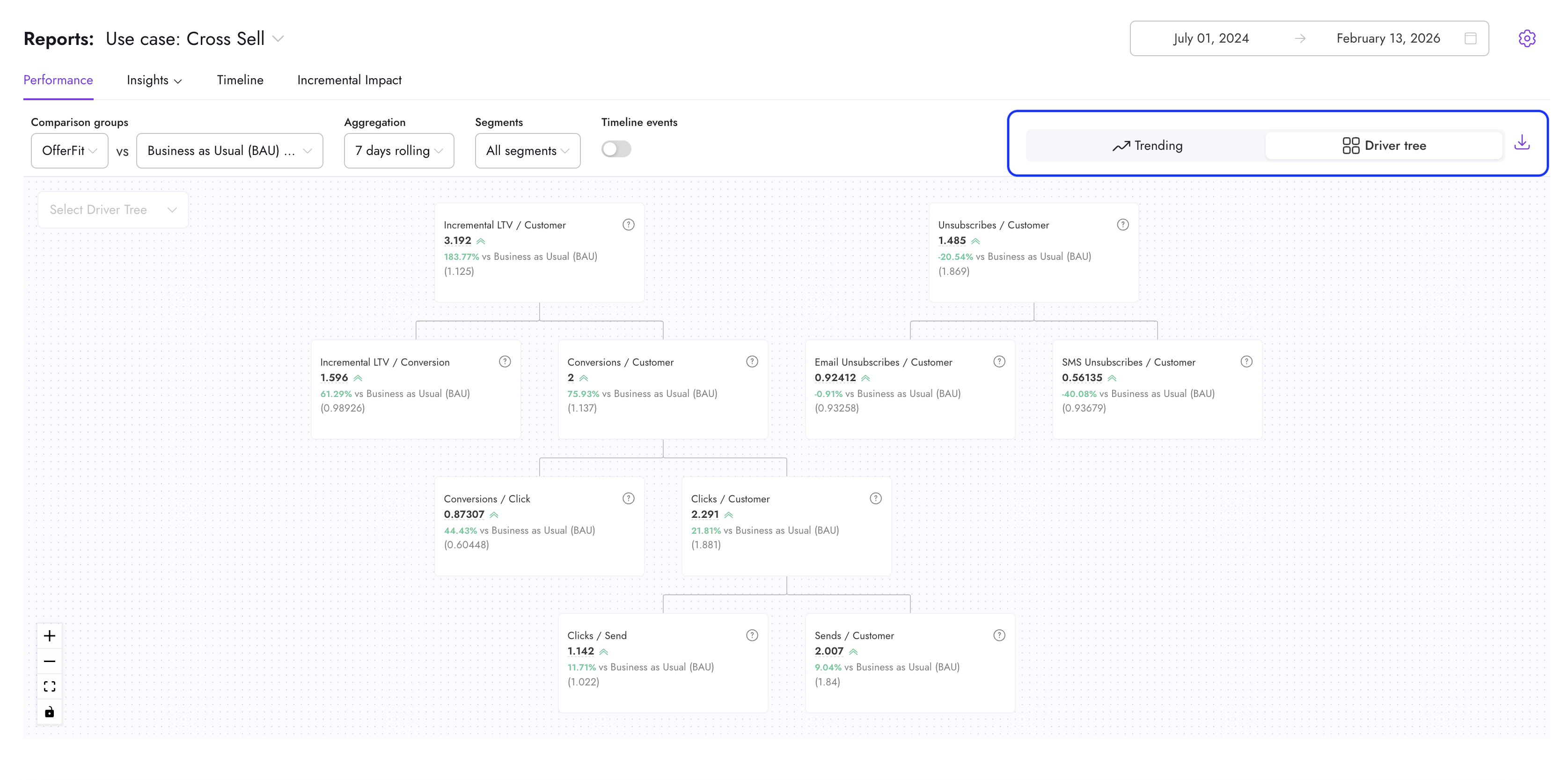
Driver trees use the same KPI definitions as the rest of the dashboard and introduce no new math. They help explain what is driving performance. If a KPI definition changes, charts, cards, uplift, and driver trees all update together.
Frequently asked questions
How do segments work?
Segments let you break down performance by defined groups, such as engagement levels, customer characteristics, device type, or other configured features.
Segment membership is custom-configured for your use case and calculated daily. This means a customer’s past segment reflects who they were on that day. If their behavior changes later, historical days remain unchanged. This preserves historical accuracy and prevents reports from shifting retroactively.
Does the performance report for Go versus Pro agents differ?
The KPIs for Go use cases are set automatically and standardized, since all Go use cases have the same target metric: unique clicks.
Why can’t I select certain recent dates?
The date picker may not allow selecting the most recent days. This is intentional. Reports may apply activation delays, data availability delays, or explicitly excluded dates. These guardrails prevent incomplete or unstable data from appearing in your results.
If you need clarity on your reporting window or data availability rules, contact your AI Success Manager for the specific configuration for your use case.
What’s the difference between “volume” and “rate” KPIs?
KPIs typically fall into two categories:
- Volume metrics (such as total conversions, total revenue, or total clicks) answer: “How much happened?”
- Rate metrics (such as conversion rate, revenue per user, or click-through rate) answer: “How efficiently did it happen?”
Volume and rate tell different stories. A campaign can drive higher volume but lower efficiency, or vice versa. When interpreting results, always confirm which type of KPI you’re looking at.
What does “unique” (or “distinct”) mean?
When a metric is defined as “unique,” individuals are deduplicated using a specific identifier (typically customer). Each person is counted once per day.
“Unique per day” is different from “unique across the entire date range.” If you see daily unique counts summed across multiple days, the same individual may appear more than once (once per day they engaged). That is intentional.
If you need to understand how uniqueness was defined in your setup, contact your AI Success Manager.
Why might this report differ from another system?
If your Performance report doesn’t match another dashboard (such as an ESP, analytics tool, or internal BI report), it doesn’t necessarily mean something is wrong. Different systems often apply different definitions and rules. Common reasons include:
- Attribution rules: Some metrics apply attribution logic, meaning only activity that meets defined criteria is counted. If another system counts all activity without attribution logic, totals may differ.
- Machine and bot engagement filtering: Known machine or bot-driven engagement (such as automated security scans or non-human clicks) is filtered out to ensure performance reflects real human behavior. Some platforms include these interactions in their totals.
- Different definitions of “unique”: In this report, uniqueness is typically applied per day. Another system may calculate uniqueness across an entire campaign window. Those are different business questions and produce different numbers.
- Date range and data availability rules: Reports may apply activation delays, data availability delays, or excluded dates. Another system may include very recent or incomplete data, creating temporary mismatches.
- Volume versus rate differences: One system may show total volume (such as total conversions), while another shows a rate (such as conversions per customer). Always confirm that you’re comparing the same type of metric.
Why doesn’t the number in the chart match the summary card?
The chart and summary card answer different questions:
- Chart: Shows daily performance. Each point reflects the KPI calculated for that individual day.
- Summary card: Shows full-period performance. It recalculates the KPI across the entire selected date range.
Use the chart to understand day-to-day volatility, timing effects, and performance shifts over time. Use the summary card to understand overall impact across the period.
Consider this example with the following conversion rate:
- Day 1: 10 conversions out of 100 customers = 10%
- Day 2: 2 conversions out of 10 customers = 20%
The chart shows 10% on Day 1 and 20% on Day 2. The summary card calculates performance across both days combined: 12 total conversions out of 110 customers = 10.9%. It does not average 10% and 20%.
What’s the recommended approach for “unique” counts?
When measuring unique behavior (like unique clickers or converters), uniqueness is applied per day. For example:
- Day 1: Customers who clicked: A, B, C = 3 unique
- Day 2: Customers who clicked: B, C, D = 3 unique
The chart shows 3 on Day 1 and 3 on Day 2. Across both days, you can see 3 + 3 = 6. Customers B and C are counted once per day, which is intentional.
This configuration answers: “How many unique customer engagements happened across days?” It does not answer: “How many individual customers engaged at least once across the entire period?”
If your goal is window-level uniqueness (unique individuals across the full campaign or quarter), that is a different modeling approach. Contact your AI Success Manager for guidance on designing that.
 Edit this page on GitHub