Diagnostics report
The diagnostics report contains two different report types: Outbound and Inbound.
The outbound diagnostics report shows the daily volume of recommendations generated and activated across your audiences. Use it to spot delivery issues, track spikes or drops in activations, and confirm that messages are reaching the right groups as expected.
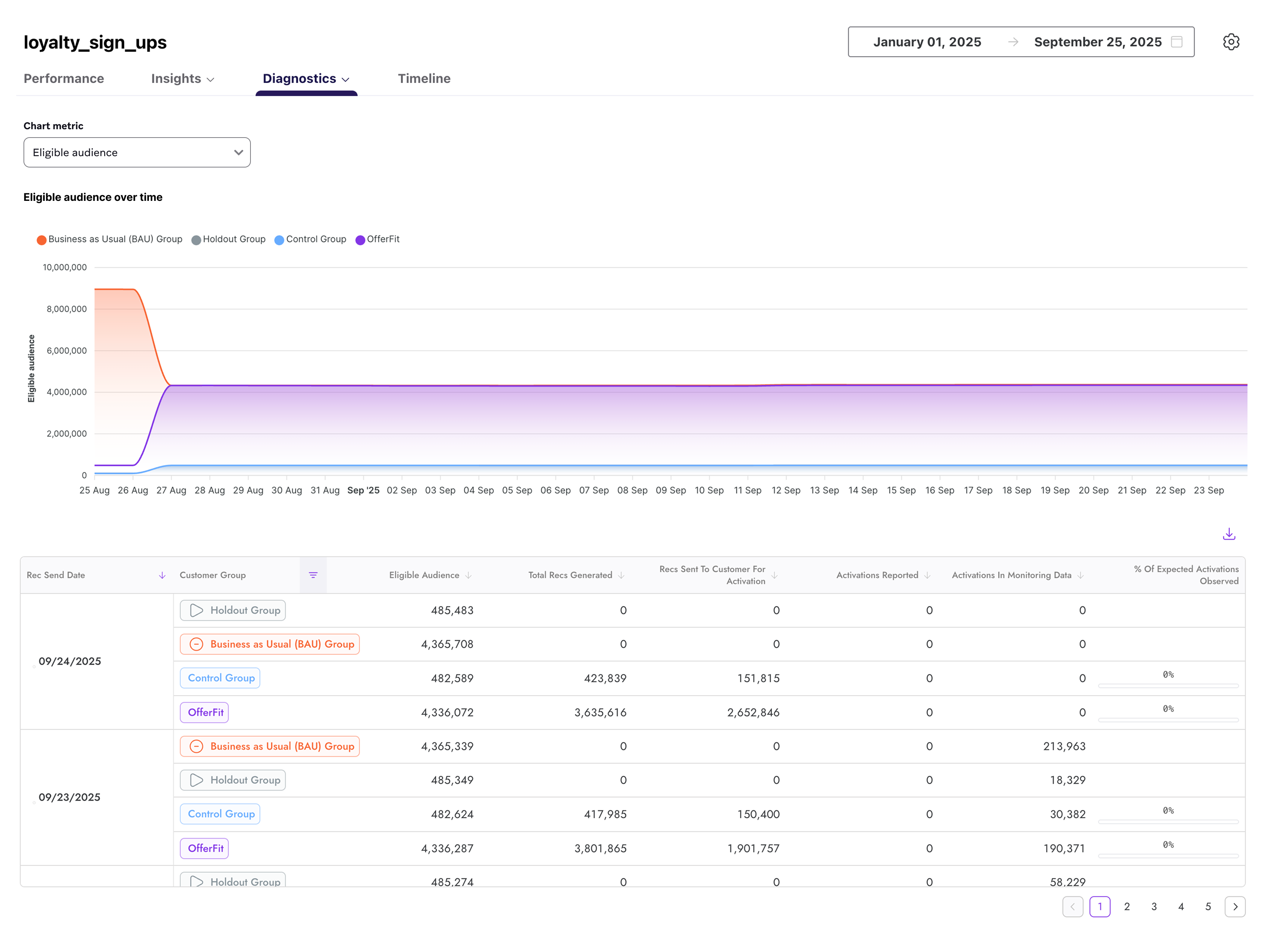
The inbound diagnostics report monitors the health of your data feeds into BrazeAI™. It tracks details like file counts, sizes, and row volumes for each asset, helping you confirm that data is flowing in as expected and troubleshoot issues before they affect your agents or campaigns.
You can use the dropdown to select different chart metrics, like average file size or file count.
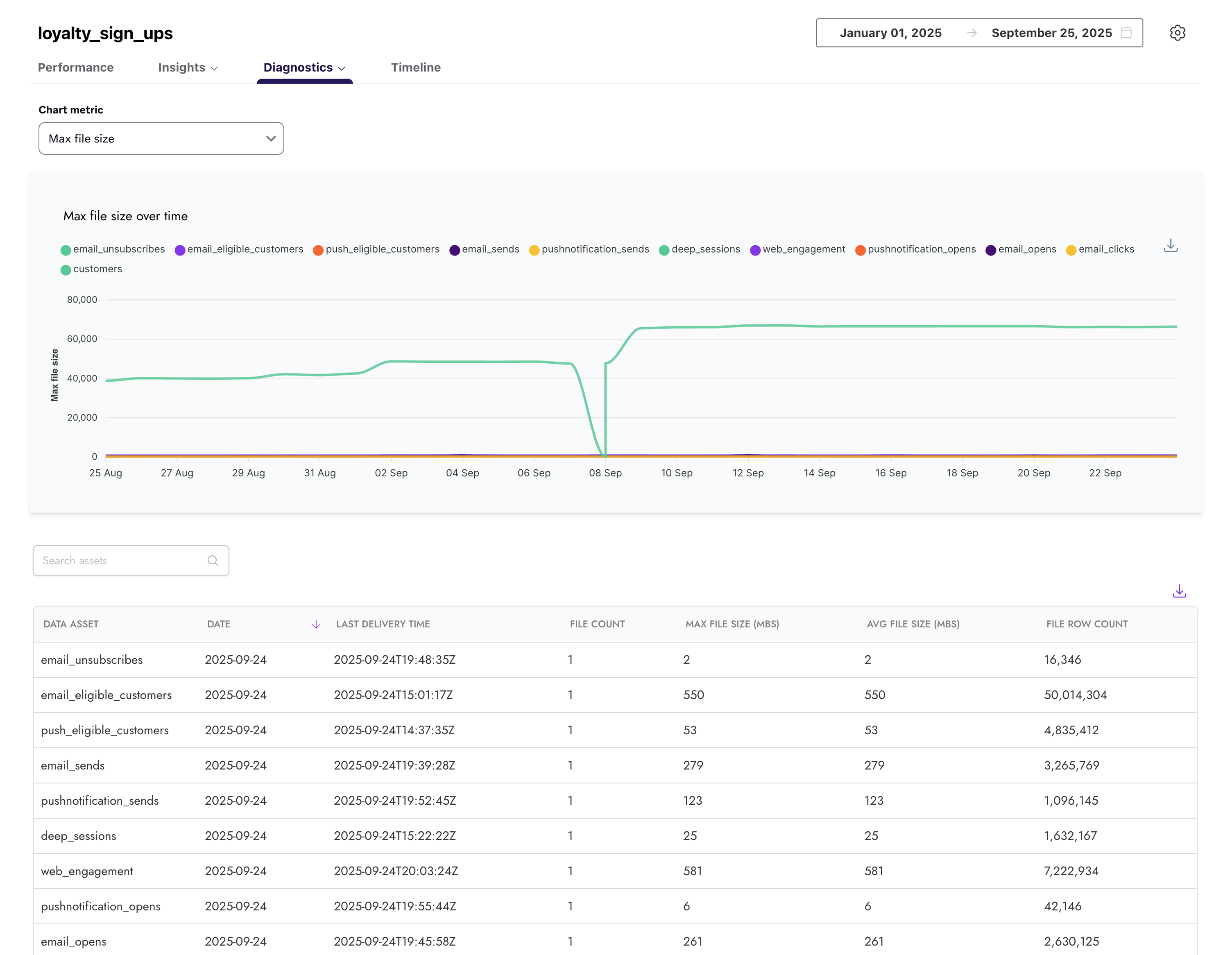
Refer to the following table for more details about each metric in the inbound report:
| Field | Description |
|---|---|
| Data asset | The name of the dataset or file delivered. |
| Date | The date when the data was received. |
| Last delivery time | The most recent time the data was delivered. |
| File count | The total number of files received. |
| Max file size (MBs) | The size of the largest file received, in megabytes. |
| Average file size (MBs) | The average size of all files received, in megabytes. |
| File row count | The total number of rows contained in the delivered files. |
 Edit this page on GitHub