Workspace time zones for message sending
Workspace time zones allow admins to define specific time zones for individual workspaces. This makes scheduled campaigns and Canvases (that don’t use local time or Intelligent Timing) send according to the workspace’s designated time zone, rather than the overarching company time zone.
Workspace time zones is currently in early access. Contact your Braze account manager if you’re interested in participating in the early access.
By default, a new workspace inherits the time zone set for your company. Admins can override this default for one or more workspaces with workspace time zones. When a workspace time zone is set, scheduled campaigns and Canvases within that workspace reference that new time zone for their send times.
For example, if a workspace time zone is set to PST, and a campaign within that workspace is scheduled to send at 3 pm PST, it will deliver at 3 pm PST. This holds true even if your company’s overall time zone is different (such as EST, where 3 pm PST would be 6 pm EST).
Managing workspace time zones
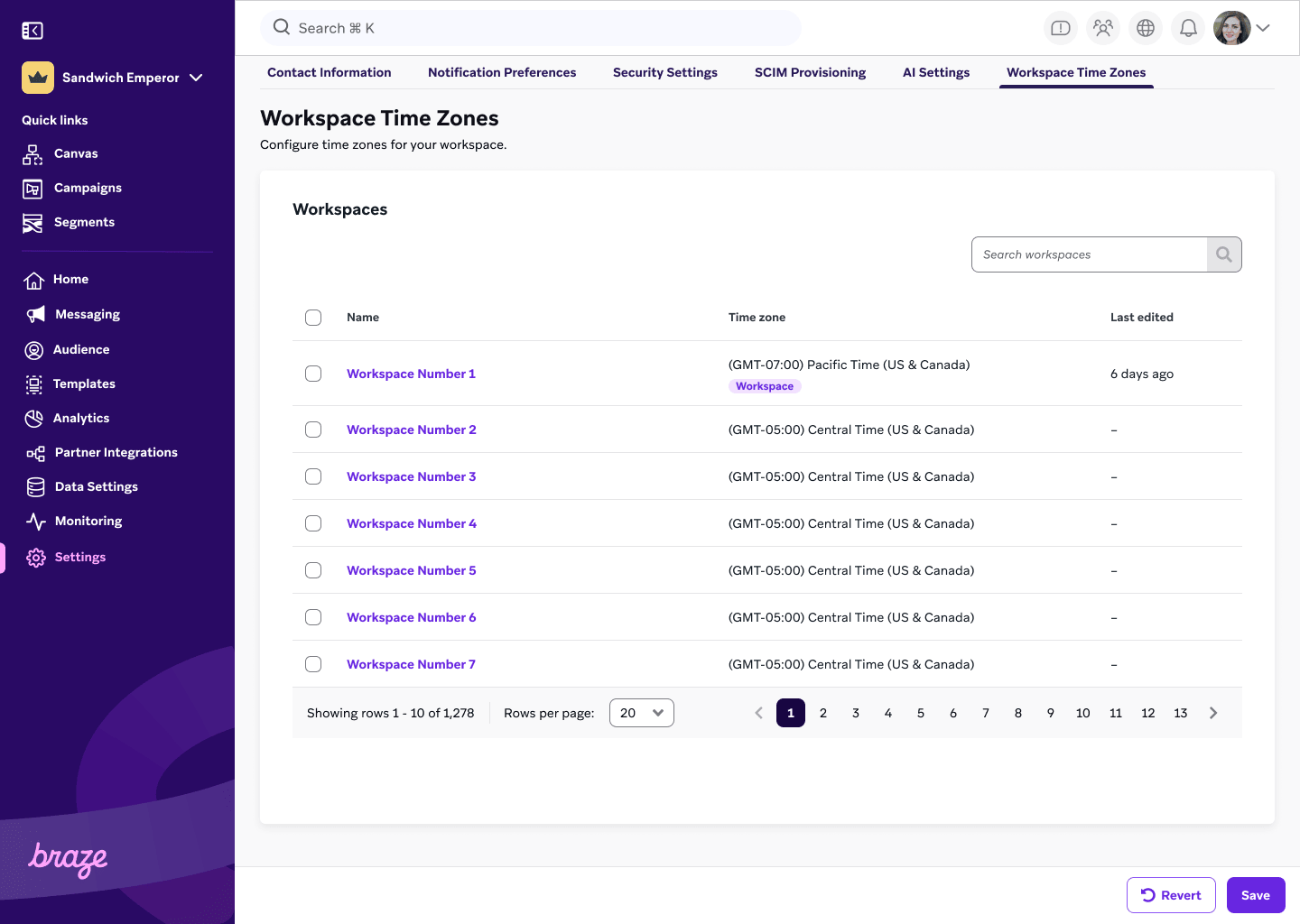
If you’re an admin, you can access and manage workspace time zones by going to Settings > Admin Settings > Workspace Time Zones.
Here, you can view a list of all your workspaces, their set time zone, and the last time the time zone was edited. Use the search bar to find specific workspaces by name.
Setting a time zone
It may take up to a few minutes for time zone updates to take effect.
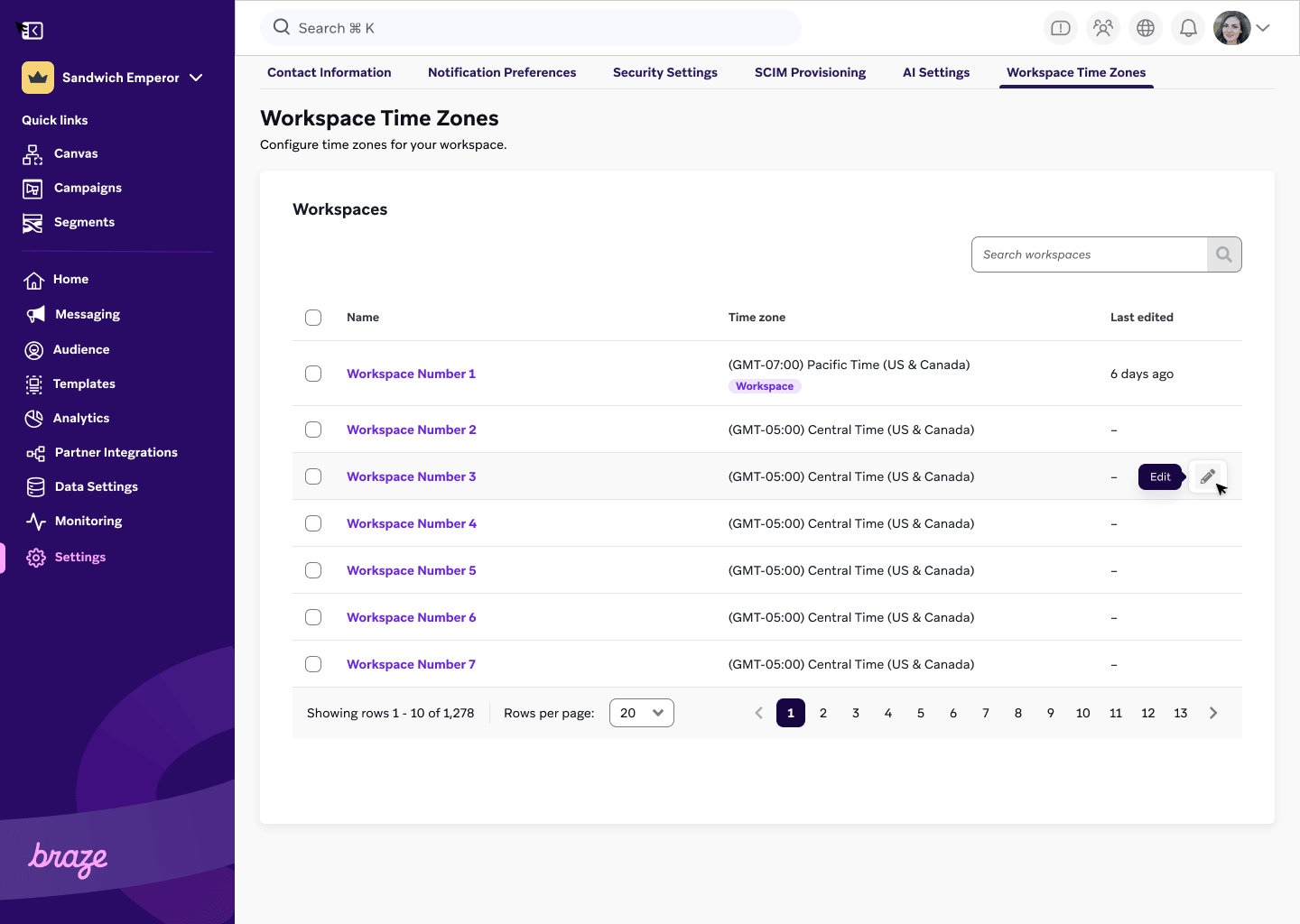
- Locate the desired workspace in the list.
- Select the Edit icon next to the workspace name.
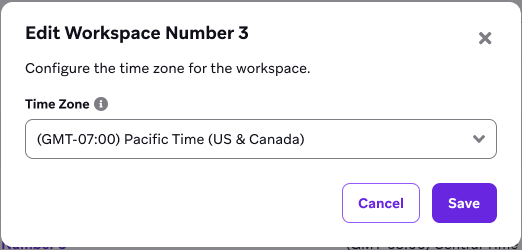
- In the dropdown menu, select the desired time zone for that workspace.
- Select Save.
You can apply a specific time zone to multiple workspaces at one time by doing the following:
- Select the boxes next to all the workspaces you want to update.
- Select Edit time zone.
- From the dropdown menu, select a time zone to apply to all the selected workspaces.
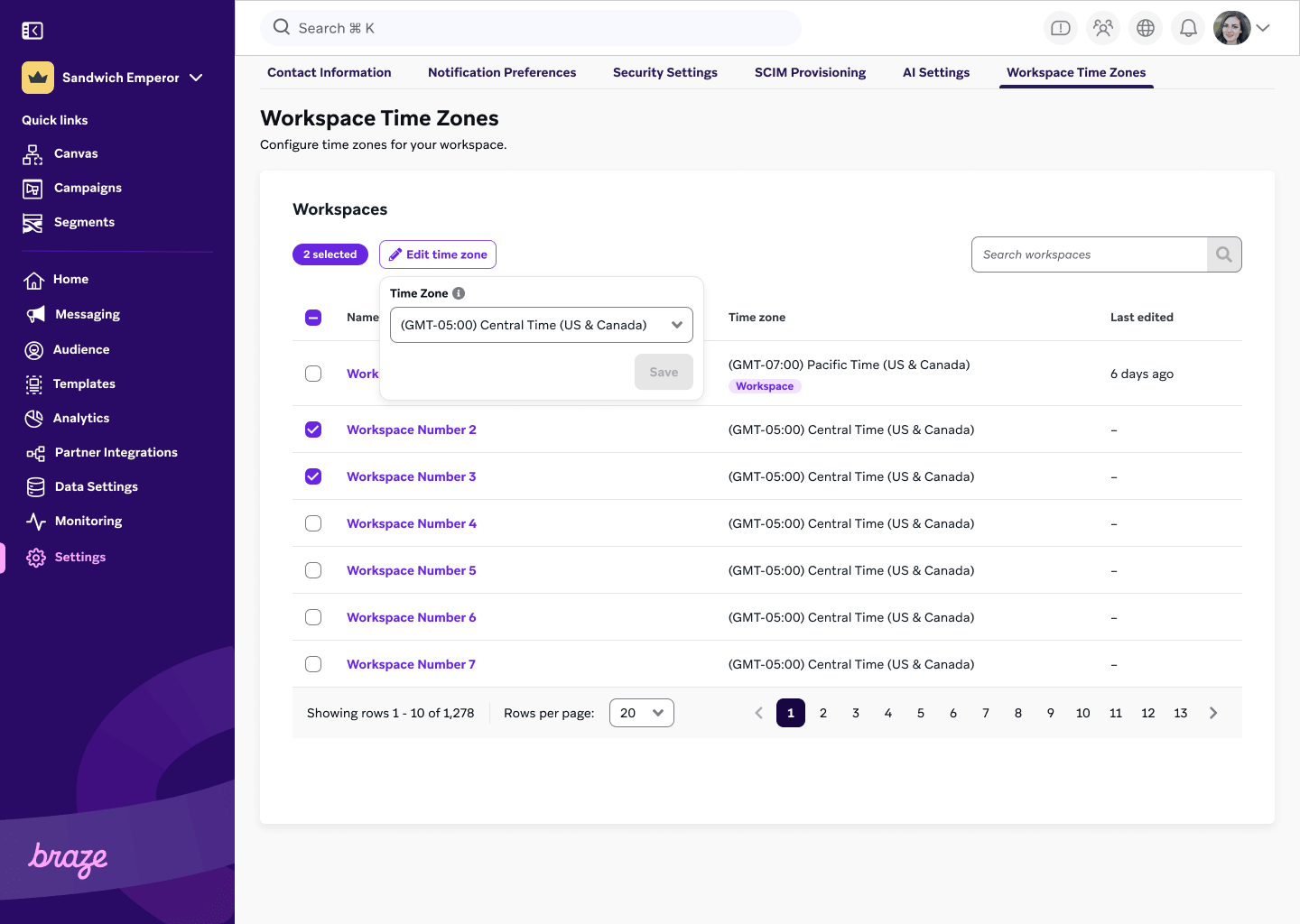
- Select Save.
Impact on campaigns and Canvases
Inform relevant teams and stakeholders within each workspace about any time zone changes to avoid confusion about campaign schedules.
- Local time and Intelligent Time campaigns: Campaigns and Canvases that use a user’s local time or Intelligent Time for delivery will continue to function as before and won’t be affected by workspace time zones.
- Scheduled campaigns and Canvases: Any scheduled campaign or Canvas that doesn’t use the user’s local time or Intelligent Time for delivery will now send based on the workspace’s selected time zone.
- Campaigns scheduled before a time zone change: If you scheduled a campaign or Canvas before changing the workspace time zone, Braze keeps the original send time and does not reschedule it. For example, if a campaign is set to send at 7 pm PST and the workspace time zone is changed to EST, the campaign still sends at 7 pm PST (which now corresponds with 10 pm EST). The system will continue to reference the original time, but will interpret it through the new workspace time zone.
Impact on date-based audience filters
When a workspace time zone is updated, audience filters that use date-only criteria (where no specific time is provided) are re-evaluated based on the new time zone’s boundaries.
For filters such as “Last did custom event X after” Braze uses the workspace time zone to determine the start and end of the calendar day. Changing this setting shifts the 11:59 pm cutoff point for that specific date.
Example
A workspace updates its time zone from Eastern Time (EST) to Pacific Time (PST).
- Previous cutoff time: 11:59 pm EST
- New cutoff time: 11:59 pm PST (which is 2:59 am EST the following day)
Following this change, a user who performs the custom event at 10 pm PST on March 6, 2026 (which is 1 am EST on March 7, 2026) is now included in the audience, as they fell within the PST calendar boundary for that date.
Reporting discrepancies
Workspace time zones provide precise control over campaign sending, but you should be aware of potential reporting discrepancies while this feature is in early access. Cross-reference data points and be mindful of the time zone when analyzing reports for workspaces with specific time zone overrides.
 Edit this page on GitHub