The Braze dashboard
The Braze dashboard is your central workspace for building, managing, and analyzing customer engagement. Access it at dashboard.braze.com or dashboard.braze.eu.
Use the Braze dashboard to plan campaigns, launch and manage messages, explore audience insights, adjust segmentation, and review real-time performance and engagement metrics from a single interface.
Dashboard overview
When you log in, the dashboard provides a centralized view of your engagement tools and data:
- Home page: Shows your recently edited content and key performance metrics at a glance
- Left navigation: Organizes tools by function (messaging, audience, analytics, settings)
- Global header: Provides quick access to search, support, language settings, notifications, and your account
Your dashboard experience is organized by workspaces, which help you manage content for different brands, regions, or teams. You can switch between workspaces at any time from the side navigation.
Access your dashboard
To get started, sign in to your Braze account. Your access to pages within the dashboard and permission to perform certain actions are based on your assigned user permissions. If you need help with your permissions, contact your Braze administrators.
Navigate Braze
Braze navigation is designed to help you efficiently access features and content across devices. There are two levels of navigation in the Braze dashboard: global header and side navigation.
The global header is almost always visible at the top of the screen. It provides quick access to essential tools and settings, including:
- Search
- Support and community links
- Dashboard language
- Notifications
- Account settings
- BrazeAI Operator™
Use the side navigation
The vertical menu on the left organizes Braze tools by function and keeps your most-used items within reach. Select a main menu item to reveal its options in a stacked vertical layout.
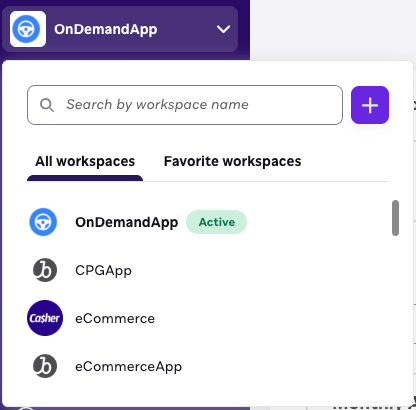
Workspace switcher
Located at the top of the side navigation, the workspace switcher lets you move between different workspaces in your Braze instance. The active workspace is highlighted.
Workspaces help organize content by brand, region, product line, or team. Each workspace includes its own data, campaigns, and settings. Your access can vary between workspaces. For example, you might have editing access in one workspace and view-only access in another.
To switch workspaces, select the workspace dropdown at the top of the side navigation and choose the workspace you want to access. You can also add favorite workspaces for faster access to the ones you use most often.
Minimize the side navigation
To reduce visual clutter, especially during tasks like designing a Canvas, you can minimize the side navigation panel. Press Minimize menu to collapse it. Even when minimized, hover over any icon to view tooltips with menu item names. This helps you move quickly between tools while keeping your workspace clean.

Responsive navigation
The navigation adapts seamlessly to different screen sizes. On smaller screens, the side navigation collapses automatically. Press to open the menu when needed.
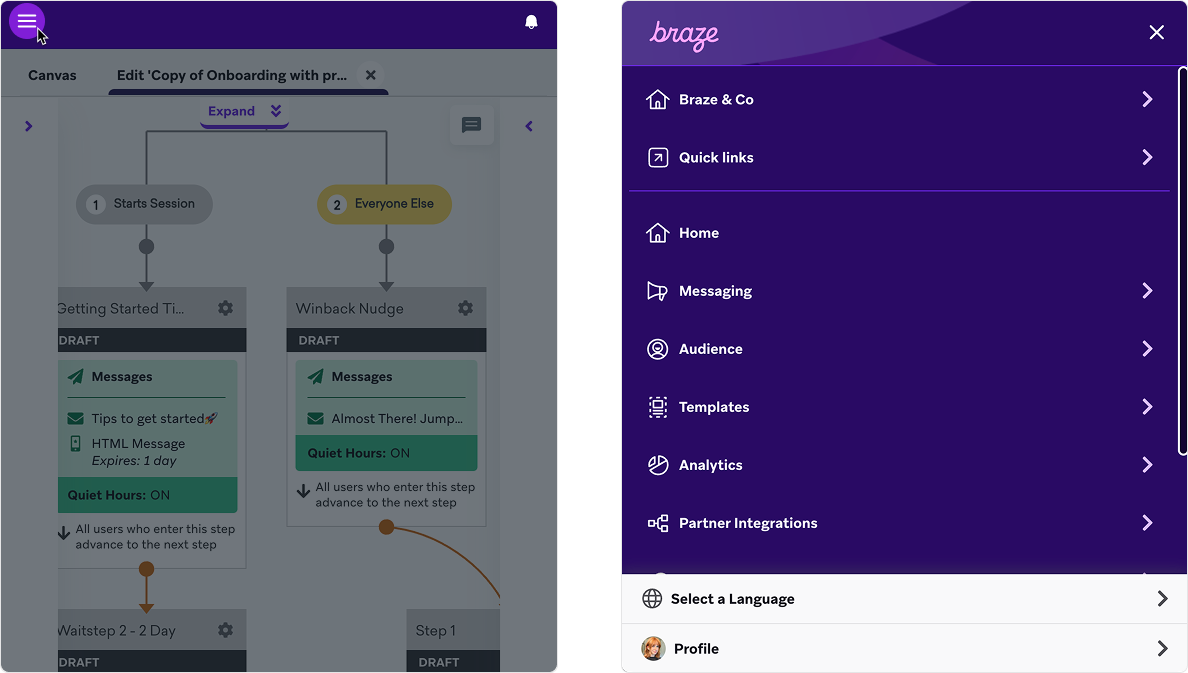
Search your dashboard
The global search bar, located in the header, is the fastest way to find content across your Braze dashboard. Select to open the search interface and jump directly to what you need.
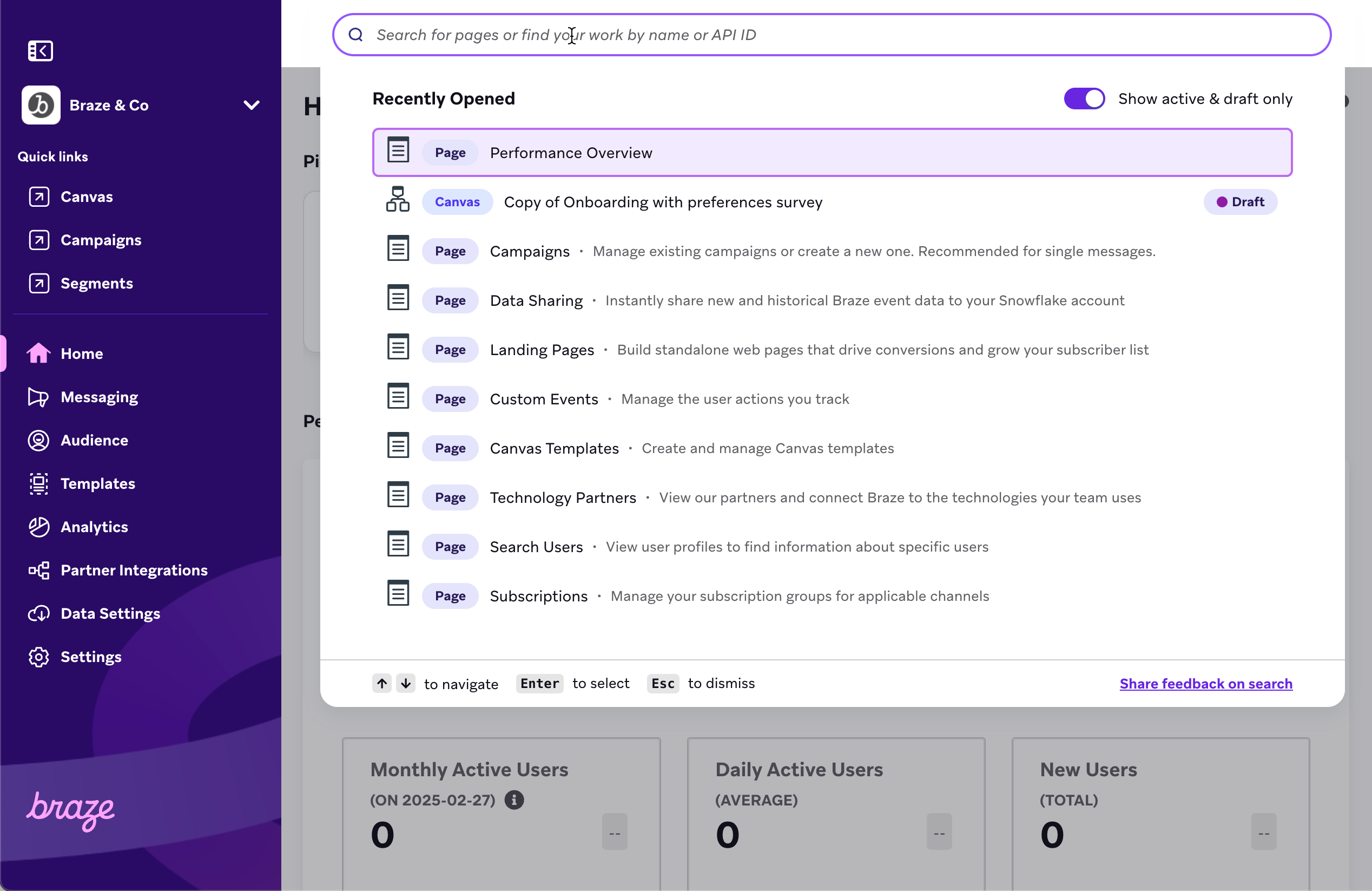
Your recently opened content appears below the search bar. This includes any campaign, Canvas, template, or page you’ve recently interacted with—making it easy to return to your work.
What can you search for?
You can search for the following items and actions:
- Campaign names
- Canvas names
- Content Blocks
- Segment names
- Email template names
- Pages within Braze (including synonyms)
To search for exact text, put your search term in quotations (“”). For example, searching for [“all users”] will return all items that contain the exact phrase “all users” in their name.
Content type and status tags
Each result is labeled with a tag indicating its content type—such as campaign, Canvas, or segment—and its status (active, archived, stopped).
Filter for active and draft content
By default, search includes active, draft, and archived items. Use the Show active and draft only toggle to narrow your results.

Keyboard shortcuts
You can move through search results using your keyboard.
| Action | Keyboard shortcut |
|---|---|
| Open the search menu |
|
| Move between search results | ⬆ / ⬇ |
| Select a search result | Enter |
| Close the search menu | Esc |
Tips
The Braze dashboard includes several features to help you work more efficiently and quickly access the tools and content you use most.
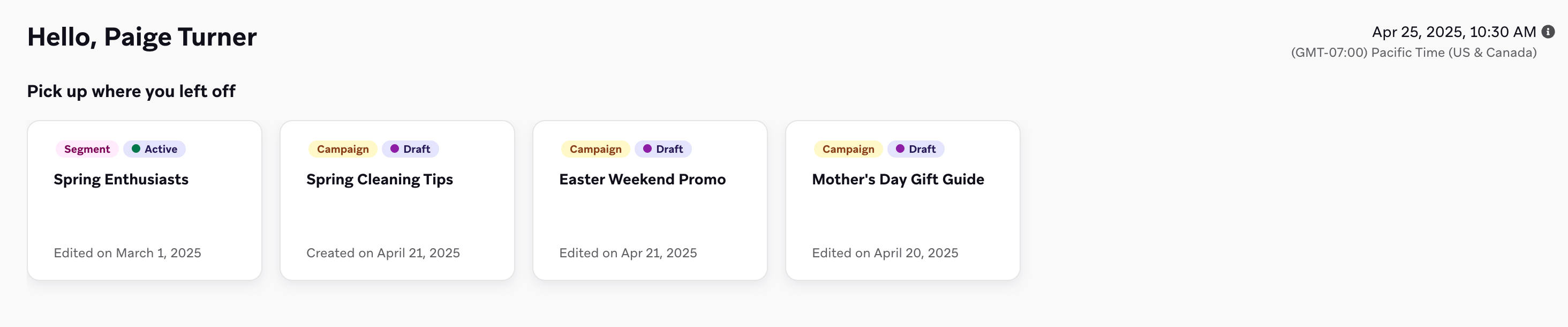
Pick up where you left off
On the Home page, the dashboard displays your recently edited or created campaigns, Canvases, and segments. This makes it easy to return to work in progress without searching. Each item includes tags showing the content type and status (such as draft, active, or stopped).
For more information, see Home dashboard.
Add favorite workspaces
If you work across multiple workspaces, you can mark your most frequently used ones as favorites for faster access. To add favorite workspaces, access your profile settings, locate the Favorite workspaces field in the Account Profile section, and select the workspaces you want to favorite. Your favorite workspaces will appear at the top of the workspace switcher for quick access.
Access your profile settings
To manage your account settings, notification preferences, and personal information:
- Select your profile icon in the global header.
- Select Manage your account to access your profile page.
From your profile page, you can update your email settings, configure two-factor authentication, view your API keys, and manage other account details.
Accessibility in the dashboard
The Braze dashboard uses brand colors that meet WCAG AA standards for color contrast. This supports an inclusive experience for all users and aligns with accessibility best practices.
Sharing feedback
Want to tell us what you think? You can share feedback about navigation, accessibility, usability, visual design, and more. Open the Support menu in the global header and select Share feedback. We review all feedback to help improve your Braze experience.
Related resources
Administrative tasks
Key tasks and next steps
- Build campaigns: Create a campaign
- Create journeys: Build a Canvas
- Define audiences: Create a segment
- Review performance: Analytics overview
- Configure settings: App settings
 Edit this page on GitHub