Create promotion codes
Learn how to create promotion codes in your campaigns and Canvases.
Creating a promotion code list
Step 1: Create a new list
In the dashboard, go to Data Settings > Promotion Codes, then select Create Promotion Code List.
Step 2: Enter the details
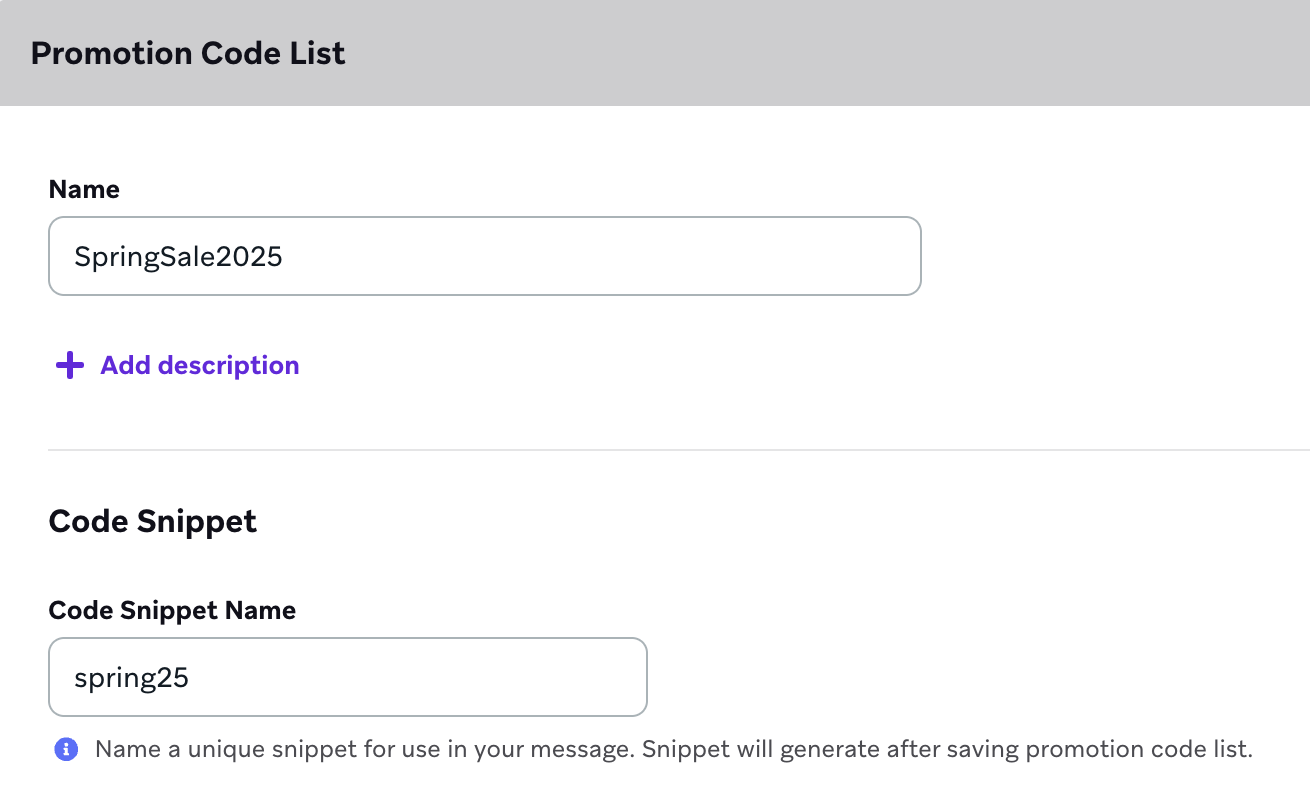
- Name your promotion code list and add an optional description.
- Next, create a code snippet for the promotion code.
Here are some details to consider when creating a code snippet:
- You cannot edit a code snippet after you save.
- Snippets are case-sensitive. For example, the system recognizes “Birthday_promo” and “birthday_promo” as two different snippets.
- Use the snippet name in Liquid to reference this set of promotion codes.
- Make sure the code snippet isn’t already being used in another list.
Step 3: Choose promotion code options
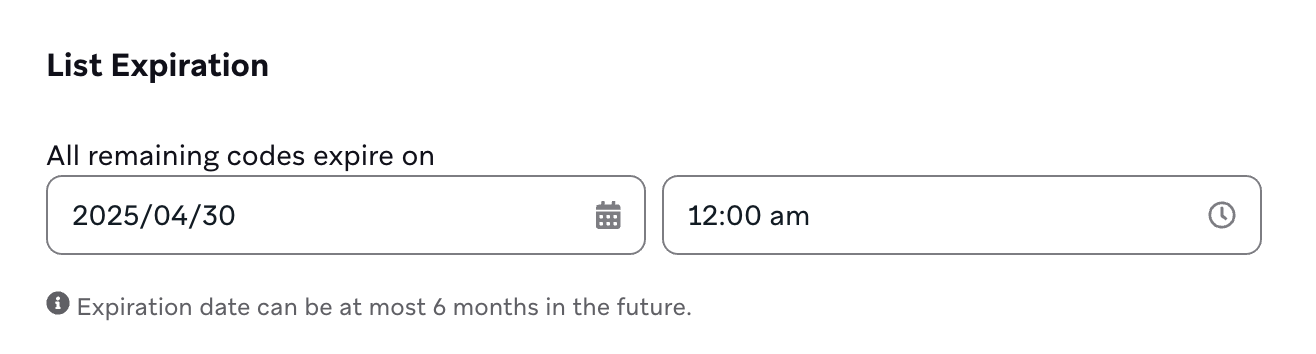
Each promotion code list has a corresponding expiration date and time that gets set upon creation. The maximum expiration length is six months from the day you create or edit your list.
Within that time, you can change and update the expiration date repeatedly. This expiration date applies to all codes added to this list. Upon expiration, the codes are deleted from the Braze system, and any messages calling that list’s code snippet are not sent.
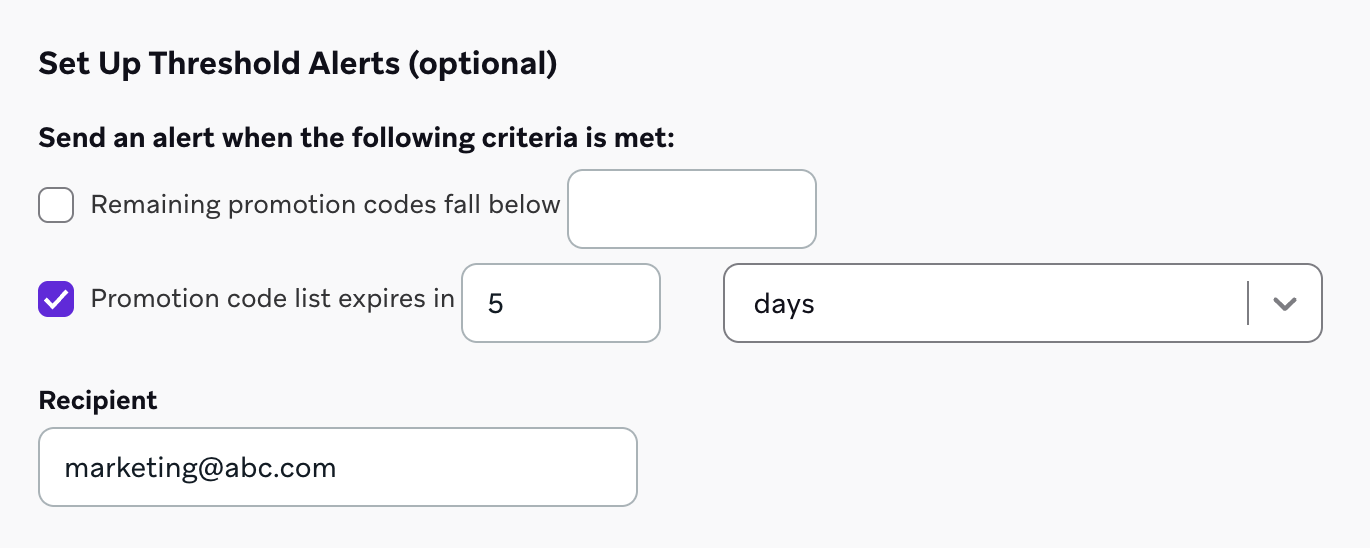
You also have the option to set up optional and customized threshold alerts. If set up, these alerts email the designated recipient either when the list is running low on available promotion codes in this list or when your promotion code list is close to expiration. The recipient is notified once a day.
Step 4: Upload promotion codes
Braze doesn’t manage code creation or redemption, meaning you must generate your promotion codes to a CSV file and upload them to Braze.
Make sure your CSV file follows these guidelines:
- Includes a column for promotion codes.
- Has one promotion code per row.
You can use our built-in integration with Voucherify or Talon.One to create and export promotion codes.
The maximum file size is 100 MB and the maximum list size is 20 million unused codes. If you find the wrong file was uploaded, upload a new one to replace the previous file.
- After the upload is complete, select Save List to save all the details and codes you just entered.
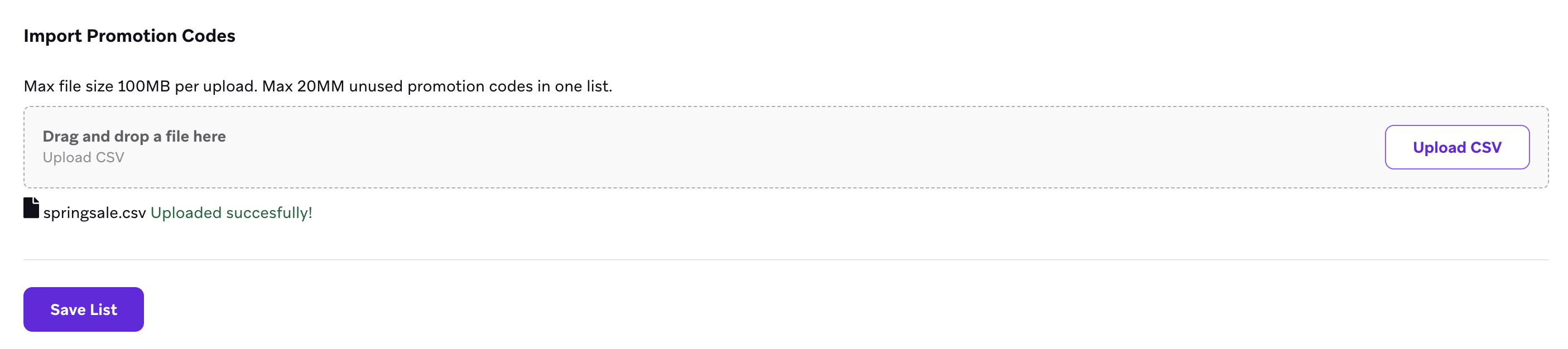
- After selecting save, a new row appears in the Import History.
- To refresh the table to see if your import has finished, select Sync at the top of the table.

Larger files take several minutes to import. While you wait, you can leave the page and work on something while the import is in progress. When the import finishes, the status changes to Complete in the table.
Updating a promotion code list
To update a list, select one of your existing lists. You can change the name, description, list expiration, and threshold alerts. You can also add more codes to the list by uploading new files and selecting Update List. All codes in the list have the same expiration, regardless of the date of import.
Promotion codes can’t be deleted.
Modifying an incorrect promotion code list
If you’ve uploaded a CSV file with the incorrect promotion codes and selected Save list, you can resolve this by either method:
- Deprecate the entire list: Stop using the current promotion code list in any campaigns, Canvases, or templates. Then, upload the CSV file with the correct codes and use them in your messaging.
- Use the incorrect codes: Create a campaign that sends promotion codes from the incorrect promotion code list to a placeholder until all of the incorrect codes are used. Then, upload the correct promotion codes to the same list.
 Edit this page on GitHub