Message Usage dashboard
The Message Usage dashboard provides self-service insights into your SMS, RCS, and WhatsApp credit usage for a comprehensive view of historical and current usage compared against contract allotments. These insights can reduce your confusion and help you make adjustments to prevent overage risks.
The Message Usage dashboard is divided into three sections:
Access the dashboard by going to Settings > Billing > Message Usage.
Message credits usage overview
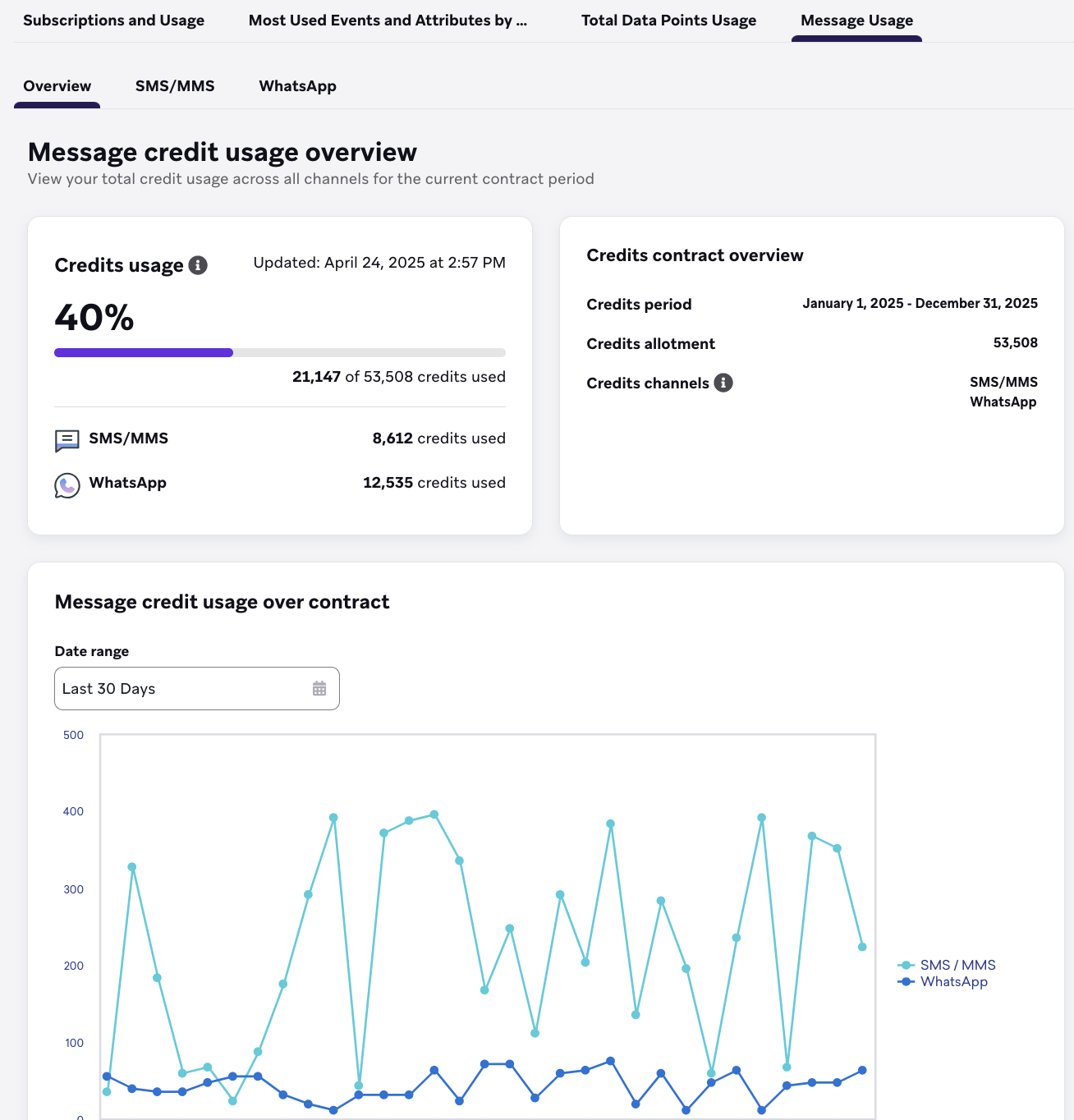
Message Credits Usage Overview provides an overview of usage across all channels that use credits. You can see how you’re pacing against your overall credit allotment, and find details about your active contract and your contract period.
This page displays if you’re on a message credits contract. The channels that use message credits are shown in the Credits contract overview.
If you purchased WhatsApp but aren’t on a message credits contract, you’ll still see credit consumption for WhatsApp because that’s how legacy WhatsApp contracts are billed. This differs from legacy SMS, which only consumes credits when you’re on a message credits contract.
Message Credits Usage Overview data is limited to the contract period, which is displayed in the Credits contract overview. You can’t filter on a date range outside of the Credits period.
Message credits usage over contract
The Message Credits Usage over Contract graph shows your usage over the selected period of time. The granularity of this chart depends on your selected time frame. Export export options by selecting the menu in the top right corner of the chart.
SMS, MMS, and RCS
SMS/MMS/RCS Credits Usage shows the usage breakdown for the SMS, MMS, and RCS channel. The columns in the data table generally require you to have purchased Message Credits (though Braze still supports older billing models temporarily), and the Credit ratio and Credits columns indicate the respective country rate and consumed credits. Additionally, high-level tiles will indicate the total SMS and, when relevant, MMS consumption across the selected date range.
Filters are available allowing you to filter by Country or SMS and RCS type.
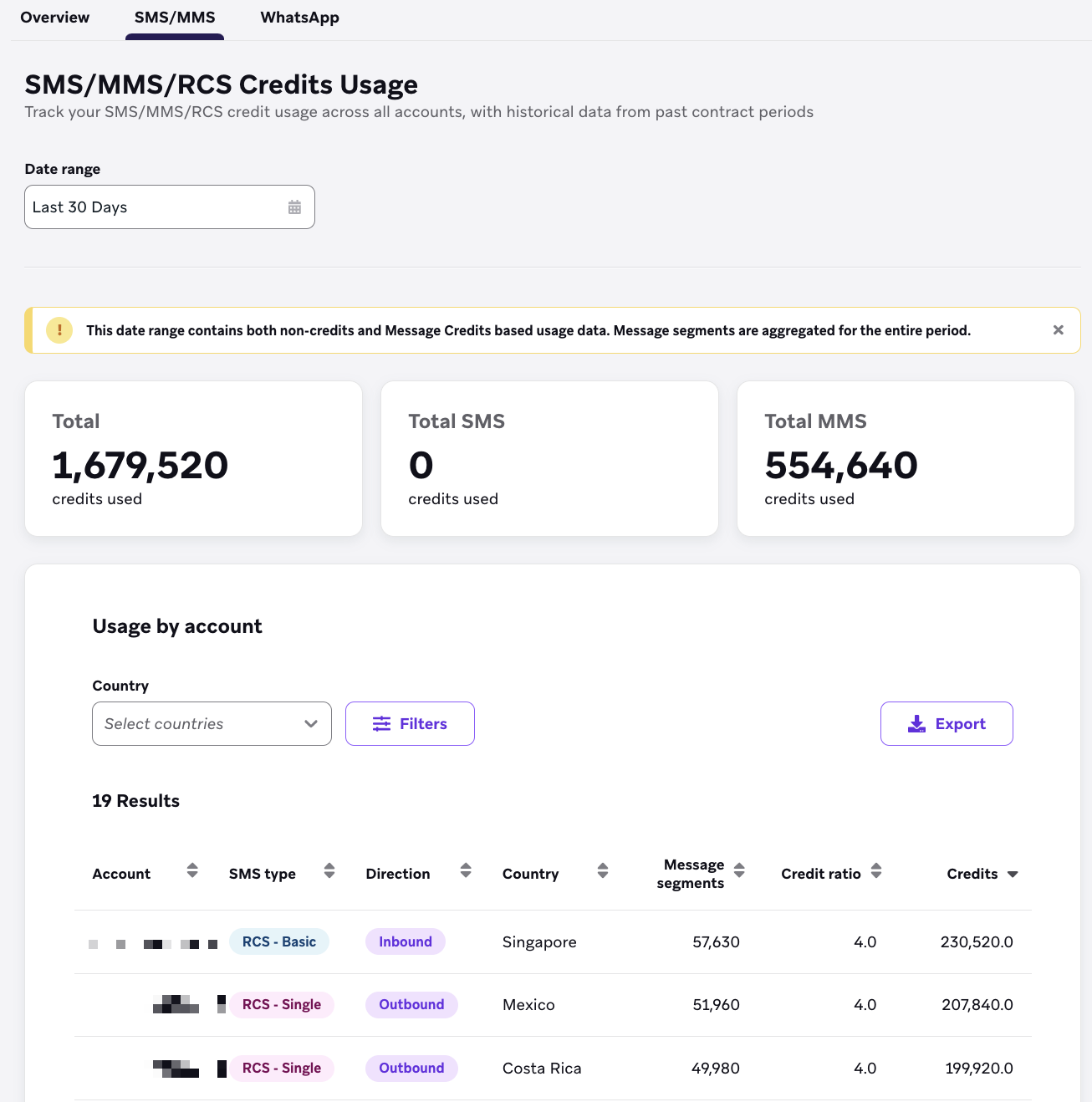
Unlike the Message Credits Usage Overview, this section contains historical data from prior contract periods.
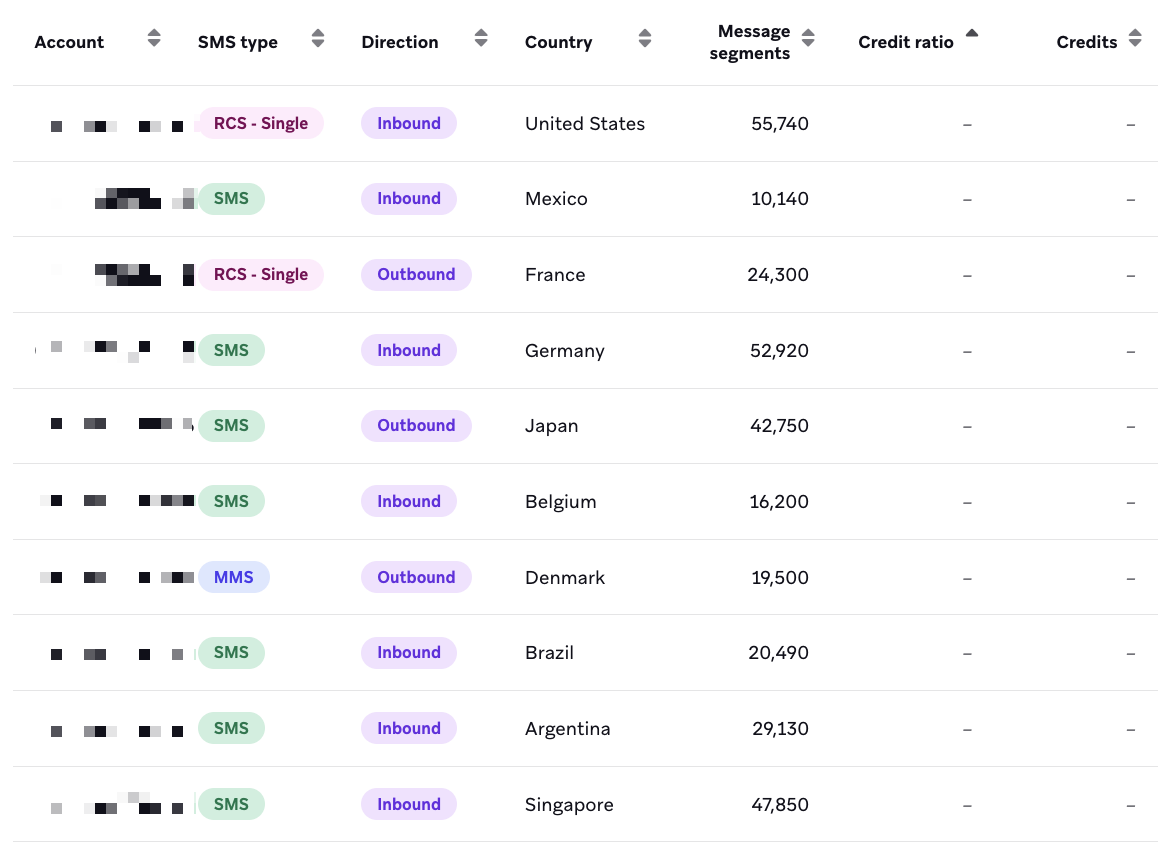
It’s possible to select a date range that contains both non-credits and message credits usage. In this case, the consumption that occurred outside of message credits will display — (null) in the Credit ratio and Credits columns.
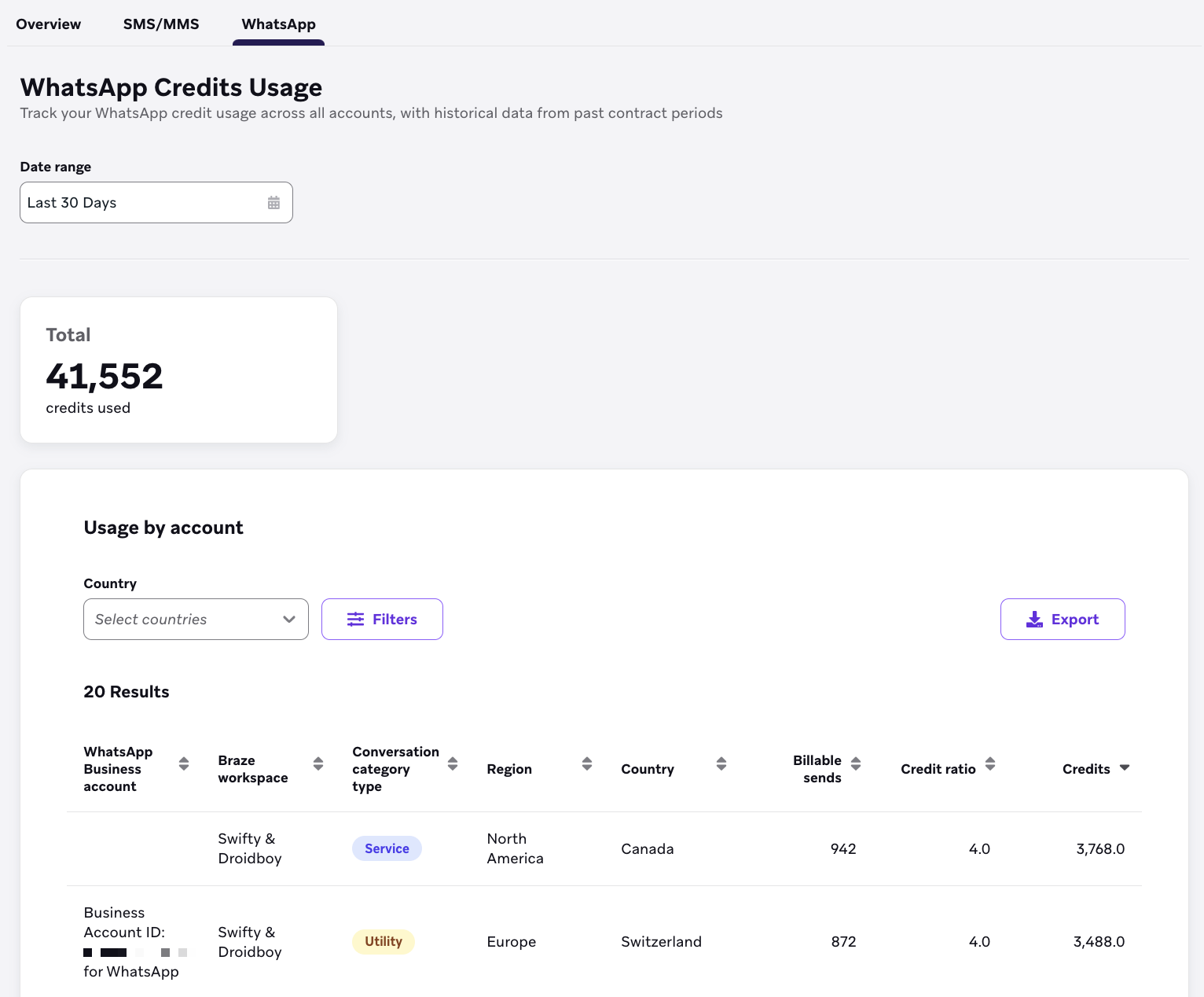
WhatsApp Credits Usage shows the usage breakdown for the WhatsApp channel. The tiles display the total WhatsApp credit usage, which can be broken down in the Usage by account section by applying filters to limit the data table results to a specific workspace.
Filters
You can filter your data by:
- Country
- WhatsApp Business account
- Braze workspace
- Conversation category type
- Region
Things to know
The data shown in the Message Usage dashboard is at the contract level and isn’t scoped to an individual dashboard company or workspace. This data reflects usage from all workspaces within your dashboard, and potentially across all dashboards (if you have multiple).
- The underlying data is provided in a daily cadence, with the data tables refreshed at 3 am, 9 am, 12 pm, and 6 pm EST. The Message Usage dashboard may take longer than 24 hours to update.
- Braze follows standard rounding methodology: numbers are rounded up to the nearest tenth.
Date range selection
The Message Usage dashboard excludes the end date of the selected range from the results. For example, if you select October 1–31, usage statistics for October 31 are excluded. To include the last day of your desired period, extend the range by one day. For example, to include all of October, select October 1–November 1.
Comparing with third-party providers
When comparing Braze message usage data with third-party providers (such as Infobip), keep in mind:
- Message segments vs messages: Braze counts SMS messages by segments. A single SMS message that is split into multiple segments (for example, due to length) is counted as multiple segments in Braze. For more information, see SMS and RCS billing calculators.
- Credit vs non-credit based messages: The dashboard includes both credit-based and non-credit based messages. Third-party providers may count only credit-based messages, which can cause discrepancies in totals.
- Inbound vs outbound: Ensure you’re comparing the same message types. Some third-party dashboards include both inbound and outbound messages in their totals, while Braze allows you to filter by direction.
- Date range alignment: Because the dashboard excludes the end date, day-by-day comparisons may align more closely than longer date ranges. If you’re comparing data for a specific period, extend your Braze date range by one day to include the final day of your comparison period.
 Edit this page on GitHub