Create a Banner
Learn how to create Banners when you build campaigns and Canvases in Braze. For more general information, see About Banners.
Prerequisites
Before you can launch your Banner, your development team must set up placements in your app or website. You can still draft your Banner campaign in the meantime, but you won’t be able to launch the campaign until the placements are configured.
Create a Banner message
Step 1: Create placements in Braze
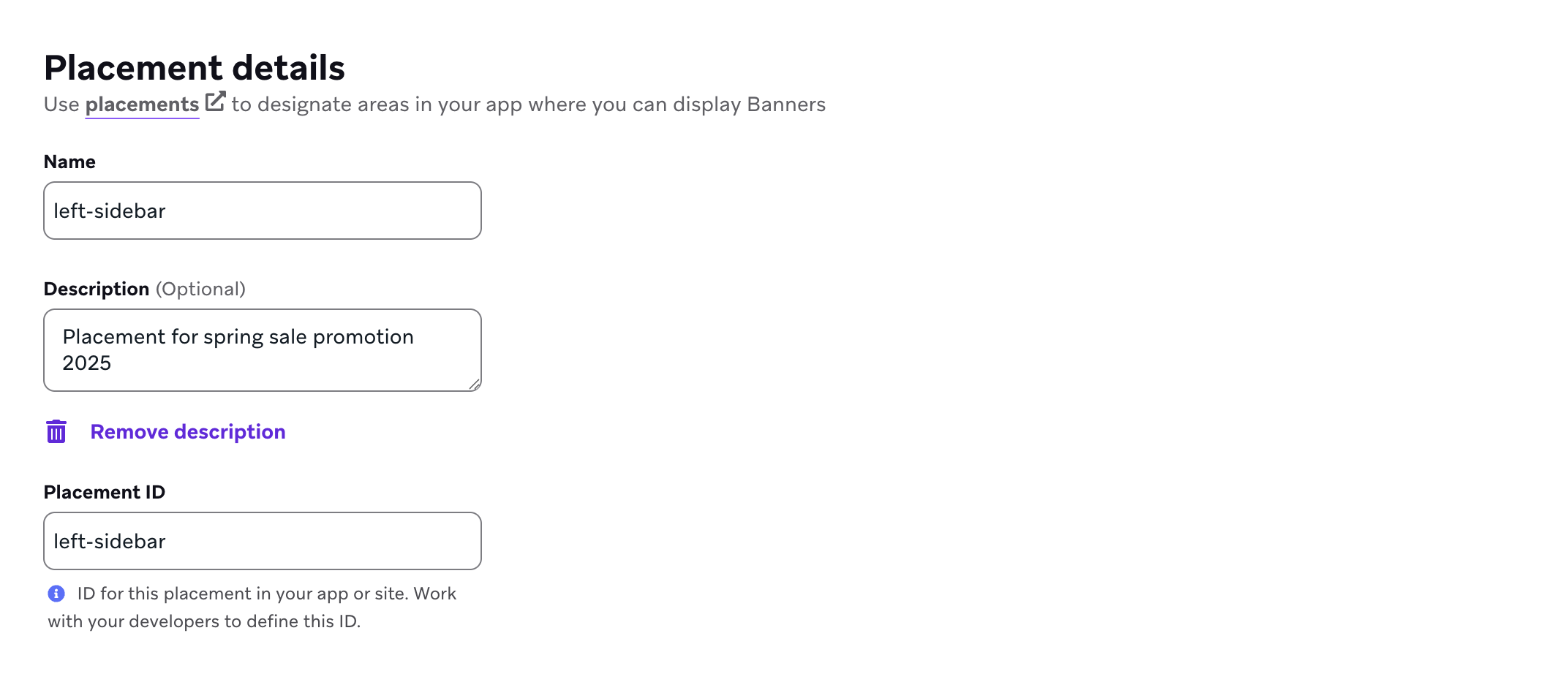
If you haven’t already, you’ll need to create Banner placements in Braze that are used to define the locations in your app or site can display Banners. To create a placement, go to Settings > Banners Placements, then select Create Placement.

Give your placement a name and assign a Placement ID. Be sure you consult other teams before assigning an ID, as it’ll be used throughout the card’s lifecycle and shouldn’t be changed later. For more information, see Placement IDs.
Step 2: Choose where to build your message
Not sure whether your message should be sent using a campaign or a Canvas? Campaigns are better for single, targeted messaging campaigns, while Canvases are better for multi-step user journeys.
- Go to Messaging > Campaigns and select Create Campaign.
- Select Banner.
- Name your campaign something clear and meaningful.
- Add teams and tags as needed. Tags make your campaigns easier to find and build reports out of. For example, when using the Report Builder, you can filter by the relevant tags.
- Select the placement you previously created to associate it with your campaign.
- Add variants as needed. You can choose a different message type and layout for each one. For more information on variants, refer to Multivariate and A/B testing.
- Choose a start date and time for your Banner campaign. By default, Banners last indefinitely. You can change this by selecting End Time and specifying an end date and time.
If all of the messages in your campaign are going to be similar or have the same content, compose your message before adding additional variants. You can then select Copy from Variant from the Add Variant dropdown.
- Create your Canvas using the Canvas composer.
- After setting up your Canvas, add a Message step in the Canvas builder. Name your step something clear and meaningful.
- Select Banner as your messaging channel.
- Select a placement for the Banner.
- Set the priority for the Banner. Banner priority determines the order in which Banners are displayed if they share the same placement.
- Set an expiration for the Banner. This can be after a duration of time after the step is available or at a specific date and time.
Step 3: Compose a Banner
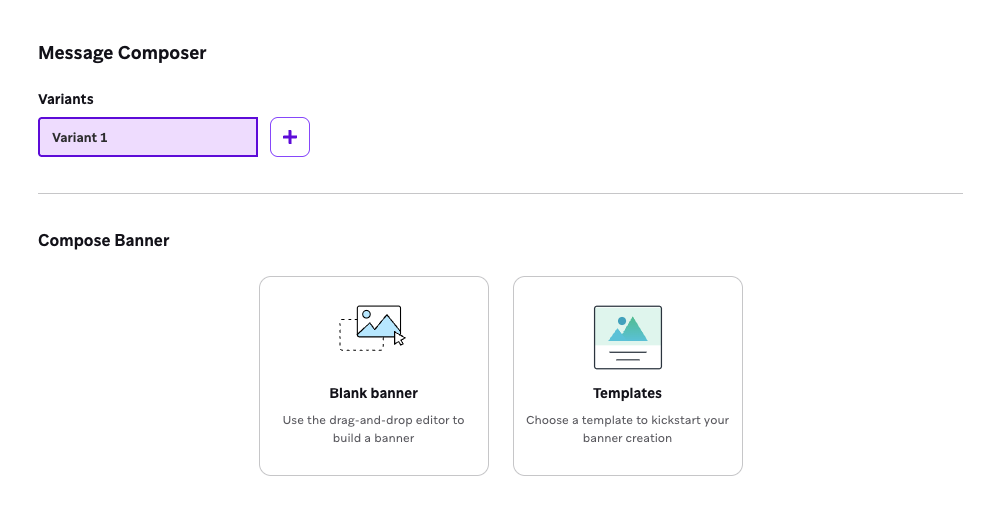
To compose your Banner, you can choose to:
- Start with a blank template
- Use a Braze banner template
- Select a saved banner template
Step 3.1: Style the Banner
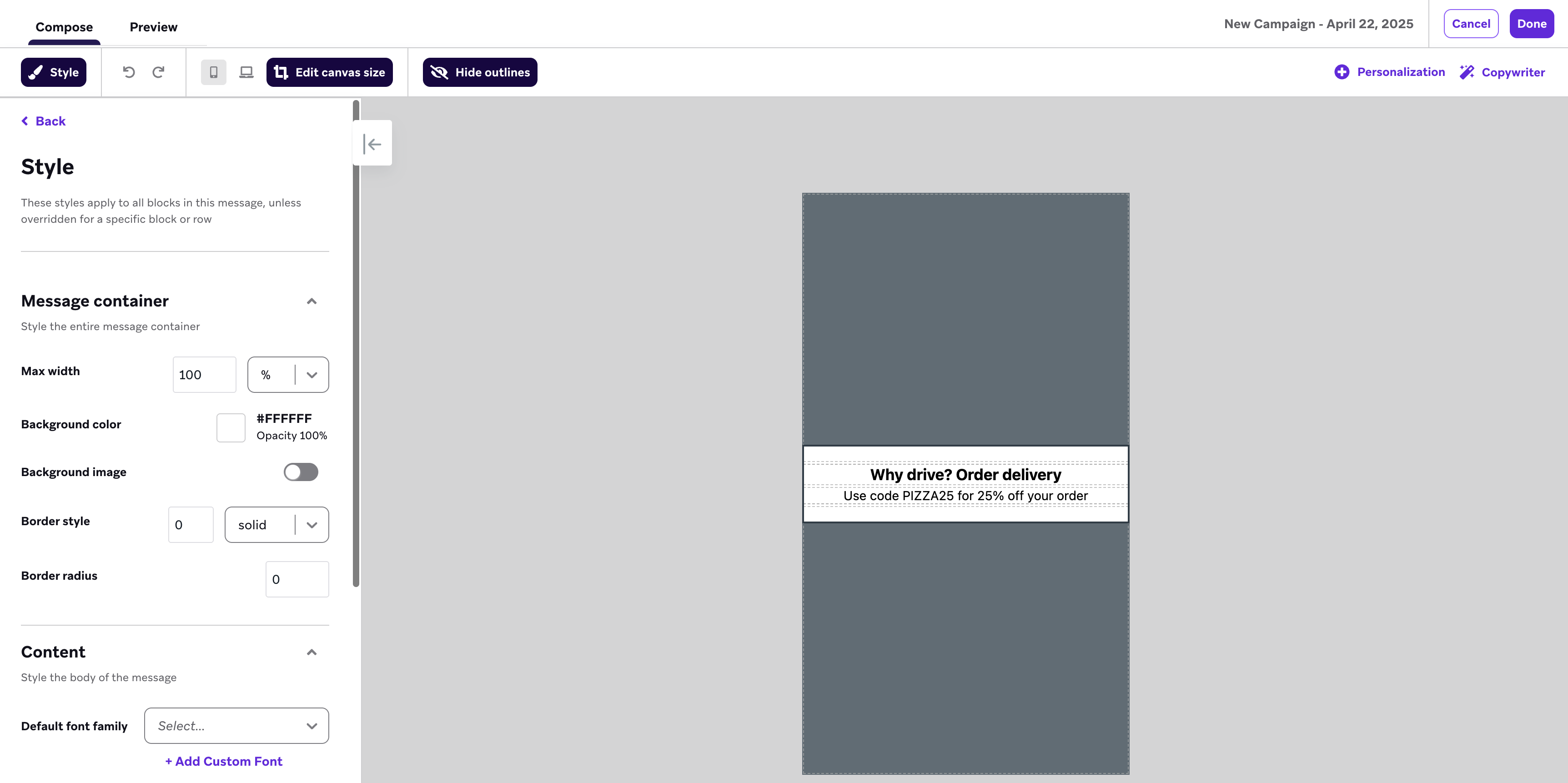
You can drag and drop blocks and rows into the canvas area to start building your message.
To customize your message’s background properties, border settings, and more, select Styles. If you only want to customize the style for a specific block or row, select it to make changes.
Step 3.2: Define on-click behavior (optional)
When a user clicks a link in the Banner, you can choose to navigate them deeper into your app or redirect them to another webpage. Additionally, you can choose to log a custom attribute or event, which updates your user’s profile with custom data when they click the Banner.
On-click behavior can be overridden if a specific element (such as a button, link, or image, of the Banner) has its own on-click behavior. For example, given the following on-click behaviors:
- A Banner has an on-click behavior that redirects to a website's homepage.
- An image in the Banner has an on-click behavior that redirects to a website's product page.
Step 3.3: Add custom properties (optional)
You can add custom properties to a Banner to attach structured metadata, such as strings or JSON objects. These properties don’t affect how the Banner is displayed but can be accessed through the Braze SDK to modify your app’s behavior or appearance. For example, you could:
- Send metadata for your third-party analytics or integrations.
- Use metadata such as a
timestampor JSON object to trigger conditional logic. - Control the behavior of a banner based on included metadata like
ratioorformat.
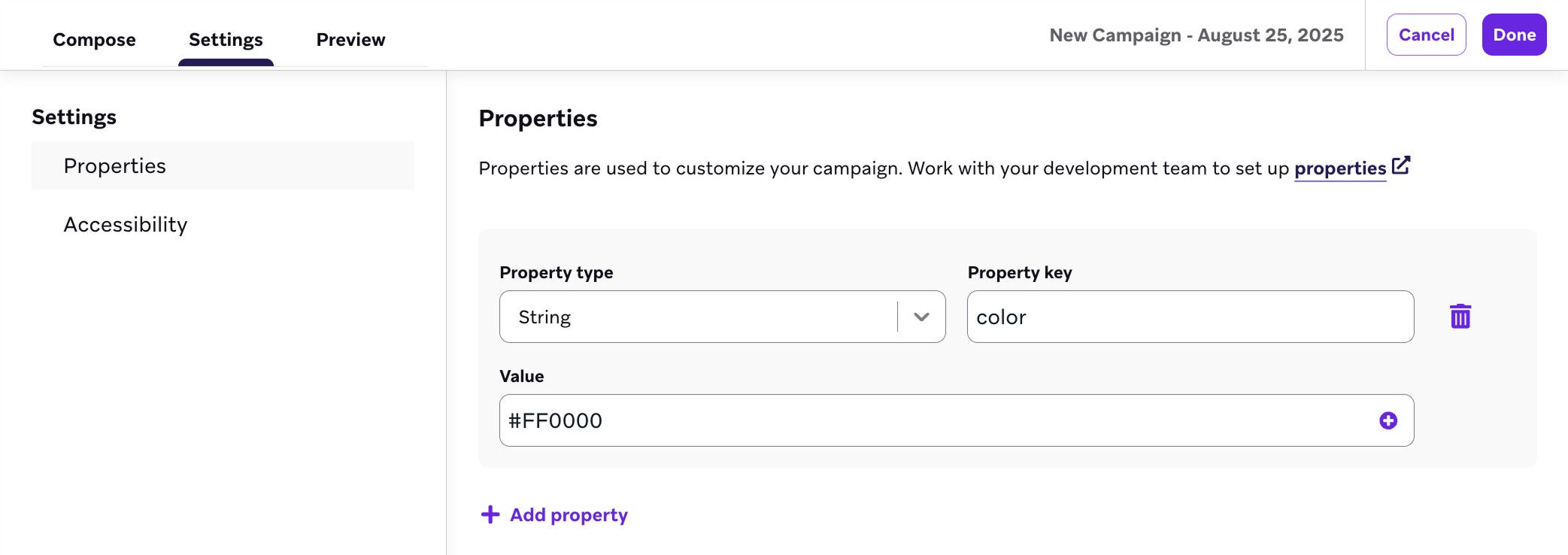
To add a custom property, select Settings > Properties > Add property.
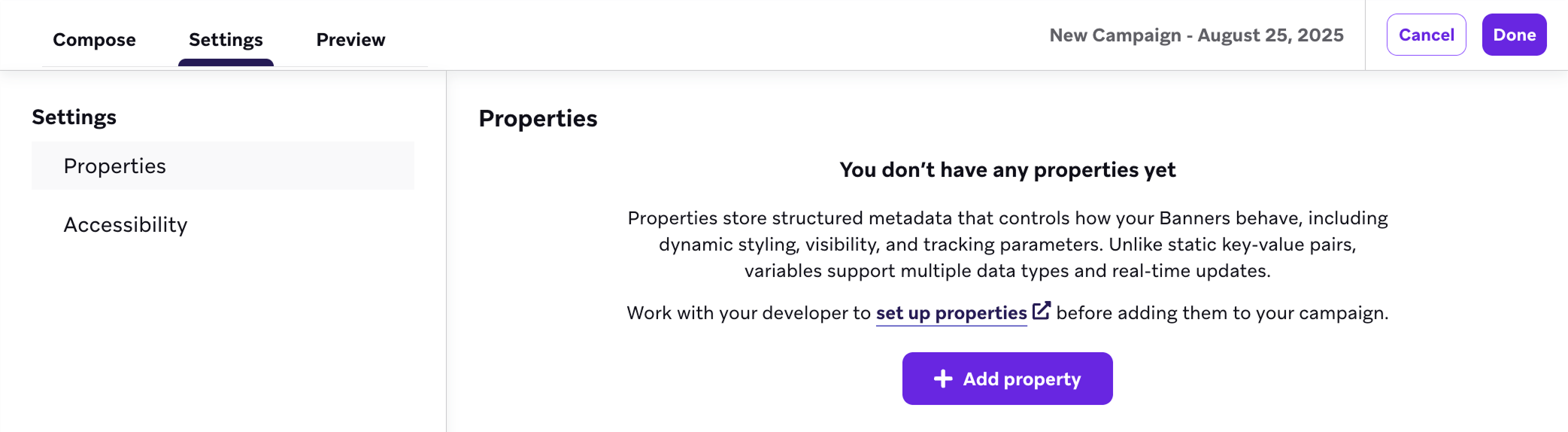
For each property you’d like to add, fill out the following:
| Field | Description | Example |
|---|---|---|
| Property type | The data type for the property. Supported types include string, boolean, number, timestamp, image URL, and JSON object. | String |
| Property key | The unique identifier for the property. This key is used in the SDK to access the property. | color |
| Value | The value assigned to the property. Must match the selected property type. | #FF0000 |
When you’re finished, select Done.
Step 4: Build the remainder of your campaign or Canvas
Set Banner priority (optional)
Banner priority determines the order in which Banners are displayed if they share the same placement. To manually set the priority:
- Select Set exact priority.
- Drag and drop the campaigns to order them with the correct priority.
- Select Apply Sort.
If you have multiple Banner campaigns using the same placement ID, we recommend using the drag-and-drop priority sorter to define the exact priority.
Choose your audience
- In Target Audiences, choose segments or filters to narrow your audience. You automatically receive a preview of the approximate segment population. Exact segment membership is calculated before the message is sent.
Your message will only be sent to users who already match the conditions you set in the Target Audience step. After that, they still need to meet the trigger you define in the Schedule Delivery step. Think of the target audience as a waiting room—only people already inside can move forward when the next action happens.
- In Assign Conversions, track how often users perform specific actions after receiving a campaign by defining conversion events with up to a 30-day window to count the action as a conversion.
Your message will only be sent to users who already match the conditions you set in the Target Audience step. After that, they still need to meet the trigger you define in the Schedule Delivery step. Think of the target audience as a waiting room—only people already inside can move forward when the next action happens.
Choose conversion events
Braze allows you to track conversion events, how often users perform specific actions, after receiving a campaign. You have the option of allowing up to a 30-day window during which a conversion is counted if the user takes the specified action.
If you haven’t done so already, complete the remaining sections of your Canvas component. For further details on how build out the rest of your Canvas, implement multivariate testing and Intelligent Selection, and more, refer to the Build your Canvas step of our Canvas documentation.
Step 5: Test your message (optional)
Select Preview to you preview your Banner or send a test message.
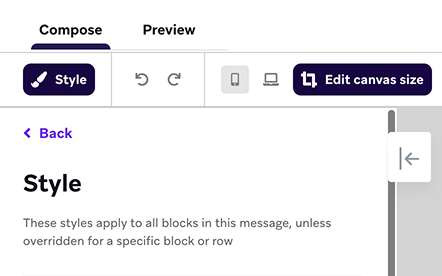
Keep in mind, your preview may not be identical to the final render on a user’s device due to differences across hardware.
To send a test message, add either a content test group or one or more individual users as Test Recipients, then select Send Test. You’ll be able to view your test message on the device for up to 5 minutes. You can then select Copy preview link to generate and copy a shareable preview link that shows what the banner will look like for a random user. The link will last for seven days before it needs to be regenerated.
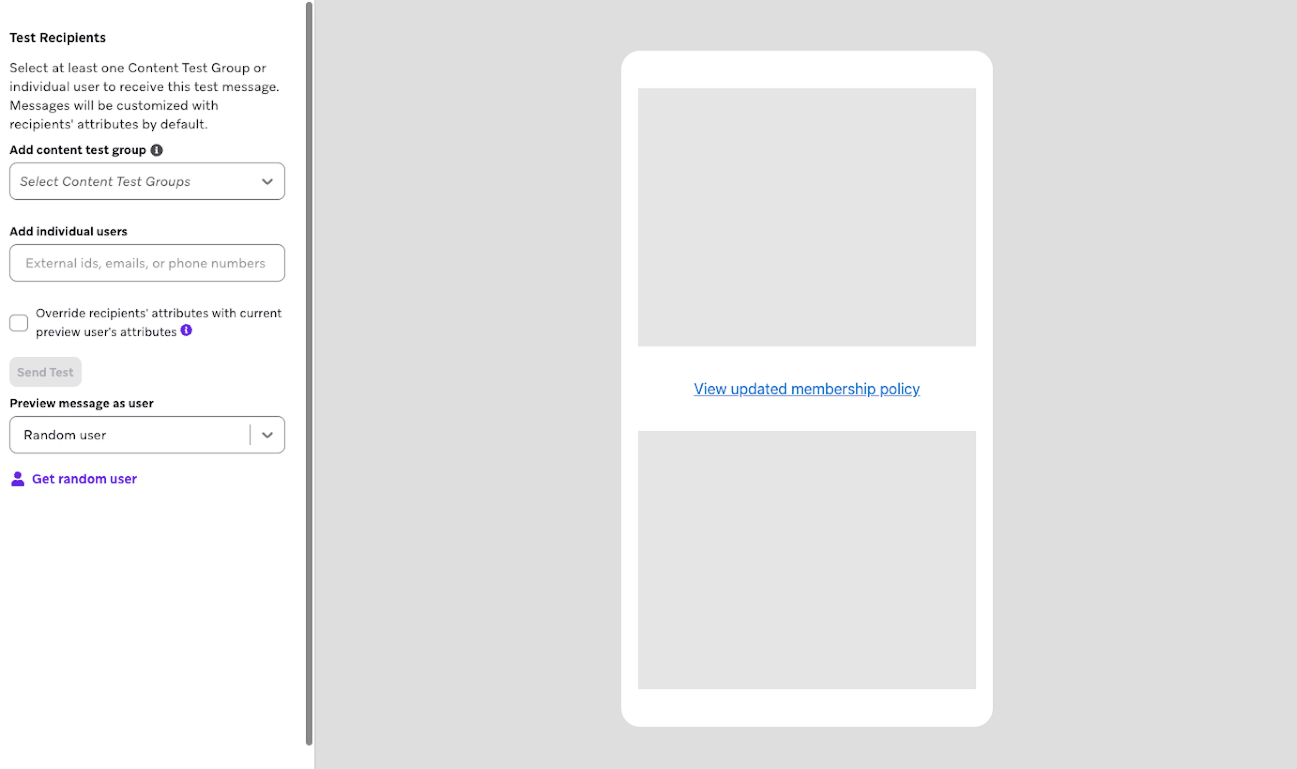
While reviewing your test Banner, verify the following:
- Is your Banner campaign assigned to a placement?
- Do the images and media show up and act as expected on your targeted device types and screen sizes?
- Do your links and buttons direct the user to where they should go?
- Does the Liquid function as expected? Have you accounted for a default attribute value in the event that the Liquid returns no information?
- Is your copy clear, concise, and correct?
Step 6: Review and deploy
After you’ve finished building your campaign or Canvas, review its details, test it, then send it when you’re ready.
 Edit this page on GitHub