Canvas templates
Braze has a selection of Canvas templates available for you to reference and use as best practices for common use cases. While these templates can’t be edited, you can view them in Templates > Braze templates or use them in your Canvases.
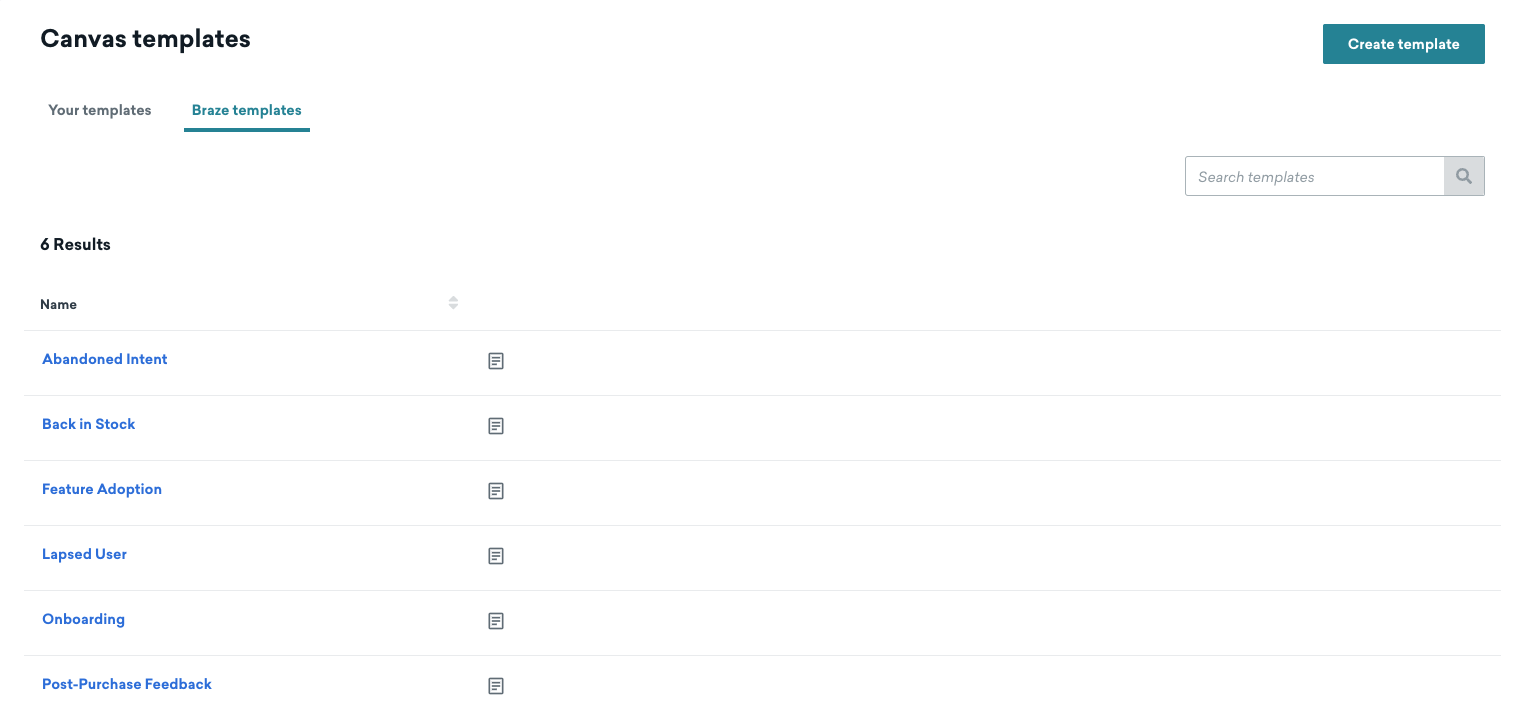
Select from the following available templates to reference or use as your Canvas.
Standard Canvas templates
Abandoned intent
Engage with users in real-time to encourage them to complete their purchases.
Consider the following when using this template:
- Add a specific audience. Currently, the audience paths are triggered based on “Made Any Purchase”, but you can tailor this to specific products you want to target.
- This template assumes you have a separate post-purchase journey, so making a purchase will cause users to exit the Canvas.
- Fill out the details in the Audience Sync step.
Back in stock
Drive purchases by notifying your users when an item is back in stock with personalized messaging. Consider the following when using this template:
- In Entry Schedule, select a catalog to use. This allows you to access data, such as products, discounts, and promotions, to further target your users.
- In Target Audience, add a segment to target users who indicated interest in a certain item.
- In the Message steps throughout the Canvas, update the Liquid to reference your catalog.
Feature adoption
Deliver timely personalized messages to highlight the benefits and usage tips. Consider the following when using this template:
- Exclude users who have already adopted the feature. For example, in Target Audience, add a filter for a custom event such as “Activated Feature” that has already occurred.
- To use the Experiment Path step, define a conversion event. This event should be the event that signals feature adoption.
- Set up the Action Path step in the template with custom events for “Activated Feature” and “Taken Tour”.
- Set up the custom attributes in the Message step named “Feedback Survey” to capture sentiment of feedback.
Lapsed user
Bring users back to your app with incentives based on their past engagements. Consider the following when using this template:
- In Basics, select a specific app to track conversions for.
- In the Canvas editor, add specific apps for the Action Paths steps.
- Configure the Audience Sync step with the partners and audiences for your use case.
Onboarding
Create onboarding journeys that promote strong initial adoption and encourage lasting relationships with your users. Consider the following when using this template:
- In the Audience Paths step named “Audience Split”, consider customizing the key actions for engaged users. In the template, the segment filter is “Has clicked email for step Welcome Email”.
Post-purchase feedback
Orchestrate personalized experiences that allow you to respond to feedback and build a relationship with your users. Consider the following when using this template:
- In the first step of the Canvas editor:
- Specify the custom attributes in the in-app message to indicate the sentiment of the feedback based on the selected survey option.
- Specify attributes on links for each call-to-action to capture which option is selected. These attributes are referenced in the subsequent audience path.
- Customize the Audience Path with the attributes from the first step of this template.
- Set up the Audience Sync step named “Ad Retargeting”.
For a step-by-step guide to creating an example Canvas using these Braze templates, see Using Braze templates.
eCommerce Canvas templates
eCommerce Canvas templates are tailored specifically for eCommerce marketers, making it easier to implement essential strategies.
Abandoned browse
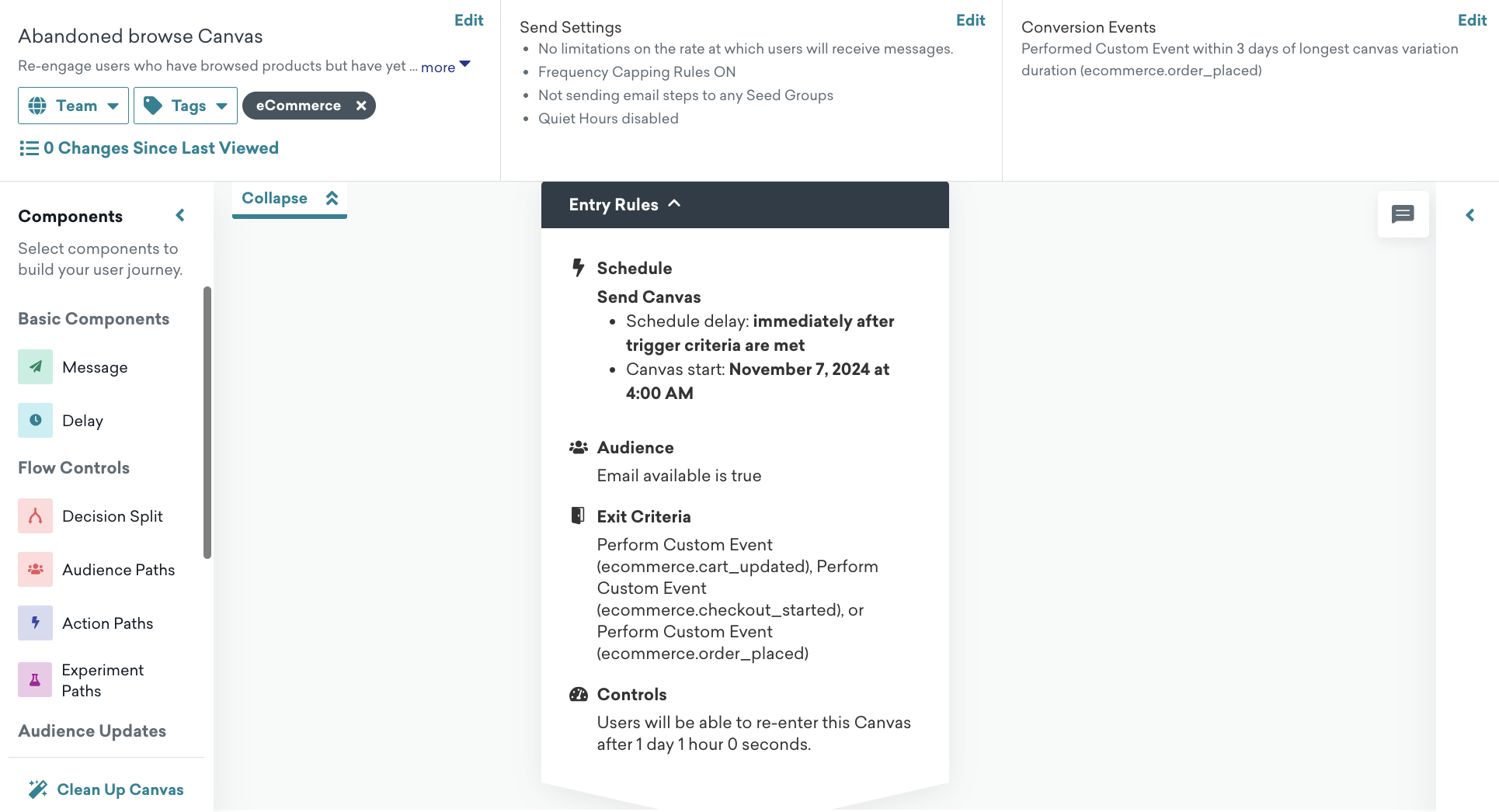
Use the Abandoned browse template to engage users who have browsed products but did not add them to their cart or place an order.
Setup
On the Canvas page, select Use a Canvas Template > Braze templates and then apply the Abandoned browse template.
Default settings
The following settings are pre-configured in your Canvas:
- Basics
- Canvas name: Abandoned browse
- Conversion event:
ecommerce.order placed- Conversion deadline: 3 days
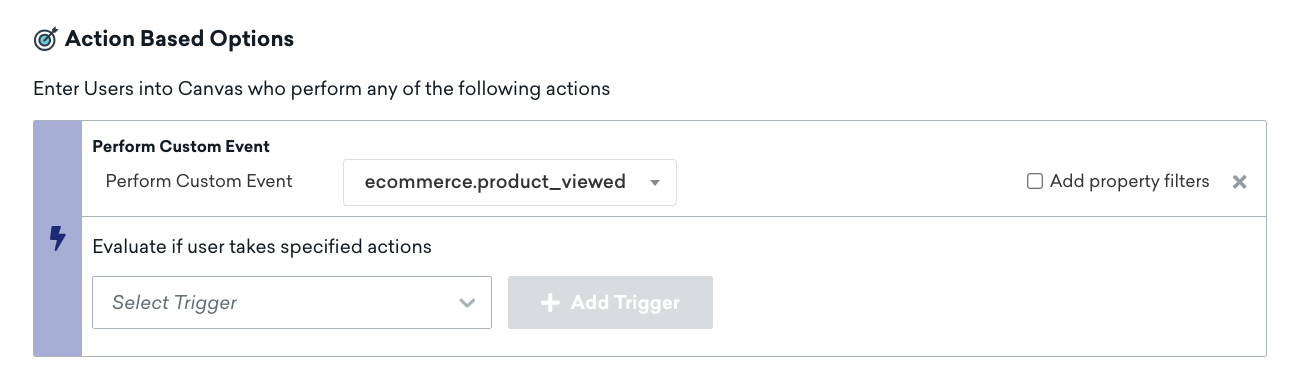
- Entry schedule
- Action-based when a user performs the
ecommerce.product_viewedevent - Start time is when you create the Canvas template
- Action-based when a user performs the
- Target audience
- Entry audience
- Email is not blank
- You can also modify the entry audience criteria to meet your business needs
- Entry controls
- Users are eligible to re-enter this Canvas after the full duration of the Canvas is complete
- Exit criteria
- Performs
ecommerce.cart_updated,ecommerce.checkout_started, orecommerce.order_placed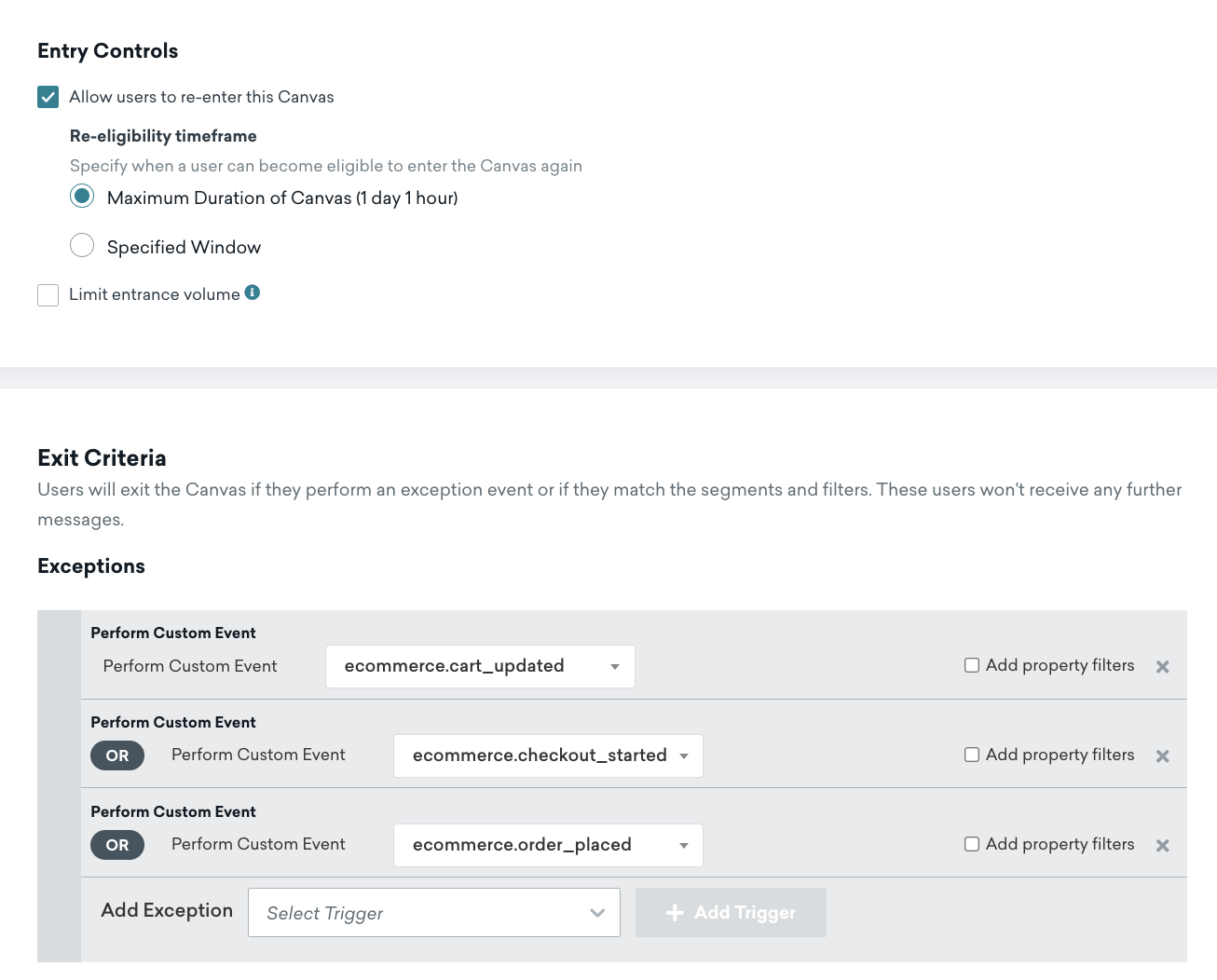
- Performs
- Entry audience
- Send settings
- Users who are subscribed or opted in
- Delay step
- 1 hour delay
- Message step
- Review the email template and HTML block with a Liquid templating example to add products to your message in the pre-built template. If you use your own email template, you can also reference Liquid variables, as demonstrated in the following section.
Abandoned browse product personalization for emails
Here is an example of how you would add an HTML product block for your Abandoned Browse email.
1
2
3
4
5
6
7
8
9
10
11
<table style="width:100%">
  <tr>
    <th><img src="{{context.${image_url}}}" width="200" height="200"><img></th>
    <th align="left">
      <ul style="list-style-type: none">
        <li>Item: {{context.${product_name}}}</li>
        <li>Price: ${{context.${price}}}</li>
      </ul>
    </th>
  </tr>
</table>
Product URL
1
{{context.${product_url}}}
Abandoned cart
Use the Abandoned cart template to cover potential lost sales from customers who added products to their cart but did not continue to checkout or place an order.
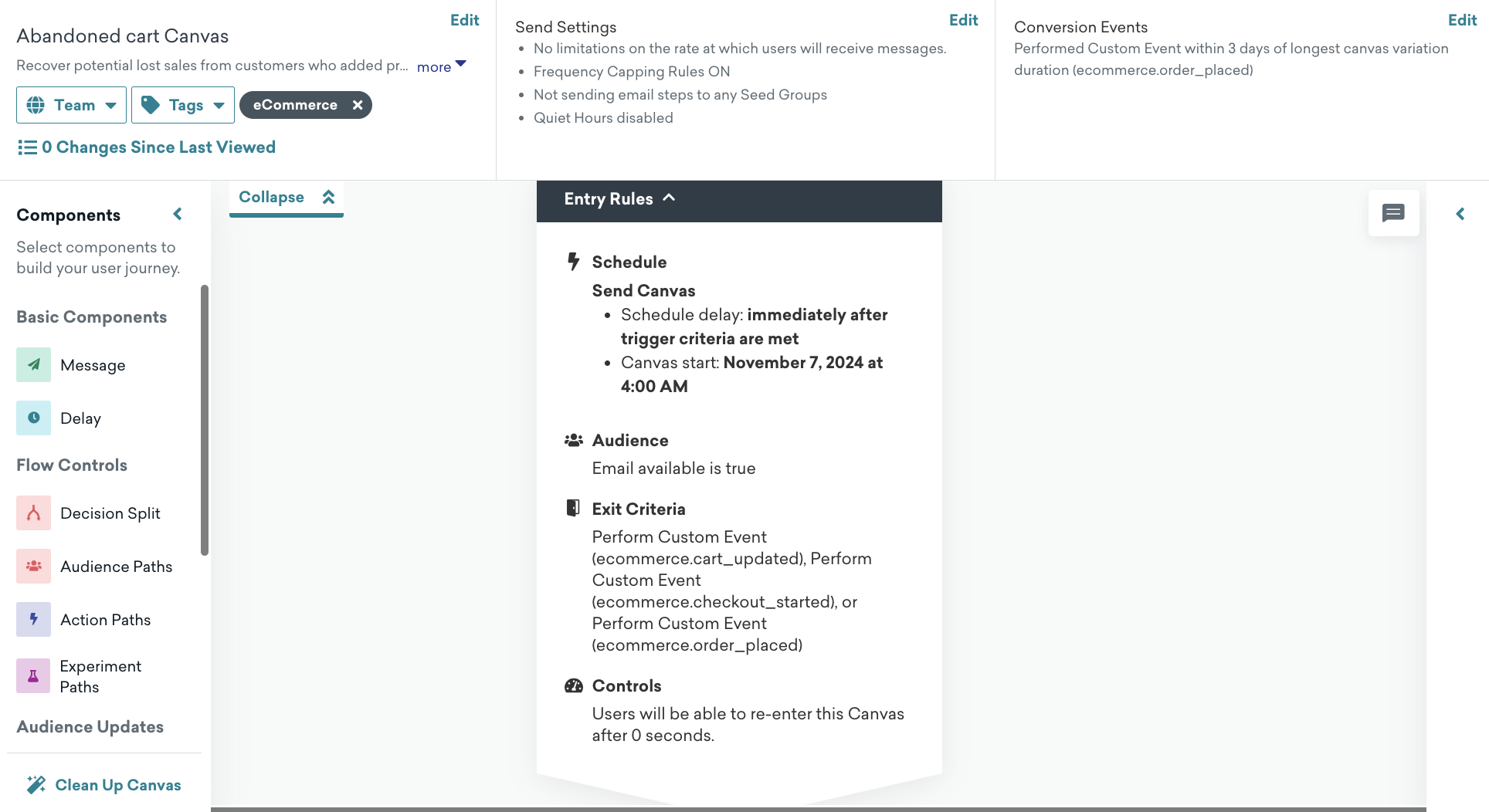
Setup
On the Canvas page, select Use a Canvas Template > Braze templates and then apply the Abandoned cart template.
Default settings
The following settings are pre-configured in your Canvas:
- Basics
- Canvas name: Abandoned cart
- Conversion event:
ecommerce.order_placed- Conversion deadline: 3 days
- Entry schedule
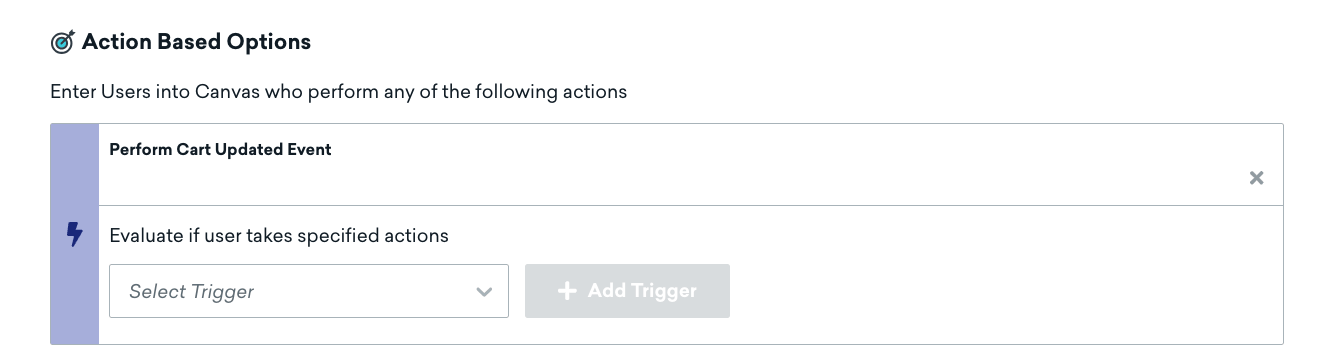
- Action-based trigger when a user triggers the Perform Cart Updated Event (located in the dropdown)
- Start time is when you create the Canvas template
- Target Audience
- Entry audience
- Has used these apps more than 0 times
- Email is not blank
- Entry controls
- Users are immediately re-eligible for Canvas entry
- Exit criteria
- Performs
ecommerce.cart_updated,ecommerce.checkout_started, orecommerce.order_placed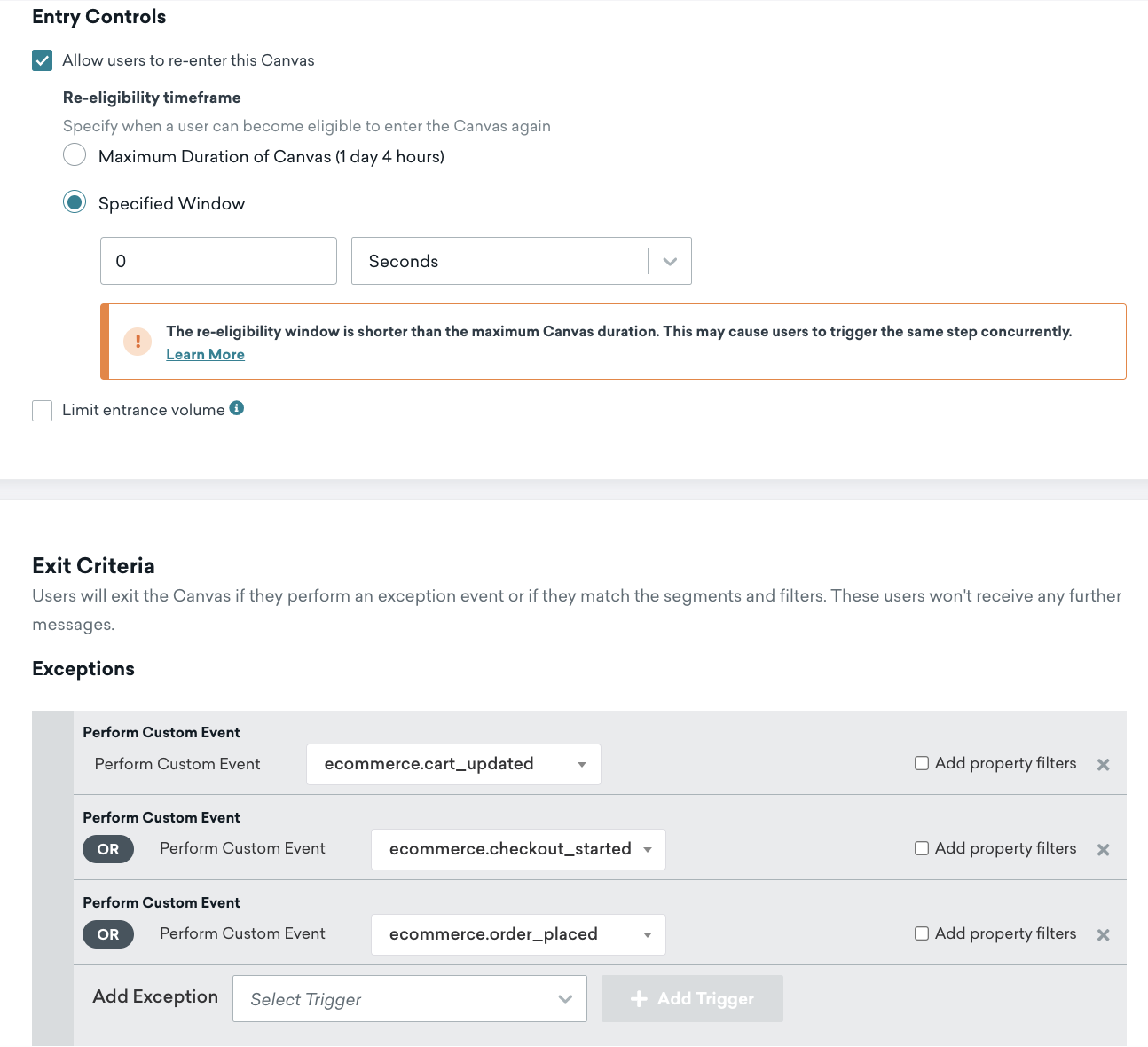
- Performs
- Entry audience
- Send settings
- Users who are subscribed or opted in
- Delay step
- 4 hour delay
- Message step
- Review the email template and HTML block with a Liquid templating example to add products to your message in the pre-built template. If you use your own email template, you can also reference Liquid variables, as demonstrated in the following section.
How abandoned cart re-entry logic works
When a user starts the checkout process, their cart is marked as checkout_started. From that point onward, any further cart updates with the same cart ID will not qualify the user to re-enter the abandoned cart user journey.
- When a user adds an item to their cart, they enter the Canvas.
- Each time they add or update items, they re-enter the Canvas—this keeps their cart data and messaging up to date.
- When the user starts the checkout process, their cart is tagged as
checkout_started, and they exit the Canvas. - Any future cart updates using the same cart ID will not trigger re-entry because this cart has already moved into the checkout stage.
When users move to the checkout user journey, they’re targeted by the abandoned checkout Canvas instead, which is designed for users further along in the purchase journey.
Abandoned cart product personalization for emails
Abandoned cart user journeys require a special shopping_cart Liquid tag for product personalization.
Here is an example of how you would add an HTML block with your shopping_cart Liquid tag to add products into your email.
1
2
3
4
5
6
7
8
9
10
11
12
13
14
15
16
17
18
19
<table style="width:100%">
  {% shopping_cart {{context.${cart_id}}} %}
  {% for item in shopping_cart.products %}
  {% catalog_items <add_your_catalog_name> {{item.variant_id}} %}
  <tr>
    <th><img src="{{ items[0].variant_image_url }}" width="200" height="200"><img></th>
    <th align="left">
      <ul style="list-style-type: none">
        <li>Item: {{ item.product_name }}</li>
        <li>Price: ${{ item.price }}</li>
        <li>Quantity: ${{ item.quantity }}</li>
        <li>Variant ID: {{ item.variant_id }}</li>
        <li>Product URL:{{ item.product_url }}</li>
        <li>SKU: {{ item.metadata.sku }}</li>
      </ul>
    </th>
  </tr>
  {% endfor %}
</table>
If you use Shopify, add your catalog name to get the variant image URL.
HTML cart URL
If you want to direct users back to their cart, you can add a nested event property under the metadata object, such as:
1
{{context.${metadata}.cart_url}}
If you use Shopify, create your cart URL by using this Liquid template:
1
{{context.${source}}}/checkouts/cn/{{context.${cart_id}}}
Abandoned checkout
Use the Abandoned checkout template to target customers who started the checkout process but left before placing their order.
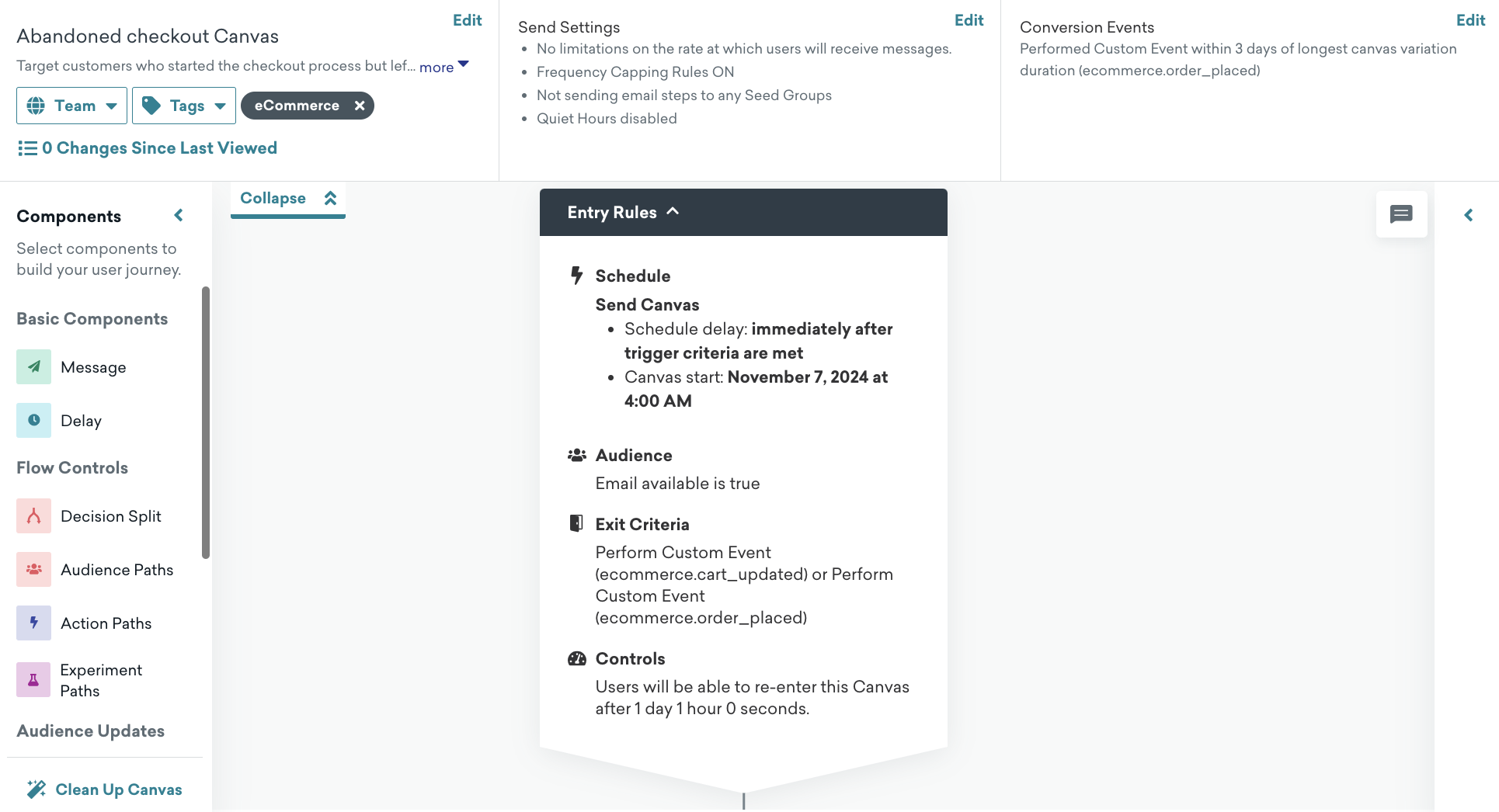
Setup
On the Canvas page, select Use a Canvas Template > Braze templates and then apply the Abandoned checkout template.
Default settings
The following settings are pre-configured in your Canvas:
- Basics
- Canvas name: Abandoned checkout
- Conversion event:
ecommerce.order_placed- Conversion deadline: 3 days
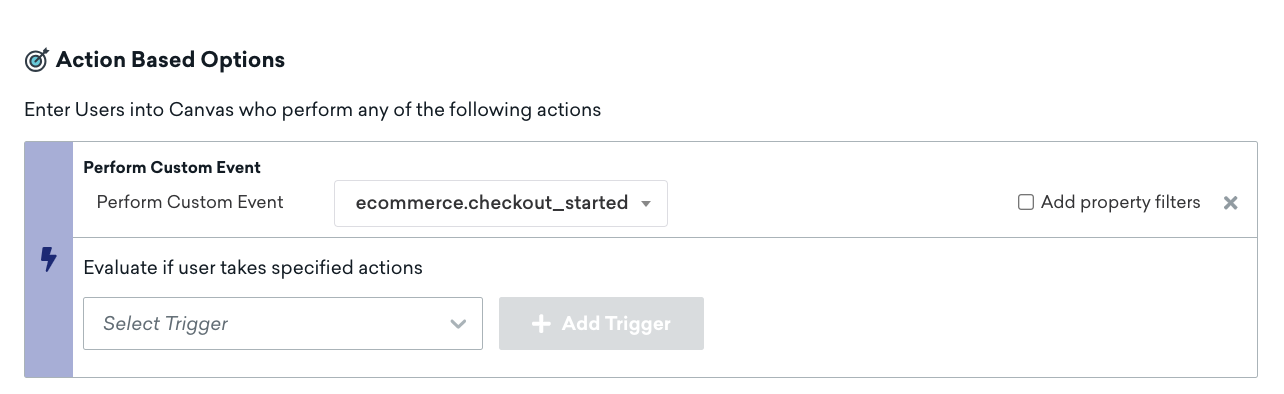
- Entry schedule
- Action-based trigger when a user performs the
ecommerce.checkout_startedevent - Start time is when you create the Canvas template
- Action-based trigger when a user performs the
- Target audience
- Entry audience
- Has used these apps more than 0 times
- Email is not blank
- Entry controls
- Users are immediately re-eligible for Canvas entry
- Exit criteria
- Performs the
ecommerce.order_placedevents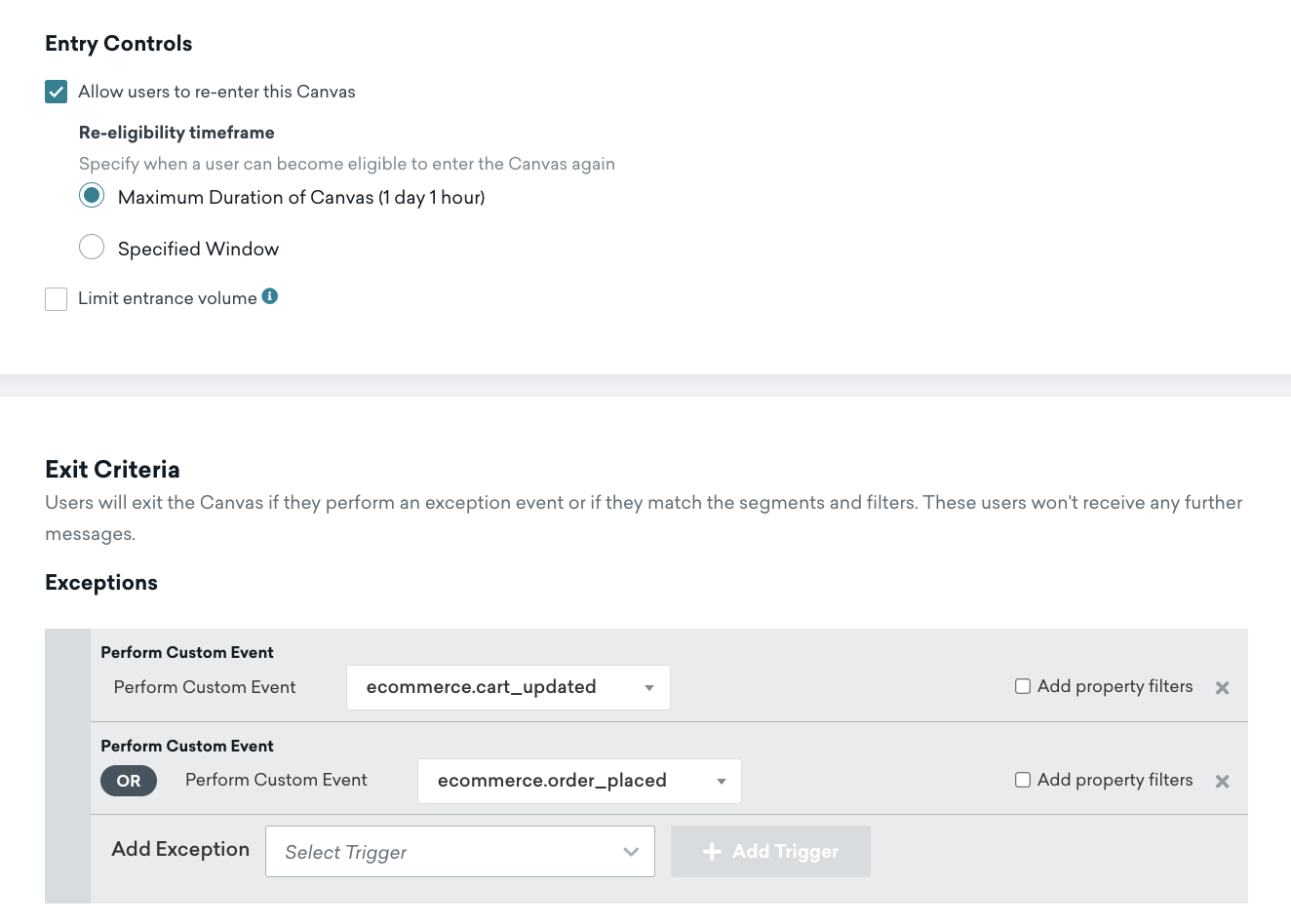
- Performs the
- Entry audience
- Send settings
- Users who are subscribed or opted in
- Delay step
- 4 hour delay
- Message step
- Review the email template and HTML block with a Liquid templating example to add products to your message in the pre-built template. If you use your own email template, you can also reference Liquid variables, as demonstrated in the following section.
Abandoned checkout personalization for emails
Abandoned checkout user journeys require a special shopping_cart Liquid tag for product personalization.
Here is an example of how you would add an HTML block with your shopping_cart Liquid tag to add products into your email.
1
2
3
4
5
6
7
8
9
10
11
12
13
14
15
16
17
18
<table style="width:100%">
  {% shopping_cart {{context.${cart_id}}} :abort_if_not_abandoned false %}
  {% for item in shopping_cart.products %}
  {% catalog_items <add_your_catalog_name> {{item.variant_id}} %}
  <tr>
    <th><img src="{{ items[0].variant_image_url }}" width="200" height="200"><img></th>
    <th align="left">
      <ul style="list-style-type: none">
        <li>Item: {{ item.product_name }}</li>
        <li>Price: ${{ item.price }}</li>
        <li>Quantity: ${{ item.quantity }}</li>
        <li>Variant ID: {{ item.variant_id }}</li>
        <li>Product URL:{{ item.product_url }}</li>
        <li>SKU: {{ item.metadata.sku }}</li>
      </ul>
    </th>
    {% endfor %}
</table>
Checkout URL
1
{{context.${metadata}.checkout_url}}
Order confirmation and feedback survey
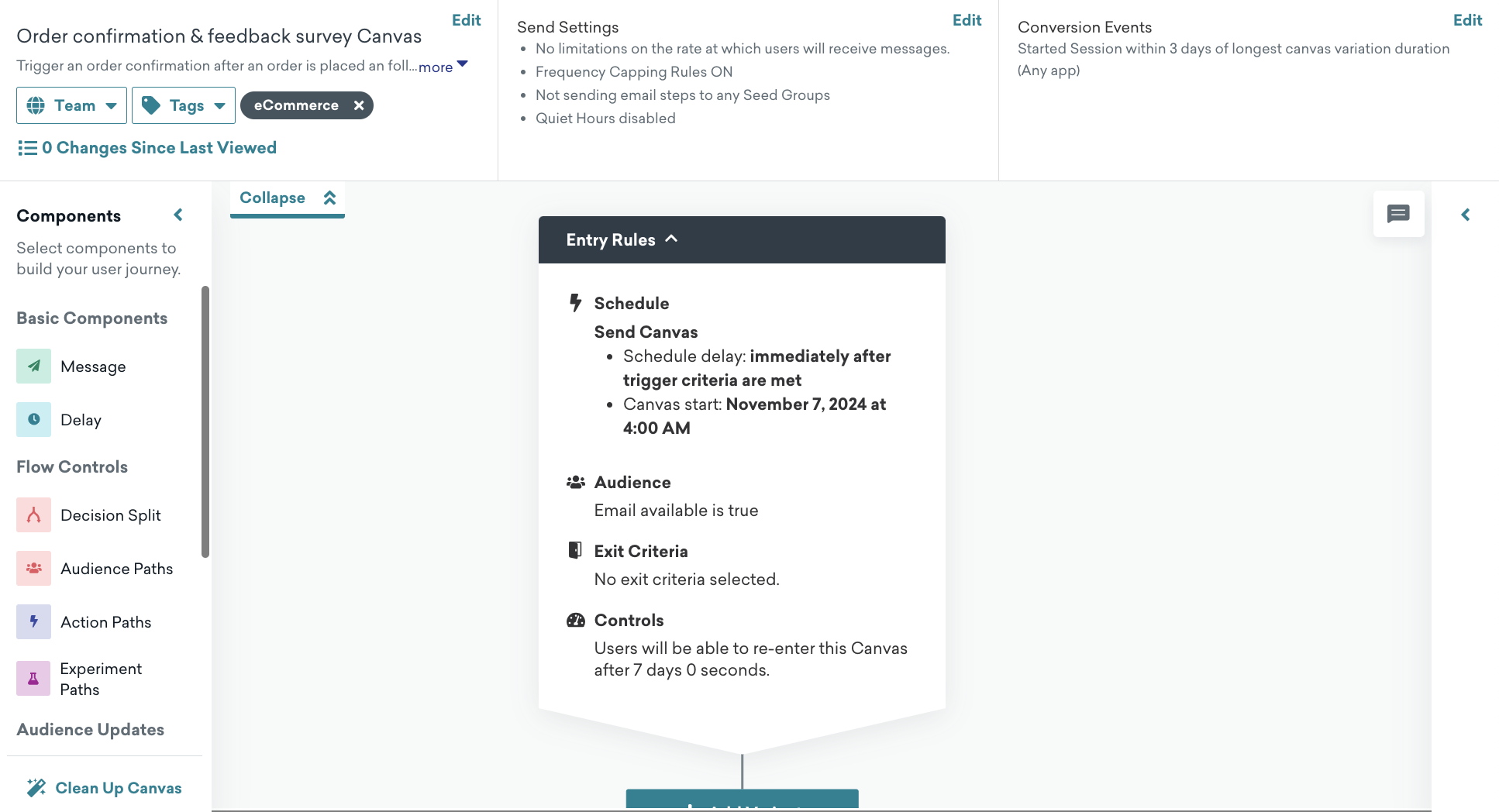
Use the Order confirmation & feedback survey template to confirm successful orders and enhance customer satisfaction.
Setup
On the Canvas page, select Use a Canvas Template > Braze templates and then apply the Order confirmation & feedback survey template.
Default settings
The following settings are pre-configured in your Canvas:
- Basics
- Canvas name: Order confirmation with feedback survey
- Conversion event:
ecommerce.session_start- Conversion deadline: 10 days
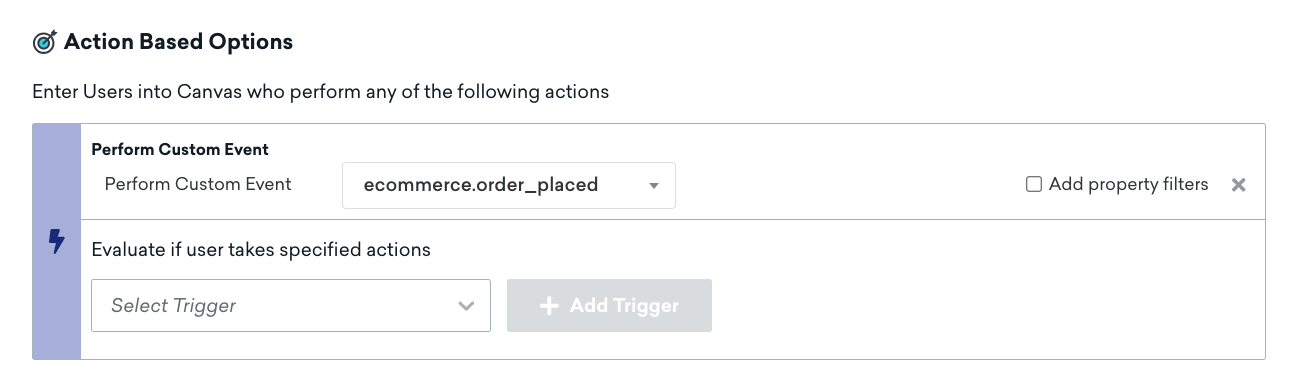
- Entry schedule
- Action-based trigger when a user performs the
ecommerce.cart_updatedevent - Start time is when you create the Canvas template
- Action-based trigger when a user performs the
- Target audience
- Entry audience
- Has used these apps more than 0 times
- Email is not blank
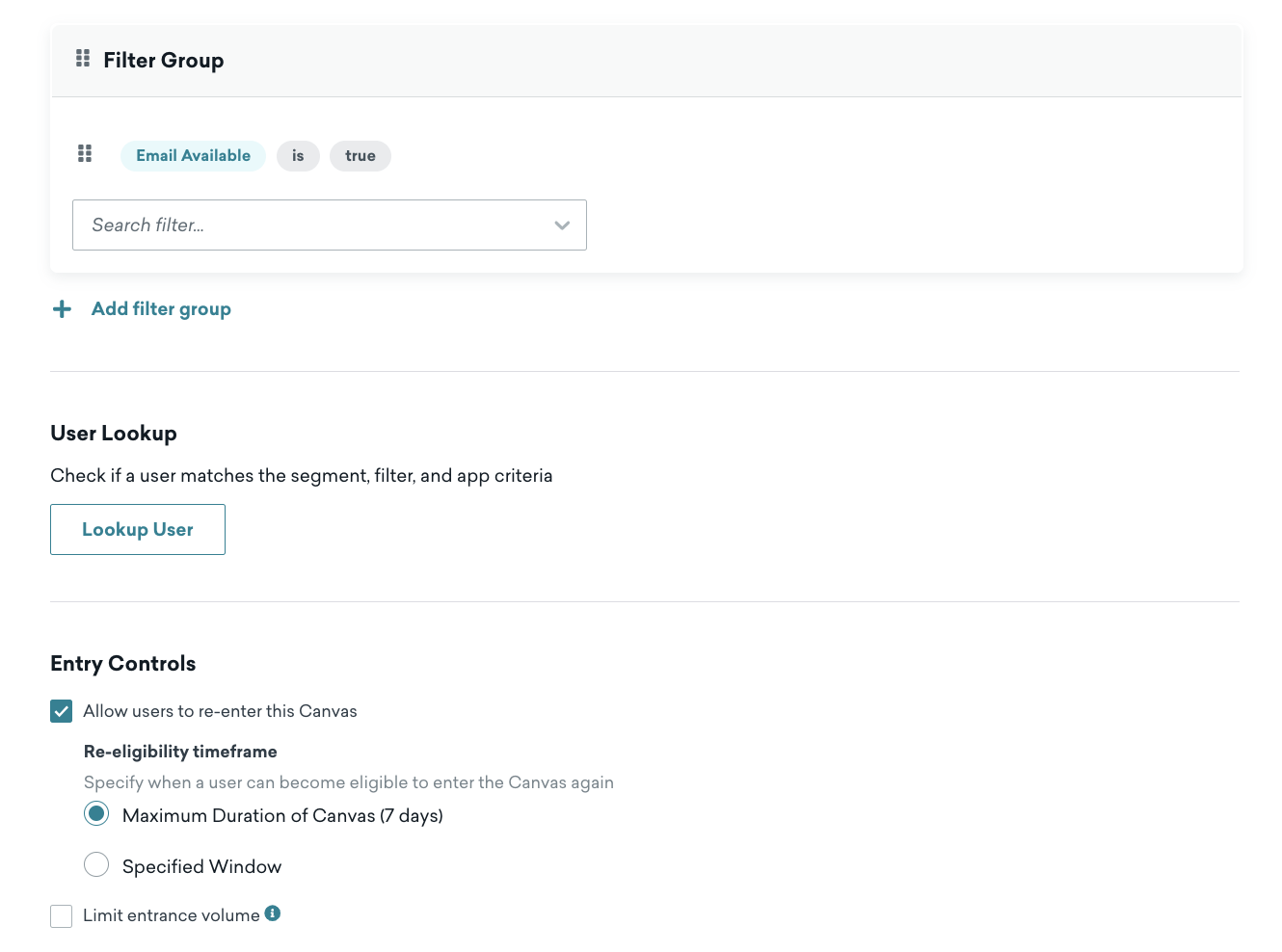
- Entry controls
- Users are immediately re-eligible for Canvas entry
- Exit criteria
- Not applicable
- Not applicable
- Entry audience
- Send settings
- Users who are subscribed or opted in
- Message step
- Review the email template and HTML block with a Liquid templating example to add products to your message in the pre-built template. If you use your own email template, you can also reference Liquid variables, as demonstrated in the following section.
Order confirmation personalization for emails
Here is an example of how you would add an HTML product block to your order confirmation after an order is placed.
1
2
3
4
5
6
7
8
9
10
11
12
13
14
15
<table style="width:100%">
  {% for item in {{context.${products}}} %}
  {% catalog_items <add_your_catalog_name> {{item.variant_id}} %}
  <tr>
    <th><img src="{{ items[0].variant_image_url }}" width="200" height="200" /></th>
    <th align="left">
      <ul style="list-style-type: none">
        <li>Item: {{item.product_name}}</li>
        <li>Price: {{item.price}}</li>
        <li>Quantity: {{item.quantity}}</li>
      </ul>
    </th>
  </tr>
  {% endfor %}
</table>
Order status URL
1
{{context.${metadata}.order_status_url}}
 Edit this page on GitHub