Create a Canvas template
This reference article covers how to create and manage templates for Canvas. Using templates can refine your messaging by creating a consistent framework that can be easily customized to fit your specific goals across your Canvases.

Save time and streamline your Canvas creation by using Braze Canvas templates! Browse our library of pre-built templates to find one that fits your use case and customize it to meet your specific needs.
Method 1: Create from an existing Canvas
Step 1: Select your existing Canvas
In the Braze dashboard, go to Messaging > Canvas and select an existing Canvas you want to use as a template.
Step 2: Create your template
In the Canvas editor, select Edit Canvas or Edit draft, depending on if your Canvas is active or in a draft. Expand the Save as draft dropdown in the footer and select Save as template.
Step 3: Save your template
Next, give your template a name and add any relevant tags. Then, select Save. Your template is now ready to use for building a Canvas, giving you a head start with your basic settings and steps already in place.
Method 2: Create via Canvas template editor
Step 1: Go to the Canvas template editor
In the Braze dashboard, go to Content > Canvas.
Step 2: Create a new template
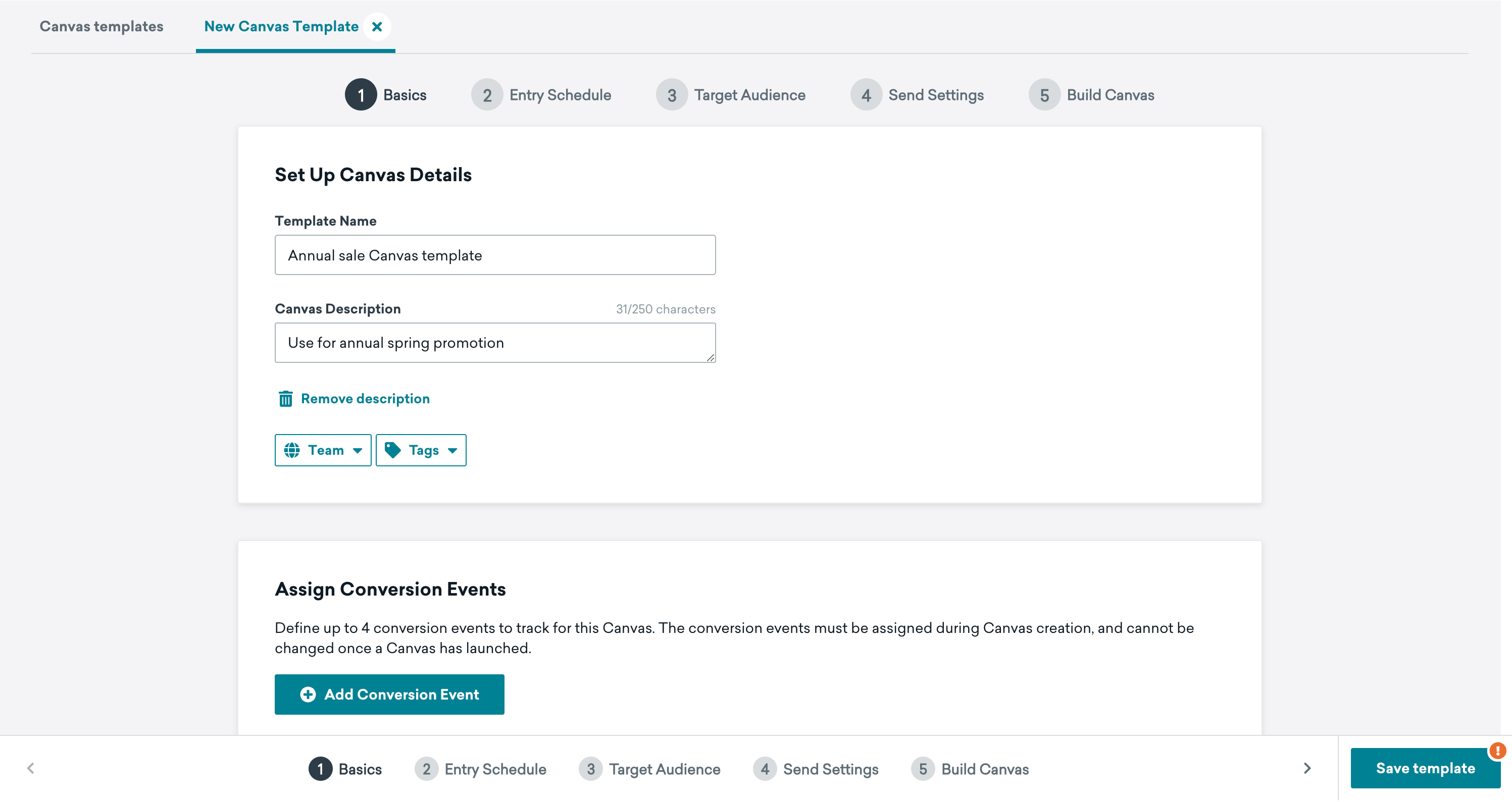
Select Create template and begin setting up your Canvas details. You can start by giving your Canvas template a name.
Step 3: Customize your template
Next, customize your template by setting up your Canvas. You can decide when users should enter the Canvas, determine which users can enter this Canvas, adjust your send settings, and build your user journey for the template.
Step 4: Save your template
After you’ve finished customizing your template, select the Save template button. On the Canvas template page, you can view your Canvas template details by selecting Template details.
Using Canvas templates
There are two ways to use your template when composing a Canvas:
- From Messaging: Go to Messaging > Canvas. Select the Create Canvas button and Use a Canvas Template.
- From Content: Go to Content > Canvas and find your desired template in Canvas templates. Then, select the menu followed by Apply template. This brings you to a new Canvas with the template applied in the Canvas composer.
Available Braze templates
For a list of available Canvas templates, refer to Braze Canvas templates. For details on using eCommerce Canvas templates, refer to How to use eCommerce recommended events.
Managing Canvas templates
Canvas templates can be duplicated and archived, similar to an actual Canvas. To edit a Canvas template, select the template then Edit.
At a workspace level, you can update user permissions to allow or limit the access to create, edit, view, or archive Canvas templates.
Permissions for teams and workspaces
To only allow certain users to access and use specific Canvas templates, add a team to the templates, then assign team-level “Access Campaigns, Canvases, Content Cards, Content Blocks, Feature Flags, Segments, Media Library, and Preference Center” permissions.
If you assign any of the following permissions at a team level, but not a workspace level, you can only do the following assigned to your team:
- Create and edit Canvas templates
- View Canvas templates
- Archive Canvas templates
If permissions are granted at both a workspace and teams level, the workspace level permissions will be prioritized.
Frequently asked questions
Can I save an incomplete step in a Canvas template?
Yes, you can save incomplete steps as a Canvas template. However, when the template is used, there will be an error on the Save template button that indicates what is needed to launch the Canvas.
Can I save my Canvas builder settings as a template, or can I only save steps?
Yes, you can save settings in the Canvas builder within a Canvas template. For example, if you plan to use a combination of segments and filters often, you can save these Target Audience settings as part of your Canvas template.