File storage integrations
This page covers how to set up Cloud Data Ingestion support and sync relevant data from S3 to Braze.
This page shows the sync and source steps that are currently in Early Access (EA). For steps for the generally available experience, see General availability experience.
How it works
You can use Cloud Data Ingestion (CDI) for S3 to directly integrate one or more S3 buckets in your AWS account with Braze. When new files are published to S3, a message is posted to SQS, and Braze Cloud Data Ingestion takes in those new files.
Cloud Data Ingestion supports the following:
- JSON files
- CSV files
- Parquet files
- Attribute, custom event, purchase event, user delete, and catalog data
Prerequisites
The integration requires the following resources:
- S3 bucket for data storage
- SQS queue for new file notifications
- IAM role for Braze access
AWS definitions
First, define the terms used during this task.
| Term | Definition |
|---|---|
| Amazon Resource Name (ARN) | The ARN is a unique identifier for AWS resources. |
| Identity and Access Management (IAM) | IAM is a web service that lets you securely control access to AWS resources. In this tutorial, create an IAM policy and assign it to an IAM role to integrate your S3 bucket with Braze Cloud Data Ingestion. |
| Amazon Simple Queue Service (SQS) | SQS is a hosted queue that lets you integrate distributed software systems and components. |
Setting up Cloud Data Ingestion in AWS
Step 1: Create a source bucket
Create a general-purpose S3 bucket with default settings in your AWS account. S3 buckets can be reused across syncs as long as the folder is unique.
The default settings are:
- ACLs Disabled
- Block all public access
- Disable bucket versioning
- SSE-S3 encryption
- SSE-S3 is the only supported server-side encryption type. Amazon KMS encryption is not supported.
Note the region where you created the bucket — you’ll create an SQS queue in the same region in the next step.
Step 2: Create SQS queue
Create an SQS queue to track when objects are added to the bucket you’ve created. Use the default configuration settings for now.
An SQS queue must be unique globally (for example, only one can be used for a CDI sync and cannot be reused in another workspace).
Be sure to create this SQS in the same region as the one you created the bucket in.
Note the ARN and URL of the SQS queue — you’ll need them frequently during this configuration.
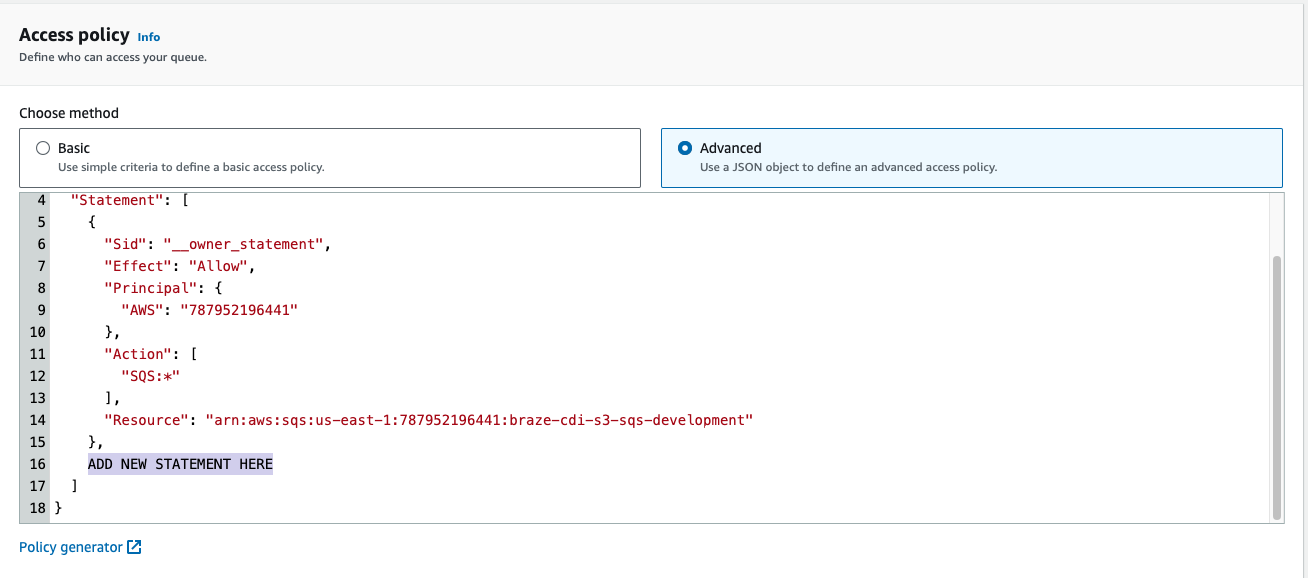
Step 3: Set up access policy
To set up the access policy, choose Advanced options.
Append the following statement to the queue’s access policy, being careful to replace YOUR-BUCKET-NAME-HERE with your bucket name, and YOUR-SQS-ARN with your SQS queue ARN, and YOUR-AWS-ACCOUNT-ID with your AWS account ID:
1
2
3
4
5
6
7
8
9
10
11
12
13
14
15
16
17
{
  "Sid": "braze-cdi-s3-sqs-publish",
  "Effect": "Allow",
  "Principal": {
    "Service": "s3.amazonaws.com"
  },
  "Action": "SQS:SendMessage",
  "Resource": "YOUR-SQS-ARN",
  "Condition": {
    "StringEquals": {
      "aws:SourceAccount": "YOUR-AWS-ACCOUNT-ID"
    },
    "ArnLike": {
      "aws:SourceArn": "arn:aws:s3:::YOUR-BUCKET-NAME-HERE"
    }
  }
}
Step 4: Add an event notification to the S3 bucket
- In the bucket created in step 1, go to Properties > Event notifications.
- Give the configuration a name. Optionally, specify a prefix or suffix to target if you only want a subset of files to be ingested by Braze.
- Under Destination, select SQS queue and provide the ARN of the SQS you created in step 2.
If you upload your files to the root folder of an S3 bucket and then move some of the files to a specific folder in the bucket, you may encounter an unexpected error. Instead, you can change the event notifications to send for only the files in the prefix, avoid placing files in the S3 bucket outside that prefix, or update the integration with no prefix, which then ingests all files.
Step 5: Create an IAM policy
Create an IAM policy to allow Braze to interact with your source bucket. To get started, sign in to the AWS management console as an account administrator.
-
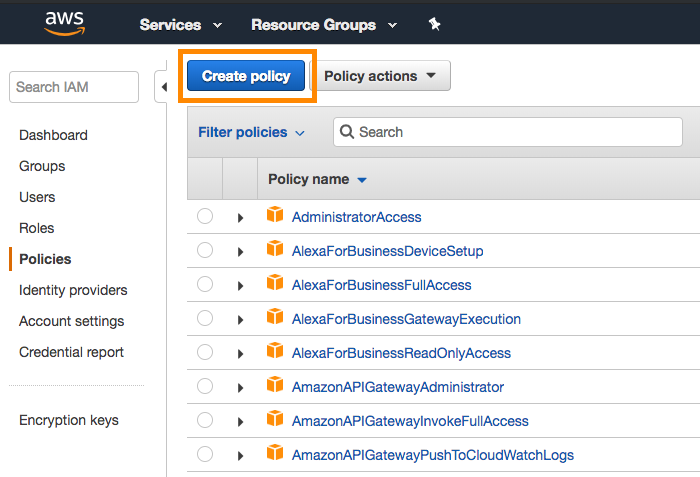
Go to the IAM section of the AWS Console, select Policies in the navigation bar, then select Create Policy.
-
Open the JSON tab and input the following code snippet into the Policy Document section, taking care to replace
YOUR-BUCKET-NAME-HEREwith your bucket name, andYOUR-SQS-ARN-HEREwith your SQS queue name:
1
2
3
4
5
6
7
8
9
10
11
12
13
14
15
16
17
18
19
20
21
22
23
24
25
26
{
    "Version": "2012-10-17",
    "Statement": [
        {
            "Effect": "Allow",
            "Action": ["s3:ListBucket", "s3:GetObjectAttributes", "s3:GetObject"],
            "Resource": ["arn:aws:s3:::YOUR-BUCKET-NAME-HERE"]
        },
        {
            "Effect": "Allow",
            "Action": ["s3:ListBucket", "s3:GetObjectAttributes", "s3:GetObject"],
            "Resource": ["arn:aws:s3:::YOUR-BUCKET-NAME-HERE/*"]
        },
        {
            "Effect": "Allow",
            "Action": [
                "sqs:DeleteMessage",
                "sqs:GetQueueUrl",
                "sqs:ReceiveMessage",
                "sqs:GetQueueAttributes"
            ],
            "Resource": "YOUR-SQS-ARN-HERE"
        }
    ]
}
-
Select Review Policy when you’re finished.
-
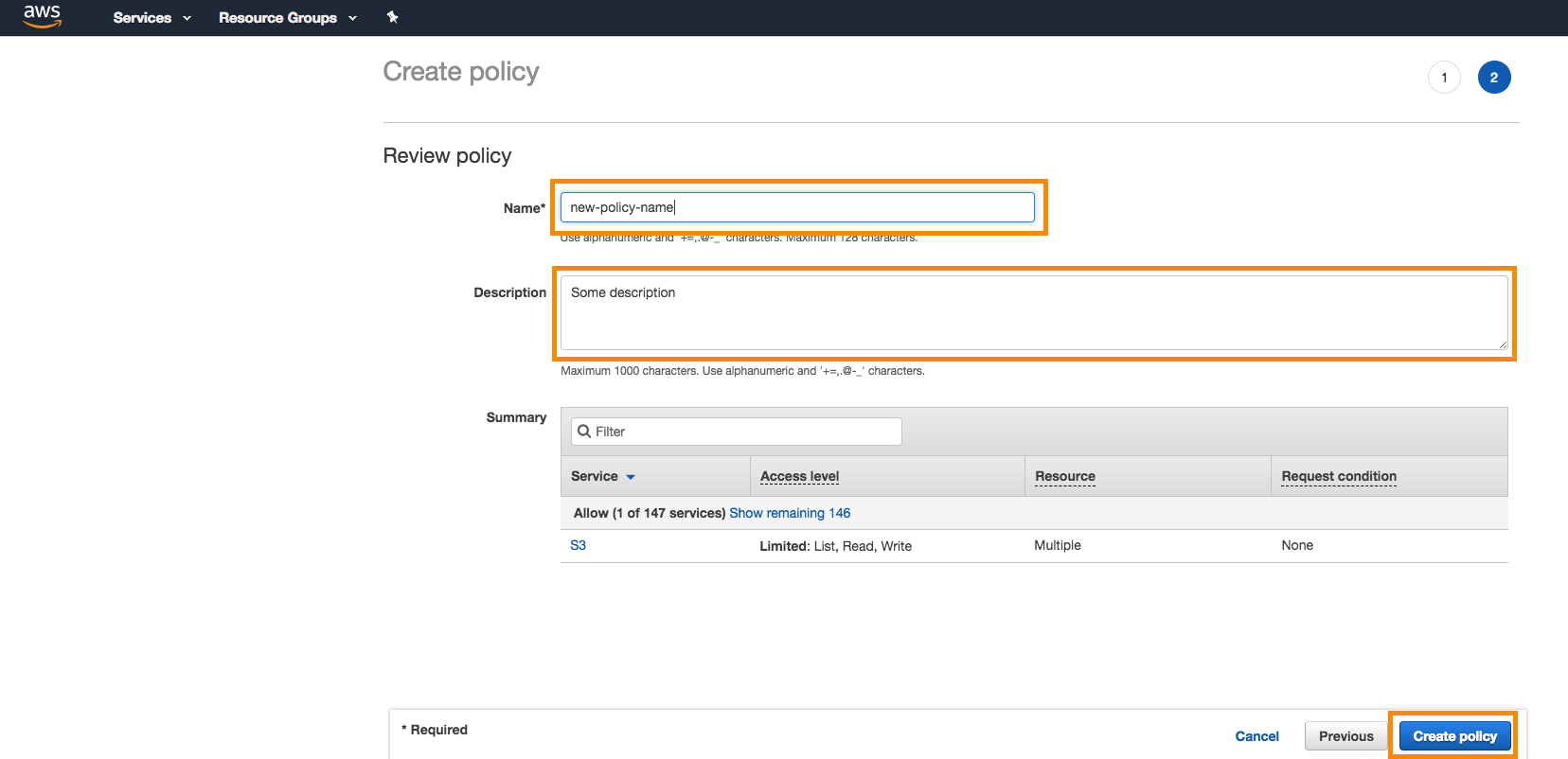
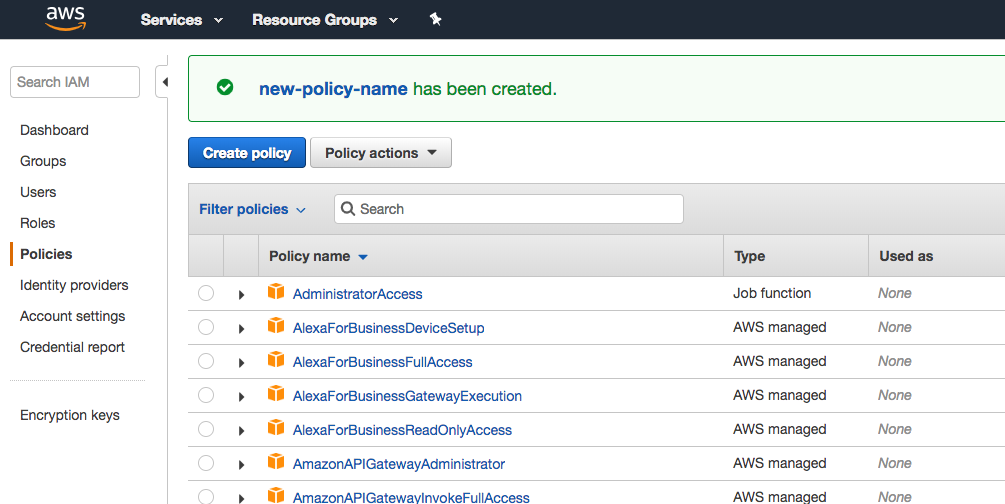
Give the policy a name and description, then select Create Policy.
Step 6: Create an IAM role
To complete the setup on AWS, create an IAM role and attach the IAM policy from step 5 to it.
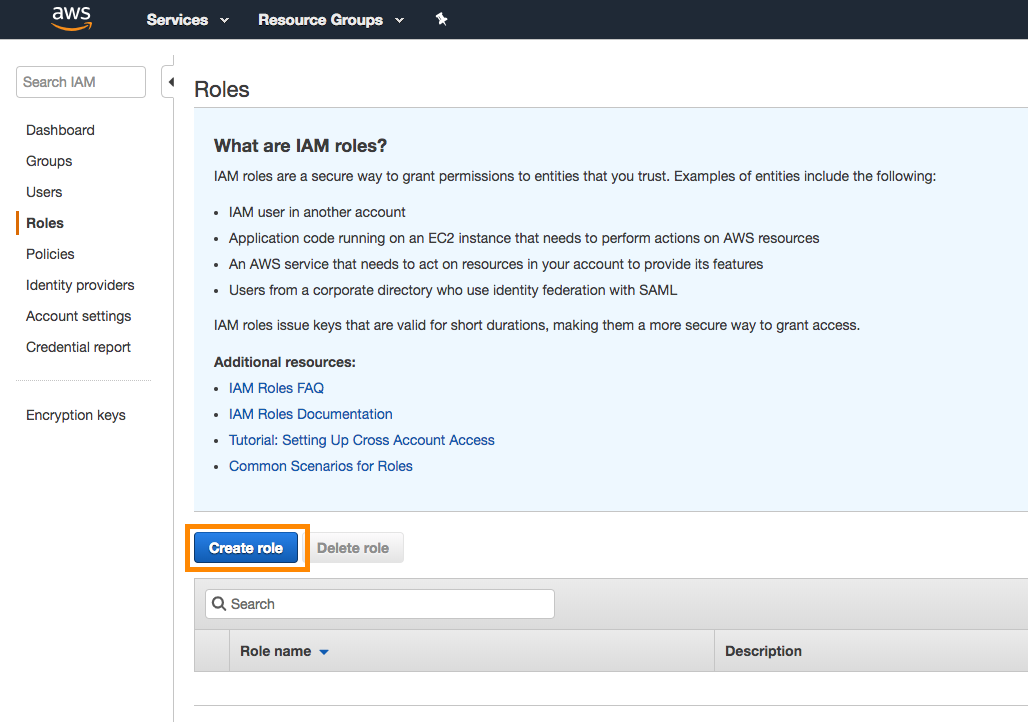
- Within the same IAM section of the console where you created the IAM policy, go to Roles > Create Role.
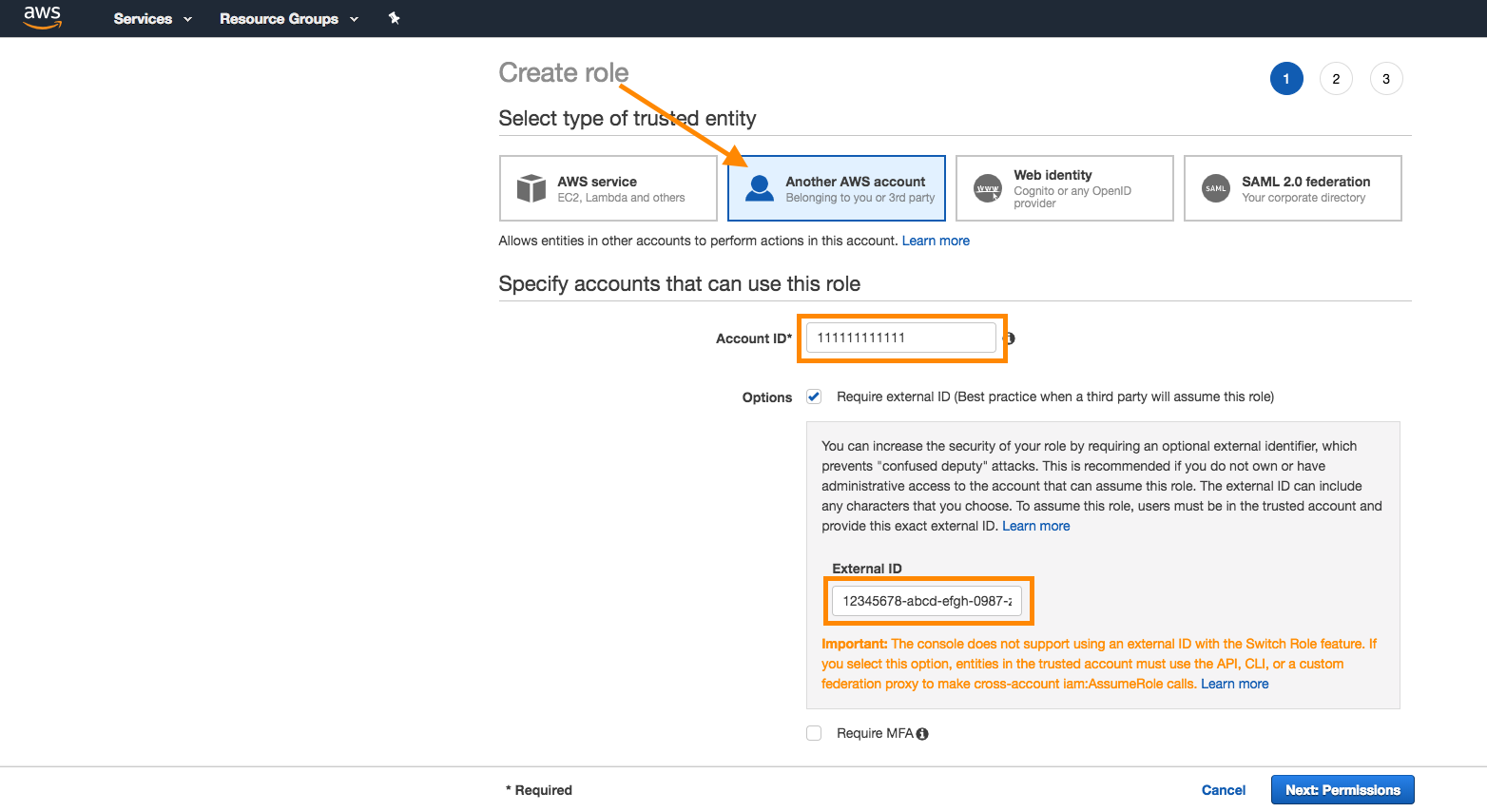
- In AWS, select Another AWS Account as the trusted entity selector type. Provide your Braze account ID. Select the Require external ID checkbox.
- In Braze, go to Data Settings > Cloud Data Ingestion > Sources, select Add data source, and select Amazon S3 from the file sources section.
- Copy the automatically generated Braze Account ID.
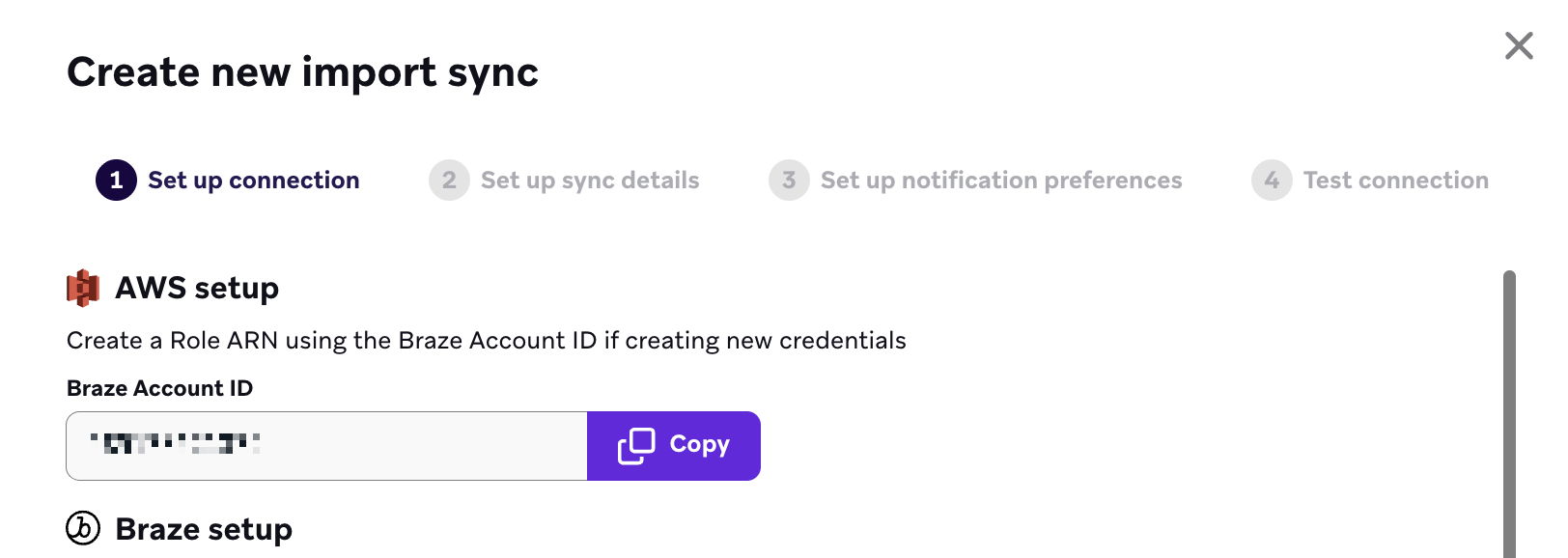
- In AWS, paste the account ID and then select Next.
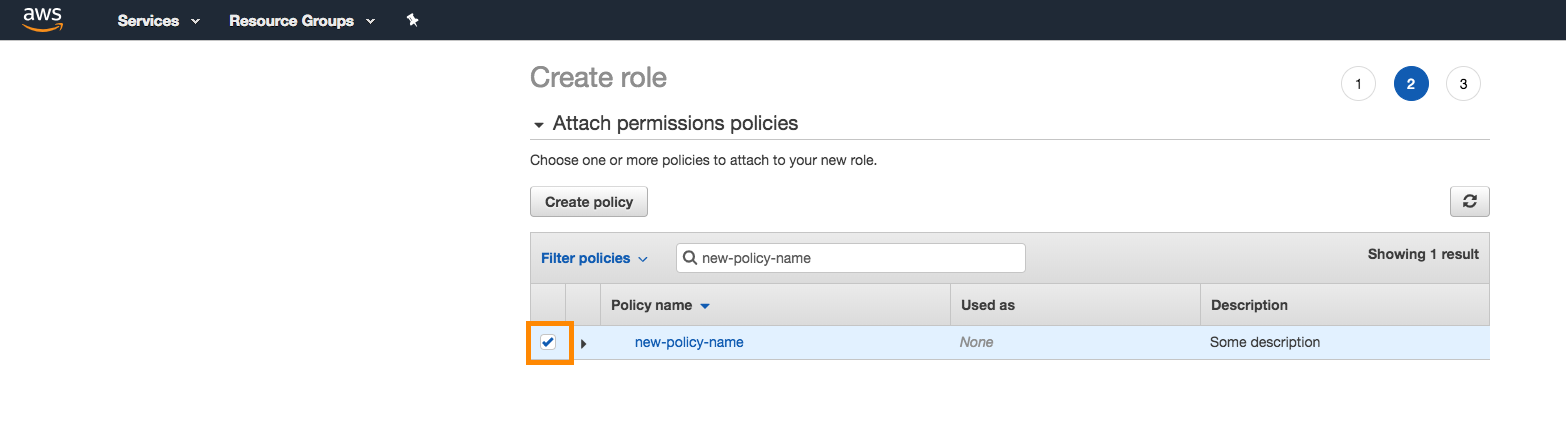
- Attach the policy created in step 4 to the role. Search for the policy in the search bar, and select a checkmark next to the policy to attach it. Select Next when complete.
Give the role a name and a description, and select Create Role.
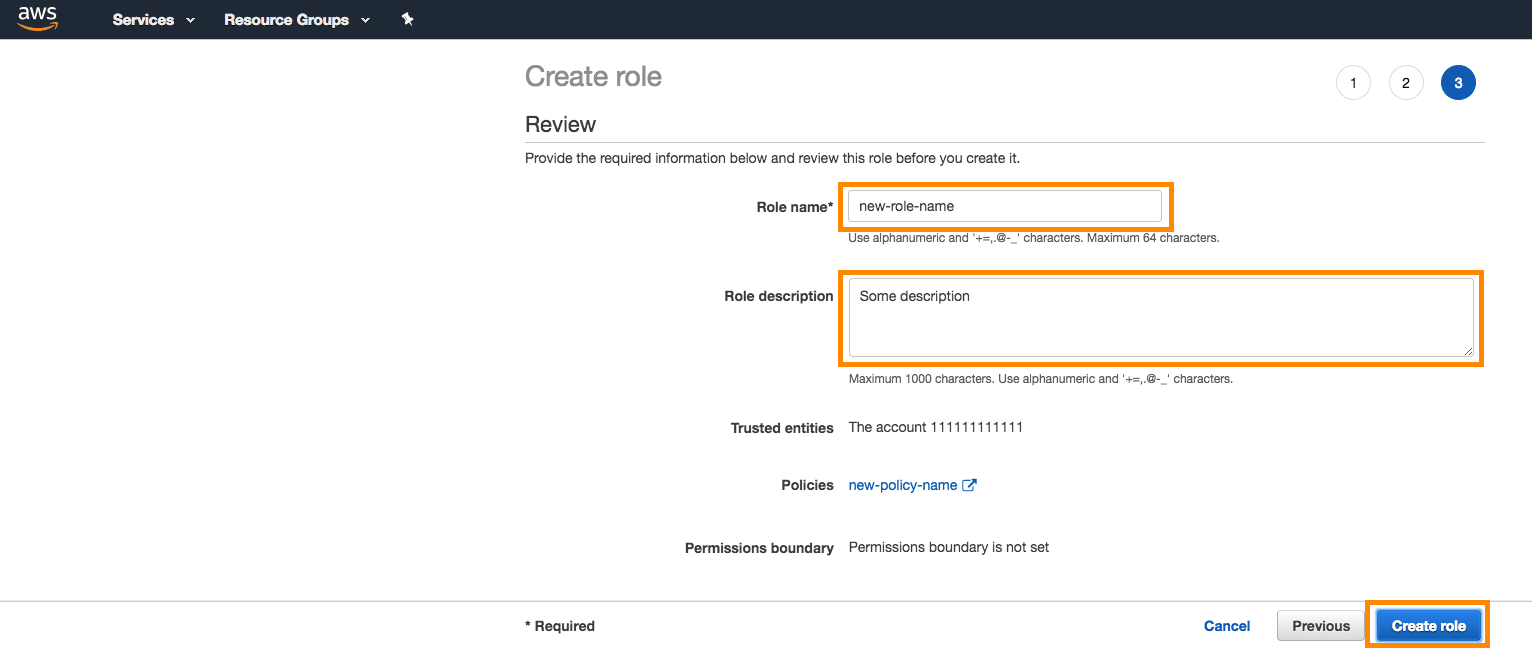
- Take note of the ARN of the role you created and the external ID you generated, because you need them to create the Cloud Data Ingestion integration.
Setting up Cloud Data Ingestion in Braze
- First, create a new source in the Braze dashboard. Go to Data Settings > Cloud Data Ingestion > Sources, select Add data source, and then select Amazon S3.
- Choose a name for your source and input the information from the AWS setup process to create a new source. Specify the following:
- Role ARN
- External ID
- Bucket name
- Region
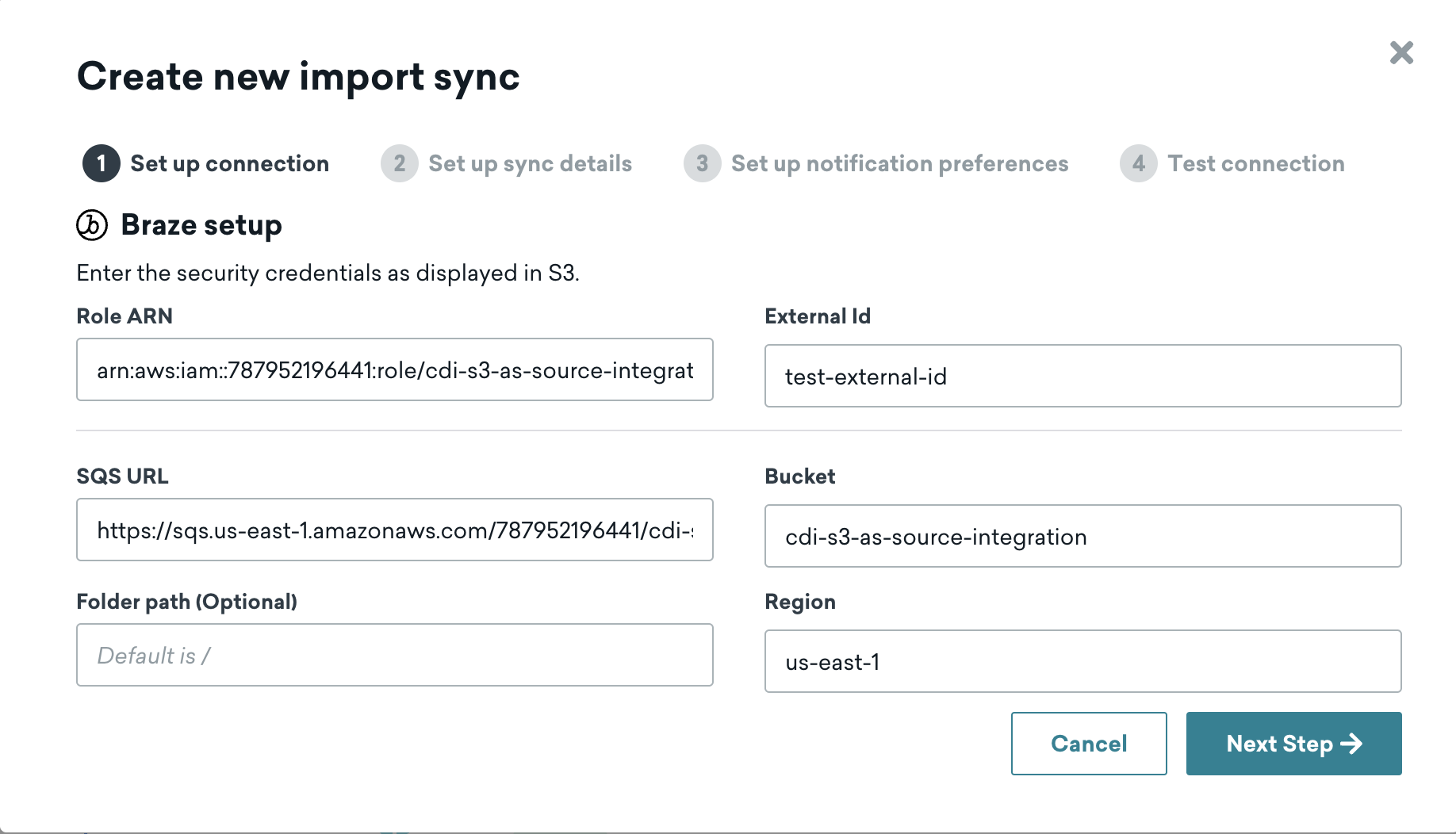
- Select Test connection to confirm Braze can access your bucket. After a successful test, select Connect to Source. If the connection fails, an error message appears to help troubleshoot the issue.
- Next, create a new sync. Go to Data Settings > Cloud Data Ingestion > Syncs and select Create data sync.
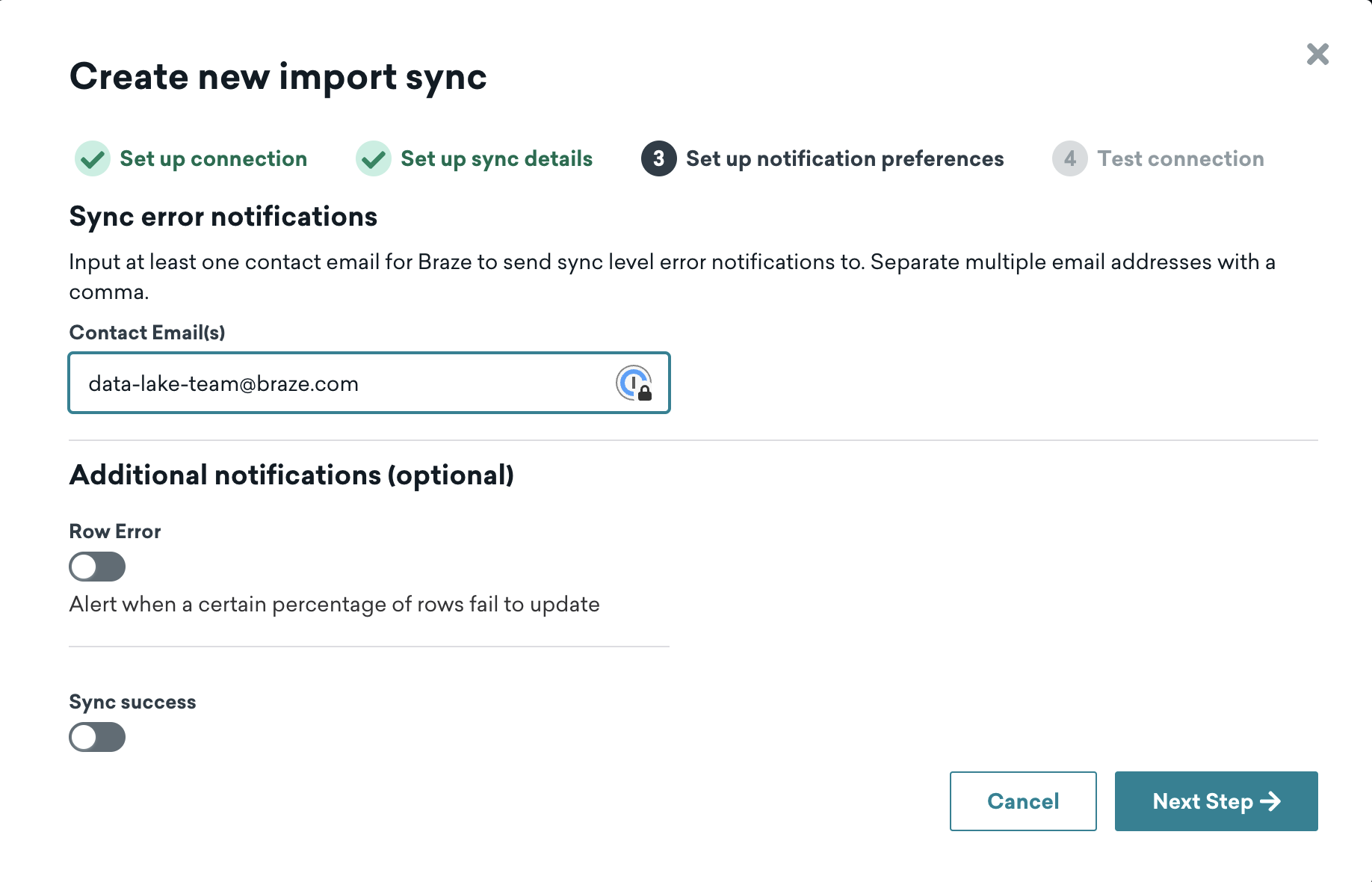
- Choose a name for your sync. Then, select any active S3 source and input your source table for the sync. Select a data type and select Test Connection.
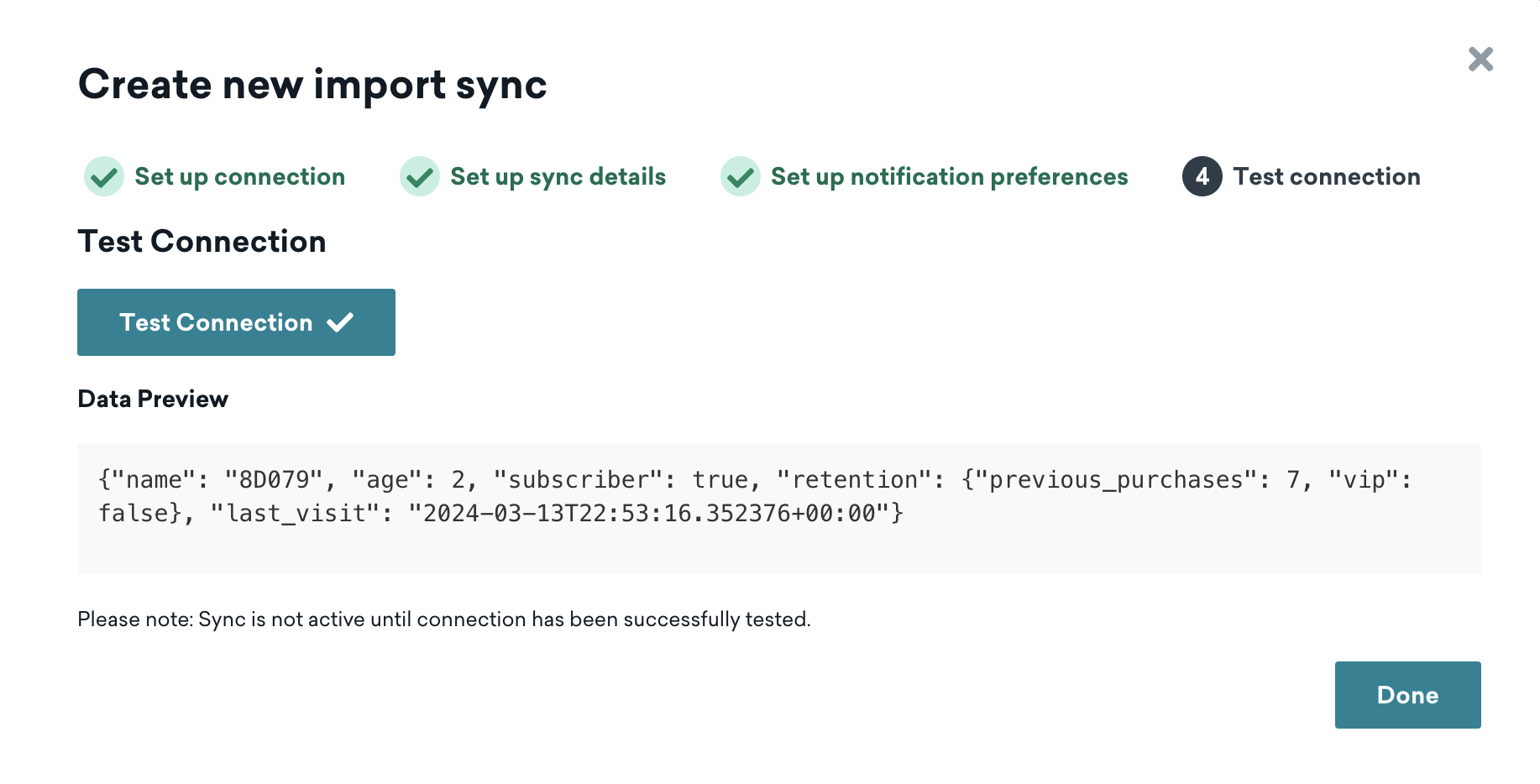
- Input the remaining information from the AWS setup process. Specify the following:
- SQS URL (must be unique for each new integration)
- Folder path (optional, must be unique across syncs in a workspace)
- Select a data type and select Test Connection to confirm Braze can list the files available to ingest (not the data inside those files). Once successful, select Next: Notifications.
- Add contact email(s) for notifications if the sync breaks because of access or permissions issues. Optionally, turn on notifications for user-level errors and sync successes.
- Create the sync.
General availability experience
- To create a new integration, go to Data Settings > Cloud Data Ingestion, select Create New Data Sync, and select S3 Import from the file sources section.
- Input the information from the AWS setup process to create a new sync. Specify the following:
- Role ARN
- External ID
- SQS URL (must be unique for each new integration)
- Bucket name
- Folder path (optional, must be unique across syncs in a workspace)
- Region
- Name your integration, and select the data type for this integration.
- Add a contact email for notifications if the sync breaks because of access or permissions issues. Optionally, turn on notifications for user-level errors and sync successes.
- Finally, select Test connection to confirm Braze can access your bucket and list the files available to ingest (not the data inside those files). Then, save the sync.
Required file formats
Cloud Data Ingestion supports JSON, CSV, and Parquet files. The required columns depend on the data type:
- User data (attributes, custom events, purchase events) uses user identifiers and a payload
- Catalog data uses catalog identifiers
Braze doesn’t enforce any additional filename requirements beyond what’s enforced by AWS. Filenames should be unique. Appending a timestamp helps ensure uniqueness.
For examples of all supported file types (attributes, custom events, purchases, catalogs, and user deletes), see the sample files in braze-examples.
User identifiers
For user data syncs (attributes, custom events, purchase events), each row in your source file requires exactly one user identifier and a PAYLOAD column. A source file may contain rows with different identifier types, but each individual row should only use one.
| Identifier | Description |
|---|---|
EXTERNAL_ID |
This identifies the user you want to update. This should match the external_id value used in Braze. |
ALIAS_NAME and ALIAS_LABEL |
These two columns create a user alias object. alias_name should be a unique identifier, and alias_label specifies the type of alias. Users may have multiple aliases with different labels, but only one alias_name per alias_label. |
BRAZE_ID |
The Braze user identifier. This is generated by the Braze SDK, and new users cannot be created using a Braze ID through Cloud Data Ingestion. To create new users, specify an external user ID or user alias. |
EMAIL |
The user’s email address. If multiple profiles with the same email address exist, the most recently updated profile is prioritized for updates. If you include both email and phone, Braze uses the email as the primary identifier. |
PHONE |
The user’s phone number. If multiple profiles with the same phone number exist, the most recently updated profile is prioritized for updates. |
In addition to an identifier, each row must include a PAYLOAD column containing a JSON string of the fields you want to sync to the user in Braze.
Unlike with data warehouse sources, the UPDATED_AT column is neither required nor supported for file storage syncs.
Catalog identifiers
For catalog syncs, your source file must contain the following columns. Catalog files use different identifiers than user data files.
| Column | Required | Description |
|---|---|---|
ID |
Yes | The unique identifier for the catalog item. Used to create, update, or delete the item in Braze. |
PAYLOAD |
Yes | A JSON string of the catalog fields and values to sync. Must match the schema of your catalog in Braze. |
DELETED |
No | When true, the catalog item with the matching ID is removed from the catalog in Braze. Omit this column or set to false for create or update operations. |
Examples
1
2
3
4
5
6
7
{"external_id":"s3-qa-0","payload":"{\"name\": \"GT896\", \"age\": 74, \"subscriber\": true, \"retention\": {\"previous_purchases\": 21, \"vip\": false}, \"last_visit\": \"2023-08-08T16:03:26.600803\"}"}
{"external_id":"s3-qa-1","payload":"{\"name\": \"HSCJC\", \"age\": 86, \"subscriber\": false, \"retention\": {\"previous_purchases\": 0, \"vip\": false}, \"last_visit\": \"2023-08-08T16:03:26.600824\"}"}
{"external_id":"s3-qa-2","payload":"{\"name\": \"YTMQZ\", \"age\": 43, \"subscriber\": false, \"retention\": {\"previous_purchases\": 23, \"vip\": true}, \"last_visit\": \"2023-08-08T16:03:26.600831\"}"}
{"external_id":"s3-qa-3","payload":"{\"name\": \"5P44M\", \"age\": 15, \"subscriber\": true, \"retention\": {\"previous_purchases\": 7, \"vip\": true}, \"last_visit\": \"2023-08-08T16:03:26.600838\"}"}
{"external_id":"s3-qa-4","payload":"{\"name\": \"WMYS7\", \"age\": 11, \"subscriber\": true, \"retention\": {\"previous_purchases\": 0, \"vip\": false}, \"last_visit\": \"2023-08-08T16:03:26.600844\"}"}
{"external_id":"s3-qa-5","payload":"{\"name\": \"KCBLK\", \"age\": 47, \"subscriber\": true, \"retention\": {\"previous_purchases\": 11, \"vip\": true}, \"last_visit\": \"2023-08-08T16:03:26.600850\"}"}
{"external_id":"s3-qa-6","payload":"{\"name\": \"T93MJ\", \"age\": 47, \"subscriber\": true, \"retention\": {\"previous_purchases\": 10, \"vip\": false}, \"last_visit\": \"2023-08-08T16:03:26.600856\"}"}
Every line in your source file must contain valid JSON, or the file will be skipped.
1
2
{"external_id":"s3-qa-0","payload":"{\"app_id\": \"YOUR_APP_ID\", \"name\": \"view-206\", \"time\": \"2024-04-02T14:34:08\", \"properties\": {\"bool_value\": false, \"preceding_event\": \"unsubscribe\", \"important_number\": 206}}"}
{"external_id":"s3-qa-1","payload":"{\"app_id\": \"YOUR_APP_ID\", \"name\": \"view-206\", \"time\": \"2024-04-02T14:34:08\", \"properties\": {\"bool_value\": false, \"preceding_event\": \"unsubscribe\", \"important_number\": 206}}"}
Every line in your source file must contain valid JSON, or the file will be skipped.
1
2
{"external_id":"s3-qa-0","payload":"{\"app_id\": \"YOUR_APP_ID\", \"product_id\": \"product-11\", \"currency\": \"BSD\", \"price\": 8.511527858335066, \"time\": \"2024-04-02T14:34:08\", \"quantity\": 19, \"properties\": {\"is_a_boolean\": true, \"important_number\": 40, \"preceding_event\": \"click\"}}"}
{"external_id":"s3-qa-1","payload":"{\"app_id\": \"YOUR_APP_ID\", \"product_id\": \"product-11\", \"currency\": \"BSD\", \"price\": 8.511527858335066, \"time\": \"2024-04-02T14:34:08\", \"quantity\": 19, \"properties\": {\"is_a_boolean\": true, \"important_number\": 40, \"preceding_event\": \"click\"}}"}
Every line in your source file must contain valid JSON, or the file will be skipped.
1
2
3
4
external_id,payload
s3-qa-load-0-d0daa196-cdf5-4a69-84ae-4797303aee75,"{""name"": ""SNXIM"", ""age"": 54, ""subscriber"": true, ""retention"": {""previous_purchases"": 19, ""vip"": true}, ""last_visit"": ""2023-08-08T16:03:26.598806""}"
s3-qa-load-1-d0daa196-cdf5-4a69-84ae-4797303aee75,"{""name"": ""0J747"", ""age"": 73, ""subscriber"": false, ""retention"": {""previous_purchases"": 22, ""vip"": false}, ""last_visit"": ""2023-08-08T16:03:26.598816""}"
s3-qa-load-2-d0daa196-cdf5-4a69-84ae-4797303aee75,"{""name"": ""EP1U0"", ""age"": 99, ""subscriber"": false, ""retention"": {""previous_purchases"": 23, ""vip"": false}, ""last_visit"": ""2023-08-08T16:03:26.598822""}"
1
2
3
ID,PAYLOAD,DELETED
85,"{""product_name"": ""Product 85"", ""price"": 85.85}",false
1,"{""product_name"": ""Product 1"", ""price"": 1.01}",true
Include an optional DELETED column. When DELETED is true, that catalog item is removed from the catalog in Braze. For the full list of required columns, see Catalog identifiers. For delete behavior, see Deleting catalog items.
Deleting data
Cloud Data Ingestion for S3 supports deleting users and catalog items through file uploads. Use separate syncs and file formats for each.
- Deleting users – Create a sync with data type Delete Users and upload files that contain only user identifiers (no payload).
- Deleting catalog items – Use your existing catalog sync and add a
deleted(orDELETED) column to mark items for removal.
Deleting users
To delete user profiles in Braze using files in S3:
- Create a new Cloud Data Ingestion sync (same AWS and Braze setup as for other syncs).
- When configuring the sync in Braze, set Data Type to Delete Users.
- Upload files to your S3 bucket that contain only user identifier columns. Do not include a
PAYLOADcolumn—the sync fails if payload is present, to avoid accidental deletions.
Each row in the file must identify exactly one user using one of:
| Identifier | Description |
|---|---|
EXTERNAL_ID |
Matches the external_id used in Braze. |
ALIAS_NAME and ALIAS_LABEL |
Both columns together identify the user by alias. |
BRAZE_ID |
Braze-generated user ID (existing users only). |
Deleting users is permanent and cannot be undone. Include only users you intend to remove. For more details, see Delete users with Cloud Data Ingestion.
Example – JSON (user deletes):
{"external_id":"user-to-delete-001"}
{"external_id":"user-to-delete-002"}
{"braze_id":"braze-id-from-profile"}
Example – CSV (user deletes):
1
2
3
external_id
user-to-delete-001
user-to-delete-002
When the sync runs, Braze processes new files in the bucket and deletes the corresponding user profiles.
Deleting catalog items
To remove items from a catalog using file storage:
- Use the same S3 sync you use to sync catalog data (data type Catalogs).
- In your CSV or JSON files, add an optional
deleted(orDELETED) column. - Set
deletedtotruefor any catalog item you want removed from the catalog in Braze.
Each row still needs ID and PAYLOAD. For rows marked for deletion, the payload can be minimal; Braze removes the item by ID.
Example – JSON (catalog item delete):
{"id":"85","payload":"{\"product_name\": \"Product 85\", \"price\": 85.85}"}
{"id":"1","payload":"{\"product_name\": \"Product 1\", \"price\": 1.01}","deleted":true}
Example – CSV (catalog item delete):
1
2
3
ID,PAYLOAD,DELETED
85,"{""product_name"": ""Product 85"", ""price"": 85.85}",false
1,"{""product_name"": ""Product 1"", ""price"": 1.01}",true
When the sync runs, rows with deleted: true cause the matching catalog item to be deleted in Braze. For full catalog sync and delete behavior, see Sync and delete catalog data.
Things to know
- Files added to the S3 source bucket should not exceed 512 MB. Files larger than 512 MB result in an error and are not synced to Braze.
- While there is no additional limit on the number of rows per file, we recommend using smaller files to improve how fast your syncs run. For example, a 500 MB file would take considerably longer to ingest than five separate 100 MB files.
- There’s no additional limit on the number of files uploaded in a given time.
- Ordering isn’t supported in or between files. We recommend batching updates periodically if you’re monitoring for any expected race conditions.
Troubleshooting
Uploading files and processing
CDI will only process files that are added after the sync is created. In this process, Braze looks for new files to be added, which triggers a new message to SQS. This kicks off a new sync to process the new file.
You can use existing files to validate that Braze can access your bucket and detect files to ingest, but they are not synced to Braze. For the CDI to process them, you must re-upload to S3 any existing files that you want synced.
Handling unexpected file errors
If you’re observing a high number of errors or failed files, you may have another process adding files to the S3 bucket in a folder other than the target folder for CDI.
When files are uploaded to the source bucket but not in the source folder, CDI will process the SQS notification, but it does not take any action on the file, so this may appear as an error.
 Edit this page on GitHub