Configure with Salesforce Marketing Cloud for BrazeAI Decisioning Studio™ Go
Set up a Journey in Salesforce Marketing Cloud (SFMC) to begin triggering sends through BrazeAI Decisioning Studio™ Go.
Setting up a data query automation
Step 1: Create a new automation
- From your Salesforce Marketing Cloud home, go to Journey Builder and select Automation Studio.
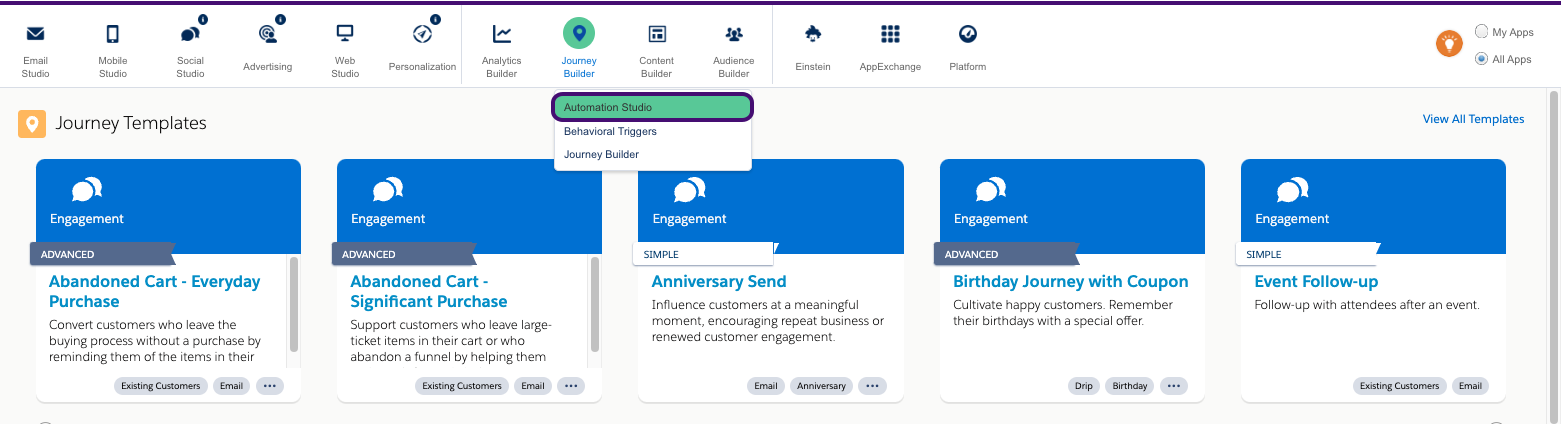
- Select New Automation.
- Drag and drop a Schedule node as the Starting Source.
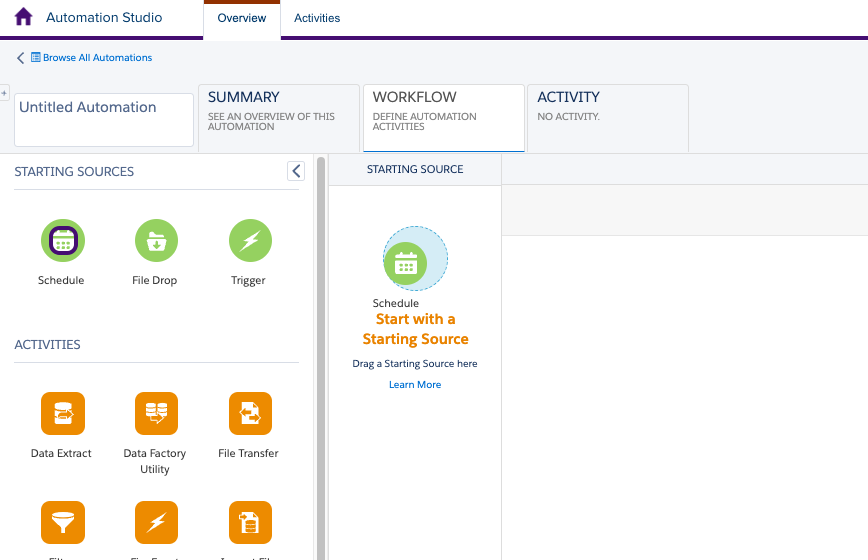
- In the Schedule node, select Configure.
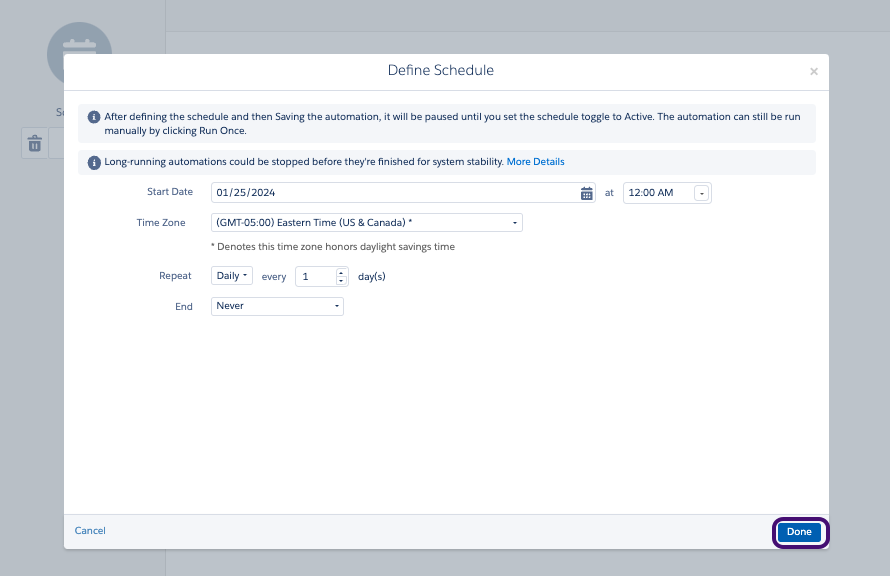
- Set the following for the schedule:
- Start Date: Tomorrow’s calendar day
- Time: 12:00 AM
- Time Zone: (GMT-05:00) Eastern (US & Canada)
- For Repeat, select Daily.
- Set this schedule to never end.
- Select Done to save the schedule.
Step 2: Create your SQL queries
Next, we’ll create 2 SQL queries: a subscribers query and an engagement query. These queries allow BrazeAI Decisioning Studio™ Go to retrieve data to populate the audience and ingest engagement events.
- Drag and drop an SQL Query into the canvas.
- Select Choose.
- Select Create New Query Activity.
- Give the query a name and external key. We recommend using the suggested name and external key for the subscriber query provided in your BrazeAI Decisioning Studio™ Go portal.
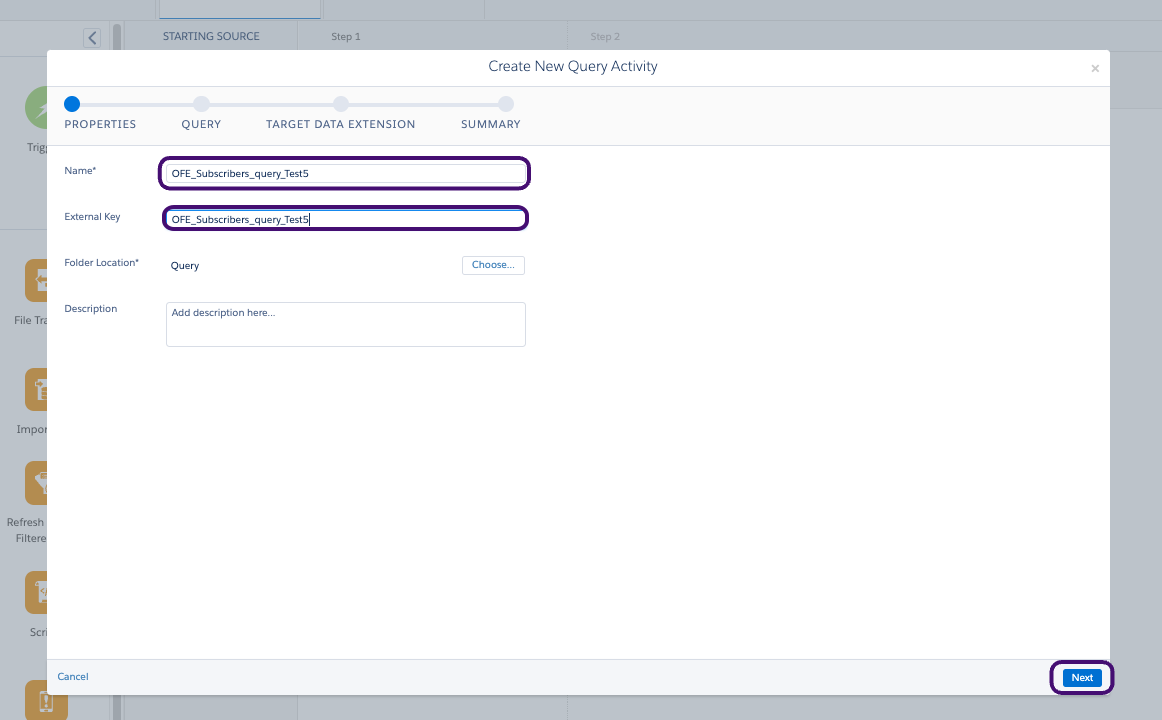
- Select Next.
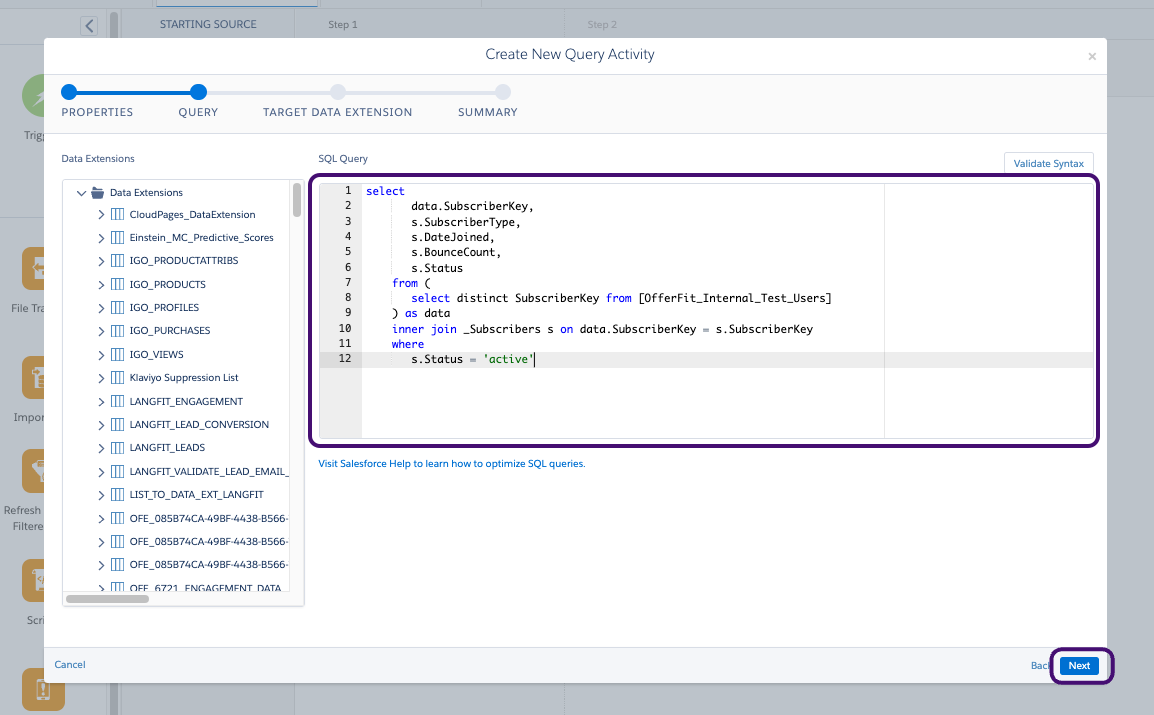
- In your BrazeAI Decisioning Studio™ Go portal, locate the System data SQL query under Subscriber Query Resources.
- Copy and paste the query into the text box and select Next.
- In your BrazeAI Decisioning Studio™ Go portal, in the the Resources to use section, locate the external key of the target data extension. Then, paste it into the search bar to search.
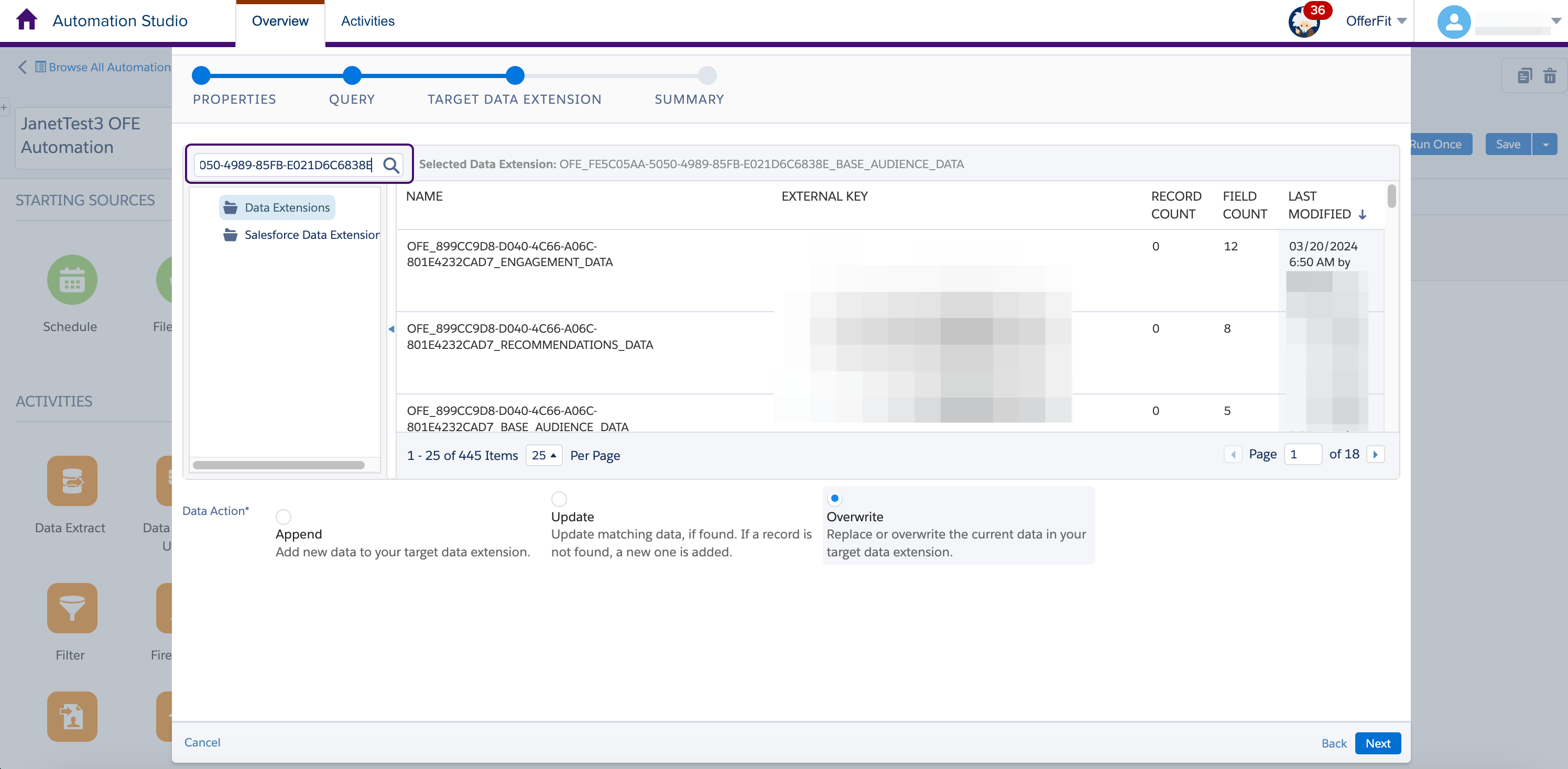
- Select the data extension that matches the external key you searched for. The target data extension name is also provided in your BrazeAI Decisioning Studio™ Go portal to cross-reference. The Data Extension for the subscriber query should end in a
BASE_AUDIENCE_DATAsuffix.
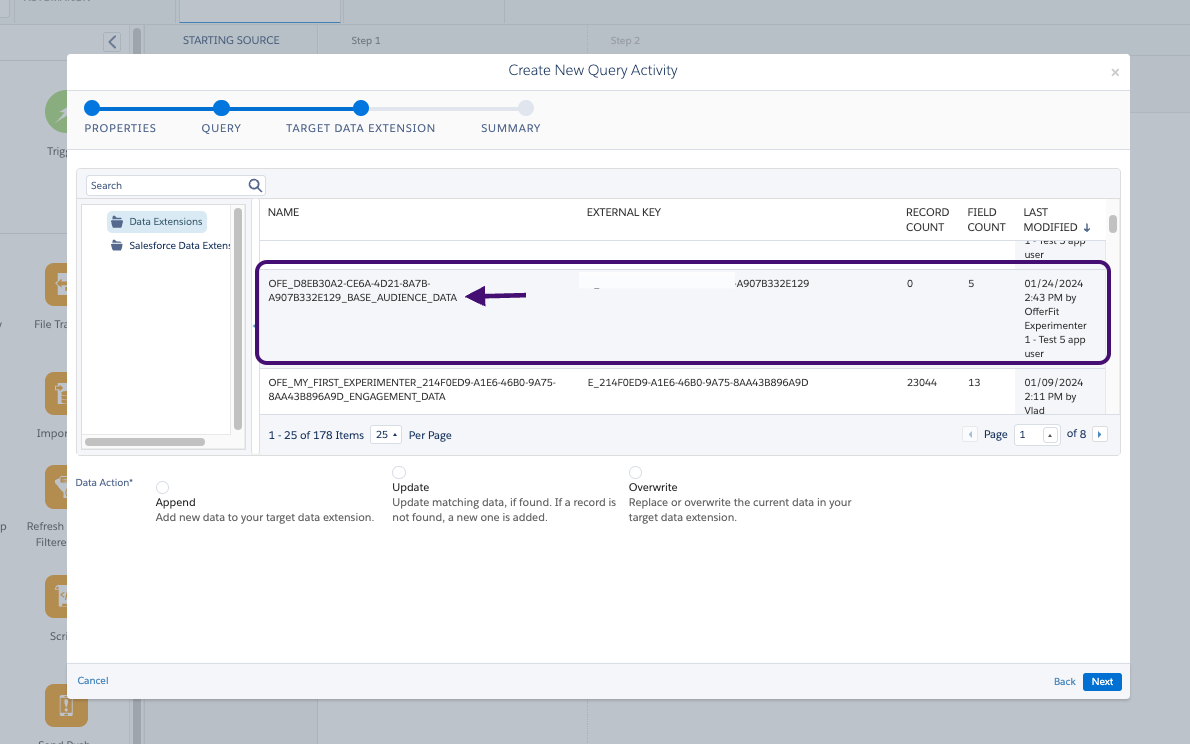
- Select Overwrite then Next.
- Drag and drop an SQL Query into the canvas.
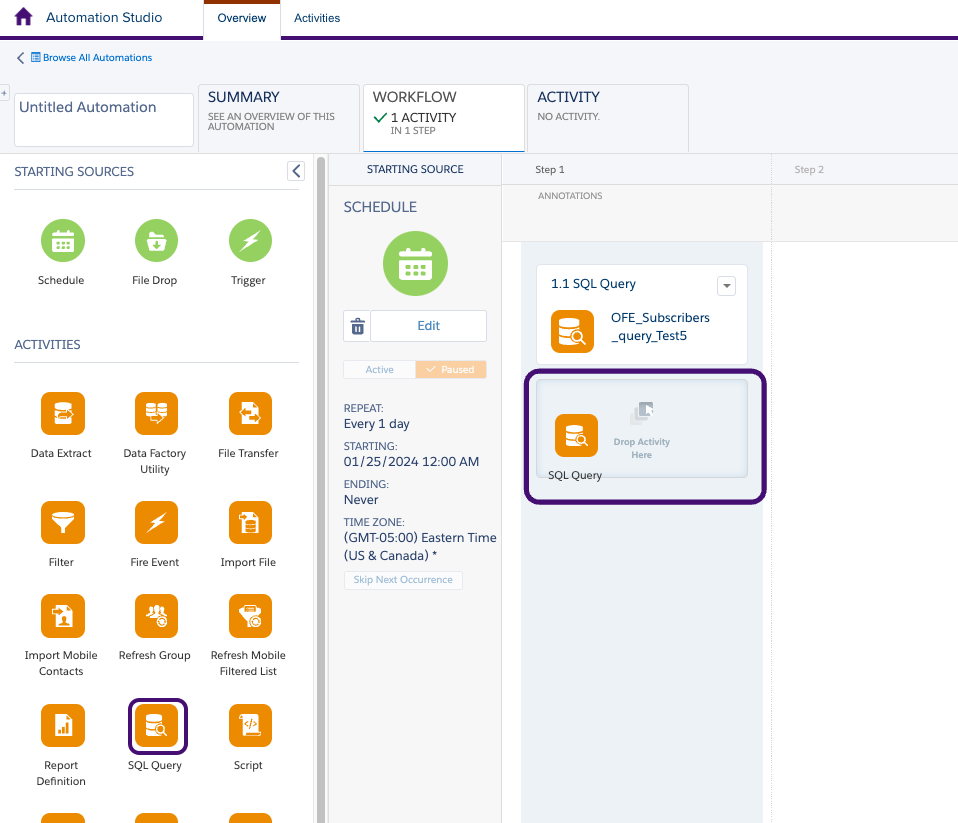
- Select Choose.
- Select Create New Query Activity.
- Give the query a name and external key. We recommend using the suggested name and external key for the engagement query provided in your BrazeAI Decisioning Studio™ Go portal.
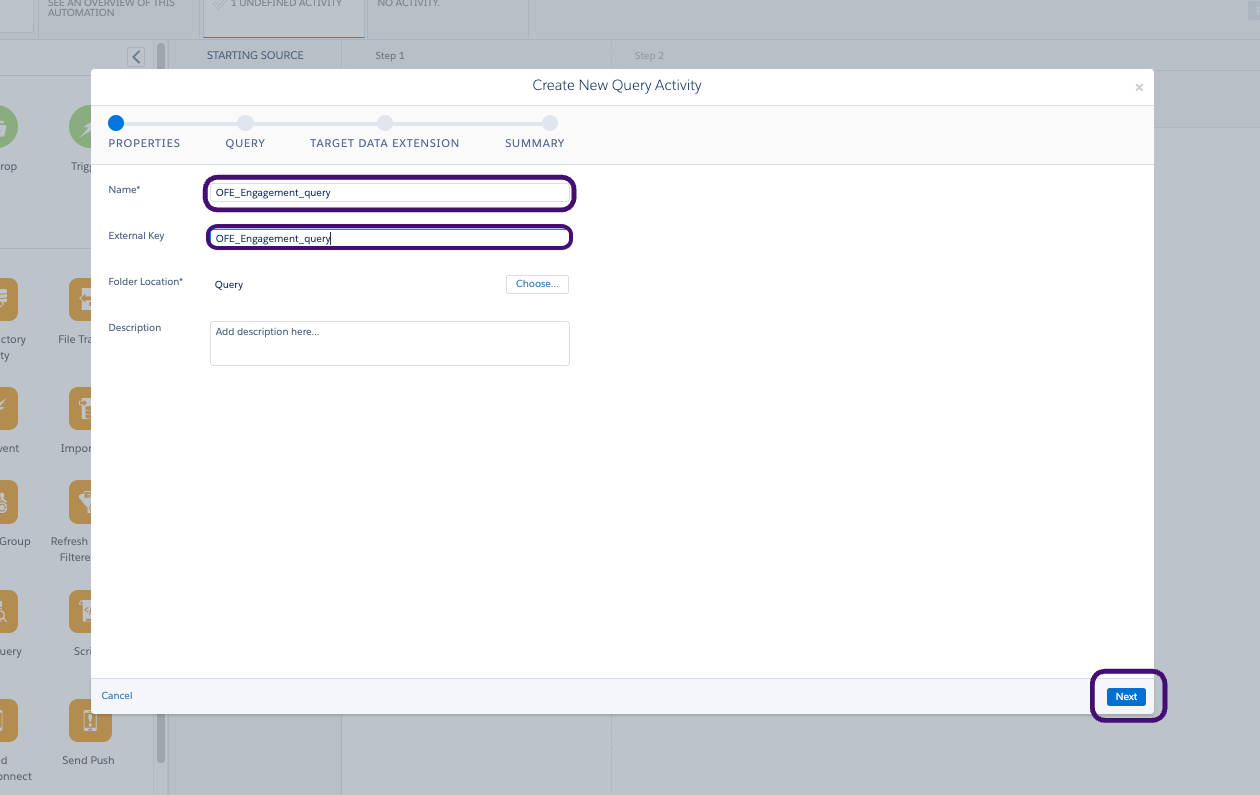
- Select Next.
- In your BrazeAI Decisioning Studio™ Go portal, locate the System data SQL query under Engagement Query Resources.
- Copy and paste the query into the text box and select Next.
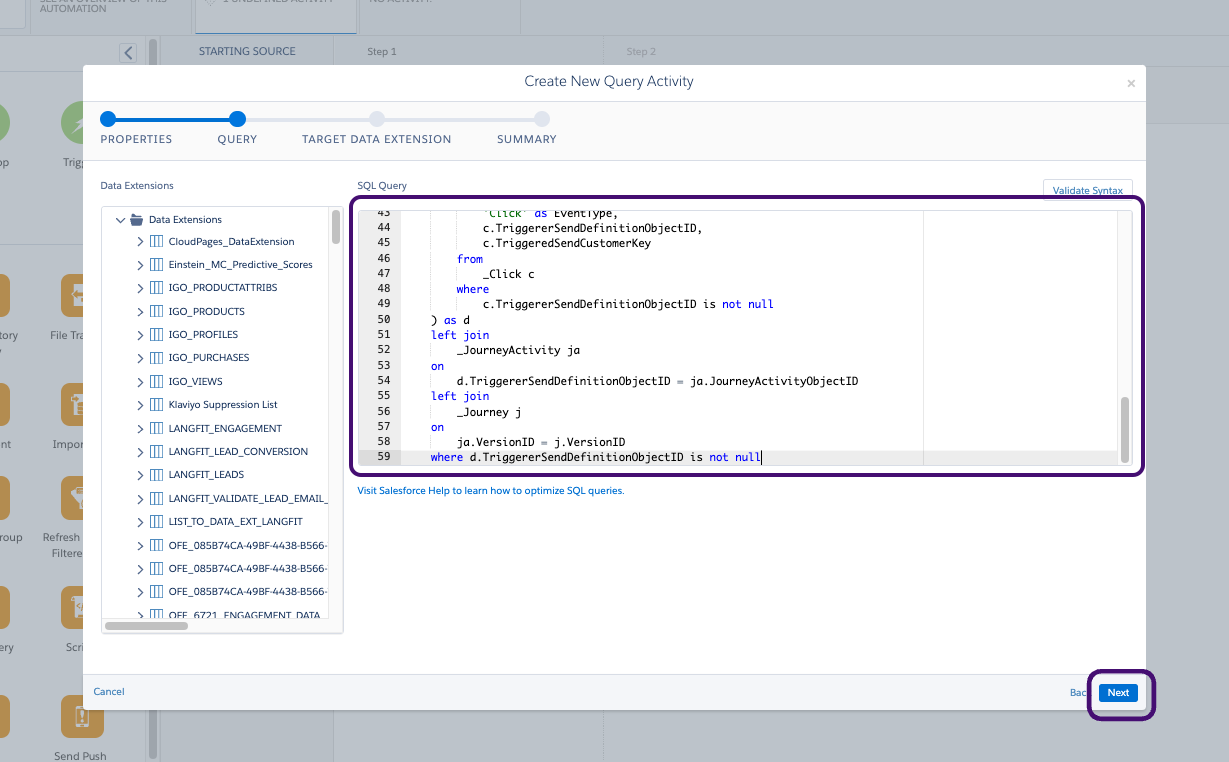
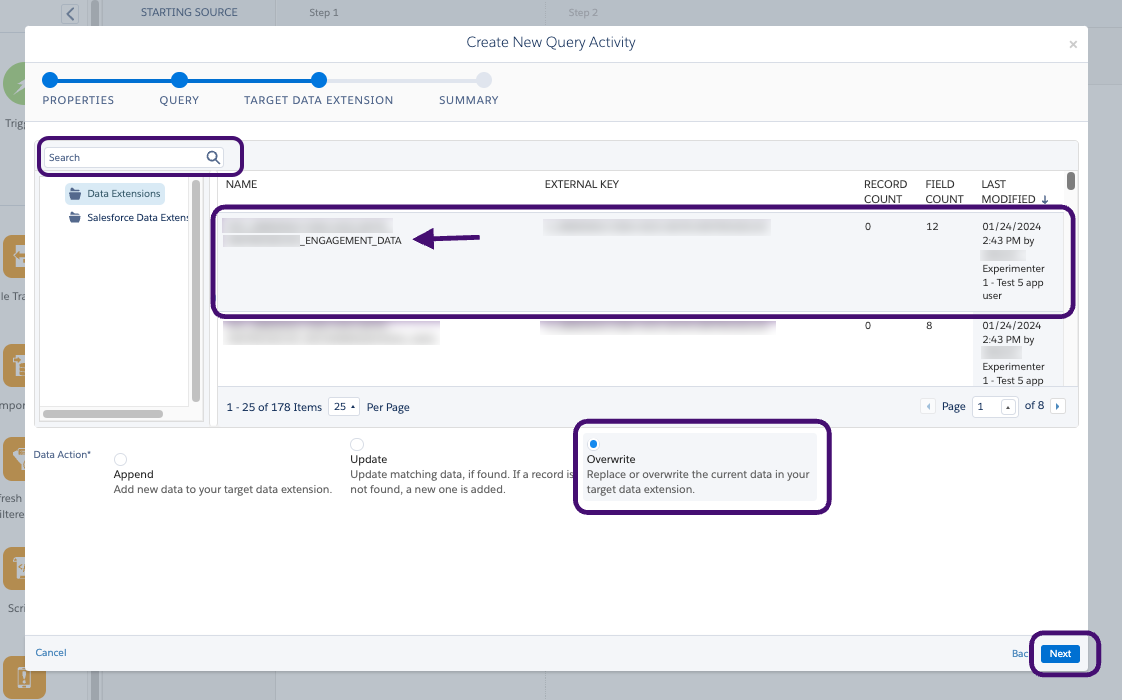
- Locate and select the target Data Extension for the Engagement Query specified in your BrazeAI Decisioning Studio™ Go portal.
The target data extension name is also provided in your BrazeAI Decisioning Studio™ Go portal to cross-reference. Make sure you’re looking at the target Data Extension for the Engagement Query. The Data Extension for the engagement query should end with an ENGAGEMENT_DATA suffix.
- Select Overwrite then Next.
Step 3: Run the automation
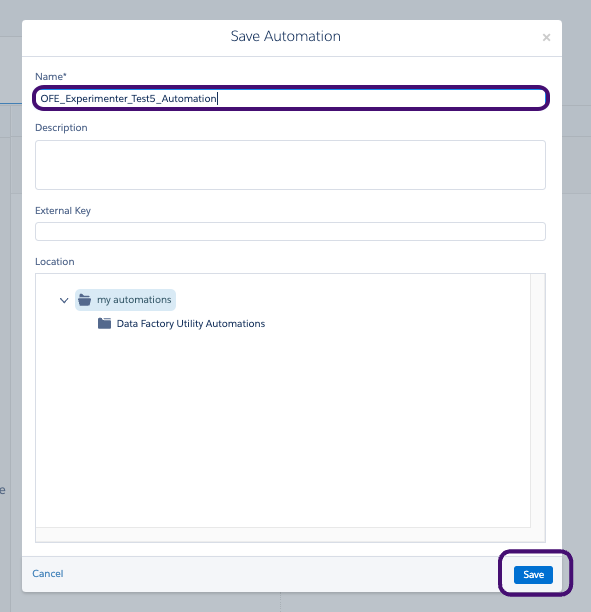
- Give the automation a name and select Save.
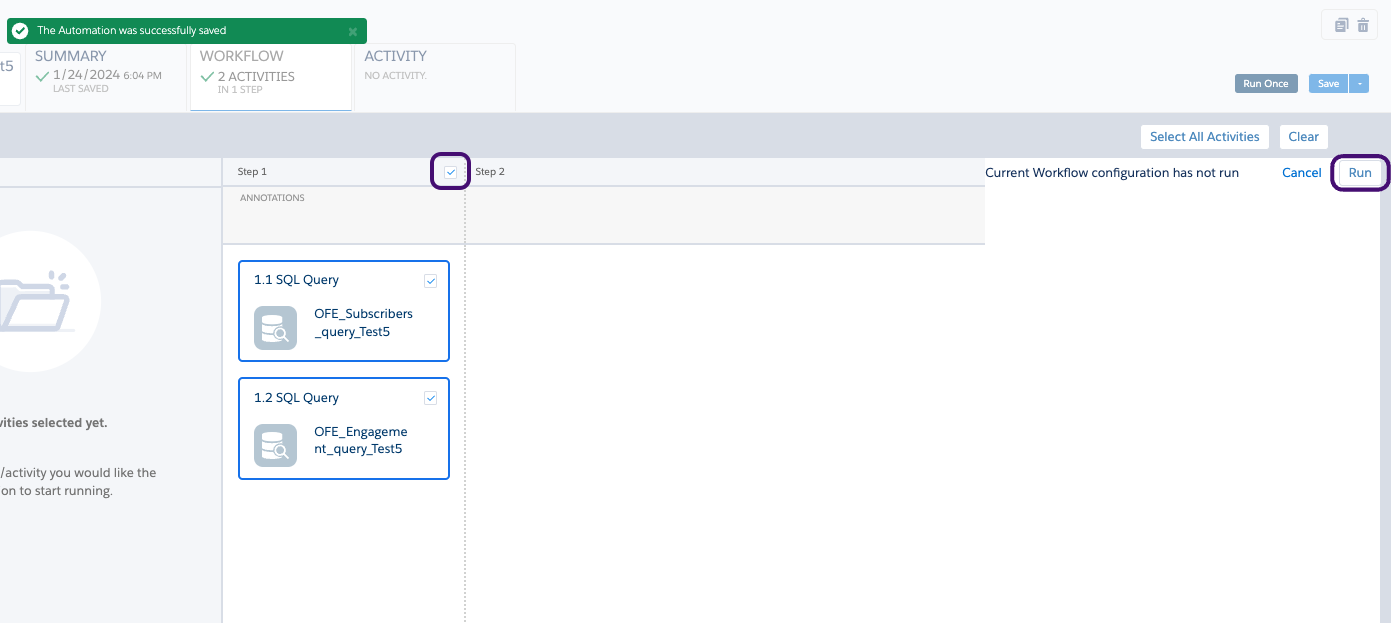
- Next, select Run Once to confirm everything is working as expected.
- Select both queries and select Run.
- Select Run Now.
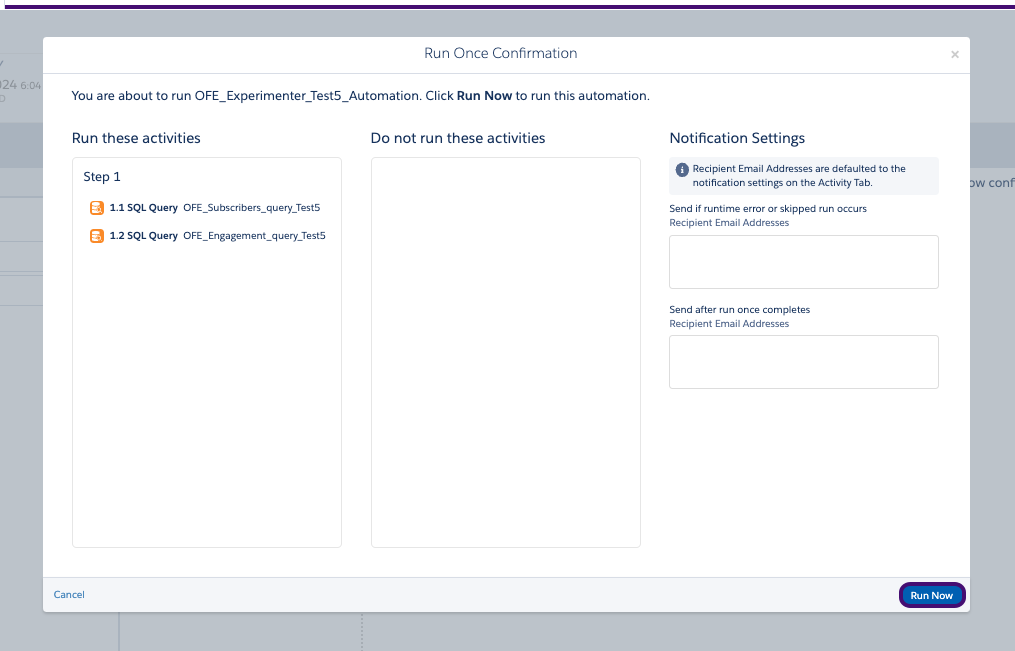
Now, you can check to make sure the automation is running successfully. Contact Braze Support for further assistance if your automation isn’t running as expected.
Creating your SFMC Journey
Step 1: Set up the Journey
- In Salesforce Marketing Cloud, go to Journey Builder > Journey Builder.
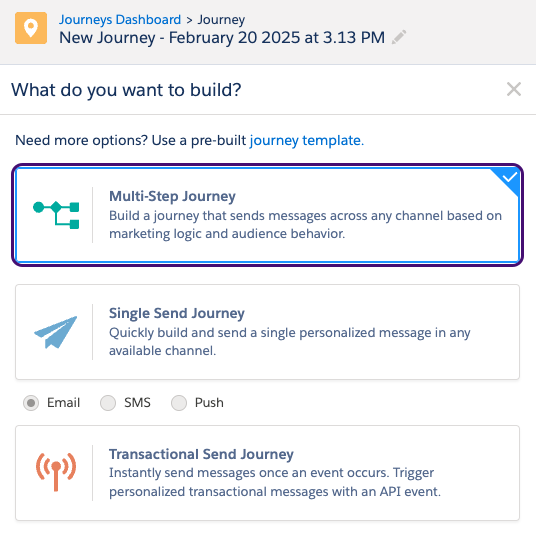
- Select Create New Journey.
- For your journey type, select Multi-Step Journey, then select Create.
Step 2: Build the Journey
Step 2.1: Create an entry source
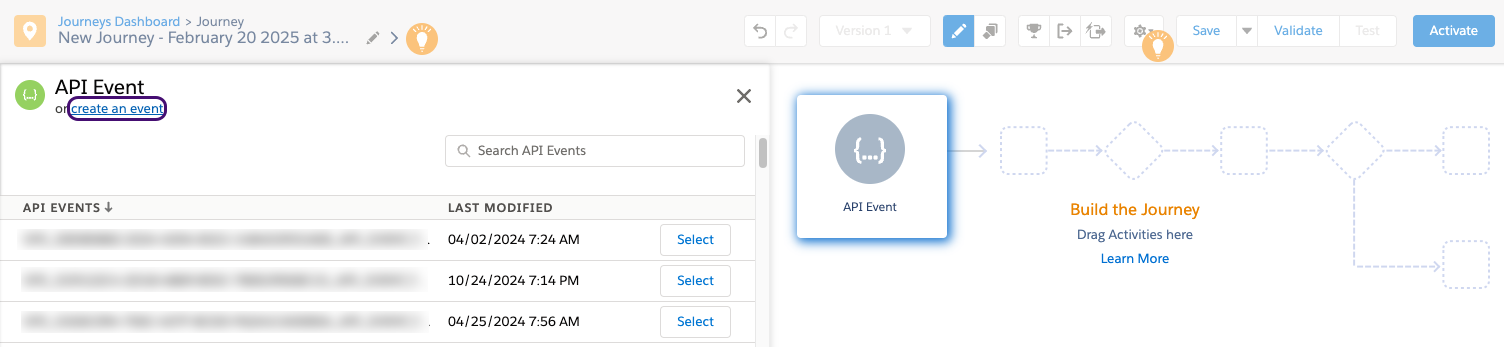
- For your entry source, drag API Event to the Journey Builder.
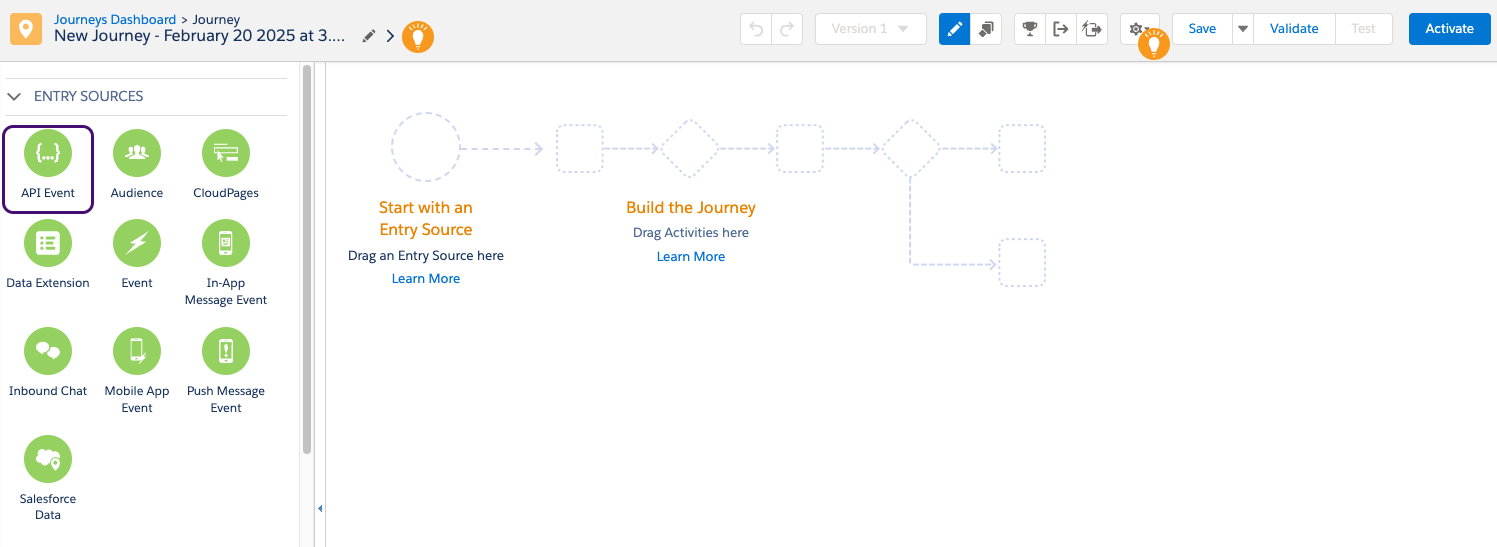
- In the API Event, select Create an event.
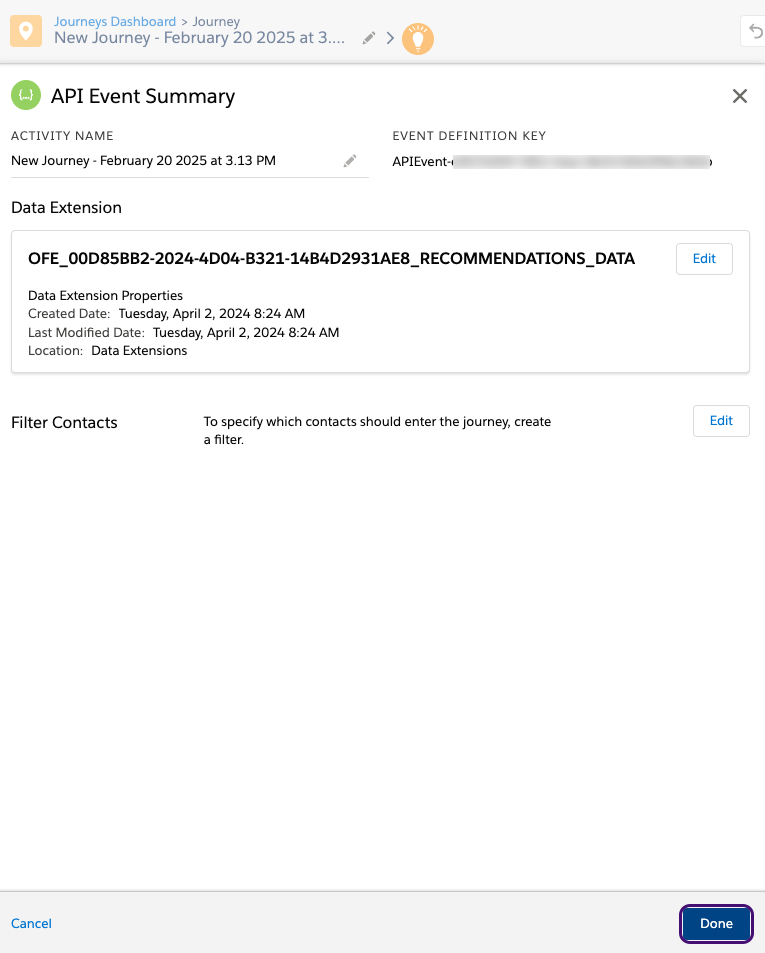
- Select Select Data Extension. Locate and select the data extension that BrazeAI Decisioning Studio™ Go will be writing recommendations to.
- Select Summary to save your changes.
- Select Done to save the API event.
Step 2.2: Add a Decision Split
- Drag and drop a Decision Split after the API Entry Event.
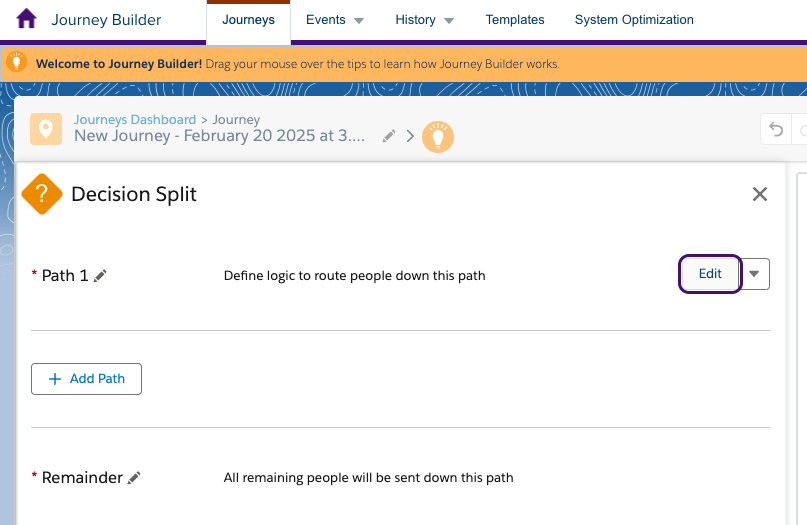
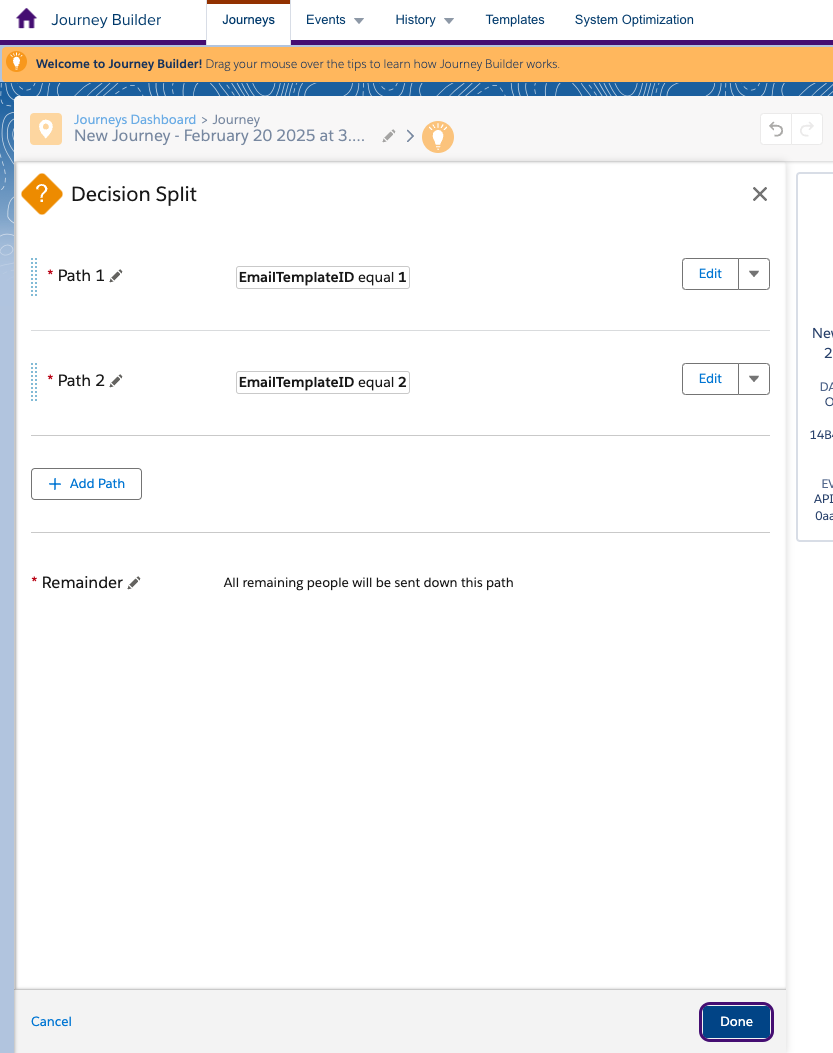
- In the Decision Split details, select Edit for the first path.
- Update the Decision Split to use the template ID passed in by the recommendations data extension. Locate the appropriate field under Journey Data.
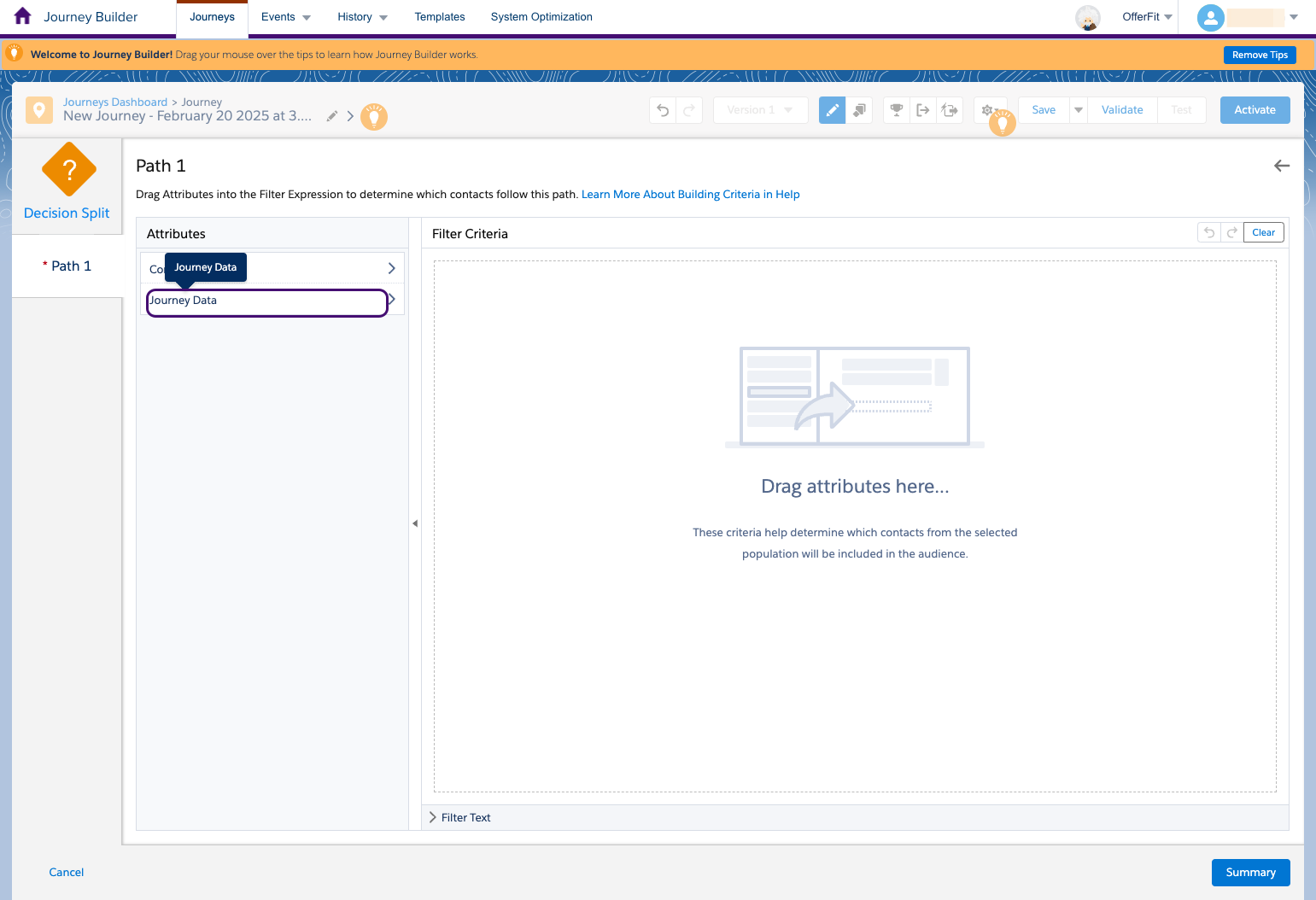
- Select your entry event and locate the desired template ID field, then drag it into the workspace.
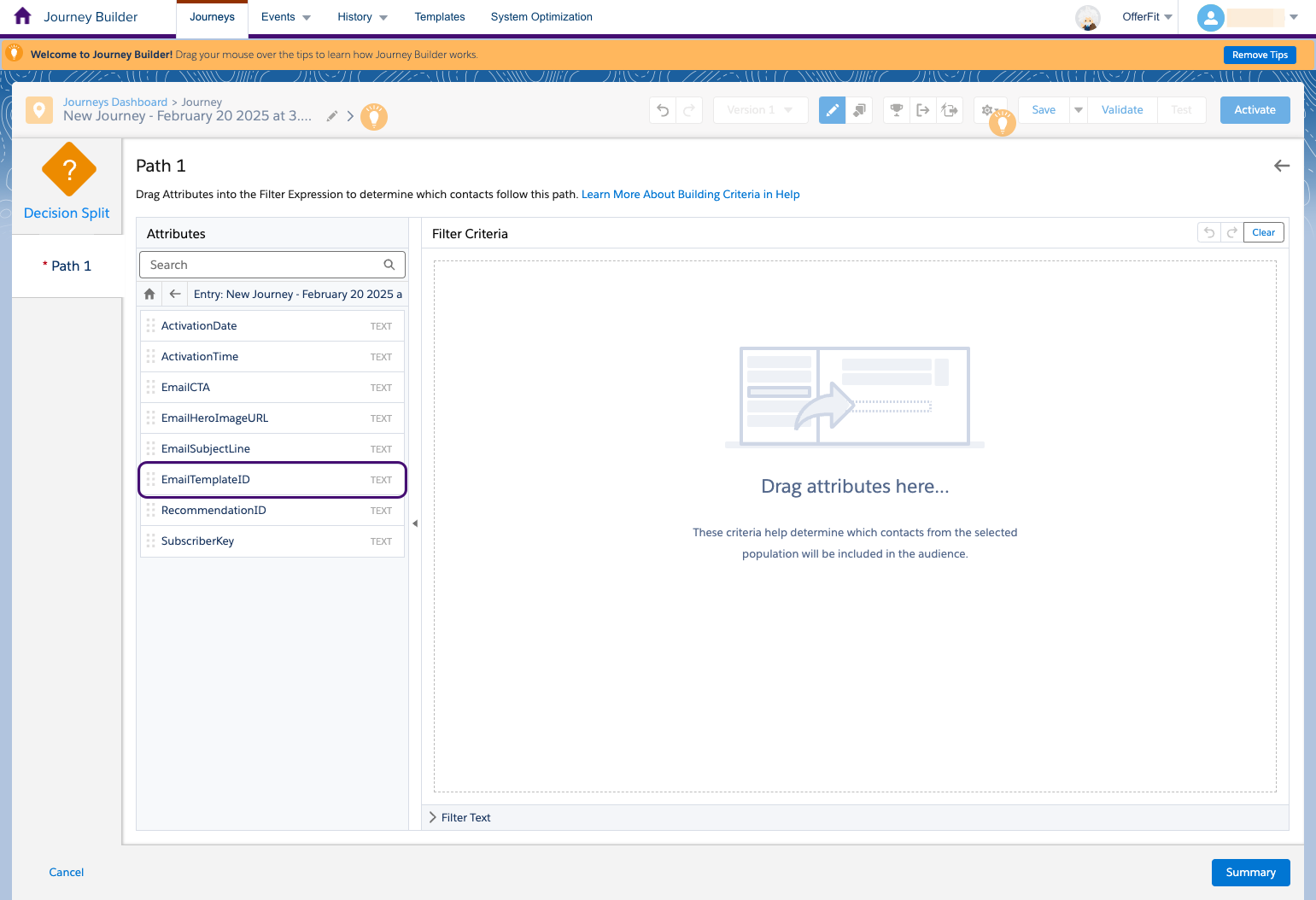
- Enter the template ID of your first email template, then select Done.
- Select Summary to save this path.
- Add a path for each of your email templates, then repeat steps 4-6 above to set the filter criteria so that the template ID matches the ID value of each template.
- Select Done to save the Decision Split node.
Step 2.3: Add an Email for each Decision Split
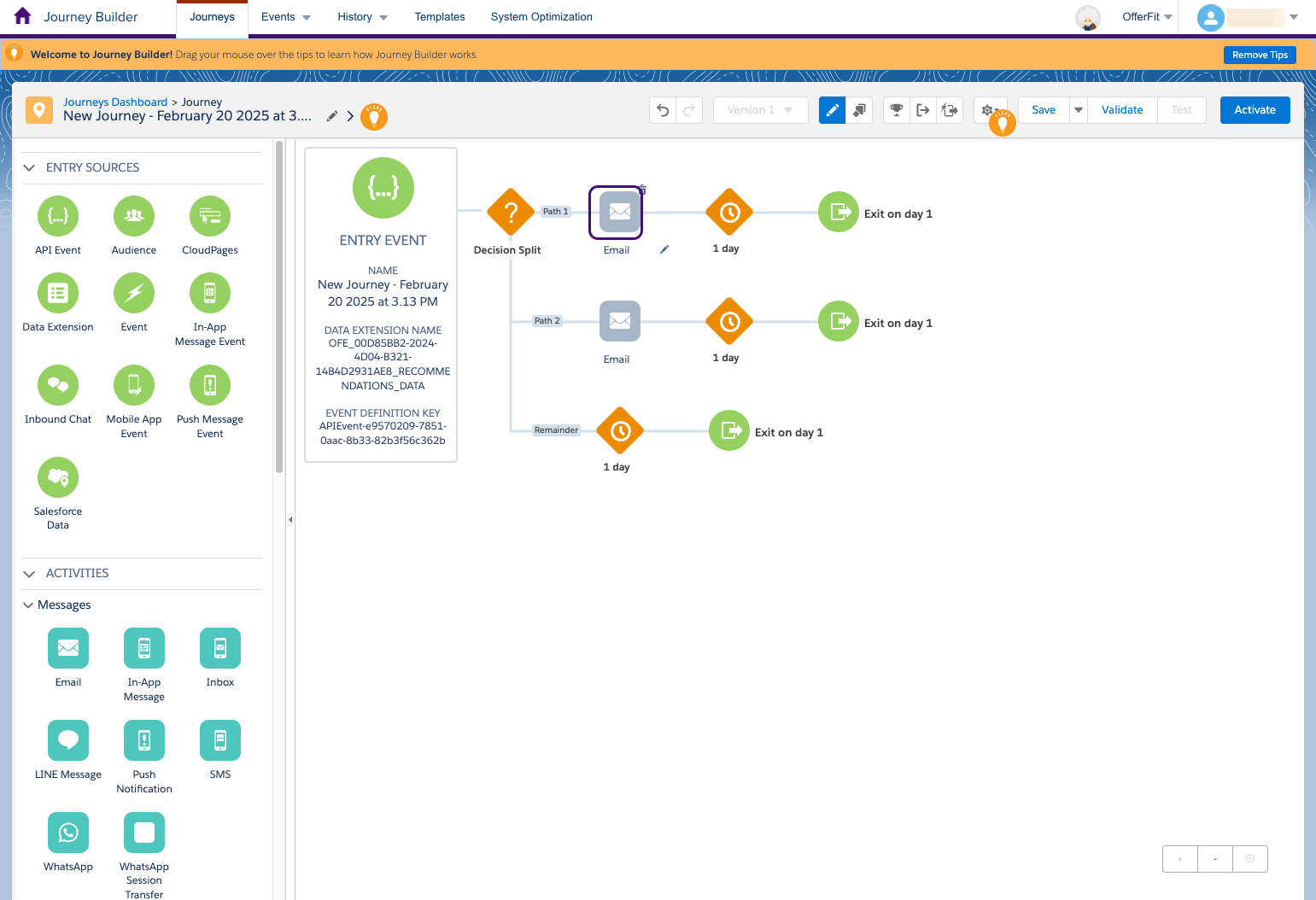
- Drag an Email node into each path of the Decision Split.
- Select Email, then select the appropriate template that should go in each Path (meaning the template with the ID value should match the logic in your Decision Split).
Step 3: Activate the Journey
After setting up your Journey, activate it and share the following details with the BrazeAI Decisioning Studio™ Go team:
- Journey ID
- Journey name
- API event definition key
- Recommendations data extension external key
The BrazeAI Decisioning Studio™ Go portal shows you the SFMC automation it provisioned to export the subscribers and engagement data once daily. If you open this automation in SFMC, make sure to unpause and turn it back to live.
- In the BrazeAI Decisioning Studio™ Go portal, copy the Journey name.
- Next, in Salesforce Marketing Cloud Journey Builder, paste the Journey name into the search bar.
- Select the Journey name. Note that the Journey is currently in Draft status.
- Select Validate.
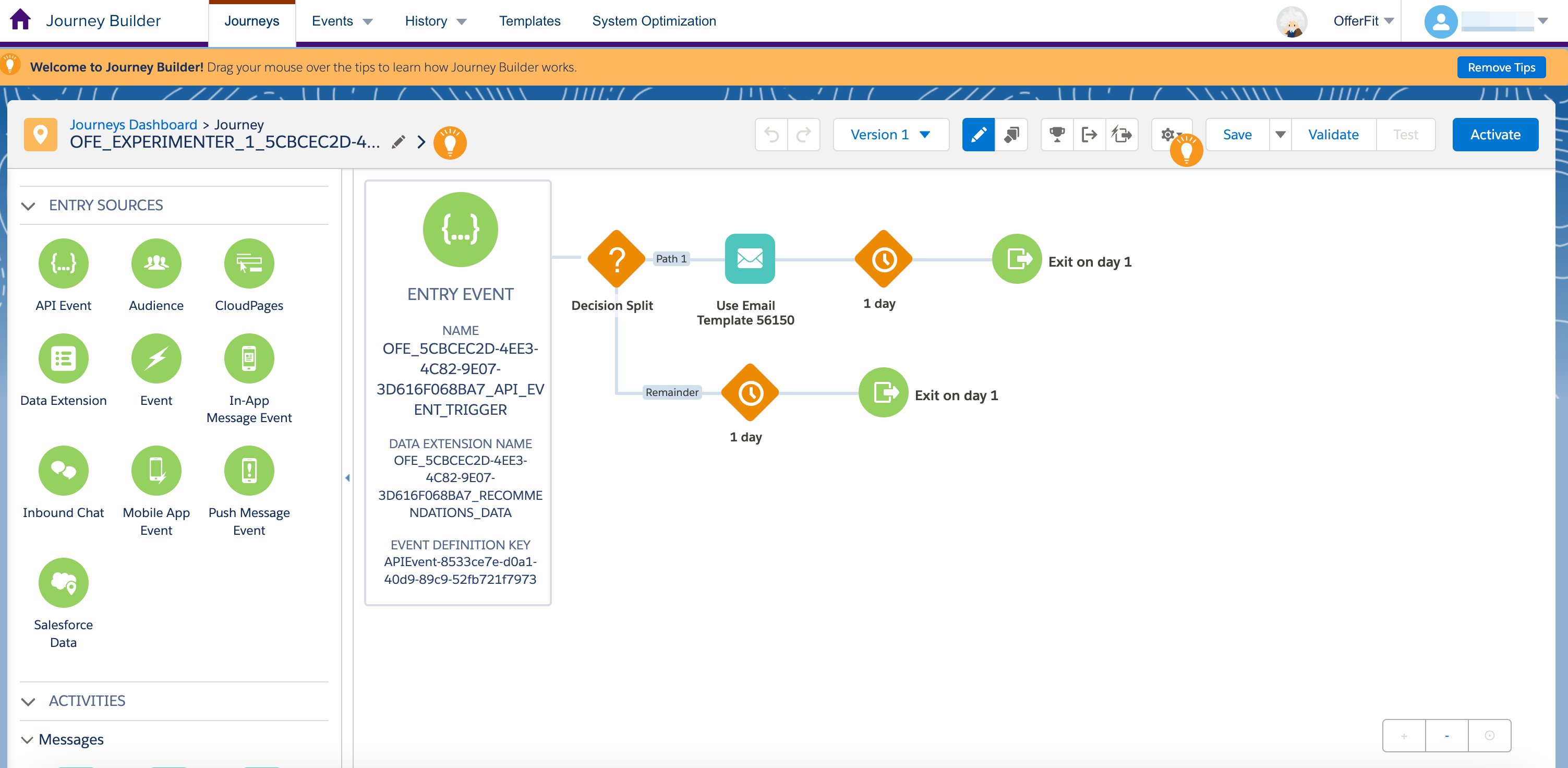
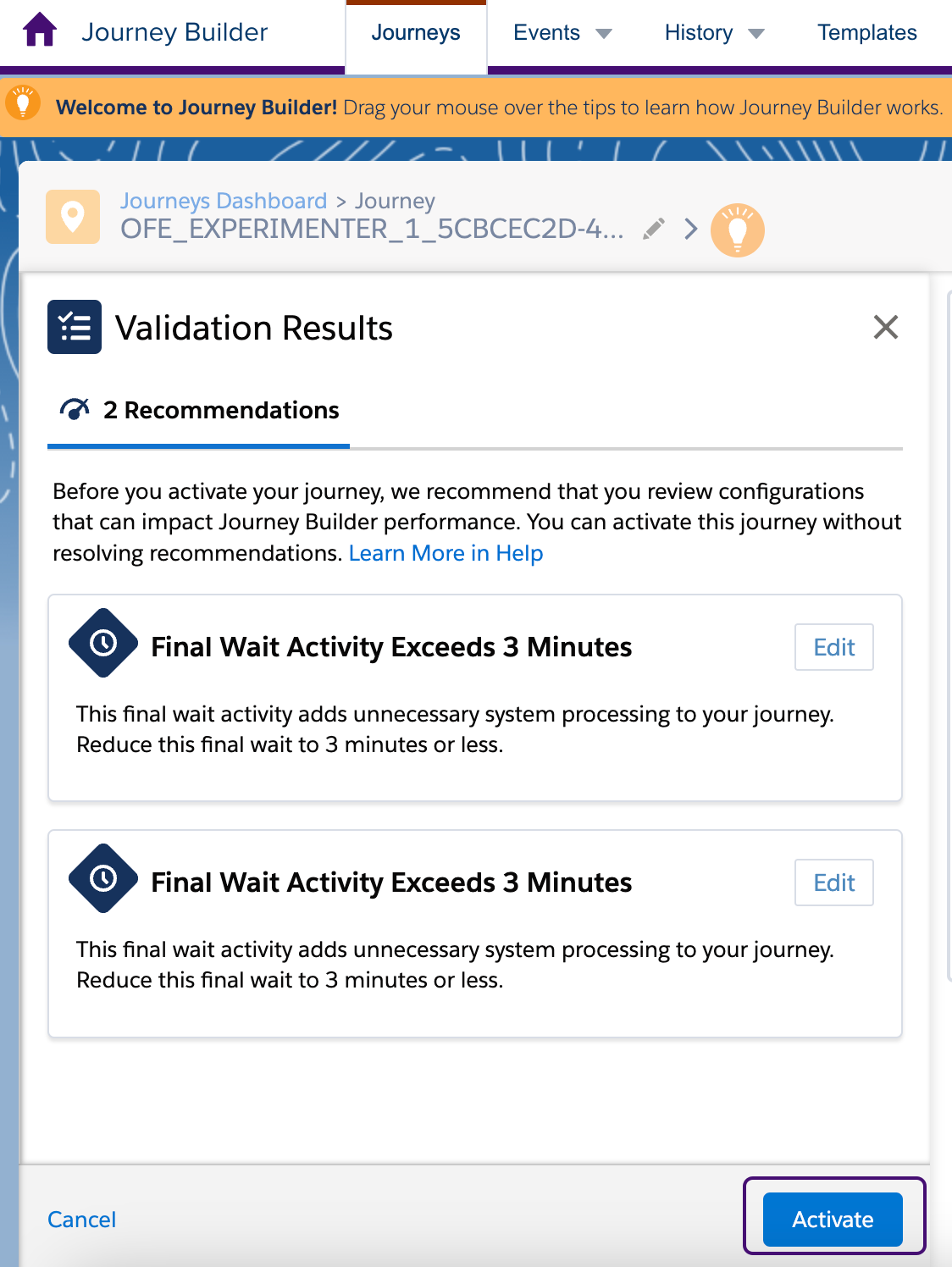
- Then, review the validation results and select Activate.
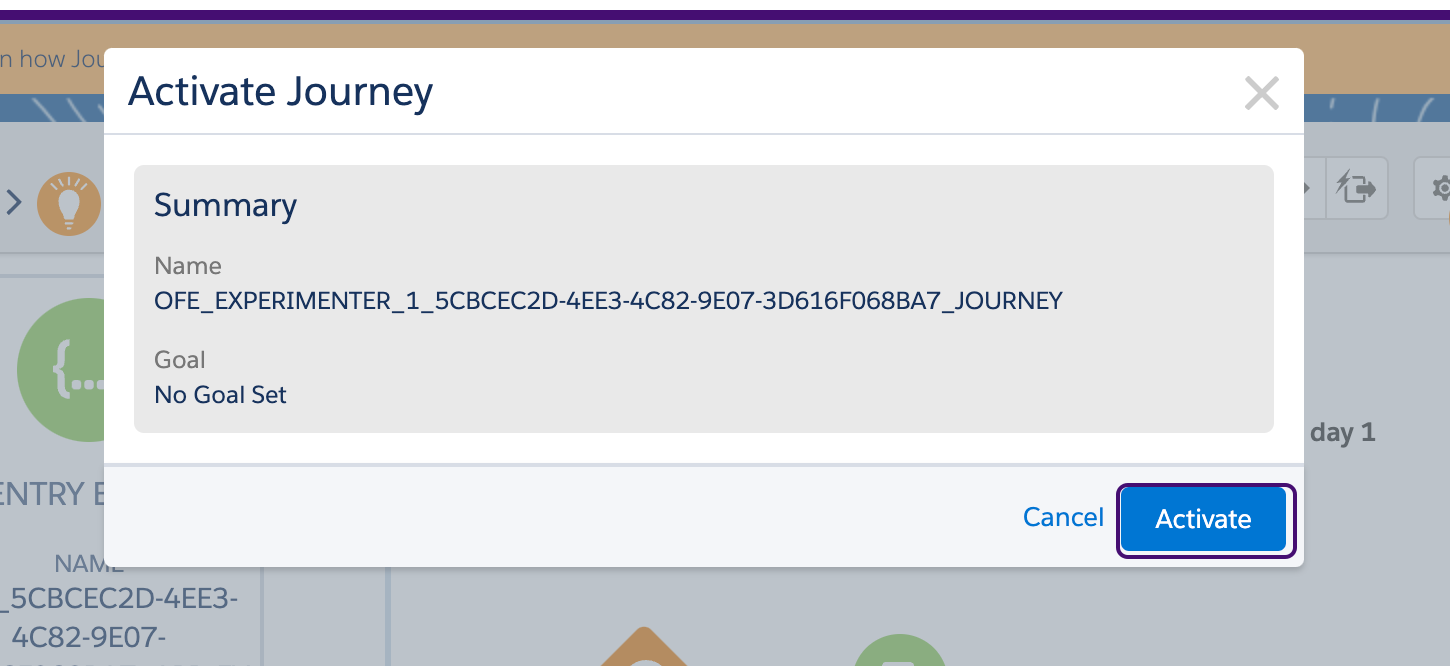
- In the Activate Journey summary, select Activate again.
You’re all set! You can now begin triggering sends through BrazeAI Decisioning Studio™ Go.
 Edit this page on GitHub