Configure with Braze
Create an API campaign in Braze designed for BrazeAI Decisioning Studio™ Go.
Step 1: Create your campaign
- In the Braze dashboard, go to Messaging > Campaigns.
- Select Create campaign.
- For your campaign type, select API campaign.
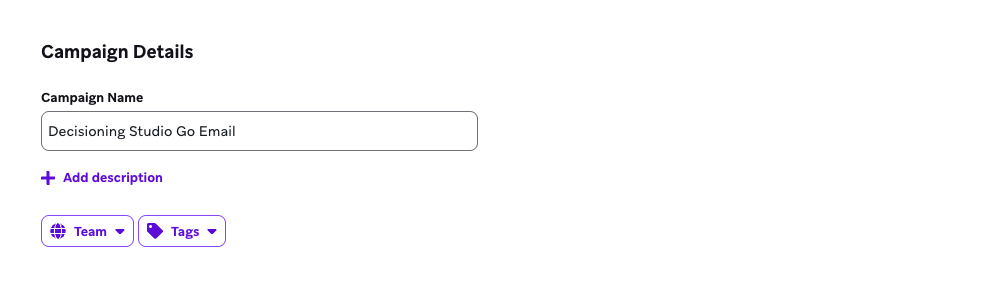
- Enter a name for your campaign. An example is “Decisioning Studio Go Email”.
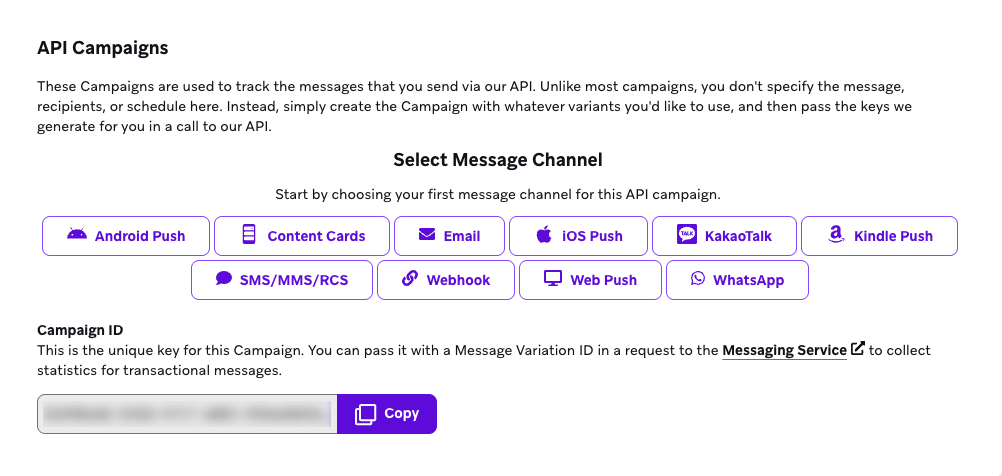
- For your messaging channel, select Email.
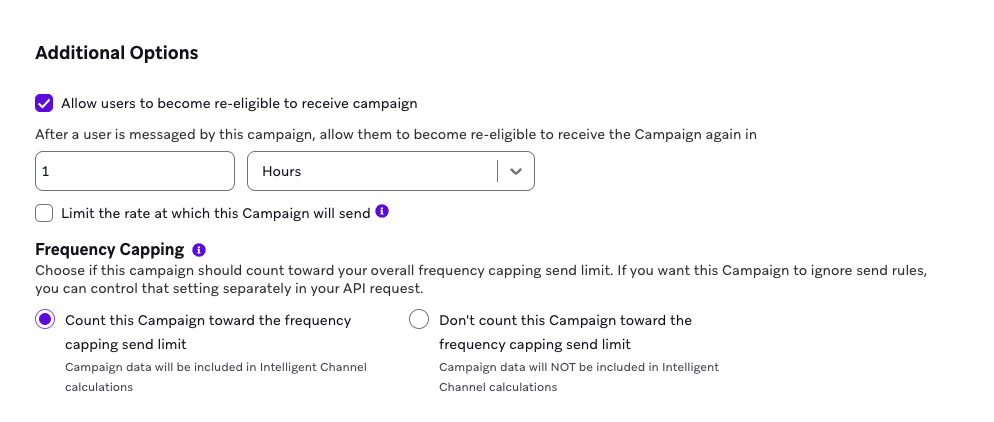
- In Additional Options, select the Allow users to become re-eligible to receive campaign checkbox.
- For the time to become re-eligible, enter 1 and select Hours from the dropdown.
- Select Save Campaign.
Step 2: Copy and paste your campaign ID
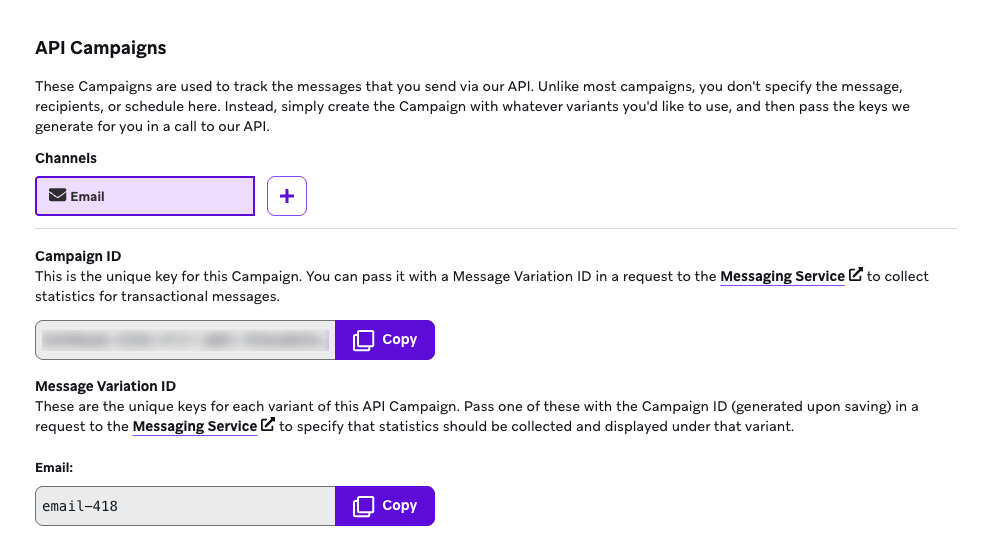
In your API campaign, copy the Campaign ID. Then, go to the BrazeAI Decisioning Studio™ Go portal and paste the Campaign ID.
Step 3: Copy and paste your message variation ID
In your API campaign, copy the Message Variation ID. Then, go to the BrazeAI Decisioning Studio™ Go portal and paste the Message Variation ID.
 Edit this page on GitHub
New Stuff!