How to use eCommerce Events
eCommerce recommended events use a shared, order-level schema, which lets Braze build reliable features on top of your eCommerce data—including user profiles, segmentation, messaging, reporting, and AI-powered recommendations. The sections in this article cover how to use each capability in Braze.
See Event schemas for property requirements and data types, and Event validation and troubleshooting for what happens when an event fails validation.
Because eCommerce events follow a predictable schema, Braze can build reliable features on top of them, from revenue tracking and pre-built Canvas templates to AI-powered recommendations. The following sections give you a quick overview of each capability with links to the full documentation.

Commerce tab
The Commerce tab on each user profile combines two modules: Order activity (calculated revenue and order metrics) and Active cart (the latest cart from ecommerce.cart_updated events).
Order activity
The Order activity module surfaces three calculated metrics that update in real time as events are processed. The order-level model of these calculations cleanly separates product prices from total order value.
eCommerce recommended events do not populate within the Purchase history section of the Commerce tab. Purchase history is populated by legacy purchase events. Use the metrics in the following table for revenue, and order activity from recommended events.
| Metric | Formula |
|---|---|
| Total Revenue | sum (order_placed.total_value) − sum (order_refunded.total_value) |
| Total Orders | count (distinct order_placed) − count (distinct order_cancelled) |
| Total Refund Value | sum (order_refunded.total_value) |
Active cart
The Active cart module shows the latest cart on the user profile. That view is especially helpful while you test. You can use it to confirm cart contents, validate cart-based journeys, or verify that ecommerce.cart_updated events are updating the profile as you expect.
Active cart includes the following:
- Cart ID — Identifier for the cart that last received an
ecommerce.cart_updatedevent. - Last updated — Timestamp of the most recent cart update.
- Total cart value — Total value of the line items in the current cart.
- View products — A link to open the list of products in the cart (up to 50 products).
eCommerce orchestration
Segmentation
Braze provides three ways to segment users based on eCommerce data:
- eCommerce filters: Use the eCommerce category in the segmenter, which contains filters powered by eCommerce recommended events (such as Last Order Placed, Total Revenue, and Average Order Value). For a complete list of available filters, see Segment filters.
- Custom event filters: Because eCommerce events behave like custom events, all existing custom event filters work immediately. For example, you can filter by “Has performed custom event
ecommerce.order_placedmore than X times” or “First performed custom eventecommerce.order_placed”. - Segment Extensions: For segmenting off nested event properties including the nested products array or the metadata objects properties, use Segment Extensions with nested event property filtering. This lets you build audiences like “users who purchased product SKU-123 in the last 90 days” or combine criteria across different properties of the same order.
If you need to filter on custom properties that aren’t part of the documented event schema, nest them under metadata when you log the event (for example, metadata.color instead of color). Custom top-level properties you send through the API or SDK aren’t valid for extension property filters—even if those properties appear in your event data. Using a non-allowlisted top-level property prevents the extension from saving or unarchiving.

Segment Extensions for eCommerce recommended events are a paid feature and in early access. If you’re interested in participating in the early access, contact your customer success manager. Confirm your plan includes access before recommending nested property segmentation to your team.
Triggering
You can use performed custom event triggers with eCommerce events throughout Braze, just like with other custom events. For abandoned cart flows, use the Update Cart trigger to properly capture cart updates.
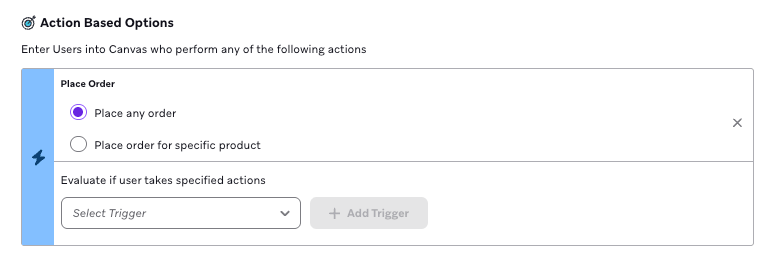
Additionally, Braze offers a dedicated Place Order trigger, which lets you start journeys or take actions when a user places an order. For more information, see Action-based delivery.
Property filters
Place Order and Update Cart triggers can also filter on the properties carried by the event, so a trigger fires only for the orders or carts you care about:
- Basic properties match a top-level property on the event, such as
total_valueorcurrency. - Nested properties look inside the
productsarray. Because each product carries its own properties,products[].metadata.categorymatches when any product in the order or cart satisfies the condition.
Nest custom product fields under metadata (for example, products[].metadata.brand). A product property that isn’t part of the event schema fails validation, so a filter on it never matches.
For example, combining total_value is more than 1000 with products[].metadata.category equals shoes triggers only for high-value orders that contain footwear. Before property filters, you could trigger on an order being placed but not on what the order contained.
Property filters are available on the following surfaces:
- Place Order: Campaign and Canvas triggers, exception events, Canvas exit criteria, Action Paths steps, conversion events, and Content Card removal events. Basic and nested properties are supported. On in-app message triggers, Place Order supports only basic properties.
- Update Cart: Campaign and Canvas triggers, exception events, Canvas exit criteria, and Action Paths steps. Basic and nested properties are supported. On conversion events, Content Card removal events, and in-app message triggers, Update Cart is backed by the
ecommerce.cart_updatedcustom event and supports basic properties only.
On a nested filter, does not equal matches when no item in the array matches. A cart filtered on products[].metadata.category does not equal shoes matches only once every pair of shoes has been removed from the cart, not when the cart also contains other categories.
In-app message triggers are evaluated on the device, so Place Order can’t target a specific product or filter on nested properties there. The Place order for specific product option is disabled in the composer. To act on a specific product, use a campaign in another channel or a Canvas instead.
Scoping an order to a specific product
To trigger only when an order contains a specific product, add a nested property filter on the Place Order trigger. This isn’t available on in-app message triggers.
| Goal | Nested property filter |
|---|---|
| Product name | products[].product_name equals value |
| Product ID | products[].product_id equals value |
| Product variant ID | products[].variant_id equals value |
Saved behaviors with product scope
If you configured a Place Order behavior before property filters were available, it may still use Place order for specific product with a Product Identifier (product name, product_id, or variant_id). Those saved behaviors keep working and continue to match exactly as before, so existing campaigns and Canvases are unaffected.
To switch a saved behavior to property filters, select Place any order. That replaces the product scope controls with property filters. Use the following table to recreate the same scope:
| Previous Product Identifier | Equivalent nested property filter |
|---|---|
| Product name | products[].product_name equals value |
| Product ID | products[].product_id equals value |
| Product variant ID | products[].variant_id equals value |
Moving a behavior to Place any order can’t be undone. If you still need it, re-create the scope as a nested property filter.
Liquid personalization
eCommerce events support Liquid personalization the same way custom events do; you can reference event properties directly in your messaging. To pull product images, pricing, or other catalog data into your messages, join your catalog with the event using product_id or variant_id as the linking identifier. The {% shopping_cart %} Liquid tag lets you loop through a user’s current cart contents for abandoned cart reminders, checkout nudges, or order confirmations. For ready-to-use code samples, see eCommerce use cases.
For a no-code alternative, drag-and-drop product blocks are available in the early access program.
eCommerce Canvas templates
Braze provides ready-to-use Canvas templates pre-configured with eCommerce recommended events as entry, exit, and conversion criteria, so you can launch lifecycle flows without custom setup. Each template ships with drag-and-drop email designs and supports drag-and-drop product blocks (currently in early access). For detailed use cases and Liquid examples, see eCommerce use cases.
These templates cover the most common eCommerce lifecycle flows. Use them as a starting point, then customize the timing, channels, and creative for your audience.
Re-engages users who viewed a product but didn’t add it to their cart.
Use this template when you want to bring browsers back to consider products they recently viewed but didn’t act on.
| Setting | Value |
|---|---|
| Entry event | ecommerce.product_viewed |
| Exit events | ecommerce.product_viewed, ecommerce.cart_updated, ecommerce.checkout_started, Placed Order |
| Conversion event | Placed Order |
Recovers users who added items to their cart but didn’t begin checkout.
Use this template when you want to remind users about items in their cart and drive them back to complete checkout.
| Setting | Value |
|---|---|
| Entry event | ecommerce.cart_updated |
| Exit events | ecommerce.cart_updated, ecommerce.checkout_started, Placed Order |
| Conversion event | Placed Order |

The ecommerce.cart_updated event supports full cart replacement (each event can describe the entire cart) or incremental updates using the add and remove values for the optional action property. Pick one approach per cart and avoid mixing replacement and incremental cart updates for the same cart_id. The stored cart keeps the currency from the most recent cart event; a cart update in a different currency replaces the stored cart instead of mixing values from two currencies. Use the {% shopping_cart %} Liquid tag in your message to dynamically display the current cart contents at send time.
Recovers users who started checkout but didn’t complete the purchase.
Use this template when you want to recover purchases at the highest-intent stage of the funnel.
| Setting | Value |
|---|---|
| Entry event | ecommerce.checkout_started |
| Exit event | Placed Order |
| Conversion event | Placed Order |
Confirms a successful purchase and follows up with a feedback survey to drive review collection and post-purchase engagement.
Use this template when you want to streamline post-purchase communication and gather customer feedback in a single workflow.
| Setting | Value |
|---|---|
| Entry event | ecommerce.order_placed |
| Conversion event | Start Session |
Customize templates
These templates are designed to be a starting point. Common customizations include:
- Customize the email: Each template includes a pre-configured email built with the drag-and-drop editor which is fully editable to match your brand and content.
- Add channels: Pair email with push, SMS, or in-app messages for cross-channel reinforcement.
- Add delays and decision splits: Branch users by behavior (for example, high-value cart compared to low-value cart) or wait periods between messages.
- Swap creative: Replace the included email template with your brand’s visual style.
- Use product blocks: Use drag-and-drop product blocks (in the early access program) to dynamically render abandoned cart contents or browsed products without writing custom Liquid.
For more advanced lifecycle strategies, including Liquid personalization examples, see eCommerce use cases.
eCommerce reporting
eCommerce recommended events power the same revenue surfaces customers already use today. When your integration is sending eCommerce events, the following reports include eCommerce revenue automatically:
| Report | What it shows |
|---|---|
| Revenue Report | Total revenue, average daily revenue, daily purchases, and revenue per user over time across all sources for your selected date range and apps. |
| Revenue - Last Touch Attribution dashboard | Revenue attributed to the last campaign or Canvas a user interacted with before placing an order. Touch events include email clicks, push opens, Content Card clicks, in-app message clicks, and SMS or WhatsApp short link clicks. |
| Campaign and Canvas analytics | Total revenue attributed to a specific campaign or Canvas within the primary conversion window. |
| Conversions report | Revenue tied to conversion events on campaigns and Canvases. To count ecommerce.order_placed revenue, the campaign or Canvas must use the Places Order conversion event type. For more information, see Conversion events. |
| Segment Insights | Revenue comparisons across segments in the segment insights dashboard. |
| Report Builder | Revenue metrics in custom reports built in Report Builder. |
| Dashboard Builder | Revenue metrics in custom dashboards built in Dashboard Builder. |
For non-user calculated fields (for example, campaign or Canvas revenue), revenue is calculated the same way across all reports: price multiplied by quantity per product in the order, summed across the products in each order_placed event.
Revenue calculations cap individual product quantities at 1,000 units per order. If a quantity field is missing for a product, it defaults to one unit. The original ecommerce.order_placed event retains the full quantity you sent—only the revenue calculation applies the cap.
If you’re migrating from legacy purchase events to ecommerce.order_placed, coordinate with your Braze account team before making any integration changes. During the transition period, send both legacy purchase and ecommerce.order_placed events to confirm they’re triggering correctly and to prepare your active campaigns, Canvases, and segments to migrate to the new event. Your account team can then help you plan the cutover to switch revenue reporting from legacy purchase events to ecommerce.order_placed.
BrazeAITM
Predictive Events, Predictive Churn, and item recommendations support eCommerce events as target events and signals, and have a dedicated “Order Placed” option. The standardized schema makes these models more reliable because the data is consistent across your user base.
Export data
Braze offers several ways to export eCommerce event data for use in your data warehouse, BI tools, or downstream systems. eCommerce recommended events are exported through the same channels as your other event data.
| Export path | What’s included |
|---|---|
| Currents | eCommerce events stream as custom events; search the ecommerce.* namespace to find them. Products from each order are available as purchases. |
| Snowflake Data Sharing | eCommerce events are shared as custom events; search the ecommerce.* namespace to find them. Products from each order are available in the purchases table. |
| Export segment data to CSV | CSV export of segment members. To include eCommerce events, select them by name from the custom events dropdown. |
| Export user profile by Segment (API) | User profile data for segment members, returned via API. eCommerce events are included as custom events. |
How do I segment users by a specific product?
The segmenter allows you to filter by the number of times a user performed an eCommerce event. To filter by specific product properties (such as product_id or product_name), use Segment Extensions, which support nested event property filtering. For example, you can find all users who purchased product “SKU-123” in the last 90 days.