Data warehouse storage integrations
This page covers how to use Braze Cloud Data Ingestion (CDI) to sync relevant data with your Snowflake, Redshift, BigQuery, and Databricks integration.
Setting up data warehouse integrations
Cloud Data Ingestion integrations require some setup on the Braze side and in your data warehouse instance. Follow these steps to set up the integration:
- In your Snowflake instance, set up the tables or views you want to sync to Braze.
- Create a new Snowflake source in the Braze dashboard.
- Retrieve the public key provided in the Braze dashboard and append it to the Snowflake user for authentication.
- Create a sync in the Braze dashboard, test the integration, and start the sync.

The Snowflake quickstart guide provides sample code and walks through the required steps to create an automated pipeline using Snowflake Streams and CDI to sync data to Braze.
- Make sure Braze access is allowed to the Redshift tables you want to sync. Braze connects to Redshift over the internet.
- In your Redshift instance, set up the tables or views you want to sync to Braze.
- Create a new source and sync in the Braze dashboard.
- Test the integration and start the sync.

Rows processed per sync depend on your warehouse performance, network latency, and how much new data matches the sync query. Use the integration Sync history in the dashboard to see duration and row counts for recent runs.
- Create a service account and allow access to the BigQuery project(s) and dataset(s) that contain the data you want to sync.
- In your BigQuery account, set up the tables or views you want to sync to Braze.
- Create a new source and sync in the Braze dashboard.
- Test the integration and start the sync.
- Create a service account and allow access to the Databricks project(s) and dataset(s) that contain the data you want to sync.
- In your Databricks account, set up the tables or views you want to sync to Braze.
- Create a new source and sync in the Braze dashboard.
- Test the integration and start the sync.

There may be two to five minutes of warm-up time when Braze connects to Classic and Pro SQL instances, which can lead to delays during connection setup and testing, as well as at the beginning of scheduled syncs. Using a serverless SQL instance minimizes warmup time and improves query throughput, but may result in slightly higher integration costs.
- Create a service principal and grant access to Fabric APIs.
- Set up a shared workspace and grant the service principal access to it.
- In the shared Fabric workspace, set up the tables or views you want to sync to Braze.
- Create a new source and sync in the Braze dashboard.
- Test the integration and start the sync.
Step 1: Set up tables or views
Before you start, review Table setup for Cloud Data Ingestion to understand source table requirements compared to PAYLOAD formatting requirements.
Your source table or view can include columns that aren’t listed for your warehouse in the tabs below (for example, auditing or hashing). Braze reads only the columns described in those tabs; other columns are not used during Cloud Data Ingestion syncs.
Step 1.1: Set up the table
1
2
3
4
5
6
7
8
9
10
11
12
13
14
15
16
CREATE DATABASE BRAZE_CLOUD_PRODUCTION;
CREATE SCHEMA BRAZE_CLOUD_PRODUCTION.INGESTION;
CREATE OR REPLACE TABLE BRAZE_CLOUD_PRODUCTION.INGESTION.USERS_ATTRIBUTES_SYNC (
     UPDATED_AT TIMESTAMP_NTZ(9) NOT NULL DEFAULT SYSDATE(),
     --at least one of external_id, alias_name and alias_label, email, phone, or braze_id is required
     EXTERNAL_ID VARCHAR(16777216),
     --if using user alias, both alias_name and alias_label are required
     ALIAS_LABEL VARCHAR(16777216),
     ALIAS_NAME VARCHAR(16777216),
     --braze_id can only be used to update existing users created through the Braze SDK
     BRAZE_ID VARCHAR(16777216),
     --If you include both email and phone, email is used as the primary identifier
     EMAIL VARCHAR(16777216),
     PHONE VARCHAR(16777216),
     PAYLOAD VARCHAR(16777216) NOT NULL
);
You can name the database, schema, and table as you’d like, but the column names should match the preceding definition.
UPDATED_AT- The time this row was updated in or added to the table. Braze syncs rows whereUPDATED_ATis later than the last synced value. Rows at the exact boundary timestamp may be re-synced if new rows share that same timestamp.- User identifier columns - Your table may contain one or more user identifier columns. Each row should only contain one identifier (either
external_id, the combination ofalias_nameandalias_label,braze_id,emailorphone). A source table may have columns for one, two, three, four, or all five identifier types.EXTERNAL_ID- This identifies the user you want to update. This should match theexternal_idvalue used in Braze.ALIAS_NAMEandALIAS_LABEL- These two columns create a user alias object.alias_nameshould be a unique identifier, andalias_labelspecifies the type of alias. Users may have multiple aliases with different labels but only onealias_nameperalias_label.BRAZE_ID- The Braze user identifier. This is generated by the Braze SDK, and new users cannot be created using a Braze ID through Cloud Data Ingestion. To create new users, specify an external user ID or user alias.EMAIL- The user’s email address. If multiple profiles with the same email address exist, the most recently updated profile is prioritized for updates. If you include both email and phone, email is used as the primary identifier.PHONE- The user’s phone number. If multiple profiles with the same phone number exist, the most recently updated profile is prioritized for updates.
PAYLOAD- This is a JSON string of the fields you want to sync to the user in Braze.
Step 1.2: Set up the role and database permissions
1
2
3
4
5
CREATE ROLE BRAZE_INGESTION_ROLE;

GRANT USAGE ON DATABASE BRAZE_CLOUD_PRODUCTION TO ROLE BRAZE_INGESTION_ROLE;
GRANT USAGE ON SCHEMA BRAZE_CLOUD_PRODUCTION.INGESTION TO ROLE BRAZE_INGESTION_ROLE;
GRANT SELECT ON TABLE BRAZE_CLOUD_PRODUCTION.INGESTION.USERS_ATTRIBUTES_SYNC TO ROLE BRAZE_INGESTION_ROLE;
Update the names as needed, but the permissions should match the preceding example.
Step 1.3: Set up the warehouse and give access to Braze role
1
2
3
CREATE WAREHOUSE BRAZE_INGESTION_WAREHOUSE;

GRANT USAGE ON WAREHOUSE BRAZE_INGESTION_WAREHOUSE TO ROLE BRAZE_INGESTION_ROLE;
The warehouse needs to have the auto-resume flag on. If not, grant Braze additional OPERATE privileges on the warehouse so Braze can turn it on when the query runs.
Step 1.4: Set up the user
1
2
3
CREATE USER BRAZE_INGESTION_USER;

GRANT ROLE BRAZE_INGESTION_ROLE TO USER BRAZE_INGESTION_USER;
After this step, share connection information with Braze to receive a public key to append to the user.
When connecting different workspaces to the same Snowflake account, you must create a unique user for each Braze workspace where you are creating an integration. Within a workspace, you can reuse the same user across integrations, but integration creation fails if a user on the same Snowflake account is duplicated across workspaces.
Step 1.5: Allow Braze IPs in Snowflake network policy (optional)
Depending on the configuration of your Snowflake account, you may need to allow the following IP addresses in your Snowflake network policy. For more information on enabling this, see the relevant Snowflake documentation on modifying a network policy.
For instances US-01, US-02, US-03, US-04, US-05, US-06, US-07, these are the relevant IP addresses:
23.21.118.19134.206.23.17350.16.249.952.4.160.21454.87.8.3454.156.35.25152.54.89.23818.205.178.15
For instance US-08, these are the relevant IP addresses:
52.151.246.5152.170.163.18240.76.166.15740.76.166.17040.76.166.16740.76.166.16140.76.166.15640.76.166.16640.76.166.16040.88.51.7452.154.67.1740.76.166.8040.76.166.8440.76.166.8540.76.166.8140.76.166.7140.76.166.14440.76.166.145
For instance US-10, these are the relevant IP addresses:
100.25.232.16435.168.86.17952.7.44.1173.92.153.1835.172.3.12950.19.162.19
For instances EU-01 and EU-02, these are the relevant IP addresses:
52.58.142.24252.29.193.12135.158.29.22818.157.135.973.123.166.463.64.27.363.65.88.253.68.144.1883.70.107.88
For instance AU-01, these are the relevant IP addresses:
13.210.1.14513.211.70.15913.238.45.5452.65.73.16754.153.242.23954.206.45.213
For instance ID-01, these are the relevant IP addresses:
108.136.157.246108.137.30.20716.78.128.7116.78.14.13416.78.162.20843.218.73.35
For instance JP-01, these are the relevant IP addresses:
13.159.155.21254.199.221.24113.192.23.1654.250.120.13918.181.114.2323.114.38.100
For instance KR-01, these are the relevant IP addresses:
43.200.215.452.79.67.17552.79.113.60
Step 1.1: Set up the table
Optionally, set up a new Database and Schema to hold your source table
1
2
CREATE DATABASE BRAZE_CLOUD_PRODUCTION;
CREATE SCHEMA BRAZE_CLOUD_PRODUCTION.INGESTION;
Create a table (or view) to use for your CDI integration
1
2
3
4
5
6
7
8
9
10
11
12
13
14
CREATE TABLE BRAZE_CLOUD_PRODUCTION.INGESTION.USERS_ATTRIBUTES_SYNC (
   updated_at timestamptz default sysdate,
   --at least one of external_id, alias_name and alias_label, or braze_id is required
   external_id varchar,
   --if using user alias, both alias_name and alias_label are required
   alias_label varchar,
   alias_name varchar,
   --braze_id can only be used to update existing users created through the Braze SDK
   braze_id varchar,
   --If you include both email and phone, email is used as the primary identifier
   email varchar,
   phone varchar,
   payload varchar(max)
)
You can name the database, schema, and table as you’d like, but the column names should match the preceding definition.
UPDATED_AT- The time this row was updated in or added to the table. Braze syncs rows whereUPDATED_ATis later than the last synced value. Rows at the exact boundary timestamp may be re-synced if new rows share that same timestamp.- User identifier columns - Your table may contain one or more user identifier columns. Each row should only contain one identifier (either
external_id, the combination ofalias_nameandalias_label,braze_id,emailorphone). A source table may have columns for one, two, three, four, or all five identifier types.EXTERNAL_ID- This identifies the user you want to update. This should match theexternal_idvalue used in Braze.ALIAS_NAMEandALIAS_LABEL- These two columns create a user alias object.alias_nameshould be a unique identifier, andalias_labelspecifies the type of alias. Users may have multiple aliases with different labels but only onealias_nameperalias_label.BRAZE_ID- The Braze user identifier. This is generated by the Braze SDK, and new users cannot be created using a Braze ID through Cloud Data Ingestion. To create new users, specify an external user ID or user alias.EMAIL- The user’s email address. If multiple profiles with the same email address exist, the most recently updated profile is prioritized for updates. If you include both email and phone, email is used as the primary identifier.PHONE- The user’s phone number. If multiple profiles with the same phone number exist, the most recently updated profile is prioritized for updates.
PAYLOAD- This is a JSON string of the fields you want to sync to the user in Braze.
Step 1.2: Create user and grant permissions
1
2
3
CREATE USER braze_user PASSWORD '{password}';
GRANT USAGE ON SCHEMA BRAZE_CLOUD_PRODUCTION.INGESTION to braze_user;
GRANT SELECT ON TABLE USERS_ATTRIBUTES_SYNC TO braze_user;
These are the minimum required permissions for this user. If creating multiple CDI integrations, you may want to grant permissions to a schema or manage permissions using a group.
Step 1.3: Allow access to Braze IPs
If you have a firewall or other network policies, you must give Braze network access to your Redshift instance. An example of the Redshift URL endpoint is “example-cluster.ap-northeast-2.redshift.amazonaws.com”.
Some important things to know:
- You may also need to change your security groups to allow Braze to access your data in Redshift.
- Make sure to explicitly allow inbound traffic on the IPs in the table and on the port used to query your Redshift cluster (default is 5439). You should explicitly allow Redshift TCP connectivity on this port even if the inbound rules are set to “allow all”.
- The endpoint for the Redshift cluster must be publicly accessible for Braze to connect to your cluster.
- If you don’t want your Redshift cluster to be publicly accessible, you can set up a VPC and EC2 instance to use an SSH tunnel to access the Redshift data. For more information, see the AWS Knowledge Center post.
Allow access from the following IPs corresponding to your Braze dashboard’s region.
For instances US-01, US-02, US-03, US-04, US-05, US-06, US-07, these are the relevant IP addresses:
23.21.118.19134.206.23.17350.16.249.952.4.160.21454.87.8.3454.156.35.25152.54.89.23818.205.178.15
For instance US-08, these are the relevant IP addresses:
52.151.246.5152.170.163.18240.76.166.15740.76.166.17040.76.166.16740.76.166.16140.76.166.15640.76.166.16640.76.166.16040.88.51.7452.154.67.1740.76.166.8040.76.166.8440.76.166.8540.76.166.8140.76.166.7140.76.166.14440.76.166.145
For instance US-10, these are the relevant IP addresses:
100.25.232.16435.168.86.17952.7.44.1173.92.153.1835.172.3.12950.19.162.19
For instances EU-01 and EU-02, these are the relevant IP addresses:
52.58.142.24252.29.193.12135.158.29.22818.157.135.973.123.166.463.64.27.363.65.88.253.68.144.1883.70.107.88
For instance AU-01, these are the relevant IP addresses:
13.210.1.14513.211.70.15913.238.45.5452.65.73.16754.153.242.23954.206.45.213
For instance ID-01, these are the relevant IP addresses:
108.136.157.246108.137.30.20716.78.128.7116.78.14.13416.78.162.20843.218.73.35
For instance JP-01, these are the relevant IP addresses:
13.159.155.21254.199.221.24113.192.23.1654.250.120.13918.181.114.2323.114.38.100
For instance KR-01, these are the relevant IP addresses:
43.200.215.452.79.67.17552.79.113.60
Step 1.1: Set up the table
Optionally, set up a new project or dataset to hold your source table.
1
CREATE SCHEMA BRAZE-CLOUD-PRODUCTION.INGESTION;
Create one or more tables to use for your CDI integration with the following fields:
1
2
3
4
5
6
7
8
9
10
11
12
13
14
15
CREATE TABLE `BRAZE-CLOUD-PRODUCTION.INGESTION.USERS_ATTRIBUTES_SYNC`
(
  updated_at TIMESTAMP DEFAULT current_timestamp,
  --At least one of external_id, alias_name and alias_label, or braze_id is required
  external_id STRING,
  --If using user alias, both alias_name and alias_label are required
  alias_name STRING,
  alias_label STRING,
  --braze_id can only be used to update existing users created through the Braze SDK
  braze_id STRING,
  --If you include both email and phone, email is used as the primary identifier
  email STRING,
  phone STRING,
  payload JSON
);
| Field Name | Type | Mode |
|---|---|---|
UPDATED_AT |
TIMESTAMP | REQUIRED |
PAYLOAD |
JSON | REQUIRED |
EXTERNAL_ID |
STRING | NULLABLE |
ALIAS_NAME |
STRING | NULLABLE |
ALIAS_LABEL |
STRING | NULLABLE |
BRAZE_ID |
STRING | NULLABLE |
EMAIL |
STRING | NULLABLE |
PHONE |
STRING | NULLABLE |
You can name the project, dataset, and table as you’d like, but the column names should match the preceding definition.
UPDATED_AT- The time this row was updated in or added to the table. Braze syncs rows whereUPDATED_ATis later than the last synced value. Rows at the exact boundary timestamp may be re-synced if new rows share that same timestamp.- User identifier columns - Your table may contain one or more user identifier columns. Each row should only contain one identifier (either
external_id, the combination ofalias_nameandalias_label,braze_id,emailorphone). A source table may have columns for one, two, three, four, or all five identifier types.EXTERNAL_ID- This identifies the user you want to update. This should match theexternal_idvalue used in Braze.ALIAS_NAMEandALIAS_LABEL- These two columns create a user alias object.alias_nameshould be a unique identifier, andalias_labelspecifies the type of alias. Users may have multiple aliases with different labels but only onealias_nameperalias_label.BRAZE_ID- The Braze user identifier. This is generated by the Braze SDK, and new users cannot be created using a Braze ID through Cloud Data Ingestion. To create new users, specify an external user ID or user alias.EMAIL- The user’s email address. If multiple profiles with the same email address exist, the most recently updated profile is prioritized for updates. If you include both email and phone, email is used as the primary identifier.PHONE- The user’s phone number. If multiple profiles with the same phone number exist, the most recently updated profile is prioritized for updates.
PAYLOAD- This is a JSON string of the fields you want to sync to the user in Braze.
BigQuery partitioning
CDI supports partitions for BigQuery. If you partition by a function of UPDATED_AT (for example, at the granularity of a day, week, or hour, depending on the size of your dataset), BigQuery can prune the data it needs to scan. This improves performance and efficiency for very large tables.
Don’t partition by any other fields. Test different configurations to find the best setup for your specific data.
All CDI queries filter by UPDATED_AT, but this behavior could change. Design your table schema to not require that queries include this clause.
For more information, refer to the BigQuery partitioning documentation.
Step 1.2: Create a Service Account and grant permissions
Create a service account in GCP for Braze to use to connect and read data from your table(s). The service account should have the following permissions:
- BigQuery Connection User: Allows Braze to make connections
- BigQuery User: Provides Braze access to run queries, read dataset metadata, and list tables.
- BigQuery Data Viewer: Provides Braze access to view datasets and their contents.
- BigQuery Job User: Provides Braze access to run jobs
After creating the service account and granting permissions, generate a JSON key. For more information, see Create and delete service account keys. Upload this key to the Braze dashboard in a later step.
Step 1.3: Allow access to Braze IPs
If you have network policies in place, you must give Braze network access to your Big Query instance. Allow access from the following IPs corresponding to your Braze dashboard’s region.
For instances US-01, US-02, US-03, US-04, US-05, US-06, US-07, these are the relevant IP addresses:
23.21.118.19134.206.23.17350.16.249.952.4.160.21454.87.8.3454.156.35.25152.54.89.23818.205.178.15
For instance US-08, these are the relevant IP addresses:
52.151.246.5152.170.163.18240.76.166.15740.76.166.17040.76.166.16740.76.166.16140.76.166.15640.76.166.16640.76.166.16040.88.51.7452.154.67.1740.76.166.8040.76.166.8440.76.166.8540.76.166.8140.76.166.7140.76.166.14440.76.166.145
For instance US-10, these are the relevant IP addresses:
100.25.232.16435.168.86.17952.7.44.1173.92.153.1835.172.3.12950.19.162.19
For instances EU-01 and EU-02, these are the relevant IP addresses:
52.58.142.24252.29.193.12135.158.29.22818.157.135.973.123.166.463.64.27.363.65.88.253.68.144.1883.70.107.88
For instance AU-01, these are the relevant IP addresses:
13.210.1.14513.211.70.15913.238.45.5452.65.73.16754.153.242.23954.206.45.213
For instance ID-01, these are the relevant IP addresses:
108.136.157.246108.137.30.20716.78.128.7116.78.14.13416.78.162.20843.218.73.35
For instance JP-01, these are the relevant IP addresses:
13.159.155.21254.199.221.24113.192.23.1654.250.120.13918.181.114.2323.114.38.100
For instance KR-01, these are the relevant IP addresses:
43.200.215.452.79.67.17552.79.113.60
Step 1.1: Set up the table
Optionally, set up a new Catalog or Schema to hold your source table.
1
CREATE SCHEMA BRAZE-CLOUD-PRODUCTION.INGESTION;
Create one or more tables to use for your CDI integration with the following fields:
1
2
3
4
5
6
7
8
9
10
11
12
13
14
15
CREATE TABLE `BRAZE-CLOUD-PRODUCTION.INGESTION.USERS_ATTRIBUTES_SYNC`
(
  updated_at TIMESTAMP DEFAULT current_timestamp(),
  --At least one of external_id, alias_name and alias_label, or braze_id is required
  external_id STRING,
  --If using user alias, both alias_name and alias_label are required
  alias_name STRING,
  alias_label STRING,
  --braze_id can only be used to update existing users created through the Braze SDK
  braze_id STRING,
  --If you include both email and phone, email is used as the primary identifier
  email STRING,
  phone STRING,
  payload STRING, STRUCT, or MAP
);
| Field Name | Type | Mode |
|---|---|---|
UPDATED_AT |
TIMESTAMP | REQUIRED |
PAYLOAD |
STRING, STRUCT, or MAP | REQUIRED |
EXTERNAL_ID |
STRING | NULLABLE |
ALIAS_NAME |
STRING | NULLABLE |
ALIAS_LABEL |
STRING | NULLABLE |
BRAZE_ID |
STRING | NULLABLE |
EMAIL |
STRING | NULLABLE |
PHONE |
STRING | NULLABLE |
You can name the schema and table as you’d like, but the column names should match the preceding definition.
UPDATED_AT- The time this row was updated in or added to the table. Braze syncs rows whereUPDATED_ATis later than the last synced value. Rows at the exact boundary timestamp may be re-synced if new rows share that same timestamp.- User identifier columns - Your table may contain one or more user identifier columns. Each row should only contain one identifier (either
external_id, the combination ofalias_nameandalias_label,braze_id,emailorphone). A source table may have columns for one, two, three, four, or all five identifier types.EXTERNAL_ID- This identifies the user you want to update. This should match theexternal_idvalue used in Braze.ALIAS_NAMEandALIAS_LABEL- These two columns create a user alias object.alias_nameshould be a unique identifier, andalias_labelspecifies the type of alias. Users may have multiple aliases with different labels but only onealias_nameperalias_label.BRAZE_ID- The Braze user identifier. This is generated by the Braze SDK, and new users cannot be created using a Braze ID through Cloud Data Ingestion. To create new users, specify an external user ID or user alias.EMAIL- The user’s email address. If multiple profiles with the same email address exist, the most recently updated profile is prioritized for updates. If you include both email and phone, email is used as the primary identifier.PHONE- The user’s phone number. If multiple profiles with the same phone number exist, the most recently updated profile is prioritized for updates.
PAYLOAD- This is a string or struct of the fields you want to sync to the user in Braze.
Step 1.2: Create an Access Token
For Braze to access Databricks, a personal access token needs to be created.
- In your Databricks workspace, select your Databricks username in the top bar, and then select User Settings from the dropdown.
- On the Access tokens tab, select Generate new token.
- Enter a comment that helps you to identify this token, such as “Braze CDI”, and change the token’s lifetime to no lifetime by leaving the Lifetime (days) box empty (blank).
- Select Generate.
- Copy the displayed token, and then select Done.
Keep the token in a safe place until you need to enter it on the Braze dashboard during the credential creation step.
Step 1.3: Allow access to Braze IPs
If you have network policies in place, you must give Braze network access to your Databricks instance. Allow access from the following IPs corresponding to your Braze dashboard’s region.
For instances US-01, US-02, US-03, US-04, US-05, US-06, US-07, these are the relevant IP addresses:
23.21.118.19134.206.23.17350.16.249.952.4.160.21454.87.8.3454.156.35.25152.54.89.23818.205.178.15
For instance US-08, these are the relevant IP addresses:
52.151.246.5152.170.163.18240.76.166.15740.76.166.17040.76.166.16740.76.166.16140.76.166.15640.76.166.16640.76.166.16040.88.51.7452.154.67.1740.76.166.8040.76.166.8440.76.166.8540.76.166.8140.76.166.7140.76.166.14440.76.166.145
For instance US-10, these are the relevant IP addresses:
100.25.232.16435.168.86.17952.7.44.1173.92.153.1835.172.3.12950.19.162.19
For instances EU-01 and EU-02, these are the relevant IP addresses:
52.58.142.24252.29.193.12135.158.29.22818.157.135.973.123.166.463.64.27.363.65.88.253.68.144.1883.70.107.88
For instance AU-01, these are the relevant IP addresses:
13.210.1.14513.211.70.15913.238.45.5452.65.73.16754.153.242.23954.206.45.213
For instance ID-01, these are the relevant IP addresses:
108.136.157.246108.137.30.20716.78.128.7116.78.14.13416.78.162.20843.218.73.35
For instance JP-01, these are the relevant IP addresses:
13.159.155.21254.199.221.24113.192.23.1654.250.120.13918.181.114.2323.114.38.100
For instance KR-01, these are the relevant IP addresses:
43.200.215.452.79.67.17552.79.113.60
Step 1.1: Set up the service principal and grant access
Braze connects to your Fabric warehouse using a service principal with Entra ID authentication. Create a new service principal for Braze to use, and grant access to Fabric resources as needed. Braze needs the following details to connect:
- Tenant ID (also called directory) for your Azure account
- Principal ID (also called application ID) for the service principal
- Client secret for Braze to authenticate
- In the Azure portal, navigate to Microsoft Entra admin center, and then App Registrations
- Select + New registration under Identity > Applications > App registrations.
- Enter a name, and then select
Accounts in this organizational directory onlyas the supported account type. Then, select Register. - Select the application (service principal) you just created, then navigate to Certificates & secrets > + New client secret.
- Enter a description for the secret, and set an expiry period for the secret. Then, select Add.
- Note the client secret created to use in the Braze setup.
Azure doesn’t allow unlimited expiry on service principal secrets. Remember to refresh the credentials before they expire to maintain the flow of data to Braze.
Step 1.2: Grant access to Fabric resources
Provide access for Braze to connect to your Fabric instance. In your Fabric admin portal, navigate to Settings > Governance and insights > Admin portal > Tenant settings.
- In Developer settings enable Service principals can use Fabric APIs so Braze can connect using Microsoft Entra ID.
- In OneLake settings enable Users can access data stored in OneLake with apps external to Fabric so that the service principal can access data from an external app.
Step 1.3: Set up a shared workspace and grant access
Any Fabric resources you want to connect to Braze must be placed in a shared workspace. If you’ve only been using the default My Workspace, create a new shared workspace:
- On the navigation menu, select Workspaces, then select + New workspace.
- Enter a Name for the workspace, then select Apply.
After you have a shared workspace, grant the service principal access:
- Select the workspace, then select Manage Access.
- Select + Add people or groups.
- Search for and select the name of the service principal you created in Step 1.1. If it doesn’t appear, confirm you’ve enabled the Service principals can use Fabric APIs setting in Step 1.2.
- In the role dropdown, select Contributor.
The service principal can now access Fabric warehouse resources in this workspace through their SQL endpoints, including the warehouse to use for Braze.
Step 1.4: Set up the table
Braze supports both tables and views in Fabric Warehouses. If you need to create a new warehouse, create it within the shared workspace from Step 1.3. Go to Create > Data Warehouse > Warehouse in the Fabric console.
1
2
3
4
5
6
7
8
9
10
11
12
13
14
15
16
CREATE OR ALTER TABLE [warehouse].[schema].[CDI_table_name]
(
  UPDATED_AT DATETIME2(6) NOT NULL,
  PAYLOAD VARCHAR NOT NULL,
  --at least one of external_id, alias_name and alias_label, email, phone, or braze_id is required
  EXTERNAL_ID VARCHAR,
  --if using user alias, both alias_name and alias_label are required
  ALIAS_NAME VARCHAR,
  ALIAS_LABEL VARCHAR,
  --braze_id can only be used to update existing users created through the Braze SDK
  BRAZE_ID VARCHAR,
  --If you include both email and phone, email is used as the primary identifier
  EMAIL VARCHAR,
  PHONE VARCHAR
)
GO
You can name the warehouse, schema, and table or view as you’d like, but the column names should match the preceding definition.
UPDATED_AT- The time this row was updated in or added to the table. Braze syncs rows whereUPDATED_ATis later than the last synced value. Rows at the exact boundary timestamp may be re-synced if new rows share that same timestamp.- User identifier columns - Your table may contain one or more user identifier columns. Each row should only contain one identifier (either
external_id, the combination ofalias_nameandalias_label,braze_id,emailorphone). A source table may have columns for one, two, three, four, or all five identifier types.EXTERNAL_ID- This identifies the user you want to update. This should match theexternal_idvalue used in Braze.ALIAS_NAMEandALIAS_LABEL- These two columns create a user alias object.alias_nameshould be a unique identifier, andalias_labelspecifies the type of alias. Users may have multiple aliases with different labels but only onealias_nameperalias_label.BRAZE_ID- The Braze user identifier. This is generated by the Braze SDK, and new users cannot be created using a Braze ID through Cloud Data Ingestion. To create new users, specify an external user ID or user alias.EMAIL- The user’s email address. If multiple profiles with the same email address exist, the most recently updated profile is prioritized for updates. If you include both email and phone, email is used as the primary identifier.PHONE- The user’s phone number. If multiple profiles with the same phone number exist, the most recently updated profile is prioritized for updates.
PAYLOAD- This is a JSON string of the fields you want to sync to the user in Braze.
Step 1.5: Get warehouse connection string
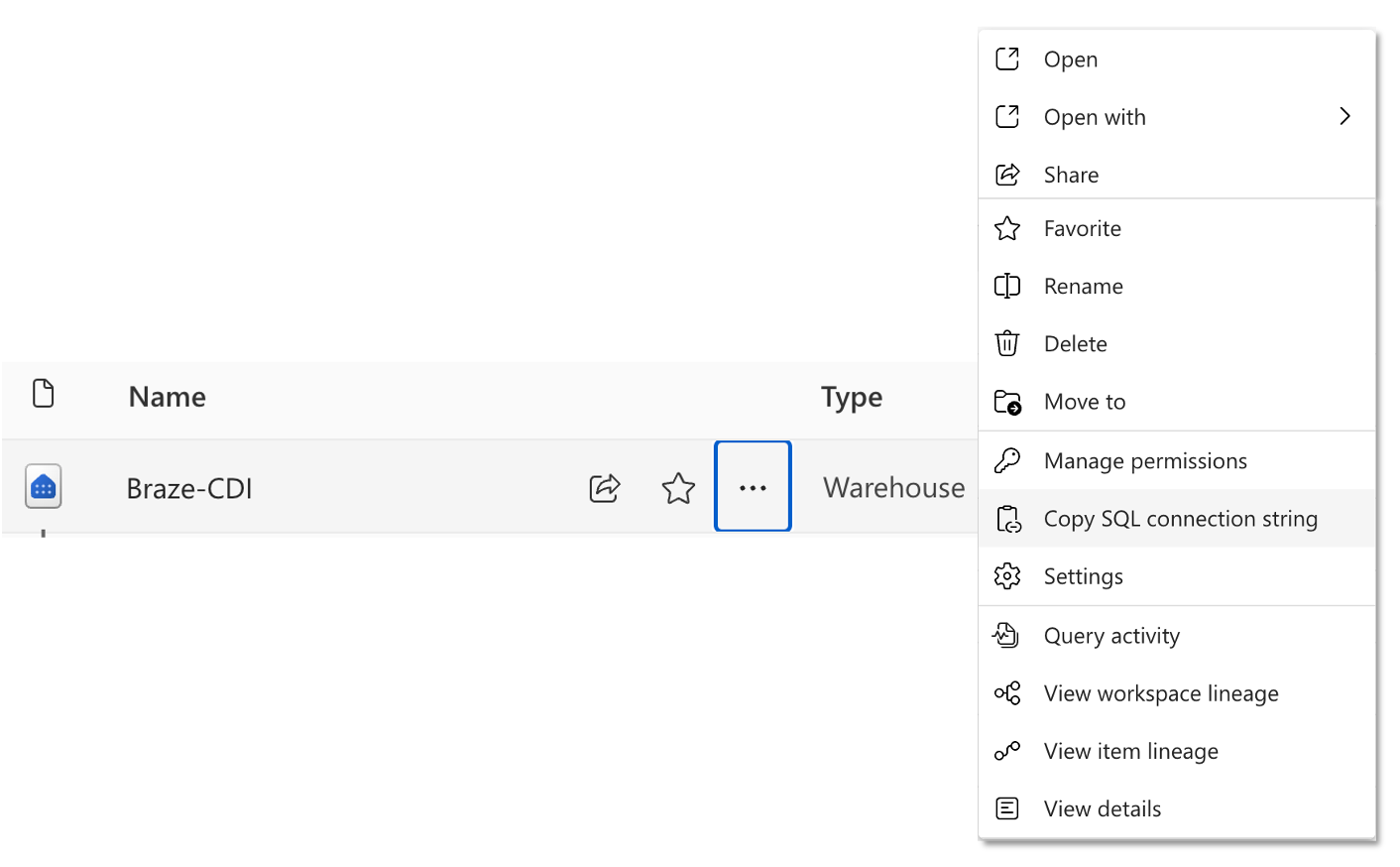
To retrieve the SQL endpoint for your warehouse, go to the workspace in Fabric, hover over the warehouse name in the item list, and select Copy SQL connection string.
Step 1.6: Allow Braze IPs in Firewall (Optional)
Depending on the configuration of your Microsoft Fabric account, you may need to allow the following IP addresses in your firewall to allow traffic from Braze. For more information on enabling this, see the relevant documentation on Entra Conditional Access.
For instances US-01, US-02, US-03, US-04, US-05, US-06, US-07, these are the relevant IP addresses:
23.21.118.19134.206.23.17350.16.249.952.4.160.21454.87.8.3454.156.35.25152.54.89.23818.205.178.15
For instance US-08, these are the relevant IP addresses:
52.151.246.5152.170.163.18240.76.166.15740.76.166.17040.76.166.16740.76.166.16140.76.166.15640.76.166.16640.76.166.16040.88.51.7452.154.67.1740.76.166.8040.76.166.8440.76.166.8540.76.166.8140.76.166.7140.76.166.14440.76.166.145
For instance US-10, these are the relevant IP addresses:
100.25.232.16435.168.86.17952.7.44.1173.92.153.1835.172.3.12950.19.162.19
For instances EU-01 and EU-02, these are the relevant IP addresses:
52.58.142.24252.29.193.12135.158.29.22818.157.135.973.123.166.463.64.27.363.65.88.253.68.144.1883.70.107.88
For instance AU-01, these are the relevant IP addresses:
13.210.1.14513.211.70.15913.238.45.5452.65.73.16754.153.242.23954.206.45.213
For instance ID-01, these are the relevant IP addresses:
108.136.157.246108.137.30.20716.78.128.7116.78.14.13416.78.162.20843.218.73.35
For instance JP-01, these are the relevant IP addresses:
13.159.155.21254.199.221.24113.192.23.1654.250.120.13918.181.114.2323.114.38.100
For instance KR-01, these are the relevant IP addresses:
43.200.215.452.79.67.17552.79.113.60
Step 2: Create a new source in the Braze dashboard
In the Braze Dashboard, go to Data Settings > Cloud Data Ingestion > Sources, select Add data source, and then select Snowflake.
Step 2.1: Add Snowflake connection information
Choose a name for your source and input your Snowflake credentials and configuration, then proceed to the next step.
Before you continue, confirm the value you enter in Snowflake Account Locator.
For the Snowflake Account Locator field, enter your Snowflake account identifier. Enter only the account identifier value, such as myorganization-myaccount. Do not include https://, .snowflakecomputing.com, or any path.
To find your Snowflake account identifier:
- In Snowsight, select your account menu.
- Select View account details.
- Copy the Account identifier value.
- If you copy from a Snowflake URL, use only the value before
.snowflakecomputing.com.
Step 2.2: Add a public key to the Braze user
After inputting your credentials and configuration, click Save credentials and generate an RSA key and go back to Snowflake to complete the setup. Add the public key displayed on the dashboard to the user you created for Braze to connect to Snowflake.
For additional information on how to do this, see the Snowflake documentation. If you want to rotate the keys at any point, Braze can generate a new key pair and provide the new public key.
1
ALTER USER BRAZE_INGESTION_USER SET RSA_PUBLIC_KEY='MIIBIjANBgkqhkiG9w0BA...';
In the Braze Dashboard, go to Data Settings > Cloud Data Ingestion > Sources, select Add data source, and then select Amazon Redshift.
Step 2.1: Add Redshift connection information and source table
Choose a name for your source and input your Redshift credentials and configuration. If you’re using a private network tunnel, toggle the slider and input the tunnel information. Then, proceed to the next step.
In the Braze dashboard, the Database name field only accepts letters (A–Z, a–z), numbers (0–9), and underscores (_), even though Amazon Redshift supports additional characters in database identifiers.
Step 2.2: Test connection and connect to source
Next, select Test connection. Once successful, finalize remaining settings and click Connect to Source. If the connection fails, an error message appears to help troubleshoot the issue.
In the Braze Dashboard, go to Data Settings > Cloud Data Ingestion > Sources, select Add data source, and then select Google BigQuery.
Step 2.1: Add BigQuery connection information and source table
Choose a name for your source. Then, upload the JSON key and provide a name for the service account. Then, input the remaining configuration fields.
Step 2.2: Test connection and connect to source
Next, select Test connection. Once successful, finalize remaining settings and click Connect to Source. If the connection fails, an error message appears to help troubleshoot the issue.
In the Braze Dashboard, go to Data Settings > Cloud Data Ingestion > Sources, select Add data source, and then select Databricks.
Step 2.1: Add Databricks connection information and source table
Choose a name for your source and input your Databricks credentials and configuration. Then, proceed to the next step.
Step 2.2: Test connection and connect to source
Next, select Test connection. Once successful, finalize remaining settings and click Connect to Source. If the connection fails, an error message appears to help troubleshoot the issue.
You must successfully test a source before it can be created. If you close the creation page, your source is not saved.
In the Braze dashboard, go to Data Settings > Cloud Data Ingestion > Sources, select Add data source, and then select Microsoft Fabric.
Step 2.1: Set up a Cloud Data Ingestion sync
Choose a name for your source and input your Microsoft Fabric credentials and configuration.
- Credentials Name is a label for these credentials in Braze, you can set a helpful value here
- See steps in section 1 for details on how to retrieve Tenant ID, Principal ID, Client Secret, and Connection String
Step 2.2: Test connection and connect to source
Next, select Test connection. Once successful, finalize remaining settings and click Connect to Source. If the connection fails, an error message appears to help troubleshoot the issue.
You must successfully test a source before it can be created. If you close the creation page, your source is not saved.
Step 3: Create a new sync in the Braze dashboard
Go to Data Settings > Cloud Data Ingestion > Syncs, and select Create data sync.
Step 3.1: Configure sync details and test connection
Choose a name for your sync. Then, select from any active source and input your source table for the sync. Select a data type and click Test Connection.
Once successful, a preview of the data appears. Select Next: Notifications to continue. If the connection fails, an error message appears to help troubleshoot the issue.
You must successfully test a sync before progressing to next steps. If you need to close out of the sync creation page, click Save as draft to keep your work in progress.
Step 3.2: Add notification preferences
Input contact email(s) for sync error notifications. Braze uses this contact information to send notifications about integration errors, such as unexpected loss of table access.
Contact emails only receive notifications of global or sync-level errors such as missing tables, permissions, and others. They do not receive row-level issues. Global errors indicate critical problems with the connection that prevent syncs from running.
Such problems can include the following:
- Connectivity issues
- Lack of resources
- Permissions issues
- (For catalogs syncs only) Catalog tier is out of space
Step 3.3: Scheduling
Lastly, configure your sync as non-recurring or recurring.
Non-recurring syncs can be triggered manually or via the API.
Recurring syncs can have a frequency anywhere from every 15 minutes to once per month. Braze uses the time zone configured in your Braze dashboard to schedule the recurring sync.
Step 3.1: Configure sync details and test connection
Choose a name for your sync. Then, select from any active source and input your source table for the sync. Select a data type and click Test Connection.
Once successful, a preview of the data appears. Select Next: Notifications to continue. If the connection fails, an error message appears to help troubleshoot the issue.
You must successfully test a sync before progressing to next steps. If you need to close out of the sync creation page, click Save as draft to keep your work in progress.
Step 3.2: Add notification preferences
Input contact email(s) for sync error notifications. Braze uses this contact information to send notifications about integration errors, such as unexpected loss of table access.
Contact emails only receive notifications of global or sync-level errors such as missing tables, permissions, and others. They do not receive row-level issues. Global errors indicate critical problems with the connection that prevent syncs from running.
Such problems can include the following:
- Connectivity issues
- Lack of resources
- Permissions issues
(For catalogs syncs only) Catalog tier is out of space
Step 3.3: Scheduling
Lastly, configure your sync as non-recurring or recurring.
Non-recurring syncs can be triggered manually or via the API.
Recurring syncs can have a frequency anywhere from every 15 minutes to once per month. Braze uses the time zone configured in your Braze dashboard to schedule the recurring sync.
Step 3.1: Configure sync details and test connection
Choose a name for your sync. Then, select from any active source and input your source table for the sync. Select a data type and click Test Connection.
Once successful, a preview of the data appears. Select Next: Notifications to continue. If the connection fails, an error message appears to help troubleshoot the issue.
You must successfully test a sync before progressing to next steps. If you need to close out of the sync creation page, click Save as draft to keep your work in progress.
Step 3.2: Add notification preferences
Input contact email(s) for sync error notifications. Braze uses this contact information to send notifications about integration errors, such as unexpected loss of table access.
Contact emails only receive notifications of global or sync-level errors such as missing tables, permissions, and others. They do not receive row-level issues. Global errors indicate critical problems with the connection that prevent syncs from running. Such problems can include the following:
- Connectivity issues
- Lack of resources
- Permissions issues
(For catalogs syncs only) Catalog tier is out of space
Step 3.3: Scheduling
Lastly, configure your sync as non-recurring or recurring.
Non-recurring syncs can be triggered manually or via the API.
Recurring syncs can have a frequency anywhere from every 15 minutes to once per month. Braze uses the time zone configured in your Braze dashboard to schedule the recurring sync.
Step 3.1: Configure sync details and test connection
Choose a name for your sync. Then, select from any active source and input your source table for the sync. Select a data type and click Test Connection.
Once successful, a preview of the data appears. Select Next: Notifications to continue. If the connection fails, an error message appears to help troubleshoot the issue.
You must successfully test a sync before progressing to next steps. If you need to close out of the sync creation page, click Save as draft to keep your work in progress.
Step 3.2: Add notification preferences
Input contact email(s) for sync error notifications. Braze uses this contact information to send notifications about integration errors, such as unexpected loss of table access.
Contact emails only receive notifications of global or sync-level errors such as missing tables, permissions, and others. They do not receive row-level issues. Global errors indicate critical problems with the connection that prevent syncs from running.
Such problems can include the following:
- Connectivity issues
- Lack of resources
- Permissions issues
(For catalogs syncs only) Catalog tier is out of space
Step 3.3: Scheduling
Lastly, configure your sync as non-recurring or recurring.
Non-recurring syncs can be triggered manually or via the API.
Recurring syncs can have a frequency anywhere from every 15 minutes to once per month. Braze uses the time zone configured in your Braze dashboard to schedule the recurring sync.
Step 3.1: Configure sync details and test connection
Choose a name for your sync. Then, select from any active source and input your source table for the sync. Select a data type and click Test Connection.
Once successful, a preview of the data appears. Select Next: Notifications to continue. If the connection fails, an error message appears to help troubleshoot the issue.
You must successfully test a sync before progressing to next steps. If you need to close out of the sync creation page, click Save as draft to keep your work in progress.
Step 3.2: Add notification preferences
Input contact email(s) for sync error notifications. Braze uses this contact information to send notifications about integration errors, such as unexpected loss of table access.
Contact emails only receive notifications of global or sync-level errors such as missing tables, permissions, and others. They do not receive row-level issues. Global errors indicate critical problems with the connection that prevent syncs from running.
Such problems can include the following:
- Connectivity issues
- Lack of resources
- Permissions issues
(For catalogs syncs only) Catalog tier is out of space
Step 3.3: Scheduling
Lastly, configure your sync as non-recurring or recurring.
Non-recurring syncs can be triggered manually or via the API.
Recurring syncs can have a frequency anywhere from every 15 minutes to once per month. Braze uses the time zone configured in your Braze dashboard to schedule the recurring sync.
You must successfully test an integration before it can move from Draft to Active state. If you close the creation page, your integration is saved, and you can revisit the details page to make changes and test.
Set up additional integrations or users (optional)
You may set up multiple integrations with Braze, but each integration should be configured to sync a different table. When creating additional syncs, you may reuse existing credentials if connecting to the Snowflake account.
If you reuse the same user and role across integrations, you do not need to add the public key again.
You may set up multiple integrations with Braze, but each integration should be configured to sync a different table. When creating additional syncs, you may reuse existing credentials if connecting to the same Snowflake or Redshift account.
If you reuse the same user across integrations, you cannot delete the user in the Braze dashboard until it’s removed from all active syncs.
You may set up multiple integrations with Braze, but each integration should be configured to sync a different table. When creating additional syncs, you may reuse existing credentials if connecting to the same BigQuery account.
If you reuse the same user across integrations, you cannot delete the user in the Braze dashboard until it’s removed from all active syncs.
You may set up multiple integrations with Braze, but each integration should be configured to sync a different table. When creating additional syncs, you may reuse existing credentials if connecting to the same Databricks account.
If you reuse the same user across integrations, you cannot delete the user in the Braze dashboard until it’s removed from all active syncs.
You may set up multiple integrations with Braze, but each integration should be configured to sync a different table. When creating additional syncs, you may reuse existing credentials if connecting to the same Fabric account.
If you reuse the same user across integrations, you cannot delete the user in the Braze dashboard until it’s removed from all active syncs.
Running the sync
When activated, your sync runs on the schedule configured during setup. If you want to run the sync outside the normal testing schedule or to fetch the most recent data, select Sync Now. This run does not impact regularly scheduled future syncs.
When activated, your sync runs on the schedule configured during setup. If you want to run the sync outside the normal testing schedule or to fetch the most recent data, select Sync Now. This run does not impact regularly scheduled future syncs.
When activated, your sync runs on the schedule configured during setup. If you want to run the sync outside the normal testing schedule or to fetch the most recent data, select Sync Now. This run does not impact regularly scheduled future syncs.
When activated, your sync runs on the schedule configured during setup. If you want to run the sync outside the normal testing schedule or to fetch the most recent data, select Sync Now. This run does not impact regularly scheduled future syncs.
When activated, your sync runs on the schedule configured during setup. If you want to run the sync outside the normal testing schedule or to fetch the most recent data, select Sync Now. This run does not impact regularly scheduled future syncs.