Access your account
This article covers how to get your Braze account, how to log in after being granted access, and how to troubleshoot your dashboard access and dashboard performance.
If you are your company’s first Braze user and logging in for the first time, you receive a welcome email from @alerts.braze.com asking you to confirm your email and log in on the first day of your contract.
After confirming your account, you can add additional users from the Company Users page of your dashboard. All users receive an email asking them to confirm their account after they’ve been added.
If you aren’t the first user on your company’s Braze account, contact your company’s Braze account administrator and ask them to create your account. You then receive a welcome email from @alerts.braze.com asking you to confirm your email and log in.
Logging in
Whether it’s your first time logging in or your hundredth, here’s how to access your dashboard. If you are your company’s first user, follow the guidance in the preceding section. Otherwise, you can log in after your company’s Braze admin creates your account.
You can either log in from the Braze.com home site, or use your dashboard URL that corresponds to your specific Braze instance. For your convenience, Braze has several single sign-on (SSO) options such as:
After you log into Braze with SSO, you can no longer use your password to log into the dashboard.Both email addresses will direct emails to the same inbox, but Braze will recognize them as separate accounts when you log in. Clearing cookies will log you out, so unsaved work will be lost.
Supported browsers
The Braze dashboard supports the following browsers:
- Chrome (version 87 or newer)
- Firefox (version 85 or newer)
- Safari (version 15.4 or newer)
- Edge (version 87 or newer)
If your Braze dashboard says you have an unexpected error and your browser console tool shows the error ReferenceError: structuredClone is not defined, your browser is outdated. If this error keeps reoccurring, uninstall and reinstall your browser.
Accessing multiple Braze dashboards
Braze doesn’t allow you to register the same email address to multiple dashboard users in the same cluster (for example, if you have two dashboards on US-01). You can use the same email to create accounts on different clusters (for example, if you have one dashboard on US-01 and one on US-05). If you need to access multiple Braze dashboards in the same cluster, you can do the following:
Use email aliases
If your email provider is Gmail, you can create aliases by adding a + sign followed by any text to your email address. For example:
- Original email:
[email protected] - Alias email:
[email protected]
Both email addresses direct emails to the same inbox, but Braze recognizes them as separate accounts when you log in.
Create separate aliases with other providers
If your email provider doesn’t support + aliasing, you can still create separate aliases, such as setting up [email protected] to forward to [email protected]. This allows multiple addresses to funnel to the same inbox while being recognized as different emails by Braze.
Use multi-company developers
The multi-company developers feature allows sharing of a single user account across multiple companies. Users can toggle between different company dashboards from their user profile menu.
If you have SSO and want to set up multi-company developers, you need to enable a SAML Custom Entity ID by setting up a custom SAML SSO integration. Follow the steps in Service Provider (SP) initiated login, but apply these changes:
- Change Entity ID to
braze_dashboard_<companyID>for each dashboard integration. - Contact your customer success manager or account manager to enable the
saml_sso_custom_entity_idfeature flipper for each dashboard.
Considerations for Single Sign-On (SSO)
If you use Single Sign-On (SSO), be aware that having multiple different email addresses could lead to complications. Confirm that your SSO settings are configured correctly to avoid access issues.
Troubleshooting
Resetting your password
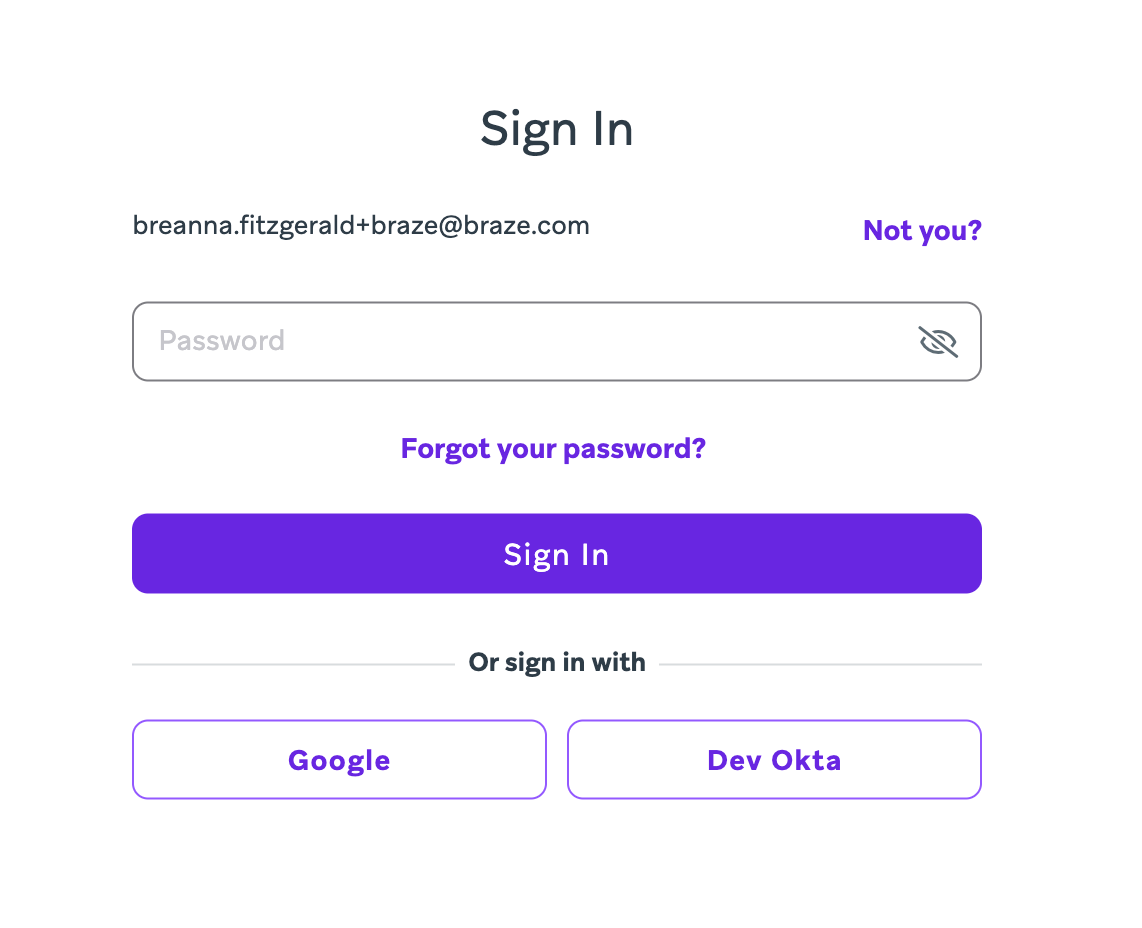
To reset your password, select the Forgot your password? link on the dashboard login page. You’ll be prompted to input your email to receive a link to reset your password.
Clearing your browser cache and cookies
If you’re having issues with dashboard performance, such as your dashboard or segment performance list not loading, try clearing your browser cache and cookies by following the steps for your respective browser.
Clearing cookies logs you out, so unsaved work is lost.
- Clear cache & cookies in Chrome
- Clear cookies in Safari on Mac
- Clear cookies and site data in Firefox
- Delete all cookies in Microsoft Edge
If clearing your browser cache and cookies doesn’t resolve your issues, contact Support.
“Please Refresh Page” or “Unexpected Error” while navigating the dashboard
This error may appear when a company user does not belong to any workspaces. To troubleshoot:
- Go to the Company Users page.
- Check whether the user has been added to a workspace.
- If they are not part of any workspace, add them and assign the appropriate permissions.
- Ask the user to refresh their dashboard.
- If the issue persists, contact Support.
Accessing the drag-and-drop editor
For most company users, the drag-and-drop editor should load. However, if you’re using a VPN or are behind a firewall, you may need to allowlist a domain. Contact your IT administrator to check that *.bz-rndr.com is allowlisted.
The editor may experience loading issues due to the following:
- Transient error: These are temporary failures that may affect connectivity, communication, or data transfer. Fortunately, they typically resolve on their own without requiring significant intervention, as they’re often caused by short-lived conditions and do not indicate systemic problems.
- Major error: This may involve an underlying infrastructure or product issue. You can check our Braze system status page as we are likely aware of the situation and actively working to resolve it.
If you’re still experiencing issues, open a support ticket. Before doing so, check that your IT administrator has confirmed that *.bz-rndr.com is allowlisted on your end.
Accessing Braze Learning
If you’re experiencing issues logging into Braze Learning and find yourself stuck in a loop that redirects you to the dashboard, do the following steps:
- If you have multiple Braze accounts, logging in with the wrong account twice sends you to the Braze dashboard. Confirm you’re logging into the correct account.
- If you have an ad blocker, confirm it is turned off. It may block cookies necessary for single sign-on functionality.
- Go to Company Settings > Security Settings and verify that single sign-on (SSO) is turned on.
- Confirm that your dashboard user profile includes both a first and last name. Not having a last name can disrupt the login process.
- Access Braze Learning from your dashboard by going to Support > Braze Learning.
- If you continue to experience issues, consider re-creating your account. Users who accessed Braze Learning during the free trial phase may have difficulties accessing it now.
Two-factor authentication (2FA) issues
If a user is experiencing issues with Two-Factor Authentication (2FA) and can’t access the Braze dashboard, it may be due to several reasons. Most commonly, they may no longer have access to the registered phone number or the device where the Authy app is installed.
An admin should reset the 2FA for the affected user by doing the following:
- Go to Manage Users.
- Select Edit User for the user experiencing 2FA issues.
- Choose the option to Reset 2FA.
- Confirm the 2FA reset when prompted.
- If the reset doesn’t immediately resolve the issue, clear your cookies and cache.
Braze cannot reset 2FA on behalf of users for security reasons, so if the admin is unable to reset 2FA, create a support ticket.
Considerations
- If 2FA is enforced at the company level: After the reset, Braze prompts the user to set up their 2FA again the next time they log in.
- If 2FA is not enforced at the company level: The user logs into the dashboard without needing to set up 2FA again. If they want to enable 2FA, they can do so in Account Settings.
This reset process also applies to users who have been locked out of their account due to requesting too many tokens within the last hour.
Locked out of account
If you’re locked out of your Braze account, you can get back in by following the steps below.
You can tell what kind of lock out you’re experiencing by the error message you receive:
- I see an error about my password.
- I don’t see an error, but Braze still won’t let me in.
- I see an error about account suspension.
Password error
Your account security is important to us, so passwords are required to log into your Braze account.
- Check that you are logging into the correct Braze dashboard instance. Check with your account administrator or Braze account manager to be sure.
- Your password may have expired, so you need to reset it.
- If you use a single sign-on service, check with your account administrator that the set up has been completed properly.
- If your company is on several instances of Braze, you may be using the incorrect email to log in.
When in doubt, you can always reset your password.
Instance error
If you are using the same machine you usually do to log in, Braze should automatically detect the correct instance. However, if it doesn’t or you’re logging in for the first time, consider the following:
- Check that you are logging into the correct Braze dashboard instance. Check with your account administrator or Braze account manager to be sure.
- If your company is on several instances of Braze, you may be using the incorrect email to log in.
Account suspension
This doesn’t happen very often, but Braze takes account suspension and deletions very seriously. If you encounter this error, reach out to your company’s Braze administrator, Braze account manager, or [Support][support].
Braze dashboard won’t load or work as expected
First, test if the dashboard loads in a different browser. If the issue doesn’t persist in a different browser, try the following:
- Re-launch the dashboard: Log out, quit your browser, then try to log into your dashboard.
- Refresh your local browser: Clear your cookies and browser cache, then try to log into your dashboard again.
- Use compatible plugins or third-party tools: Ad-blockers or security software may prevent the Braze dashboard from loading. Test this by disabling an ad-blocker, then logging into your Braze dashboard.
- You can also check your browser console logs. Errors related to
ERR_BLOCKED_BY_CLIENTmay indicate the content is blocked by an ad blocker. - Check your connection quality: Your connection quality may be poor. Try logging into your Braze dashboard on a different device.
- Confirm you’re accessing the correct cluster: Make sure you’re logging into the cluster that is assigned to your company. For example, you may be assigned to US-03, but you’re logging into US-01.
- Update your browser: Update your browser to the latest supported browser, then try to log into your dashboard.
If the issue occurs on all browsers, try the following:
- Check your network connection: Try turning off your VPN, if possible, or disable and re-enable your network connection.
- Restart your device: Try logging into your Braze dashboard after restarting your device.
If you’ve solved the prior issues and your dashboard still won’t load or work as expected, contact Support.
The user belongs to no workspace
Verify this by going to Settings > Company Users and checking the user’s workspace-level permissions. Add the necessary workspaces to Workspaces.
Troubleshooting as a new user
If you’re a new Braze user having trouble logging in or accessing your account for the first time, follow these steps to resolve common issues:
I never received the welcome email
- Check your spam folder: Confirm that the account activation email wasn’t filtered into your spam or junk folder.
- Verify your email address: Have your admin check the email address associated with your new Braze account to confirm it’s correct.
- IT policies: Confirm with your IT team that there aren’t policies in place that might prevent the activation email from being received.
I received the email, but I’m stuck setting up two-factor authentication (2FA)
- Reset 2FA: If you’re having trouble setting up 2FA, your admin can reset 2FA for your user account in the settings.
- Re-add user: If issues persist, the admin can delete your user account from the dashboard and re-add you. This allows for the creation of the user with the same details.
If problems continue after these steps, contact Support for further assistance.
Next steps
After you access your account, explore these resources:
- The Braze dashboard to learn how to navigate key features and tools.
- Language settings to set your preferred dashboard language.
 Edit this page on GitHub