Create an SMS, MMS, or RCS message
SMS, MMS, and RCS campaigns are great for directly reaching and programmatically conversing with your customers. You can use Liquid and other dynamic content to create a personal experience with your users and create an environment that fosters and enhances an unobtrusive user experience with your brand.
Step 1: Choose where to build your message
Not sure whether your message should be sent using a campaign or a Canvas? Campaigns are better for single, targeted messaging campaigns, while Canvases are better for multi-step user journeys.
- Go to Messaging > Campaigns and select Create Campaign.
- Select SMS/MMS/RCS, or, for campaigns targeting multiple channels, select Multichannel.
- Name your campaign something clear and meaningful.
- Add teams and tags as needed.
- Tags make your campaigns easier to find and build reports out of. For example, when using the Report Builder, you can filter by particular tags.
- Add and name as many variants as you need for your campaign. You can choose different platforms, message types, and layouts for each of your added variants. For more on this topic, refer to Multivariate and A/B testing.
- Braze allows you to include both SMS and RCS variants within a single campaign, so you can compare the performance of each.
If all of the messages in your campaign are going to be similar or have the same content, compose your message before adding additional variants. You can then choose Copy from Variant from the Add Variant dropdown.
- Create your Canvas using the Canvas composer.
- After you’ve set up your Canvas, add an SMS/MMS/RCS Message step in the Canvas builder.
- Name your step something clear and meaningful.
- Choose a step schedule and specify a delay as needed.
- Filter your audience for this step as necessary. You can further refine the recipients of this step by specifying segments and adding additional filters. Audience options will be checked after the delay at the time messages are sent.
- Choose your advancement behavior.
- Choose any other messaging channels which you would like to pair with your message.
Step 2: Select a subscription group
Select a subscription group to ensure you’re sending your message to the proper users. When selecting a subscription group, Braze will automatically add a segmenting filter, ensuring that only subscribed users will receive the campaign.
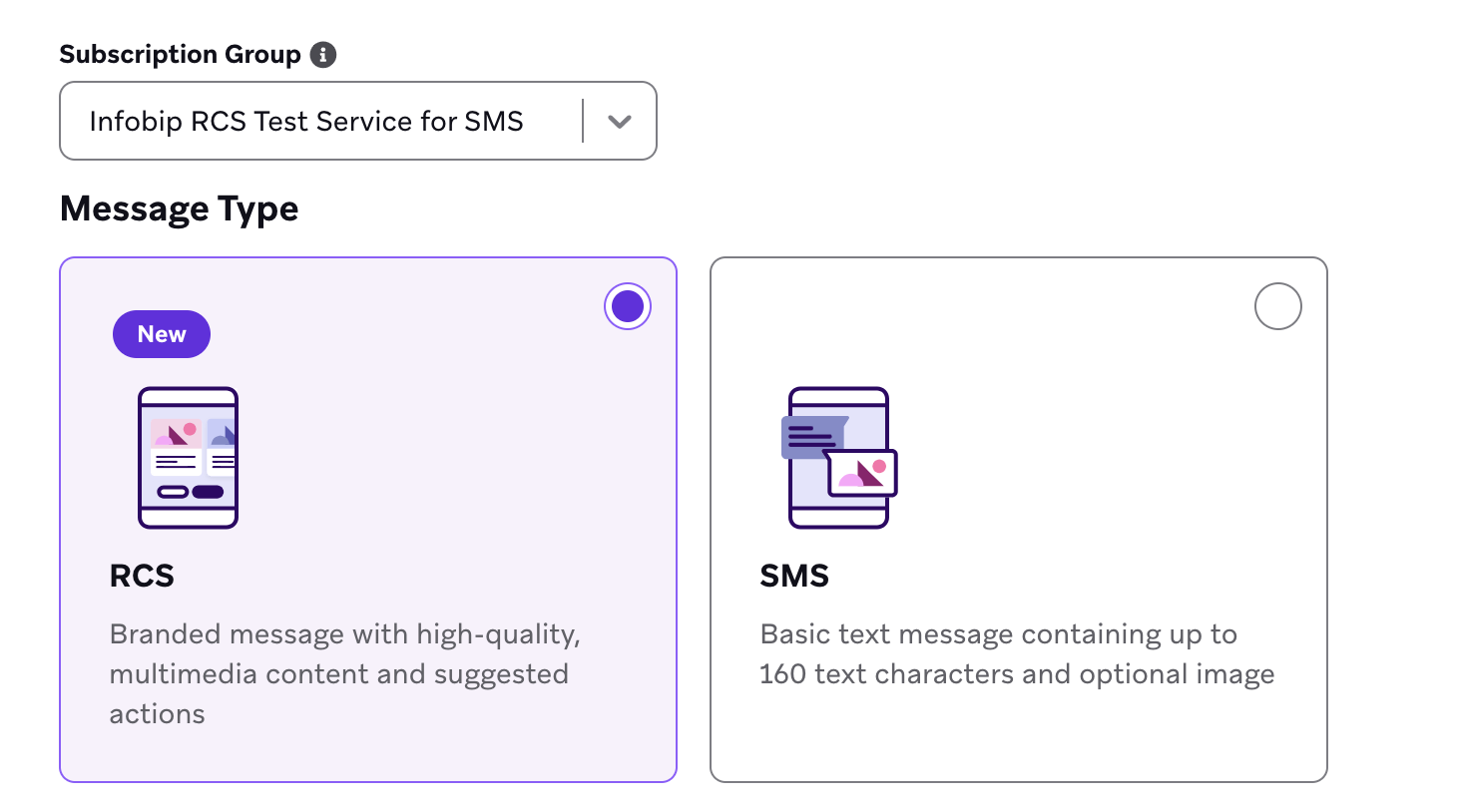
The subscription group you select determines which message types are available in the composer:
| Subscription group type | Available message types |
|---|---|
| SMS-only | SMS |
| SMS with MMS-enabled numbers | SMS and MMS |
| RCS-enabled (with RCS-verified sender) | SMS, MMS (if enabled), and RCS |
Braze strongly recommends that every subscription group containing an RCS sender also includes at least one SMS code for fallback. This ensures that if an RCS message fails to deliver (for example, due to device incompatibility or incomplete carrier coverage), the message still reaches your user through SMS.
After selecting your subscription group, choose the message type you’d like to compose. If your subscription group supports multiple types, you’ll see options to select between them.
Step 3: Compose your message
The compose experience changes depending on which message type you selected. Select the tab for your message type.
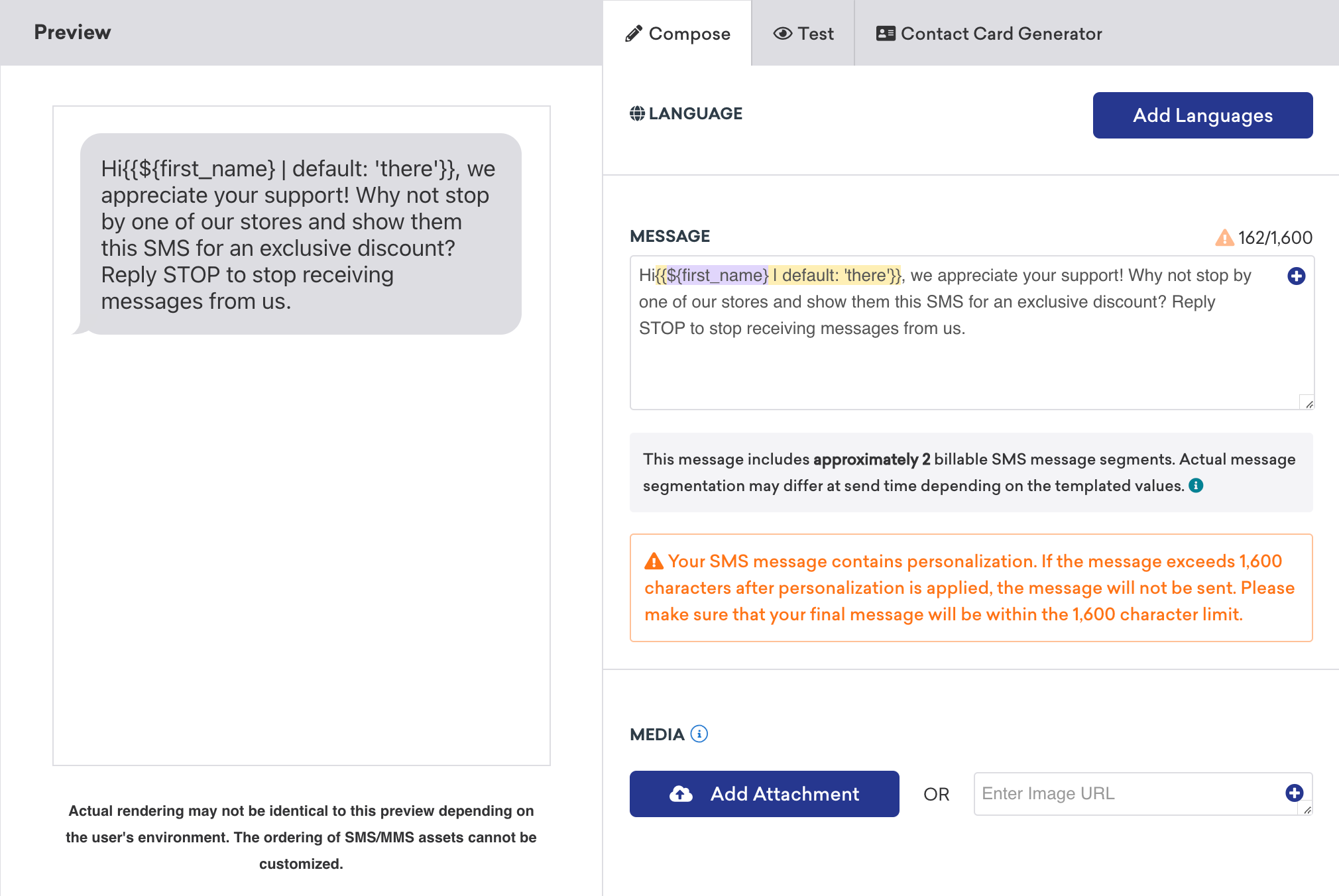
Write your message using languages and personalization (Liquid, Connected Content, and emojis) as needed. Be sure to adhere to our message copy limits to reduce your chances of overage charges.
Before proceeding, read the guidelines for SMS message segments and copy limits. SMS message segments are the character batches that phone carriers use to measure text messages. Messages are charged per message segment, so it’s a good idea to understand the nuances of how messages will be split.
Adding a contact card
You can add a contact card to your SMS message so customers can add your business and contact information to their device contacts. You can assign properties such as company name, phone number, address, email, and a small photo. Refer to Contact cards for details.
To send an MMS message, your subscription group must have at least one MMS-enabled phone number. This is indicated by an MMS tag next to the subscription group in the composer.
Enter your message body, then upload a PNG, JPEG, or GIF image from the media library or specify an image URL. Only one image is supported per message.
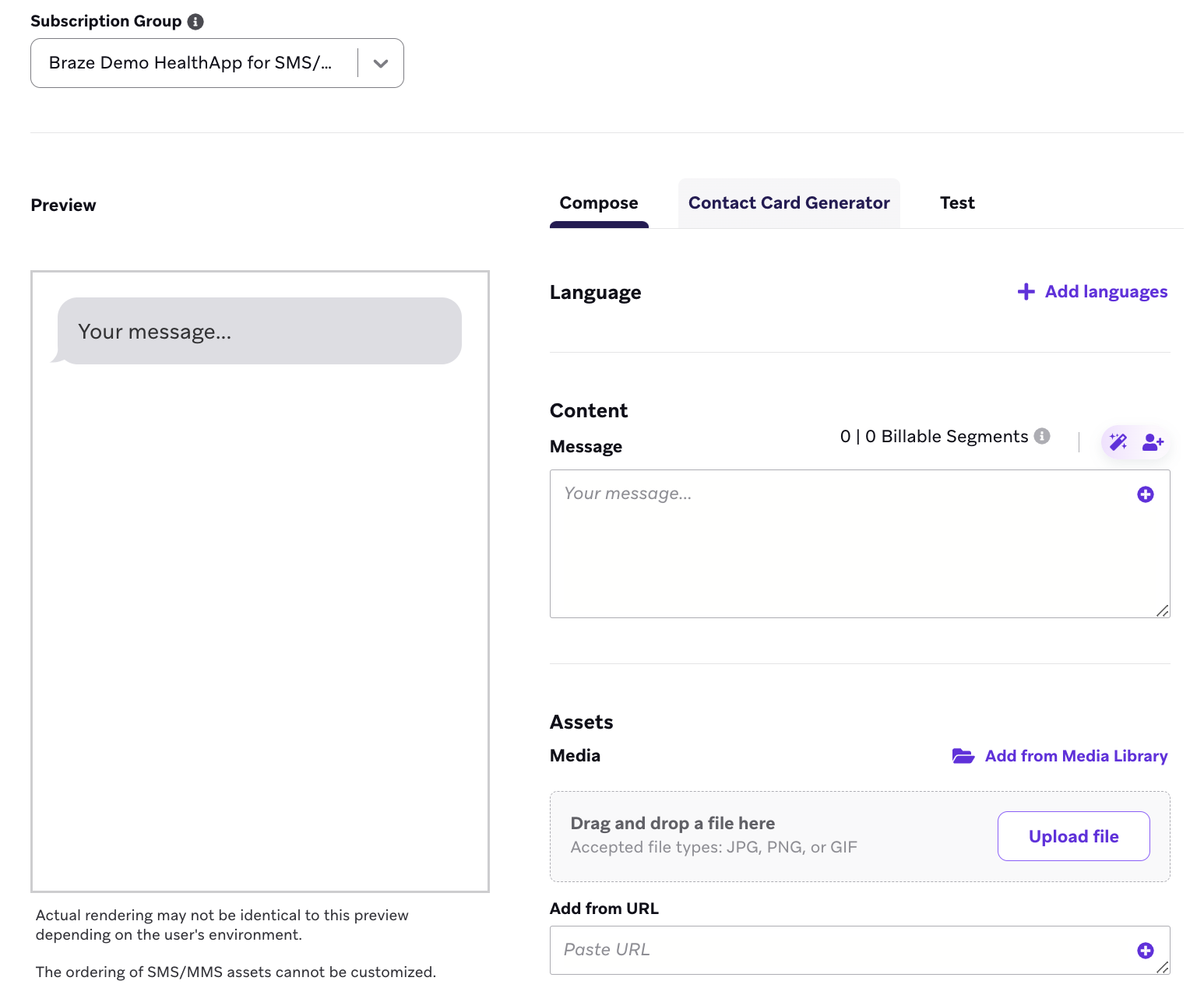
Image specifications
| Property | Recommendation |
|---|---|
| Size | Up to 600 KB |
| File types | PNG, JPEG, GIF |
Contact cards
You can also include a contact card (vCard) instead of an image.
Carrier behavior
MMS messages are billed at a different rate than text-only SMS. Not all carriers can accept MMS. In these cases, the MMS is automatically converted to an image link the user can select.
Inbound MMS and personalization
When a customer sends an inbound message that includes media, Braze exposes the media in Currents SMS inbound events and in Liquid as {{sms.${inbound_media_urls}}} (for example in retargeting or follow-up messages). For more on using inbound SMS properties in Canvas, see Message step.
Choose between a Text or Media message type.
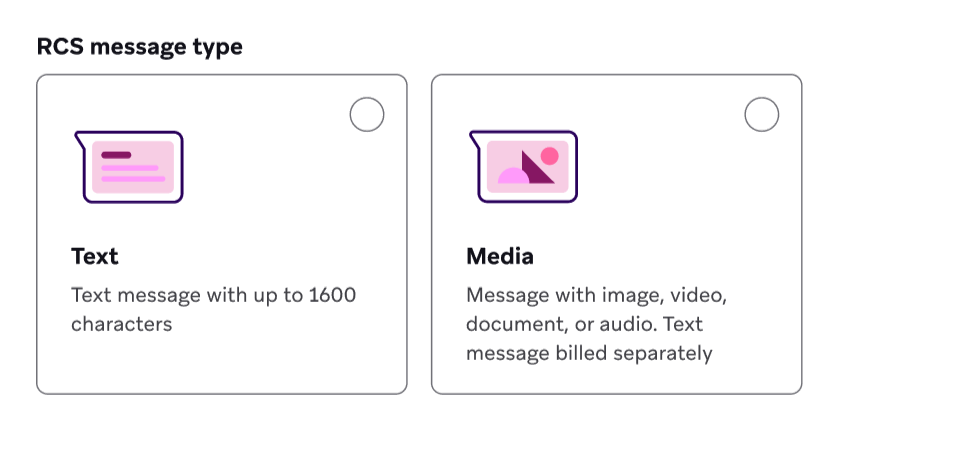
RCS text messages focus on text as a medium. If your message is up to 160 characters without rich elements, it’s billed as a basic RCS message. If you exceed 160 characters or use a rich element, it’s billed as a rich (single) RCS message with a character limit of 3,072.
Features:
- All SMS features are included, with advanced tracking available for URL click tracking.
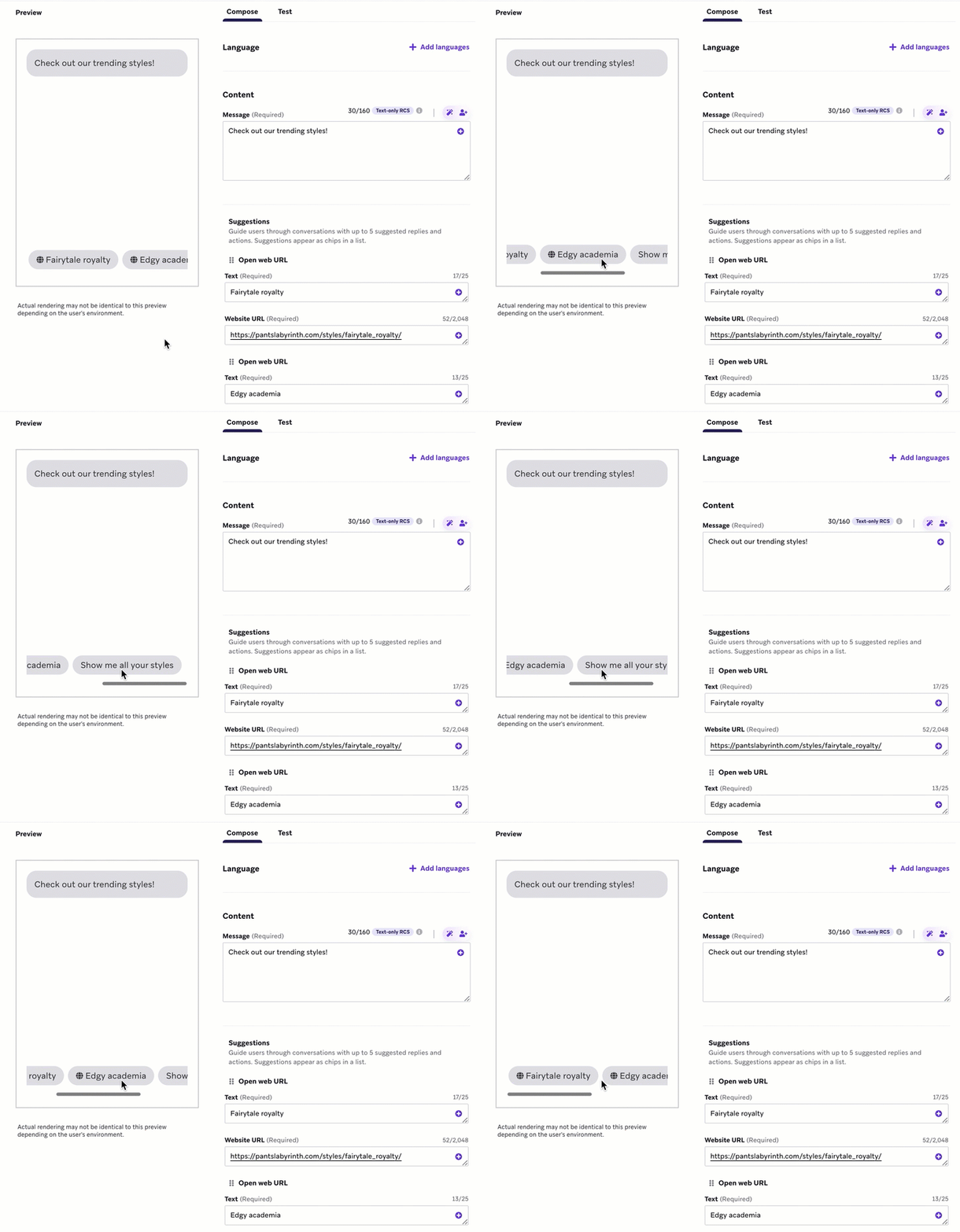
- Suggested replies: Buttons containing suggested responses that users can select to pre-populate in their text input.
- Suggested actions: Buttons that initiate an action on the user’s device. Braze currently supports OpenURL suggested actions, which redirect users to a webpage or other URL-identified location.
Considerations:
- Android and iOS can truncate differently: Android shows full rich message text, while iOS truncates after the third line.
- You can add up to five buttons per message. These can be either suggested actions or suggested replies.
- Longer text blocks and many buttons can overwhelm recipients; favor simplicity when you can.
- In some cases, it can be more cost-effective to send longer text-only messages through RCS than with SMS, because longer SMS messages are broken into multiple billable segments, whereas RCS messages are billed per message.
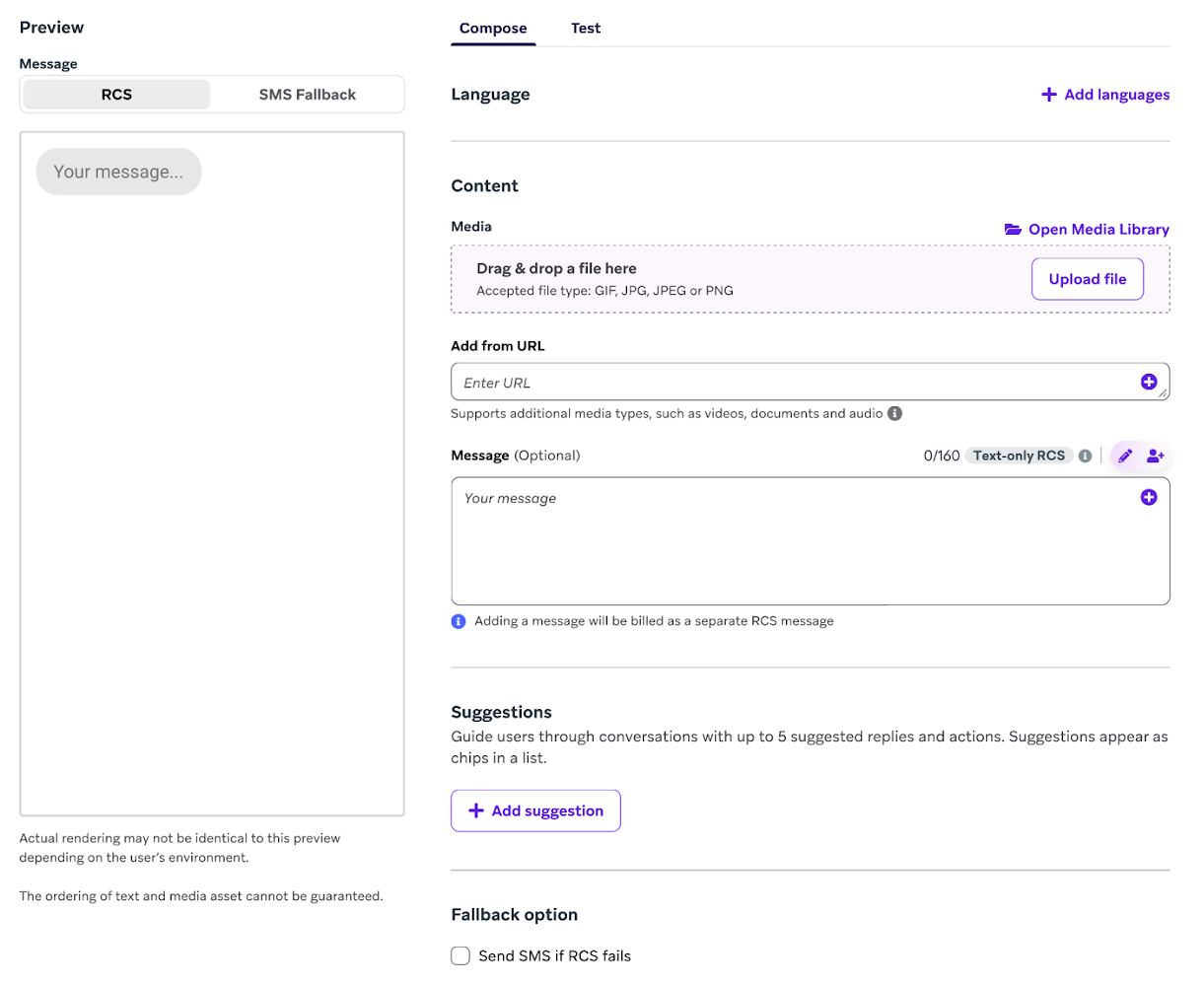
RCS media messages allow you to use engaging media formats that aren’t possible with SMS, including image, video, and document files.
Features:
- Supports everything available in text message types, including text, suggested replies, and suggested actions.
- Image files (JPEG, PNG) uploaded from the media library.
- Video files (MP4, MPEG, MV4) added by URL in the message composer.
- Document files (PDF) added by URL in the message composer.
File specifications:
| File type | Specifications |
|---|---|
| All | File size limited to 100 MB. File URL can have up to 2,048 characters. |
| Image | Supported formats: JPG, JPEG, GIF |
| Video | Supported formats: H263, M4V, MP4, MPEG-4, MPEG, WEBM |
| Document | Supported format: PDF |
Considerations:
The user experience of receiving RCS messages may vary based on carrier coverage, mobile device hardware, and operating system. RCS integrates more naturally with Android devices, and different devices may render the experience at different speeds and qualities.
Write your message using languages and personalization (Liquid, Connected Content, and emojis) as needed. Be sure to adhere to message copy limits to reduce your chances of overage charges.
Before proceeding, read the RCS message type guidelines above. RCS messages are charged per message, so it’s a good idea to understand what can be included in each type.
Tips
Using Liquid
If you plan to use Liquid, be sure to include a default value for your chosen personalization so, in the event your user’s profile is incomplete, they will not receive a blank placeholder Hi, ! instead of their name or a coherent sentence.
Generating AI copy
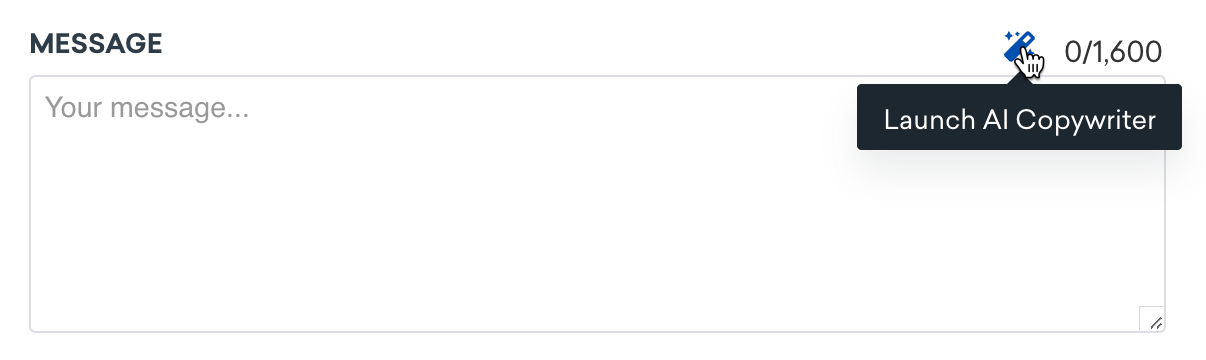
Try using the AI copywriting assistant. Input a product name or description, and the AI will generate human-like marketing copy for use in your messaging.
Creating right-to-left messages
The final appearance of right-to-left messages depends largely on how service providers render them. For best practices on crafting right-to-left messages that display as accurately as possible, refer to Creating right-to-left messages.
Create conversational message workflows (RCS)
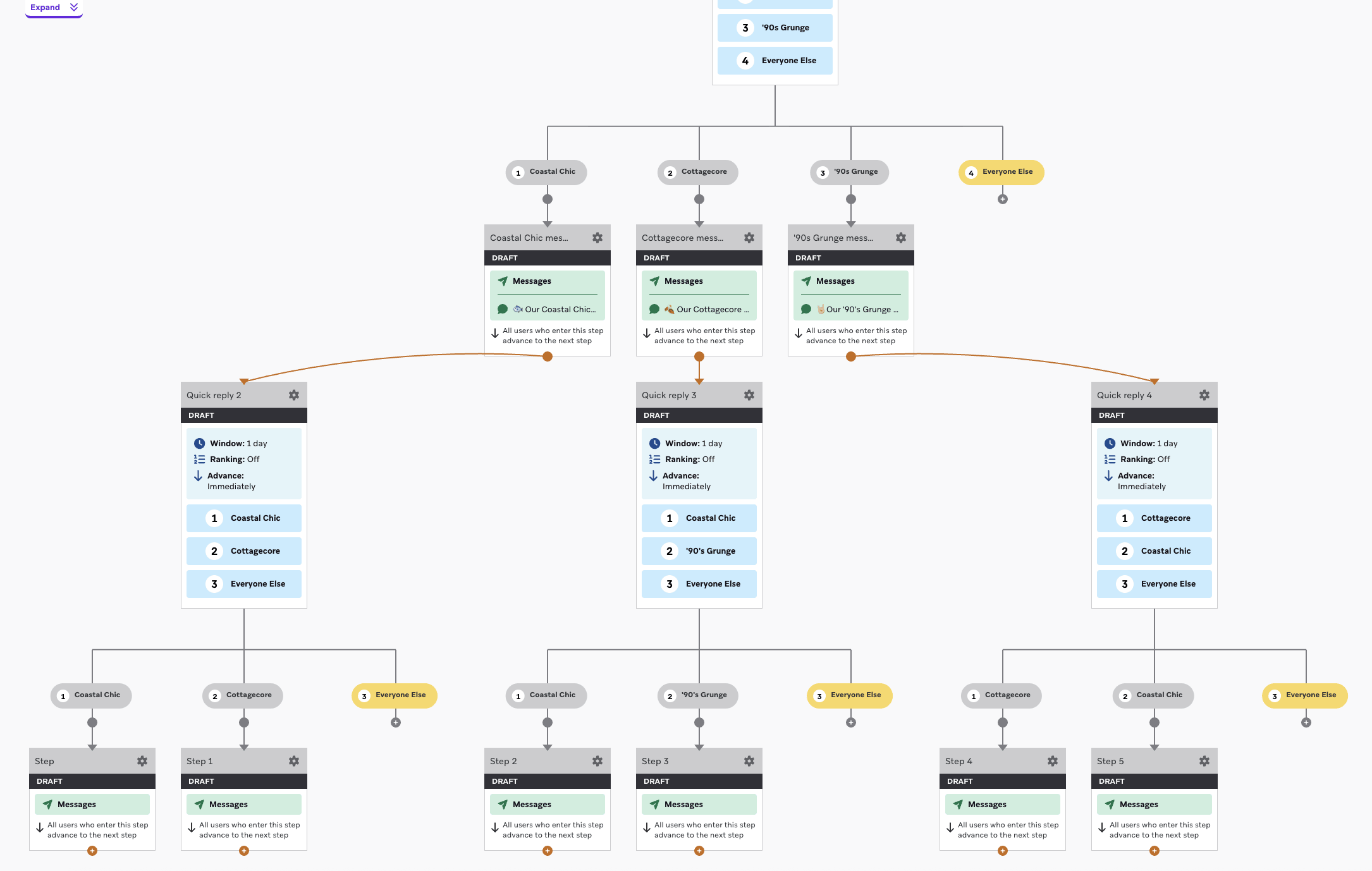
Conversational message workflows let you respond dynamically to users, creating a back-and-forth messaging experience. To build a workflow, create a Canvas and then combine suggested replies with Action Paths to direct your workflow based on which reply a user selects.
- In the Canvas builder, create an RCS message step with multiple suggested replies.
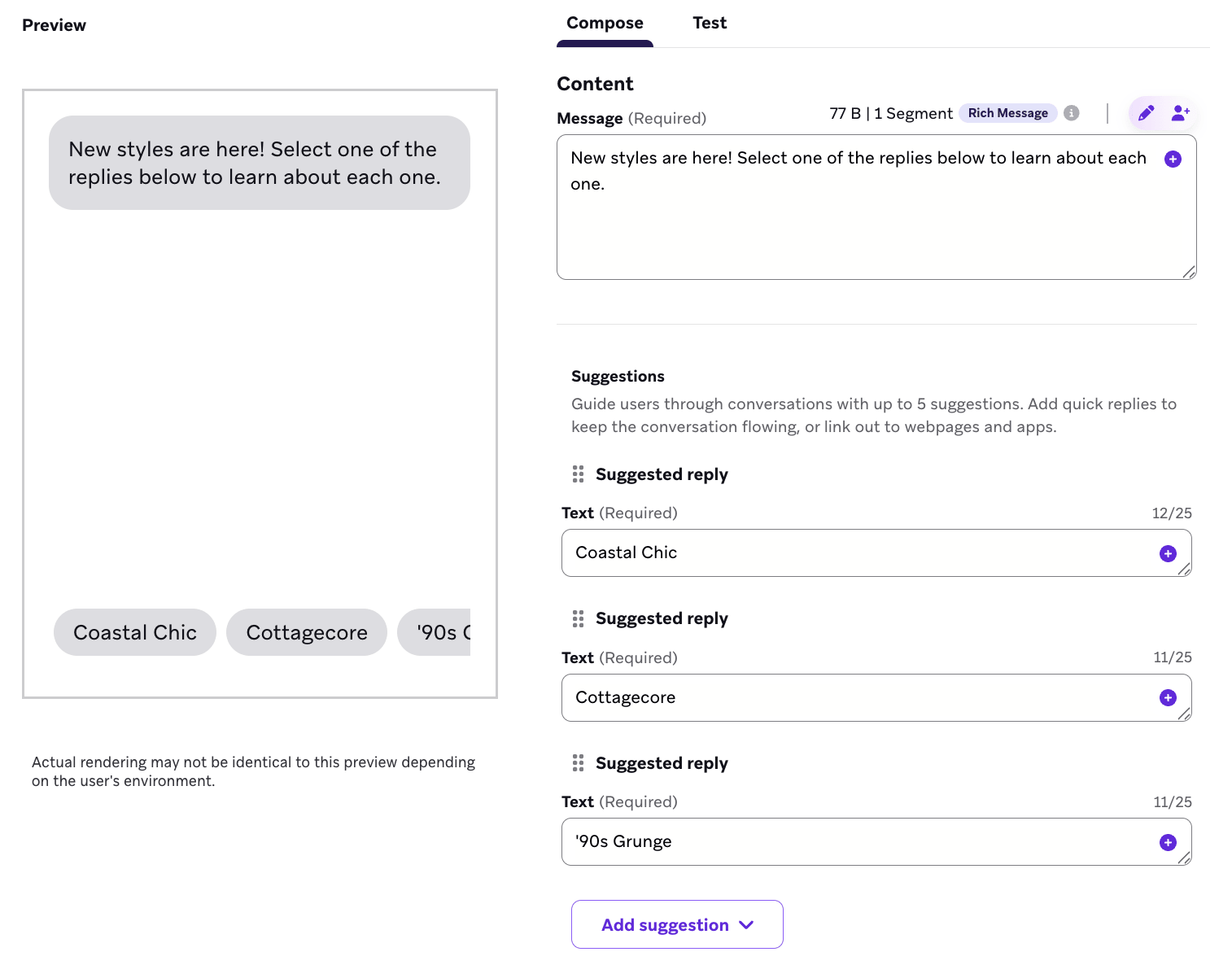
- Connect that message to an Action Path with an action group for each suggested reply.
- For each action group:
- Select the trigger Send an SMS inbound message.
- Set the message body to be the same as the corresponding suggested reply.
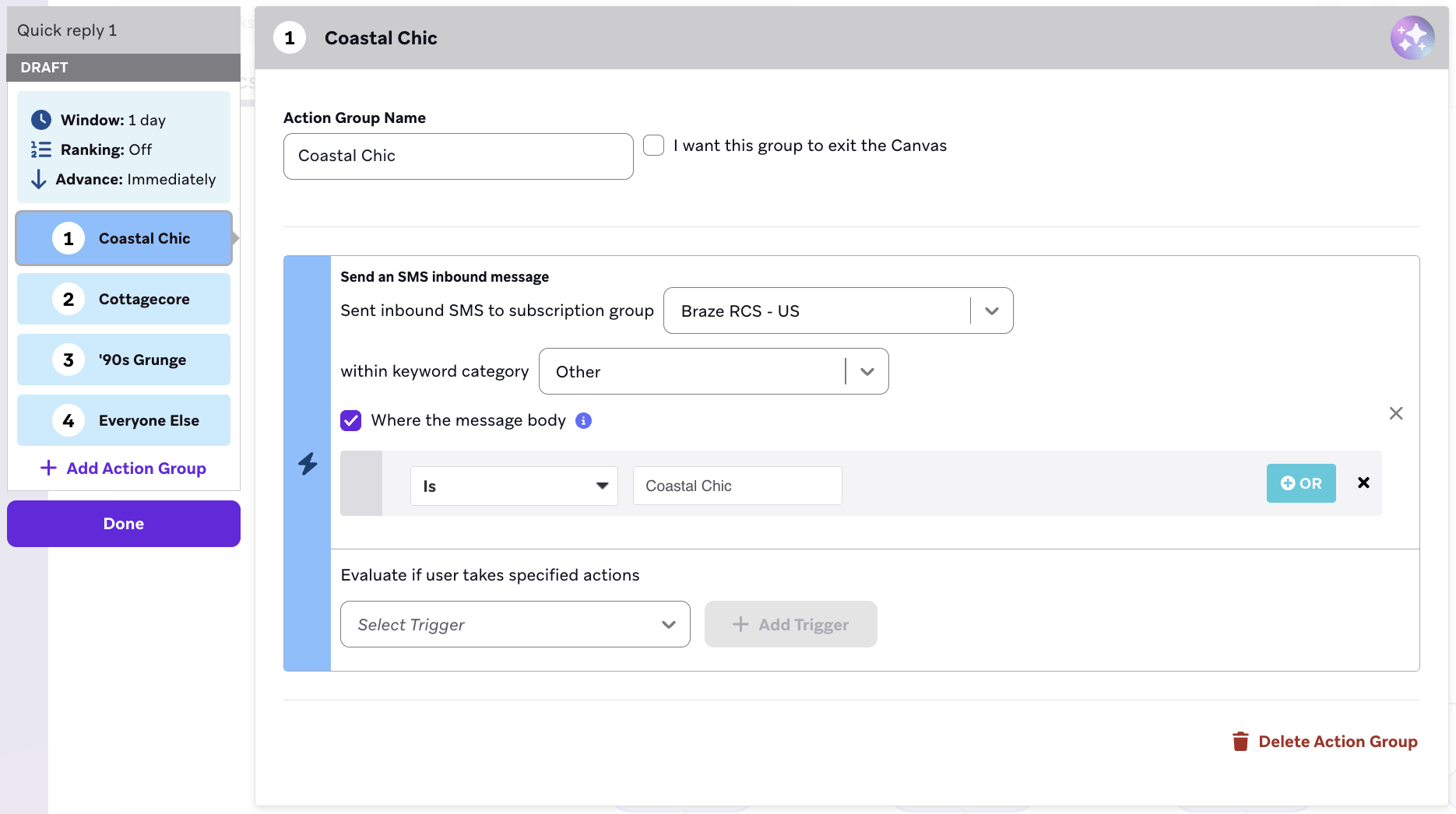
- Connect each action group to an RCS message step, and then add content based on the associated suggested reply.
- Continue the conversational workflow by adding suggested replies to any follow-up messages.
- Repeat steps 2–4 until the workflow is complete.
Step 4: Preview and test your message
Braze always recommends previewing and testing your message before sending. Switch to the Test tab to send a test SMS, MMS, or RCS message to content test groups or individual users, or preview the message as a user directly in Braze.
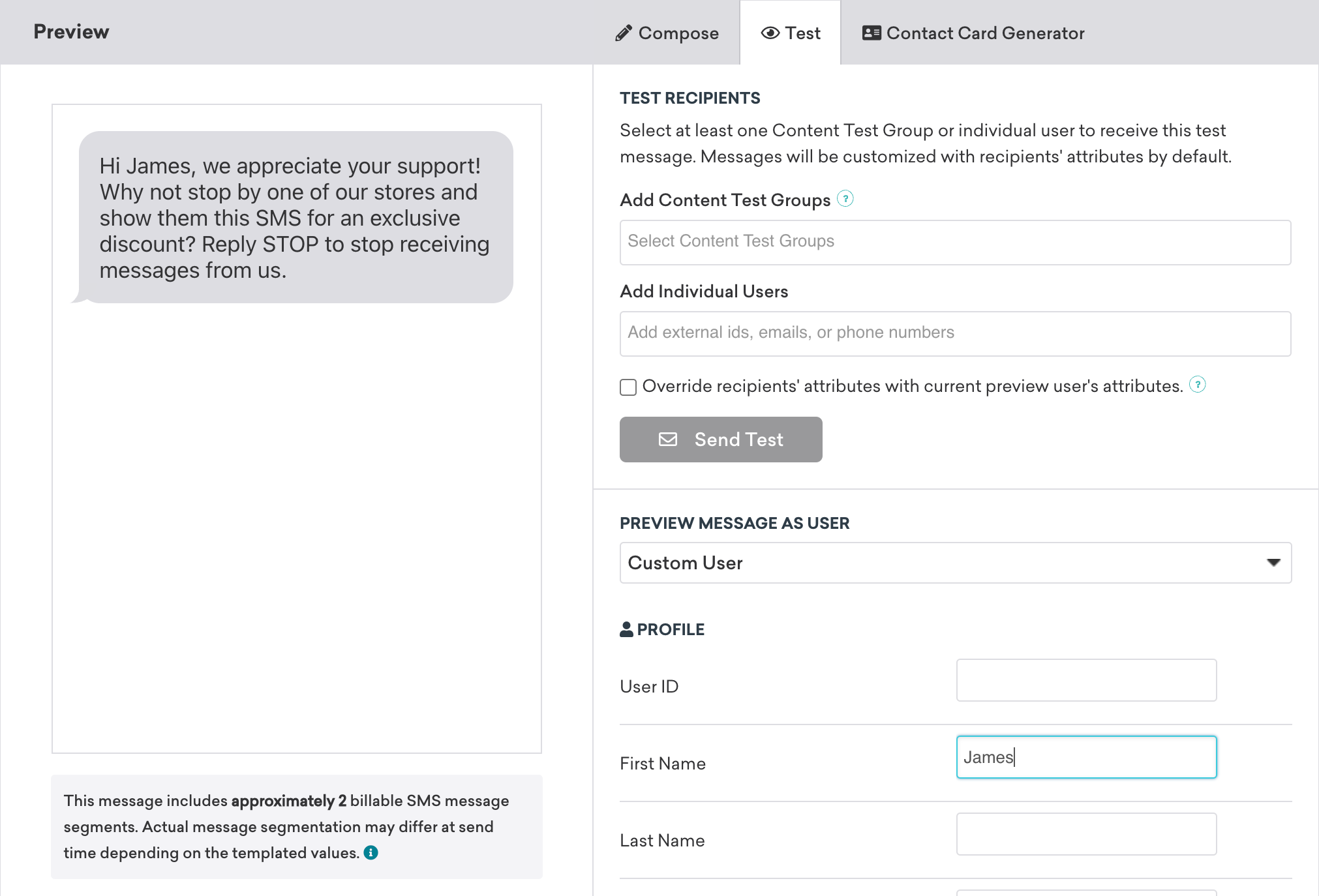
If you’d like to test how many segments your SMS may be split into, test your copy length with the SMS segment calculator.
For MMS, the ordering of assets (image and message body) cannot be customized. The ordering is dependent on the phone receiving the message.
Because RCS rendering is controlled by the user’s operating system, device manufacturer, carrier, and messaging app (for example, Google Messages vs. Apple Messages), message appearance can vary. The preview shown in Braze may not exactly match what an end user receives. Validate the final rendering on real devices whenever possible.
For more information, see Send test messages.
Step 5: Build the remainder of your campaign or Canvas
Next, build the remainder of your campaign. Refer to the following sections for further details on how to best use our tools to build your message.
Choose delivery schedule or trigger
Messages can be delivered based on a scheduled time, an action, or an API trigger. For more, refer to Scheduling your campaign.
For action-based delivery, you can also set the campaign’s duration and Quiet Hours.
This step is also where you can specify delivery controls, such as allowing users to become re-eligible to receive the campaign, or enabling frequency capping rules.
Choose users to target
Next, target users by choosing segments or filters to narrow down your audience. You should have already chosen the subscription group, which narrows users by the level or category of communication they wish to have with you.
Your message will only be sent to users who already match the conditions you set in the Target Audience step. After that, they still need to meet the trigger you define in the Schedule Delivery step. Think of the target audience as a waiting room—only people already inside can move forward when the next action happens.
Select the larger audience from your segments, and narrow that segment further with optional filters. You automatically receive a preview of what that approximate segment population looks like. Keep in mind that exact segment membership is always calculated before the message is sent.
Interested in retargeting? Refer to User retargeting to learn more.
Choose conversion events
Braze allows you to track how often users perform specific actions, conversion events, after receiving a campaign. You have the option of allowing up to a 30-day window during which a conversion will be counted if the user takes the specified action.
Conversion events help you measure the success of your campaign. For example:
- If you are using geotargeting to trigger a message that has an end goal of the user making a purchase, set the conversion event to a
Purchase. - If you are attempting to drive the user to your app, set the conversion event to
Starts Session.
You can also set custom conversion events based on your specific use case.
If you haven’t done so already, complete the remaining sections of your Canvas component. For further details on how build out the rest of your Canvas, implement multivariate testing and Intelligent Selection, and more, refer to the Build your Canvas step of our Canvas documentation.
Step 6: Review and deploy
After you’ve finished building the last of your campaign or Canvas, review its details, test it, then send it!
Next, check out SMS, MMS, and RCS reporting to learn how you can access the results of your campaigns.
Frequently asked questions
Can I send pre-recorded voicemails with RCS?
Yes, you can use media messages to support audio files.
 Edit this page on GitHub