Localization settings
The multi-language feature allows you to use translation tags to target users in different languages and locations all within a single message.
Multi-language messages and locale translations are currently in early access. Contact your customer success manager if you’re interested in participating in this early access.
Prerequisites
| Feature | Required user permissions |
|---|---|
| Multi-language locales | You need these permissions to create and manage multi-language locales: Granular permissions:
|
Add a locale
- Go to Settings > Localization Settings.
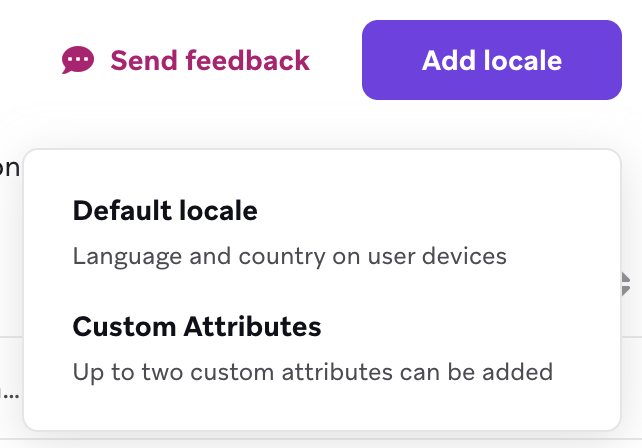
- Select Add locale, and then select Default locale or Custom Attributes.
- Enter a name for the locale.
- Select a language for accessibility. This setting allows assistive technologies like screen readers to correctly pronounce text.
- Select the respective user attributes for your chosen locale option. When setting up a locale, you can either select languages from the default user attributes or custom attributes. You can’t select from both.
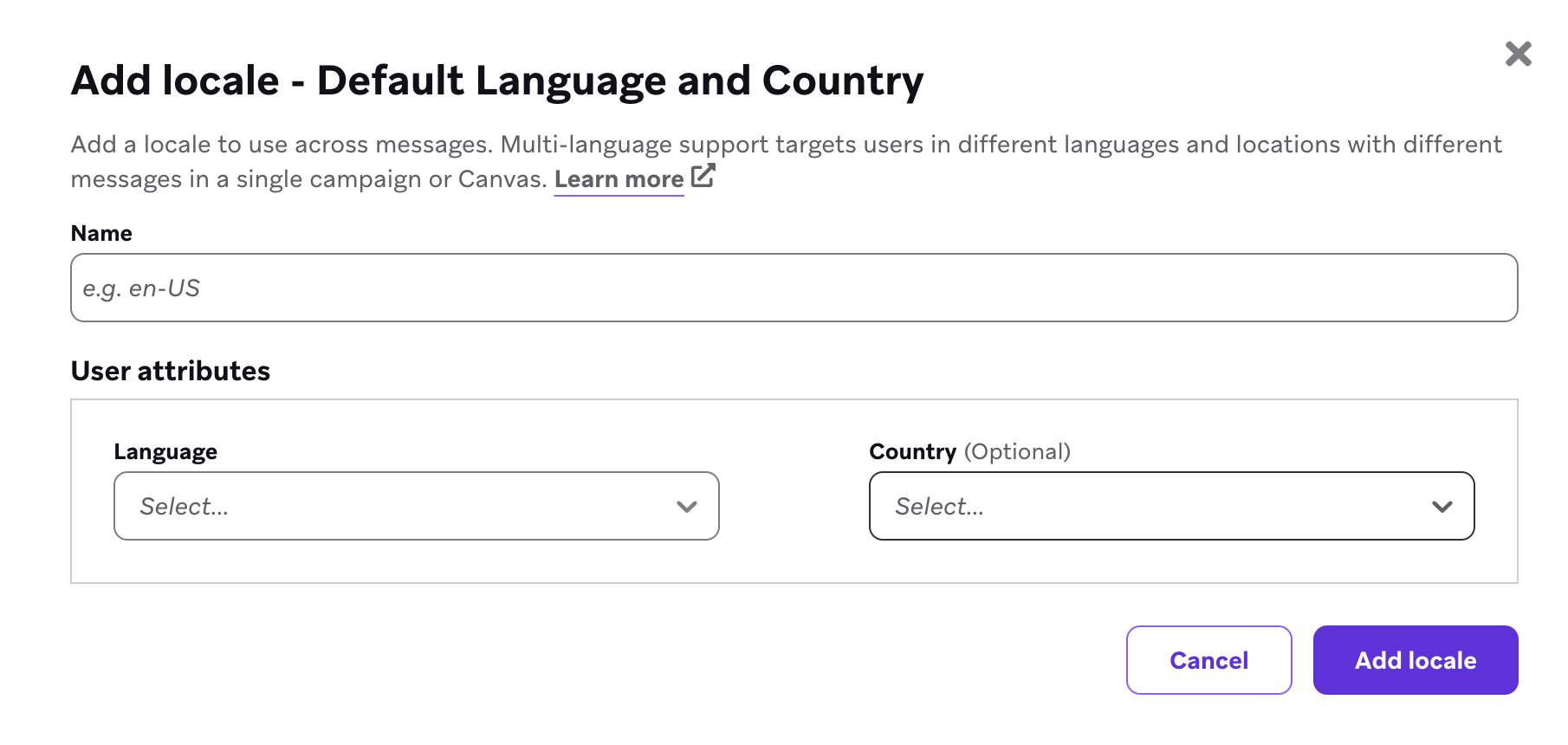
For Default locale, use the dropdowns to select the language to be added and, optionally, the country to be associated with the language.
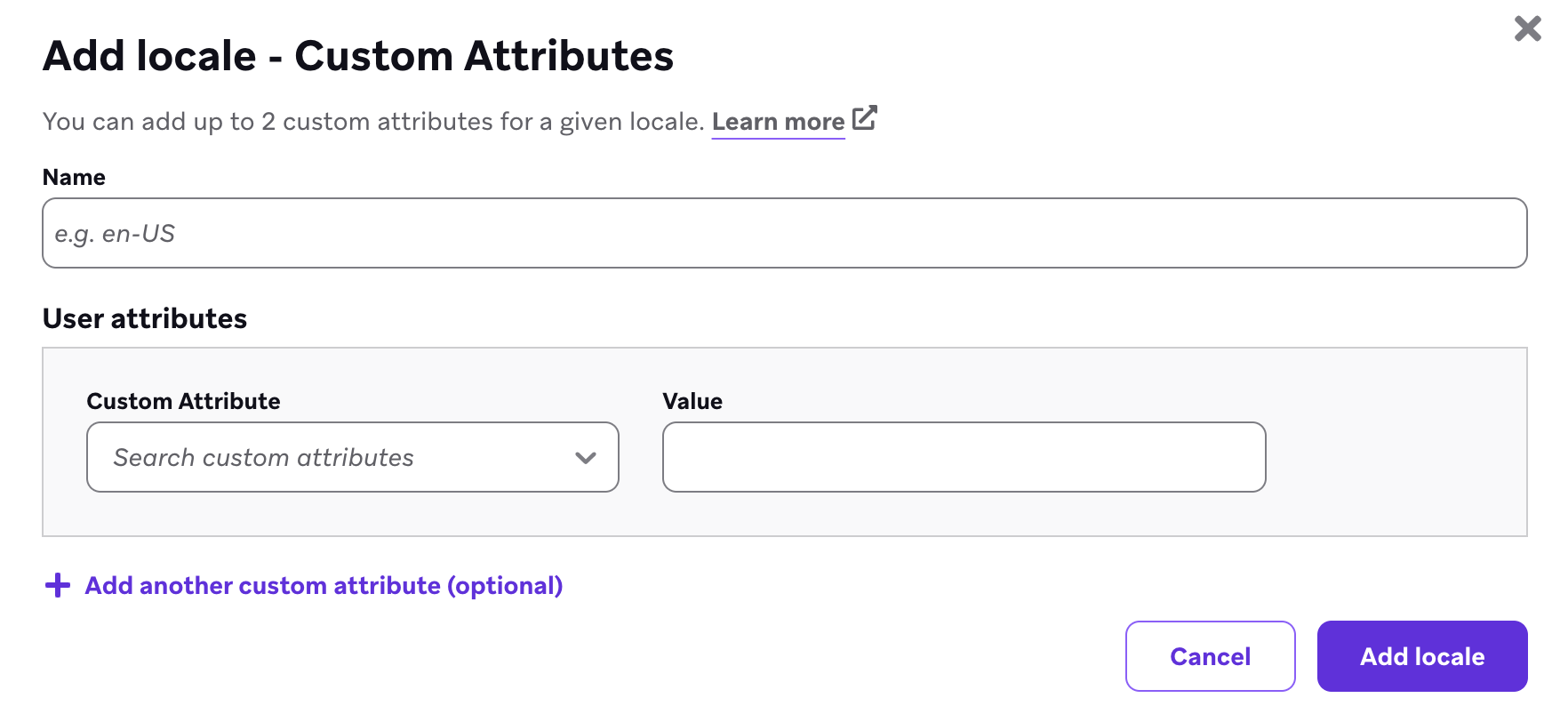
For Custom Attributes, use the dropdown to select the associated custom attribute and in the text field, enter the value.
- Select Add locale.
For steps to use these locales in your messages, refer to Using locales.
Considerations
- You can select up to two custom attributes in a single locale, or up to two default user attribute languages. In both cases, the second attribute is optional.
- When making edits to the translated values in the CSV file, avoid modifying any default values in the file.
- The locale key in your uploaded file must match the one in your multi-language settings.
Support and prioritization
- If a user matches both a locale defined by custom attributes and one defined by default user attributes, the custom attribute locale is prioritized.
- Custom attributes support text (string) values with exact matching.
- If a custom attribute is deleted or its type is changed, the user can no longer fall into that locale and will either go down the priority list of locales they fall under or receive default marketing translations.
- If a locale is invalid (the custom attribute changed or is deleted), the error will appear on the Multi-Language Support page.
Frequently asked questions
How many locales can I add?
You can add up to 200 locales.
Where are the translation files stored in Braze?
Translation files are stored at a campaign level, meaning each message variant must have uploaded translations. Translations can also be stored in Content Blocks. When the block is added to a message, its translations are automatically included.
Does the locale name have to follow a specific pattern or format?
No. You can use your preferred naming convention. The locale name is used when selecting the locale in the editor and will be in the headings of the file you download with translation IDs.
 Edit this page on GitHub