Personalize action and media URLs with Liquid
Personalize link destinations and content for each user who receives your message by adding Liquid variables to the URLs for buttons, links, images, and videos.
Deep link to in-app content

For developers: For integration instructions, see Android deep linking or Swift deep linking. For help choosing an iOS link type, see the iOS deep linking guide. To diagnose issues, see Deep linking troubleshooting.
What is deep linking?
Deep linking is a way of launching a native app and providing additional information telling it to do a specific action or show specific content.
There are three parts to this:
- Identify which app to launch.
- Instruct the app on which action to perform.
- Provide the action with any additional data it needs.
Deep links are custom URIs that link to a specific part of the app and contain all three of these parts. The key is defining a custom scheme. http: is the scheme with which almost everyone is familiar but schemes can begin with any word. A scheme must start with a letter, but can then contain letters, numbers, plus-signs, minus-signs or dots. Practically speaking, there is no central registry to prevent conflicts, so it is a best practice to include your domain name in the scheme. For example, twitter:// is the iOS URI to launch the mobile app for X, formerly Twitter.
Everything after the colon within a deep link is free-form text. It’s up to you to define its structure and interpretation; however, a common convention is to model it after http: URLs, including a leading // and query parameters (for example, ?foo=1&bar=2). For the previous example, twitter://user?screen_name=[id] would be used to launch a specific profile in the app.

For apps built with wrapper frameworks (for example, Flutter or Cordova), Braze does not provide wrapper-specific deep linking support. You must configure deep links at the native iOS and Android layers. For Cordova, see Deep linking in push notifications.
System URI schemes
Standard URI schemes handled natively by iOS and Android (such as tel:, mailto:, and sms:) can be entered directly in the deep link URL field without requiring a custom deep link integration in your app.
| Scheme | Example | Action |
|---|---|---|
tel: |
tel:+18005555555 |
Opens phone dialer |
mailto: |
mailto:[email protected] |
Opens email compose |
sms: |
sms:+18005555555 |
Opens SMS compose |
These work for push notification on-click behaviors and in-app message button actions. No additional SDK configuration or app code changes are needed.
Deep link into application
When composing push notifications, in-app messages, Banners, or Content Cards, select Deeplink into application to open a specific screen or action in your app. In some composers, this option appears as Deep Link Into App.
Before you use this option, work with your developers to define the URI format and configure your app to open it. Custom schemes, such as myapp://, open the installed app directly. Universal links (iOS) and App Links (Android) use https:// URLs that can open the app when installed and fall back to a web page when the app is not installed.
To set this on-click behavior:
- In your campaign or Canvas composer, locate On-click behavior:
- For push notifications and Content Cards, go to the Compose tab.
- For in-app messages, go to the Compose tab. In the drag-and-drop editor, select a button or image block and open its properties panel.
- Select Deeplink into application or Deep Link Into App.
- Enter the link in the URL field—for example,
myapp://products/12345for a custom scheme orhttps://example.com/products/12345for a universal link or App Link. - Send a test message to a physical device. A successful test opens the app and routes to the intended screen or action. For a universal link or App Link, also test a device without the app installed to confirm the expected web fallback.
UTM tags and campaign attribution
What is a UTM tag?
UTM (Urchin Traffic Manager) tags allow you to include campaign attribution details directly within links. UTM tags are used by Google Analytics to collect campaign attribution data, and can be used to track the following properties:
utm_source: The identifier for the source of the traffic (for example,my_app)utm_medium: The campaign medium (for example,newsfeed)utm_campaign: The identifier for the campaign (for example,spring_2016_campaign)utm_term: Identifier for a paid search term that brought the user to your app or website (for example,pizza)utm_content: An identifier for the specific link or content that the user clicked on (for example,toplinkorandroid_iam_button2)
UTM tags can be embedded into both regular HTTP (web) links and deep links and tracked using Google Analytics.
UTM tag calculations
Braze reports Total Clicks for all links in a campaign or Canvas step, which can include links that don’t have UTM tags. This means you may see a different (often lower) result in your Google Analytics campaign tracking links compared to the Total Clicks displayed in your campaign performance or Report Builder.
Using UTM tags with Braze
If you want to use UTM tags with regular HTTP (web) links (for example, to do campaign attribution for your email campaigns) and your organization already uses Google Analytics, you can use Google’s URL builder to generate UTM links. These links can be readily embedded into Braze campaign copy just like any other link.
To use UTM tags in deep links to your app, your app must have the relevant Google Analytics SDK integrated and correctly configured to handle deep links. Check with your developers if you’re unsure about this.
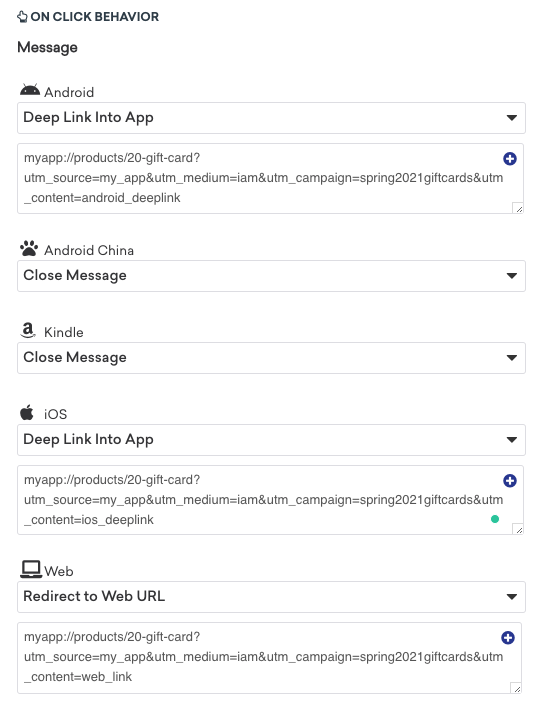
After the Analytics SDK is integrated and configured, UTM tags can be used with deep links in Braze campaigns. To set up UTM tags for your campaign, include the necessary UTM tags in the destination URL or deep links. The following examples show how to use UTM tags in push notifications and in-app messages.
Attribute push opens and in-app message clicks with UTM tags
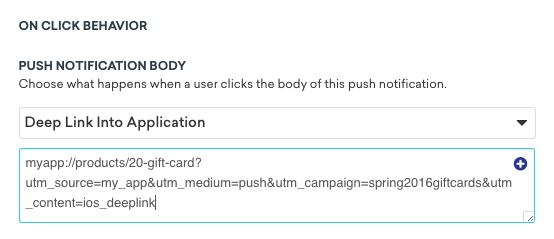
To include UTM tags in your deep links for push notifications, set the on-click behavior of the push message to be a deep link, then write the deep link address and include the desired UTM tags in the following fashion:
myapp://products/20-gift-card?utm_source=my_app&utm_medium=push&utm_campaign=spring2016giftcards&utm_content=ios_deeplink
Use Liquid personalization in URLs
You can dynamically construct your URL directly within the Braze composer, allowing you to add dynamic UTM parameters to your URLs or send users unique links (such as directing users to their abandoned cart or to a specific product that is back in stock).
Create a URL with supported Liquid personalization tags
URLs can be dynamically generated through the use of any supported Liquid personalization tags.
https://example.com/?campaign_utm={{campaign.${api_id}}}&user_attribute={{custom_attribute.${attribute1}}}
We also support the shortening of custom-defined Liquid variables, such as in the following examples:
Create a URL using Liquid variables
{% assign url_var = {{event_properties.${url_slug}}} %}
https://example.com/{{url_var}}
Shorten URLs rendered by Liquid variables
Supported channels: KakaoTalk, LINE, SMS, RCS, WhatsApp
We shorten URLs that are rendered by Liquid, even those included in API-trigger properties. For example, if {{api_trigger_properties.${url_value}}} represents a valid URL, we shorten and track that URL before sending the message.
Shorten URLs in /messages/send endpoint
Link shortening is also turned on for API-only messages through the /messages/send endpoint. For a full list of request parameters, see request parameters.
| Parameter | Required | Data type | Description |
|---|---|---|---|
link_shortening_enabled |
Yes | Boolean | Set link_shortening_enabled to true to turn on link shortening. To use tracking, a campaign_id and message_variation_id must be present. |