Lob
Lob.com은 사용자에게 다이렉트 메일을 발송할 수 있는 온라인 서비스입니다.
이 통합은 Lob에서 유지 관리합니다.
통합 소개
이 통합을 통해 다음을 수행할 수 있습니다.
- Braze 웹훅과 Lob API를 사용하여 우편으로 편지, 엽서, 수표를 발송합니다.
- Braze 데이터 변환과 Lob 웹훅을 사용하여 Lob 이벤트를 커스텀 속성 및 이벤트로 Braze에 공유합니다.
필수 조건
| 요구 사항 | 설명 |
|---|---|
| Lob 계정 | 이 파트너십을 활용하려면 Lob 계정이 필요합니다. |
| Lob API 키 | Lob API 키는 Lob 대시보드에서 이름 아래의 설정 섹션에서 찾을 수 있습니다. |
Braze 웹훅을 사용하여 우편 발송하기
1단계: Lob 엔드포인트 선택하기
Lob에서 수행하려는 작업에 따라 웹훅의 HTTP 요청에서 해당 엔드포인트를 사용해야 합니다. 각 엔드포인트에 대한 자세한 내용은 Lob의 API 참조 문서를 참조하세요.
| 기본 URL | 사용 가능한 엔드포인트 |
|---|---|
https://api.lob.com/ |
/v1/addresses<br>/v1/addresses/{id}/v1/verify/v1/postcards/v1/postcards/{id}/v1/letter/v1/letter/{id}/v1/checks<br>/v1/checks/{id}/v1/bank_accounts/v1/bank_accounts/{id}/v1/bank_accounts/{id}/verify/v1/areas<br>/v1/areas/{id}/v1/routes/{zip_code}/v1/routes/v1/countries<br>/v1/states |
2단계: Braze 웹훅 템플릿 만들기
향후 Campaign 또는 Canvas에서 사용할 Lob 웹훅 템플릿을 만들려면 Braze 대시보드에서 콘텐츠 > 웹훅으로 이동합니다. 그런 다음 웹훅 템플릿 생성을 선택합니다.
일회성 Lob 웹훅 Campaign을 만들거나 기존 템플릿을 사용하려면 새 Campaign을 만들 때 Braze에서 웹훅을 선택합니다.
새 웹훅 템플릿에서 다음 필드를 입력합니다.
- 웹훅 URL:
<LOB_API_ENDPOINT> - 요청 본문: Raw Text
요청 헤더 및 메서드
Lob에는 인증을 위한 HTTP 헤더와 HTTP 메서드가 필요합니다. 다음 항목은 이미 키-값 페어로 템플릿에 포함되어 있지만, 설정 탭에서 <LOB_API_KEY>를 Lob API 키로 교체해야 합니다. 이 키는 키 바로 뒤에 “:”를 포함해야 하며 base 64로 인코딩되어야 합니다.
- HTTP 메서드: POST
- 요청 헤더:
- Authorization: Basic
<LOB_API_KEY>: - Content-Type: application/json
- Authorization: Basic
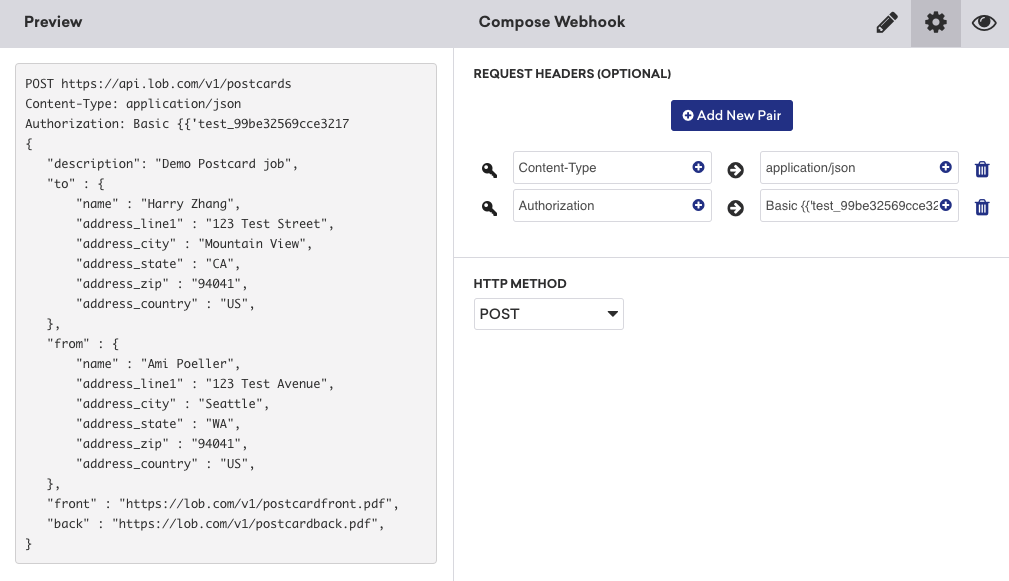
요청 본문
다음은 Lob 엽서 엔드포인트에 대한 요청 본문 예시입니다. 이 요청 본문은 Braze의 기본 Lob 템플릿에 제공되지만, 다른 엔드포인트를 사용하려면 Liquid 필드를 적절히 조정해야 합니다.
{
"description": "Demo Postcard",
"to": {
"name": "{{${first_name}}} {{${last_name}}}",
"address_line1": "{{custom_attribute.${address_line1}}}",
"address_city": "{{custom_attribute.${address_city}}}",
"address_zip": "{{custom_attribute.${address_zip}}}",
"address_country": "{{custom_attribute.${address_country}}}"
},
"front": "https://lob.com/postcardfront.pdf",
"back": "https://lob.com/postcardback.pdf",
"use_type": "marketing",
"size": "6x11"
}
3단계: 요청 미리보기
이 시점에서 Campaign을 테스트하고 발송할 준비가 되어 있어야 합니다. 오류가 발생하면 Lob 대시보드와 Braze 개발자 콘솔 오류 메시지 로그를 확인하세요. 예를 들어, 다음 오류는 잘못된 형식의 인증 헤더로 인해 발생했습니다.

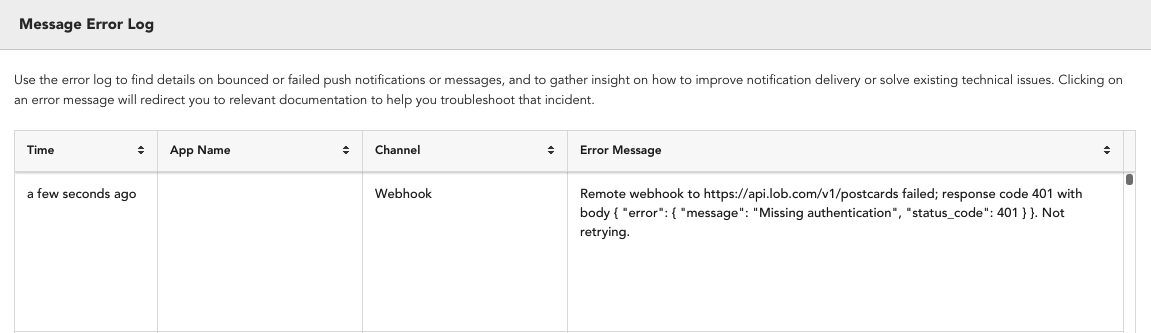
Lob 웹훅을 사용하여 이벤트 공유하기
Braze 데이터 변환을 사용하면 외부 플랫폼에서 Braze로의 데이터 흐름을 자동화하기 위한 웹훅을 구축하고 관리할 수 있습니다. 각 변환에는 고유한 엔드포인트가 부여되며, 다른 플랫폼에서 웹훅 대상으로 사용할 수 있습니다.
Lob의 데이터 변환 템플릿은 데이터 포인트를 기록하는 /users/track 엔드포인트를 사용하여 이벤트를 전송합니다. 과도한 데이터 로깅을 방지하기 위해 Lob 웹훅 설정에서 사용량 제한을 설정하는 것이 좋습니다.
1단계: Braze에서 변환 만들기
- Braze 대시보드에서 데이터 설정 > 데이터 변환으로 이동한 다음 변환 생성을 선택합니다.
- 변환에 대한 짧고 설명적인 이름을 입력합니다.
- 편집 환경에서 템플릿 사용을 선택한 다음 Lob을 검색하고 체크박스를 선택합니다.
- 완료되면 변환 생성을 선택합니다. 다음 단계에서 사용할 변환 편집기로 리디렉션됩니다.
2단계: Lob 템플릿 작성하기
이 템플릿을 사용하면 Lob 이벤트 중 하나를 Braze에서 사용할 수 있는 커스텀 이벤트 또는 속성으로 변환할 수 있습니다. 인라인 주석을 따라 템플릿 구축을 완료하세요.

// First, this code defines a variable, "brazecall", to build up a /users/track request
// Everything from the incoming webhook is accessible via the special variable "payload". As such, you can template in desired values in your /users/track request with JavaScript dot notation, such as payload.x.y.z
// In this example, this function removes the periods and underscores of the event_type.id sent in the Lob payload so that an event id that is formatted like: `letter.processed_for_delivery` will log an event to Braze with the name `letter processed for delivery`.
function formatString(input) {
return input.replace(/[._]/g, ' ');
}
let braze_event = formatString(payload.event_type.id);
// In this example, a metadata value passed in the Lob Webhook called 'external_ID' is being used to match the Event to the corresponding Braze user.
let brazecall = {
"attributes": [
{
"external_id": payload.body.metadata.external_id,
"_update_existing_only": true,
"Most Recent Mailer": payload.body.description
}
],
"events": [
{
"external_id": payload.body.metadata.external_id,
"_update_existing_only": true,
"name": braze_event,
"time": new Date().toISOString(),
// Customize the properties to the Lob event you are syncing. Our example below pulls in the Tracking Events array of objects associated with certain Lob events.
"properties": {
"tracking_events": payload.body.tracking_events
}
}
]
};
// After the /users/track request is assigned to brazecall, you will want to explicitly return brazecall to create an output
return brazecall;
3단계: Lob에서 웹훅 만들기
- 템플릿 구축이 완료되면 활성화를 선택한 다음 웹훅 URL을 클립보드에 복사합니다.
- Lob에서 새 웹훅을 만든 다음 Braze의 웹훅 URL을 사용하여 웹훅을 수신합니다.