Google Cloud Storage
Google Cloud Storage는 Google이 클라우드 컴퓨팅 제품군의 일부로 제공하는 비정형 데이터를 위한 대규모 확장 가능한 오브젝트 스토리지입니다.

클라우드 스토리지 제공업체 간에 전환하는 경우, 새로운 통합을 설정하고 검증하는 데 대한 추가 지원을 받으려면 Braze 고객 성공 매니저에게 문의하세요.
Braze와 Google Cloud Storage 통합을 사용하면 Currents 데이터를 Google Cloud Storage로 스트리밍할 수 있습니다. 이후 ETL 프로세스(Extract, Transform, Load)를 사용하여 Google BigQuery 등 다른 위치로 데이터를 전송할 수 있습니다.
필수 조건
| 요구 사항 | 설명 |
|---|---|
| Google Cloud Storage 계정 | 이 파트너십을 활용하려면 Google Cloud Storage 계정이 필요합니다. |
| Currents | 데이터를 Google Cloud Storage로 다시 내보내려면 계정에 Braze Currents가 설정되어 있어야 합니다. 메시지 아카이브만 설정하는 경우에는 Currents가 필요하지 않습니다. |
통합
Google Cloud Storage와 통합하려면 Braze가 기록 중인 스토리지 버킷에 대한 정보를 가져오고(storage.buckets.get) 해당 버킷 내에 오브젝트를 생성(storage.objects.create)할 수 있도록 적절한 자격 증명을 설정해야 합니다.

Currents의 인증 방법으로 워크로드 ID 페더레이션(WIF)은 지원되지 않습니다. JSON 비공개 키가 있는 서비스 계정을 사용해야 합니다.
다음 안내에 따라 역할과 서비스 계정을 생성하면 Currents 통합에 사용할 비공개 키가 생성됩니다.
1단계: 역할 생성
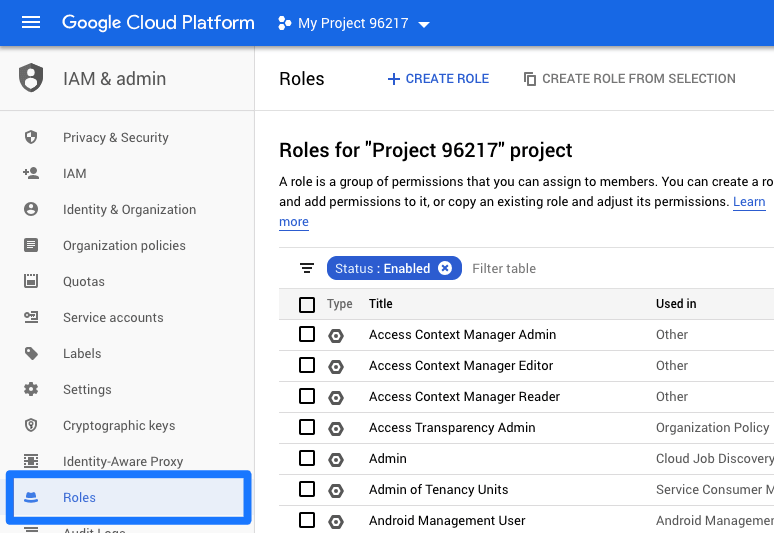
Google Cloud Platform 콘솔에서 IAM & admin > Roles > + Create Role로 이동하여 새 역할을 생성합니다.
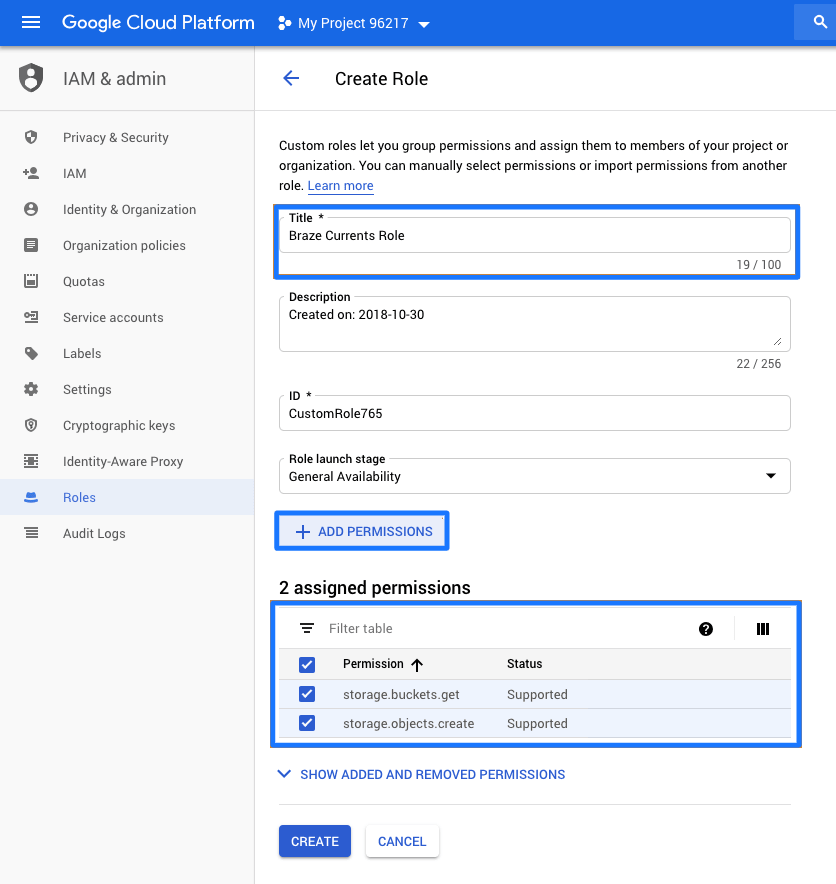
역할에 이름을 지정한 다음 +Add Permissions를 선택하고 다음 권한을 추가합니다:
storage.objects.createstorage.objects.deletestorage.objects.liststorage.objects.getstorage.buckets.get
storage.objects.delete 권한은 선택 사항입니다. 이 권한을 사용하면 Braze가 불완전한 파일을 정리할 수 있습니다.
드문 경우지만 Google Cloud가 연결을 조기에 종료하여 Braze가 Google Cloud Storage에 불완전한 파일을 기록할 수 있습니다. 대부분의 경우 Braze는 재시도하여 올바른 데이터로 새 파일을 생성하며, 이전 파일은 Google Cloud Storage에 남아 있게 됩니다.
완료되면 Create를 선택합니다.
2단계: 새 서비스 계정 생성
2.1단계: 서비스 계정 생성
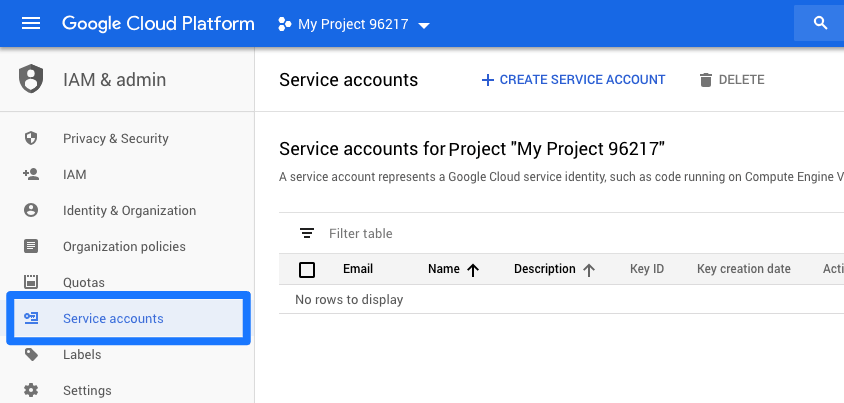
Google Cloud Platform 콘솔에서 IAM & admin > Service Accounts로 이동하여 Create Service Account를 선택하여 새 서비스 계정을 생성합니다.
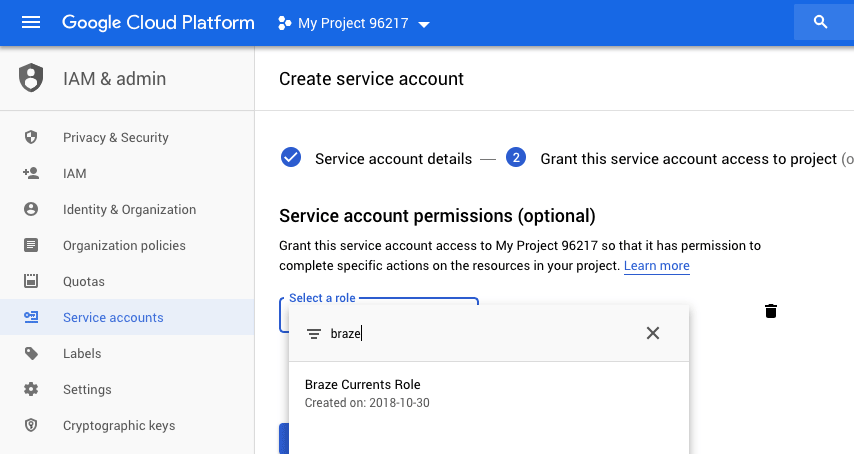
다음으로 서비스 계정에 이름을 지정하고 새로 생성한 커스텀 역할에 대한 액세스 권한을 부여합니다.
2.2단계: 키 생성
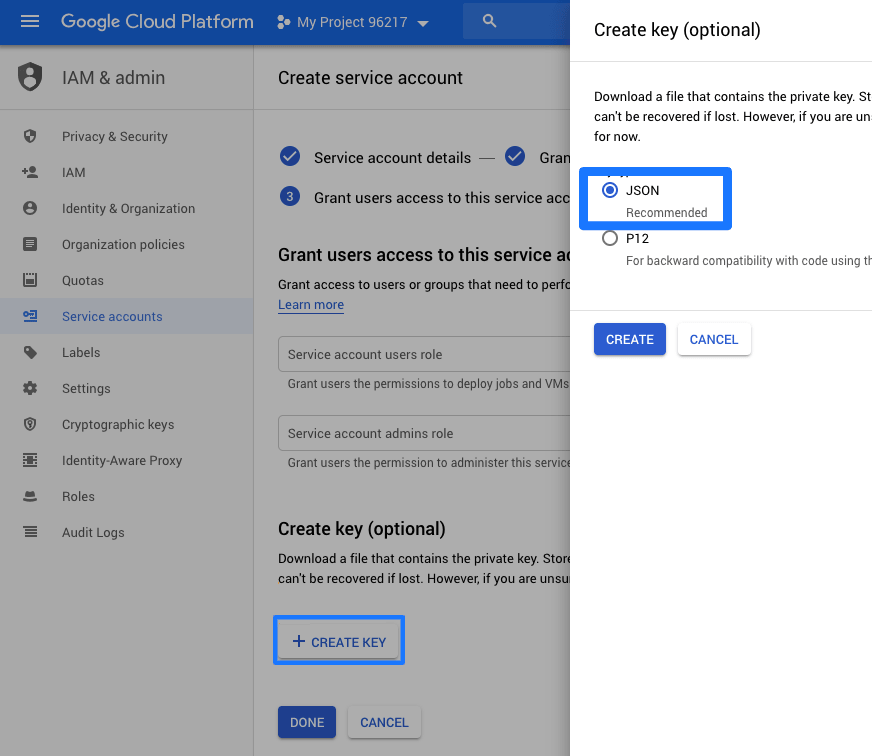
페이지 하단에서 Create Key 버튼을 사용하여 Braze에서 사용할 JSON 비공개 키를 생성합니다. 키가 생성되면 컴퓨터에 다운로드됩니다.
3단계: Braze에서 Currents 설정
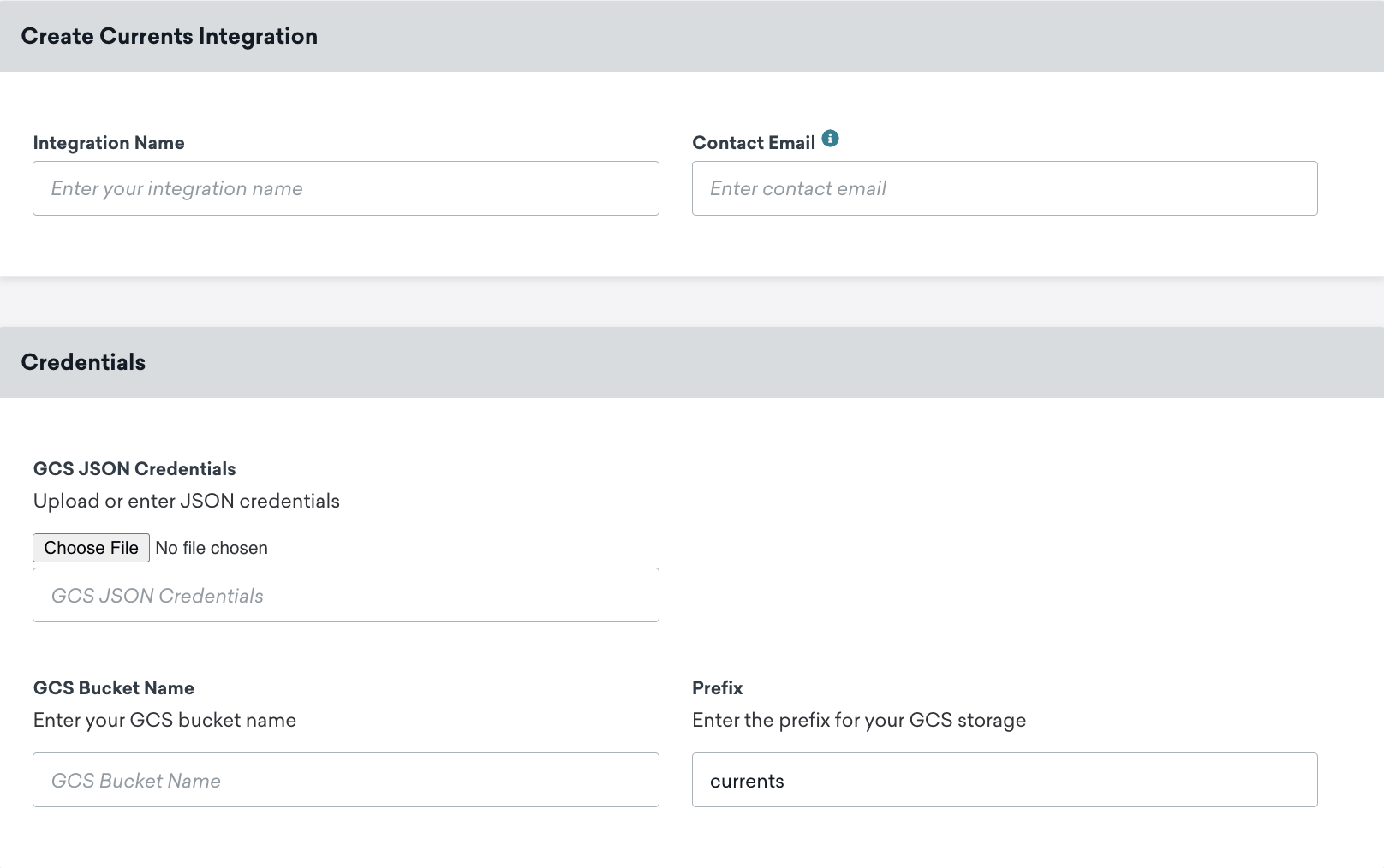
Braze에서 Currents > + Create Current > Google Cloud Storage Data Export로 이동하여 통합 이름과 연락처 이메일을 입력합니다.
그런 다음 GCS JSON Credentials 아래에 JSON 비공개 키를 업로드하고 GCS 버킷 이름과 GCS 접두사(선택 사항)를 입력합니다. 이전 단계에서 설명한 대로 Google Cloud Platform을 통해 이러한 자격 증명을 생성해야 한다는 점에 유의하세요.
자격 증명 파일을 최신 상태로 유지하는 것이 중요합니다. 커넥터의 자격 증명이 만료되면 커넥터가 이벤트 전송을 중지합니다. 이 상태가 5일 이상 지속되면 커넥터의 이벤트가 삭제되고 데이터가 영구적으로 손실됩니다.
마지막으로 페이지 하단으로 스크롤하여 내보내려는 메시지 참여 이벤트 또는 고객 행동 이벤트를 선택합니다. 완료되면 Current를 시작합니다.
4단계: Google Cloud Storage 내보내기 설정
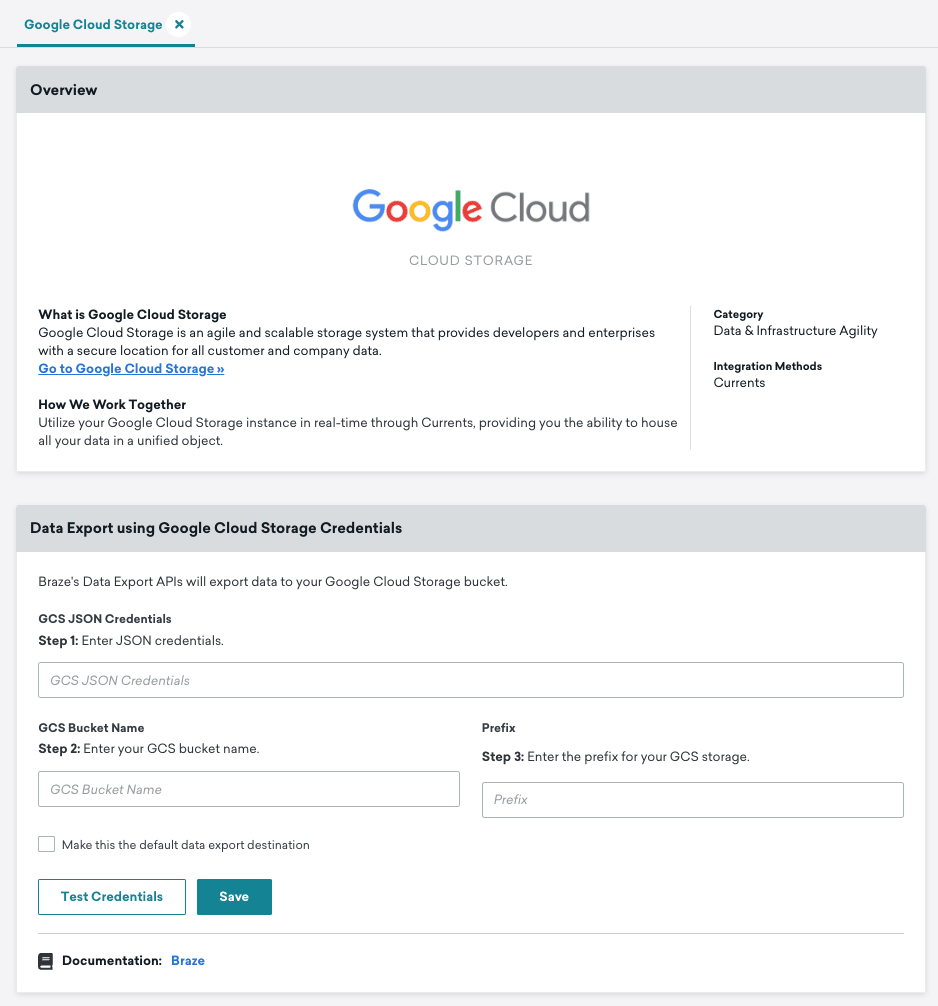
Google Cloud Storage(GCS) 내보내기를 설정하려면 기술 파트너 > Google Cloud Storage로 이동하여 GCS 자격 증명을 입력하고 Make this the default data export destination을 선택합니다.
내보낸 파일의 구성과 내용은 AWS S3, Microsoft Azure, Google Cloud Storage 통합 전반에서 동일하다는 점을 유의하세요.
Google Cloud에서 생성된 전체 JSON 값을 입력해야 합니다.
5단계: 서비스 계정 자격 증명 테스트(선택 사항)
Google Cloud IAM 서비스 계정에는 다음 권한이 있어야 합니다:
storage.objects.createstorage.objects.deletestorage.objects.liststorage.objects.getstorage.buckets.get
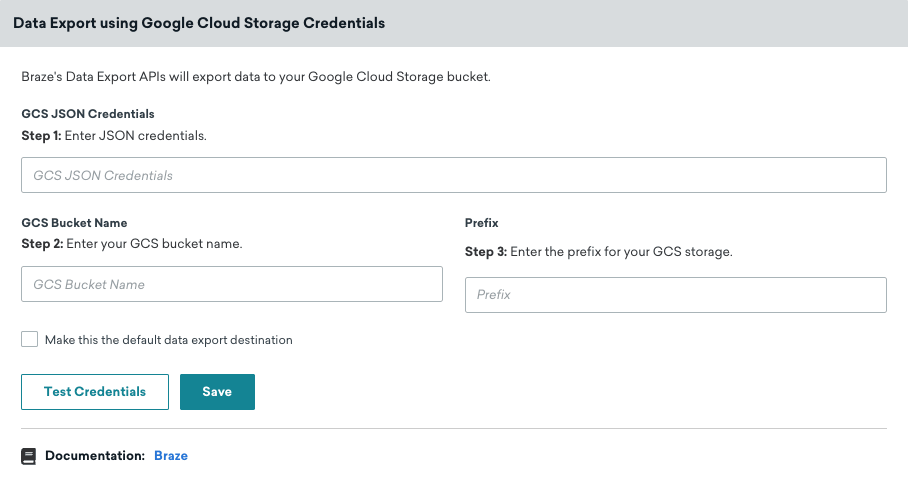
Braze 대시보드에서 이러한 권한을 확인하려면 Google Cloud Storage 페이지로 이동한 다음 Test Credentials를 선택합니다.
내보내기 동작
클라우드 데이터 스토리지 솔루션을 통합하고 API, 대시보드 보고서 또는 CSV 보고서를 내보내려는 사용자는 다음과 같은 경험을 하게 됩니다:
- 모든 API 내보내기는 응답 본문에 다운로드 URL을 반환하지 않으며 데이터 스토리지를 통해 검색해야 합니다.
- 모든 대시보드 보고서와 CSV 보고서는 다운로드할 수 있도록 사용자의 이메일로 전송되며(스토리지 권한 필요 없음) 데이터 스토리지에 백업됩니다.
JSON 형식 요구 사항: JSON 내보내기의 경우 Braze는 각 줄에 별도의 JSON 오브젝트가 포함되는 JSONL(줄 바꿈으로 구분된 JSON) 형식을 사용합니다. 이 형식은 단일 JSON 배열 또는 오브젝트인 표준 JSON과는 다릅니다. 내보낸 파일의 각 줄은 유효한 JSON 오브젝트이지만 파일 전체가 하나의 유효한 JSON 문서는 아닙니다. 이러한 파일을 처리할 때는 전체 파일을 하나의 JSON 문서로 구문 분석하지 말고 각 줄을 별도의 JSON 오브젝트로 개별적으로 구문 분석하세요.
Currents 내보내기는 JSON이 아닌 Apache Avro 형식(.avro 파일)을 사용합니다. 이 JSON 형식 요구 사항은 JSON 형식을 사용하는 대시보드 데이터 내보내기 및 API 내보내기에 적용됩니다.
문제 해결
Google Cloud Storage 자격 증명이 유효하지 않음
자격 증명을 입력할 때 다음 오류가 표시되는 경우:
1
Google Cloud Storage Credentials are invalid. Please ensure that your credentials string, bucket name, and prefix are valid. You do not have read permission.
Google Cloud IAM 서비스 계정에 다음 권한이 있는지 확인하세요:
storage.objects.createstorage.objects.deletestorage.objects.liststorage.objects.getstorage.buckets.get
확인 후 Braze 대시보드에서 자격 증명을 테스트할 수 있습니다.