Justuno
Justuno는 동적 세그먼트를 통해 모든 오디언스에 최적화된 방문자 경험을 만들 수 있게 해주며, 사이트 속도에 영향을 주거나 개발 작업을 늘리지 않으면서도 가장 고급 타겟팅을 제공합니다. 생성된 프로필 수, 영향을 받은 재방문자 비율, 세션당 페이지 수 등 커스텀 분석을 확인하여 전환율을 분석하고 업계에서 마케팅 우위를 유지하세요. Justuno를 사용하면 방문자당 매출을 높이고, 의미 있는 고객 참여를 구축하며, 비즈니스를 성장시킬 수 있습니다. 연결된 플랫폼으로 전체 오디언스 여정을 엔드투엔드로 최적화하세요.
사용 사례
Braze를 사용하면 모든 마케터가 어떤 소스에서든 원하는 양의 데이터를 수집하고 조치를 취할 수 있으므로, 하나의 플랫폼에서 채널 전반에 걸쳐 실시간으로 고객과 창의적으로 소통할 수 있습니다.
Justuno와 Braze를 통합하면 두 가지 장점을 모두 누릴 수 있습니다. Braze에 저장된 고객 데이터와 Justuno에 저장된 방문자 및 고객 데이터를 결합하여 모든 오디언스에게 더욱 개인화된 경험을 제공할 수 있습니다. 이를 통해 마케팅 Campaign(캠페인)과 고객 참여의 효과를 높일 수 있습니다.
필수 조건
| Braze REST API 키 | users.track 및 custom_attributes.get 권한이 있는 Braze REST API 키.Braze 대시보드의 Settings > API Keys에서 생성할 수 있습니다. |
| Braze REST 엔드포인트 | REST 엔드포인트 URL. 엔드포인트는 인스턴스의 Braze URL에 따라 달라집니다. |
Justuno와 Braze 통합하기
1단계: Braze에서 커스텀 속성 생성하기
Justuno에서 Braze로 사용자 속성을 동기화하려면, 아직 생성하지 않은 경우 Braze에서 해당 속성을 먼저 생성해야 합니다. Data Settings > Custom Attributes로 이동한 후 커스텀 속성을 생성하면 됩니다. 전체 안내는 Braze에서 커스텀 속성 관리하기를 참조하세요.
2단계: Justuno에 Braze 앱 추가하기
2.1단계: 계정에 추가하기
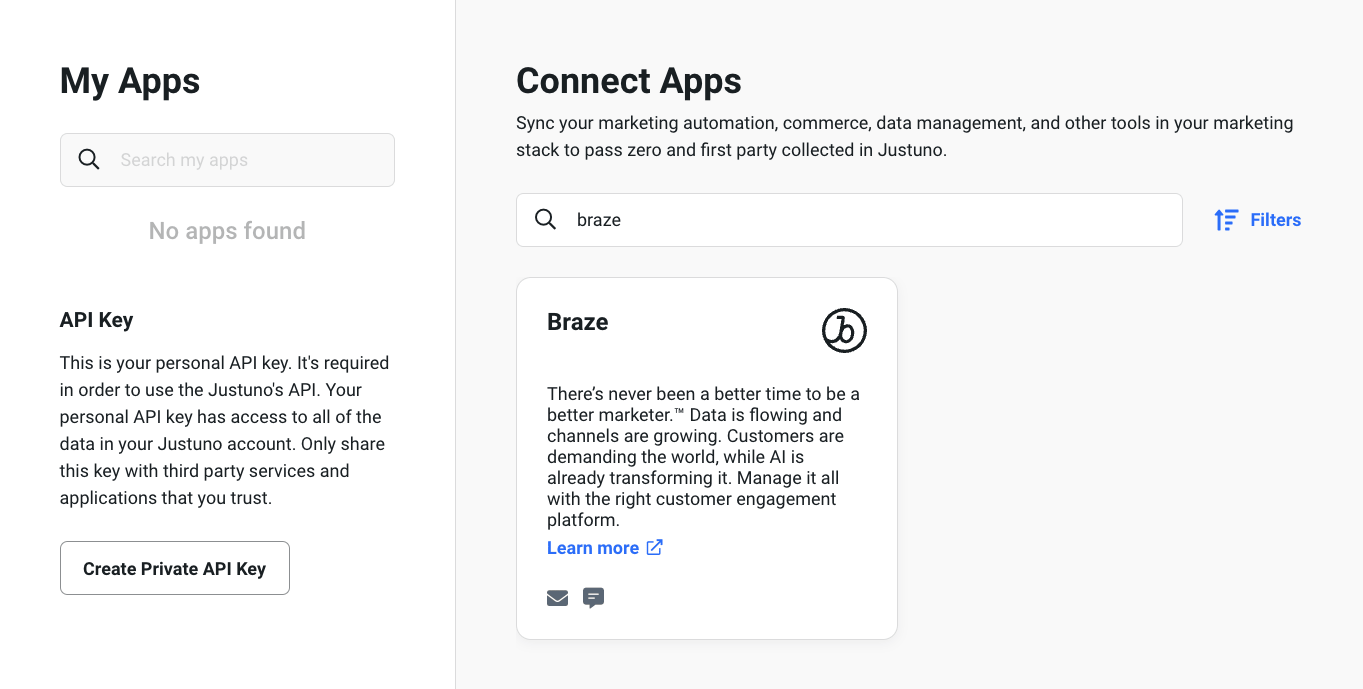
Justuno 계정에 Braze 앱을 추가하려면 Account Settings > Apps로 이동한 후 Braze 앱을 검색하여 선택합니다.
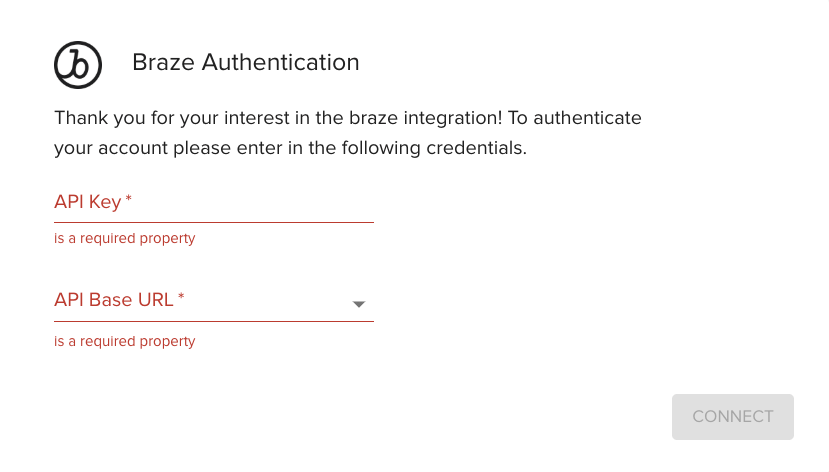
이전에 생성한 API 키와 기본 URL을 입력한 후 Connect를 선택합니다.
2.2단계: 워크플로우에 추가하기
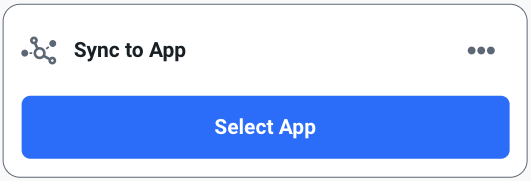
Justuno 워크플로우에 Braze 앱을 추가하려면 Sync to App 동작을 워크플로우에 드래그 앤 드롭한 후 Select App > Braze를 선택합니다.
3단계: Braze 구독 그룹 연결하기
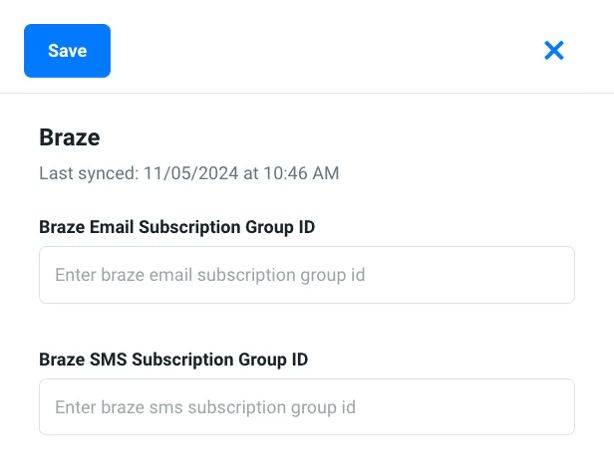
Justuno에서 특정 Braze 이메일 또는 SMS 구독 그룹으로 프로필 데이터를 전송하려면, Justuno 워크플로우의 Braze 앱에 해당 ID를 추가해야 합니다.
| ID 유형 | 필수 여부 | 설명 |
|---|---|---|
| Braze SMS 구독 그룹 ID | 예 | 이 ID는 사용자 프로필에서 SMS 동의를 수집하는 데 사용됩니다. Justuno에 ID를 입력하지 않으면, Justuno가 해당 프로필을 Braze로 푸시할 때 프로필에 동의가 포함되지 않습니다. |
| Braze 이메일 구독 그룹 ID | 아니요 | Justuno에 이 ID를 입력하지 않으면, Justuno는 연결된 구독 그룹이 없는 사용자로 프로필 데이터를 Braze에 전송합니다. |
3.1단계: Braze에서 ID 찾기
Braze 대시보드에서 이 ID를 찾으려면:
- Audience > Subscriptions로 이동합니다.
- 각 구독 그룹에 대해 ID 열에 있는 ID를 확인합니다.
3.2단계: Braze 앱에 ID 추가하기
Justuno 워크플로우에서 Braze 앱을 열고 각 구독 그룹의 ID를 입력합니다.
4단계: 속성 구성하기
다음 속성은 Justuno에서 Braze로 자동으로 동기화됩니다:
- 이메일
- 전화번호
- 이름
- 성
- 언어
- 성별
- 국가
추가 속성을 동기화하려면:
- 워크플로우 내 Braze 앱에서 Sync Another Property를 선택합니다.
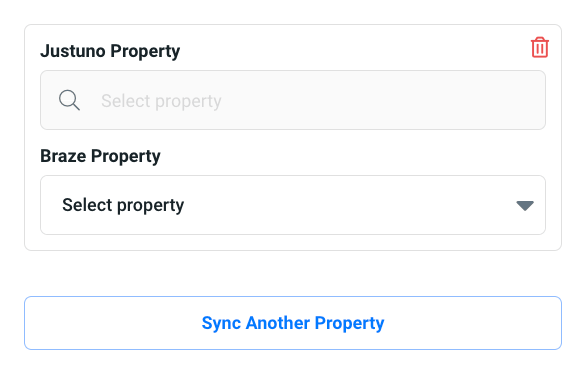
- 동기화할 Braze 속성을 선택합니다.
- Justuno의 등록정보를 Braze의 해당 항목과 매칭합니다(소셜 핸들, 생일, 쇼핑 선호도, 설문조사 응답 등). 이러한 등록정보는 제로 파티 데이터 또는 퍼스트 파티 데이터로 간주됩니다. 자세한 내용은 Justuno: 방문자 데이터 수집을 참조하세요.
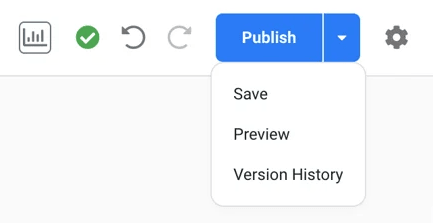
- 워크플로우 빌더에서 Save, Preview 또는 Publish를 선택합니다.
알아두어야 할 사항
- 앱 설정에서 구독 그룹 ID를 수동으로 입력해야 합니다.
- 다음 Braze 데이터 유형은 지원되지 않습니다: 오브젝트, 오브젝트 배열.
- Justuno의 SMS 동의 필드를 사용하지 않으면 암묵적 SMS 동의가 제공됩니다.
- Justuno 디자인에 동의 필드가 포함되어 있으면 명시적 SMS 동의가 적용됩니다.