VWO
VWO는 고객 행동 데이터를 기반으로 전환 최적화 프로그램을 실행할 수 있도록 지원하여 브랜드가 핵심 비즈니스 측정기준을 향상시킬 수 있게 해주는 강력한 실험 플랫폼입니다. VWO를 사용하면 고객 데이터를 통합하고, 행동 인사이트를 확보하고, 가설을 수립하고, 여러 플랫폼(서버, 웹, 모바일)에서 A/B 테스트를 실행하고, 기능을 출시하고, 경험을 개인화하고, 전체 고객 여정을 최적화할 수 있습니다.
VWO를 Braze와 통합하면 VWO 실험 데이터를 활용하여 타겟 Segment를 생성하고 개인화된 Campaign을 전달할 수 있습니다.
필수 조건
| 요구 사항 | 설명 |
|---|---|
| VWO 계정 | 실험 데이터에 접근할 수 있는 VWO 계정이 필요합니다. |
| Braze 계정 | 웹페이지에 Braze Web SDK가 통합된 활성 Braze 계정이 필요합니다. 또한 이벤트 속성정보 세분화가 활성화되어 있어야 합니다. 요청하려면 고려 사항을 참조하세요. |
VWO와 Braze 통합하기
1단계: VWO에서 Braze 통합 활성화하기
- VWO 계정에 로그인합니다.
-
VWO 대시보드에서 Configurations > Integrations로 이동합니다. 여기에서 워크스페이스 수준에서 통합을 활성화할 수 있으며, 이렇게 하면 기본적으로 향후 모든 테스트 Campaign에 통합이 적용됩니다.
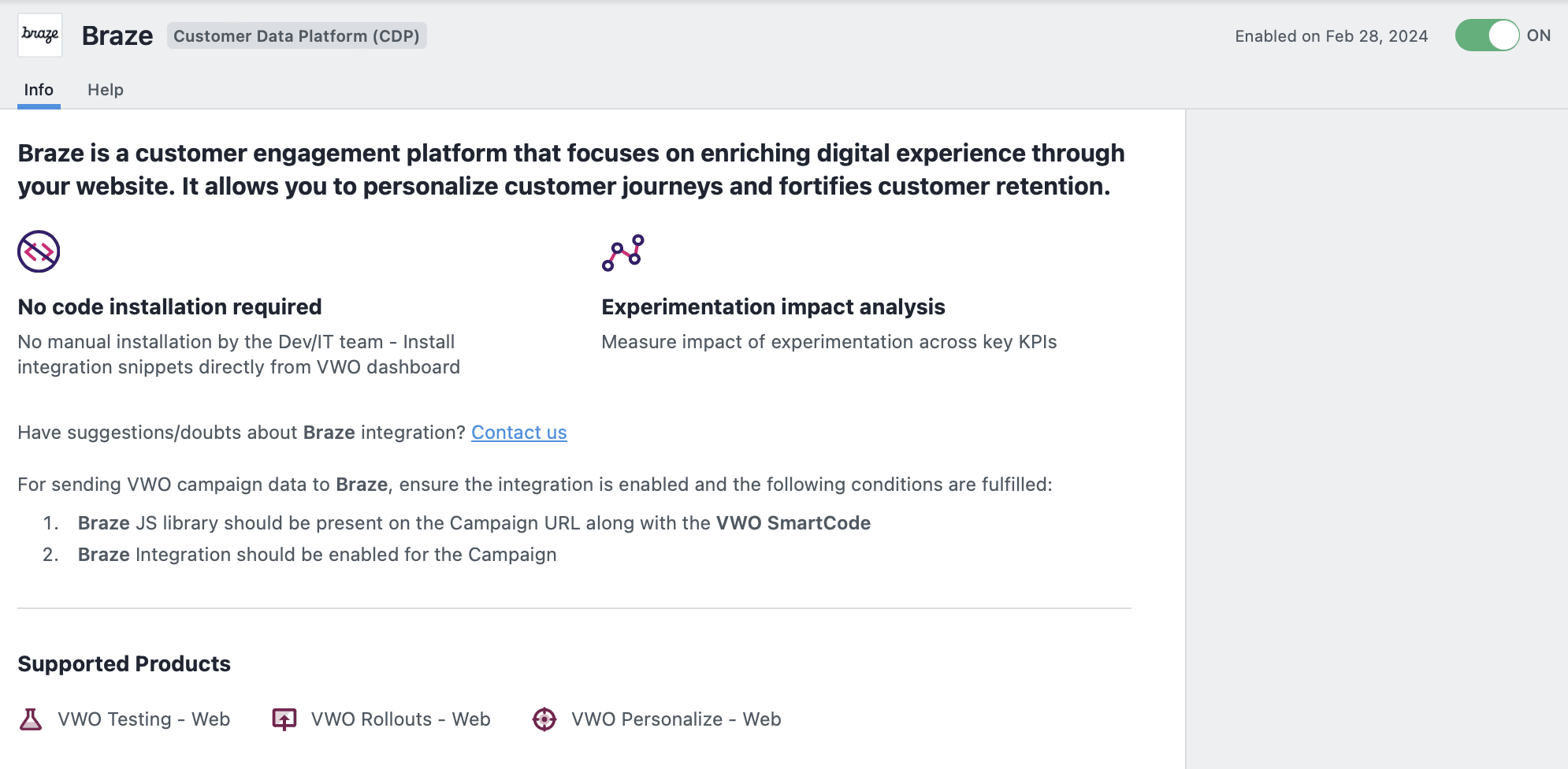
- Braze 통합을 선택하여 활성화합니다.
-
선택적으로, 기존 Campaign에 대해서도 Braze 통합을 활성화할 수 있습니다. 이렇게 하려면 Campaign을 선택한 다음 Configuration > Integrations로 이동하여 Braze를 활성화합니다.
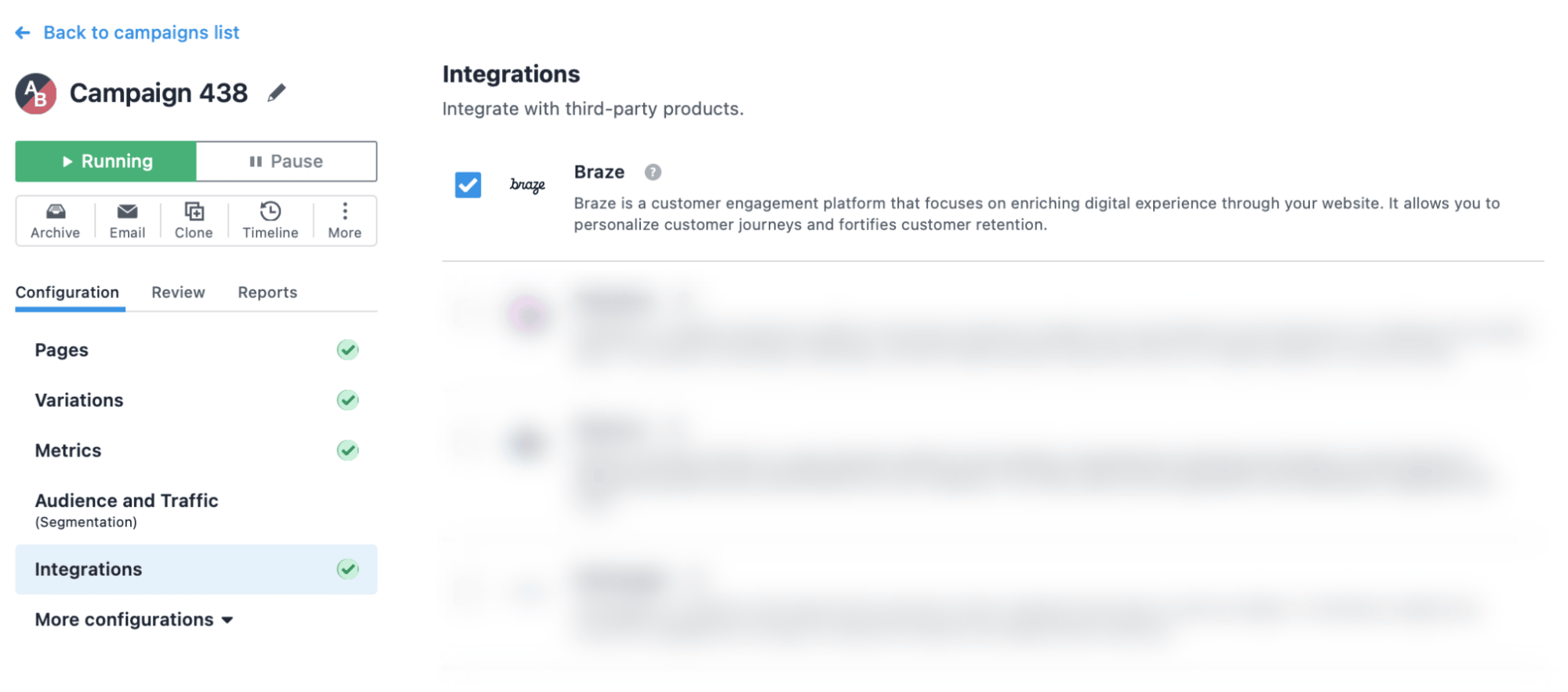
- 통합을 활성화하면 VWO가 Campaign 수준에서 실험 데이터를 Braze로 전송하기 시작합니다.
2단계: VWO 이벤트 속성정보로 Braze에서 Segment 생성하기
- Braze 대시보드에서 Segments > + Create Segment를 선택합니다.
- Create Segment 창에서 Segment 이름을 입력한 다음 Create Segment를 선택합니다.
- 새로 생성된 Segment에서 Filters > Add Filter를 선택한 다음 필터 유형으로 Custom Event를 선택합니다.
- 필터 드롭다운에서 VWO를 검색합니다.
- 관련 VWO 속성정보를 선택하고 필요한 값을 지정합니다.
-
필요한 경우 방문 횟수와 기간을 구성합니다. 완료되면 Save를 선택합니다.
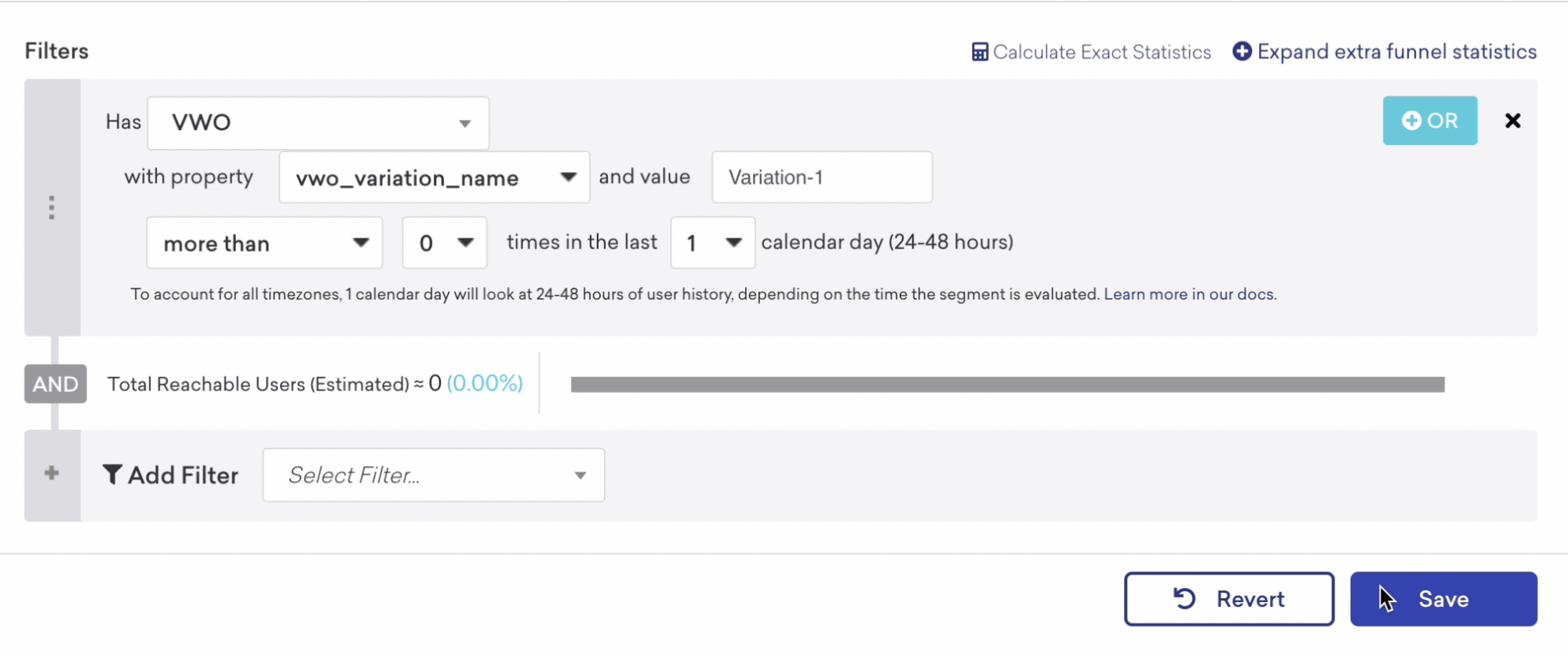
-
Segment 기준에 일치하는 사용자 수를 확인하려면 Calculate Exact Statistics를 선택합니다.
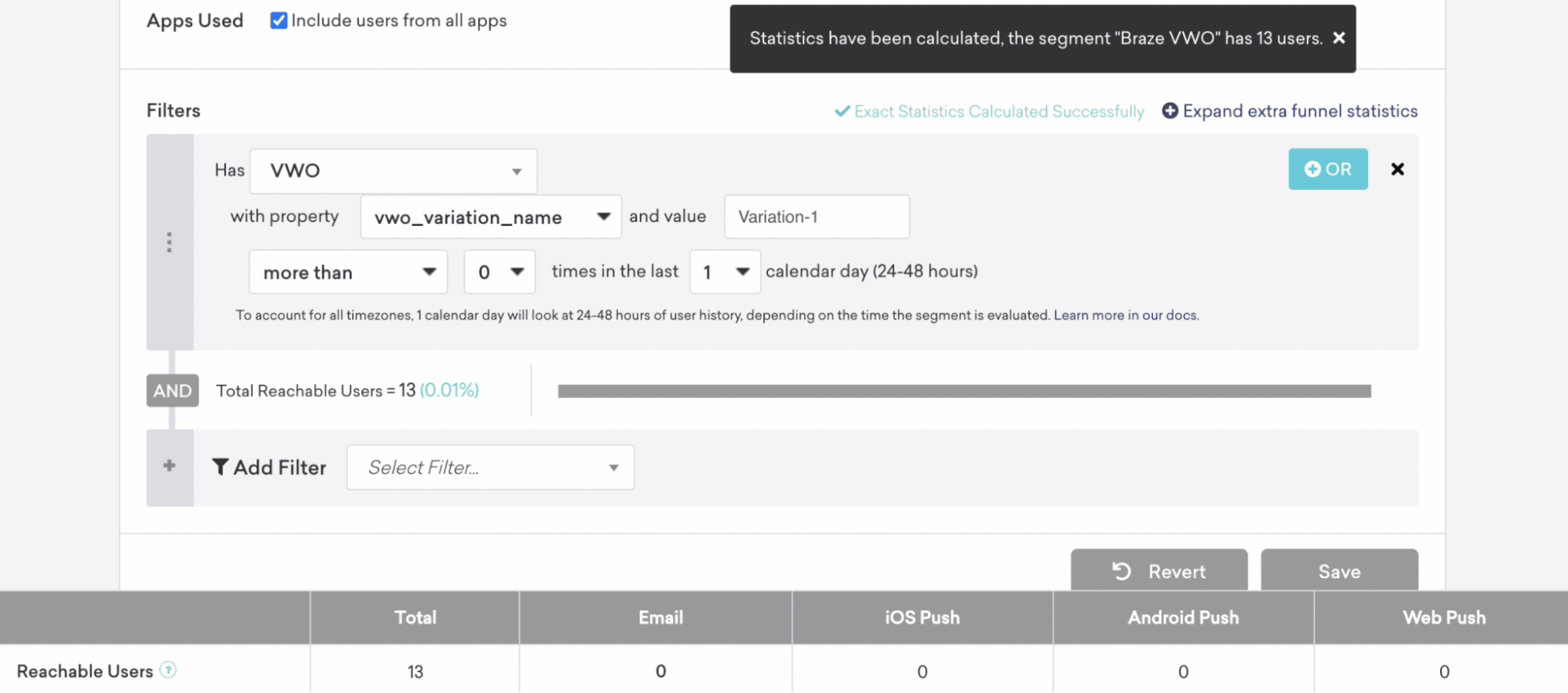
데이터 흐름
VWO는 다음 형식을 사용하여 Campaign 실험 데이터를 커스텀 이벤트로 Braze에 전송합니다:
- 이벤트 이름: VWO
- 이벤트 속성정보:
vwo_campaign_name,vwo_variation_name

이러한 커스텀 이벤트 속성정보는 세분화 및 타겟팅에도 사용할 수 있습니다.
고려 사항
이벤트 속성정보 세분화 요청
이벤트 속성정보 세분화를 사용하려면 먼저 Braze에서 활성화해야 합니다. 다음 템플릿을 사용하여 Braze 고객 성공 매니저 또는 고객지원 팀에 연락하여 액세스를 요청하세요.
| 필드 | 세부 정보 |
|---|---|
| 제목 | Request to Enable Event Property Segmentation for VWO Integration |
| 본문 |
Hello Braze Team, We would like to enable event property segmentation for events sent from our VWO<>Braze integration. Here are the details: - Event Name: VWO - Event Properties: vwo_campaign_name, vwo_variation_namePlease confirm once the properties have been enabled in our account. Thank you. |
Braze 데이터 포인트
세분화를 위해 활성화된 이벤트 속성정보를 포함하여 VWO에서 Braze로 전송된 커스텀 이벤트는 Braze 인스턴스에 데이터 포인트를 기록합니다.
추가 고려 사항
현재 이 통합은 테스트 데이터의 실시간 동기화를 지원하지 않습니다. 테스트 데이터가 Braze에 표시되기까지 최대 15분의 지연이 발생할 수 있습니다.
문제 해결
Braze에서 VWO 데이터가 표시되지 않는 경우:
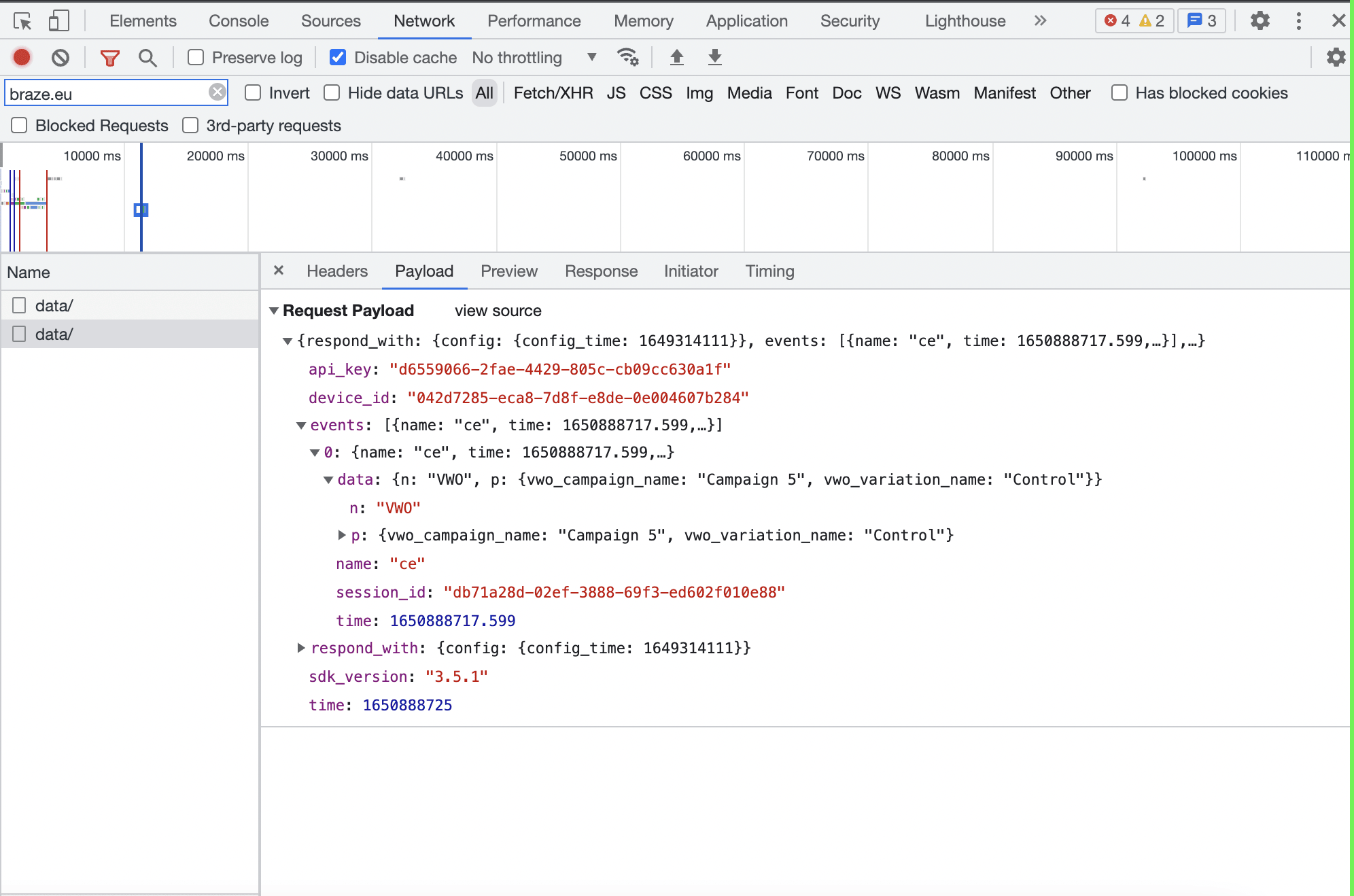
- 테스트 Campaign이 실행 중인 페이지에서 마우스 오른쪽 버튼을 클릭하고 Inspect Element를 선택합니다.
- Network 탭에서 Braze를 검색하여 Braze에 대한 네트워크 호출을 필터링합니다.
- 페이지가 로드되면 네트워크 호출이 채워집니다. 네트워크 호출을 확인하려면 페이지를 새로고침할 수 있습니다.
- 네트워크 호출을 선택하여 세부 정보를 확인합니다.
- Payload 탭의 Request Payload 섹션으로 이동하면 events:에서 name: ce(커스텀 이벤트를 나타냄)를 찾을 수 있습니다.
- 0: 및 data:를 확장하면 n: “VWO”(커스텀 이벤트 이름) 및 p: {vwo_campaign_name: “
", vwo_variation_name: "<변형 이름="">"}을 확인할 수 있습니다. 이는 VWO에서 Braze로 값이 전송되고 있음을 나타냅니다.
추가 지원이 필요한 경우 VWO 고객 성공 매니저에게 문의하세요.