Dixa
Dixa는 채팅, 이메일, 전화, 소셜 미디어 등의 커뮤니케이션 채널을 하나의 인터페이스로 통합하여 고객지원 경험을 향상시키도록 설계된 고객 서비스 플랫폼입니다. 지능형 라우팅, 자동화, 실시간 성과 인사이트를 통해 비즈니스의 고객 만족도와 효율성을 개선하는 데 도움을 줍니다.
Braze와 Dixa 통합은 고객 서비스 상담원에게 실시간 Braze 데이터를 제공하여 모든 사용자에 대한 더 나은 뷰를 제공합니다.
필수 조건
시작하기 전에 다음이 필요합니다:
| 필수 조건 | 설명 |
|---|---|
| Dixa 계정 | 이 파트너십을 활용하려면 Dixa 관리자 계정이 필요합니다. |
| Braze REST API 키 | users.export.ids 및 email.status 권한이 있는 Braze REST API 키.Braze 대시보드의 Settings > API Keys에서 생성할 수 있습니다. |
| Braze REST 엔드포인트 | REST 엔드포인트 URL. 엔드포인트는 인스턴스의 Braze URL에 따라 달라집니다. |
사용 사례
이메일, 메신저, 채팅 등 다양한 커뮤니케이션 채널에서 사용자와 소통하는 동안 고객 서비스 상담원 뷰에 Braze 데이터를 표시합니다. 또한 Braze 데이터 변환을 사용하여 Dixa에서 Braze로 데이터를 전송하면 사용자의 문제를 해결하는 동안 마케팅을 일시 중지하거나, Dixa의 만족도 설문조사를 세분화에 활용할 수 있습니다.
통합
Dixa 내에서 통합을 구성하려면 Dixa 관리자여야 합니다. Braze 통합의 경우 Dixa에서 Settings > Integrations > Braze로 이동합니다.
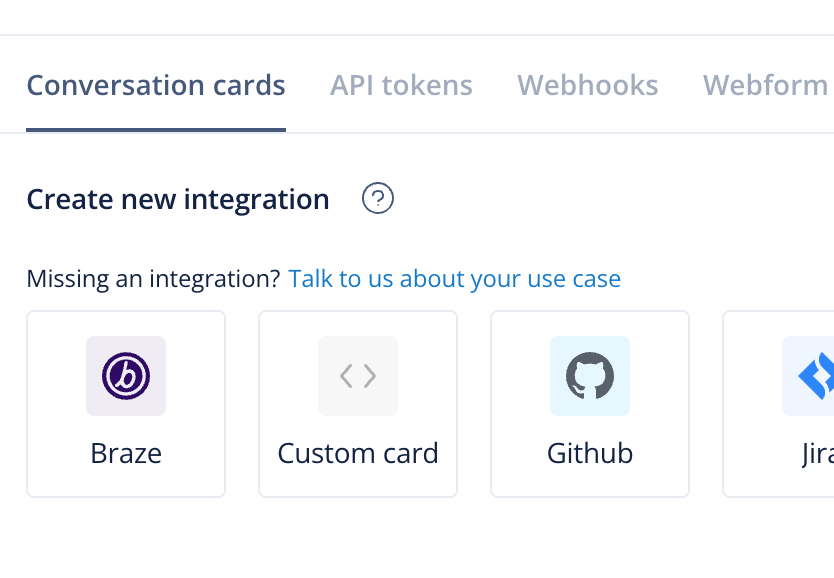
1단계: Dixa에서 통합 생성
Create Braze widget 페이지에서 다음 필수 필드를 입력하여 통합을 생성합니다:
- Widget name: 나중에 대화 사이드바에서 제목으로 사용될 통합의 이름입니다.
- API URL: 인스턴스의 Braze REST API 엔드포인트 URL입니다.
- API Key: 필수 조건에서 생성한 Braze API 키입니다.
2단계: 통합 구성
다음으로 Braze와 Dixa 통합을 구성합니다. 다음 옵션 중에서 선택하여 대화 사이드바에서 Braze 위젯의 뷰를 조정합니다.
대화 사이드바에 위젯 표시
이 설정은 Dixa의 대화 사이드바 내에서 전체 통합을 표시하거나 숨깁니다.
통합을 적극적으로 구성하는 중이라면 필수 필드를 입력하는 동안 이 설정을 끄는 것이 좋습니다. 구성을 완료하면 다시 켤 수 있으며 Dixa 상담원이 통합을 사용할 수 있습니다.
고객 세부 정보 표시
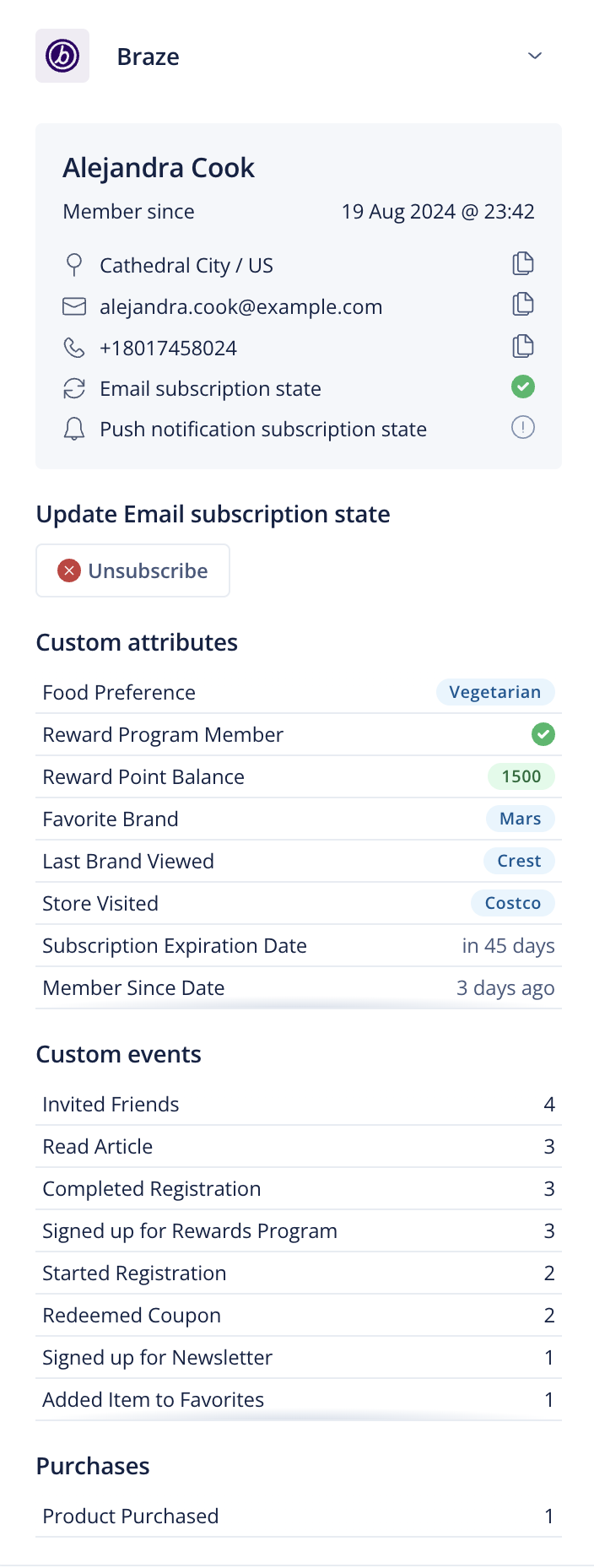
사용자의 세부 정보를 표시하거나 숨기도록 선택합니다. 세부 정보에는 위치, 이메일, 전화번호, 이메일 구독 상태, 푸시 알림 구독 상태, Braze 멤버십 기간에 대한 데이터가 포함됩니다.
이메일 구독 상태 변경 버튼 표시
버튼은 Braze의 세 가지 구독 상태 중 하나를 기반으로 합니다: subscribed, opted-in, unsubscribed. 사용자가 subscribed 상태인 경우 상담원은 opt-in 또는 unsubscribe를 선택할 수 있습니다. 사용자가 opted-in 또는 unsubscribed 상태인 경우 상담원은 두 상태 간에만 전환할 수 있습니다.
커스텀 속성 목록 표시
사용자의 커스텀 Braze 속성을 표시하거나 숨기도록 선택합니다.
커스텀 이벤트 목록 표시
사용자의 커스텀 Braze 이벤트를 표시하거나 숨기도록 선택합니다.
구매 목록 표시
사용자가 구매한 제품 목록을 표시하거나 숨기도록 선택합니다. 여기에서 사용자가 제품을 구매한 횟수를 확인할 수 있습니다. 첫 구매 날짜와 마지막 구매 날짜를 보려면 항목 위로 마우스를 가져갑니다.
통합 예시
다음은 통합의 예시입니다:
데이터 변환 도구
Dixa는 웹훅을 사용하여 Braze로 데이터를 전송합니다. 웹훅을 구성하려면 Dixa 관리자여야 합니다.
Dixa에서 대화 추적
첫 번째 단계는 Braze에서 데이터 변환을 생성하는 것입니다.
- Data Settings > Data Transformations > Create transformation으로 이동합니다.
- Start from scratch를 선택하고 대상으로 POST: Track Users를 선택한 다음 Create transformation을 선택합니다.
- 변환 편집기에서 아래 데이터 변환 도구 예시의 코드 예제를 복사하여 Transformation code 필드에 삽입합니다. Save를 선택하고 Webhook URL을 복사한 다음 Dixa를 엽니다.
- Dixa에서 Settings > Integrations > Webhooks > + Outbound webhook으로 이동합니다.
- 웹훅 설정 페이지에서 Braze의 URL을 붙여넣고 추적하려는 이벤트를 토글합니다. Conversation created는 고객의 대화를 추적하기 위한 좋은 시작점입니다.
- Save를 선택하여 Dixa 설정을 완료합니다.
데이터 변환 도구 예시
1
2
3
4
5
6
7
8
9
10
11
12
13
14
15
16
17
18
19
20
21
22
23
24
25
26
27
28
29
30
31
32
33
34
// Transforming the provided payload to match Braze /users/track endpoint specifications.

// Extracting necessary details from the payload
const requester = payload.data.conversation.requester;
const event = payload.data.conversation;

// Defining user attributes based on the provided payload, prioritizing email if available.
const userAttributes = {
  email: requester.email, // Prioritizing email over external_id and user_alias
  _update_existing_only: false, // Set to false to create or update user profiles when identified by email
  organization: payload.organization.name, // Including an additional attribute for demonstration
};

// Defining event attributes based on the provided payload.
const eventAttributes = {
  email: requester.email, // Prioritizing email over external_id and user_alias
  name: payload.event_fqn, // The name of the event
  time: event.created_at, // ISO 8601 datetime format
  properties: { // Including additional event properties
    event_version: payload.event_version,
    conversation_status: event.status,
    conversation_channel: event.channel
  },
  _update_existing_only: false // Set to false to create or update user profiles when identified by email
};

// Constructing the final object to match Braze /users/track endpoint schema
const brazecall = {
  attributes: [userAttributes], // Wrapping userAttributes in an array as per specifications
  events: [eventAttributes] // Wrapping eventAttributes in an array as per specifications
};

// Returning the transformed data
return brazecall;
Braze에서 CSAT 점수 사용
- Data Settings > Data Transformations > Create transformation으로 이동합니다.
- Start from scratch를 선택하고 대상으로 POST: Track Users를 선택한 다음 Create transformation을 선택합니다.
- 변환 편집기에서 아래 CSAT 점수 추적의 코드 예제를 복사하여 Transformation code 필드에 삽입합니다. Save를 선택하고 Webhook URL을 복사한 다음 Dixa를 엽니다.
- Dixa에서 Settings > Integrations > Webhooks > + Outbound webhook으로 이동합니다.
- 웹훅 설정 페이지에서 Braze의 URL을 붙여넣고 추적하려는 이벤트를 토글합니다. Conversation created는 고객의 대화를 추적하기 위한 좋은 시작점입니다.
- Save를 선택하여 Dixa 설정을 완료합니다.
CSAT 점수 추적
1
2
3
4
5
6
7
8
9
10
11
12
13
14
15
16
17
18
19
20
21
22
23
24
25
26
27
28
29
30
31
32
33
34
35
36
37
const body = payload?.data;

// values from your webhook
const score = body.score;         // number
const comment = body.comment;     // string
const type = body.type;           // string
const ratedAt = body.event_timestamp;   // ISO 8601 string
const contactemail = body.conversation.requester.email;

// ALWAYS identify by email
const email = contactemail;

if (!email) {
  // Can't identify a user without email
  return { attributes: [] };
}


let brazecall = {
  "attributes": [
    {
      // Using the Dixa user email as the external_id to identify the user in Braze
      "email": contactemail,
      "_update_existing_only": true,

      // Your new custom object attribute
      "last_csat": {
        "score": score,
        "comment": comment,
        "type": type,
        "rated_at": ratedAt
      }
    }
  ]
};

return brazecall;