Audience Sync to Facebook
Using the Braze Audience Sync to Facebook, you can elect to add your own users’ data from your Braze integration to Facebook custom audiences to deliver advertisements based on behavioral triggers, segmentation, and more.
Any criteria you’d typically use to trigger a message (push, email, SMS, or webhook) in a Braze Canvas based on your user data can now be used to trigger an ad to that user in Facebook using custom audiences. 예를 들어 오디언스 동기화를 Facebook에 구성하면 이메일, 전화, 이름, 성 등 다양한 퍼스트 파티 필드를 사용할 수 있습니다.
Common use cases for syncing custom audiences include:
- Targeting high-value users with multiple channels to drive purchases or engagement.
- Retargeting users who are less responsive to other marketing channels.
- Creating suppression audiences to prevent users from receiving advertisements when they’re already loyal consumers of your brand.
- Creating lookalike audiences to acquire new users more efficiently.
This feature allows brands to control what specific first-party data is shared with Facebook. At Braze, the integrations you can and cannot share your first-party data with are given the utmost consideration. For more information, refer to our privacy policy.
User syncing and rate limit considerations
사용자가 오디언스 동기화 단계에 도달하면, Braze는 Facebook의 마케팅 API 속도 제한을 준수하면서 거의 실시간으로 동기화합니다. Braze는 5초마다 가능한 한 많은 사용자를 일괄 처리하여 Facebook으로 전송합니다.
Facebook의 마케팅 API 속도 제한에 따라 광고 계정당 1시간 동안 최대 190,000건의 API 요청을 허용하지 않습니다. 고객이 이 제한에 도달하면 Braze는 최대 13시간 동안 동기화를 다시 시도합니다. 그래도 동기화가 되지 않으면 Braze는 이러한 사용자를 사용자 오류 측정기준 아래에 나열합니다.
필수 조건
You’ll need to confirm that you have the following items created and completed before setting up your Facebook Audience step in Canvas.
| Requirement | Origin | Description |
|---|---|---|
| Facebook Business Manager | A centralized tool to manage your brand’s Facebook assets (for example, ad accounts, pages, and apps). | |
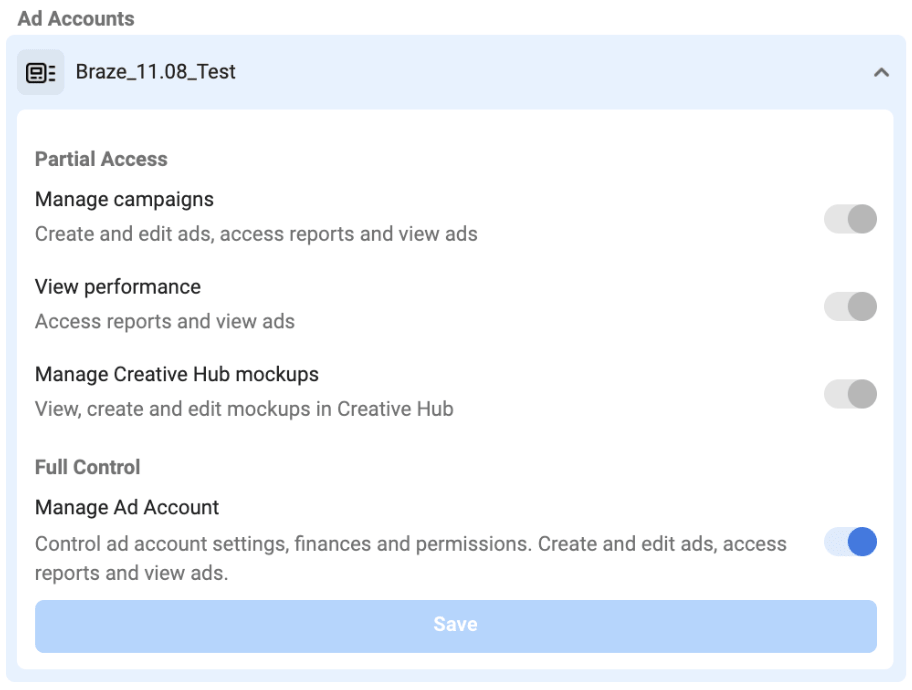
| Facebook Ad Account | An active Facebook ad account tied to your brand’s business manager. Ensure that your Facebook Business Manager admin has granted you either “Manage Campaigns” or “Manage ad accounts” permissions to the Facebook ad accounts you plan to use with Braze. Also, ensure that you have accepted your ad account terms and conditions. |
|
| Facebook Custom Audiences Terms | Accept Facebook’s Custom Audiences Terms for your Facebook ad accounts you plan to use with Braze. |
Integration
Step 1: Connect to Facebook
Facebook을 Braze 계정에 연결하려면 ‘관리자’ 권한이 있어야 합니다.
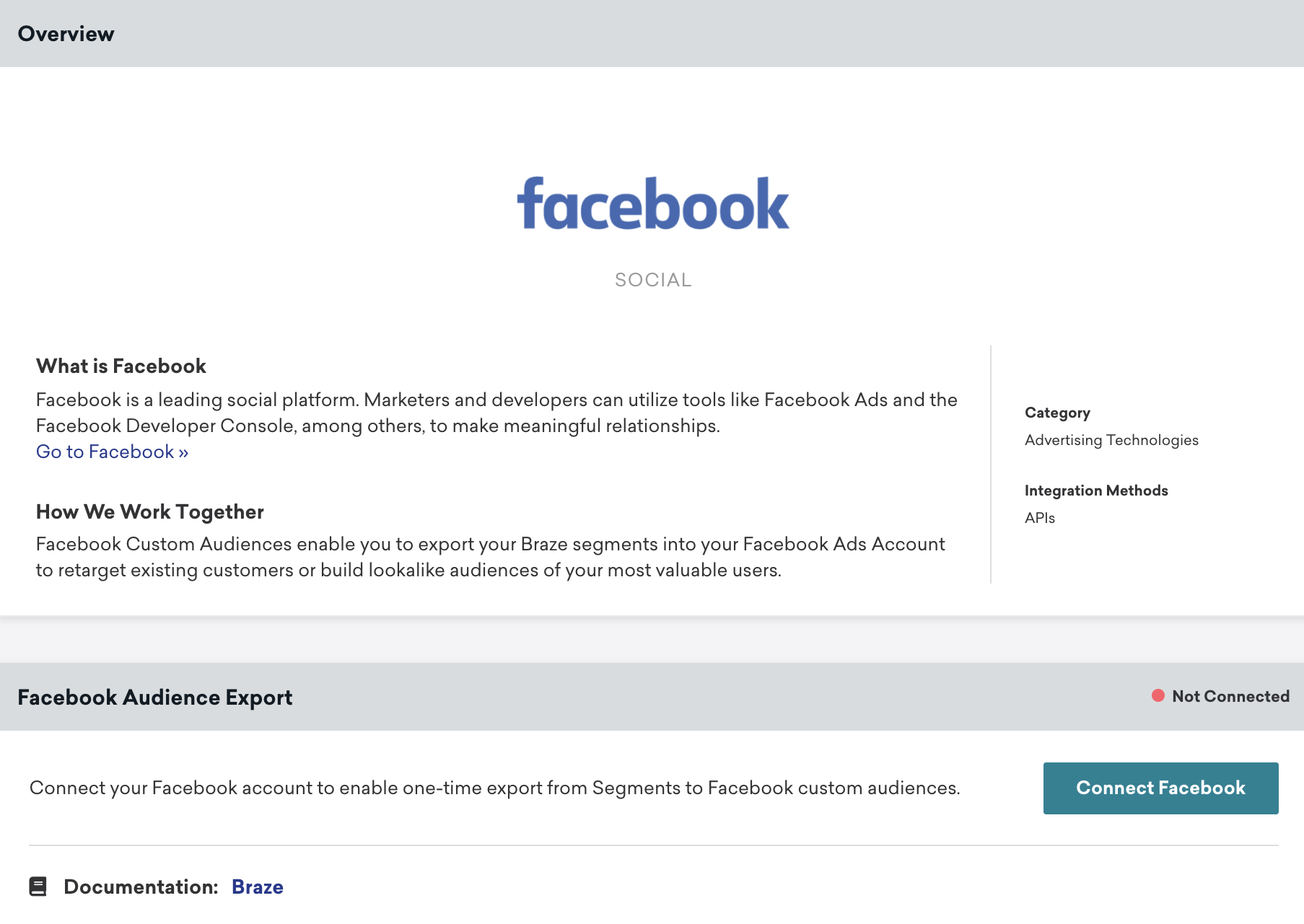
In the Braze dashboard, go to Partner Integrations > Technology Partners and select Facebook. Under Facebook Audience Export, select Connect Facebook.
Facebook 광고 계정에 커스텀 오디언스를 생성할 수 있도록 Braze에 권한을 부여하는 Facebook oAuth 대화창이 나타납니다.
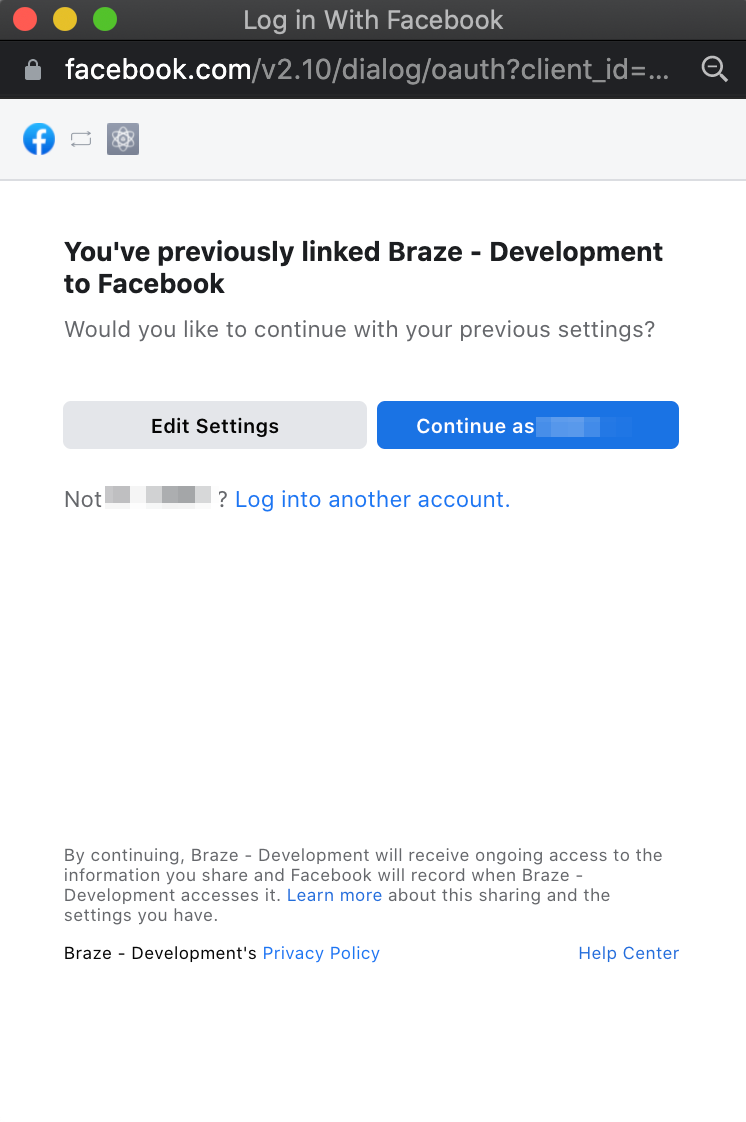
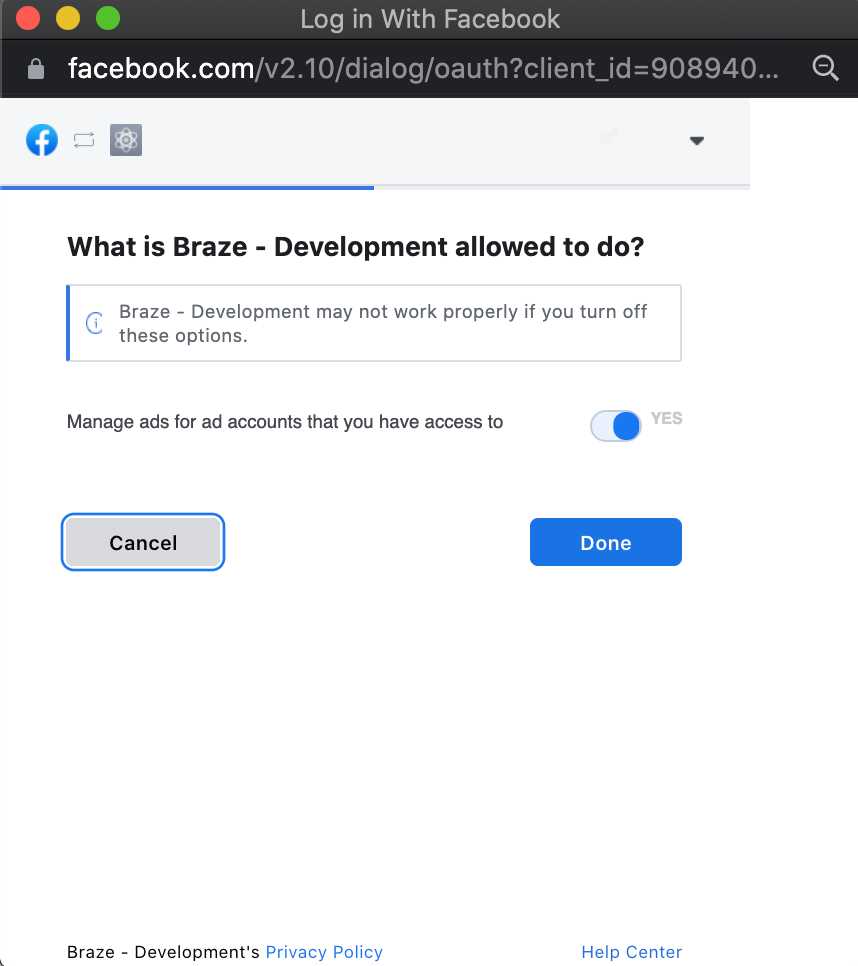
After linking Braze to your Facebook account, select the ad accounts you would like to sync within your Braze workspace. When you’re connected, you’ll be taken back to the partner page, where you can view which accounts are connected and disconnect existing accounts.
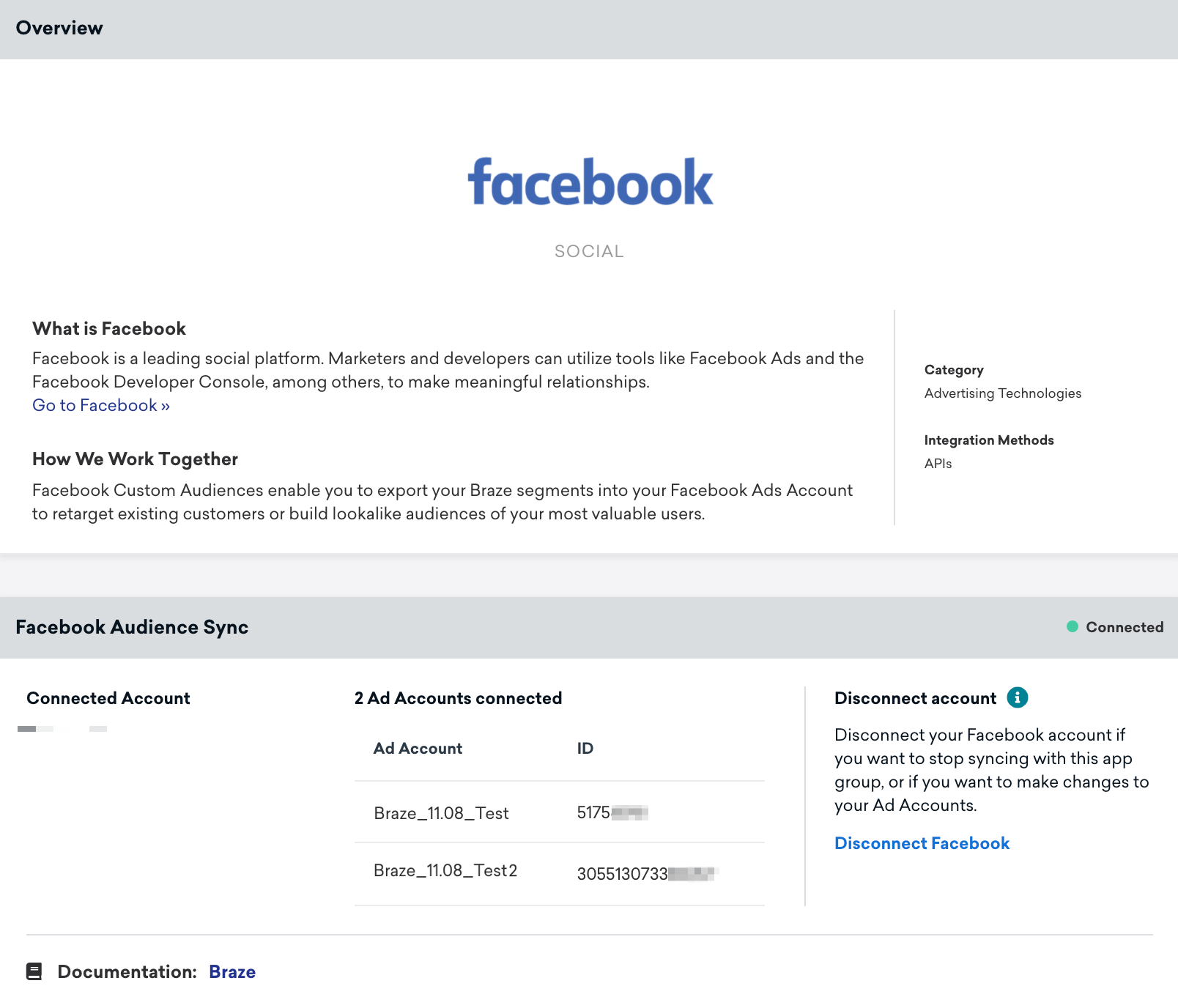
Facebook 연결은 Braze 워크스페이스 수준에서 적용됩니다. If your Facebook admin removes you from your Facebook Business Manager or access to the connected Facebook accounts, Braze will detect an invalid token. As a result, your active Canvases using Facebook Audience components will show errors, and Braze will not be able to sync users.
For customers who have previously undergone the Facebook App Review process for Ads Management and Ads Management Standard Access, your System User Token will still be valid for the Facebook Audience component. Facebook 파트너 페이지를 통해서는 Facebook 시스템 사용자 토큰을 편집하거나 취소할 수 없습니다. Instead, you can connect your Facebook account to replace your Facebook System User Token within your Braze workspace.
The Facebook oAuth configuration will also apply to Facebook exports using Segments.
Step 2: Accept custom audiences terms of service
Before building out your Canvas, you must accept the following Facebook terms of service at the following links:
- Customer List Custom Audiences Terms for your personal account:
https://www.facebook.com/ads/manage/customaudiences/tos.php?act=<ACCOUNT_ID>. - 비즈니스 계정에 대한 Facebook 비즈니스 도구 약관:
https://business.facebook.com/customaudiences/value_based/tos.php?act=<ACCOUNT_ID>&business_id=<BUSINESS_ID>.
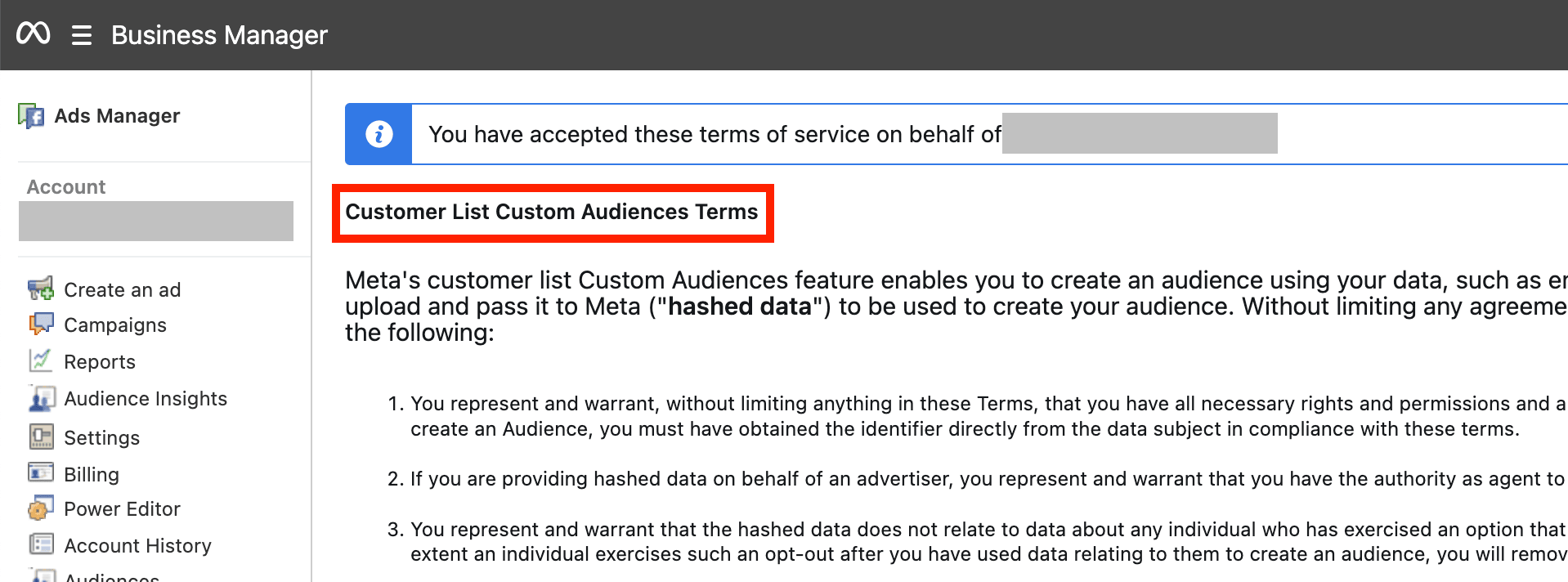
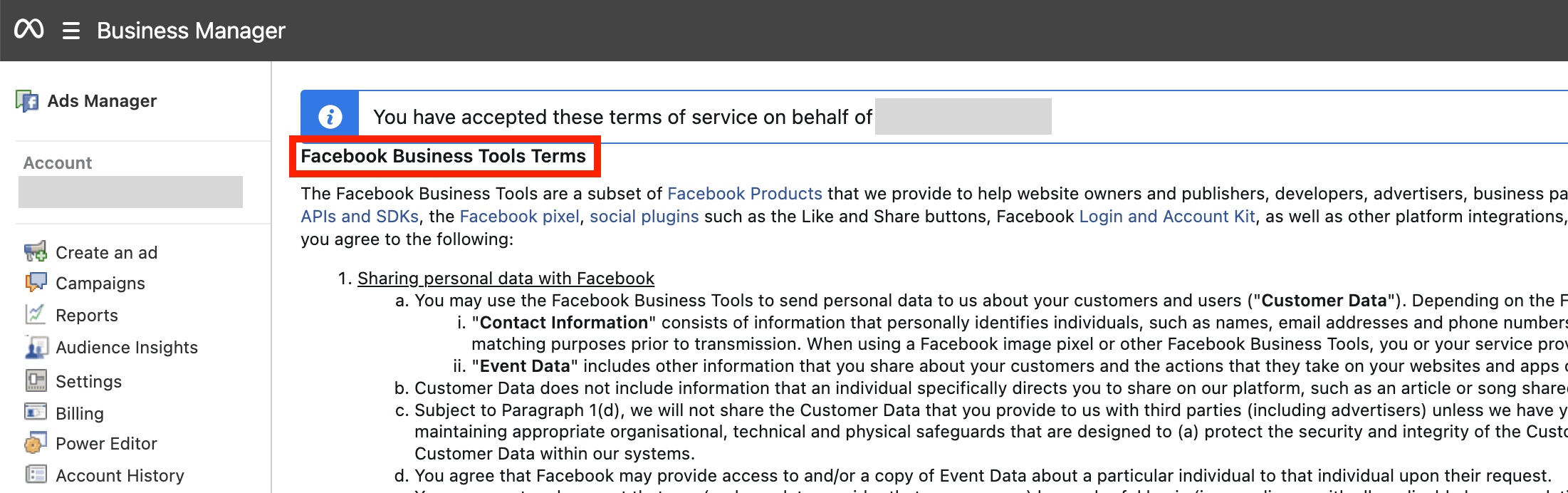
통합 시 Facebook 계정을 감사하는 데 대한 자세한 내용은 FAQ 섹션을 참조하십시오.
3단계: 캔버스에 Facebook 오디언스 컴포넌트 추가하기
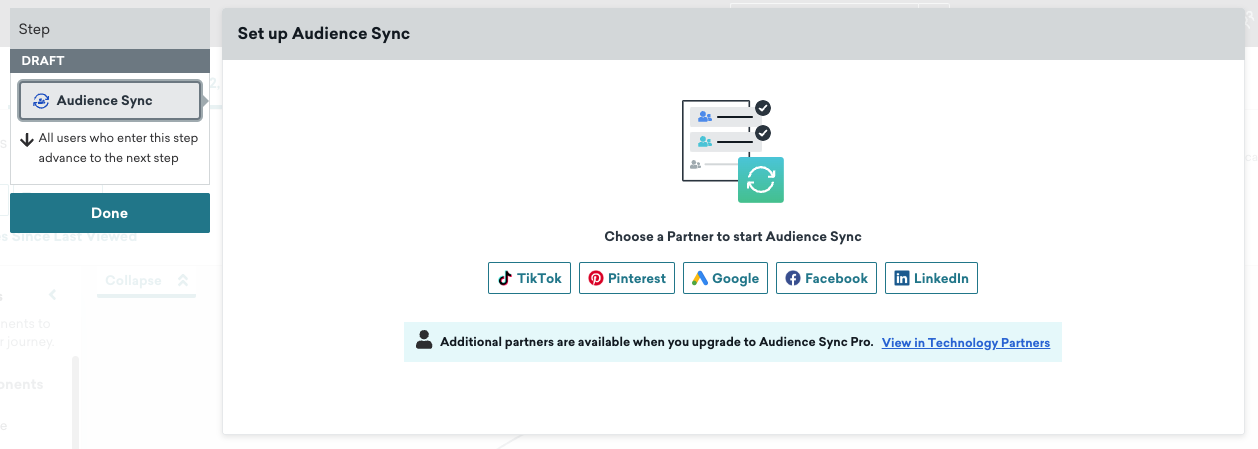
Add a component in your Canvas and select Facebook Audience.
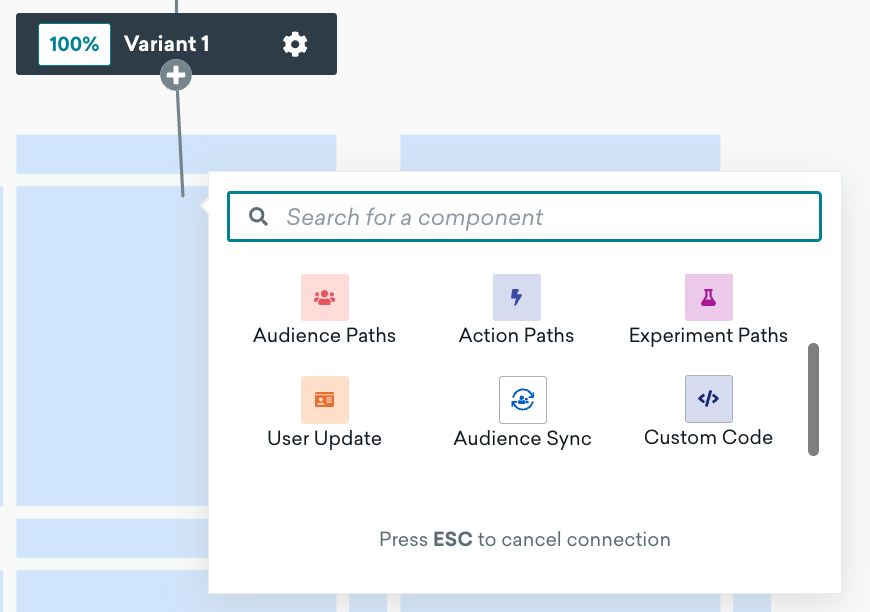
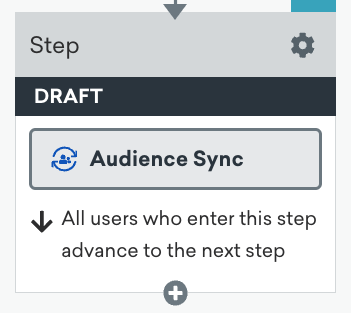
4단계: Sync setup
Select on the Custom Audience button to open the component editor. 그런 다음 Facebook을(를) 오디언스 동기화 파트너로 선택합니다.
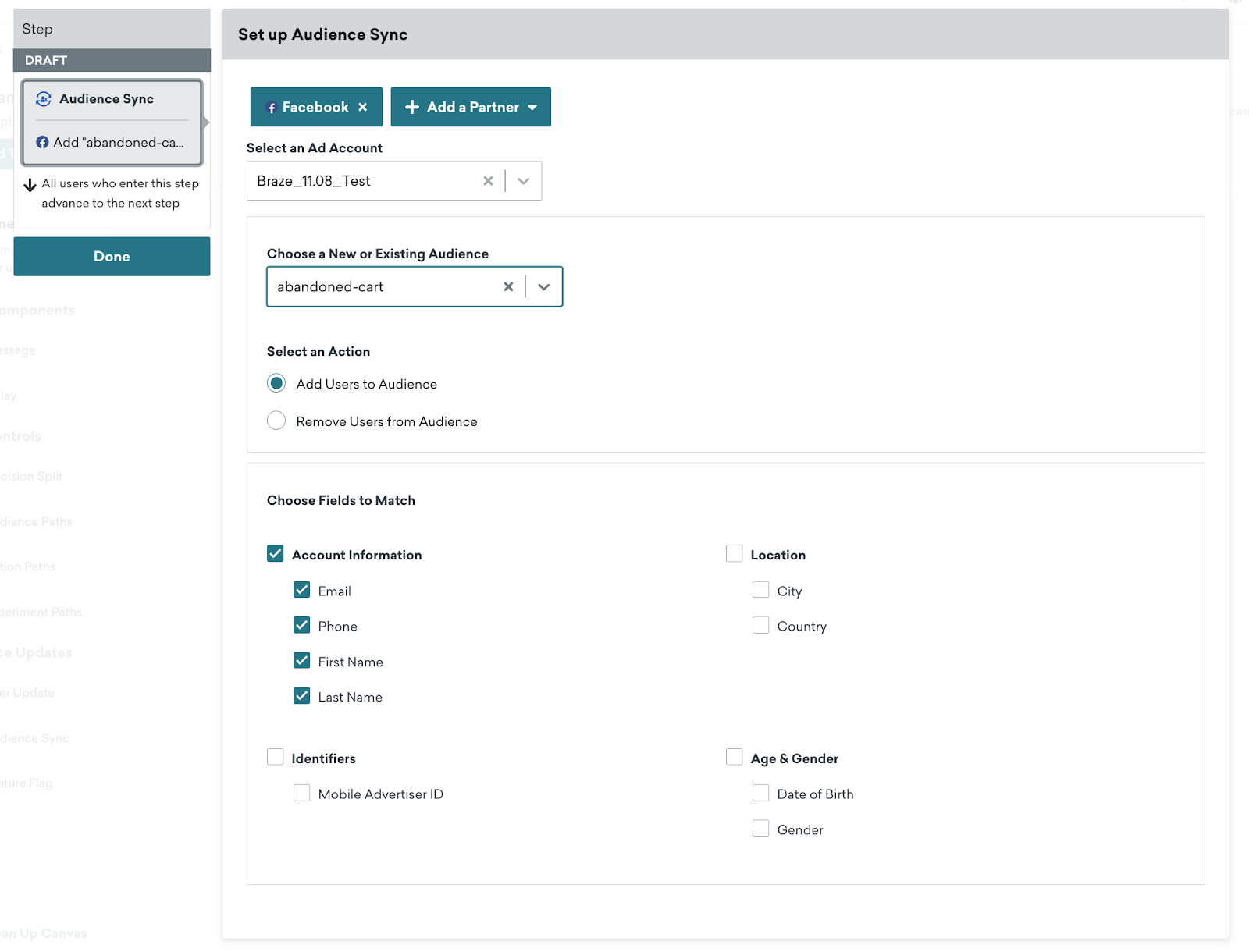
Select the desired Facebook ad account. Under the Choose a New or Existing Audience dropdown, type in the name of a new or existing audience.
- Enter a name for the new custom audience.
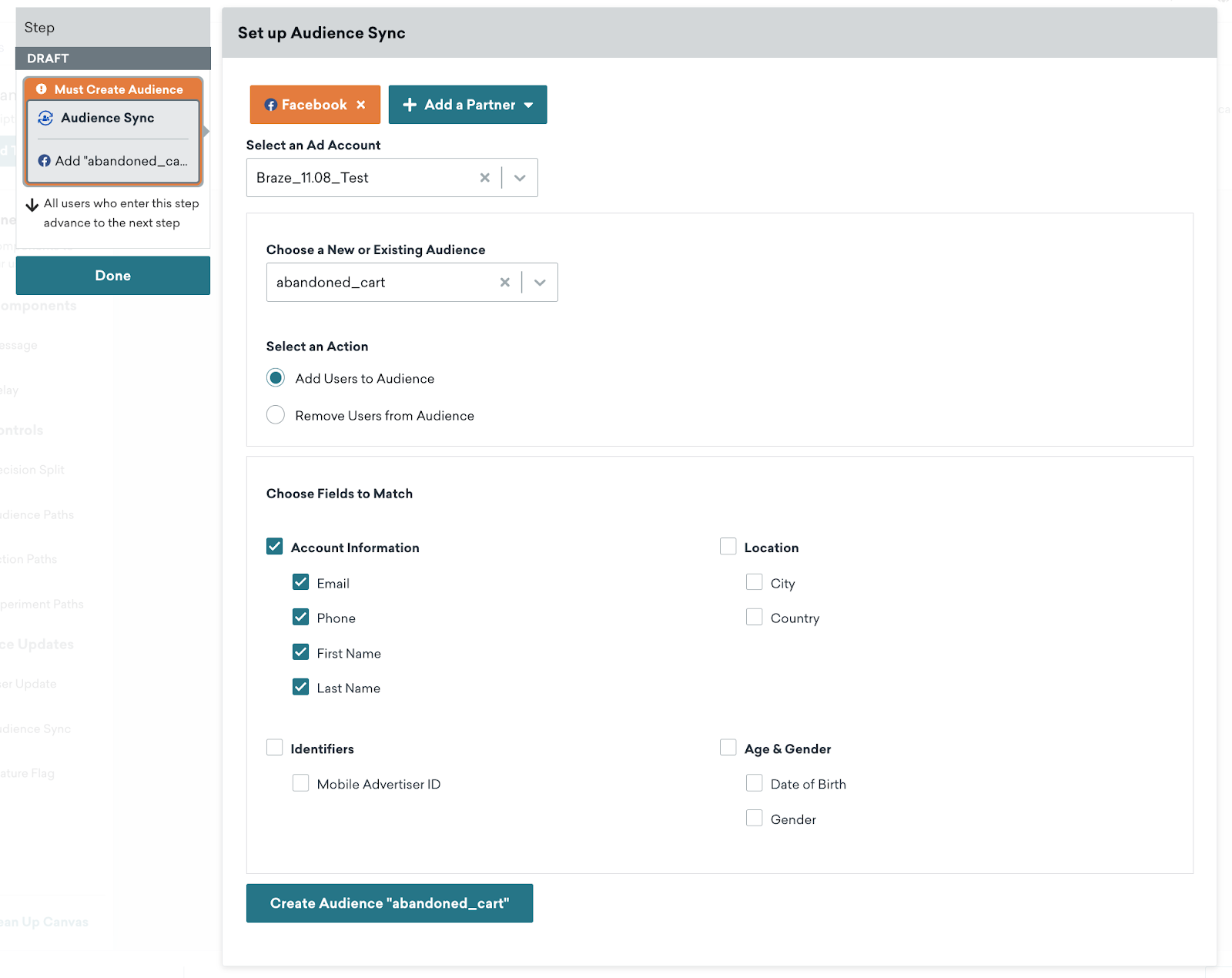
- Select Add Users to Audience, and choose the fields you would like to sync with Facebook.
- Next, select Create Audience to save your audience.
You’ll be notified at the top of the step editor if the audience is created successfully or if an error occurs during this process. You can also reference this audience for user removal later in the Canvas journey because the audience was created in draft mode.
When you launch a Canvas with a new audience, Braze will create the new custom audience upon launching the Canvas and subsequently sync users in near real-time as they enter the Audience Sync step.
Braze offers the ability to either add or remove users from existing Facebook custom audiences to confirm that these audiences are up-to-date. To sync with an existing audience, do the following:
- Type the existing audience name in the dropdown.
- Choose whether you want to Add to the Audience or Remove from the Audience.
- Braze will either add or remove users in near real-time as they enter the Facebook Audience step.
Facebook prohibits removing users from custom audiences where the audience sizes are too low (typically fewer than 1,000 users). 그 결과, Braze는 오디언스가 적절한 오디언스 규모에 도달할 때까지 오디언스 동기화 단계에서 사용자를 동기화할 수 없습니다.
Step 5: Launch Canvas
After configuring your Facebook Audience component, it’s time to launch the Canvas! 새로운 커스텀 오디언스가 생성되고, Facebook 오디언스 단계를 통해 유입된 사용자는 Facebook에서 이 커스텀 오디언스로 전달됩니다. If your Canvas contains subsequent steps, your users will then advance to the next step in their user journey.
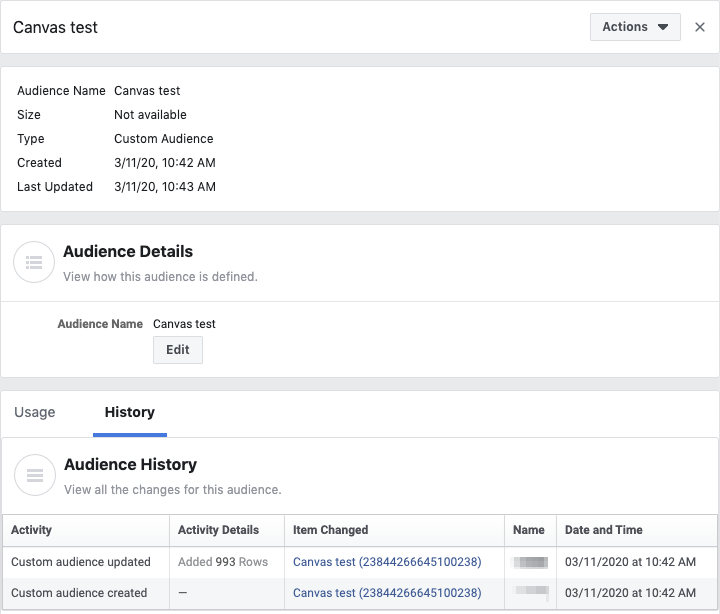
The History tab of the custom audience in the Facebook Audience Manager will reflect the number of users sent to the audience from Braze. 사용자가 해당 단계에 다시 들어가면 Facebook으로 다시 전송됩니다.
Understanding analytics
The following table includes metrics and descriptions to help you better understand analytics from your Audience Sync component.
| Metric | Description |
|---|---|
| Entered | Number of users who entered this component to be synced to Facebook. |
| Proceeded to Next Step | How many users advanced to the next component, if there is one. All users will auto-advance if this is the last step in the Canvas branch. |
| Users Synced | Number of users who have successfully been synced to Facebook. |
| Users Not Synced | Number of users that have not been synced due to missing fields to match. Fields are matched using an “OR” operator, meaning as long as a user has one of the fields in Facebook, Facebook will match the user even if there’s no match on all other fields. |
| Users Pending | Number of users currently being processed by Braze to sync into Facebook. |
| Users Errored | Number of users who were not synced to Facebook due to an API error after about 13 hours of retries. Potential causes of errors can include an invalid Facebook token or if the custom audience was deleted on Facebook. |
| Exited Canvas | Number of users who have exited the Canvas. This occurs when the last step in a Canvas is a Facebook step. |
동기화된 사용자에 대한 보고가 지연되고 내부 처리로 인해 측정기준에 오류가 발생했습니다.
Frequently asked questions
How long does it take for my audiences to populate in my Audience Sync partner dashboard?
The time it takes to populate an audience depends on the specific partner. All networks will process the requests from Braze and attempt to match users. It can take up to 24 hours for custom audiences to be updated.
What should I do next if I receive an invalid token error?
You can simply disconnect and reconnect your Facebook account on the Facebook partner page. Confirm with your Facebook Business Manager admin that you have the appropriate permissions to the ad account you wish to sync with.
Why is my Canvas not allowed to launch?
- Make sure your system user token is authenticated and has access to the desired ad accounts in Facebook Business Manager.
- Make sure you have selected an ad account, entered a name for the new custom audience, and selected fields to match.
- You may have reached the 500 custom audience limit on Facebook. Go to the Facebook Audience Manager to delete some unneeded ones before creating any new custom audiences using Canvas.
How do I know if users have matched after passing users to Facebook?
Facebook doesn’t provide this information for privacy reasons.
Does Braze support value-based custom audiences?
At this time, value-based custom audiences aren’t supported by Braze. If you’re interested in syncing these types of custom audiences, submit product feedback.
Does Braze hash data before sending it to Audience Sync partners?
Once email data is normalized, Braze hashes it with SHA256.
IDFA/AAID/전화: SHA256으로 Braze 해시. The audience types we sync to are always one of the following:
- IDFA_SHA256
- AAID_SHA256
- EMAIL_SHA256
- PHONE_SHA256.
In terms of frequency, Braze will only hash user personally identifiable information (PII) as users enter into the Audience Sync step in the user journey in preparation for the sync.
How do I resolve an issue with syncing a value-based lookalike custom audience?
At this time, value-based lookalike custom audiences are not supported by Braze. If you attempt to sync to this audience, this can cause errors for your Audience Sync step. To resolve this, follow these steps:
- Go to your Facebook Ad Manager dashboard and select Audiences.
- Select Create audience > Custom audience.
- Select Customer list.
- Upload your CSV or list without the Value column. Select No, continue with a customer list that doesn’t include customer value.
- Finish creating your custom audience.
- In Braze, update the Facebook Audience Sync step with the custom audience you created.
I’ve received an email related to Facebook custom audience terms of service. What should I do to resolve this?
Facebook 오디언스 동기화 기능을 사용하려면 본 서비스 약관에 동의해야 합니다.
- If your ad account is directly associated with your personal Facebook account, you can accept the terms of service from in your personal account here:
https://www.facebook.com/ads/manage/customaudiences/tos.php?act=<ACCOUNT_ID>. - 광고 계정이 회사의 비즈니스 매니저 계정에 연결된 경우, Facebook 비즈니스 매니저 계정에서 서비스 약관에 동의해야 합니다:
https://business.facebook.com/customaudiences/value_based/tos.php?act=<ACCOUNT_ID>&business_id=<BUSINESS_ID>.
After you have accepted your Facebook custom audience terms of service, do the following:
- Refresh your Facebook access token with Braze by disconnecting and reconnecting your Facebook account.
- Re-enable your Facebook Audience Sync step by editing and updating your Canvas.
Then, Braze can sync users as soon as they reach the Facebook Audience Sync step.
Troubleshooting
| Error | Description | Steps to resolve |
|---|---|---|
| Invalid Token | Typical causes are if the user who connected the integration changes their password, credentials expire, and more. | Go to Partner Integrations > Facebook and disconnect and reconnect your account. Refer to this troubleshooting section for additional steps to audit your Facebook account. |
| Audience Size Too Low | This error can occur if you created an Audience Sync step that removes users from your audiences. If your audience size approaches zero, the network may flag that the audience size is too small to serve. | Use an Audience Sync strategy that regularly adds and removes users, where it doesn’t fully deplete the audience size. |
| Audience Does Not Exist | The Audience Sync step uses an audience that does not exist or was deleted. This can also be triggered if you no longer have the necessary permission to access the audience. | Have an admin check on the partner platform to see whether the audience still exists. If it exists, confirm whether the user who connected the integration has permission to the audience. If they do not, the user must be granted access to that audience. If the audience was intentionally removed, add an active audience and create a new audience on the step. |
| Ad Account Access Attempt | You don’t have permissions for the ad account or audience that you selected. | Work with the administrators of your ad account to get proper access and permissions. |
| Terms of Service Not Accepted | For some Audience Sync destinations, like Facebook, it's required by the ad network to accept specific terms of services to use the Audience Sync feature. This error will trigger if you haven't accepted the appropriate terms. As a result, you may have also received an email with this subject from Braze: “Your authorization credentials for Facebook are invalid.” | Check that you accepted Facebook's required terms. |
| All Users Are Erroring Out | If all users are erroring on a step despite confirming that these users have values for the selected fields on the step, this could indicate an issue with your Facebook account. | Follow the steps in this troubleshooting section to check your account for any issues. |
| Failed to create audience | On the Facebook Technology Partner page, you are seeing “Connected”, but there’s an error on the Facebook Audience Sync step when syncing an audience, “Failed to create audience 'audience name'". Authorization of your Facebook account failed. 기술 파트너 페이지를 방문하여 계정을 다시 연결하세요. | Follow the steps in this troubleshooting section to check your account for any issues. |
Audit your Facebook account
If you experience additional issues with your integration, refer to the following sections and steps to audit your Facebook account.
Review account permissions
- Review Facebook’s documentation on how to manage these permissions in their platform. For Facebook Business Manager, you need at least either an Admin or Employee Business Manager role with access to the necessary ad accounts.
- As an Employee, confirm that the Admin grants you full Manage Ad Account permissions for each ad account to create an audience or sync users to the audience.
- After that has been granted, you must disconnect and reconnect your account.
Accept the terms of service
Accept any pending Terms of Service (TOS) from Facebook. Facebook periodically will require you (the user) and the business manager to re-approve their terms of service.
- The connected user needs to accept all terms of service for each of their ad accounts:
- Custom Audience TOS for your personal Facebook account:
https://business.facebook.com/ads/manage/customaudiences/tos/?act=<AD_ACCOUNT_ID>
- Custom Audience TOS for your personal Facebook account:
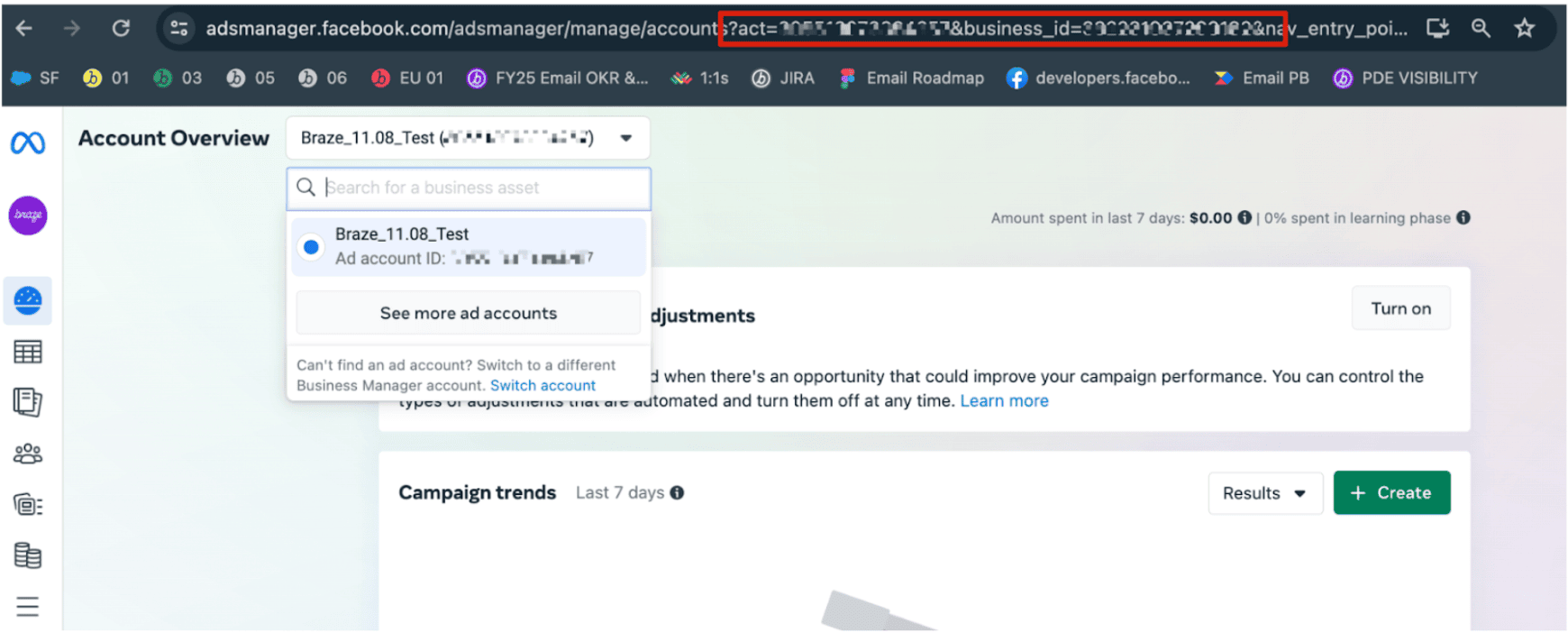
To find your account and business ID, follow these steps:
- Go to your Facebook Ads Manager account.
- Confirm you’re using the right ad account by verifying it in the dropdown menu.
- In the URL, find the account ID after
act=and the business ID afterbusiness_id=
- Read and select Accept for the Custom Audience Terms. We recommend confirming which account the terms of service are being signed for by using the dropdown at the top of the terms.
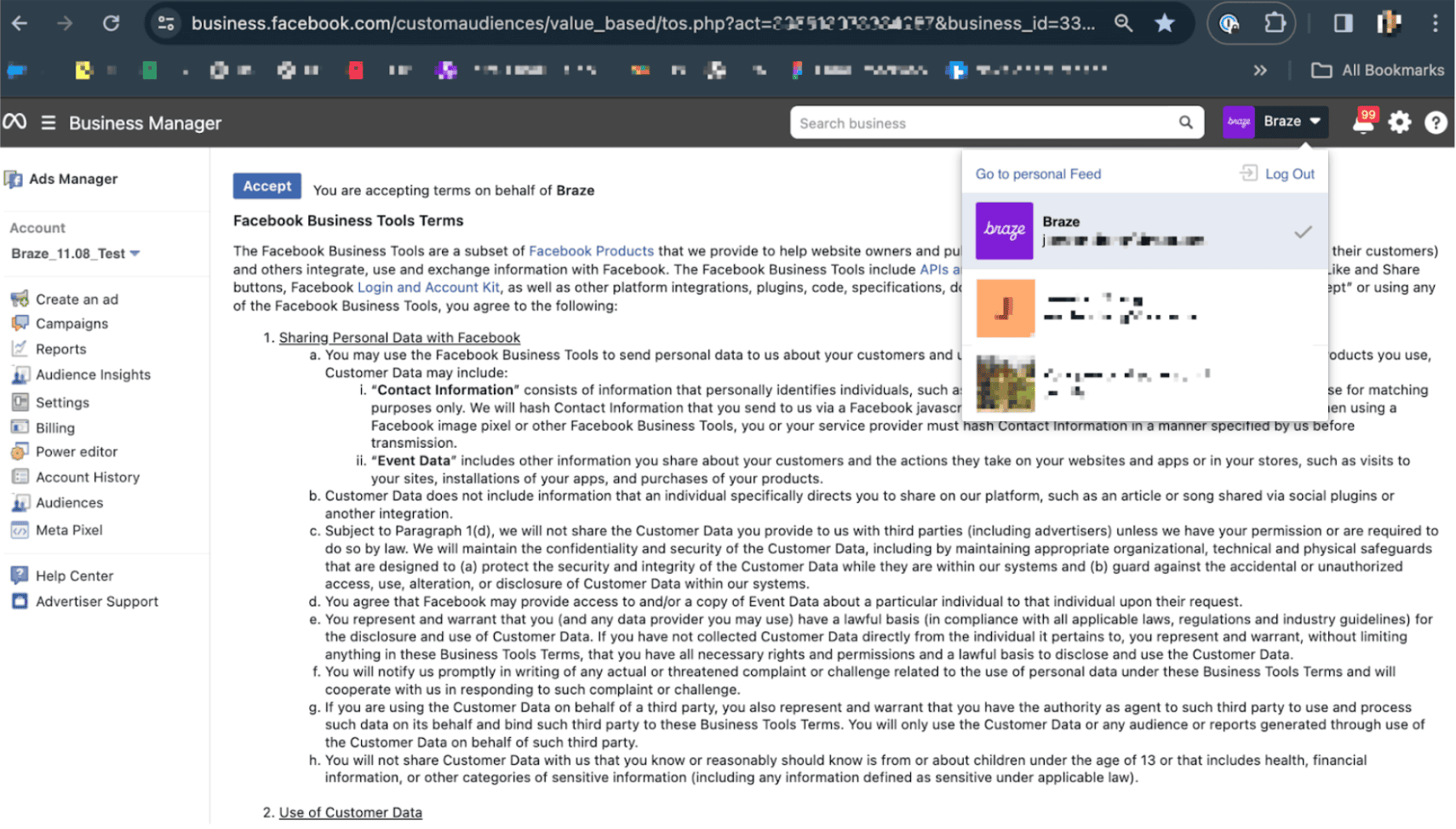
5. You must select Accept for the terms of service. After, you’ll see this message: “You have accepted these terms of service on behalf of Braze”. 6. Refresh your Facebook access token with Braze by disconnecting and reconnecting your Facebook account. 7. Re-enable your Facebook Audience Sync step by editing and updating your Canvas. Braze will then be able to sync users as soon as they reach the Facebook audience step. 8. If the issue persists, try using a separate user with admin permissions to manually accept the terms through the Ads Manager.
Complete any pending tasks
Check if you have any pending tasks with Facebook that could be blocking you from using Facebook Ads services:
- Log into Facebook Ads Manager.
- Select the ad account you are having issues with.
- In the navigation, select your Account Overview.
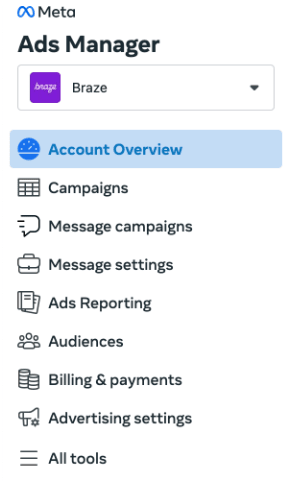
- Check if there are any alerts that need to be addressed.
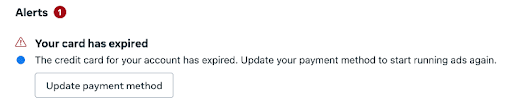
- Check if there are any setup tasks that need to be completed.
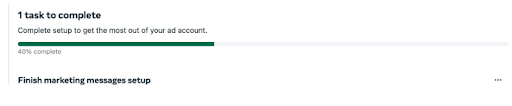
Connect with a different user
As another troubleshooting step, we recommend that a different admin user try to connect their account by doing the following:
- Disconnect the current integration.
- A separate user with admin permissions connects their Facebook user account.
 GitHub 에서 이 페이지를 편집합니다.