Just Words Integration Guide
Just Words hyper-personalizes messaging at scale on lifecycle marketing channels, empowering you to dynamically test hundreds of variations and auto-refresh underperforming content.
When you use Just Words with Braze Connected Content to personalize your existing Braze campaigns and Canvases, Just Words will use Braze Currents to optimize the content dynamically—so you don’t have to.
What are the benefits?
After your integration is complete, you can leverage the Just Works platform to:
- See real-time experiment results
- Dynamically edit copy
- View performance insights
Questions? Contact Just Words on their booking page or through the shared Slack channel.
Prerequisites
| Requirement | Description |
|---|---|
| Just Words Account | A Just Words account is required to take advantage of this partnership. If you don’t have a Just Words account, schedule a 30-minute onboarding call. |
Integrating Just Words with Braze
Step 1: Create a Just Words template
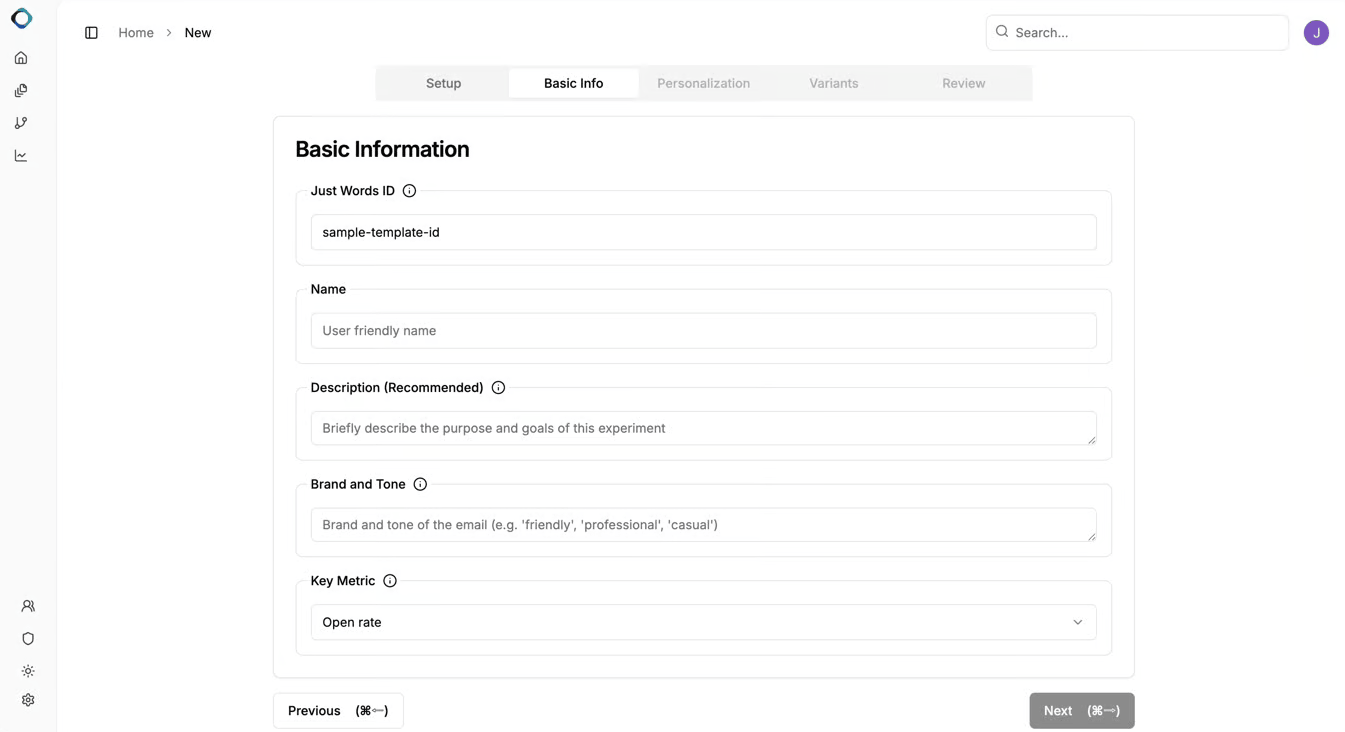
- Go to your Just Words console and create a new template.
- Choose an easy-to-remember ID that uses letters, numbers, and underscores only.
- Fill out basic campaign details.
- Use AI to generate personalized variations.
2단계: Create a Just Words API key
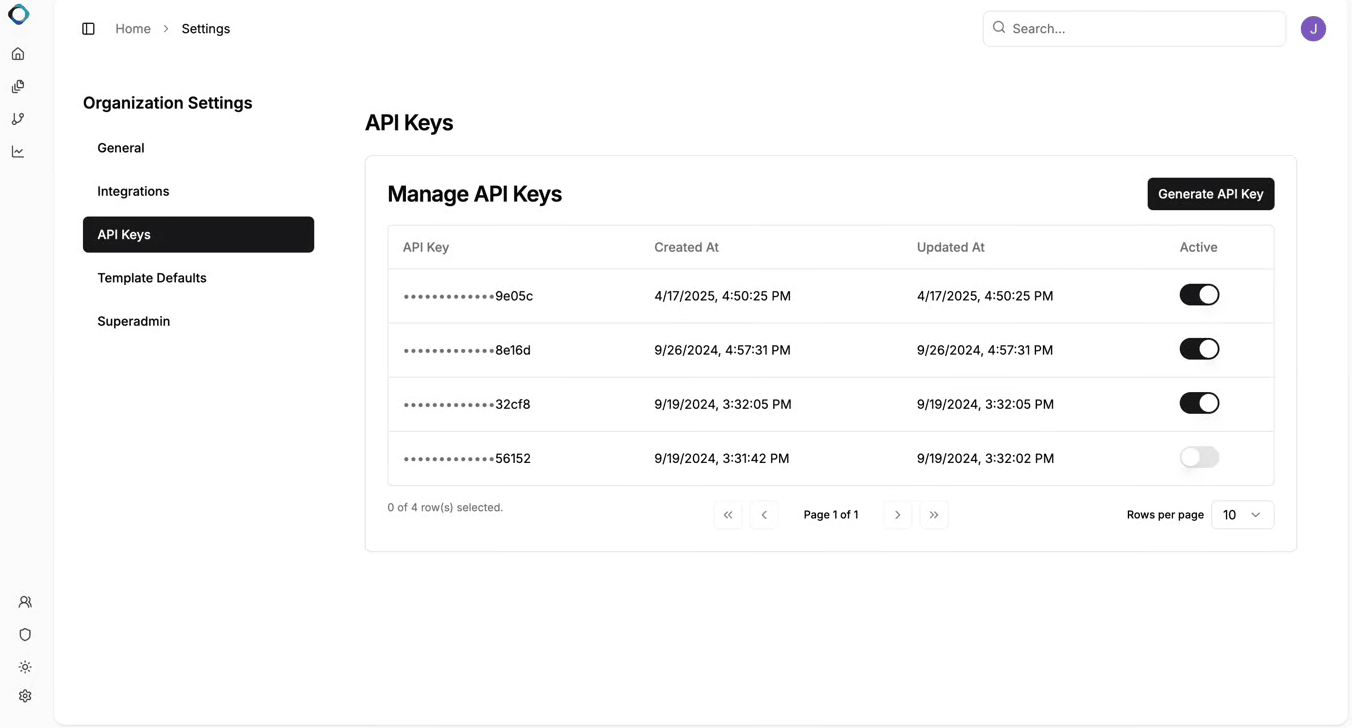
- Go to Org Settings > API Keys > Generate API Key.
- Copy and save the API key in a secure location.
3단계: Use Just Words in your Braze content
Just Words works with Canvases and campaigns by using Connected Content. If you’re creating a Canvas, each email step should correspond to a unique Just Words template.
Step 3.1: Set up your A/B test
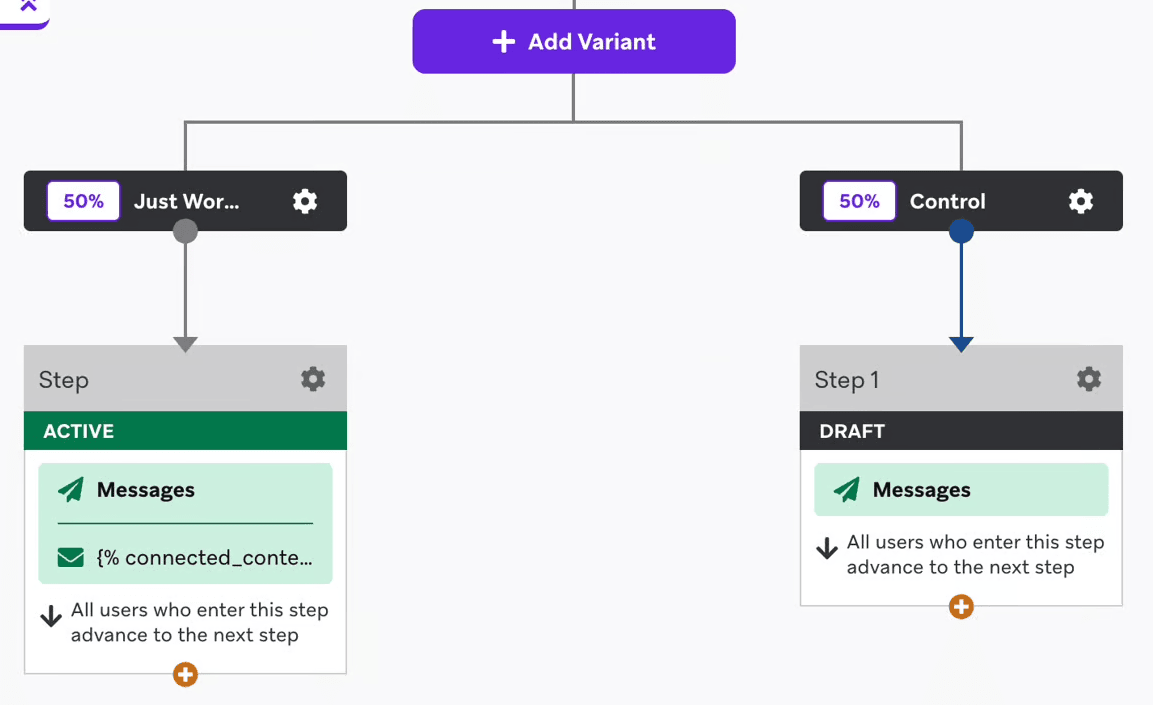
- In a Canvas, select Add Variant > Add Variant until you have your desired number of variants, and add steps to each variant (like an email Message step).
- Split the audience traffic as desired. For example, if you have two variants, you might give each one 50%. Or, you could have two variants with 40% each and a control group with 20%. For more information about A/B tests for Canvases, refer to Creating a Canvas.
- In the composers for the Message steps that you want to use with Connected Content, paste in the Connected Content snippet from Just Words Console, such as the following snippet.
1
2
3
4
5
6
7
8
9
10
{% connected_content https://worker.justwords.ai/api/generate/just-words?template_id=<test_id>&user_id={{${user_id}}}
  :save jw
  :headers {
    "x-api-key": <jw_api_key>,
    "Content-Type": "application/json"
  }
%}

{{jw.copy.vars.cta}}
{% message_extras :key copy_id :value {{jw.copy.id }} %}
- In the Compose Messages step of your campaign, create two variants.
- In the Target Audience step, go to the A/B Testing section and modify the percentages of users who will receive each of your variants (and your optional control group). You can further customize your test by selecting an optimization option. For more information about A/B tests for campaigns, refer to Creating multivariate and A/B tests.
- In the message composer, paste in the Connected Content snippet from Just Words Console, such as the following snippet.
1
2
3
4
5
6
7
8
9
10
{% connected_content https://worker.justwords.ai/api/generate/just-words?template_id=<test_id>&user_id={{${user_id}}}
  :save jw
  :headers {
    "x-api-key": <jw_api_key>,
    "Content-Type": "application/json"
  }
%}

{{jw.copy.vars.cta}}
{% message_extras :key copy_id :value {{jw.copy.id }} %}
Step 3.2: Add personalization with custom attributes (optional)
To personalize your messages with custom attributes (such as industry), use the following Liquid format:
1
2
3
4
5
6
7
8
9
10
{% connected_content https://worker.justwords.ai/api/generate/just-words?template_id=<test_id>&user_id={{${user_id}}}&attrs.industry={{ custom_attribute.industry }}
  :save jw
  :headers {
    "x-api-key": <jw_api_key>,
    "Content-Type": "application/json"
  }
%}

{{jw.copy.vars.cta}}
{% message_extras :key copy_id :value {{jw.copy.id }} %}
Note that the custom attribute of industry is indicated by &attrs.industry={{ custom_attribute.industry }}.
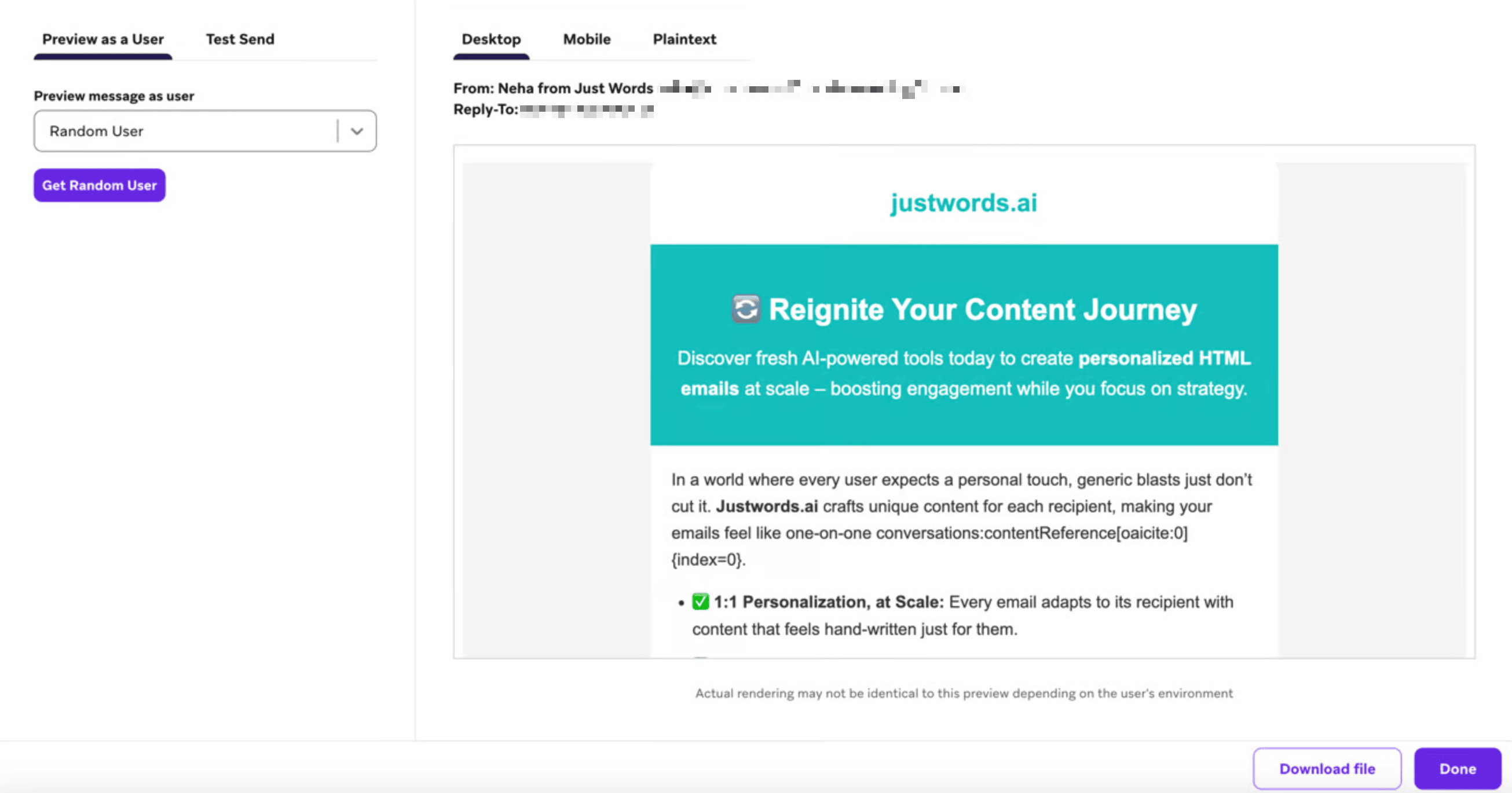
4단계: Preview the email
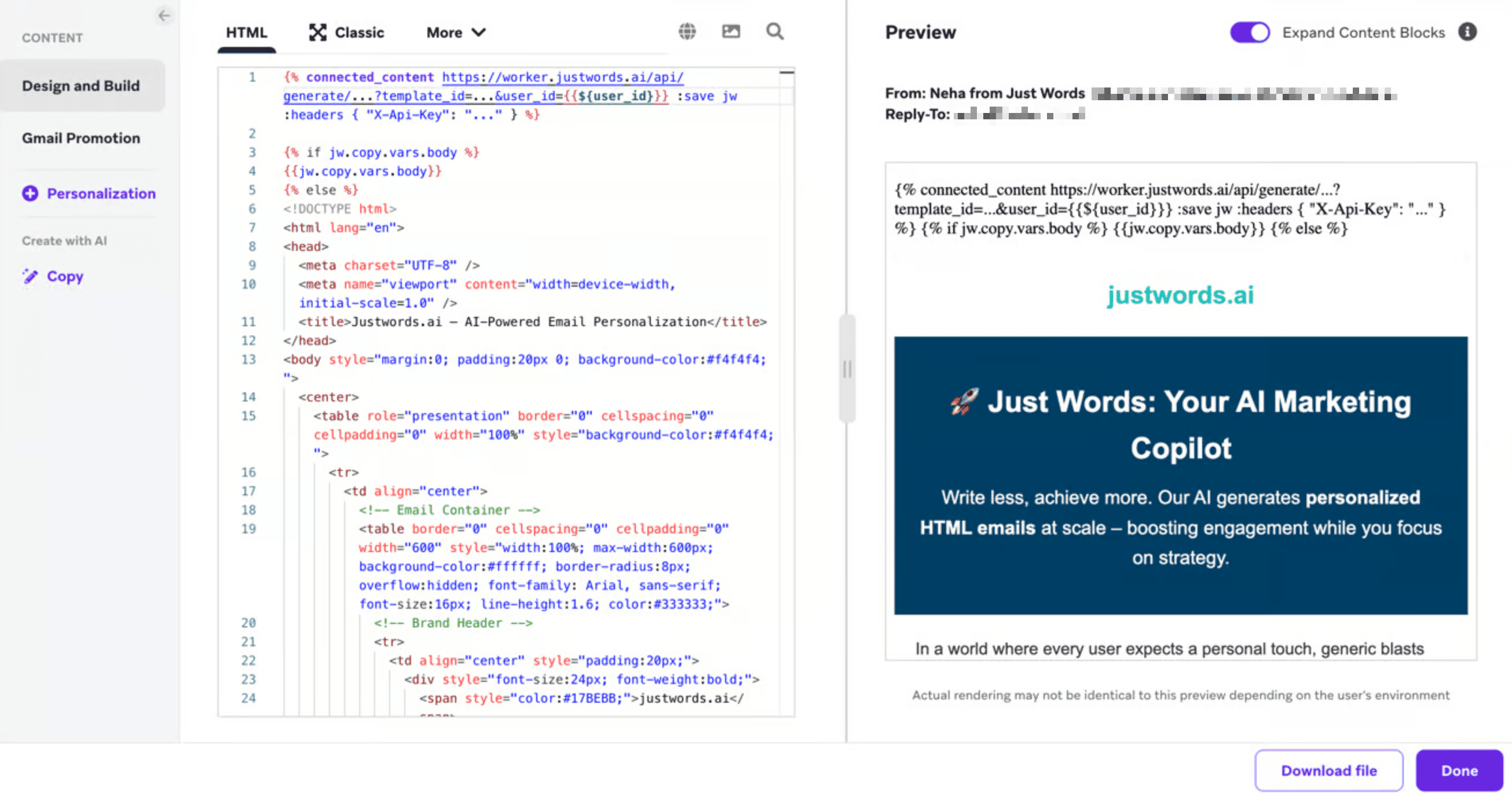
Make sure to preview the email in Braze to confirm that the personalized content correctly renders.
5단계: Set up Braze Currents
Braze Currents enables performance tracking and optimization over time.
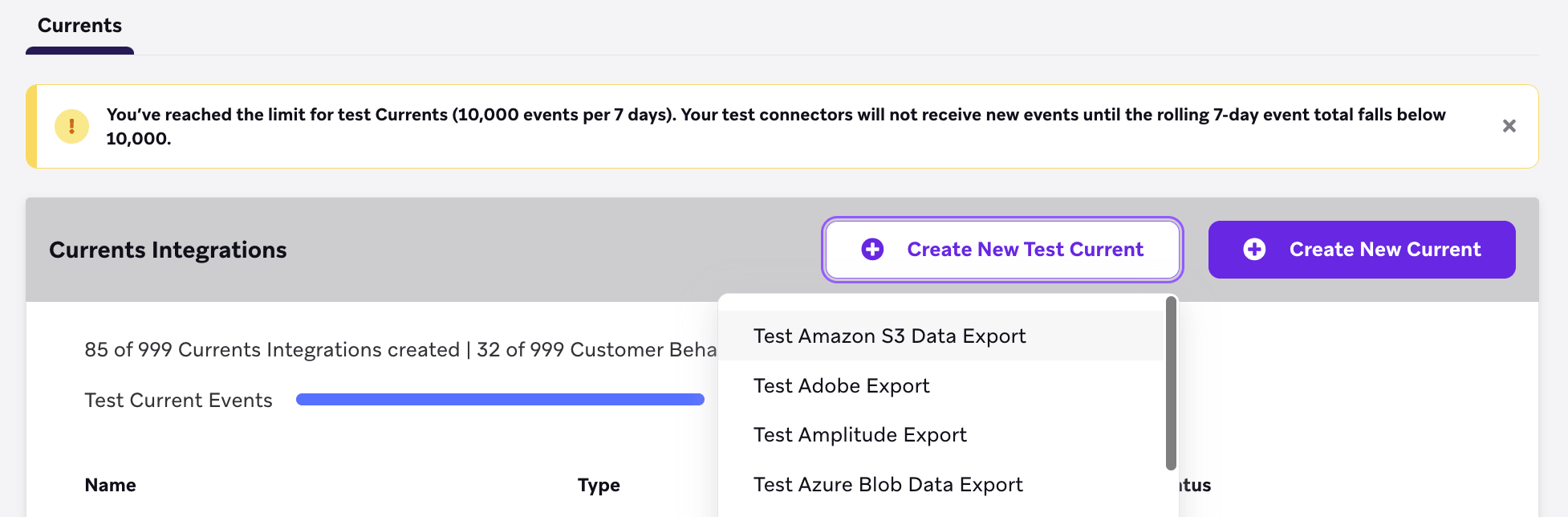
- In Braze, go to Partner Integrations > Data Export.
- Select Create New Test Current and then select Test Amazon S3 Data Export.
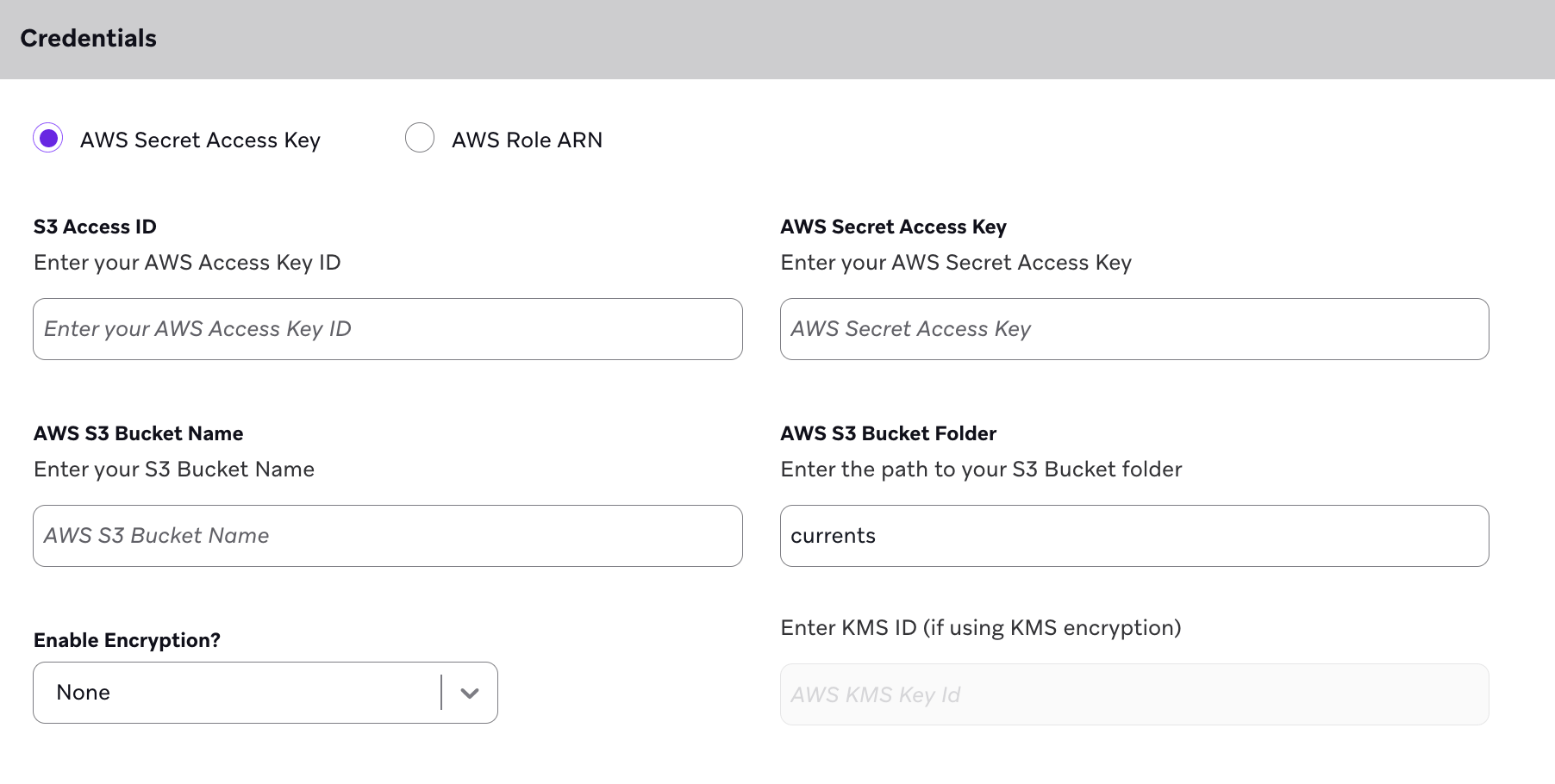
3. Enter the S3 Access ID, AWS Secret Access Key, Bucket name, and folder that were provided by Just Words during onboarding.
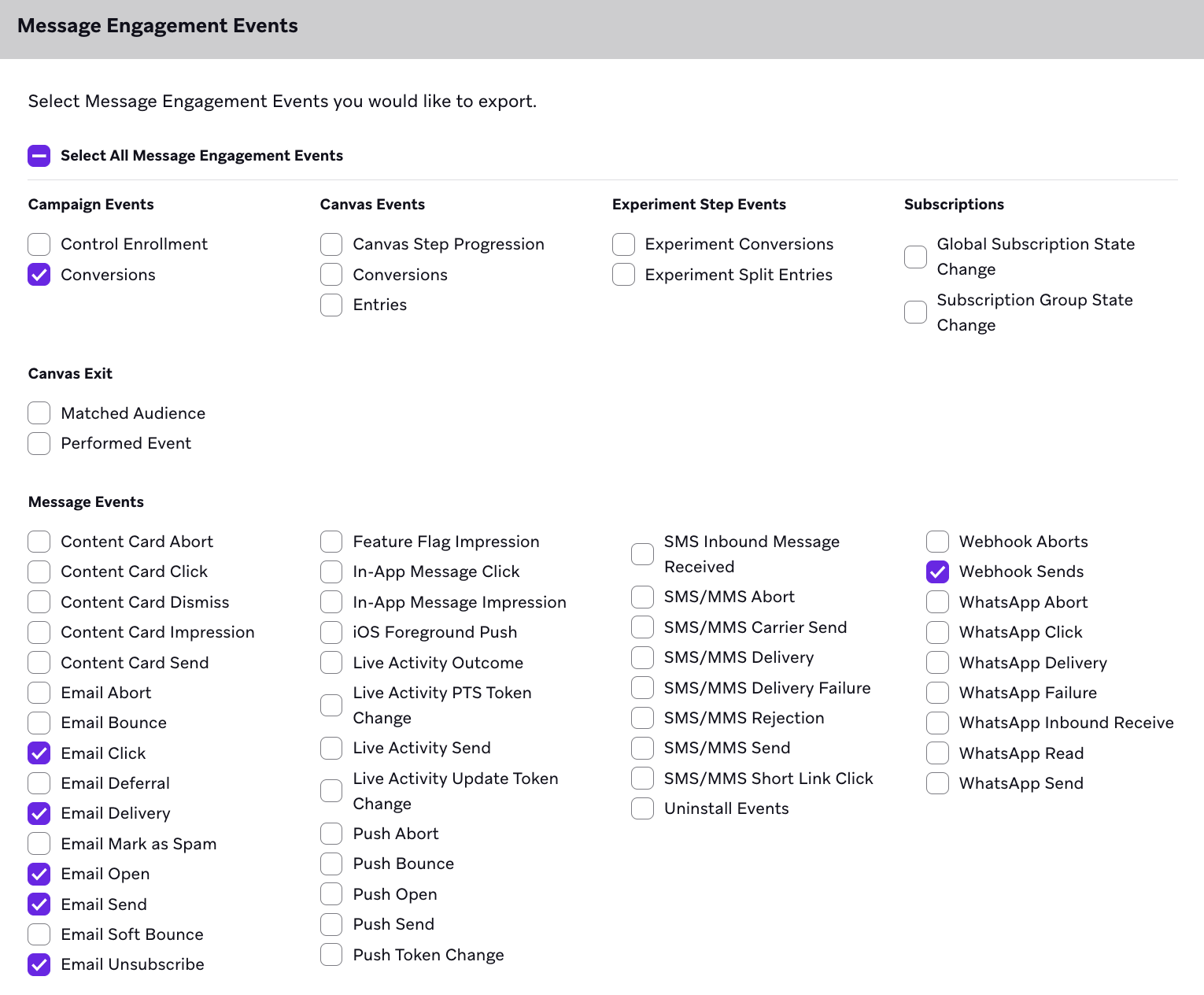
4. Select the events to track, such as sends, opens, clicks, unsubscribes, conversions, and others.
5. Launch the Braze Current.
You’re all set! Now you can use Just Words with Braze Connected Content.
 GitHub 에서 이 페이지를 편집합니다.