mParticle for Currents
mParticle is a customer data platform that collects and routes information from multiple sources to a variety of other locations in your marketing stack.
The Braze and mParticle integration allows you to seamlessly control the flow of information between the two systems. With Currents, you can also connect data to mParticle to make it actionable across the entire growth stack.
Prerequisites
| Requirement | Description |
|---|---|
| Currents | In order to export data back into mParticle, you need to have Braze Currents set up for your account. |
| mParticle account | An mParticle account is required to take advantage of this partnership. |
| mParticle server-to-server key and secret | These can be obtained by navigating to your mParticle dashboard and creating the necessary feeds that allow mParticle to receive Braze interaction data for iOS, Android, and Web platforms. |
About mParticle credentials
mParticle has app-level and workspace-level credentials which impact how your events are sent.
- App-level: mParticle will separate events by each individual app, meaning the app-level credentials you give to your iOS app can only be used to send iOS-specific events.
- Workspace-level: mParticle groups all events together (that are not app-specific), meaning the workspace-level credentials you give your app group will be used to send all of your non-app-specific events.
You can think of this as mParticle ingesting a “feed” based on each individual app. For example, if you have one app for iOS, one for Android, and one for Web, your events will be disjointed. This means if you provide the same credentials for each app, then one mParticle feed will be used to receive all data for all of your apps, with no duplication.
Integration
Step 1: Create feeds
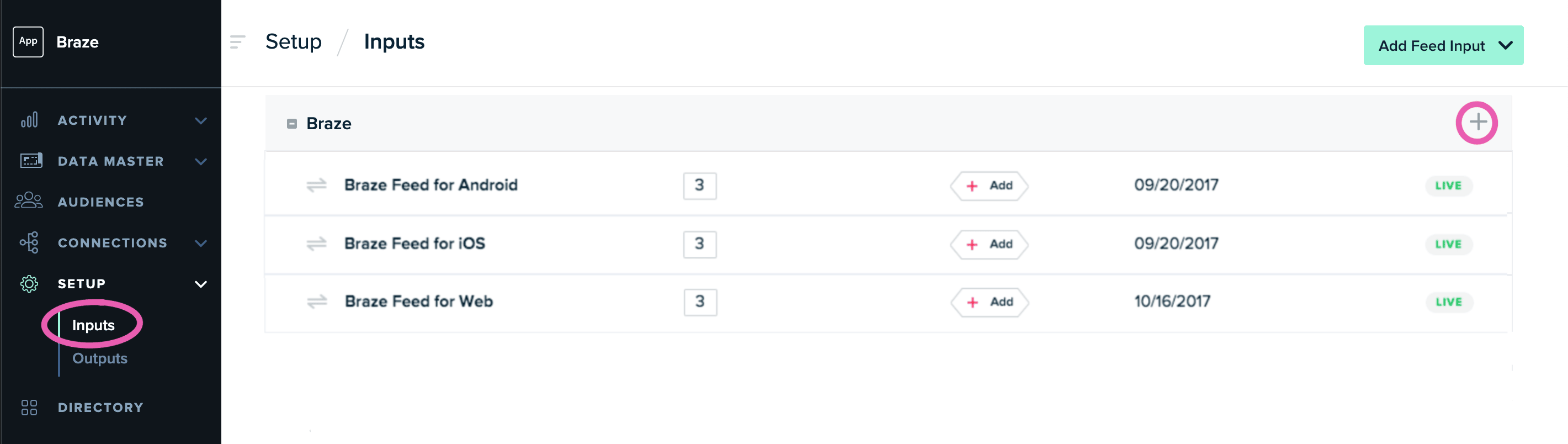
From your mParticle admin account, navigate to Setup > Inputs. Locate Braze in the mParticle Directory and add the feed integration.
The Braze feed integration supports four separate feeds: iOS, Android, Web, and Unbound. The unbound feed can be used for events such as emails that are not connected to a platform. You will need to create an input for each main platform feed. You can create additional inputs from Setup > Inputs, on the Feed Configurations tab.
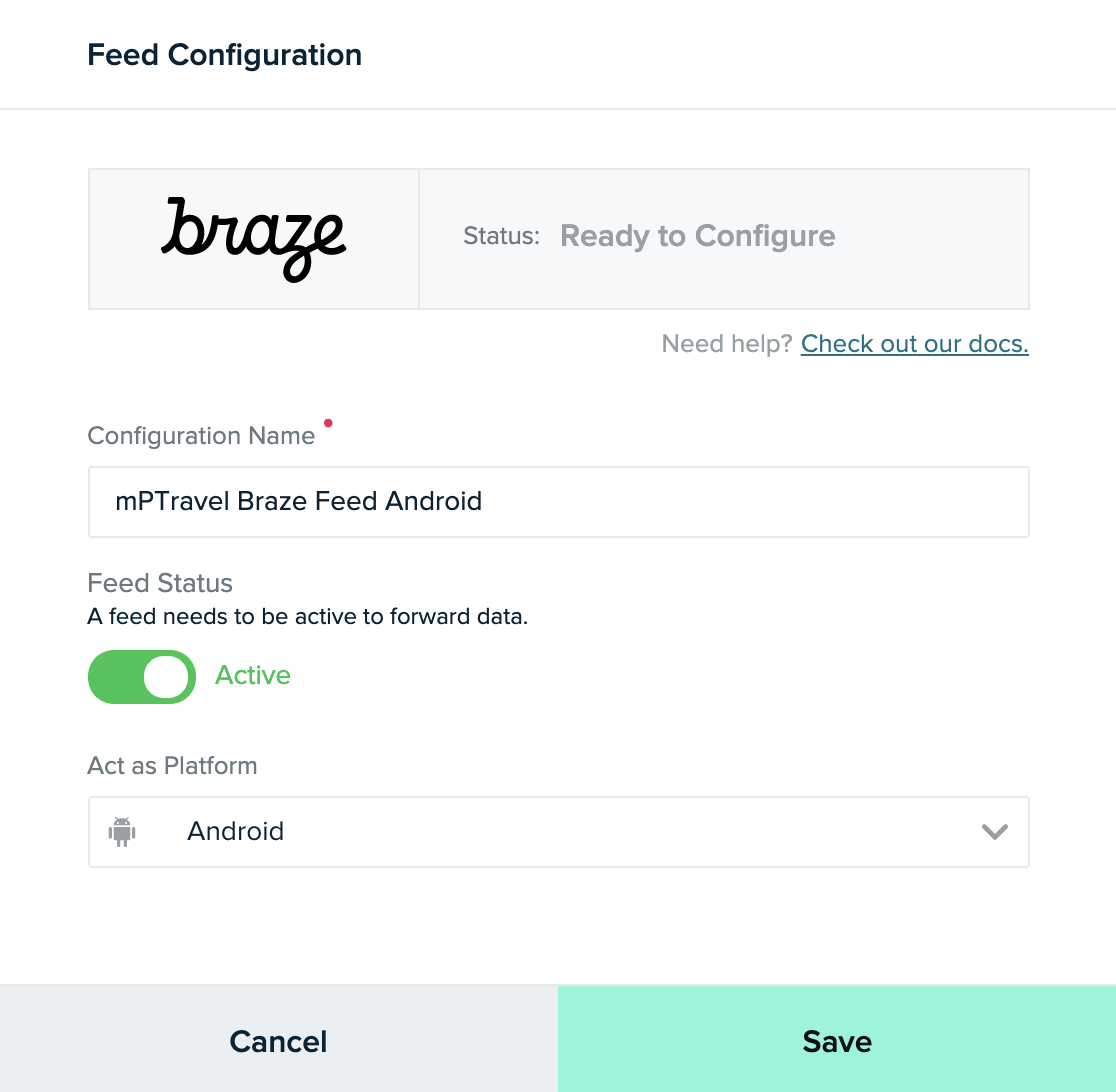
For each feed, under Act as Platform select the matching platform from the list. act-as 피드를 선택하는 옵션이 표시되지 않으면 데이터는 언바운드로 처리되지만 여전히 데이터 웨어하우스 출력으로 전달할 수 있습니다.
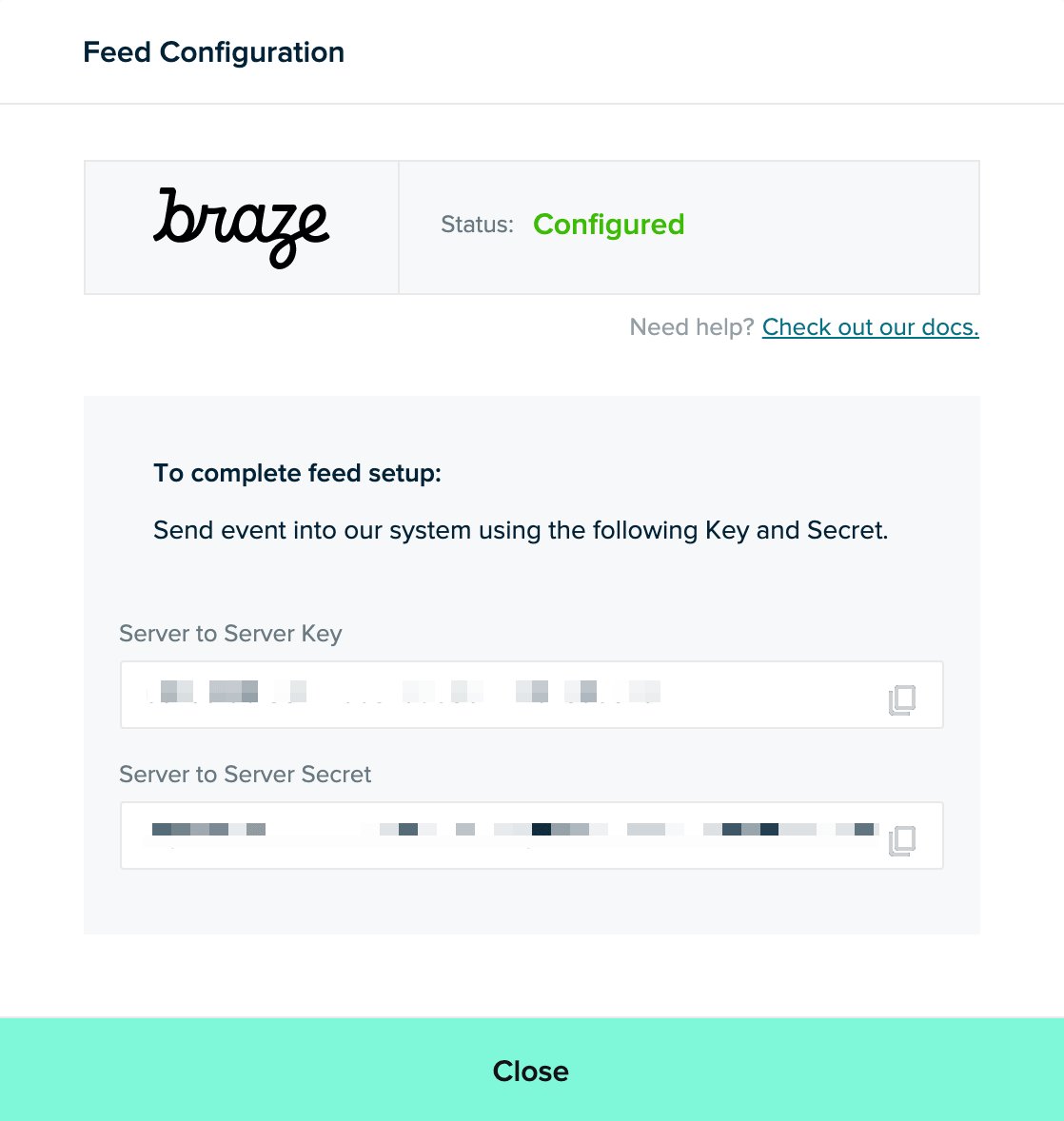
각 입력을 생성할 때 mParticle에서 키와 비밀을 제공합니다. Copy these credentials, making sure to note which feed each pair of credentials is for.
Step 2: Create Current
In Braze, navigate to Currents > + Create Current > Create mParticle Export. Provide an integration name, contact email and the mParticle API key and mParticle secret key for each platform. Next, select the events you want to track; a list of available events is provided. Lastly, click Launch Current
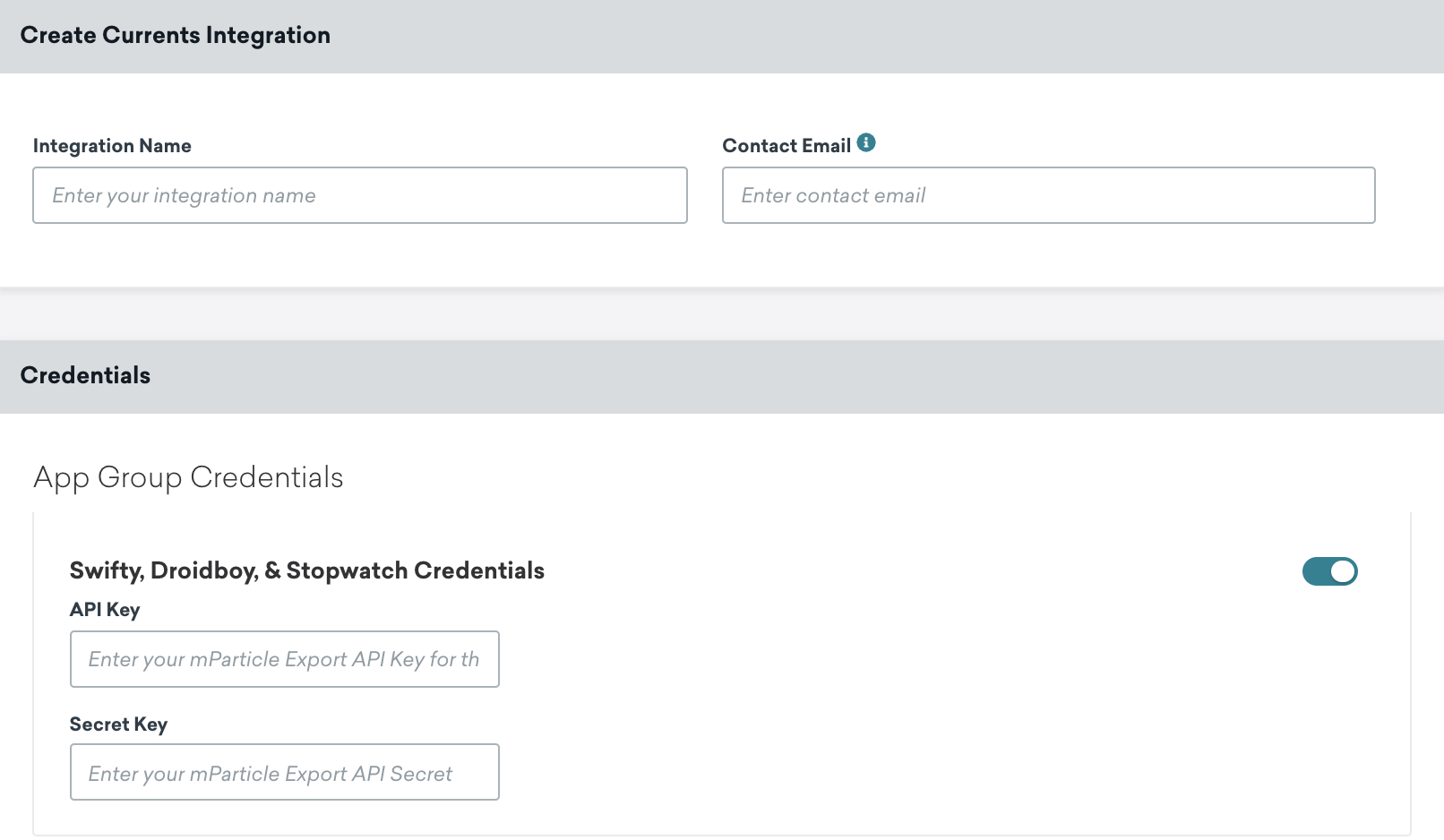
It’s important to keep your mParticle API Key and mParticle Secret Key up to date; if your connector’s credentials expire, the connector will stop sending events. 이 상태가 5일 이상 지속되면 커넥터의 이벤트가 삭제되고 데이터가 영구적으로 손실됩니다.
All events sent to mParticle will include the user’s external_user_id as the customerid. At this time, Braze does not send event data for users who do not have their external_user_id set. If you’d like to map the external_user_id to a different ID in mParticle that is not the default customerid, please contact your Braze CSM.
Supported Currents events
Braze supports exporting the following data listed in the Currents user behavior and message engagement event glossaries to mParticle:
Behaviors
- Uninstall:
users.behaviors.Uninstall - Subscription (global state change):
users.behaviors.subscription.GlobalStateChange - Subscription group (state change):
users.behaviors.subscriptiongroup.StateChange
Campaigns
- Abort:
users_campaigns_abort - Conversion:
users.campaigns.Conversion - EnrollinControl:
users.campaigns.EnrollInControl
Canvas
- Abort:
users_canvas_abort - Conversion:
users.canvas.Conversion - Entry:
users.canvas.Entry - Exit (matched audience, performed event)
users.canvas.exit.MatchedAudienceusers.canvas.exit.PerformedEvent
- Experiment Step (conversion, split entry)
users.canvas.experimentstep.Conversionusers.canvas.experimentstep.SplitEntry
Messages
- Content Card (abort, click, dismiss, impression, send)
users.messages.contentcard.Abortusers.messages.contentcard.Clickusers.messages.contentcard.Dismissusers.messages.contentcard.Impressionusers.messages.contentcard.Send
- Email (abort, bounce, click, delivery, markasspam, open, send, softbounce, unsubscribe)
- In-app message (abort, click, impression)
users.messages.inappmessage.Abortusers.messages.inappmessage.Clickusers.messages.inappmessage.Impression
- Push notification (abort, bounce, open, send)
users.messages.pushnotification.Abortusers.messages.pushnotification.Bounceusers.messages.pushnotification.Openusers.messages.pushnotification.Send
- SMS (abort, carrier send, delivery, delivery failure, inbound receive, rejection, send, short link click)
users.messages.sms.Abortusers.messages.sms.Deliveryusers.messages.sms.DeliveryFailureusers.messages.sms.InboundReceiveusers.messages.sms.Rejectionusers.messages.sms.Sendusers.messages.sms.ShortLinkClick
- Webhook (abort, send)
users.messages.webhook.Abortusers.messages.webhook.Send
- WhatsApp (abort, delivery, failure, inbound receive, read, send)
users.messages.whatsapp.Abortusers.messages.whatsapp.Deliveryusers.messages.whatsapp.Failureusers.messages.whatsapp.InboundReceiveusers.messages.whatsapp.Readusers.messages.whatsapp.Send
To read more about the mParticle integration, visit their documentation here.
 GitHub 에서 이 페이지를 편집합니다.