이 페이지는 AI로 자동 번역되었으며 부정확한 내용이 포함될 수 있습니다. 번역 오류를 신고하려면 페이지 오른쪽 목차 아래에 있는 피드백 기능을 사용하세요.
Ketch
Ketch는 기업이 데이터의 책임 있는 관리자가 될 수 있도록 지원합니다. Ketch는 간소화된 개인정보 보호 운영과 완전하고 동적인 데이터 제어 및 인텔리전스를 제공합니다.
이 통합은 Ketch에서 유지 관리합니다.
통합 소개
Braze와 Ketch 통합을 사용하면 Ketch 환경설정 센터 내에서 고객 커뮤니케이션 환경설정을 제어하고 이러한 변경 사항을 Braze에 자동으로 전파할 수 있습니다.
필수 조건
| 요구 사항 | 설명 |
|---|---|
| Ketch 계정 | 이 통합을 활성화하려면 관리자 권한이 있는 Ketch 계정이 필요합니다. |
| Braze API 키 | users.track, subscription.status.get, subscription.status.set, users.delete, users.alias.new, users.export.ids, email.unsubscribe, email.blacklist 권한이 있는 Braze REST API 키입니다. 이 키는 Braze 대시보드(Developer Console > REST API Key > Create New API Key)에서 생성할 수 있습니다. |
통합
1단계: Braze 연결 설정
- Ketch 인스턴스에서 Data Systems로 이동하여 Braze를 선택합니다. 그런 다음 New Connection을 클릭합니다.
- Braze 연결에 식별 가능한 이름을 지정합니다. 이 이름은 API 기반 프로세스에서 이 연결을 참조하는 데 사용됩니다. 해당 연결에 대한 코드도 생성됩니다. 이 코드는 모든 연결에서 고유해야 합니다.
- 사용자의 ID 매핑을 확인합니다. 기본적으로 Ketch는 사용자의 이메일 주소 또는 Braze의
external_id를 기준으로 사용자 ID를 매핑합니다. - Braze API 키를 추가하고 API 엔드포인트를 입력합니다. 이 API 엔드포인트는 조직에서 사용하는 Braze 인스턴스에 따라 달라집니다.
2단계: 구독 환경설정 구성
- Policy Center > Subscriptions로 이동합니다. Policy Center 아래에 구독 탭이 보이지 않는 경우, 마케팅 환경설정 센터에 대한 접근 권한이 있는지 확인하고, 제품의 해당 부분에 접근할 수 있는 올바른 계정 권한이 있는지 확인하세요.
- Create New Subscription을 클릭하여 새 주제를 생성합니다. 각 구독에는 이름과 코드가 있습니다.
- 구독 주제를 발송할 채널을 추가합니다. 각 채널은 사용자의 마케팅 환경설정 센터에 표시됩니다. 또한 Ketch 환경설정 센터가 특정 옵트인 또는 옵트아웃 신호를 오케스트레이션하는 방법에 대한 세부 정보를 추가할 수 있습니다.
- 옵트인 및 옵트아웃 신호를 오케스트레이션하는 데 사용할 Braze 연결을 선택합니다.
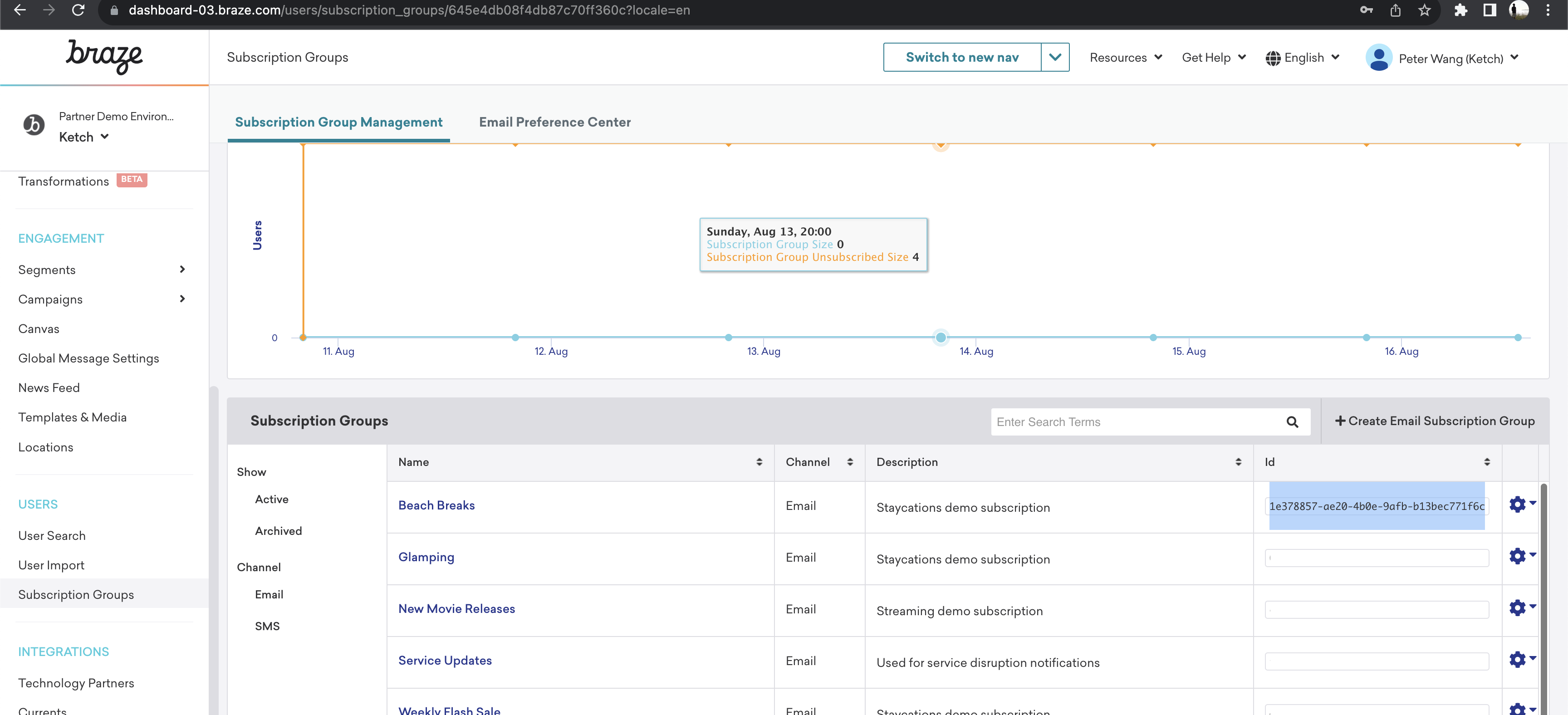
- Ketch 사용자 환경설정을 보낼 구독 그룹에 대한 Braze
subscription_group_id를 입력합니다.

참고
사용자 옵트인 및 옵트아웃 신호를 수집하고 오케스트레이션하려면 ID가 올바르게 구성되어 있어야 합니다. Ketch는 이 통합에서 사용자 환경설정 신호를 오케스트레이션하기 위한 식별자로 이메일을 구성할 것을 권장합니다.
3단계: ID 구성
사용자는 Ketch가 해당 사용자의 마케팅 환경설정 ID를 확인할 수 있는 경우에만 마케팅 환경설정 센터를 볼 수 있습니다. Ketch가 사용자의 ID를 제대로 파악할 수 없는 경우, Ketch가 사용자 환경설정을 관리할 수 없기 때문에 해당 사용자에게 마케팅 환경설정 페이지가 표시되지 않습니다.
- 마케팅 환경설정 ID를 구성하려면 Ketch의 Settings 페이지로 이동하여 Identity space를 클릭합니다. 새 ID 공간을 생성하거나 기존 ID 공간을 편집하여 해당 ID 공간을 마케팅 환경설정 ID로 할당해야 합니다. 속성에 배포된 Ketch 태그가 해당 ID 공간을 올바르게 캡처하는지 확인하세요.
- Experience Server > Properties로 이동하여 원하는 속성을 편집합니다. 해당 속성의 데이터 레이어에서 커스텀 ID 공간을 활성화해야 합니다. 그런 다음 이 사이트에서 마케팅 환경설정 ID가 캡처되는 방식을 구성합니다.
- ID 공간을 구성한 후, Ketch 태그가 배포된 웹사이트에서 환경설정 센터를 열어 환경설정 센터가 표시되는지 테스트합니다.
New Stuff!