Amazon S3
Amazon S3는 Amazon Web Services에서 제공하는 확장성이 뛰어난 스토리지 시스템입니다.

클라우드 스토리지 제공업체 간에 전환하는 경우, 새로운 통합을 설정하고 검증하는 데 대한 추가 지원을 받으려면 Braze 고객 성공 매니저에게 문의하세요.
Braze와 Amazon S3 통합에는 두 가지 통합 전략이 있습니다:
- Currents를 활용하여 다른 플랫폼, 도구 및 위치에 연결할 때까지 데이터를 저장할 수 있습니다.
- 대시보드 데이터 내보내기(CSV 내보내기 및 참여 보고서 등)를 사용합니다.
필수 조건
| 요구 사항 | 설명 |
|---|---|
| Amazon S3 계정 | 이 파트너십을 활용하려면 Amazon S3 계정이 필요합니다. |
| 전용 S3 버킷 | Amazon S3와 통합하기 전에 앱용 S3 버킷을 생성해야 합니다. 이미 S3 버킷이 있더라도 권한을 제한할 수 있도록 Braze 전용 버킷을 새로 생성하는 것을 권장합니다. 새 버킷을 생성하는 방법은 다음 안내를 참조하세요. |
| Currents | 데이터를 Amazon S3로 다시 내보내려면 계정에 Braze Currents가 설정되어 있어야 합니다. 메시지 아카이빙만 설정하는 경우에는 Currents가 필요하지 않습니다. |
새 S3 버킷 생성하기
앱용 버킷을 생성하려면 다음을 수행합니다.
- Amazon S3 콘솔을 열고 안내에 따라 로그인하거나 AWS 계정을 생성합니다.
- 로그인한 후 스토리지 및 콘텐츠 전송 카테고리에서 S3를 선택합니다.
- 다음 화면에서 버킷 생성을 선택합니다.
- 메시지가 표시되면 버킷을 생성하고 AWS 리전을 선택합니다.
Braze 대시보드에서는 리전을 선택하거나 구성할 수 없습니다. AWS 리전은 AWS 콘솔에서 버킷을 생성한 위치에 따라 고정됩니다. 통합은 입력한 버킷 이름으로 데이터를 전송하며, AWS가 요청을 버킷의 리전으로 자동 라우팅합니다. 커넥터가 원하는 리전과 다른 리전(예: eu-central-1 대신 eu-west-1)에 연결하려고 하는 경우, AWS에서 원하는 리전에 S3 버킷을 생성하거나 해당 리전의 버킷을 사용하세요. Braze 측에서는 변경할 사항이 없습니다.

통합
Braze는 Amazon S3와 두 가지 통합 전략을 제공합니다. 하나는 Braze 커런츠용이고, 다른 하나는 CSV 내보내기나 참여 보고서와 같은 모든 대시보드 데이터 내보내기용입니다. 두 통합 모두 다음 두 가지 인증 또는 권한 부여 방법을 지원합니다.
AWS 비밀 키 인증 방법
이 인증 방법은 비밀 키와 액세스 키 ID를 생성합니다. Braze는 이 키로 AWS 계정의 사용자로 인증하여 버킷에 데이터를 작성합니다.
1단계: 사용자 생성
메시지 아카이빙만 설정하는 경우 Dashboard Data Export 탭의 단계를 따르세요.
액세스 키 ID와 비밀 액세스 키를 확인하려면 AWS에서 IAM 사용자 및 관리자 그룹을 생성하세요.
2단계: 자격 증명 가져오기
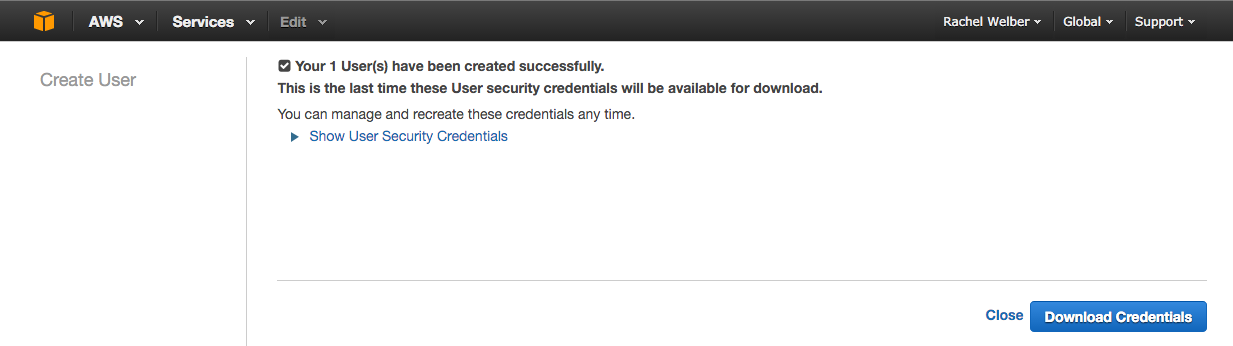
새 사용자를 생성한 후 Show User Security Credentials를 선택하면 액세스 키 ID와 비밀 액세스 키가 표시됩니다. 나중에 Braze 대시보드에 입력해야 하므로 이 자격 증명을 따로 기록해 두거나 Download Credentials 버튼을 선택하세요.
3단계: 정책 생성
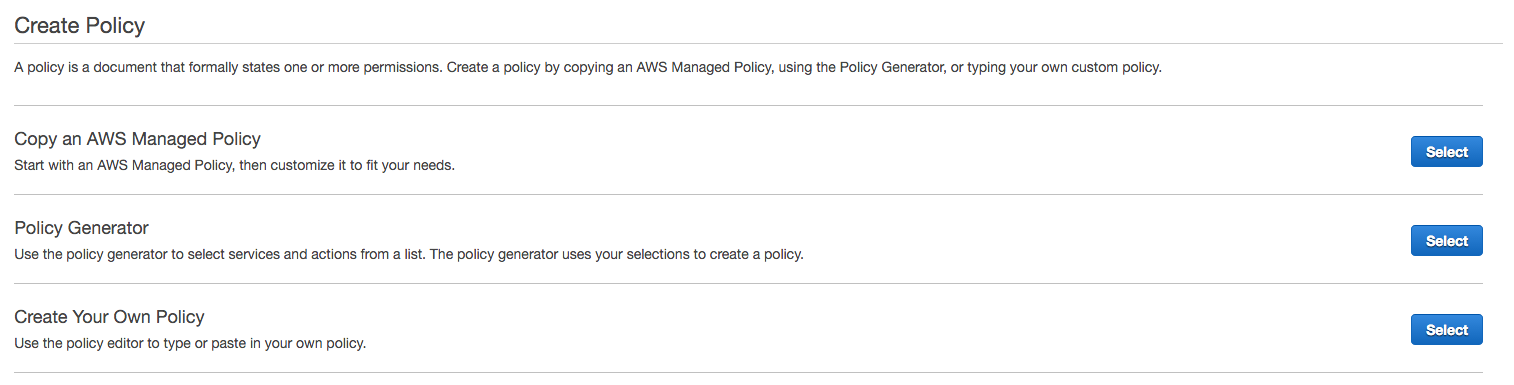
Policies > Get Started > Create Policy로 이동하여 사용자에게 권한을 추가합니다. 그런 다음 Create Your Own Policy를 선택합니다. 이 정책은 제한된 권한만 부여하므로 Braze는 지정된 버킷에만 접근할 수 있습니다.
Currents와 대시보드 데이터 내보내기에는 서로 다른 정책이 필요합니다. Braze 백엔드가 오류 처리를 수행하려면 s3:GetObject가 필요합니다.
원하는 정책 이름을 지정하고 Policy Document 섹션에 다음 코드 스니펫을 입력합니다. INSERTBUCKETNAME을 버킷 이름으로 바꿔야 합니다. 이 권한이 없으면 통합이 자격 증명 확인에 실패하여 생성되지 않습니다.
메시지 아카이빙만 설정하는 경우 Dashboard Data Export 탭의 코드 스니펫을 사용하세요.
{
"Version": "2012-10-17",
"Statement": [
{
"Effect": "Allow",
"Action": ["s3:ListBucket", "s3:GetBucketLocation"],
"Resource": ["arn:aws:s3:::INSERTBUCKETNAME"]
},
{
"Effect": "Allow",
"Action": ["s3:PutObject", "s3:GetObject"],
"Resource": ["arn:aws:s3:::INSERTBUCKETNAME/*"]
}
]
}
{
"Version": "2012-10-17",
"Statement": [
{
"Effect": "Allow",
"Action": ["s3:ListBucket", "s3:GetBucketLocation"],
"Resource": ["arn:aws:s3:::INSERTBUCKETNAME"]
},
{
"Effect": "Allow",
"Action": ["s3:GetObject", "s3:PutObject", "s3:DeleteObject"],
"Resource": ["arn:aws:s3:::INSERTBUCKETNAME*", "arn:aws:s3:::INSERTBUCKETNAME/", "arn:aws:s3:::INSERTBUCKETNAME"]
}
]
}
4단계: 정책 연결
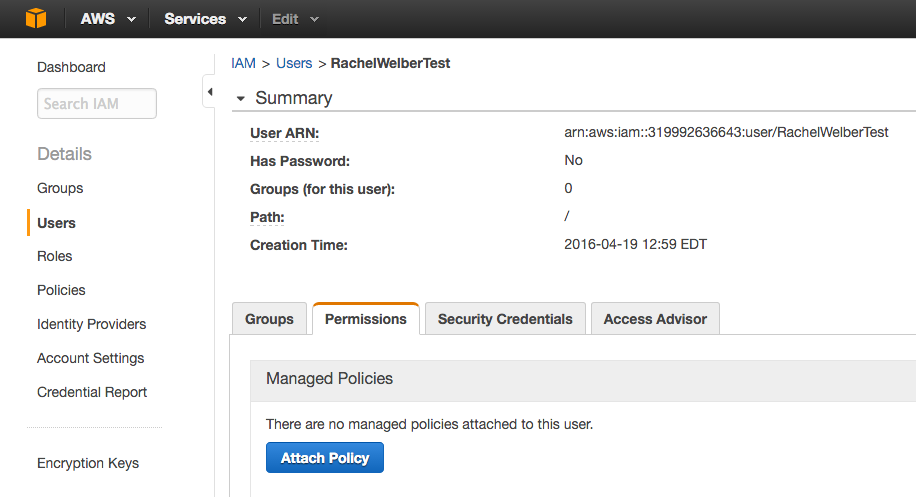
새 정책을 생성한 후 Users로 이동하여 해당 사용자를 선택합니다. Permissions 탭에서 Attach Policy를 선택하고 새로 생성한 정책을 선택합니다. 이제 AWS 자격 증명을 Braze 계정에 연결할 준비가 되었습니다.
5단계: Braze를 AWS에 연결
메시지 아카이빙만 설정하는 경우 Dashboard Data Export 탭의 단계를 따르세요.
Braze에서 파트너 통합 > Currents로 이동합니다.
그런 다음 새 Current 생성을 선택하고 Amazon S3 데이터 내보내기를 선택합니다.
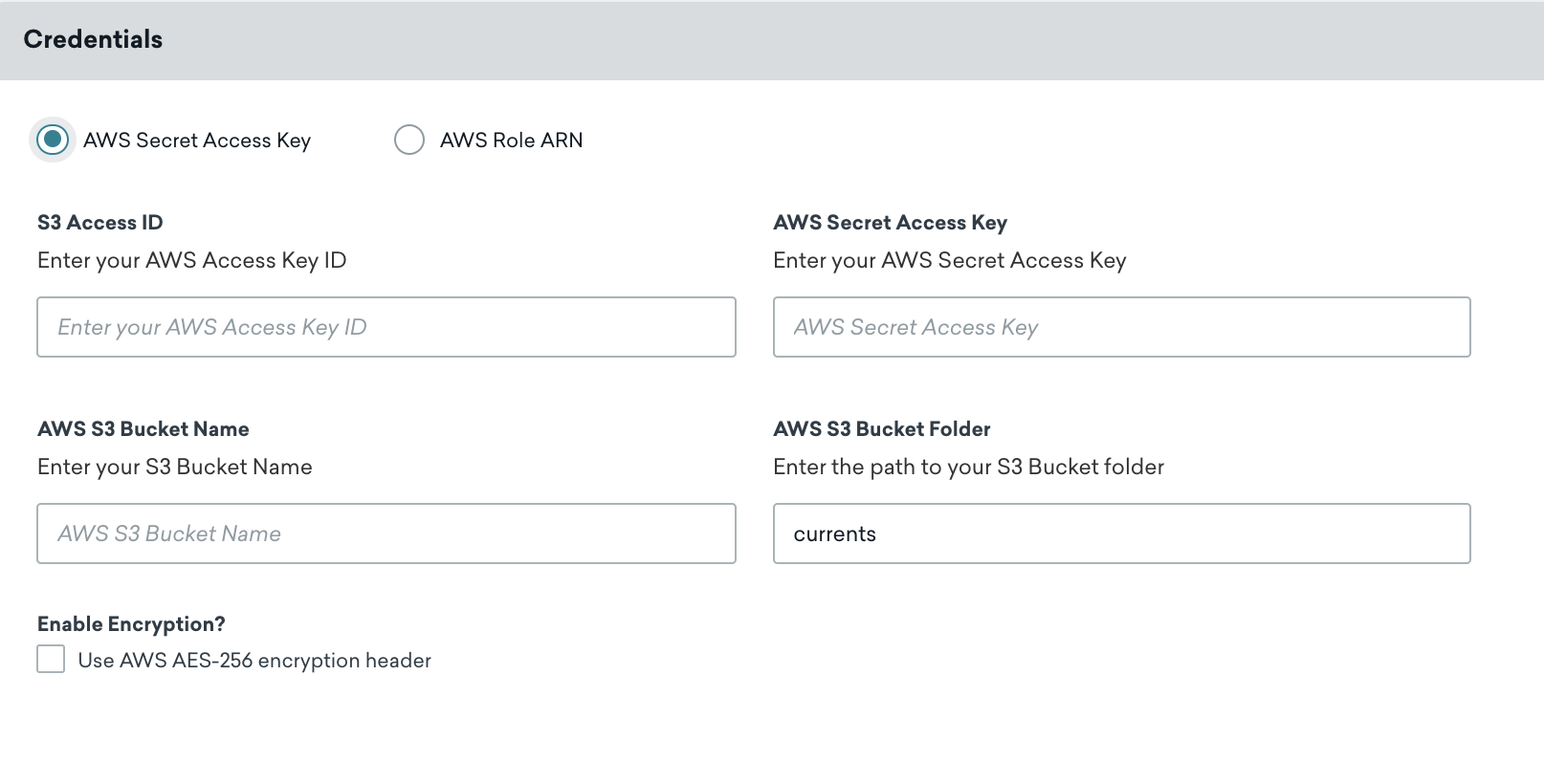
Current의 이름을 지정합니다. 자격 증명 섹션에서 AWS 비밀 액세스 키가 선택되어 있는지 확인한 다음, 지정된 필드에 S3 액세스 ID, AWS 비밀 액세스 키, AWS S3 버킷 이름을 입력합니다.
통합 오류 알림을 받을 연락처 이메일을 입력하세요. 자격 증명 문제나 연결 문제 등 통합에서 오류가 발생하면 Braze가 이 주소로 알림을 보냅니다. 적절한 담당자가 알림을 받을 수 있도록 배포 목록이나 그룹 이메일 주소를 사용하는 것이 좋습니다.

AWS 액세스 키 ID와 비밀 액세스 키를 항상 최신 상태로 유지하세요. 커넥터의 자격 증명이 만료되면 커넥터가 이벤트 전송을 중단합니다. 이 상태가 5일 이상 지속되면 커넥터의 이벤트가 삭제되어 데이터가 영구적으로 손실됩니다.
필요에 따라 다음과 같은 커스터마이징을 추가할 수도 있습니다.
- 폴더 경로: 기본값은
currents입니다. 이 폴더가 없으면 Braze가 자동으로 생성합니다. - 서버 측 저장 데이터 AES-256 암호화: 기본값은 OFF이며
x-amz-server-side-encryption헤더를 포함합니다.
계속하려면 Current 시작을 선택합니다.
자격 증명이 성공적으로 검증되었는지 알림으로 알려드립니다. 이제 Braze Currents에 AWS S3가 설정되었습니다.
Braze에서 파트너 통합 > 기술 파트너로 이동하여 Amazon S3를 선택합니다.
AWS 자격 증명 페이지에서 AWS 비밀 액세스 키가 선택되어 있는지 확인한 다음, 지정된 필드에 AWS 액세스 ID, AWS 비밀 액세스 키, AWS S3 버킷 이름을 입력합니다. 비밀 키를 입력할 때는 먼저 자격 증명 테스트를 선택하여 자격 증명이 작동하는지 확인한 후, 성공하면 저장을 선택합니다.
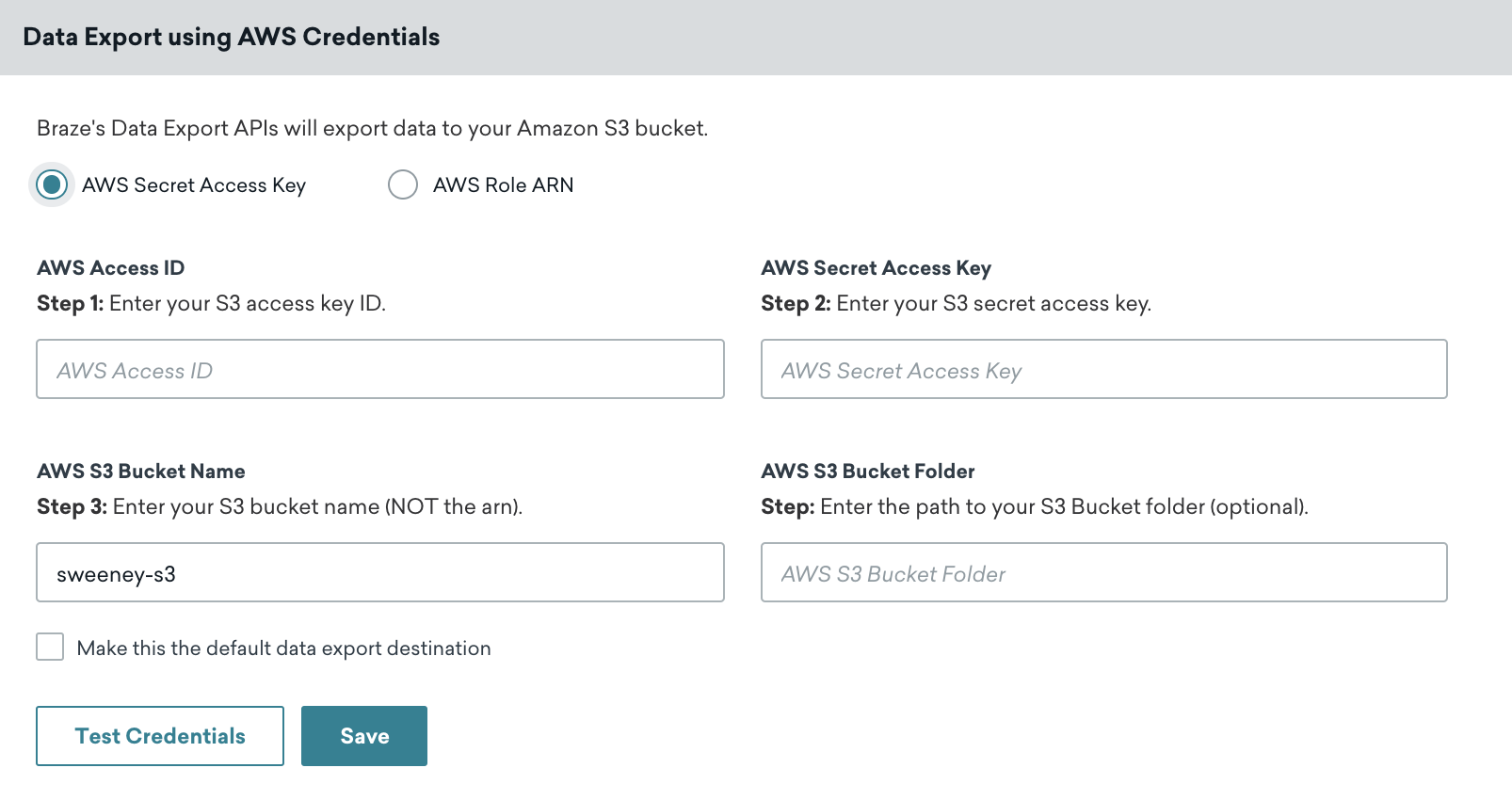

AWS 콘솔에서 사용자로 이동한 후 Security Credentials 탭에서 Create Access Key를 선택하면 언제든지 새 자격 증명을 발급받을 수 있습니다.
자격 증명이 성공적으로 검증되었는지 알림으로 알려드립니다. 이제 AWS S3가 Braze 계정에 통합되었습니다.
AWS 역할 ARN 인증 방법
이 인증 방법은 역할 Amazon 리소스 이름(ARN)을 생성합니다. 이를 통해 Braze Amazon 계정은 버킷에 데이터를 쓰기 위해 생성한 역할의 구성원으로 인증할 수 있습니다.
1단계: 정책 생성
먼저 계정 관리자로 AWS 관리 콘솔에 로그인합니다. AWS 콘솔의 IAM 섹션으로 이동하여 탐색 모음에서 Policies를 선택한 다음 Create Policy를 선택합니다.
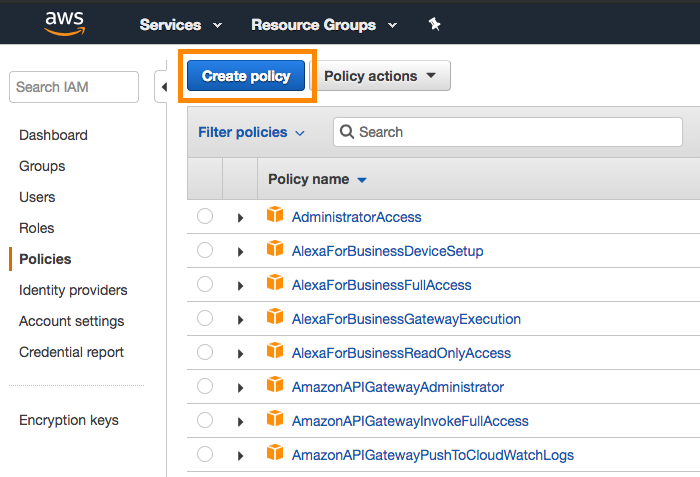
Currents와 대시보드 데이터 내보내기에는 서로 다른 정책이 필요합니다. Braze 백엔드가 오류 처리를 수행하려면 s3:GetObject가 필요합니다.
JSON 탭을 열고 Policy Document 섹션에 다음 코드 스니펫을 입력합니다. INSERTBUCKETNAME을 버킷 이름으로 바꿔야 합니다. 완료되면 Review Policy를 선택합니다.
메시지 아카이빙만 설정하는 경우 Dashboard Data Export 탭의 코드 스니펫을 사용하세요.
{
"Version": "2012-10-17",
"Statement": [
{
"Effect": "Allow",
"Action": ["s3:ListBucket", "s3:GetBucketLocation"],
"Resource": ["arn:aws:s3:::INSERTBUCKETNAME"]
},
{
"Effect": "Allow",
"Action": ["s3:PutObject", "s3:GetObject"],
"Resource": ["arn:aws:s3:::INSERTBUCKETNAME/*"]
}
]
}
{
"Version": "2012-10-17",
"Statement": [
{
"Effect": "Allow",
"Action": ["s3:ListBucket", "s3:GetBucketLocation"],
"Resource": ["arn:aws:s3:::INSERTBUCKETNAME"]
},
{
"Effect": "Allow",
"Action": ["s3:PutObject", "s3:GetObject","s3:DeleteObject"],
"Resource": ["arn:aws:s3:::INSERTBUCKETNAME/*"]
}
]
}
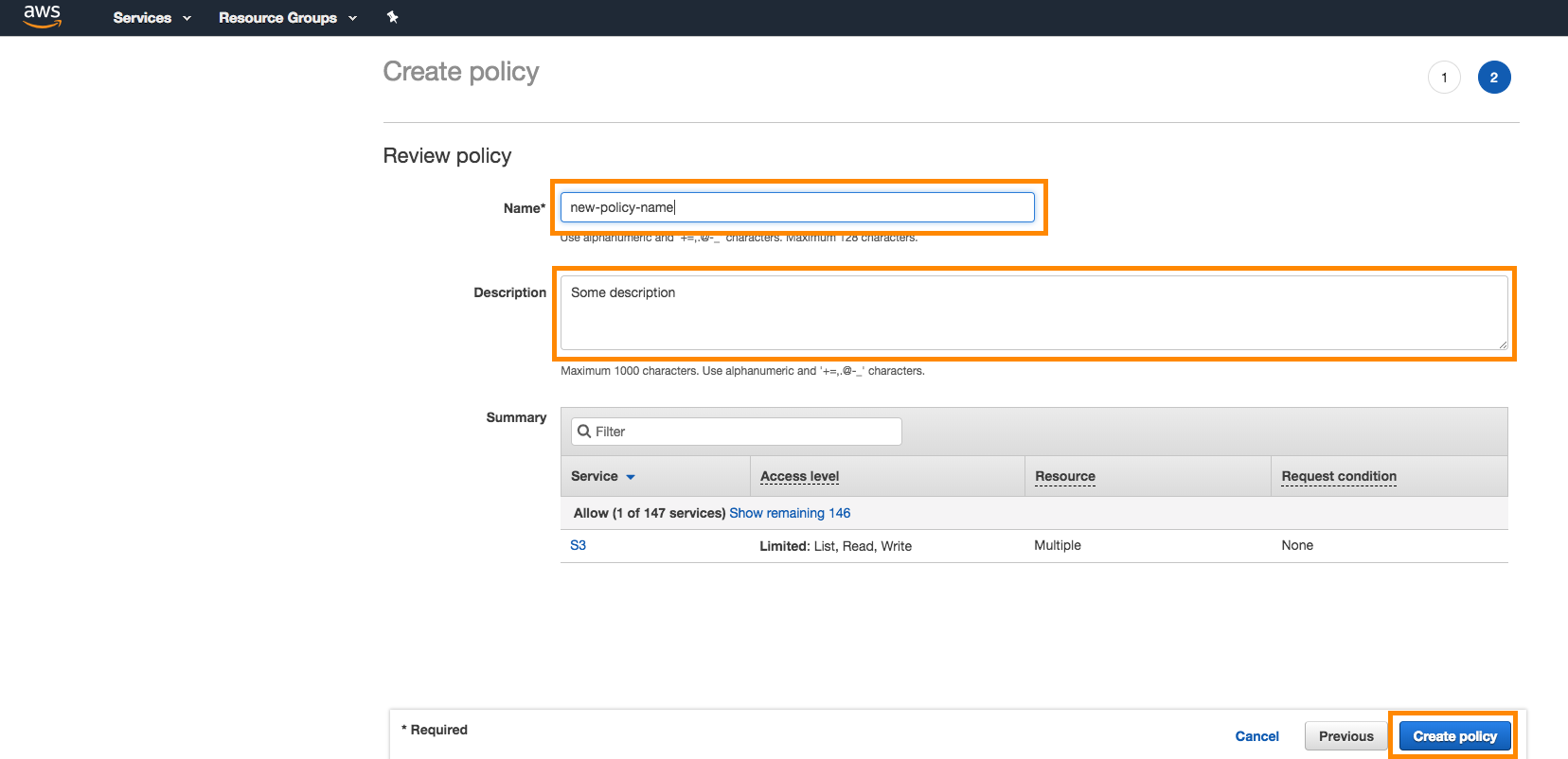
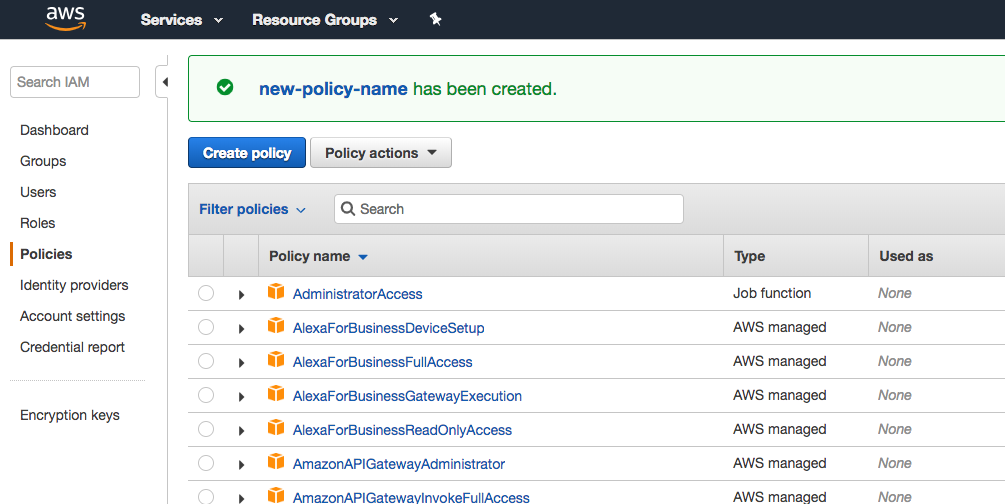
그런 다음 정책에 이름과 설명을 입력하고 Create Policy를 선택합니다.
2단계: 역할 생성
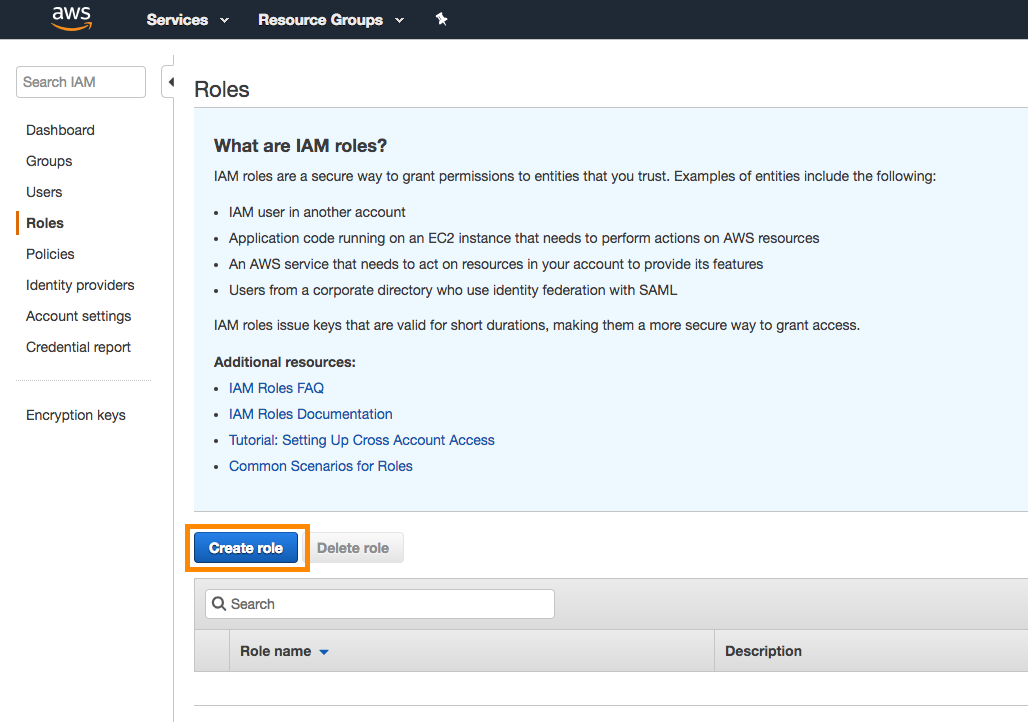
콘솔의 동일한 IAM 섹션에서 Roles > Create Role을 선택합니다.
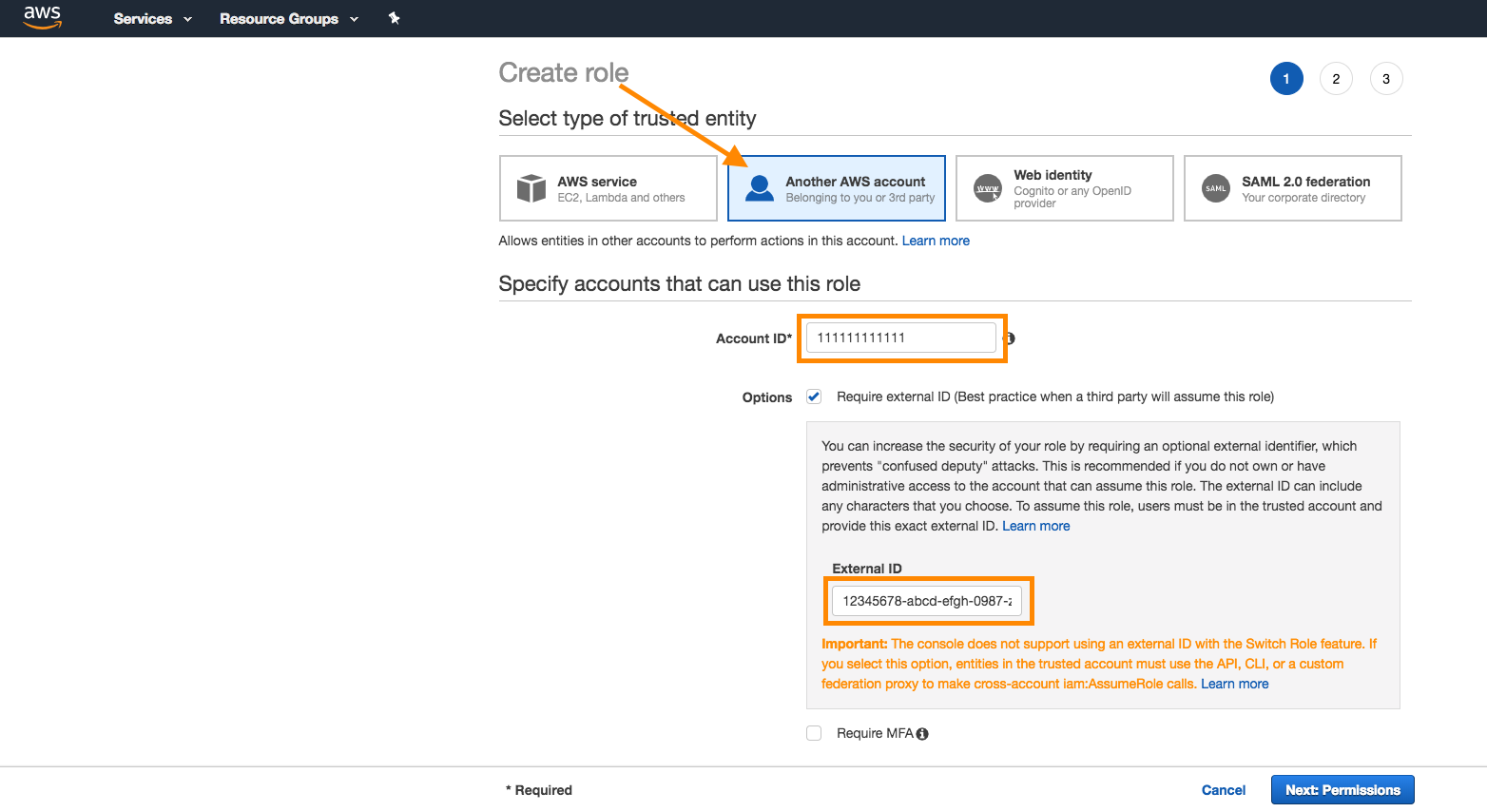
Braze 계정에서 Braze 계정 ID와 외부 ID를 가져옵니다.
- Currents: Braze에서 파트너 통합 > Currents로 이동합니다. 그런 다음 새 Current 생성을 선택하고 Amazon S3 데이터 내보내기를 선택합니다. 여기에서 역할 생성에 필요한 식별자를 확인할 수 있습니다.
- 대시보드 데이터 내보내기: Braze에서 파트너 통합 > 기술 파트너로 이동하여 Amazon S3를 선택합니다. 여기에서 역할 생성에 필요한 식별자를 확인할 수 있습니다. (메시지 아카이빙만 설정하는 경우 여기에서 역할을 생성하세요.)
AWS 콘솔로 돌아가서 신뢰할 수 있는 엔터티 선택기 유형으로 Another AWS Account를 선택합니다. Braze 계정 ID를 입력하고 Require external ID 상자를 체크한 다음 Braze 외부 ID를 입력합니다. 완료되면 Next를 선택합니다.
3단계: 정책 연결
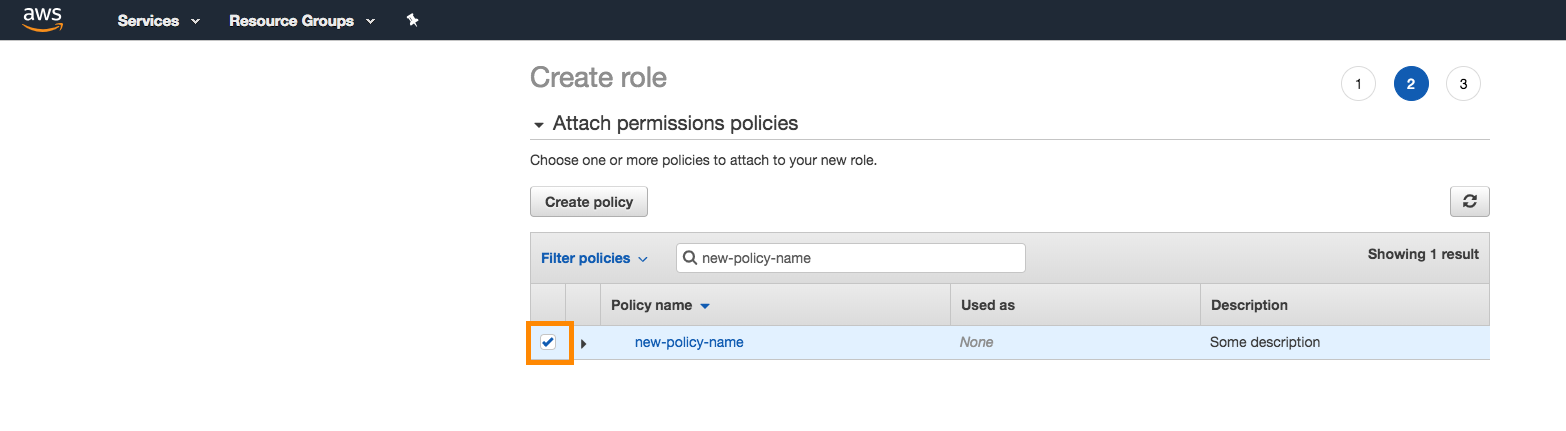
다음으로, 앞서 생성한 정책을 역할에 연결합니다. 검색창에서 정책을 검색하고 정책 옆에 체크 표시를 하여 연결합니다. 완료되면 Next를 선택합니다.
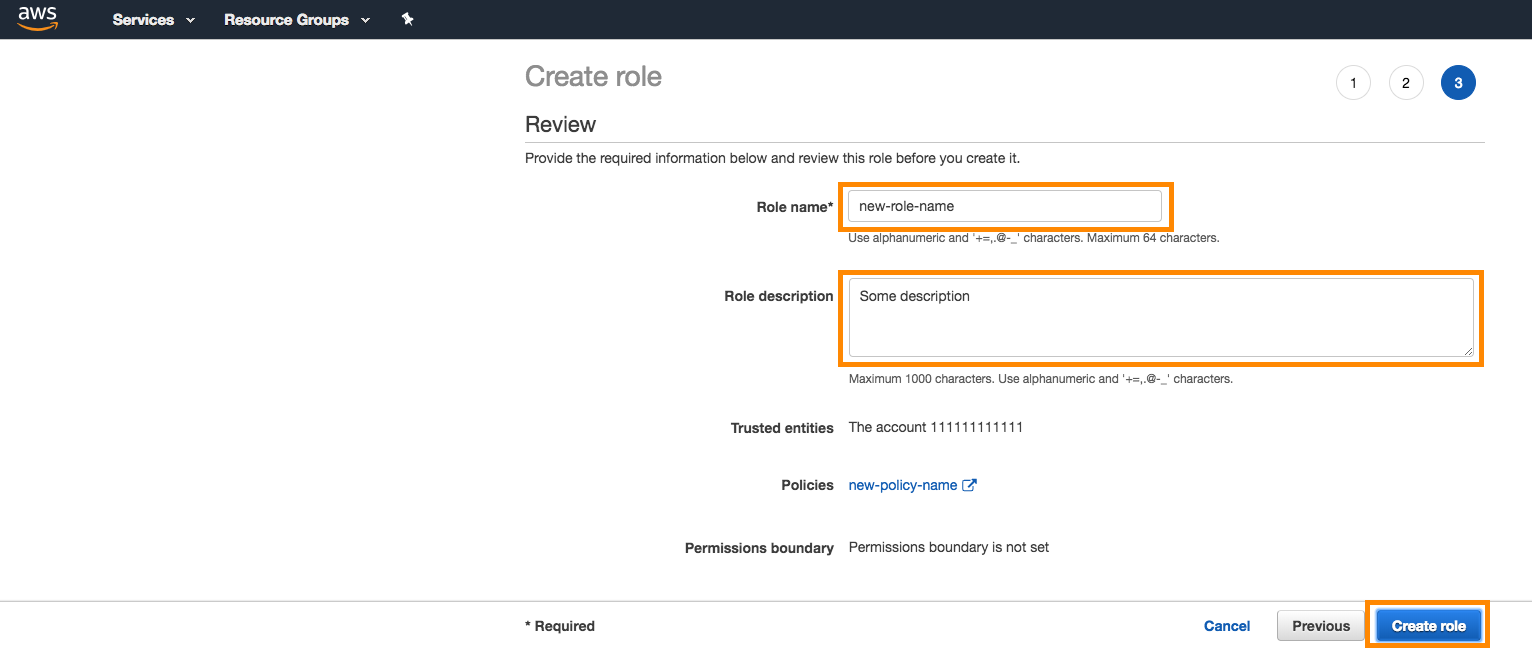
역할에 이름과 설명을 입력하고 Create Role을 선택합니다.
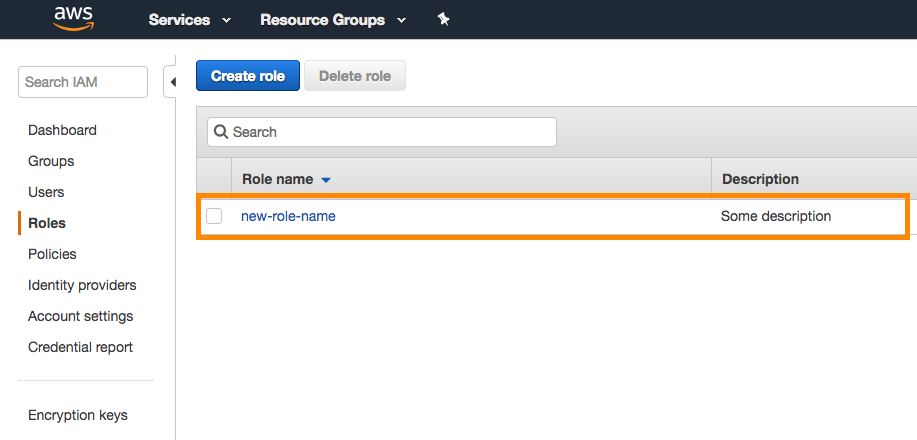
이제 목록에서 새로 생성한 역할을 확인할 수 있습니다.
4단계: Braze AWS에 연결
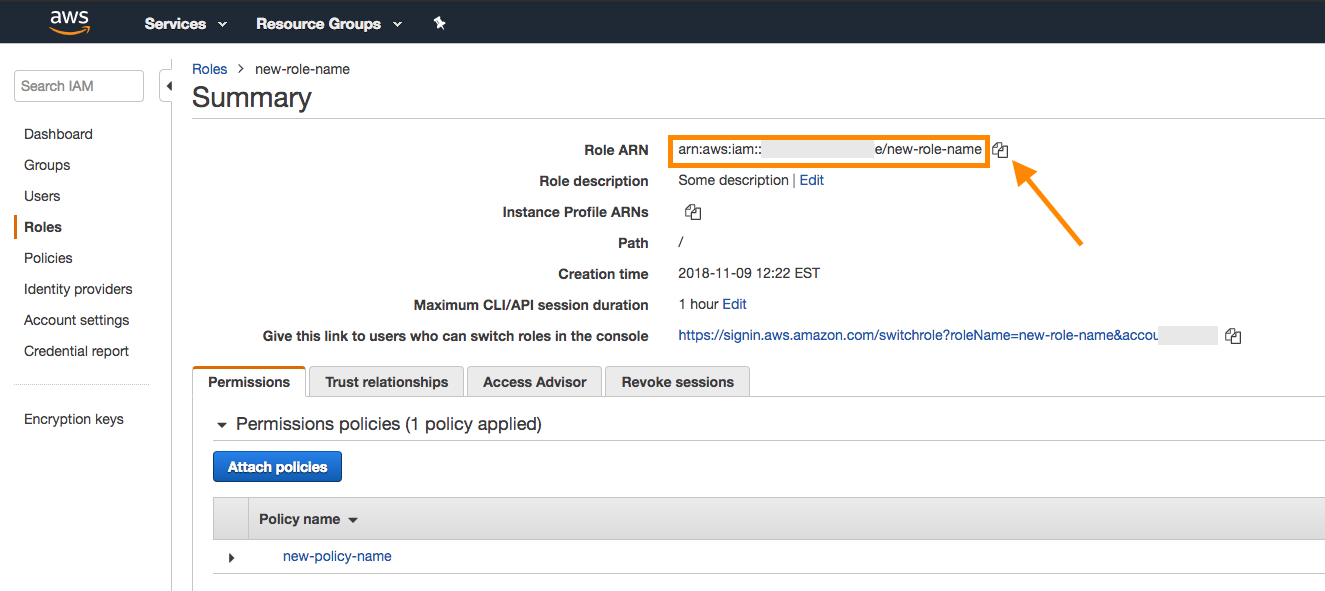
AWS 콘솔의 목록에서 새로 생성한 역할을 찾습니다. 이름을 선택하여 해당 역할의 세부 정보를 엽니다.
역할 요약 페이지 상단에 있는 Role ARN을 기록해 둡니다.
Braze 계정으로 돌아가서 제공된 필드에 역할 ARN을 복사합니다.
메시지 아카이빙만 설정하는 경우 Dashboard Data Export 탭의 단계를 따르세요.
Braze에서 파트너 통합 > Currents로 이동합니다. 그런 다음 새 Current 생성을 선택하고 Amazon S3 데이터 내보내기를 선택합니다.
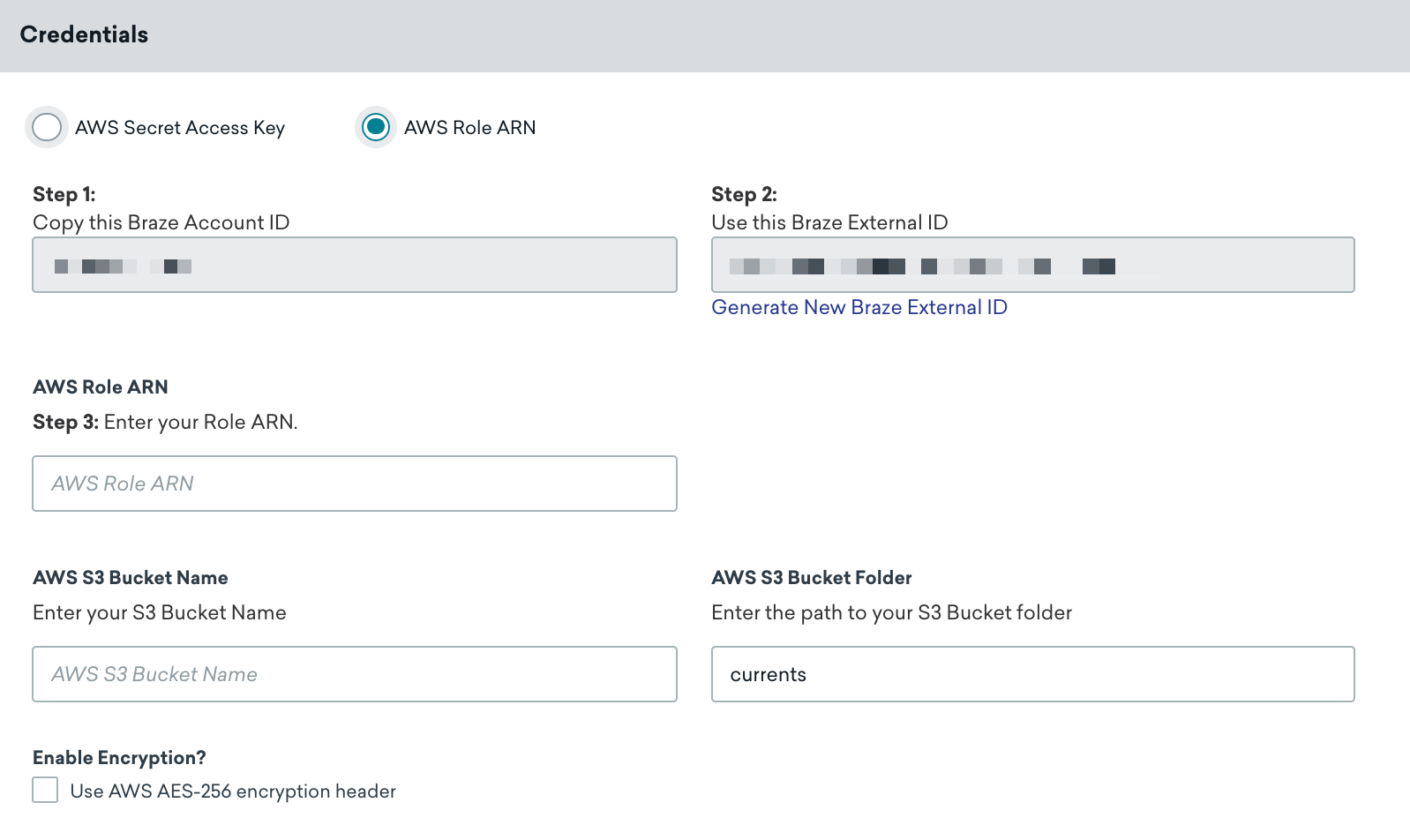
Current에 이름을 지정합니다. 그런 다음 자격 증명 섹션에서 AWS 역할 ARN이 선택되어 있는지 확인하고, 지정된 필드에 역할 ARN과 AWS S3 버킷 이름을 입력합니다.
통합 오류 알림을 받을 연락처 이메일을 입력하세요. 자격 증명 문제나 연결 문제 등 통합에서 오류가 발생하면 Braze가 이 주소로 알림을 보냅니다. 적절한 담당자가 알림을 받을 수 있도록 배포 목록이나 그룹 이메일 주소를 사용하는 것이 좋습니다.
필요에 따라 다음과 같은 커스텀 설정을 추가할 수도 있습니다.
- 폴더 경로(기본값:
currents) - 서버 측 저장 데이터 AES-256 암호화(기본값: 꺼짐) -
x-amz-server-side-encryption헤더 포함
계속하려면 Current 실행을 선택합니다. 자격 증명이 성공적으로 검증되었는지 알림이 표시됩니다. 이제 Braze Currents에 대한 AWS S3 설정이 완료되었습니다.
“S3 credentials are invalid” 오류가 표시되는 경우, AWS에서 역할을 생성한 직후 너무 빨리 통합을 시도했기 때문일 수 있습니다. 잠시 기다린 후 다시 시도하세요. 메시지에 대시보드 데이터 내보내기의 PutObject 액세스 또는 서버 측 암호화가 언급되어 있다면 S3 자격 증명 오류 문제 해결을 참조하세요.
Braze에서 통합 아래의 기술 파트너 페이지로 이동하여 Amazon S3를 선택합니다.
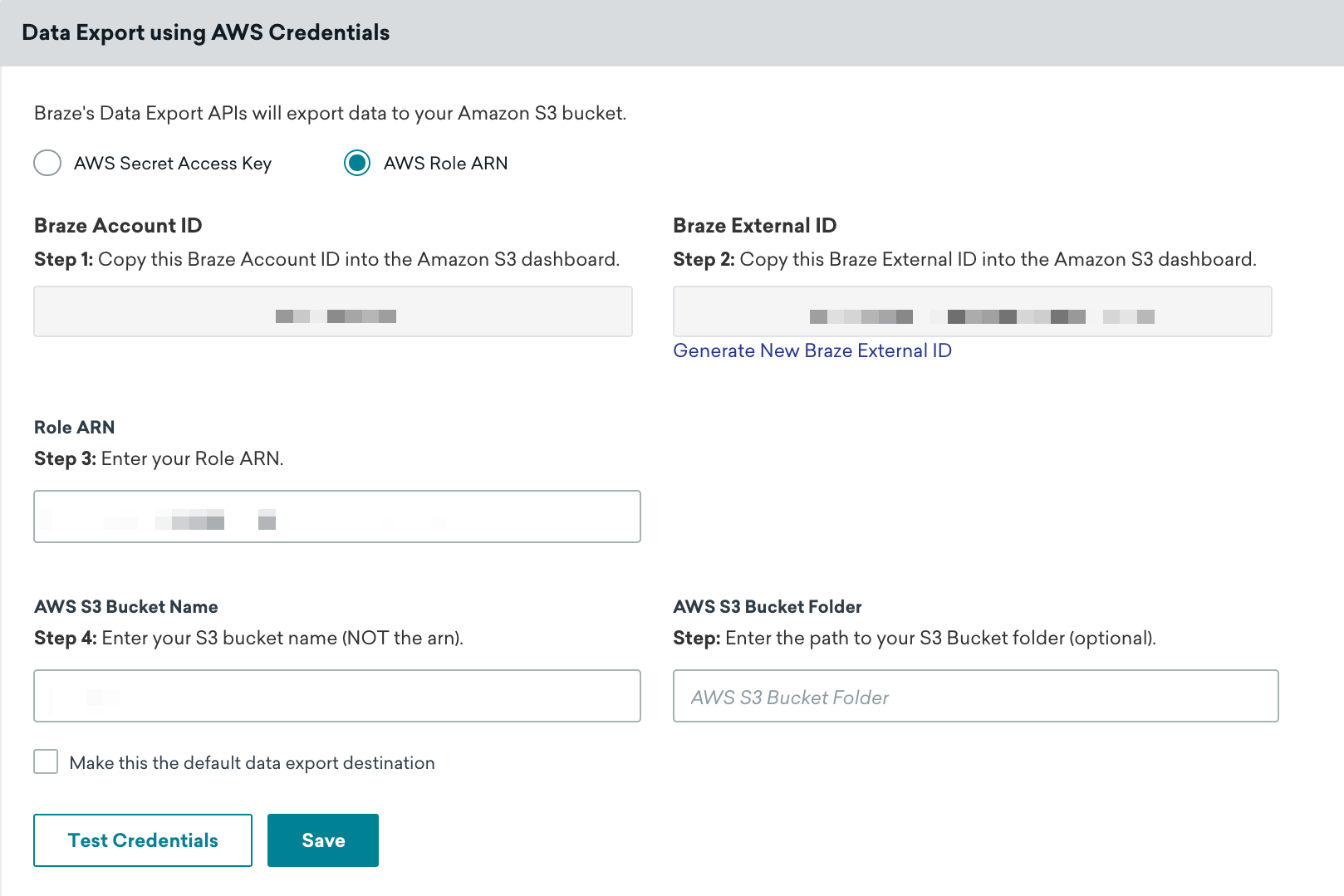
AWS 자격 증명 페이지에서 AWS 역할 ARN 라디오 버튼이 선택되어 있는지 확인한 다음, 지정된 필드에 역할 ARN과 AWS S3 버킷 이름을 입력합니다. 먼저 자격 증명 테스트를 선택하여 자격 증명이 제대로 작동하는지 확인하고, 성공하면 저장을 선택합니다.
AWS 콘솔에서 사용자로 이동한 다음 Security Credentials 탭에서 Create Access Key를 선택하면 언제든지 새 자격 증명을 가져올 수 있습니다.
자격 증명이 성공적으로 검증되었는지 알림이 표시됩니다. 이제 AWS S3가 Braze 계정에 통합되었습니다.
역할 ARN 방법의 보안 고려 사항
2단계에서 Another AWS Account를 선택하고 Braze 계정 ID를 입력하면, AWS는 Principal이 Braze AWS 계정 루트(arn:aws:iam::<BRAZE_ACCOUNT_ID>:root)인 신뢰 정책을 생성합니다. 보안팀에서 이 신뢰 정책을 검토하는 경우 다음 사항에 유의하세요.
- Braze는 공유 IAM 사용자를 사용하여 역할을 수임합니다.
- 외부 ID는 필수입니다. 주체를 특정 IAM 사용자로 범위를 지정하는 경우에도 신뢰 정책에
sts:ExternalId조건을 유지하세요. - 주체를 특정 IAM 사용자로 범위를 지정할 수 있습니다. 보안 정책상 계정 루트를 신뢰할 수 없는 경우
Principal을 Braze IAM 사용자의 ARN으로 바꿀 수 있습니다. 해당 리전의 ARN을 확인하려면 Braze 지원팀에 문의하세요. - Braze IAM 사용자는 변경될 수 있습니다. 주체는 일반적으로 안정적으로 유지되지만, 향후 Braze가 변경할 수도 있습니다. 신뢰 정책의 범위를 특정 IAM 사용자로 지정했는데 해당 사용자가 변경되면, 신뢰 정책을 업데이트할 때까지 Braze가 역할을 수임할 수 없습니다.
- 주체는 제품마다 다릅니다. Currents와 대시보드 데이터 내보내기는 동일한 Braze IAM 사용자를 사용합니다. 클라우드 데이터 수집은 다른 AWS 계정의 다른 주체를 사용하므로 신뢰 정책을 별도로 구성해야 합니다.
Currents의 Amazon S3 자격 증명 업데이트
통합을 중지하거나 이미 버킷으로 내보낸 데이터를 잃지 않고 기존 Braze Currents 커넥터의 Amazon S3 자격 증명을 업데이트할 수 있습니다.
자격 증명을 새로고침하거나 AWS Secret Access Key와 AWS Role ARN 간에 전환하려면, 이 문서 앞부분에서 선택한 방법에 대한 IAM 및 AWS 측 단계(정책, 사용자 또는 역할, 필요한 식별자)를 완료하세요.
AWS에서 자격 증명 준비를 마쳤으면 Braze에서 파트너 통합 > Currents로 이동하여 목록에서 Amazon S3 커넥터를 찾고 Edit을 선택한 다음 Credentials를 업데이트하고 Update Current을 선택합니다. Braze가 입력한 자격 증명을 검증하며, 커넥터는 계속 실행되고 버킷에 이미 있는 데이터는 그대로 사용할 수 있습니다. 자세한 내용은 Currents 설정에서 Currents 업데이트를 참조하세요.
Currents가 S3에 파일을 업로드하는 방법
Currents는 각 Avro 파일이 Avro 쓰기 임계값에 도달하면 파일을 닫은 다음, 완성된 파일을 Amazon S3 멀티파트 업로드를 사용해 5 MB 단위로 버킷에 업로드합니다. 멀티파트 업로드는 쓰기 임계값과는 별개로 진행되며, 일반적으로 파일이 닫힌 후 몇 초 이내에 완료됩니다.
Amazon S3는 진행 중인 멀티파트 업로드를 객체로 노출하지 않습니다. Currents 파일은 업로드가 완료된 후에만 ListObjectsV2 및 GetObject에 표시되므로, 표준 S3 API를 통해 버킷을 읽는 다운스트림 프로세스에서는 일부만 업로드된 파일이 보이지 않습니다.
내보내기 동작
클라우드 데이터 스토리지 솔루션을 통합하고 API, 대시보드 보고서 또는 CSV 보고서를 내보내는 사용자에게는 다음과 같은 동작이 적용됩니다.
- 모든 API 내보내기는 응답 본문에 다운로드 URL을 반환하지 않으므로 데이터 스토리지를 통해 가져와야 합니다.
- 모든 대시보드 보고서와 CSV 보고서는 다운로드할 수 있도록 사용자의 이메일로 전송되며(스토리지 권한 필요 없음), 데이터 스토리지에도 백업됩니다.
Unable to connect to S3, please validate that your credentials are correct 오류
CSV 내보내기를 다운로드할 때 이 오류가 표시되면 기술 파트너 페이지에서 Amazon S3 통합을 열고 자격 증명 테스트를 선택하세요. 결과에서 어떤 항목이 검증에 실패했는지 확인할 수 있습니다. 예를 들어 키에 GetObject 권한이 없으면 Braze가 다운로드 링크를 생성할 수 없습니다.
Braze 통합에 구성된 S3 버킷 및 오브젝트 경로에 대해 통합 사용자 또는 역할이 s3:GetObject를 호출할 수 있도록 IAM 정책을 업데이트하세요. 다른 내보내기 문제는 내보내기 문제 해결을 참조하세요.
JSON 형식 요구 사항: JSON 내보내기의 경우 Braze는 각 줄에 별도의 JSON 객체가 포함된 JSONL(줄바꿈으로 구분된 JSON) 형식을 사용합니다. 이 형식은 단일 JSON 배열 또는 객체로 구성된 표준 JSON과 다릅니다. 내보낸 파일의 각 줄은 유효한 JSON 객체이지만, 파일 전체가 하나의 유효한 JSON 문서는 아닙니다. 이러한 파일을 처리할 때는 전체 파일을 하나의 JSON 문서로 파싱하지 말고 각 줄을 별도의 JSON 객체로 개별 파싱하세요.
Currents 내보내기는 JSON이 아닌 Apache Avro 형식(.avro 파일)을 사용합니다. 이 JSON 형식 요구 사항은 대시보드 데이터 내보내기와 API 내보내기에 적용됩니다.
여러 커넥터
S3 버킷으로 전송하는 Currents 커넥터를 두 개 이상 만들려는 경우, 동일한 자격 증명을 사용할 수 있지만 각 커넥터마다 서로 다른 폴더 경로를 지정해야 합니다. 이러한 커넥터는 같은 워크스페이스에서 만들 수도 있고, 여러 워크스페이스에 나누어 만들 수도 있습니다. 또한 통합마다 정책을 하나씩 만들거나, 두 통합을 모두 포함하는 정책 하나를 만들 수도 있습니다.
Currents와 데이터 내보내기에 동일한 S3 버킷을 사용하려는 경우, 각 통합에 필요한 권한이 다르기 때문에 별도의 정책을 두 개 만들어야 합니다.
문제 해결
오류: 계정에 PutObject 액세스 권한이 없음
대시보드 데이터 내보내기용 Amazon S3 자격 증명을 저장할 때 다음 오류가 표시된다면, 권한이 잘못되었거나 서버 측 암호화 설정 때문일 수 있습니다.
S3 Credentials are invalid because this account does not have 'PutObject access'. Please check the permissions and ensure that this key has access to 'PutObject' in the 'CUSTOMER-BUCKET-HERE' bucket.
이 문제를 해결하려면 다음 항목을 확인하세요.
잘못된 버킷 정책
Amazon S3 통합에 설명된 대로 올바른 권한이 포함된 정책을 생성했는지 확인하세요(인증 방식에 맞는 대시보드 데이터 내보내기 정책을 사용하세요).
서버 측 암호화
User: arn:aws:sts::XXX:assumed-role/braze-iam-role/braze is not authorized to perform: kms:GenerateDataKey on resource: arn:aws:XXX because no identity-based policy allows the kms:GenerateDataKey action
Braze 지원팀 또는 AWS 로그에서 이 오류 메시지를 받았다면, S3 버킷이 AWS Key Management Service(SSE-KMS) 암호화로 구성되어 있는 것입니다. Braze는 Currents 또는 대시보드 데이터 내보내기에서 SSE-KMS를 지원하지 않습니다. 이 문제를 해결하려면 S3 버킷에서 SSE-KMS를 비활성화하세요.
Braze는 S3 관리형 키(SSE-S3)를 사용한 서버 측 암호화를 지원하며, 이는 Currents와 대시보드 데이터 내보내기 모두와 호환됩니다.
추가 권한 확인
s3:GetBucketLocation 및 s3:PutObject를 포함하여 필요한 권한이 있는지 확인하세요.