Mixpanel 코호트 가져오기
이 문서에서는 Mixpanel에서 Braze로 사용자 코호트를 가져오는 방법을 설명합니다. Mixpanel 통합 및 기타 기능에 대한 자세한 내용은 Mixpanel 기본 문서를 참조하세요.
데이터 가져오기 통합
Mixpanel에서 Braze로 코호트를 동기화하면, Braze는 Mixpanel이 기존 Braze 프로필과 매칭할 수 있는 사용자에 대해 코호트 멤버십 업데이트를 수신합니다. 동기화 후 Mixpanel 코호트 Segment 필터를 사용하여 해당 사용자를 타겟팅할 수 있습니다.
코호트 동기화는 Mixpanel 이벤트, Mixpanel 사용자 속성 또는 커스텀 속성을 Braze로 가져오지 않습니다. 동기화 주기를 포함한 커넥터 동작은 Mixpanel에서 제어됩니다. 설정 세부 사항은 Mixpanel의 Braze 코호트 동기화 설명서를 참조하세요. 사용자 매칭 요구 사항은 사용자 매칭을 참조하세요.
설정한 모든 통합은 데이터 포인트를 기록합니다. Braze 데이터 포인트의 세부 사항에 대해 궁금한 점이 있으면 Braze 계정 매니저에게 문의하세요.

Mixpanel의 데이터 보존 정책에 따라 2010년 1월 1일 이전에 전송된 이벤트는 가져오기 중에 제거됩니다.
1단계: Braze 데이터 가져오기 키 받기
Braze에서 파트너 통합 > 기술 파트너로 이동하여 Mixpanel을 선택합니다. 여기에서 REST 엔드포인트를 확인하고 Braze 데이터 가져오기 키를 생성할 수 있습니다.
생성된 후에는 새 키를 만들거나 기존 키를 무효화할 수 있습니다. 데이터 가져오기 키와 REST 엔드포인트는 다음 단계에서 Mixpanel 대시보드에서 포스트백을 설정할 때 사용됩니다.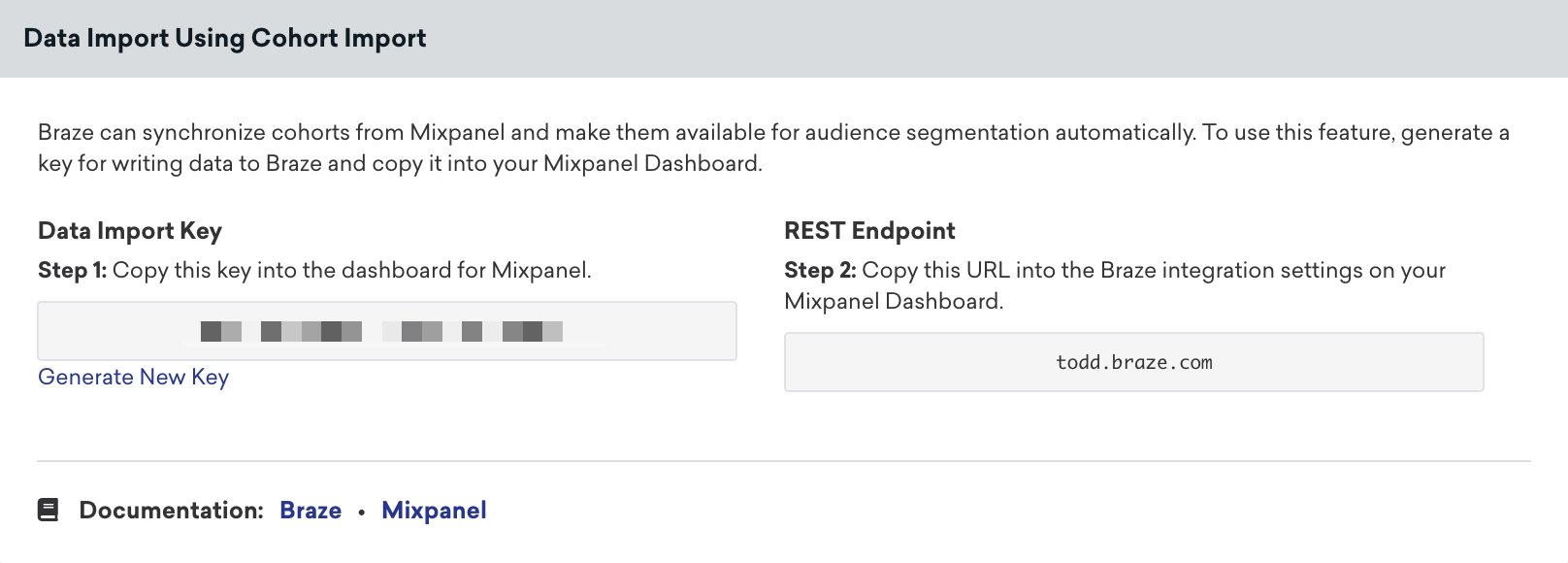
2단계: Mixpanel에서 Braze 통합 설정하기
- Mixpanel에서 Data Management > Integrations로 이동합니다.
- Braze 통합 탭을 선택하고 Connect를 선택합니다.
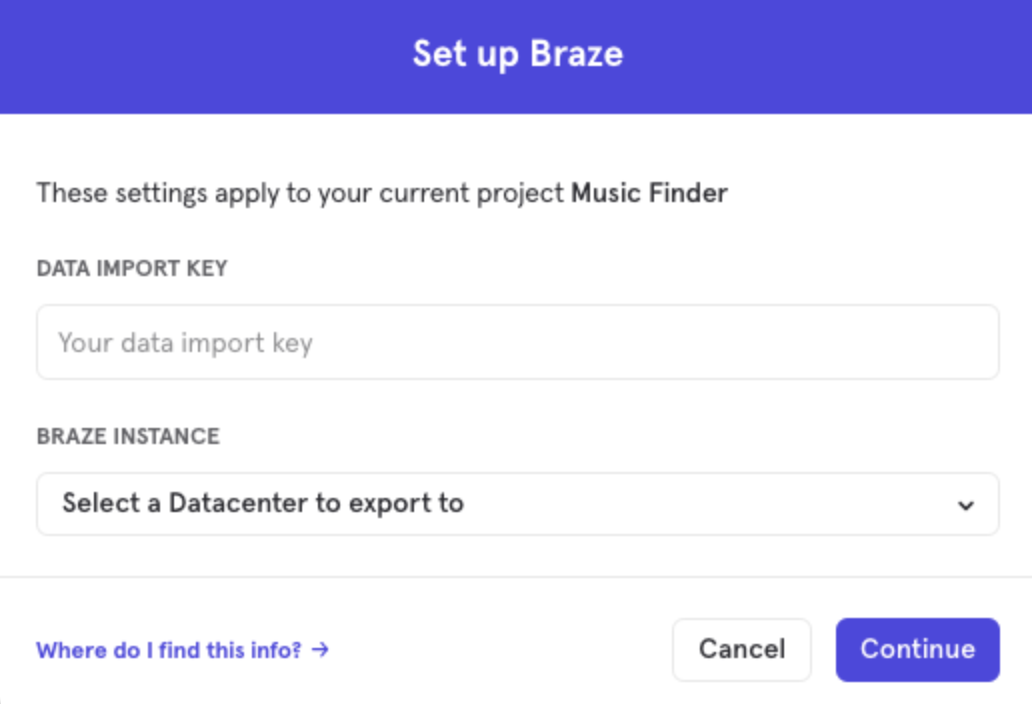
- 표시되는 프롬프트에서 Braze 데이터 가져오기 키와 REST 엔드포인트를 입력합니다.
- Continue를 선택합니다.
3단계: Mixpanel 코호트를 Braze로 내보내기
Mixpanel에서 Data Management > Cohorts로 이동합니다. Braze로 보낼 코호트를 선택한 다음 Export to Braze를 선택합니다. 마지막으로 일회성 동기화 또는 동적 동기화를 선택합니다. 동적 동기화를 선택하면 Mixpanel이 제어하는 반복 스케줄에 따라 코호트가 업데이트됩니다. 최신 동기화 주기에 대해서는 Mixpanel의 Braze 코호트 동기화 설명서를 참조하세요.
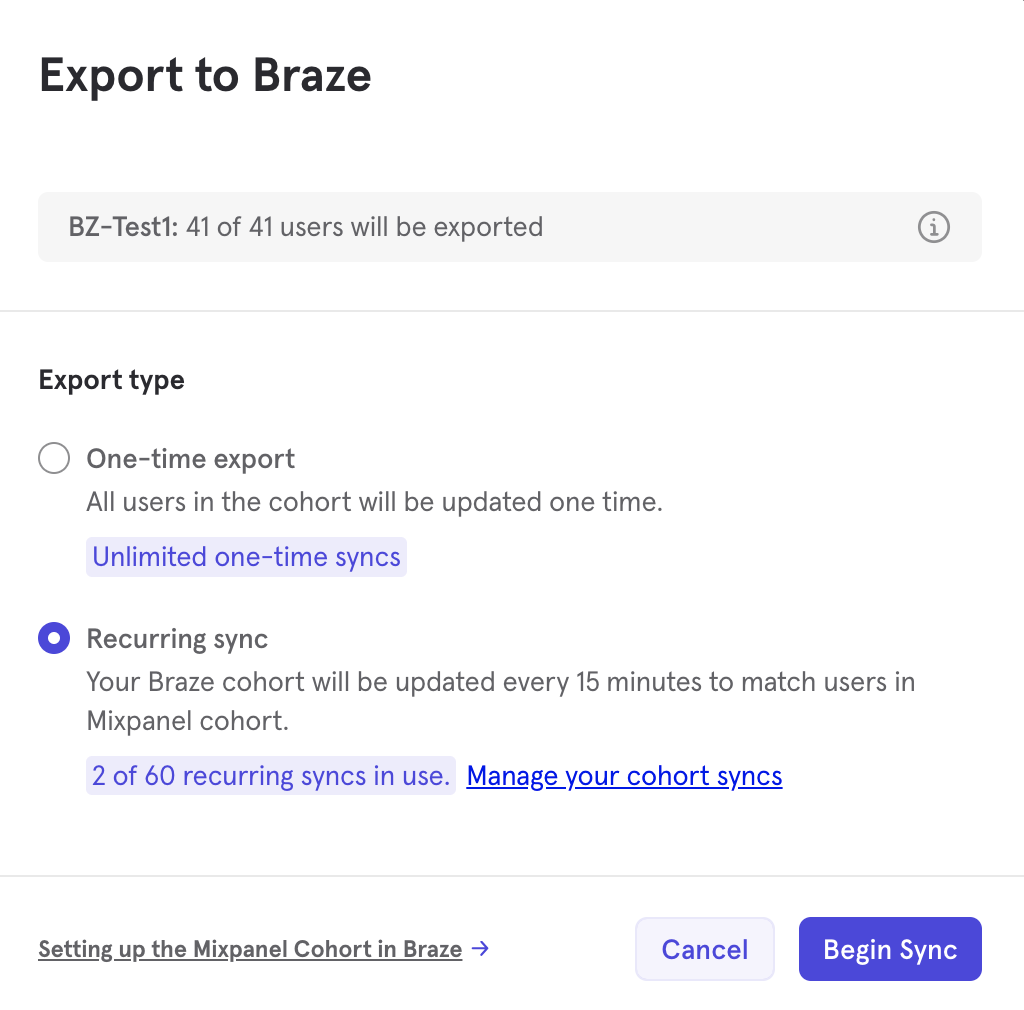
Braze에 이미 존재하는 사용자만 코호트에 추가되거나 제거됩니다. 코호트 가져오기는 Braze에 새 사용자를 생성하지 않습니다.
4단계: Braze에서 사용자 세그먼트 만들기
Braze에서 이러한 사용자의 Segment를 만들려면 오디언스 > Segments로 이동하여 Segment 이름을 지정하고 필터로 Mixpanel_Cohorts를 선택합니다. 그런 다음 “포함” 옵션을 사용하여 Mixpanel에서 생성한 코호트를 선택합니다.
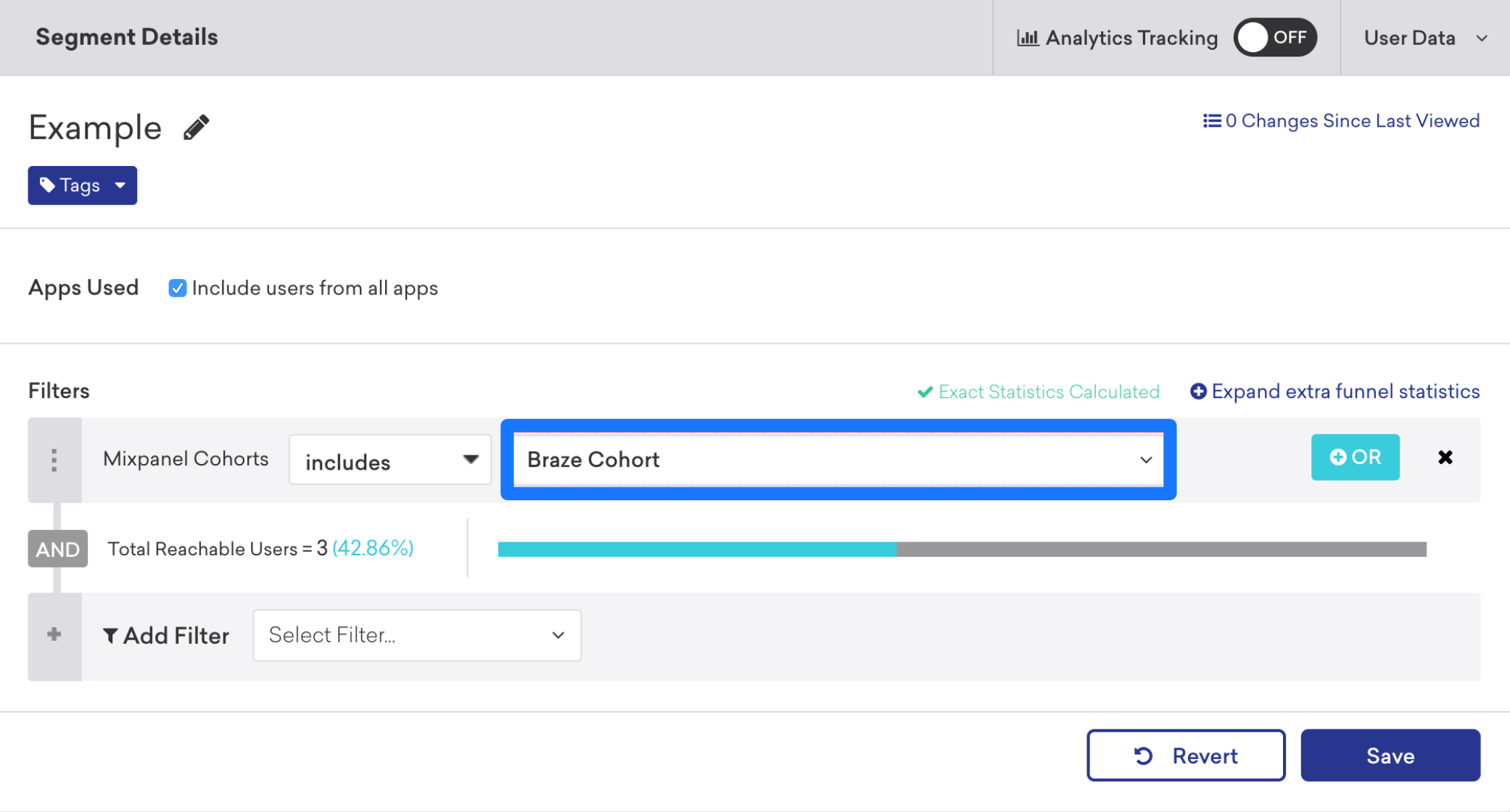
저장한 후 사용자 타겟팅 단계에서 Canvas 또는 Campaign 생성 시 이 Segment를 참조할 수 있습니다.
사용자 매칭
식별된 사용자는 external_id 또는 alias로 매칭할 수 있습니다. 익명 사용자는 device_id로 매칭할 수 있습니다. 원래 익명 사용자로 생성된 식별된 사용자는 device_id로 식별할 수 없으며, external_id 또는 alias로 식별해야 합니다.
문제 해결
Mixpanel 코호트 동기화가 불완전하거나 특정 사용자에 대해 업데이트되지 않는 경우 Mixpanel 기본 문서의 문제 해결을 참조하세요.
커넥터별 단계 및 동기화 주기에 대해서는 Mixpanel의 Braze 코호트 동기화 설명서를 참조하세요.