여러 Shopify 스토어 연결
여러 Shopify 스토어 도메인을 단일 워크스페이스에 연결하여 모든 시장에 걸쳐 고객을 통합적으로 파악할 수 있습니다. 지역별 스토어에서 중복 작업 없이 단일 워크스페이스에서 자동화 프로그램과 여정을 구축하고 시작하세요.

이 기능은 Shopify Markets 또는 Markets Pro를 지원하지 않습니다. Shopify Markets or Markets Pro support에 관심이 있으시면 제품 피드백을 제출해 주세요.
요구 사항
| 요구 사항 | 설명 |
|---|---|
| Shopify 스토어 설정 | Braze와 함께 Shopify 스토어를 하나 이상 설정했는지 확인하세요. |
| 지역별 고유 Shopify 스토어프런트 도메인 | 다중 스토어 지원은 지역별 스토어프런트마다 고유한 Shopify 스토어 도메인을 사용하는 경우를 위한 기능입니다. 여러 하위 브랜드를 Braze에 연결하려면 하위 브랜드마다 별도의 워크스페이스를 만드는 것을 권장합니다. |
추가 스토어 연결하기
Shopify 스토어에 Braze 앱을 설치하고 첫 번째 스토어를 설치한 후 + 새 스토어 연결을 선택합니다.
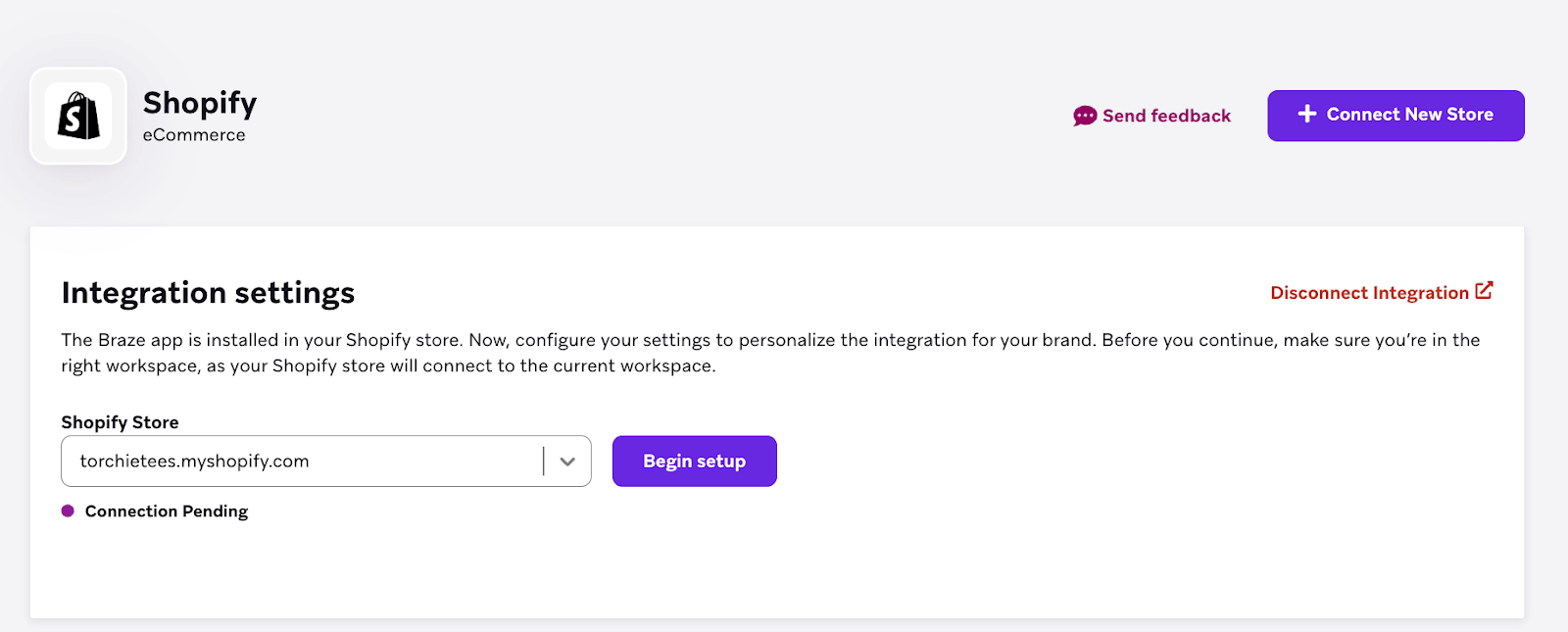
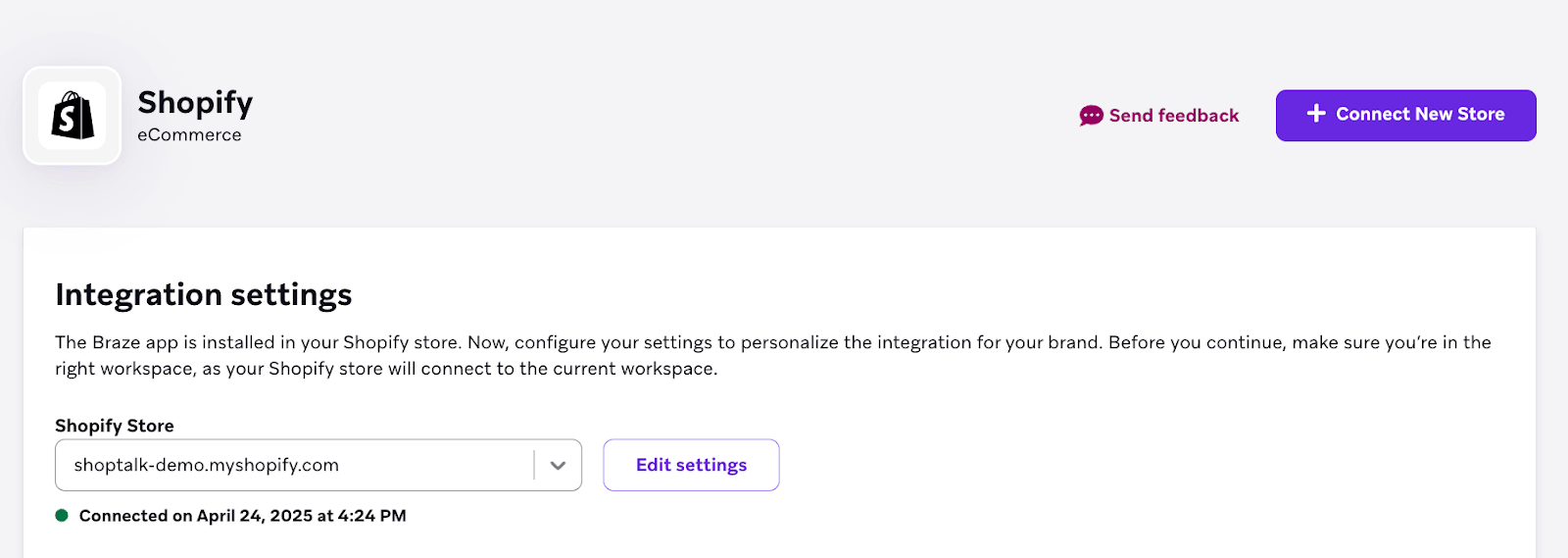
추가 Shopify 지역 스토어의 경우 설정 시작을 선택합니다.
첫 번째 Shopify 스토어 통합과 마찬가지로 표준 설정과 커스텀 설정 중 하나를 선택할 수 있습니다.
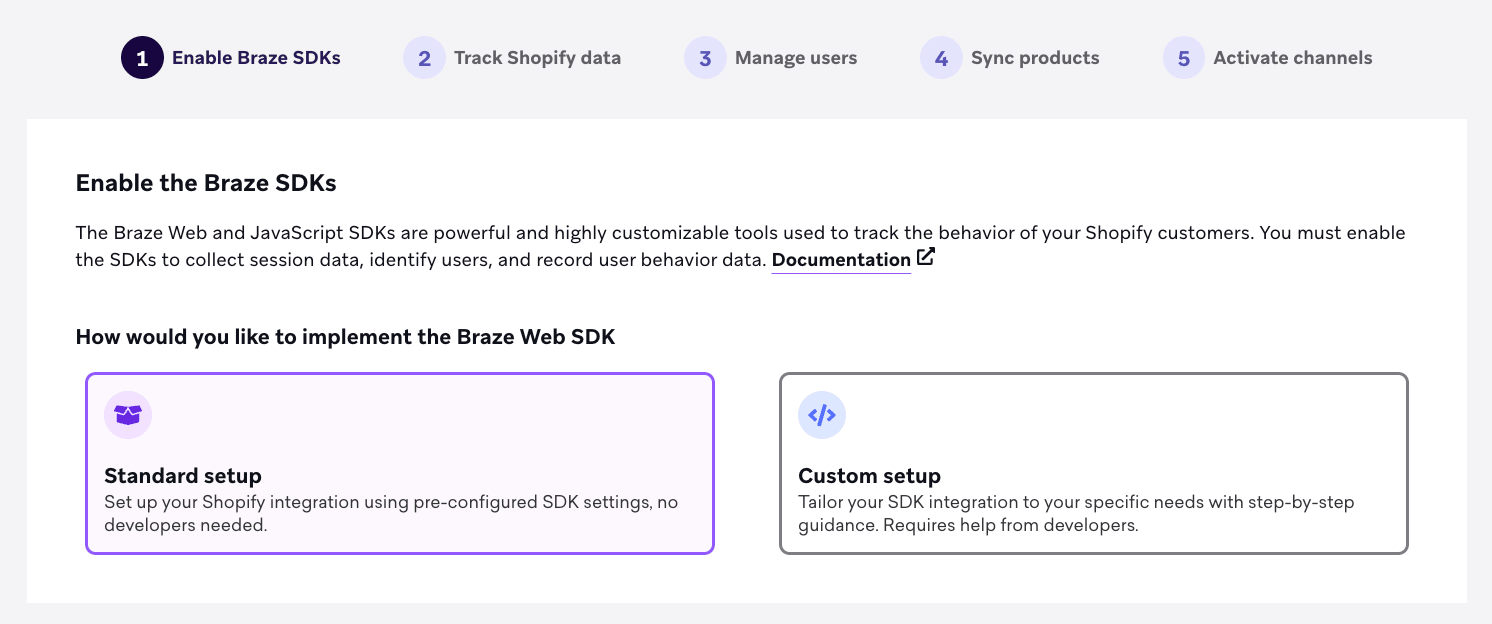
필요에 가장 적합한 옵션을 선택하세요.
표준 통합은 Shopify 온라인 스토어에 맞춤화되어 있으며, 원활하고 간편한 설정 프로세스를 제공합니다. 이 옵션을 사용하면 Shopify 스토어를 Braze에 빠르게 연결하여 광범위한 기술 전문 지식 없이도 강력한 고객 참여 툴을 활용할 수 있습니다. 이 통합 옵션을 통해 고객 데이터를 동기화하고, 개인화된 메시징을 자동화하며, 포괄적인 Braze 기능을 통해 마케팅 활동을 강화할 수 있습니다.
Shopify 표준 통합을 사용하려면 Shopify 표준 통합 설정을 참조하세요.
커스텀 통합은 Shopify Hydrogen을 사용하거나 헤드리스 스토어를 지원하는 경우 더 유연하고 구성 가능한 솔루션을 제공합니다. 이 옵션을 사용하면 Braze SDK를 Shopify 환경에 직접 구현하여 더 깊은 통합과 맞춤형 기능을 활성화할 수 있습니다. 고유한 고객 경험을 창출하거나 특정 워크플로를 최적화하려는 경우, 커스텀 통합은 헤드리스 설정에서 Braze의 기능을 최대한 활용하는 데 필요한 도구를 제공합니다.
Shopify 커스텀 통합을 사용하려면 Shopify 커스텀 통합 설정을 참조하세요.
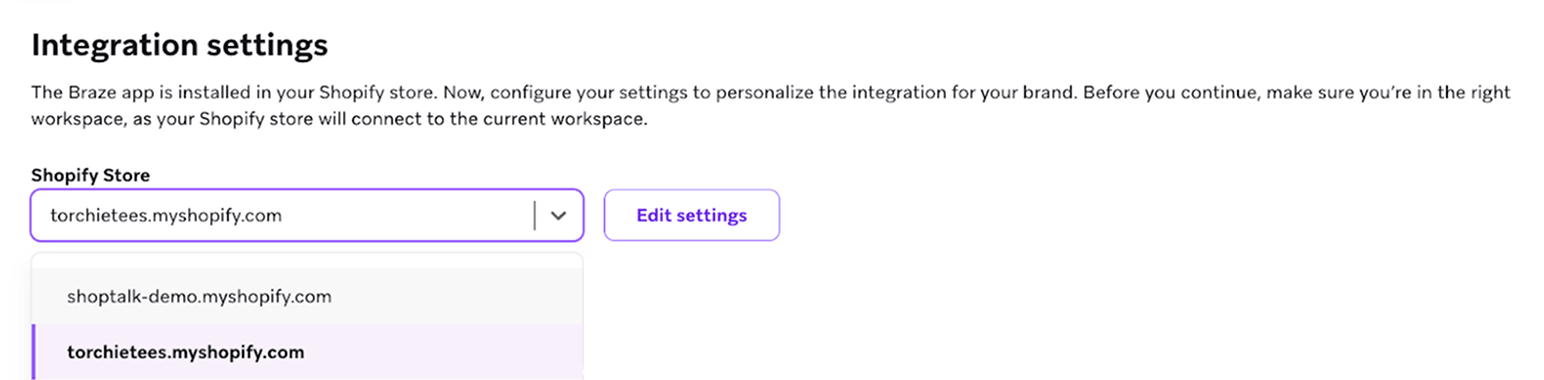
각 스토어 통합을 확인하고 고급 설정을 구성하려면 드롭다운 메뉴에서 스토어를 선택합니다.
스토어 간 사용자 동기화
Shopify 별칭
여러 스토어를 연결하면 로그인했거나 주문한 적이 있는 동기화된 Shopify 사용자에게 다음 형식의 새 별칭이 부여됩니다. shopify_customer_id_{{storename}}
Braze 외부 ID
Braze 외부 ID로 다음 옵션 중 하나를 선택할 수 있습니다.
| 옵션 | 설명 |
|---|---|
| Shopify 고객 ID | Shopify 고객 ID를 Braze 외부 ID로 사용하면 각 스토어에서 사용자마다 고유 고객 ID를 생성합니다. 따라서 사용자가 여러 스토어와 상호작용하면 Braze에 별도의 프로필이 생성됩니다. |
| 이메일, 해시된 이메일 또는 커스텀 외부 ID | 이메일, 해시된 이메일 또는 커스텀 외부 ID 유형을 사용하면 여러 스토어와 상호작용하는 사용자가 로그인하거나 주문할 때 프로필이 하나의 통합 프로필로 병합됩니다. |
병합되는 필드
고객 프로필이 동기화되면 다음 필드가 병합됩니다. 병합 동작에 대한 자세한 내용은 병합 동작을 참조하세요.
- 기기 정보
- 총 세션 수(두 프로필의 합산)
- 커스텀 이벤트 및 구매 데이터
- 세분화를 위한 커스텀 이벤트 속성정보(예: X ≤ 50, Y ≤ 30인 경우 “Y일 동안 X회”)
- 이벤트 수(두 프로필의 합산)
- 첫 번째 및 마지막 이벤트 날짜(Braze가 가장 이른 날짜와 가장 최근 날짜를 선택)
- Campaign 상호작용 데이터(가장 최근 날짜 필드)
- 워크플로 요약(가장 최근 날짜 필드)
- 메시지 및 인게이지먼트 기록
- 구독 그룹
구독자 수집(선택 사항)
Braze를 통해 직접(Shopify 커넥터 설정에서) 구독자를 수집하거나, Shopify에서 데이터를 동기화하는 API 및 SDK 대안을 통해 수집할 수 있습니다.
Shopify 커넥터 설정의 사용자 관리 단계에서 Braze를 사용하여 이메일, SMS, WhatsApp 구독자 옵트인을 수집하고 전용 구독 그룹으로 정리할 수 있습니다.
- 연결하는 스토어마다 고유한 구독 그룹을 만드세요. 이렇게 하면 구독자의 유입 경로에 대한 정확한 데이터를 유지하는 데 도움이 됩니다.
- 이메일, SMS, WhatsApp 구독자 수집을 활성화하세요. WhatsApp 구독자 수집을 사용하려면 워크스페이스에 WhatsApp 비즈니스 계정이 연결되어 있어야 합니다.
또는 Braze API나 SDK를 사용하여 Shopify에서 이메일, SMS, WhatsApp 마케팅 옵트인 정보를 직접 동기화할 수 있습니다.
| 옵션 | 리소스 |
|---|---|
| API | - 통합에서 지원하는 기능을 직접 대체하는 구독 그룹 엔드포인트 - 구독 그룹 데이터 또는 글로벌 이메일 구독 상태를 설정하는 Users/track 엔드포인트- 보다 맞춤화된 마케팅 옵트인 수집 옵션을 위한 Braze 환경설정 센터 |
| SDK | - NotificationSubscriptionTypes- addToSubscriptionGroup- removeFromSubscriptionGroup- setEmailNotificationSubscriptionType |
Shopify 데이터
동기화된 속성
둘 이상의 스토어를 연결하면 다음 속성이 Shopify 프로필의 최신 상태와 동기화됩니다.
- 이름
- 성
- 이메일
- 성별
- 생년월일
- 국가
- 구/군/시
- 마지막으로 사용한 앱
- 언어
- 시간대
- Shopify 태그
- Shopify 주문 수
- Shopify 총 지출액
지원되는 이벤트
이커머스 추천 이벤트
여러 스토어를 연결하면 수신되는 이커머스 추천 이벤트에 소스 이벤트 속성정보가 포함됩니다. 이 속성정보는 이벤트가 발생한 스토어프론트 URL을 식별하므로, 이 정보를 세분화에 사용하거나 특정 사용 사례를 트리거할 수 있습니다.

Shopify 통합에서 지원되는 이커머스 추천 이벤트는 다음과 같습니다.
ecommerce.product_viewedecommerce.cart_updatedecommerce.checkout_startedecommerce.order_placedecommerce.order_cancelledecommerce.order_refunded
Shopify 커스텀 이벤트
수신되는 Shopify 커스텀 이벤트에는 shopify_storefront라는 이벤트 속성정보가 포함됩니다. 이 속성정보는 이벤트가 발생한 스토어프론트 URL을 나타내므로, 이를 세분화에 활용하거나 사용 사례를 트리거할 수 있습니다.
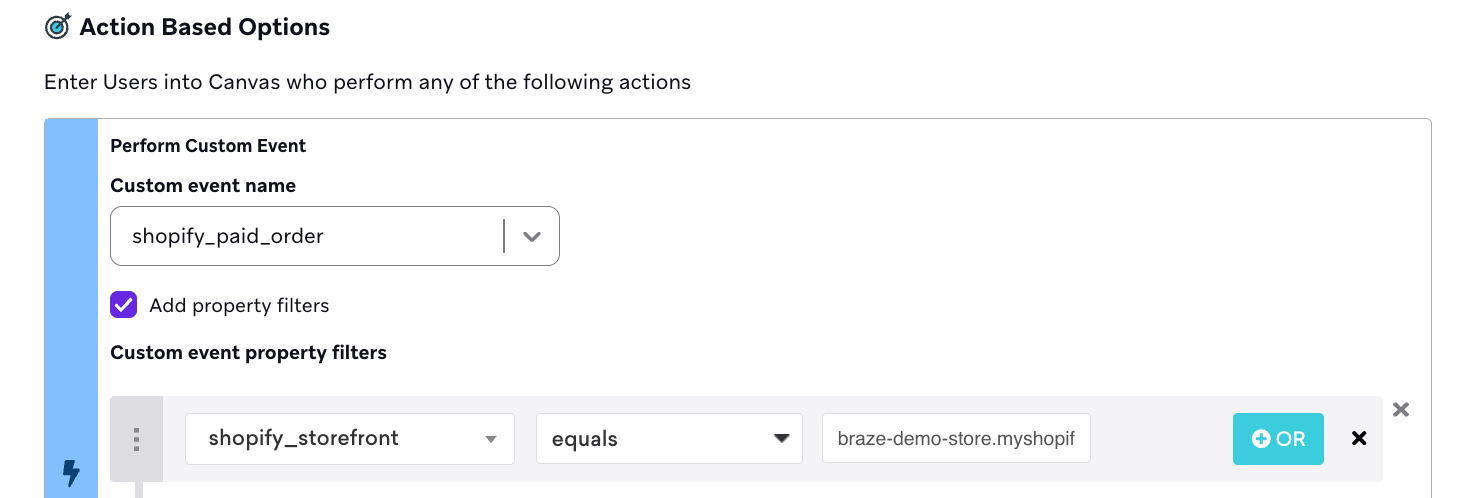
지원되는 Shopify 커스텀 이벤트는 다음과 같습니다.
shopify_fulfilled_ordershopify_partially_fulfilled_ordershopify_paid_ordershopify_account_login
모든 이벤트 페이로드에 대한 전체 개요는 Shopify 데이터 기능을 참조하세요.
Shopify 제품 동기화
Braze에서 각 Shopify 스토어를 연결하고 구성할 때, 통합의 일부로 Shopify 제품 동기화를 선택적으로 활성화할 수 있습니다.
각 스토어에 대해 제품 동기화를 활성화하면 Braze는 카탈로그 이름에 Shopify 스토어 이름을 포함합니다. 이를 통해 서로 다른 스토어의 제품을 구분할 수 있습니다.
