e コマース推奨イベントの使い方
このページでは、プラットフォーム全体でe コマース推奨イベントをどのように、どこで使用できるかを説明する。これにはBraze e コマースキャンバステンプレートの使用方法も含まれる。
e コマースの推奨イベントは現在、早期アクセス段階です。早期アクセスに参加したい場合は、Braze カスタマーサクセスマネージャーにお問い合わせください。
新しいShopifyコネクターを使用している場合、eCommerceの推奨イベントは統合によって自動的に利用可能になります。
キャンバステンプレートの使用
キャンバステンプレートを使用するには:
- [メッセージング] > [キャンバス] に進みます。
- [キャンバスを作成 > [キャンバステンプレートを使用] を選択します。
- 使用するテンプレートの [Braze テンプレート] タブを参照します。テンプレートの名前を選択すると、テンプレートをプレビューできます。
- 使用するテンプレートの [テンプレートを適用] を選択します。
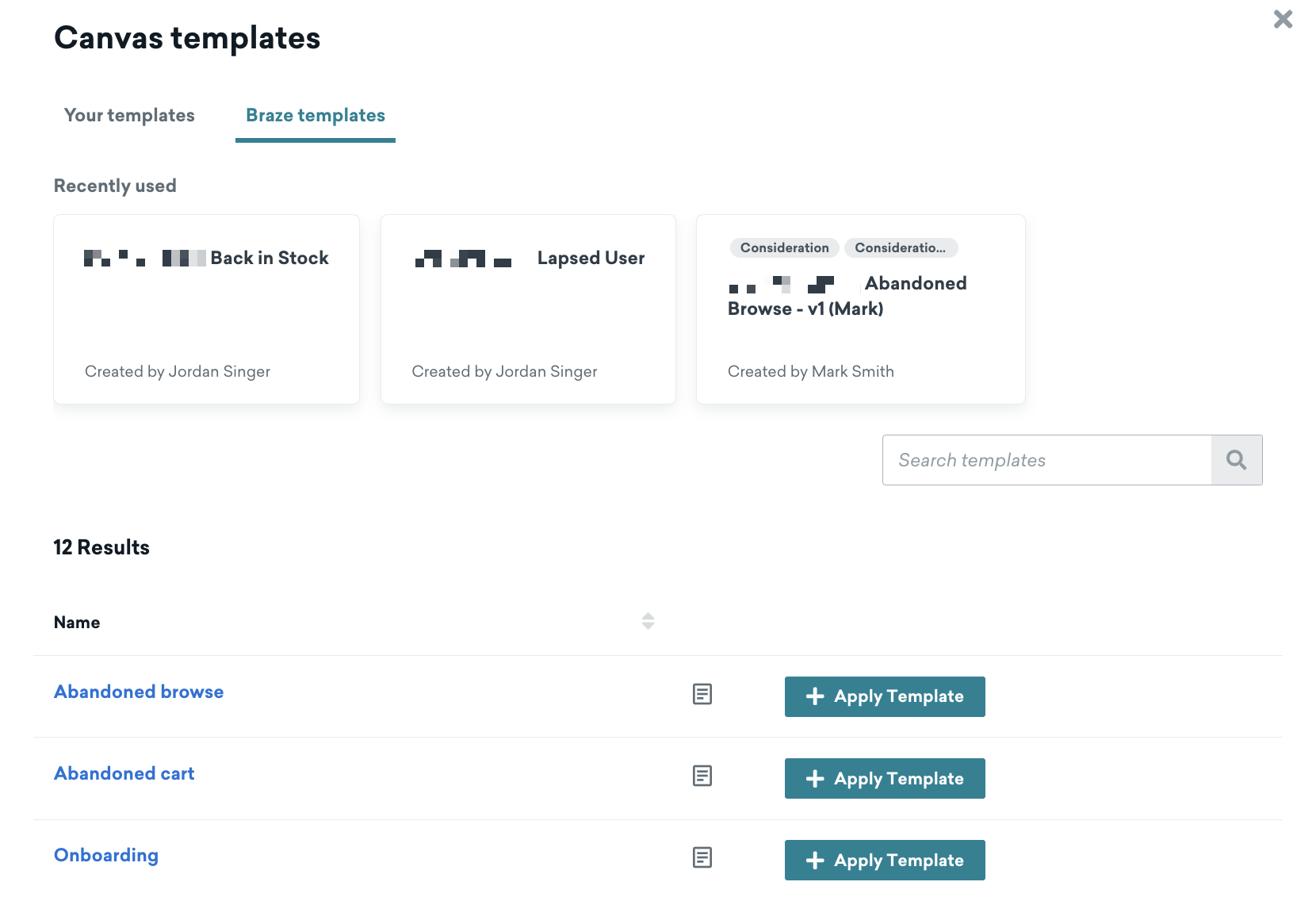
eコマースキャンバスのテンプレート
Brazeは4つのe コマースキャンバステンプレートを提供している。
閲覧の放棄
製品を閲覧したが、カートへの追加や注文を行わなかったユーザーにエンゲージするには、閲覧の放棄テンプレートを使用します。
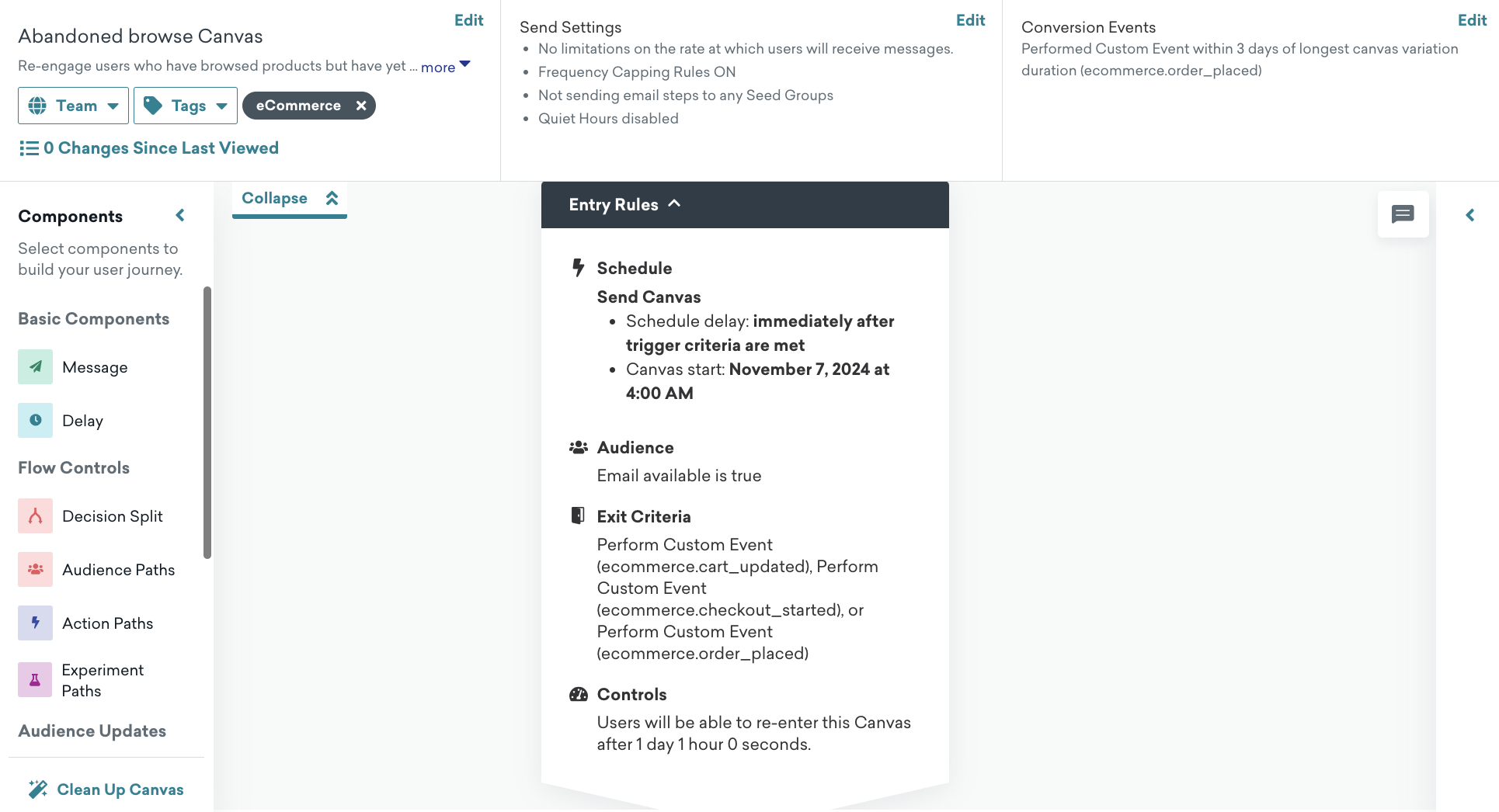
設定
キャンバスページで [キャンバステンプレートを使用] > [Braze テンプレート] を選択し、閲覧の放棄テンプレートを適用します。
デフォルト設定
キャンバスでは、次の設定が事前に行われています。
- 基本情報
- キャンバス名:閲覧の放棄
- 変換イベント:
ecommerce.order placed- コンバージョンの期限:3日間
- エントリスケジュール
- ユーザーが
ecommerce.product_viewedイベントを実行する場合はアクションベース - 開始時刻は、キャンバステンプレートを作成するときです
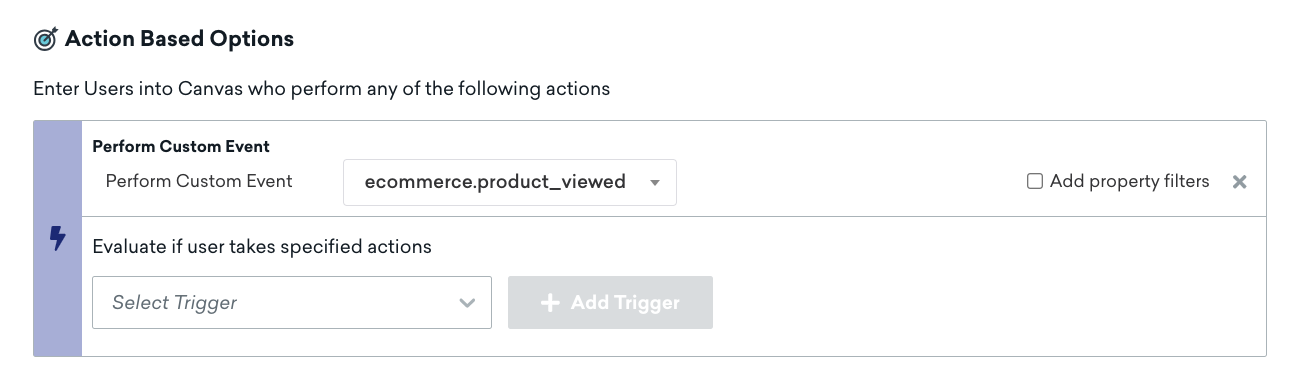
- ユーザーが
- ターゲットオーディエンス
- エントリオーディエンス
- メールが空白ではない
- また、ビジネスニーズを満たすようにエントリオーディエンス基準を変更することもできます
- 入力コントロール
- キャンバスの完全な期間が完了した後で、ユーザーはこのキャンバスに再エントリできます。
- 終了条件
ecommerce.cart_updated、ecommerce.checkout_started、またはecommerce.order_placedを実行する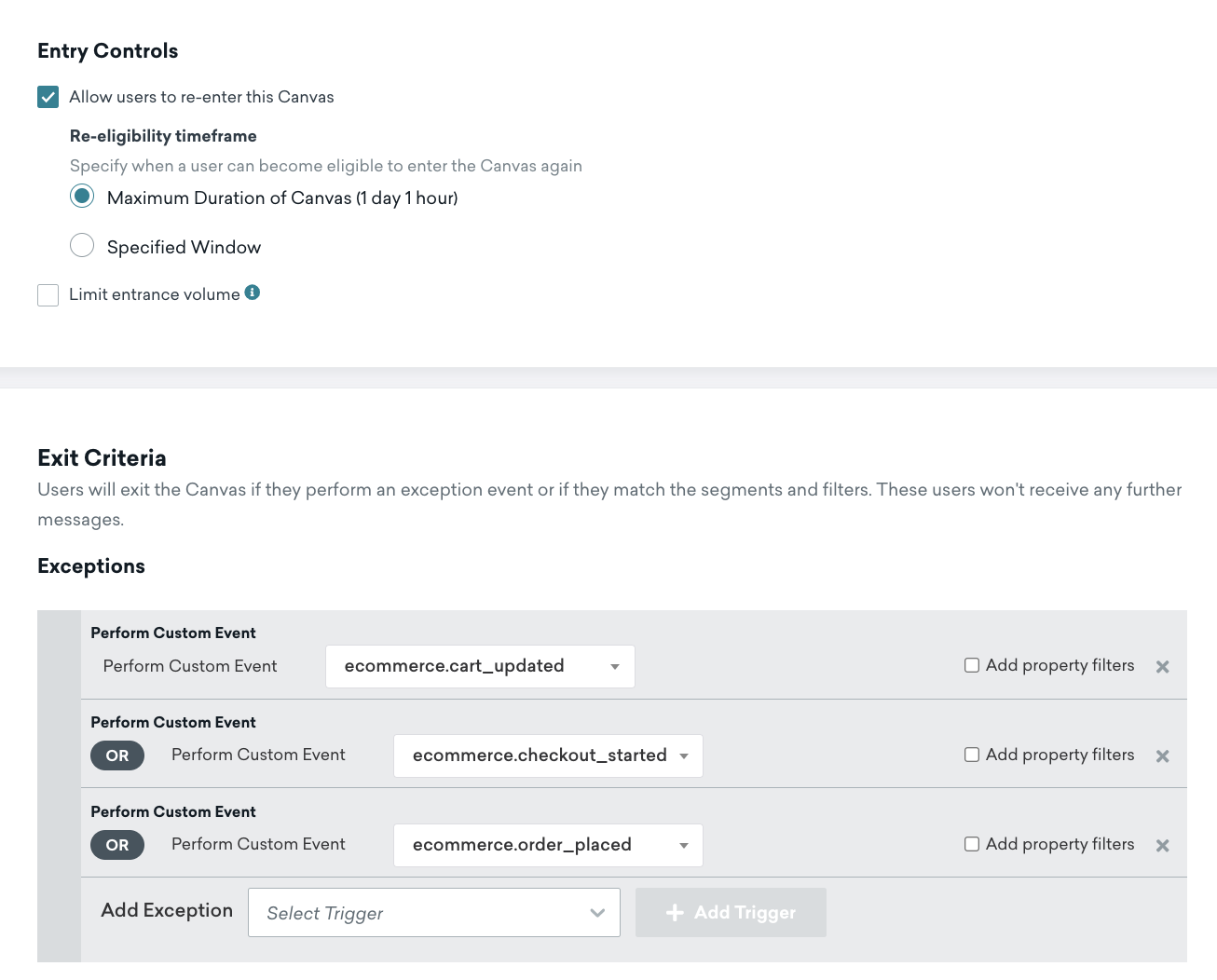
- エントリオーディエンス
- 送信設定
- 登録済みまたはオプトイン済みのユーザー
- 遅延ステップ
- 1時間遅延
- メッセージステップ
- Liquid のテンプレート作成の例を使用して、メールテンプレートと HTML ブロックを確認し、あらかじめ用意されているテンプレートでメッセージに製品を追加します。独自のメールテンプレートを使用する場合は、次のセクションに示すように、液体変数 を参照することもできます。
メール向けの閲覧の放棄の製品パーソナライゼーション
閲覧の放棄のメール用の HTML 製品ブロックを追加する方法の例を以下に示します。
1
2
3
4
5
6
7
8
9
10
11
<table style="width:100%">
  <tr>
    <th><img src="{{context.${image_url}}}" width="200" height="200"><img></th>
    <th align="left">
      <ul style="list-style-type: none">
        <li>Item: {{context.${product_name}}}</li>
        <li>Price: ${{context.${price}}}</li>
      </ul>
    </th>
  </tr>
</table>
製品URL
1
{{context.${product_url}}}
カート放棄
カートに製品を追加したが、購入手続きまたは注文に進まなかった顧客からの潜在的な売上の損失に対応するには、カート放棄テンプレートを使用します。
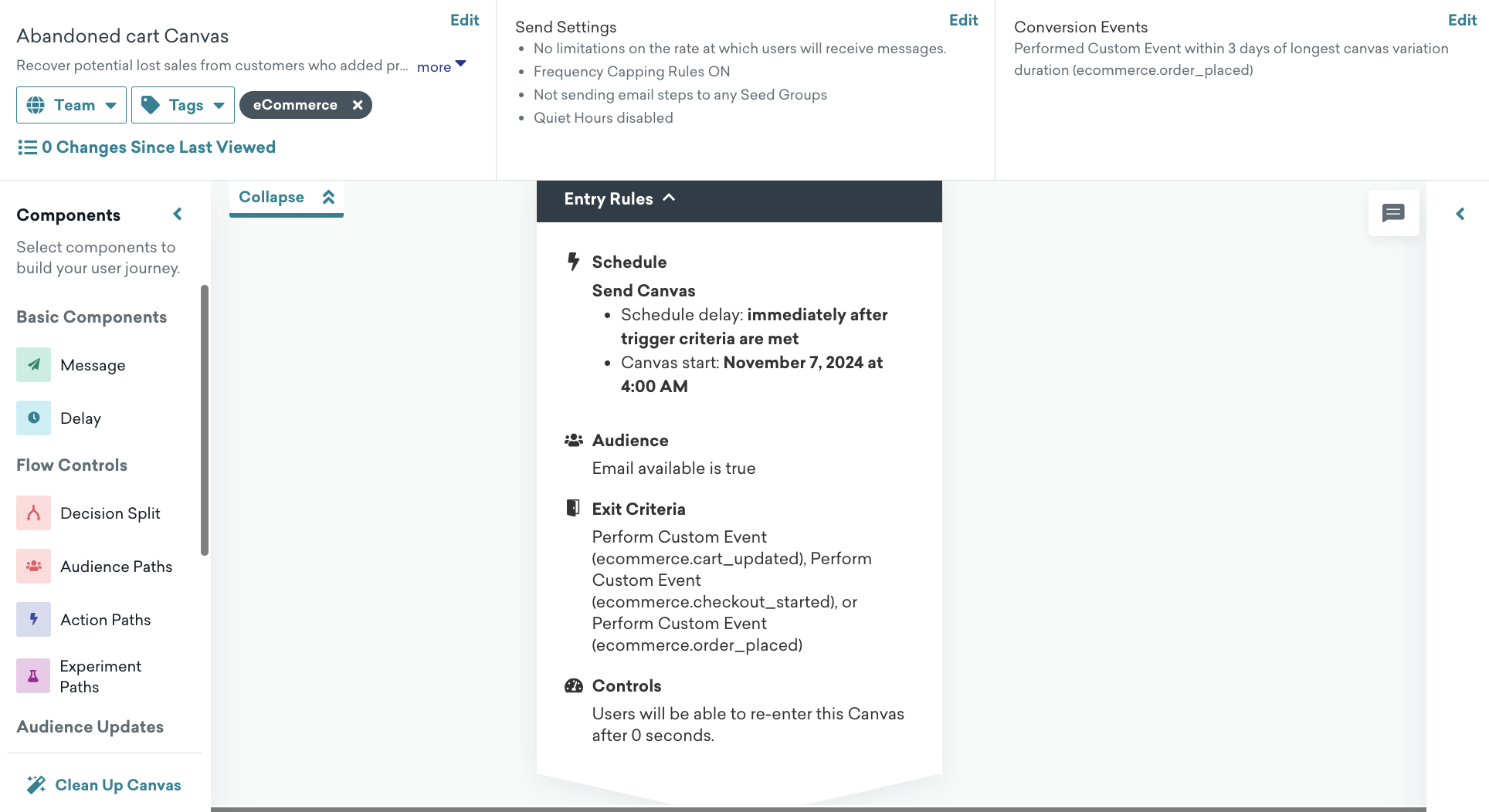
設定
キャンバスページで [キャンバステンプレートを使用] > [Braze テンプレート] を選択し、カート放棄テンプレートを適用します。
デフォルト設定
キャンバスでは、次の設定が事前に行われています。
- 基本情報
- キャンバス名:カート放棄
- 変換イベント:
ecommerce.order_placed- コンバージョンの期限:3日間
- エントリスケジュール
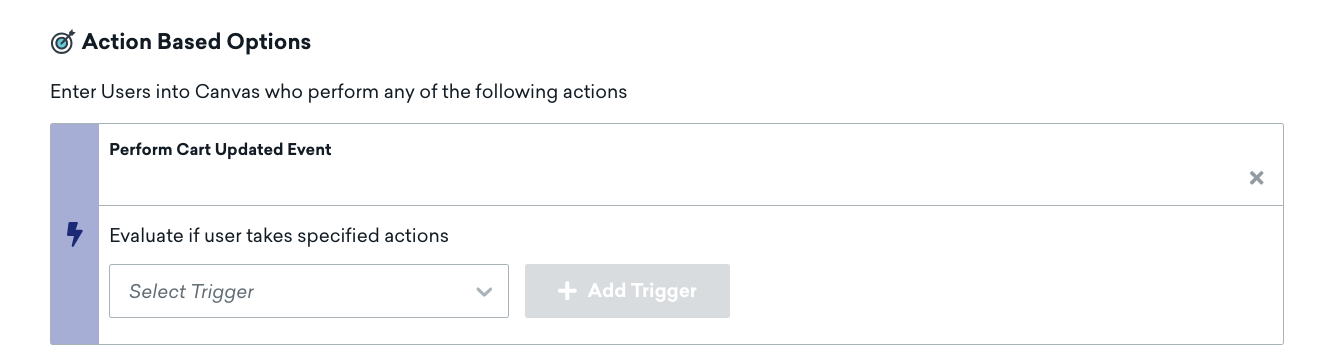
- ユーザーが (ドロップダウンにある) [カート更新済みイベントの実行] をトリガーしたときのアクションベースのトリガー
- 開始時刻は、キャンバステンプレートを作成するときです
- ターゲットオーディエンス
- エントリオーディエンス
- これらのアプリを1回以上使用したことがある
- メールが空白ではない
- 入力コントロール
- ユーザーのキャンバスへのエントリが即時に可能になります。
- 終了条件
ecommerce.cart_updated、ecommerce.checkout_started、またはecommerce.order_placedを実行する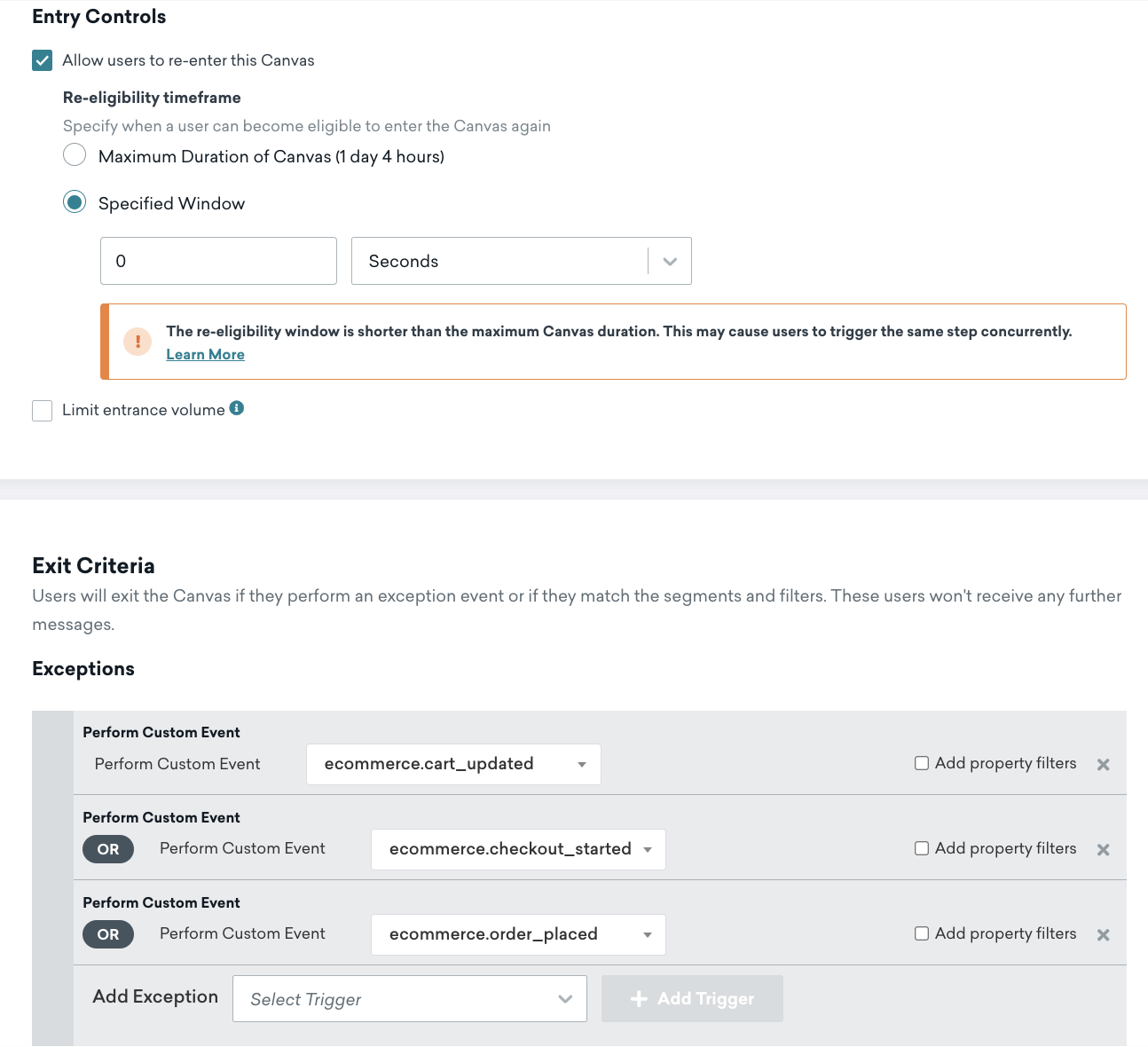
- エントリオーディエンス
- 送信設定
- 登録済みまたはオプトイン済みのユーザー
- 遅延ステップ
- 4時間遅延
- メッセージステップ
- Liquid のテンプレート作成の例を使用して、メールテンプレートと HTML ブロックを確認し、あらかじめ用意されているテンプレートでメッセージに製品を追加します。独自のメールテンプレートを使用する場合は、次のセクションに示すように、液体変数 を参照することもできます。
放棄カート or カート放棄後の再訪問ロジックの仕組み
ユーザーがチェックアウトプロセスを開始すると、そのカートは「保留中」とマークされるcheckout_started。その時点以降、同じカートIDによる追加の更新は、ユーザーが放棄カートのユーザー体験を再開始する資格を得られない。
- ユーザーが商品をカートに追加すると、キャンバスに入る。
- 彼らが商品を追加または更新するたびに、再びキャンバスにアクセスする。これにより、カートデータとメッセージングが常に最新の状態に保たれる。
- ユーザーがチェックアウトプロセスを開始すると、そのカートは「」
checkout_startedとしてタグ付けされ、ユーザーはキャンバスを離れる。 - 同じカートIDを使用した今後のカート更新は、このカートが既に決済段階に移行しているため、再登録を引き起こさない。
ユーザーがチェックアウトのユーザー体験に移行すると、代わりに放棄されたチェックアウトキャンバスが表示される。これは購入プロセスのより進んだ段階にあるユーザー向けに設計されている。
メール向けのカート放棄の製品パーソナライゼーション
カート放棄のユーザージャーニーでは、製品のパーソナライズに特別な Liquid タグ shopping_cart が必要です。
以下の例は、shopping_cart Liquid タグを使用してHTML ブロックを追加し、製品をメールに追加する方法を示しています。
1
2
3
4
5
6
7
8
9
10
11
12
13
14
15
16
17
18
19
<table style="width:100%">
  {% shopping_cart {{context.${cart_id}}} %}
  {% for item in shopping_cart.products %}
  {% catalog_items <add_your_catalog_name> {{item.variant_id}} %}
  <tr>
    <th><img src="{{ items[0].variant_image_url }}" width="200" height="200"><img></th>
    <th align="left">
      <ul style="list-style-type: none">
        <li>Item: {{ item.product_name }}</li>
        <li>Price: ${{ item.price }}</li>
        <li>Quantity: ${{ item.quantity }}</li>
        <li>Variant ID: {{ item.variant_id }}</li>
        <li>Product URL:{{ item.product_url }}</li>
        <li>SKU: {{ item.metadata.sku }}</li>
      </ul>
    </th>
  </tr>
  {% endfor %}
</table>
Shopify を使用する場合は、カタログ名を追加してバリアントイメージURL を取得します。
HTML カート URL
ユーザーをカートに戻したい場合、メタデータオブジェクトの下にネストされたイベントプロパティを追加できる。例えば:
1
{{context.${metadata}.cart_url}}
Shopifyを使用する場合は、次のLiquidテンプレートを使用してカートURLを作成します。
1
{{context.${source}}}/checkouts/cn/{{context.${cart_id}}}
購入手続き放棄
購入手続き放棄テンプレートを使用して、購入手続きプロセスを開始したが発注前に離脱した顧客をターゲットにします。
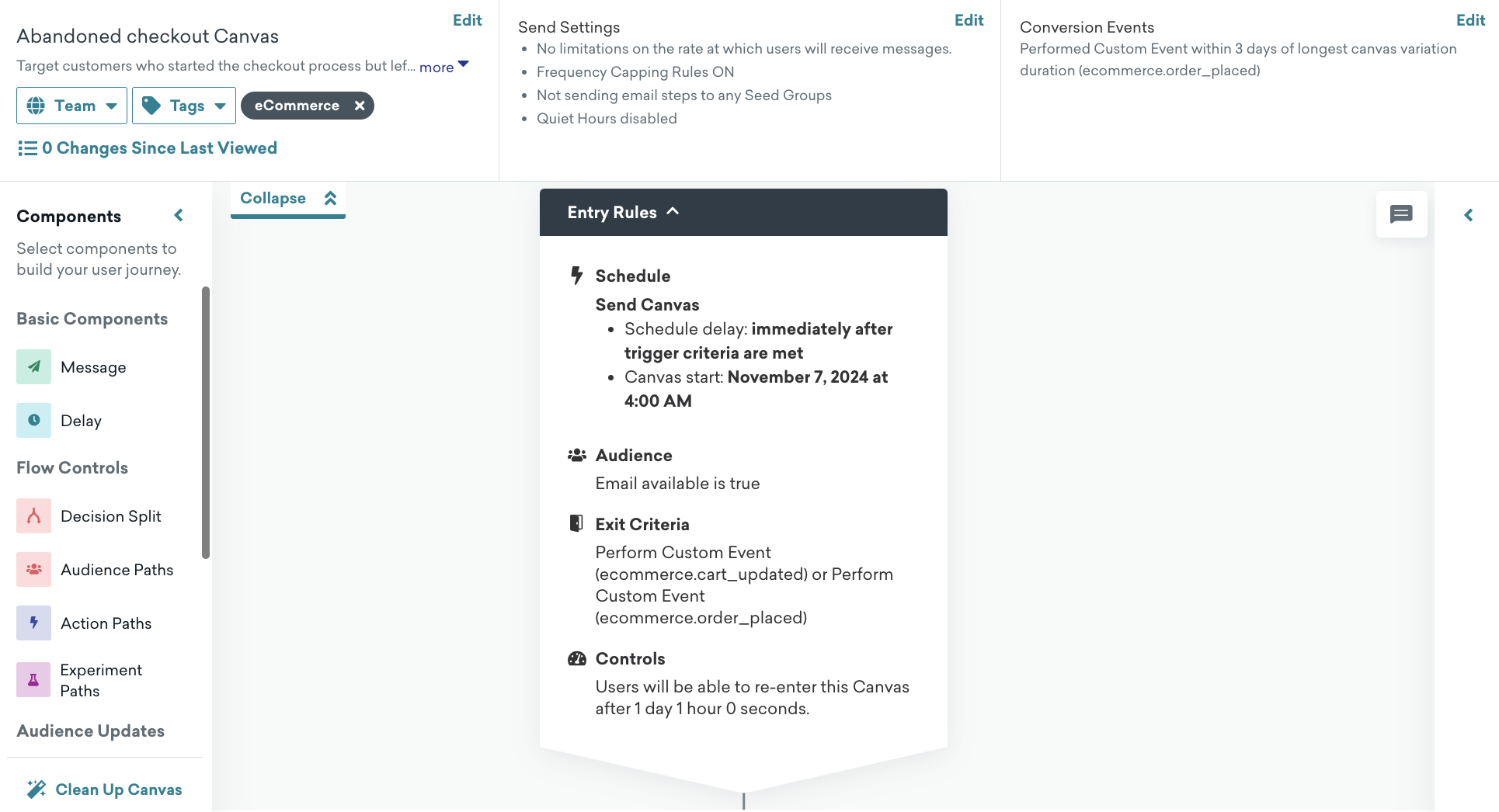
設定
キャンバスページで [キャンバステンプレートを使用] > [Braze テンプレート] を選択し、購入手続き放棄テンプレートを適用します。
デフォルト設定
キャンバスでは、次の設定が事前に行われています。
- 基本情報
- キャンバス名:購入手続き放棄
- 変換イベント:
ecommerce.order_placed- コンバージョンの期限:3日間
- エントリスケジュール
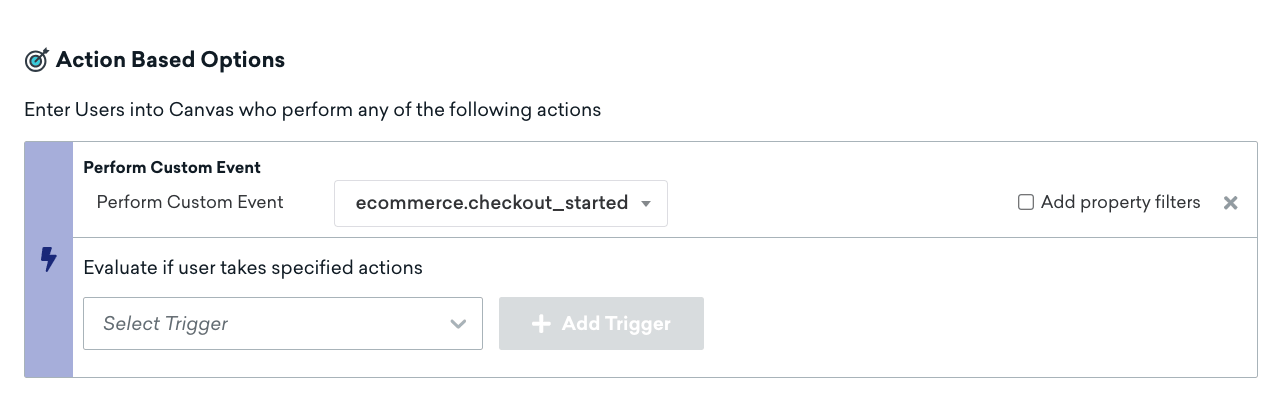
- ユーザが
ecommerce.checkout_startedイベントを実行したときのアクションベースのトリガ - 開始時刻は、キャンバステンプレートを作成するときです
- ユーザが
- ターゲットオーディエンス
- エントリオーディエンス
- これらのアプリを1回以上使用したことがある
- メールが空白ではない
- 入力コントロール
- ユーザーのキャンバスへのエントリが即時に可能になります。
- 終了条件
ecommerce.order_placedイベントを実行します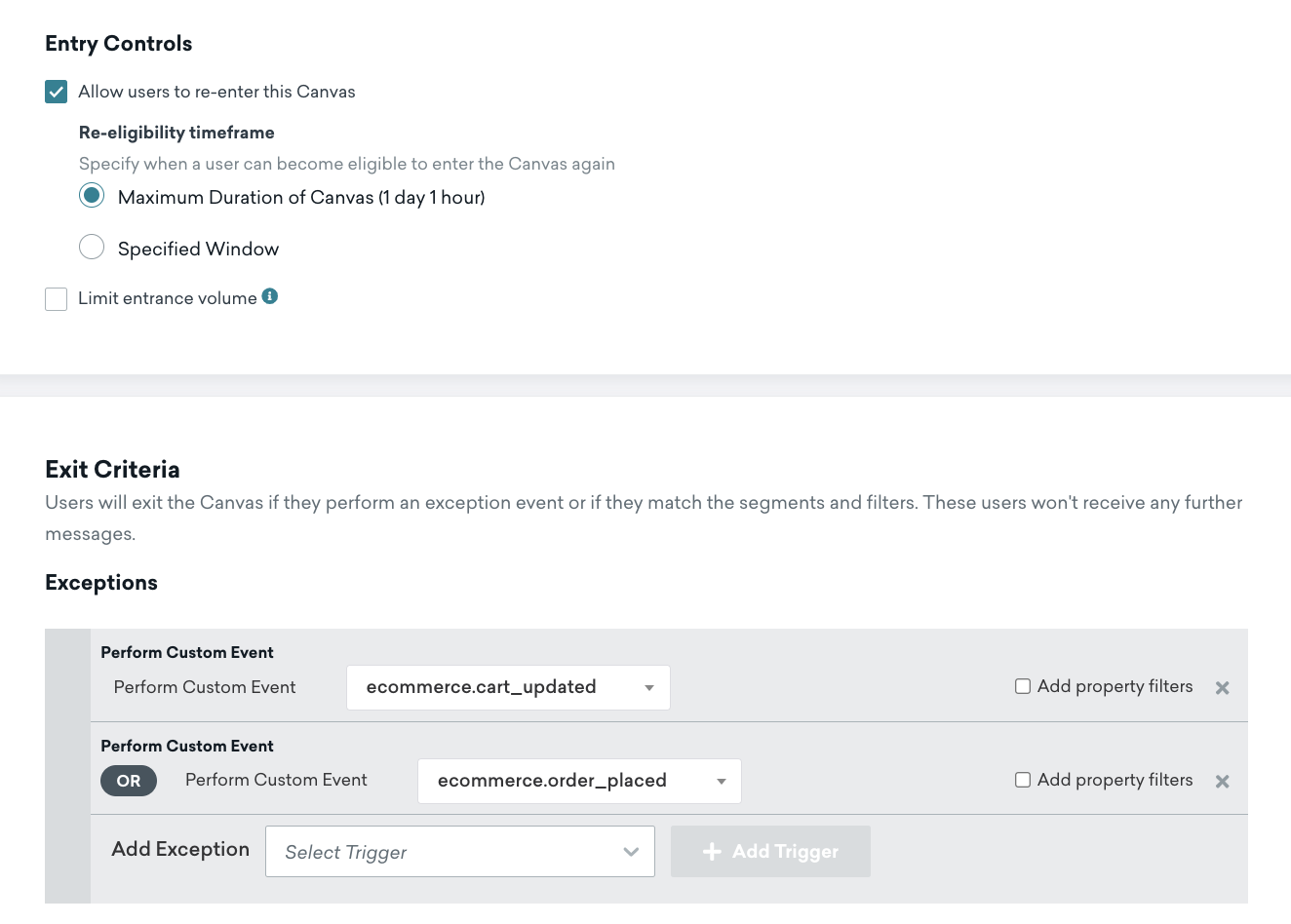
- エントリオーディエンス
- 送信設定
- 登録済みまたはオプトイン済みのユーザー
- 遅延ステップ
- 4時間遅延
- メッセージステップ
- Liquid のテンプレート作成の例を使用して、メールテンプレートと HTML ブロックを確認し、あらかじめ用意されているテンプレートでメッセージに製品を追加します。独自のメールテンプレートを使用する場合は、次のセクションに示すように、液体変数 を参照することもできます。
メール向けの購入手続き放棄の製品パーソナライゼーション
購入手続き放棄のユーザージャーニーでは、製品のパーソナライズに特別な Liquid タグ shopping_cart が必要です。
以下の例は、shopping_cart Liquid タグを使用してHTML ブロックを追加し、製品をメールに追加する方法を示しています。
1
2
3
4
5
6
7
8
9
10
11
12
13
14
15
16
17
18
<table style="width:100%">
  {% shopping_cart {{context.${cart_id}}} :abort_if_not_abandoned false %}
  {% for item in shopping_cart.products %}
  {% catalog_items <add_your_catalog_name> {{item.variant_id}} %}
  <tr>
    <th><img src="{{ items[0].variant_image_url }}" width="200" height="200"><img></th>
    <th align="left">
      <ul style="list-style-type: none">
        <li>Item: {{ item.product_name }}</li>
        <li>Price: ${{ item.price }}</li>
        <li>Quantity: ${{ item.quantity }}</li>
        <li>Variant ID: {{ item.variant_id }}</li>
        <li>Product URL:{{ item.product_url }}</li>
        <li>SKU: {{ item.metadata.sku }}</li>
      </ul>
    </th>
    {% endfor %}
</table>
チェックアウトURL
1
{{context.${metadata}.checkout_url}}
注文確認とフィードバック調査
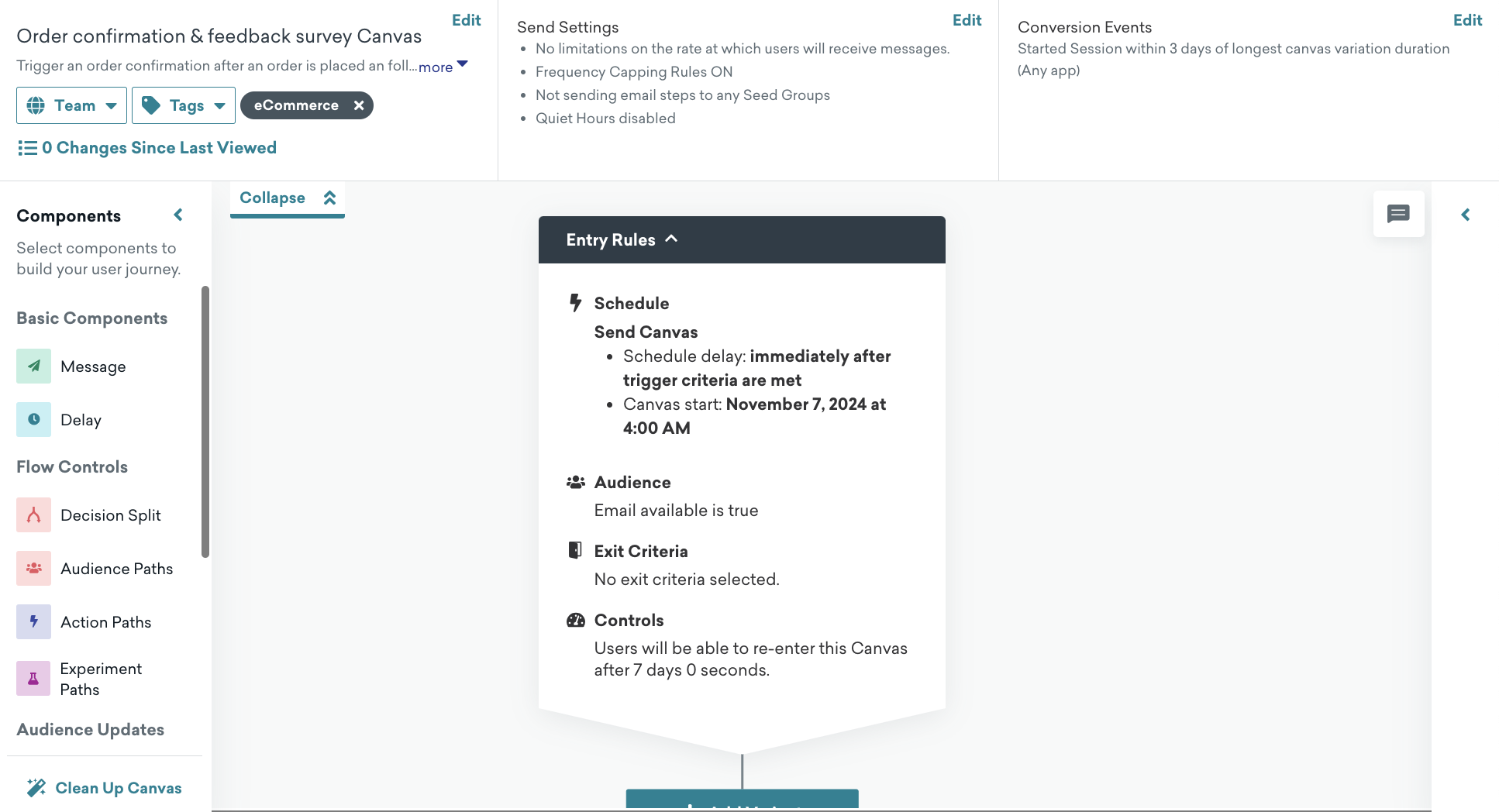
注文確認&フィードバック調査テンプレートを使って、注文の成功を確認し、顧客満足度を高める。
設定
キャンバスページで、[キャンバステンプレートを使用] > [Brazeテンプレート] を選択し、[注文&確認フィードバック調査テンプレート] を適用する。
デフォルト設定
キャンバスでは、次の設定が事前に行われています。
- 基本情報
- キャンバス名:注文確認とフィードバック調査
- 変換イベント:
ecommerce.session_start- コンバージョンの期限:10日間
- エントリスケジュール
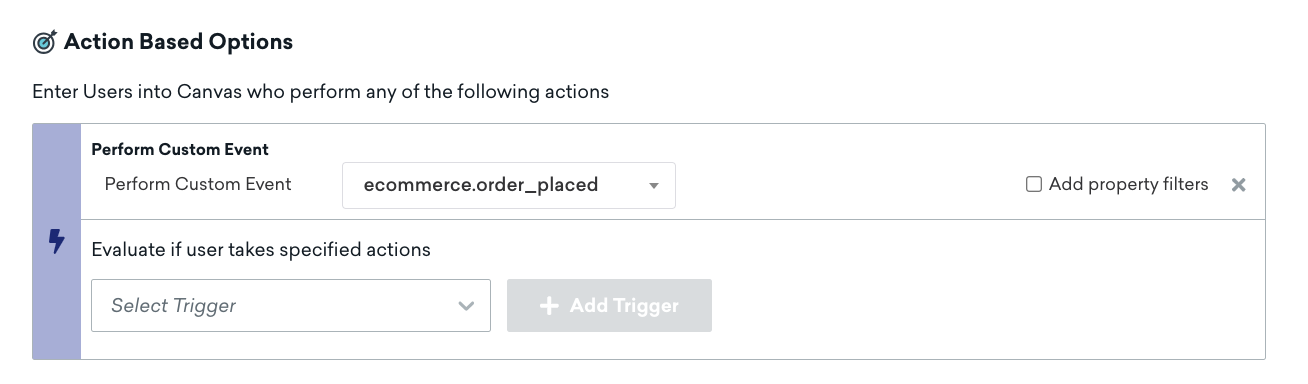
- ユーザが
ecommerce.cart_updatedイベントを実行したときのアクションベースのトリガ - 開始時刻は、キャンバステンプレートを作成するときです
- ユーザが
- ターゲットオーディエンス
- エントリオーディエンス
- これらのアプリを1回以上使用したことがある
- メールが空白ではない
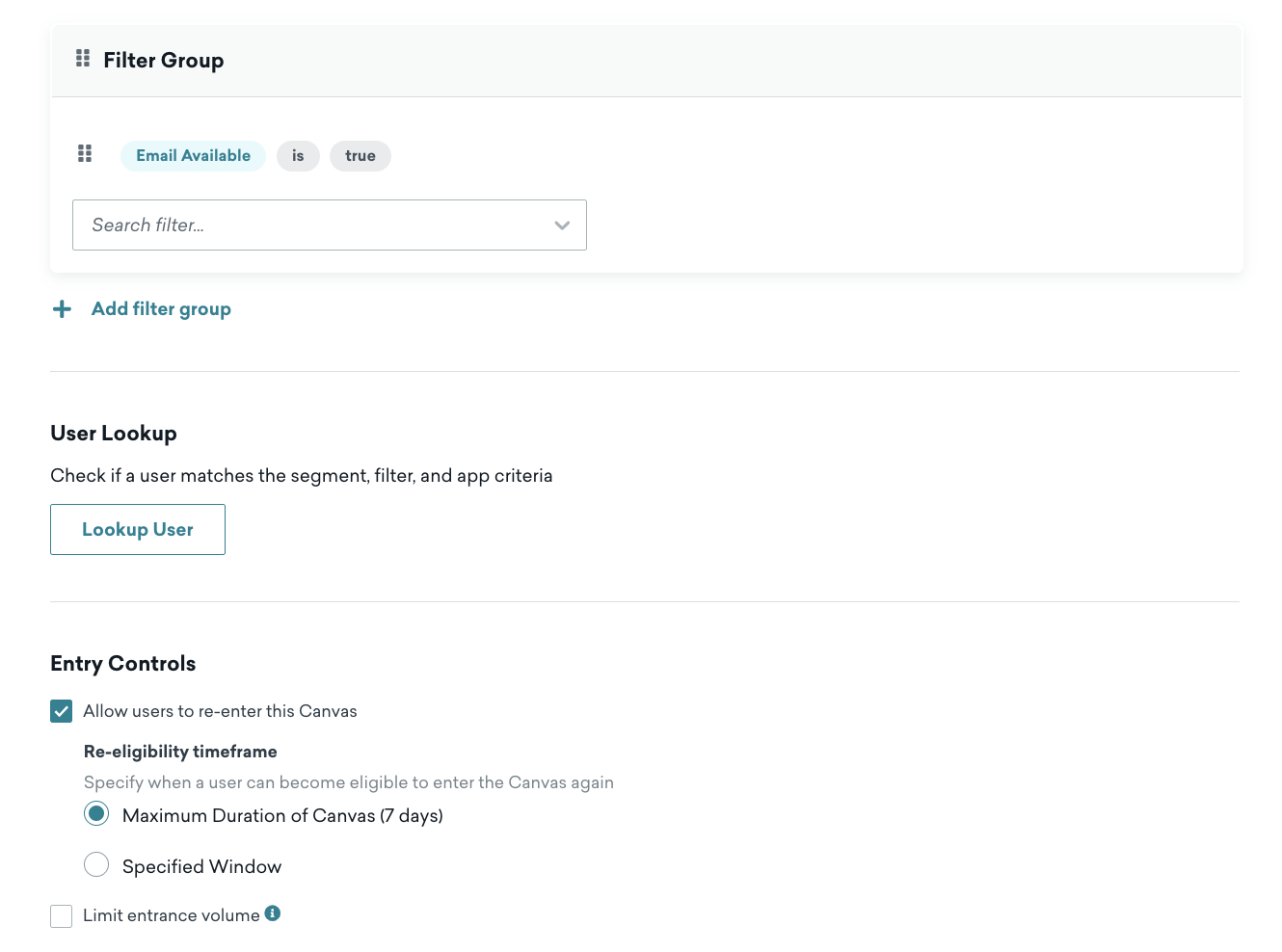
- 入力コントロール
- ユーザーのキャンバスへのエントリが即時に可能になります。
- 終了条件
- 該当しない
- 該当しない
- エントリオーディエンス
- 送信設定
- 登録済みまたはオプトイン済みのユーザー
- メッセージステップ
- Liquid のテンプレート作成の例を使用して、メールテンプレートと HTML ブロックを確認し、あらかじめ用意されているテンプレートでメッセージに製品を追加します。独自のメールテンプレートを使用する場合は、次のセクションに示すように、液体変数 を参照することもできます。
メール向けの注文の確認のパーソナライゼーション
ここでは、注文後に注文確認にHTML 製品ブロックを追加する方法の例を示します。
1
2
3
4
5
6
7
8
9
10
11
12
13
14
15
<table style="width:100%">
  {% for item in {{context.${products}}} %}
  {% catalog_items <add_your_catalog_name> {{item.variant_id}} %}
  <tr>
    <th><img src="{{ items[0].variant_image_url }}" width="200" height="200" /></th>
    <th align="left">
      <ul style="list-style-type: none">
        <li>Item: {{item.product_name}}</li>
        <li>Price: {{item.price}}</li>
        <li>Quantity: {{item.quantity}}</li>
      </ul>
    </th>
  </tr>
  {% endfor %}
</table>
注文状況 URL
1
{{context.${metadata}.order_status_url}}
メッセージのパーソナライズ
Liquid は、Braze が使用する強力なテンプレート言語で、お客様のために動的でパーソナライズされたコンテンツを作成できます。Liquidタグを使用することで、顧客データ、製品情報、その他の変数に基づいてメッセージをカスタマイズすることができ、ショッピング体験や運転エンゲージメントを向上させることができます。
Liquidの主な特徴
- ダイナミックコンテンツ:名前、注文の詳細、設定などの顧客固有の情報をメッセージに挿入します。
- 条件付きロジック:if/else 文を使用して、特定の条件(顧客の場所や購入履歴など) に基づいて異なるコンテンツを表示します。
- ループ:製品または顧客データのコレクションを反復処理して、アイテムのリストまたはグリッドを表示します。
Liquid を使い始める
Liquid タグを使用してメッセージのパーソナライズを開始するには、次のリソースを参照します。
- 事前定義の Liquid タグを使用した Shopify データ参照
- Liquid
セグメンテーション
Braze セグメントを使用して、特定の属性と動作に基づいてターゲットを絞った顧客セグメントを作成し、カスタマイズされたメッセージングとキャンペーンを提供します。この強力な機能により、適切なタイミングで適切なメッセージを使って適切なオーディエンスにリーチし、顧客に効果的にエンゲージできます。
セグメントの使用開始の詳細については、「Braze のセグメントについて」を参照してください。
推奨イベント
e コマースイベントは、推奨イベントに基づいています。 推奨されるイベントはオピニオン化されたカスタムイベントであるため、カスタムイベントフィルタを選択することで、推奨されるeCommerceイベント名を検索できます。
eコマースのフィルター
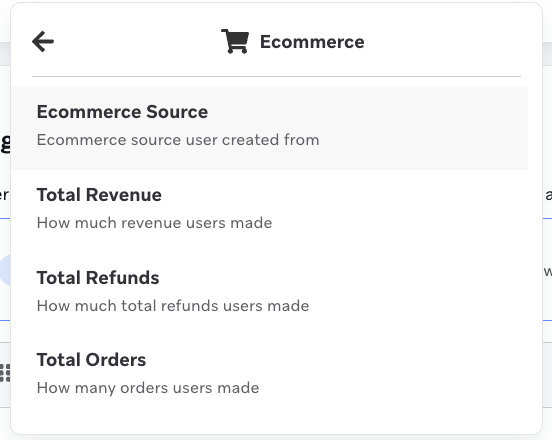
Ecommerce Source およびTotal Revenue などのeCommerce フィルタを使用して、セグメンテータ内のEcommerce セクションに移動して、ユーザをeCommerce フィルタでセグメント化します。
e コマースフィルターのリストとその定義については、セグメントフィルターを参照し、「e コマース」検索カテゴリを選択せよ。
購入イベントを段階的に廃止する計画は2026年に発表されます。購入イベントは最終的に新しい e コマース推奨イベントに置き換えられます。これにはセグメンテーション、レポート作成、分析などの機能強化が含まれます。この置き換えが行われると、Segment フィルターでは購入動作でデータが入力されなくなります。購入イベントの完全なリストについては、購入イベントの記録を参照してください。
ネストされたイベントプロパティ
階層化イベントプロパティでセグメンテーションを行うには、セグメントエクステンションを利用できます。たとえば、Segment Extensions を使用して、製品「SKU-123」を過去90 日間に購入したユーザーを検索できます。
分析
カスタムイベントレポート
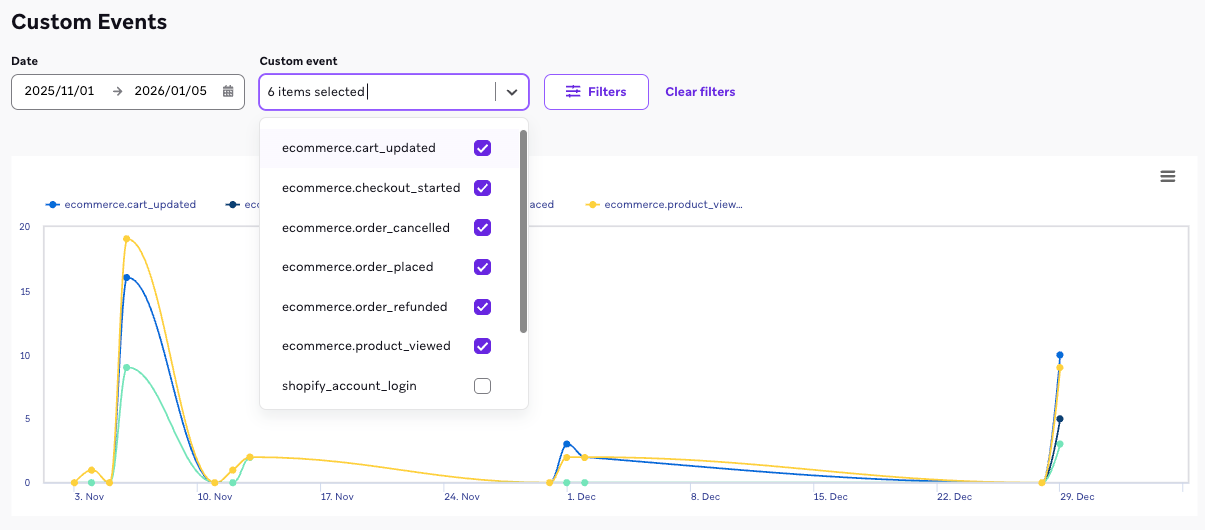
カスタムイベントレポートで、e コマース推奨イベントの発生件数を追跡できる。カスタムイベントでフィルターをかけ、e コマース推奨イベント名を指定すると、そのイベントの経時的なパフォーマンスを確認できる。
ダッシュボード
コンバージョンダッシュボード
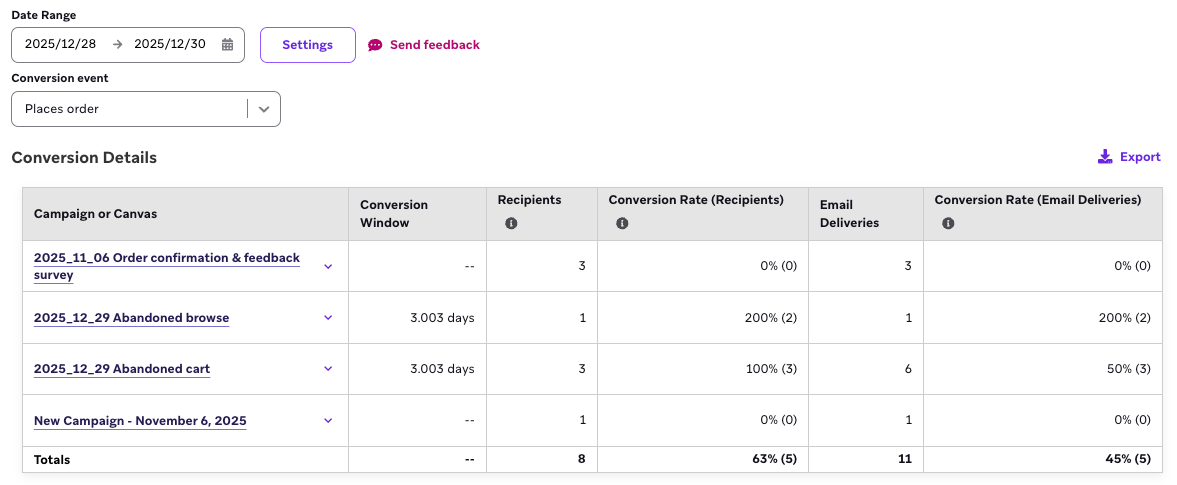
「注文を確定」コンバージョンイベントを使用してキャンペーンやキャンバスを起動した後、対応するコンバージョンレポートを作成してパフォーマンスをトラッキングできる。
e コマース収益ダッシュボード
注文前にユーザーが最後に接触したキャンペーンまたはキャンバスに起因する収益のインサイトを把握するには、e コマース収益ダッシュボードを使用し、コンバージョン期間を選択する。
収益レポート
これらの新しいイベントのデータを分析するには、ダッシュボードビルダーに移動し、「e コマース収益 - ラストタッチアトリビューション」ダッシュボードを表示する。
 GitHub でこのページを編集