キャンバステンプレート
Braze には、一般的なユースケースのベストプラクティスとして参照、使用できるキャンバステンプレートが用意されています。これらのテンプレートは編集できませんが、[テンプレート] > [Braze テンプレート] で表示することや、キャンバスで使用することができます。
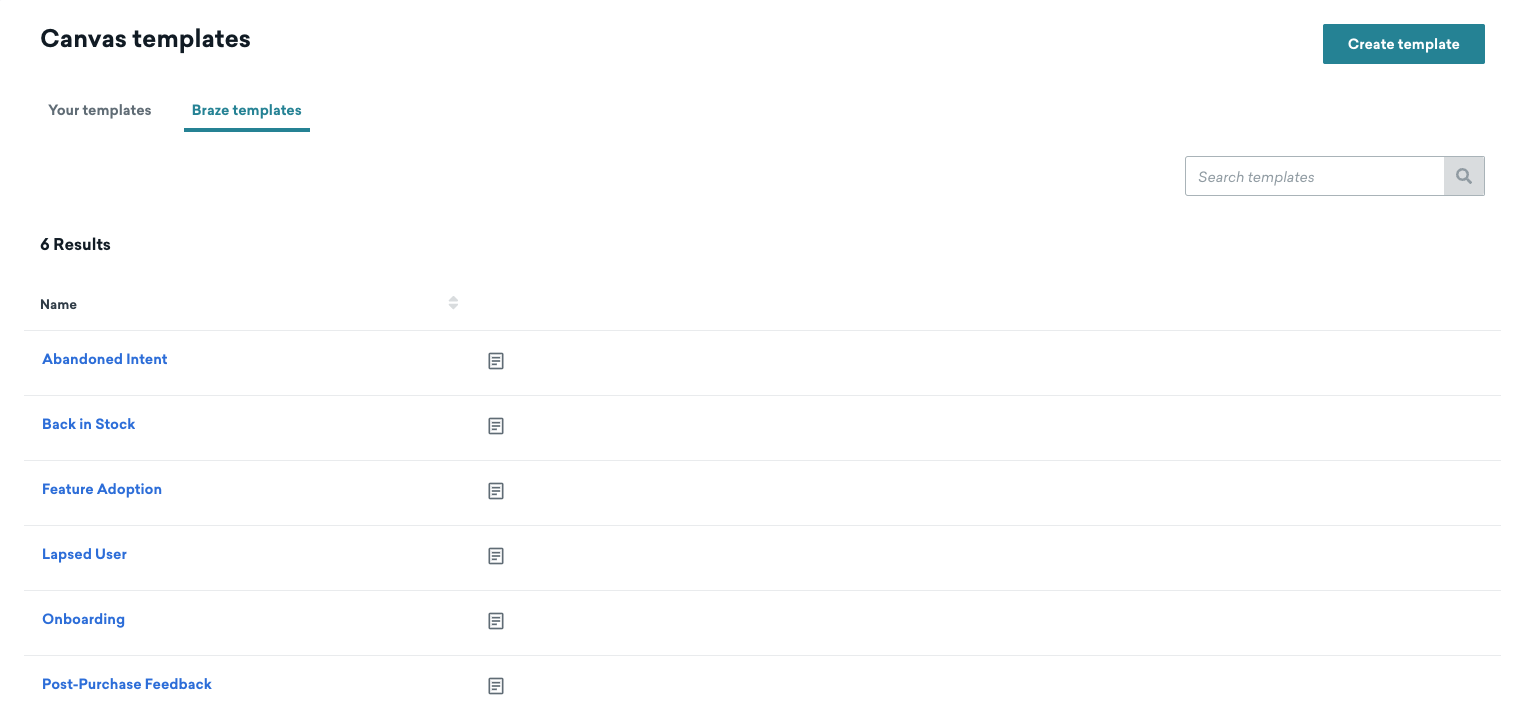
以下の利用可能なテンプレートから、キャンバスとして参照または使用するテンプレートを選択します。
スタンダードキャンバステンプレート
放棄された意思
リアルタイムでユーザーとエンゲージメントし、購入完了を促す。
このテンプレートを使用する際は、以下の点を考慮すること:
- 特定のオーディエンスを追加する。現在、オーディエンスパスは「任意の購入をした」に基づいてトリガーされますが、ターゲットにする特定の製品に合わせてこれを調整できます。
- このテンプレートでは、購入後のジャーニーを別に想定しているため、購入するとユーザーはキャンバスから退出する。
- オーディエンス同期ステップで詳細を記入します。
再入荷
パーソナライズされたメッセージングでユーザーに商品の再入荷を通知し、購入を促進します。このテンプレートを使用する際は、以下の点を考慮すること:
- [エントリスケジュール] で使用するカタログを選択します。これにより、製品、割引、プロモーションなどのデータにアクセスし、ターゲットにするユーザーをさらに絞り込むことができます。
- ターゲットオーディエンス」で、特定のアイテムに興味を示したユーザーをターゲットにするセグメンテーションを追加する。
- キャンバス全体のメッセージステップで、カタログを参照するように Liquidを更新 します。
機能の採用
パーソナライズされたメッセージをタイムリーに配信し、メリットや使い方のヒントを強調する。このテンプレートを使用する際は、以下の点を考慮すること:
- すでにこの機能を採用しているユーザーを除外する。たとえば、Target Audience に、”Activated Feature” のようなカスタムイベントのフィルターを追加します。これはすでに発生しています。
- 実験パスステップを使用するには、コンバージョンイベントを定義します。このイベントは、機能採用を知らせるイベントであるべきだ。
- 「Activated Feature」と「Taken Tour」のカスタムイベントを使用して、テンプレートでアクションパスステップを設定します。
- フィードバックのセンチメントを取得するため、「フィードバック調査」というメッセージステップでカスタム属性を設定します。
離脱ユーザー
過去のエンゲージメントに基づくインセンティブでユーザーをアプリに呼び戻す。このテンプレートを使用する際は、以下の点を考慮すること:
- [基本情報] で、コンバージョンを追跡する特定のアプリを選択します。
- キャンバスエディターで、アクションパスのステップに特定のアプリを追加する。
- ユースケースのパートナーとオーディエンスを使用してオーディエンス同期ステップを設定します。
オンボーディング
積極的な初回導入を促進し、ユーザーとの長期的な関係を奨励するオンボーディングジャーニーを作成します。このテンプレートを使用する際は、以下の点を考慮すること:
- 「Audience Split」という名前のオーディエンスパスステップで、エンゲージメントユーザーに合わせて主要なアクションをカスタマイズすることを検討します。このテンプレートのセグメントフィルターは「実行内容: メールをクリックした ステップ ウェルカムメール」です。
購入後のフィードバック
パーソナライズされた体験をオーケストレーションすることで、フィードバックに対応し、ユーザーとの関係を築くことができる。このテンプレートを使用する際は、以下の点を考慮すること:
- キャンバス・エディターの最初のステップで:
- アプリ内メッセージでカスタム属性を指定し、選択したアンケートオプションに基づいてフィードバックのセンチメントを示す。
- 各コールトゥアクションのリンクに属性を指定し、どのオプションが選択されたかを把握する。これらの属性は、後続のオーディエンスパスで参照される。
- このテンプレートの最初のステップの属性でオーディエンスパスをカスタマイズする。
- 「Ad Retargeting」という名前のオーディエンス同期ステップを設定します。
これらの Braze テンプレートを使用したサンプルキャンバスの作成のステップバイステップガイドについては、「Braze テンプレートの使用」を参照してください。
eコマースキャンバスのテンプレート
eコマース・キャンバス・テンプレートは、eコマース・マーケターに特化したものであり、必須戦略の実行を容易にしている。
閲覧の放棄
製品を閲覧したが、カートへの追加や注文を行わなかったユーザーにエンゲージするには、閲覧の放棄テンプレートを使用します。
設定
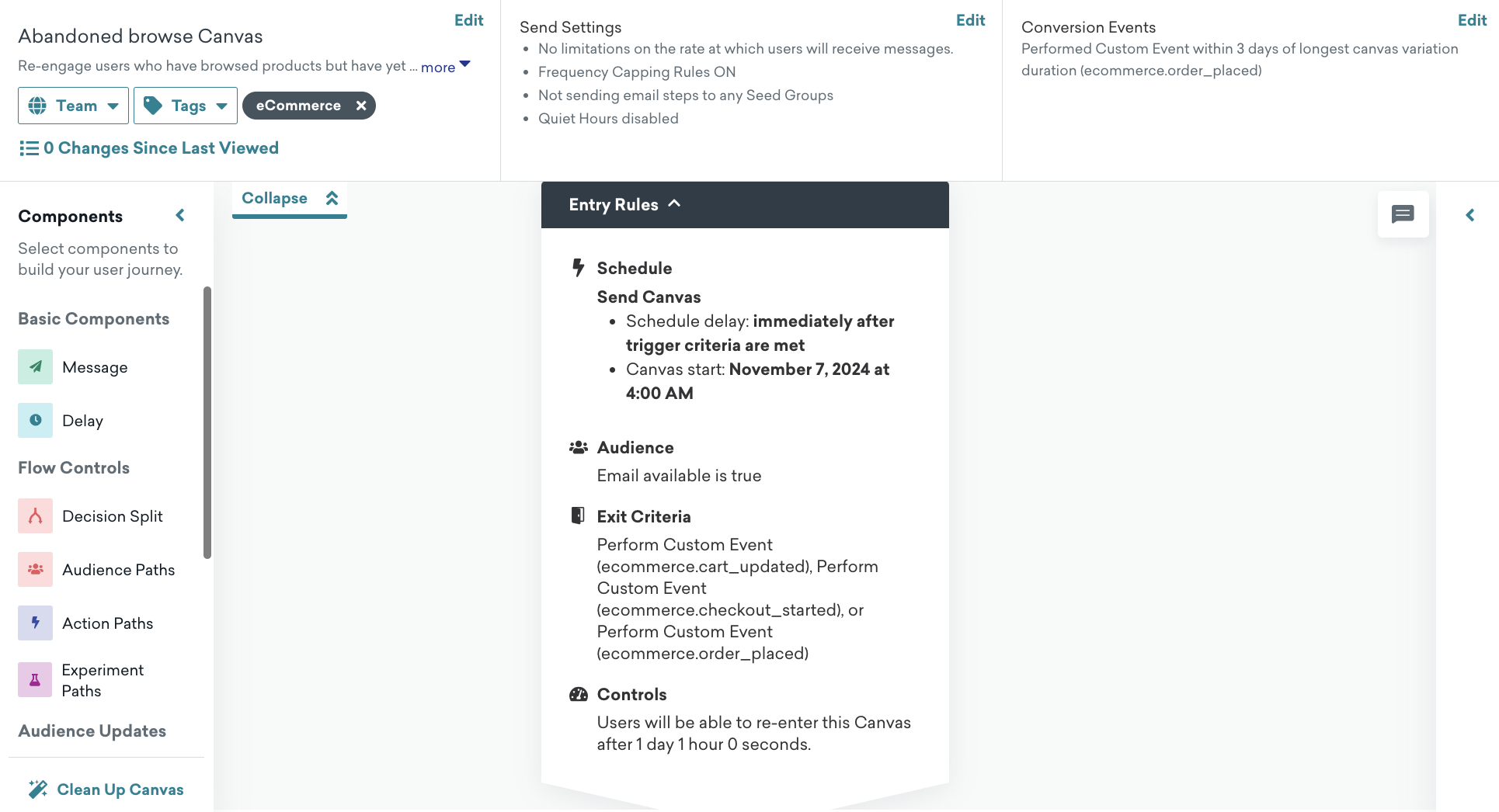
キャンバスページで [キャンバステンプレートを使用] > [Braze テンプレート] を選択し、閲覧の放棄テンプレートを適用します。
デフォルト設定
キャンバスでは、次の設定が事前に行われています。
- 基本情報
- キャンバス名:閲覧の放棄
- 変換イベント:
ecommerce.order placed- コンバージョンの期限:3日間
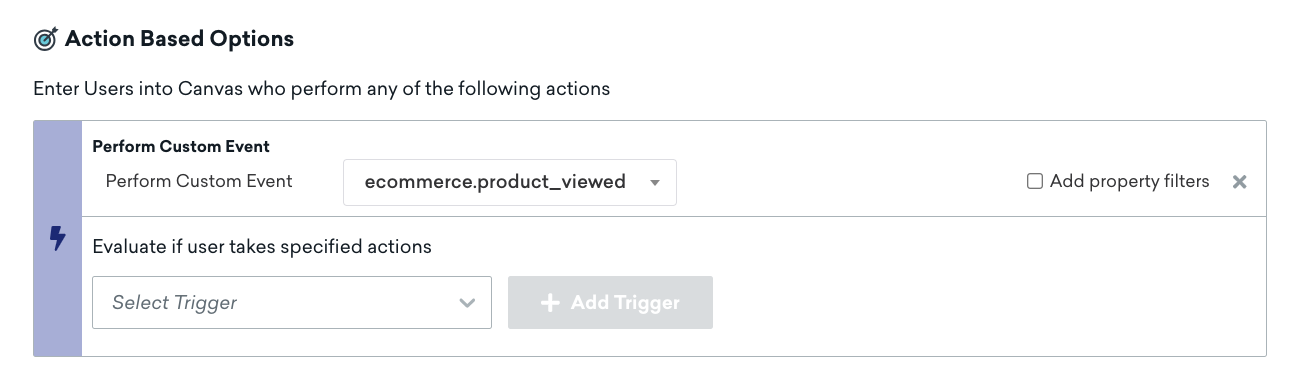
- エントリスケジュール
- ユーザーが
ecommerce.product_viewedイベントを実行する場合はアクションベース - 開始時刻は、キャンバステンプレートを作成するときです
- ユーザーが
- ターゲットオーディエンス
- エントリオーディエンス
- メールが空白ではない
- また、ビジネスニーズを満たすようにエントリオーディエンス基準を変更することもできます
- 入力コントロール
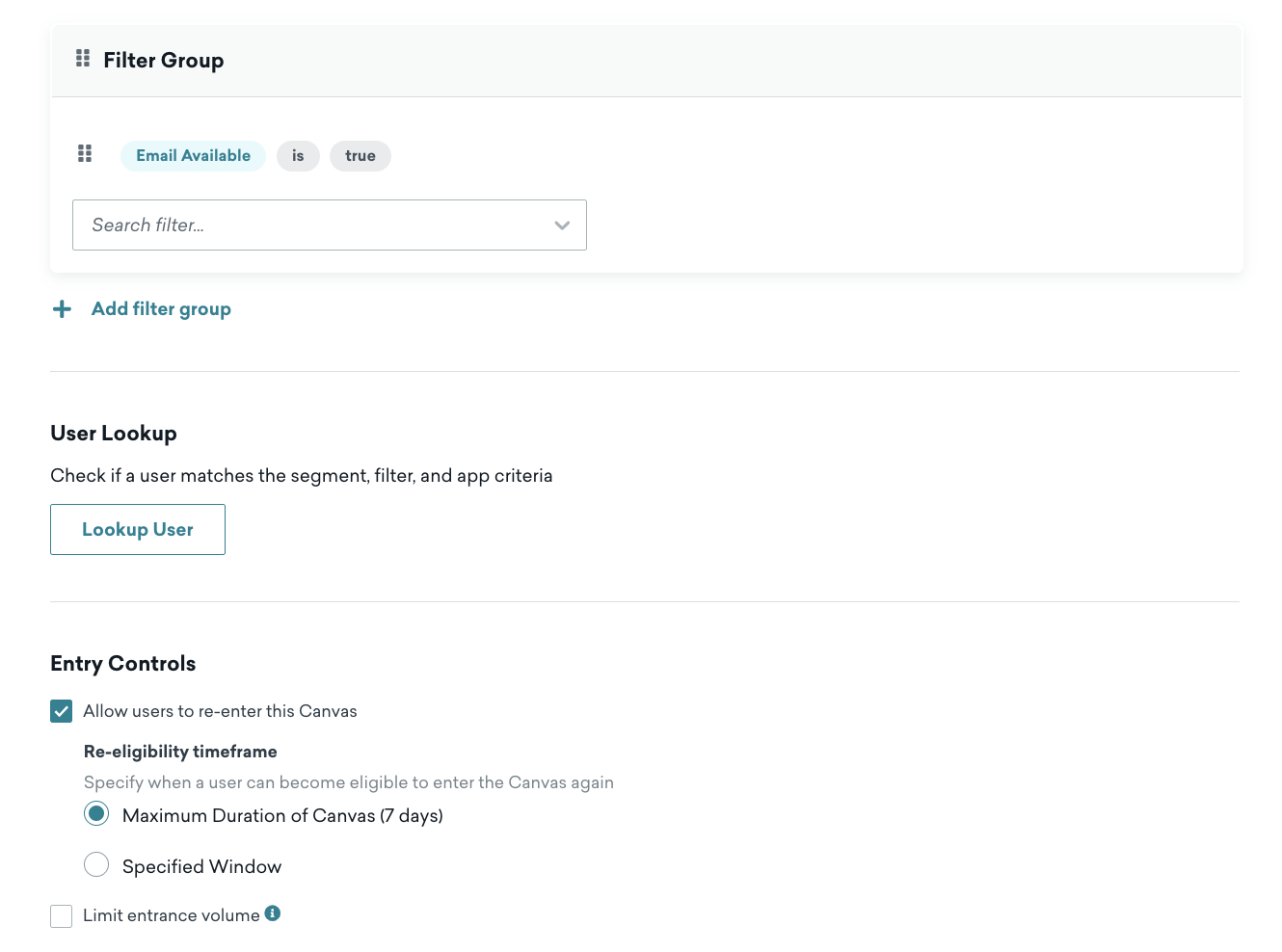
- キャンバスの完全な期間が完了した後で、ユーザーはこのキャンバスに再エントリできます。
- 終了条件
ecommerce.cart_updated、ecommerce.checkout_started、またはecommerce.order_placedを実行する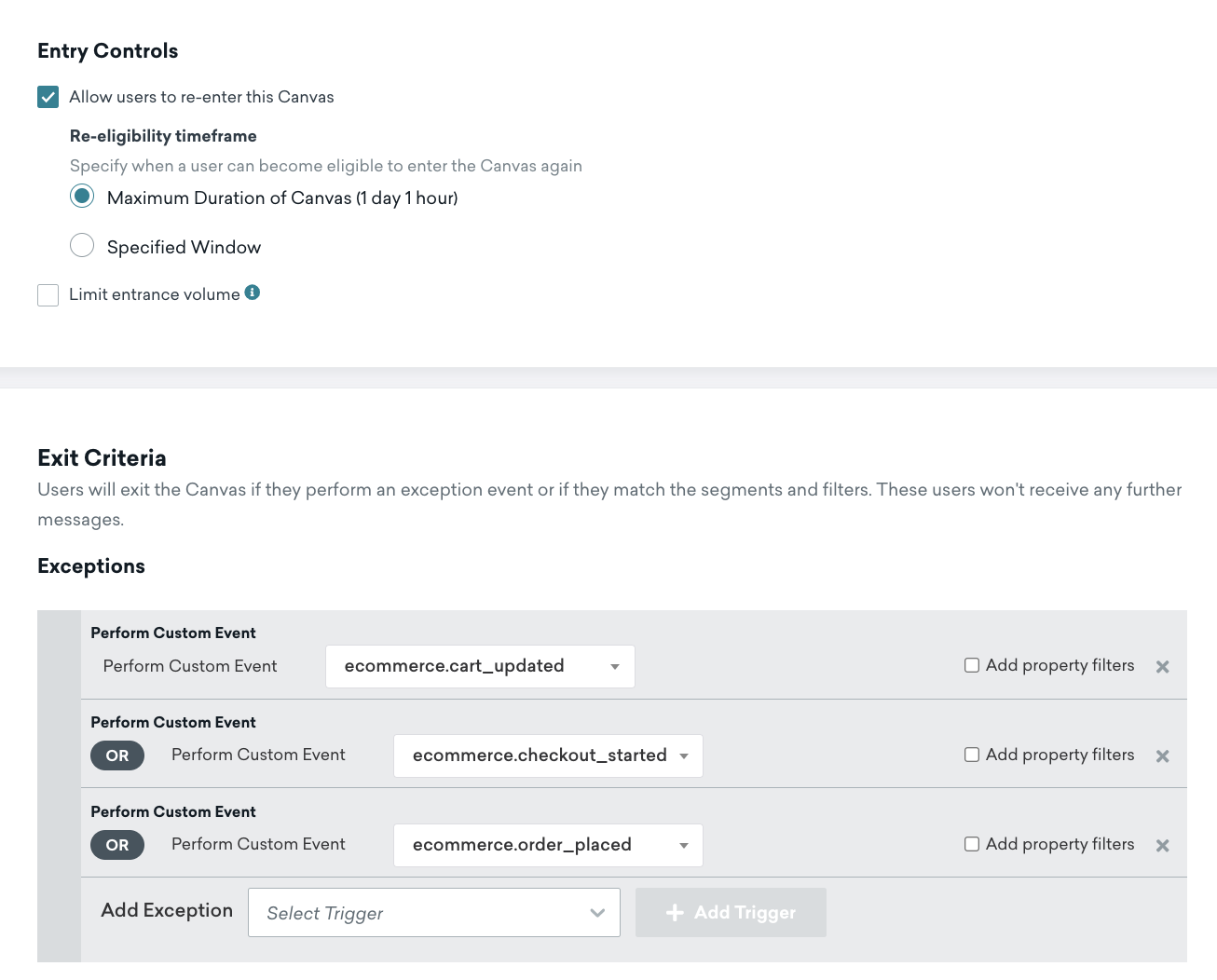
- エントリオーディエンス
- 送信設定
- 登録済みまたはオプトイン済みのユーザー
- 遅延ステップ
- 1時間遅延
- メッセージステップ
- Liquid のテンプレート作成の例を使用して、メールテンプレートと HTML ブロックを確認し、あらかじめ用意されているテンプレートでメッセージに製品を追加します。独自のメールテンプレートを使用する場合は、次のセクションに示すように、液体変数 を参照することもできます。
メール向けの閲覧の放棄の製品パーソナライゼーション
閲覧の放棄のメール用の HTML 製品ブロックを追加する方法の例を以下に示します。
1
2
3
4
5
6
7
8
9
10
11
<table style="width:100%">
  <tr>
    <th><img src="{{context.${image_url}}}" width="200" height="200"><img></th>
    <th align="left">
      <ul style="list-style-type: none">
        <li>Item: {{context.${product_name}}}</li>
        <li>Price: ${{context.${price}}}</li>
      </ul>
    </th>
  </tr>
</table>
製品URL
1
{{context.${product_url}}}
カート放棄
カートに製品を追加したが、購入手続きまたは注文に進まなかった顧客からの潜在的な売上の損失に対応するには、カート放棄テンプレートを使用します。
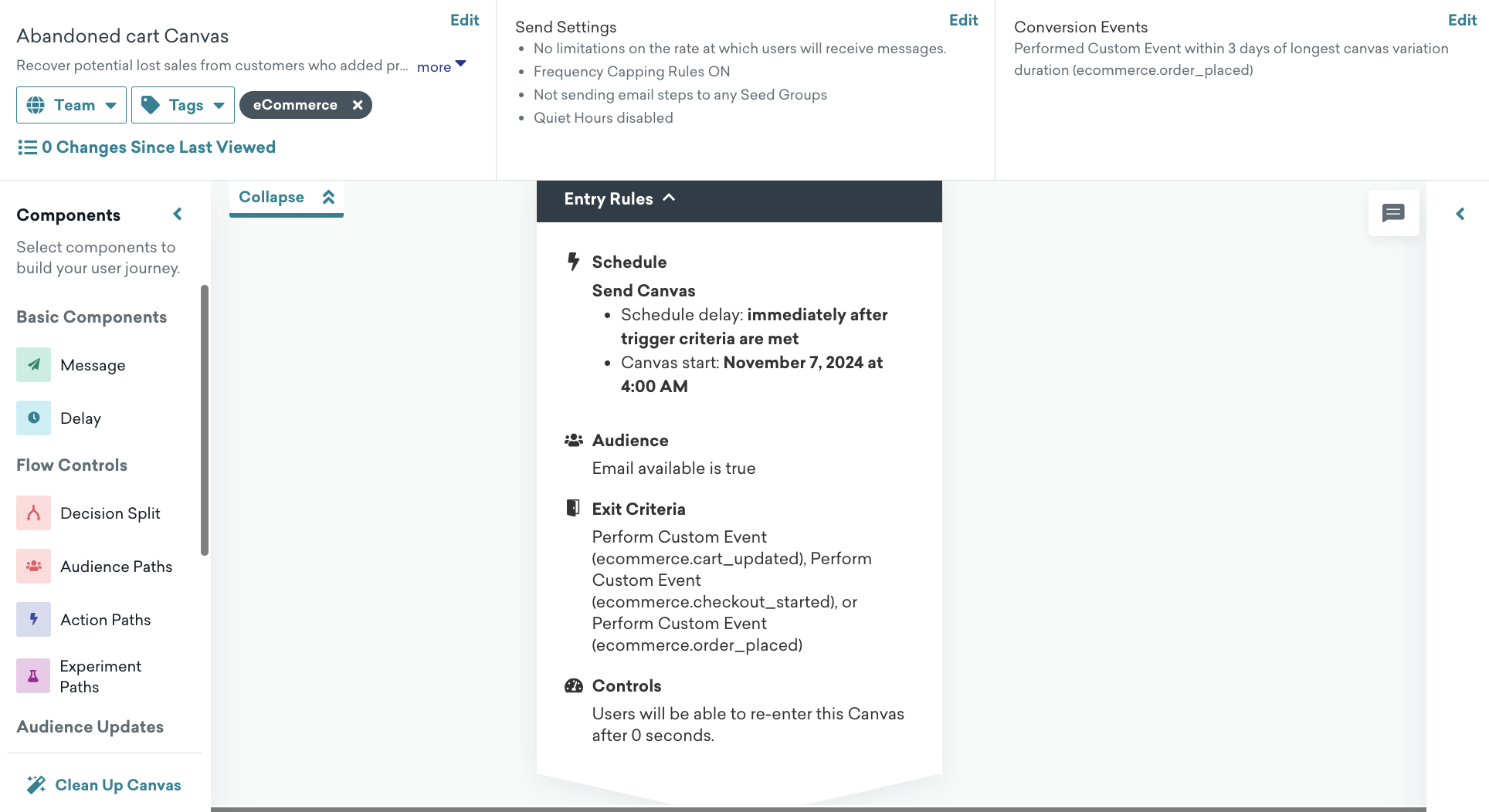
設定
キャンバスページで [キャンバステンプレートを使用] > [Braze テンプレート] を選択し、カート放棄テンプレートを適用します。
デフォルト設定
キャンバスでは、次の設定が事前に行われています。
- 基本情報
- キャンバス名:カート放棄
- 変換イベント:
ecommerce.order_placed- コンバージョンの期限:3日間
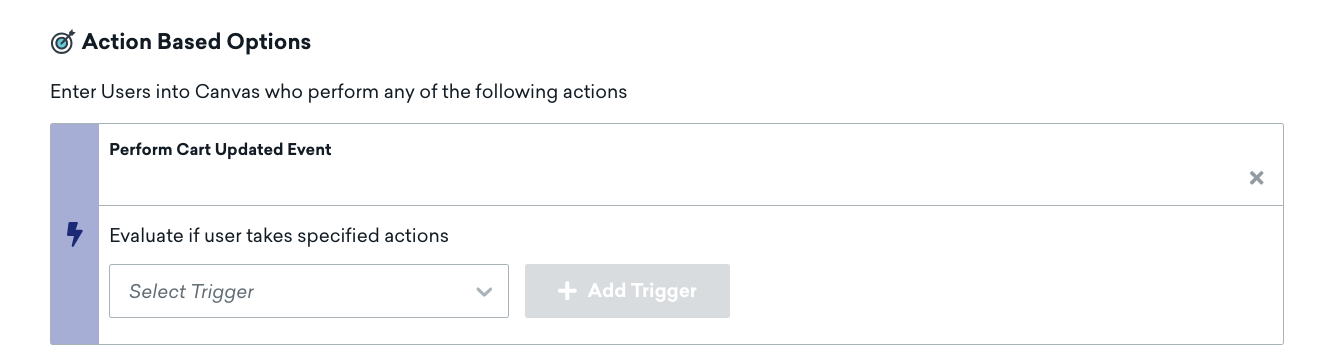
- エントリスケジュール
- ユーザーが (ドロップダウンにある) [カート更新済みイベントの実行] をトリガーしたときのアクションベースのトリガー
- 開始時刻は、キャンバステンプレートを作成するときです
- ターゲットオーディエンス
- エントリオーディエンス
- これらのアプリを1回以上使用したことがある
- メールが空白ではない
- 入力コントロール
- ユーザーのキャンバスへのエントリが即時に可能になります。
- 終了条件
ecommerce.cart_updated、ecommerce.checkout_started、またはecommerce.order_placedを実行する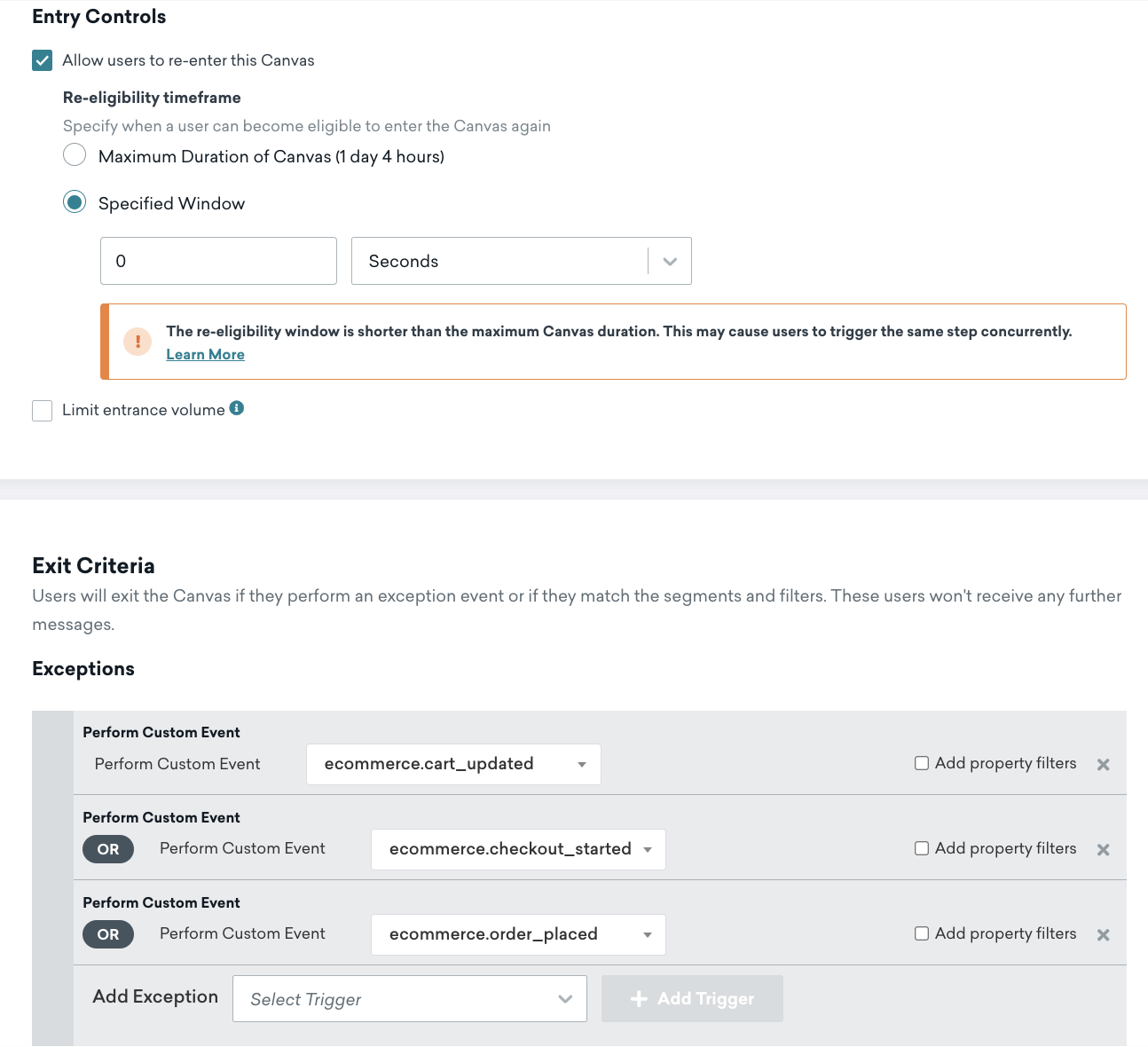
- エントリオーディエンス
- 送信設定
- 登録済みまたはオプトイン済みのユーザー
- 遅延ステップ
- 4時間遅延
- メッセージステップ
- Liquid のテンプレート作成の例を使用して、メールテンプレートと HTML ブロックを確認し、あらかじめ用意されているテンプレートでメッセージに製品を追加します。独自のメールテンプレートを使用する場合は、次のセクションに示すように、液体変数 を参照することもできます。
放棄カート or カート放棄後の再訪問ロジックの仕組み
ユーザーがチェックアウトプロセスを開始すると、そのカートは「保留中」とマークされるcheckout_started。その時点以降、同じカートIDによる追加の更新は、ユーザーが放棄カートのユーザー体験を再開始する資格を得られない。
- ユーザーが商品をカートに追加すると、キャンバスに入る。
- 彼らが商品を追加または更新するたびに、再びキャンバスにアクセスする。これにより、カートデータとメッセージングが常に最新の状態に保たれる。
- ユーザーがチェックアウトプロセスを開始すると、そのカートは「」
checkout_startedとしてタグ付けされ、ユーザーはキャンバスを離れる。 - 同じカートIDを使用した今後のカート更新は、このカートが既に決済段階に移行しているため、再登録を引き起こさない。
ユーザーがチェックアウトのユーザー体験に移行すると、代わりに放棄されたチェックアウトキャンバスが表示される。これは購入プロセスのより進んだ段階にあるユーザー向けに設計されている。
メール向けのカート放棄の製品パーソナライゼーション
カート放棄のユーザージャーニーでは、製品のパーソナライズに特別な Liquid タグ shopping_cart が必要です。
以下の例は、shopping_cart Liquid タグを使用してHTML ブロックを追加し、製品をメールに追加する方法を示しています。
1
2
3
4
5
6
7
8
9
10
11
12
13
14
15
16
17
18
19
<table style="width:100%">
  {% shopping_cart {{context.${cart_id}}} %}
  {% for item in shopping_cart.products %}
  {% catalog_items <add_your_catalog_name> {{item.variant_id}} %}
  <tr>
    <th><img src="{{ items[0].variant_image_url }}" width="200" height="200"><img></th>
    <th align="left">
      <ul style="list-style-type: none">
        <li>Item: {{ item.product_name }}</li>
        <li>Price: ${{ item.price }}</li>
        <li>Quantity: ${{ item.quantity }}</li>
        <li>Variant ID: {{ item.variant_id }}</li>
        <li>Product URL:{{ item.product_url }}</li>
        <li>SKU: {{ item.metadata.sku }}</li>
      </ul>
    </th>
  </tr>
  {% endfor %}
</table>
Shopify を使用する場合は、カタログ名を追加してバリアントイメージURL を取得します。
HTML カート URL
ユーザーをカートに戻したい場合、メタデータオブジェクトの下にネストされたイベントプロパティを追加できる。例えば:
1
{{context.${metadata}.cart_url}}
Shopifyを使用する場合は、次のLiquidテンプレートを使用してカートURLを作成します。
1
{{context.${source}}}/checkouts/cn/{{context.${cart_id}}}
購入手続き放棄
購入手続き放棄テンプレートを使用して、購入手続きプロセスを開始したが発注前に離脱した顧客をターゲットにします。
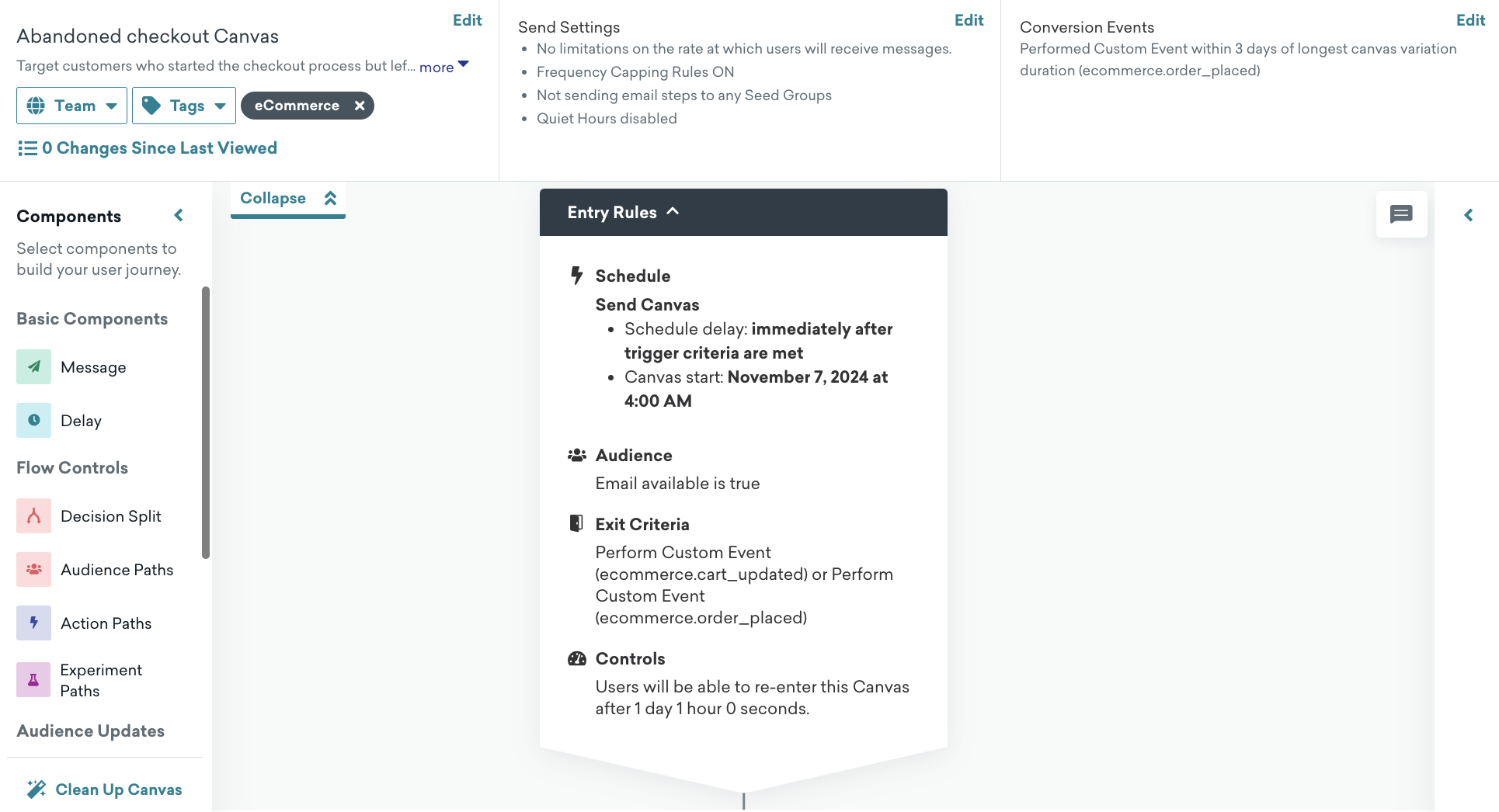
設定
キャンバスページで [キャンバステンプレートを使用] > [Braze テンプレート] を選択し、購入手続き放棄テンプレートを適用します。
デフォルト設定
キャンバスでは、次の設定が事前に行われています。
- 基本情報
- キャンバス名:購入手続き放棄
- 変換イベント:
ecommerce.order_placed- コンバージョンの期限:3日間
- エントリスケジュール
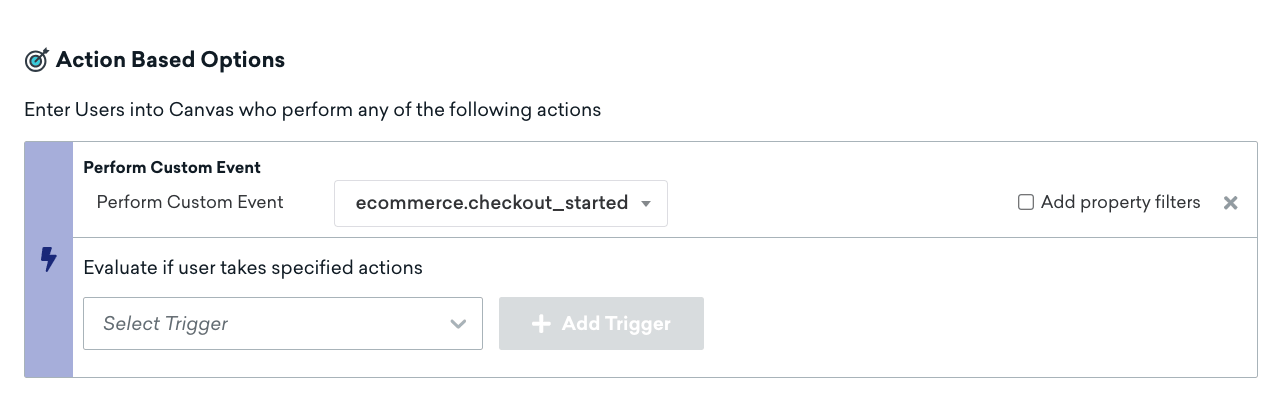
- ユーザが
ecommerce.checkout_startedイベントを実行したときのアクションベースのトリガ - 開始時刻は、キャンバステンプレートを作成するときです
- ユーザが
- ターゲットオーディエンス
- エントリオーディエンス
- これらのアプリを1回以上使用したことがある
- メールが空白ではない
- 入力コントロール
- ユーザーのキャンバスへのエントリが即時に可能になります。
- 終了条件
ecommerce.order_placedイベントを実行します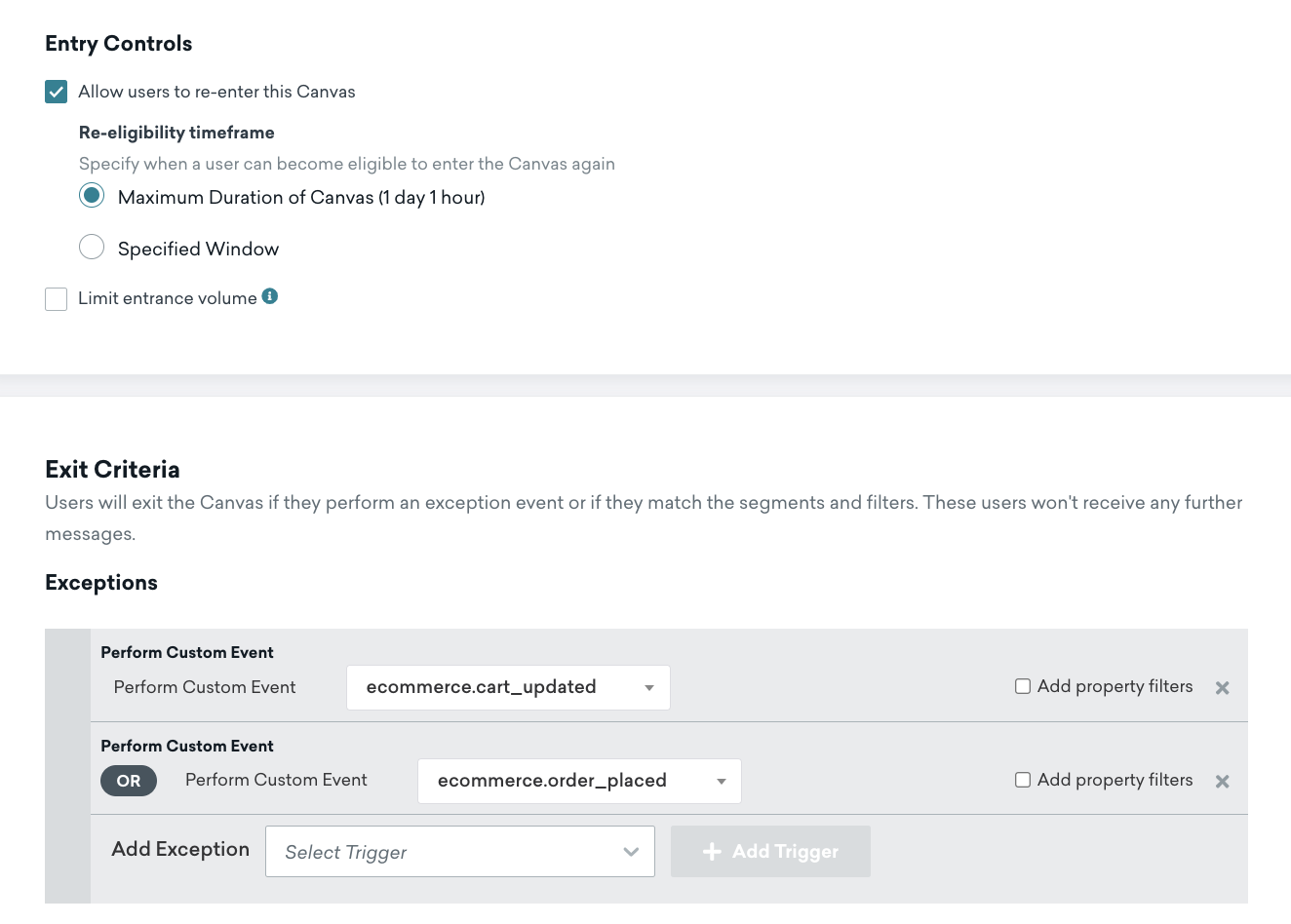
- エントリオーディエンス
- 送信設定
- 登録済みまたはオプトイン済みのユーザー
- 遅延ステップ
- 4時間遅延
- メッセージステップ
- Liquid のテンプレート作成の例を使用して、メールテンプレートと HTML ブロックを確認し、あらかじめ用意されているテンプレートでメッセージに製品を追加します。独自のメールテンプレートを使用する場合は、次のセクションに示すように、液体変数 を参照することもできます。
メール向けの購入手続き放棄の製品パーソナライゼーション
購入手続き放棄のユーザージャーニーでは、製品のパーソナライズに特別な Liquid タグ shopping_cart が必要です。
以下の例は、shopping_cart Liquid タグを使用してHTML ブロックを追加し、製品をメールに追加する方法を示しています。
1
2
3
4
5
6
7
8
9
10
11
12
13
14
15
16
17
18
<table style="width:100%">
  {% shopping_cart {{context.${cart_id}}} :abort_if_not_abandoned false %}
  {% for item in shopping_cart.products %}
  {% catalog_items <add_your_catalog_name> {{item.variant_id}} %}
  <tr>
    <th><img src="{{ items[0].variant_image_url }}" width="200" height="200"><img></th>
    <th align="left">
      <ul style="list-style-type: none">
        <li>Item: {{ item.product_name }}</li>
        <li>Price: ${{ item.price }}</li>
        <li>Quantity: ${{ item.quantity }}</li>
        <li>Variant ID: {{ item.variant_id }}</li>
        <li>Product URL:{{ item.product_url }}</li>
        <li>SKU: {{ item.metadata.sku }}</li>
      </ul>
    </th>
    {% endfor %}
</table>
チェックアウトURL
1
{{context.${metadata}.checkout_url}}
注文確認とフィードバック調査
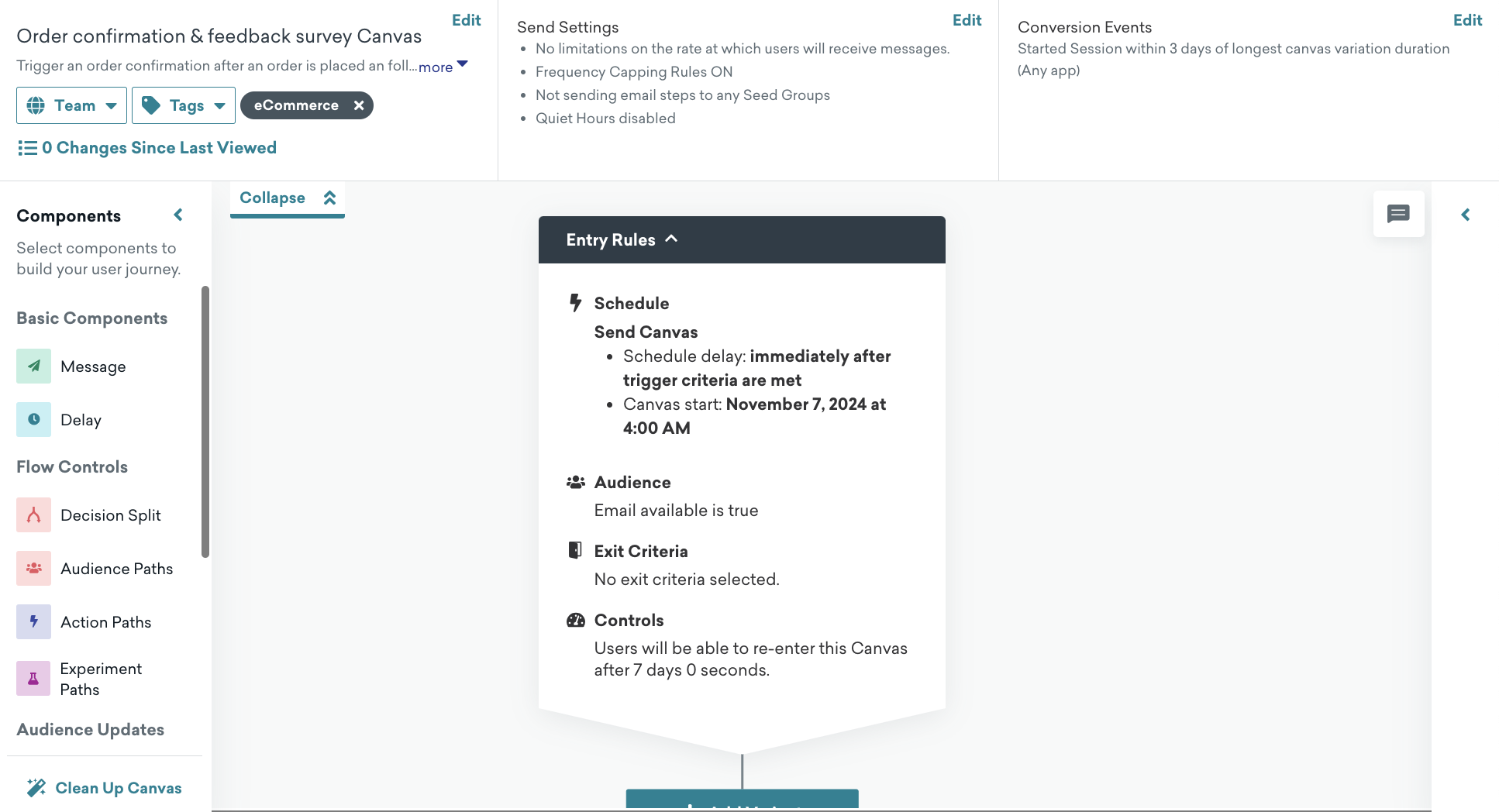
注文確認&フィードバック調査テンプレートを使って、注文の成功を確認し、顧客満足度を高める。
設定
キャンバスページで、[キャンバステンプレートを使用] > [Brazeテンプレート] を選択し、[注文&確認フィードバック調査テンプレート] を適用する。
デフォルト設定
キャンバスでは、次の設定が事前に行われています。
- 基本情報
- キャンバス名:注文確認とフィードバック調査
- 変換イベント:
ecommerce.session_start- コンバージョンの期限:10日間
- エントリスケジュール
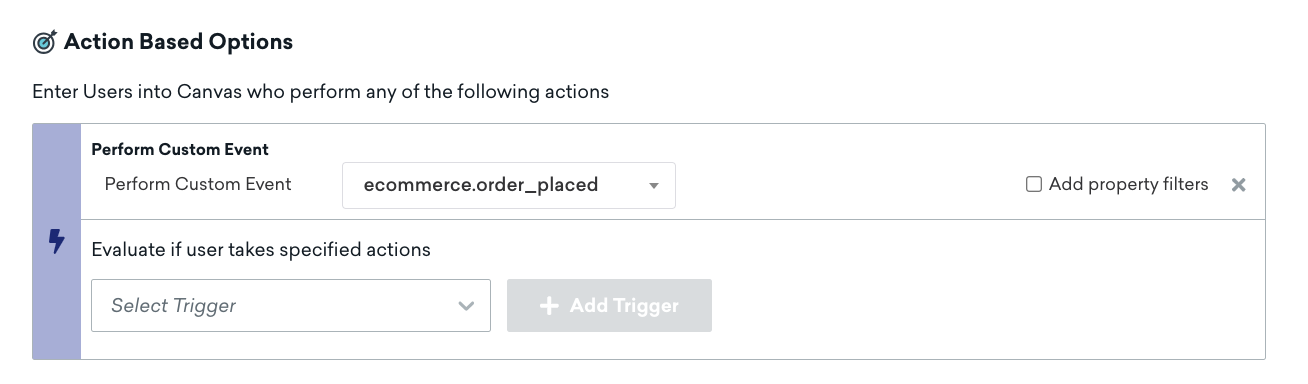
- ユーザが
ecommerce.cart_updatedイベントを実行したときのアクションベースのトリガ - 開始時刻は、キャンバステンプレートを作成するときです
- ユーザが
- ターゲットオーディエンス
- エントリオーディエンス
- これらのアプリを1回以上使用したことがある
- メールが空白ではない
- 入力コントロール
- ユーザーのキャンバスへのエントリが即時に可能になります。
- 終了条件
- 該当しない
- 該当しない
- エントリオーディエンス
- 送信設定
- 登録済みまたはオプトイン済みのユーザー
- メッセージステップ
- Liquid のテンプレート作成の例を使用して、メールテンプレートと HTML ブロックを確認し、あらかじめ用意されているテンプレートでメッセージに製品を追加します。独自のメールテンプレートを使用する場合は、次のセクションに示すように、液体変数 を参照することもできます。
メール向けの注文の確認のパーソナライゼーション
ここでは、注文後に注文確認にHTML 製品ブロックを追加する方法の例を示します。
1
2
3
4
5
6
7
8
9
10
11
12
13
14
15
<table style="width:100%">
  {% for item in {{context.${products}}} %}
  {% catalog_items <add_your_catalog_name> {{item.variant_id}} %}
  <tr>
    <th><img src="{{ items[0].variant_image_url }}" width="200" height="200" /></th>
    <th align="left">
      <ul style="list-style-type: none">
        <li>Item: {{item.product_name}}</li>
        <li>Price: {{item.price}}</li>
        <li>Quantity: {{item.quantity}}</li>
      </ul>
    </th>
  </tr>
  {% endfor %}
</table>
注文状況 URL
1
{{context.${metadata}.order_status_url}}