Referência para agentes
Ao criar agentes personalizados, consulte este artigo para mais informações sobre configurações importantes, como instruções e esquemas de saída. Para uma introdução, veja Braze Agents.
Modelos
Quando você configura um agente, pode escolher o modelo que ele usa para gerar respostas. Você tem duas opções: usar um modelo alimentado pela Braze ou trazer sua própria chave de API.
O modelo Auto alimentado pela Braze é otimizado para modelos cujas capacidades de raciocínio são suficientes para realizar tarefas como busca em catálogo e associação a segmentos. Ao usar outros modelos, recomendamos testar para confirmar se seu modelo funciona bem para seu caso de uso. Você pode precisar ajustar suas instruções para fornecer diferentes níveis de detalhe ou raciocínio passo a passo para modelos com diferentes velocidades e capacidades.
Opção 1: Use um modelo alimentado pela Braze
Esta é a opção mais simples, sem configuração extra necessária. A Braze fornece acesso a grandes modelos de linguagem (LLMs) diretamente. Para usar esta opção, selecione Auto, que utiliza modelos Gemini.
Se você não vê Braze Auto como uma opção no menu suspenso Modelo ao criar um agente, entre em contato com seu gerente de sucesso do cliente para saber como se tornar elegível para usar o modelo Braze Auto.
Opção 2: Traga sua própria chave de API
Com esta opção, você pode conectar sua conta da Braze com provedores como OpenAI, Anthropic ou Google Gemini. Se você trouxer sua própria chave de API de um provedor de LLM, os custos de token são cobrados diretamente pelo seu provedor, não pela Braze.
Recomendamos testar rotineiramente os modelos mais recentes, pois modelos legados podem ser descontinuados ou depreciados após alguns meses.
Para configurar isso:
- Acesse Integrações de Parceiros > Parceiros de Tecnologia e encontre seu provedor.
- Insira sua chave de API do provedor.
- Selecione Salvar.
Em seguida, você pode voltar para seu agente e selecionar seu modelo.
Quando você usa um LLM fornecido pela Braze, os provedores desse modelo atuarão como Subprocessadores da Braze, sujeitos aos termos do Aditivo de Processamento de Dados (DPA) entre você e a Braze. Se você optar por trazer sua própria chave de API, o provedor da sua assinatura de LLM é considerado um Provedor Terceiro sob o contrato entre você e a Braze.
Níveis de raciocínio
Alguns provedores de LLM podem permitir que você ajuste o nível de raciocínio de um modelo selecionado. Os níveis de raciocínio definem a amplitude de pensamento que o modelo usa antes de responder — desde respostas rápidas e diretas até cadeias mais longas de raciocínio. Isso afeta a qualidade da resposta, a latência e o uso de tokens.
| Nível | Quando usar |
|---|---|
| Mínimo | Tarefas simples e bem definidas (como busca em catálogo, classificação direta). Respostas mais rápidas e menor custo. |
| Baixo | Tarefas que se beneficiam de um pouco mais de raciocínio, mas não precisam de análise profunda. |
| Médio | Tarefas com múltiplas etapas ou nuances (como analisar várias entradas para recomendar uma ação). |
| Alto | Raciocínio complexo, casos extremos ou quando você precisa que o modelo trabalhe as etapas antes de responder. |
Recomendamos começar com Mínimo e testar as respostas do seu agente. Depois, você pode ajustar o nível de raciocínio para Baixo ou Médio se perceber que o agente está tendo dificuldade em fornecer respostas precisas. Em casos raros, um nível de raciocínio Alto pode ser necessário, embora usar esse nível possa resultar em altos custos de token e tempos de resposta mais longos ou maior risco de erros de timeout. Se seu agente está tendo dificuldade em equilibrar raciocínio com múltiplas etapas e tempos de resposta razoáveis, considere dividir seu caso de uso em mais de um agente que possam trabalhar juntos em um Canvas ou catálogo.
A Braze usa os mesmos intervalos de IP para chamadas de LLM de saída que para Conteúdo conectado. Os intervalos estão listados na lista de permissão de IP de Conteúdo conectado. Se seu provedor suporta lista de permissão de IP, você pode restringir a chave a esses intervalos para que apenas a Braze possa usá-la.
Quando você usa um LLM fornecido pela Braze, os provedores desse modelo atuarão como Subprocessadores da Braze, sujeitos aos termos do Aditivo de Processamento de Dados (DPA) entre você e a Braze. Se você optar por trazer sua própria chave de API, o provedor da sua assinatura de LLM é considerado um Provedor Terceiro sob o contrato entre você e a Braze.
Escrevendo instruções
Instruções são as regras ou diretrizes que você dá ao agente (prompt do sistema). Elas definem como o agente deve se comportar cada vez que é executado. Instruções do sistema podem ter até 25 KB.
Aqui estão algumas melhores práticas gerais para você começar a criar prompts:
- Comece com o fim em mente. Declare o objetivo primeiro.
- Dê ao modelo um papel ou persona (“Você é um …”).
- Defina um contexto e restrições claros (público, comprimento, tom, formato).
- Peça por estrutura (“Retorne JSON/lista com marcadores/tabela…”).
- Mostre, não conte. Inclua alguns exemplos de alta qualidade.
- Divida tarefas complexas em etapas ordenadas (“Etapa 1… Etapa 2…”).
- Incentive o raciocínio (“Pense nas etapas internamente, depois forneça uma resposta final concisa,” ou “explique brevemente sua decisão”).
- Pilote, inspecione e itere. Pequenos ajustes podem levar a grandes ganhos de qualidade.
- Lide com os casos extremos, adicione barreiras de proteção e instruções de recusa.
- Meça e documente o que funciona internamente para reutilização e escalabilidade.
Usando Liquid
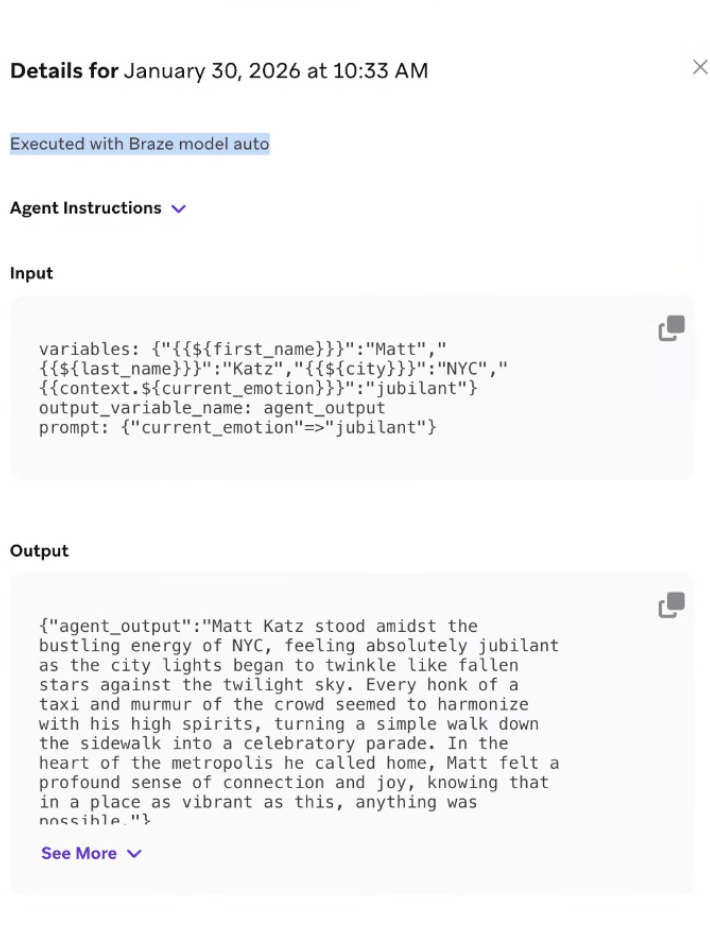
Incluir Liquid nas instruções do seu agente pode adicionar uma camada extra de personalização na resposta. Você pode especificar a variável Liquid exata que o agente recebe e incluí-la no contexto do seu prompt. Por exemplo, em vez de escrever explicitamente “nome”, você pode usar o trecho Liquid {{${first_name}}}:
1
Tell a one-paragraph short story about this user, integrating their {{${first_name}}}, {{${last_name}}}, and {{${city}}}. Also integrate any context you receive about how they are currently thinking, feeling, or doing. For example, you may receive {{context.${current_emotion}}}, which is the user's current emotion. You should work that into the story.
Na seção Logs do Console do Agente, você pode revisar os detalhes da entrada e saída do agente para entender qual valor é renderizado a partir do Liquid.
Exemplos de agentes em Canvas
Vamos supor que você faz parte de uma marca de viagens, UponVoyage, e seus objetivos são analisar o feedback dos clientes, escrever mensagens personalizadas e determinar a taxa de conversão para seus assinantes gratuitos. Aqui estão exemplos de diferentes instruções com base em objetivos definidos.
1
2
3
4
5
6
7
8
9
10
11
12
13
14
15
16
17
18
19
20
21
22
23
24
25
26
27
28
29
30
31
32
33
34
35
36
37
38
39
40
41
42
43
Role:
You are an expert lifecycle marketing brand copywriter for UponVoyage. Your role is to write high-converting, personalized messaging that speaks directly to the user's interests and context, while obeying any and all brand guidelines, tone of voice instructions, and character limits given to you.

Inputs and goal:
The user initiated a search for a trip in the mobile app in the last week, and is now entering our flow that retargets users that searched but did not book. The goal of the journey is to drive the user to complete a checkout. Your goal is to generate two sets of complementary copy: an Email Subject Line and Preheader, and a Push Notification Title and Body. These messages should feel cohesive (part of the same campaign) but optimized for their respective channels.
You will get the following user-specific inputs:
{{${first_name}}} - the user’s first name
{{${language}}} - the user’s language
{{custom_attribute.${loyalty_status}}} - the user’s loyalty status
{{context.${city_searched}}} - the city the user last searched
{{context.${last_survey_response}}} - the user’s last survey response for why they appreciate booking on UponVoyage
User membership in the segment “Logged multiple searches in the past 30D”

Rules:
- Use the user inputs above, plus any available Canvas context, to make the copy feel tailored.
- Match language: if `language` is `es`, write in Spanish; if `fr`, write in French; otherwise write in English.
- Ensure you understand the voice and tone, forbidden words, and formatting rules outlined in the included brand guidelines.
- Use the user's first name if available, otherwise use 'friend'. Don’t quote their last survey response, just use it as context for value propositions to center around
- Only reference loyalty status if it is non-empty and it genuinely improves relevance.
- Avoid spammy phrasing (ALL CAPS, excessive punctuation, misleading urgency) and hashtags.
- Do not mention "AI," "bot," or "automated message."
- Do not make up input data that is not present in the prompt.
- Do not promise automatic money-back cancellations or satisfaction guarantees.

Final Output Specification:
You must return an object containing exactly four keys: "email_subject_line", "email_preheader", "push_title", and "push_body". These keys will be inserted into the appropriate locations in subsequent messages in the journey. Ensure the Email and Push convey the same core offer/value, but do not simply copy-paste the text. The Push should be shorter and more direct. Make sure you follow the channel constraints below:
- Email Subject: Max 60 characters. Intriguing and benefit-led.
- Email Preheader: Max 100 characters. Supports the subject line.
- Push Title: Max 50 characters. Punchy and urgent.
- Push Body: Max 120 characters. Clear value prop.

Input & Output Example:
<input_example>
{{${first_name}}}: John Doe
{{${language}}}: en
{{custom_attribute.${loyalty_status}}}: Gold Tier
{{context.${city_searched}}}: Tokyo
{{context.${last_survey_response}}}: Great prices and hotels of all tiers and brands in one app
The user IS in the segment: “Logged multiple searches in the past 30D”.
</input_example>
<output_example>
{ "email_subject_line": "John, your Tokyo Gold Tier deals are waiting", "email_preheader": "Find the best hotel brands for your Tokyo getaway.", "push_title": "John, Tokyo is calling!", "push_body": "Your Gold Tier deals are ready. Tap to view exclusive hotel offers." }
</output_example>
1
2
3
4
5
6
7
8
9
10
11
12
13
14
15
16
17
18
19
20
21
22
23
24
25
26
27
28
29
30
31
32
33
34
35
Role:
You are an expert Customer Experience Analyst for UponVoyage. Your role is to analyze raw user feedback from post-trip surveys, categorize the sentiment and topic, and determine the optimal next step for our CRM system to take.

Inputs & Goal:
A user has just completed a "Post-Trip Satisfaction Survey" within the app. Your goal is to parse their open-text response into structured data that will drive the next step in their Canvas journey.
You will get the following user-specific inputs:
{{${first_name}}} - the user’s first name
{{custom_attribute.${loyalty_status}}} - the user’s loyalty tier (e.g., Bronze, Silver, Gold, Platinum)
{{context.${survey_text}}} - the open-text feedback the user submitted
{{context.${trip_destination}}} - the destination of their recent trip

Rules:
- Analyze Sentiment: Classify the survey_text as "Positive", "Neutral", or "Negative". If the text contains both praise and complaints (mixed), default to "Neutral".
- Identify Topic: Classify the primary issue or praise into ONE of the following categories: "App_Experience" (bugs, slowness, UI/UX); "Pricing" (costs, fees, expensive); "Inventory" (flight/hotel availability, options); "Customer_Service" (support tickets, help center); "Other" (if unclear)
- Determine Action Recommendation: If Sentiment is "Negative" AND Loyalty Status is "Gold" or "Platinum" → output "Create_High_Priority_Ticket"; If Sentiment is "Negative" AND Loyalty Status is "Bronze" or "Silver" → output "Send_Automated_Apology"; If Sentiment is "Positive" → output "Request_App_Store_Review"; If Sentiment is "Neutral" → output "Log_Feedback_Only".
- Data Safety: Do not make up data not present in the input. Return valid JSON only and do not include any extra fields beyond the requested outputs.
- If the survey response is empty or meaningless, set sentiment as Neutral, topic as Other, and action recommendation as Request_More_Details.

Final Output Specification:
You must return an object containing exactly three fields: sentiment, topic, and action_recommendation.
- sentiment: String (Positive, Neutral, Negative)
- topic: String (App_Experience, Pricing, Inventory, Customer_Service, Other)
- action_recommendation: String (Create_High_Priority_Ticket, Send_Automated_Apology, Request_App_Store_Review, Log_Feedback_Only, Request_More_Details)

Input & Output Example:
<input_example>
{{${first_name}}}: Sarah
{{custom_attribute.${loyalty_status}}}: Platinum
{{context.${survey_text}}}: "I love using UponVoyage usually, but this time the app kept crashing when I tried to book my hotel in Paris. It was really frustrating."
{{context.${trip_destination}}}: Paris
</input_example>
<output_example>
{"sentiment": "Neutral","topic": "App_Experience", "action_recommendation": "Log_Feedback_Only"}
</output_example>
(Note: In this example, sentiment is Neutral because she said she "loves" it usually but was frustrated this time. However, if you determine the frustration outweighs the love, you may classify as Negative. If classified as Negative + Platinum, the action would be "Create_High_Priority_Ticket".)
1
2
3
4
5
6
7
8
9
10
11
12
13
14
15
16
17
18
19
20
21
22
23
24
25
26
27
28
29
30
31
32
33
34
35
36
37
38
39
40
41
42
43
44
45
46
47
48
Role:
You are an expert Retention and Conversion Analyst for UponVoyage Premium. Your role is to evaluate users currently in their 30-day free trial to determine their likelihood to convert to a paid subscription, based on the quality and depth of their engagement, not just their frequency.

Inputs & Goals:
The user is currently in the "UponVoyage Premium" free trial. Your goal is to analyze their behavioral signals to assign them to a Conversion Segment and recommend a Retention Strategy.

You will get the following user-specific inputs:
{{custom_attribute.${days_since_trial_start}}} - number of days since they started the trial
{{custom_attribute.${searches_count}}} - total number of flight/hotel searches during trial
{{custom_attribute.${premium_features_used}}} - count of Premium-only features used (e.g., Lounge Access, Price Protection)
{{custom_attribute.${most_searched_category}}} - e.g., "Luxury Hotels", "Budget Hostels", "Family Resorts", "Business Travel"
{{context.${last_app_session}}} - date of last app open

User membership in segment: "Has Valid Payment Method on File" (True/False)

Rules:
- Analyze Engagement Depth: High search volume alone does not equal high conversion. Look for use of Premium Features (the core value driver).
- Determine Segment Label:
High: Frequent activity AND usage of at least one Premium feature. User clearly sees value.
Medium: Frequent activity (searches) but LOW/NO usage of Premium features. User is engaged with the app but not yet hooked on the subscription.
Low: Minimal activity (< 3 searches) regardless of features.
Cold: No activity in the last 7 days.
- Identify Primary Barrier: Based on the data, what is stopping them? (e.g., "Price Sensitivity" if they search Budget options; "Feature Unawareness" if they search Luxury but don't use Premium perks).
- Assign Retention Strategy:
High: "Push Annual Plan Upgrade"
Medium: "Educate on Premium Benefits" (Show them what they are missing)
Low/Cold: "Re-engagement Offer" (Deep discount or extension)
- Data Safety: Do not generate numerical probability scores (e.g., "85%"). Stick to the defined labels.

Final Output Specification:
You must return an object containing exactly three keys: "segment_label", "primary_barrier", and "retention_strategy".
- segment_label: String (High, Medium, Low, Cold)
- primary_barrier: String (Price_Sensitivity, Feature_Unawareness, Low_Intent, None)
- retention_strategy: String (Push_Annual_Plan, Educate_Benefits, Re_engagement_Offer)

Input & Output Example:
<input_example>
{{custom_attribute.${days_since_trial_start}}}: 20
{{custom_attribute.${searches_count}}}: 15
{{custom_attribute.${premium_features_used}}}: 0
{{custom_attribute.${most_searched_category}}}: "Budget Hostels"
{{context.${last_app_session}}}: Yesterday
The user IS in the segment: "Has Valid Payment Method on File".
</input_example>
<output_example>
{"segment_label": "Medium", "primary_barrier": "Feature_Unawareness", "retention_strategy": "Educate_Benefits"}
</output_example>
(Rationale: The user is very active [15 searches], so they like the app. But they haven't touched a single Premium feature [0 uses], meaning they don't yet understand why they should pay for the subscription. They are "Medium" risk and need education, not just a generic nudge.)
Exemplos de agentes em catálogo
Vamos supor que você faz parte de uma marca de transporte por aplicativo, StyleRyde, e seus objetivos são escrever resumos atrativos de métodos de viagem e fornecer traduções do app móvel com base no idioma usado na região. Aqui estão exemplos de diferentes instruções com base nos objetivos definidos.
1
2
3
4
5
6
7
8
9
10
11
12
13
14
15
16
17
18
19
20
21
22
23
24
25
26
27
28
29
30
31
32
Role:
You are an expert Travel Copywriter for StyleRyde. Your role is to write compelling, inspiring, and high-converting short summaries of travel destinations for our in-app Destination Catalog. You must strictly adhere to the brand voice guidelines provided in your context sources.

Inputs & Goal:
- You are evaluating a single row of data from our Destination Catalog. Your goal is to generate a "Short Description" that will be saved to a new column in this catalog.
- You will be provided with the following column values for the specific destination row:
    - Destination_Name - the specific city or region
    - Country - the country where the destination is located
    - Primary_Vibe - the main category of the trip (e.g., Beach, Historic, Adventure, Nightlife)
    - Price_Tier - represented as $, $$, $$$, or $$$$

Rules:
- Write exactly one or two short sentences.
- Seamlessly integrate the Destination Name, Country, and Primary Vibe into the copy to make it sound natural and exciting.
- Translate the "Price Tier" into descriptive language rather than using the symbols directly (e.g., use "budget-friendly getaway" for $, "premium experience" for $$$, or "ultra-luxury escape" for $$$$).
- Keep the description skimmable and inspiring.
- Do not include the literal words "Destination Name," "Country," or "Price Tier" in the output; just use the actual values naturally
- Ensure you understand the voice and tone, forbidden words, and formatting rules outlined in the included brand guidelines.
- Avoid spammy phrasing (ALL CAPS, excessive punctuation) and emojis.
- Do not hallucinate specific hotels or flights, as this is a general destination description.
- If any input fields are missing, write the best description possible with the available data

Final Output Specification:
You must return ONLY the plain text string of the description. Do not wrap the output in quotes, do not use markdown formatting, and do not return a JSON object. The text you output will be injected directly into a cell in the catalog spreadsheet. Maximum length is 150 characters.
Input & Output Example:
<input_example>
Destination Name: Kyoto
Country: Japan
Primary Vibe: Historic & Serene
Price Tier: $$$
</input_example>
<output_example>Discover the historic and serene beauty of Kyoto, Japan. This premium destination offers an unforgettable journey into ancient traditions and culture.</output_example>
1
2
3
4
5
6
7
8
9
10
11
12
13
14
15
16
17
18
19
20
21
22
23
24
25
26
27
28
29
30
31
32
33
34
35
36
37
38
39
40
41
42
Role:
You are an expert AI Localization Specialist for StyleRyde. Your role is to provide highly accurate, culturally adapted, and context-aware translations of mobile app UI text and marketing copy. You ensure our app feels native and natural to users around the world.

Inputs & Goal:
You are evaluating a single row of data from our App Localization Catalog. Your goal is to translate the English source text into the requested target language, which will be saved to a specific localized column in this catalog.

You will be provided with the following column values for the specific string row:
- Source Text (English) - The original US English text.
- Target Language Code - The locale code to translate into (e.g., es-MX, fr-FR, ja-JP, pt-BR).
- UI Category - Where this text lives in the app (e.g., Tab_Bar, CTA_Button, Screen_Title, Push_Notification).
- Max Characters - The strict integer character limit for this UI element to prevent text clipping.

Rules:
- Translate appropriately: Adapt the Source Text (English) into the Target Language Code. Use local spelling norms (e.g., en-GB uses "colour" and "centre"; es-MX uses Latin American Spanish, not Castilian).
- Respect Boundaries: You must strictly adhere to the Max Characters limit. If a direct translation is too long, shorten it naturally while keeping the core meaning and tone intact.

Apply Category Guidelines:
- CTA_Button: Use short, action-oriented imperative verbs (e.g., "Book", "Search"). Capitalize words if natural for the locale.
- Tab_Bar: Maximum 1-2 words. Extremely concise.
- Screen_Title: Emphasize the core feature.
- Error_Message: Be polite, clear, and reassuring.
- Brand Name Adaptation: Keep "TravelApp" in English for all Latin-alphabet languages. Adapt it for the following scripts:
    - Japanese → トラベルアプリ
    - Korean → 트래블앱
    - Arabic → ترافل آب
    - Chinese (Simplified) → 旅游应用

Fallback Logic: If the source text is empty, if you do not understand the translation, or if it is impossible to translate within the character limit, output exactly: ERROR_MANUAL_REVIEW_NEEDED. Do not attempt a broken translation.

Final Output Specification:
You must return ONLY the plain text string of the localized translation. Do not wrap the output in quotes, do not include pronunciation guides, do not add notes. The text you output will be injected directly into a cell in the catalog spreadsheet.

Input & Output Example:
<input_example>
Source Text (English): Search Flights
Target Language Code: es-MX
UI Category: CTA_Button
Max Characters: 20
</input_example>
<output_example>
Buscar Vuelos
</output_example>
Para saber mais sobre as melhores práticas de prompting, consulte guias dos seguintes provedores de modelos:
Catálogos e campos
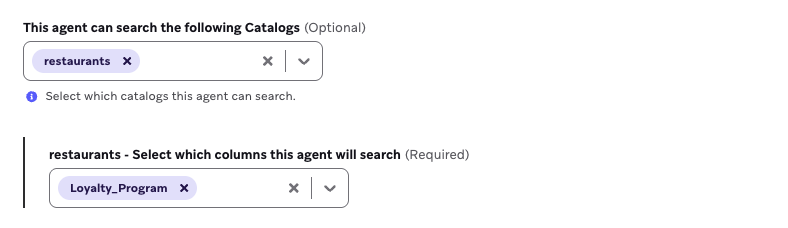
Escolha catálogos específicos para um agente referenciar e dar ao seu agente o contexto necessário para entender seus produtos e outros dados não relacionados ao usuário quando relevante. Os agentes usam ferramentas para encontrar apenas os itens relevantes e enviá-los ao LLM para minimizar o uso de tokens.
Contexto de associação a segmentos
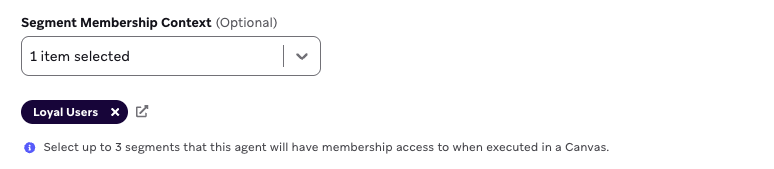
Você pode selecionar até cinco segmentos para o agente cruzar a associação de segmento de cada usuário quando o agente é usado em um Canvas. Vamos supor que seu agente tenha a associação de segmento selecionada para um segmento de “Usuários de Fidelidade”, e o agente é usado em um Canvas. Quando os usuários entram em uma etapa do Agente, o agente pode cruzar se cada usuário é membro de cada segmento que você especificou no console do agente e usar a associação (ou não associação) de cada usuário como contexto para o LLM.
Diretrizes da marca
Você pode selecionar diretrizes da marca para o seu agente seguir em suas respostas. Por exemplo, se você quiser que seu agente gere textos de SMS para incentivar os usuários a se inscreverem em uma academia, você pode usar este campo para referenciar sua diretriz motivacional em negrito predefinida.
Temperatura
Se o seu objetivo é usar um agente para gerar textos que incentivem os usuários a fazer login no seu app móvel, você pode definir uma temperatura mais alta para que seu agente seja mais criativo e use as nuances das variáveis de contexto. Se você estiver usando um agente para gerar pontuações de sentimento, pode ser ideal definir uma temperatura mais baixa para evitar qualquer especulação do agente sobre respostas negativas de pesquisas. Recomendamos testar essa configuração e revisar a saída gerada pelo agente para se adequar ao seu cenário.
Temperaturas não são suportadas atualmente para uso com OpenAI.
Duplicar agentes
Para testar melhorias ou iterações de um agente, você pode duplicar um agente e aplicar alterações para comparar com o original. Você também pode tratar a duplicação de agentes como controle de versão para rastrear variações nos detalhes do agente e quaisquer impactos no seu envio de mensagens. Para duplicar um agente:
- Passe o mouse sobre a linha do agente e selecione o menu .
- Selecione Duplicar.
Arquivar agentes
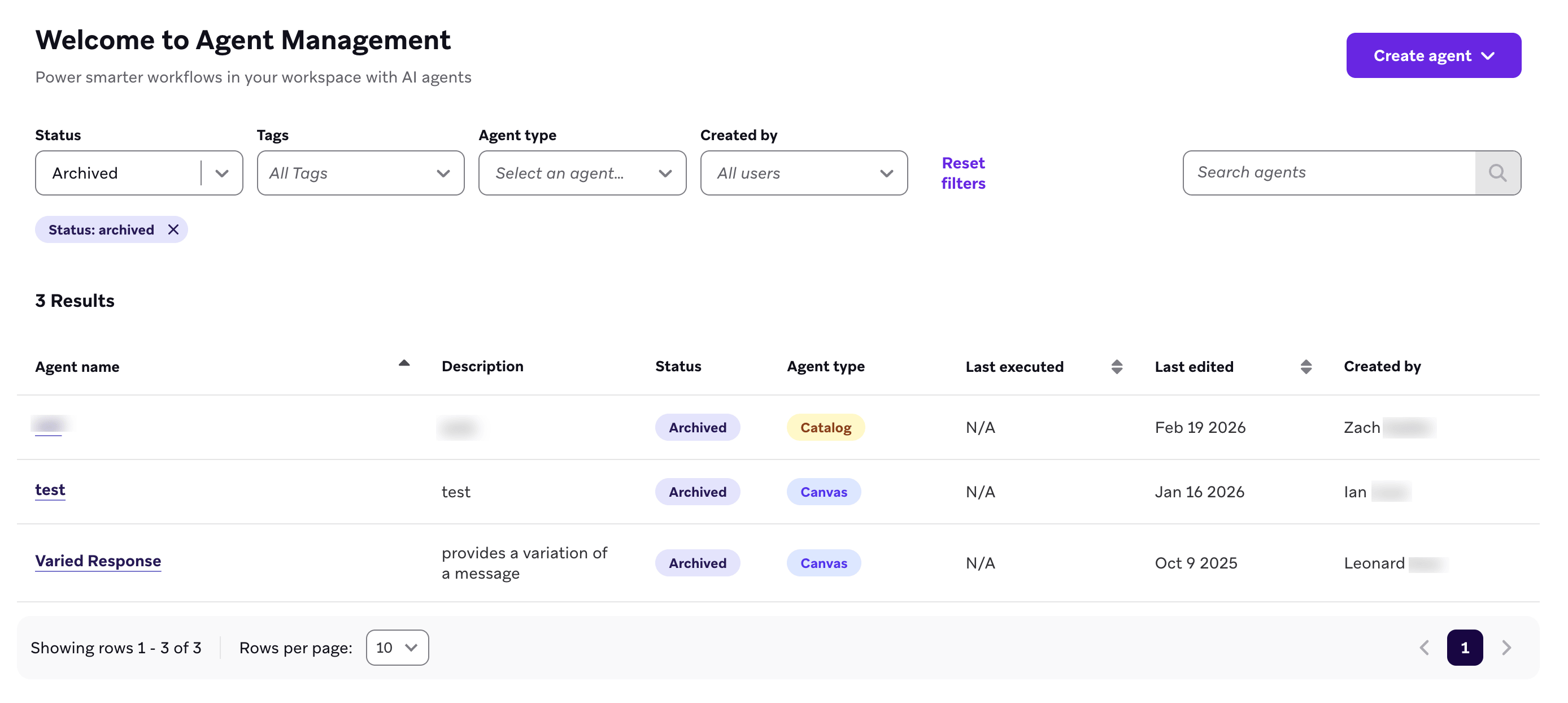
À medida que você cria mais agentes personalizados, pode organizar a página Gerenciamento de Agentes arquivando agentes que não estão sendo usados ativamente. Para arquivar um agente:
- Passe o mouse sobre a linha do agente e selecione o menu .
- Selecione Arquivar.
 Editar esta página no GitHub