
AppboyKit(Objective-C SDK라고도 함)는 더 이상 지원되지 않으며 Swift SDK로 대체되었습니다. 더 이상 새로운 기능, 버그 수정, 보안 업데이트 또는 기술 지원이 제공되지 않지만, 메시징 및 분석은 정상적으로 계속 작동합니다. 자세한 내용은 새로운 Braze Swift SDK 소개를 참조하세요.

푸시 알림 구현 가이드
이 고급 구현 가이드(선택 사항)에서는 푸시 알림 콘텐츠 앱 확장을 활용하여 푸시 메시지를 최대한 활용하는 방법을 다룹니다. 저희 팀이 구축한 세 가지 커스텀 사용 사례와 함께 코드 스니펫 및 분석 로깅에 대한 지침도 포함되어 있습니다. Braze 데모 리포지토리를 방문하세요! 이 구현 가이드는 Swift 구현을 중심으로 하지만 관심 있는 분을 위해 Objective-C 스니펫도 제공됩니다.
알림 콘텐츠 앱 확장
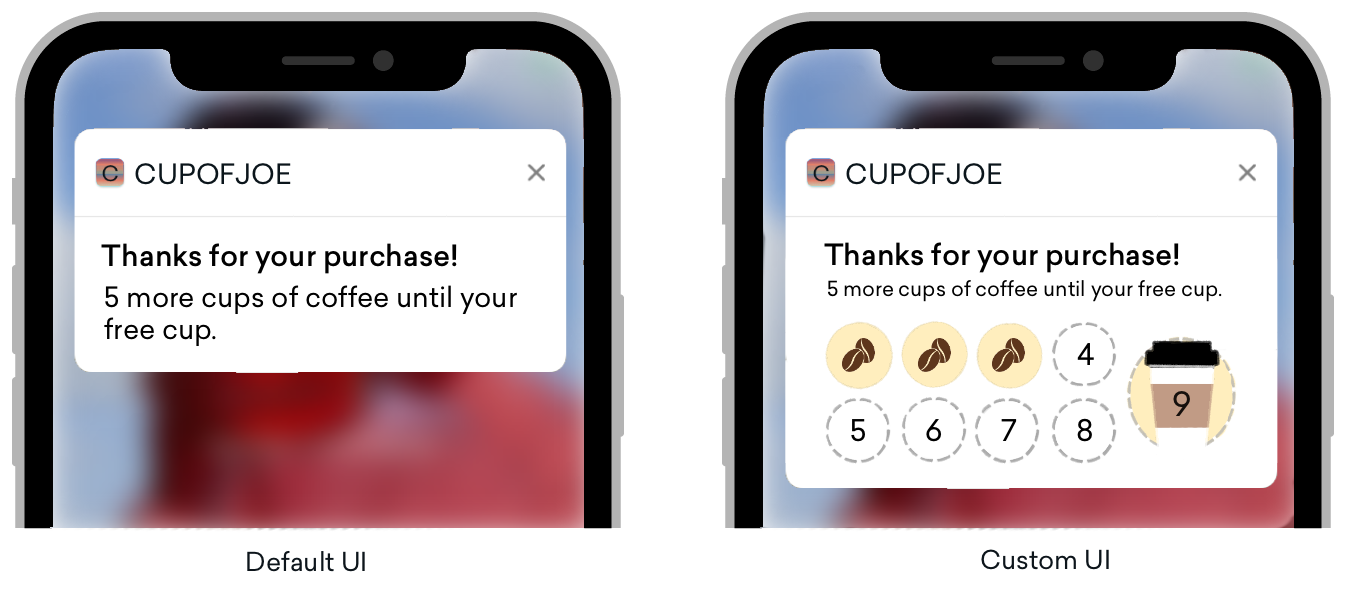
푸시 알림은 여러 플랫폼에서 표준적인 것처럼 보이지만, 기본 UI에서 일반적으로 구현되는 것 이상의 다양한 커스터마이징 옵션을 제공합니다. 푸시 알림이 확장되면 콘텐츠 알림 확장을 통해 확장된 푸시 알림의 커스텀 뷰를 표시할 수 있습니다.
푸시 알림은 세 가지 방법으로 확장할 수 있습니다:
- 푸시 배너를 길게 누르기
- 푸시 배너를 아래로 스와이프하기
- 배너를 스와이프한 후 “보기”를 선택하기
이러한 커스텀 뷰는 인터랙티브 알림, 사용자 데이터로 채워진 알림, 심지어 전화번호 및 이메일과 같은 정보를 수집할 수 있는 푸시 메시지 등 다양한 유형의 콘텐츠를 표시할 수 있어 고객 참여를 유도하는 스마트한 방법을 제공합니다. 이 방식으로 푸시를 구현하는 것이 익숙하지 않을 수 있지만, Braze의 잘 알려진 기능 중 하나인 Push Stories가 알림 콘텐츠 앱 확장을 위한 커스텀 뷰가 어떤 모습인지 보여주는 대표적인 예입니다!
요구 사항
- 앱에 푸시 알림이 성공적으로 통합되어 있어야 합니다
- iOS 10 이상
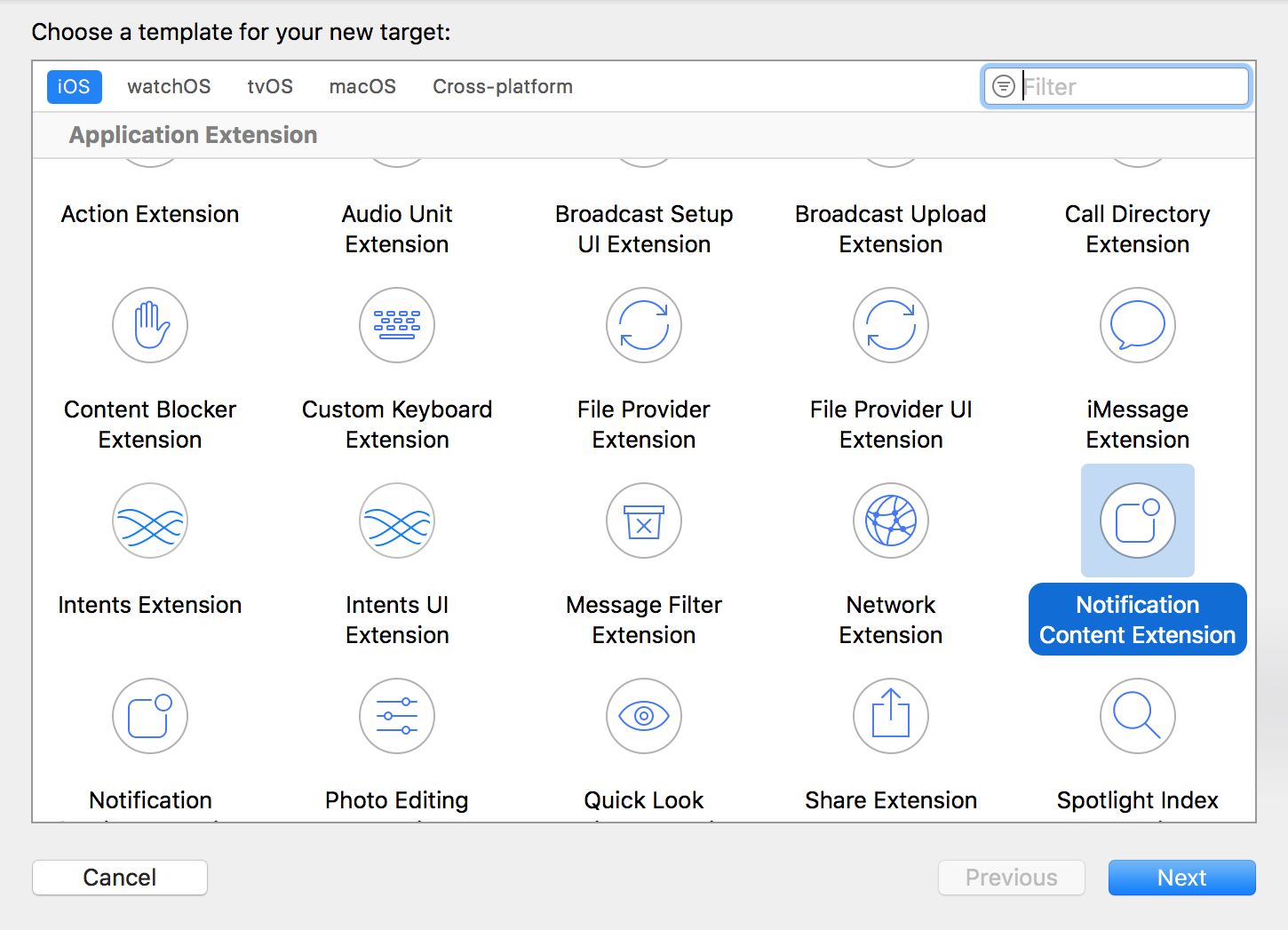
- 코딩 언어에 따라 Xcode에서 생성되는 다음 파일:
Swift
- NotificationViewController.swift
- MainInterface.storyboard
Objective-C
- NotificationViewController.h
- NotificationViewController.m
- MainInterface.storyboard
커스텀 카테고리 설정
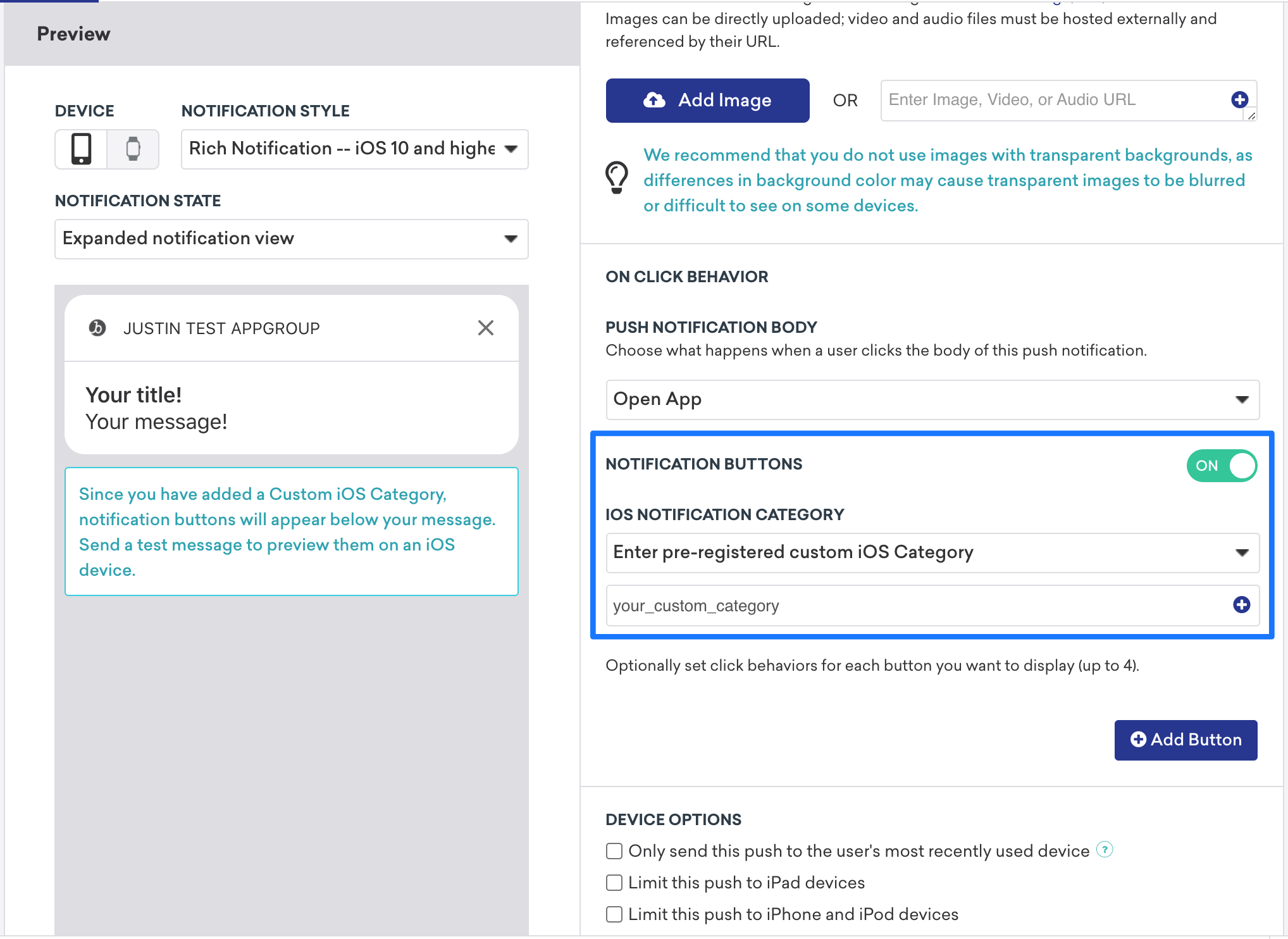
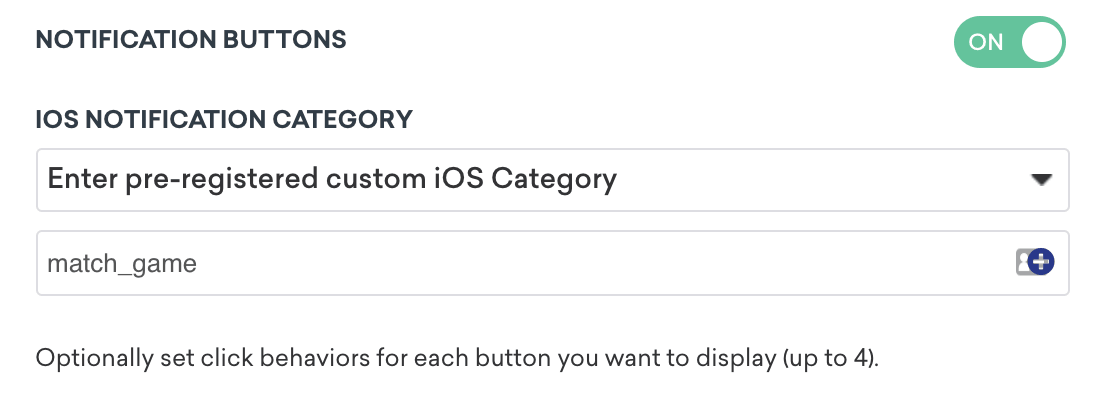
대시보드에서 커스텀 뷰를 설정하려면 알림 버튼을 토글로 활성화하고 커스텀 카테고리를 입력해야 합니다. 제공하는 사전 등록된 커스텀 iOS 카테고리는 Notification Content Extension 타겟의 .plist에 있는 UNNotificationExtensionCategory와 대조됩니다. 여기에 입력하는 값은 Braze 대시보드에서 설정한 값과 일치해야 합니다.


콘텐츠 확장이 포함된 푸시 알림은 항상 명확하게 보이는 것이 아니므로, 사용자가 푸시 알림을 확장하도록 유도하는 행동 유도(CTA) 문구를 포함하는 것이 좋습니다.
사용 사례 및 구현 안내
세 가지 푸시 알림 콘텐츠 앱 확장 유형이 제공됩니다. 각 유형에는 개념 안내, 잠재적 사용 사례, 그리고 Braze 대시보드에서 푸시 알림 변수가 어떻게 표시되고 사용될 수 있는지에 대한 설명이 포함됩니다:
인터랙티브 푸시 알림
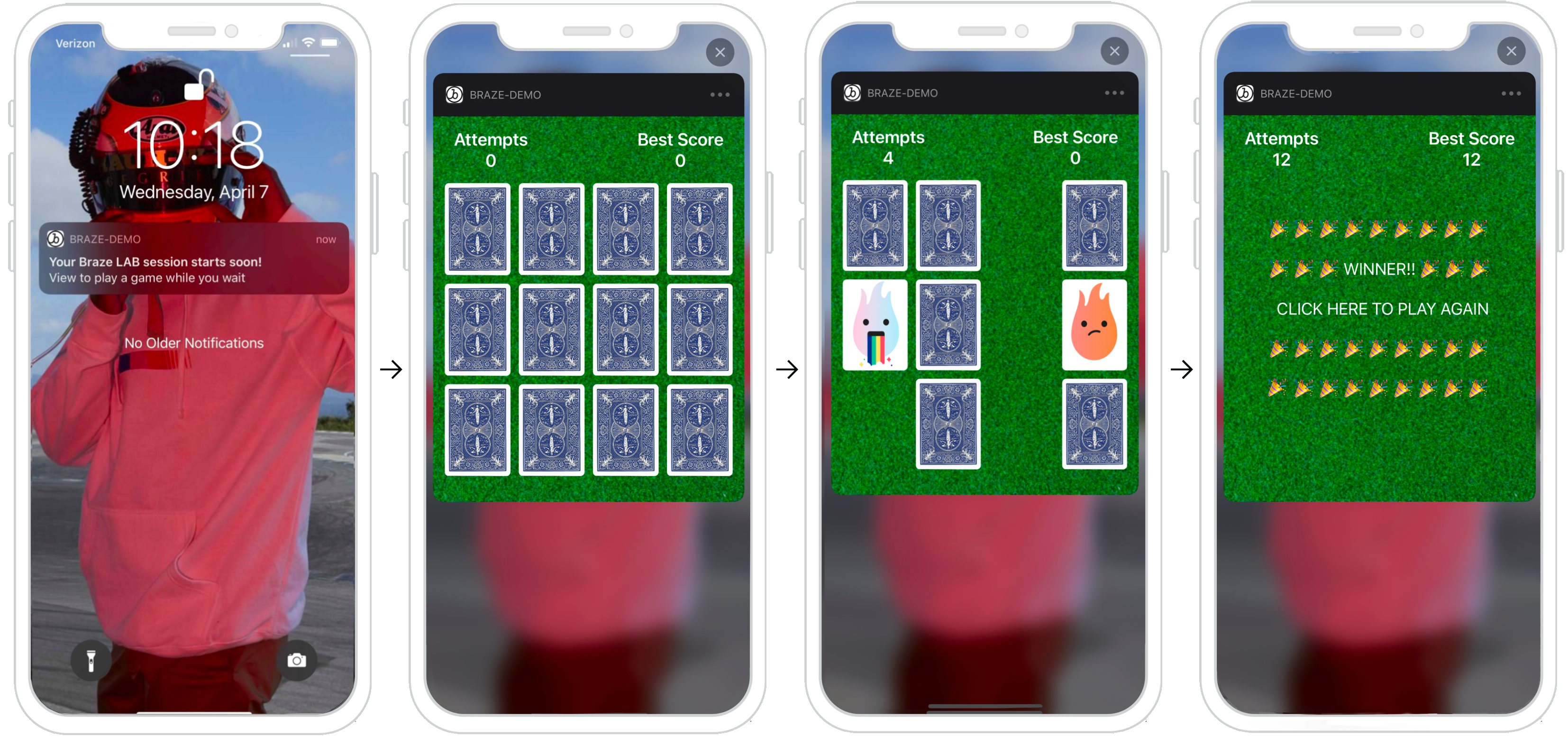
푸시 알림은 콘텐츠 확장 내에서 사용자 액션에 응답할 수 있습니다. iOS 12 이상을 실행하는 사용자의 경우, 푸시 메시지를 완전히 인터랙티브한 푸시 알림으로 전환할 수 있습니다! 이 인터랙티브 기능은 사용자를 알림에 참여시킬 수 있는 다양한 가능성을 제공합니다. 다음 예시는 확장된 알림 내에서 사용자가 매칭 게임을 플레이할 수 있는 푸시를 보여줍니다.
대시보드 설정
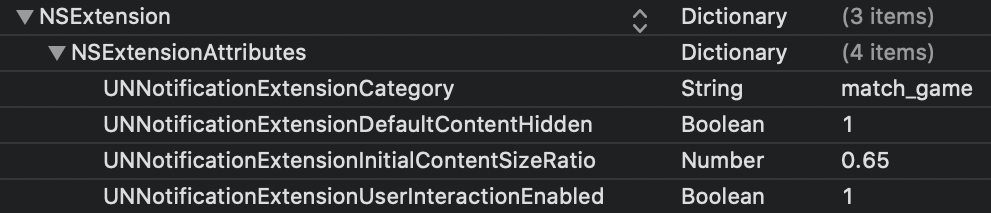
대시보드에서 커스텀 뷰를 설정하려면, 알림 버튼 설정 내에서 표시하려는 특정 카테고리를 입력합니다. 그런 다음, Notification Content Extension의 .plist에서 커스텀 카테고리를 UNNotificationExtensionCategory 속성으로도 설정해야 합니다. 여기에 지정한 값은 Braze 대시보드에서 설정한 값과 일치해야 합니다. 마지막으로, 푸시 알림에서 사용자 인터랙션을 활성화하려면 UNNotificationExtensionInteractionEnabled 키를 true로 설정합니다.
기타 사용 사례
푸시 콘텐츠 확장은 프로모션과 애플리케이션에 인터랙티브 기능을 도입할 수 있는 흥미로운 옵션입니다. 일부 예시로는 사용자가 플레이할 수 있는 게임, 할인을 위한 돌림판, 목록이나 노래를 저장하는 “좋아요” 버튼 등이 있습니다.
분석을 로깅할 준비가 되셨나요?
다음 섹션을 방문하여 데이터 흐름이 어떻게 보여야 하는지 더 잘 이해해 보세요.
개인화된 푸시 알림
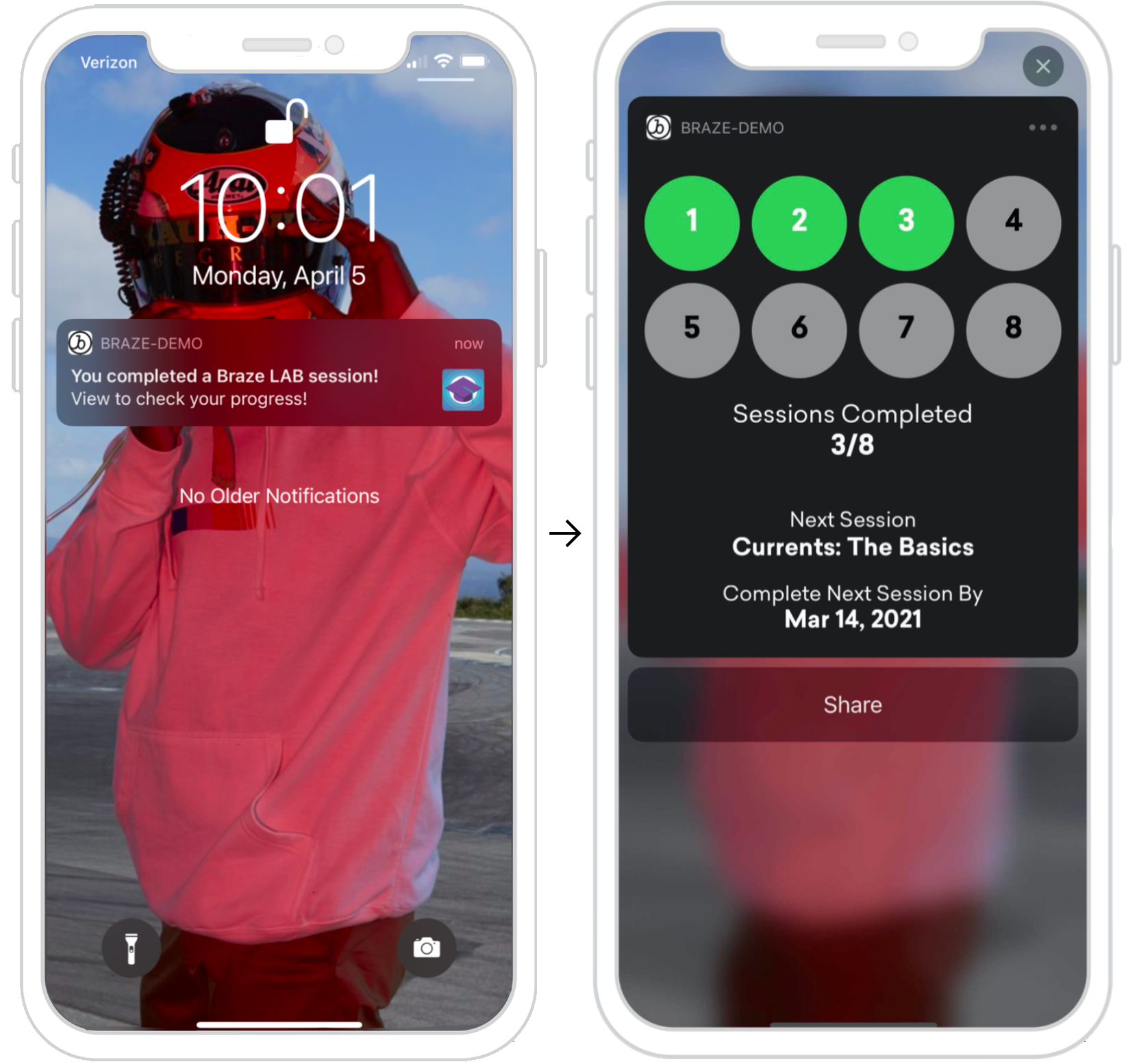
푸시 알림은 콘텐츠 확장 내에서 사용자별 정보를 표시할 수 있습니다. 함께 제공되는 예시는 사용자가 특정 작업(Braze 학습 과정)을 완료한 후 이 알림을 확장하여 진행 상황을 확인하도록 권장하는 푸시 알림을 보여줍니다. 여기에 제공되는 정보는 사용자별 정보이며, 세션이 완료되거나 특정 사용자 액션이 수행될 때 API 트리거를 활용하여 전송할 수 있습니다.
대시보드 설정
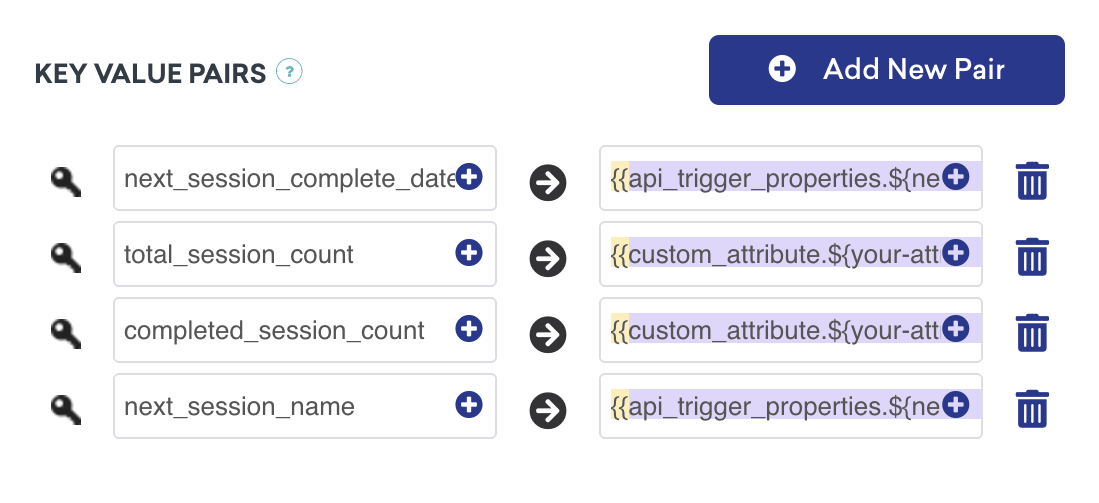
대시보드에서 개인화된 푸시를 설정하려면, 표시할 특정 카테고리를 등록한 다음, 키-값 페어 내에서 표준 Liquid를 사용하여 메시지에 표시할 적절한 사용자 속성을 설정해야 합니다. 이러한 뷰는 특정 고객 프로필의 특정 사용자 속성을 기반으로 개인화할 수 있습니다.
키-값 페어 처리
콘텐츠 확장이 알림을 수신하면 다음 메서드 didReceive가 호출되며, NotificationViewController 내에서 찾을 수 있습니다. 대시보드에서 제공된 키-값 페어는 코드에서 userInfo 딕셔너리를 통해 표현됩니다.
푸시 알림에서 키-값 페어 파싱
func didReceive(_ notification: UNNotification) {
let userInfo = notification.request.content.userInfo
guard let value = userInfo["YOUR-KEY-VALUE-PAIR"] as? String,
let otherValue = userInfo["YOUR-OTHER-KEY-VALUE-PAIR"] as? String,
else { fatalError("Key-Value Pairs are incorrect.")}
...
}
- (void)didReceiveNotification:(nonnull UNNotification *)notification {
NSDictionary *userInfo = notification.request.content.userInfo;
if (userInfo[@"YOUR-KEY-VALUE-PAIR"] && userInfo[@"YOUR-OTHER-KEY-VALUE-PAIR"]) {
...
} else {
[NSException raise:NSGenericException format:@"Key-Value Pairs are incorrect"];
}
}
기타 사용 사례
진행 상황 기반 및 사용자 중심 푸시 콘텐츠 확장에 대한 아이디어는 무한합니다. 일부 예시로는 다양한 플랫폼에서 진행 상황을 공유하는 옵션 추가, 달성한 업적 표시, 스탬프 카드, 심지어 온보딩 체크리스트 등이 있습니다.
분석을 로깅할 준비가 되셨나요?
다음 섹션을 방문하여 데이터 흐름이 어떻게 보여야 하는지 더 잘 이해해 보세요.
정보 수집 푸시 알림
푸시 알림은 콘텐츠 확장 내에서 사용자 정보를 캡처할 수 있어, 푸시로 가능한 것의 한계를 확장할 수 있습니다. 다음에 표시된 흐름을 살펴보면, 뷰가 상태 변경에 응답할 수 있습니다. 이러한 상태 변경 구성 요소는 각 이미지에 표현되어 있습니다.
- 사용자가 푸시 알림을 수신합니다.
- 푸시가 열리고 사용자에게 정보를 요청합니다.
- 정보가 제공되고 유효한 경우 등록 버튼이 표시됩니다.
- 확인 뷰가 표시되고 푸시가 닫힙니다.
여기서 요청되는 정보는 SMS 번호 수집 등 다양한 범위의 것들이 될 수 있으며, 이메일에 한정될 필요는 없습니다.
대시보드 설정
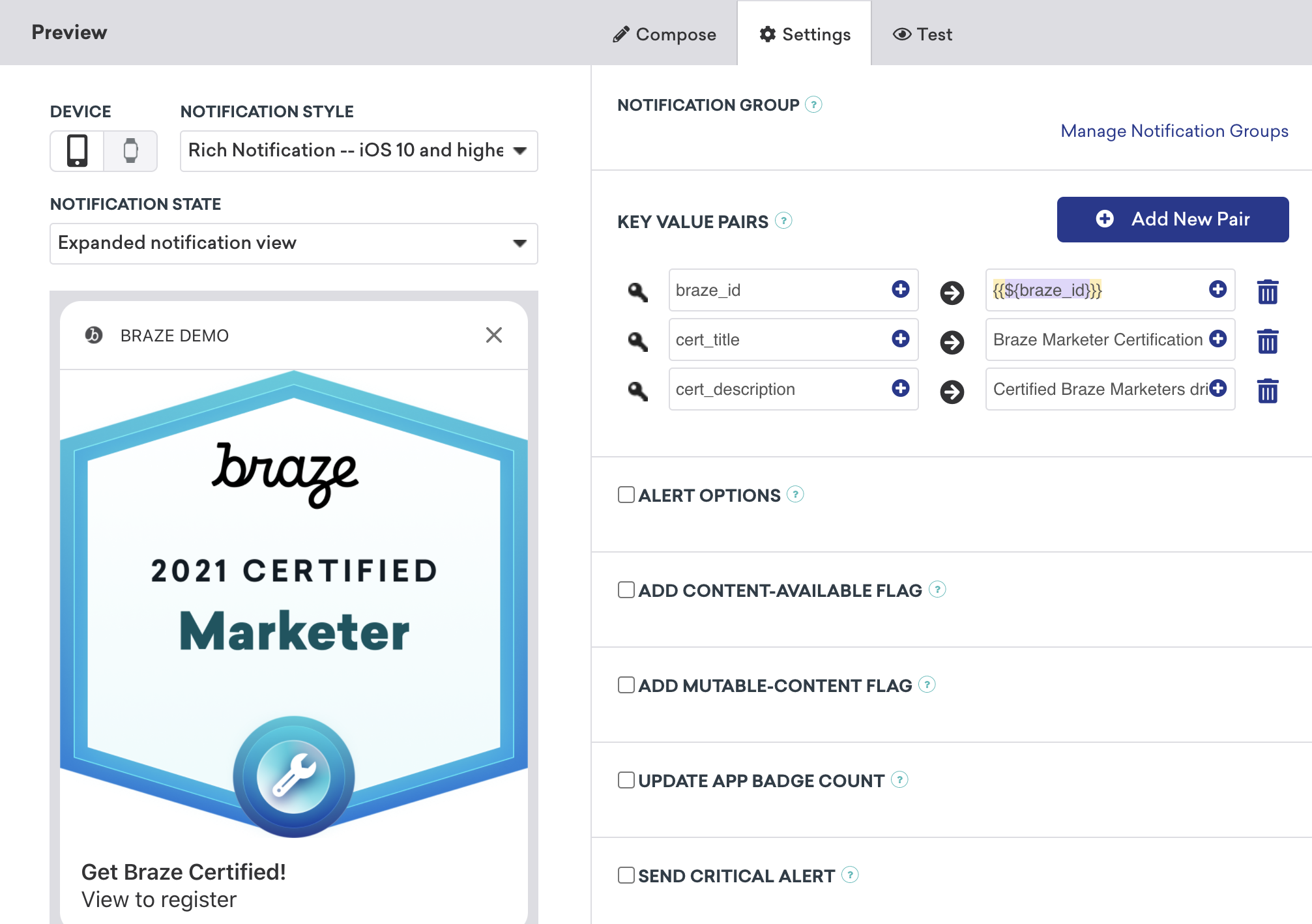
대시보드에서 정보 수집이 가능한 푸시를 설정하려면, 커스텀 카테고리를 등록 및 설정하고 필요한 키-값 페어를 제공해야 합니다. 예시에서 볼 수 있듯이, 푸시에 이미지를 포함할 수도 있습니다. 이를 위해서는 리치 알림을 통합하고, Campaign에서 알림 스타일을 리치 알림으로 설정한 다음, 리치 푸시 이미지를 포함해야 합니다.
버튼 액션 처리
각 액션 버튼은 고유하게 식별됩니다. 코드는 응답 식별자가 actionIdentifier와 같은지 확인하고, 같다면 사용자가 액션 버튼을 클릭했음을 인식합니다.
푸시 알림 액션 버튼 응답 처리
func didReceive(_ response: UNNotificationResponse, completionHandler completion: @escaping (UNNotificationContentExtensionResponseOption) -> Void) {
if response.actionIdentifier == "YOUR-REGISTER-IDENTIFIER" {
// do something
} else {
// do something else
}
}
- (void)didReceiveNotificationResponse:(UNNotificationResponse *)response completionHandler:(void (^)(UNNotificationContentExtensionResponseOption))completion {
if ([response.actionIdentifier isEqualToString:@"YOUR-REGISTER-IDENTIFIER"]) {
completion(UNNotificationContentExtensionResponseOptionDismiss);
} else {
completion(UNNotificationContentExtensionResponseOptionDoNotDismiss);
}
}
푸시 닫기
푸시 알림은 액션 버튼 누름으로 자동 닫힘될 수 있습니다. 권장되는 세 가지 기본 제공 푸시 닫기 옵션이 있습니다:
completion(.dismiss)- 알림을 닫습니다completion(.doNotDismiss)- 알림이 열린 상태로 유지됩니다completion(.dismissAndForward)- 푸시가 닫히고 사용자가 애플리케이션으로 전달됩니다.
기타 사용 사례
푸시 알림을 통해 사용자 입력을 요청하는 것은 많은 회사가 활용하지 않는 흥미로운 기회입니다. 이러한 푸시 메시지에서는 이름, 이메일, 전화번호와 같은 기본 정보를 요청할 수 있을 뿐만 아니라, 완료되지 않은 고객 프로필을 완성하도록 유도하거나 피드백을 제출하도록 프롬프트할 수도 있습니다.
분석을 로깅할 준비가 되셨나요?
다음 섹션을 방문하여 데이터 흐름이 어떻게 보여야 하는지 더 잘 이해해 보세요.
분석 로깅
Braze API를 사용한 로깅 (권장)
분석 로깅은 고객의 서버가 /users/track 엔드포인트를 호출하는 방식으로만 실시간으로 수행할 수 있습니다. 분석을 로깅하려면 키-값 페어 필드에 braze_id 값을 전송하여(아래 스크린샷 참조) 업데이트할 사용자 프로필을 식별합니다.

수동 로깅
수동으로 로깅하려면 먼저 Xcode 내에서 앱 그룹을 구성한 다음 분석을 생성, 저장 및 검색해야 합니다. 이를 위해서는 일부 커스텀 개발자 작업이 필요합니다. 다음에 표시되는 코드 스니펫이 이 문제를 해결하는 데 도움이 됩니다.
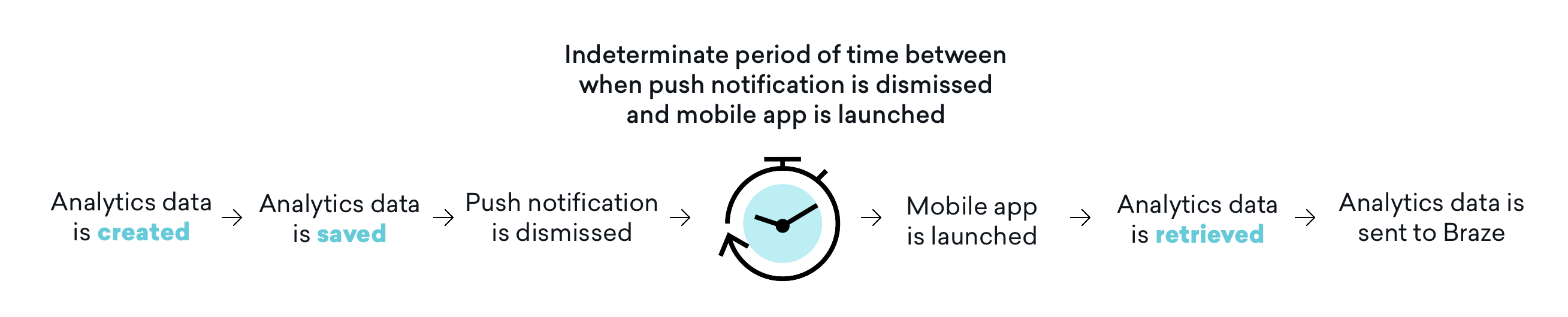
또한 모바일 애플리케이션이 이후에 실행될 때까지 분석이 Braze로 전송되지 않는다는 점에 유의해야 합니다. 즉, 해제 설정에 따라 푸시 알림이 해제된 시점과 모바일 앱이 실행되어 분석이 검색되는 시점 사이에 불확정적인 시간이 존재하는 경우가 많습니다. 이 시간 버퍼가 모든 사용 사례에 영향을 미치지는 않을 수 있지만, 사용자는 그 영향을 고려하고 필요한 경우 이 문제를 해결하기 위해 애플리케이션 열기를 포함하도록 사용자 여정을 조정해야 합니다.
1단계: Xcode 내에서 앱 그룹 구성
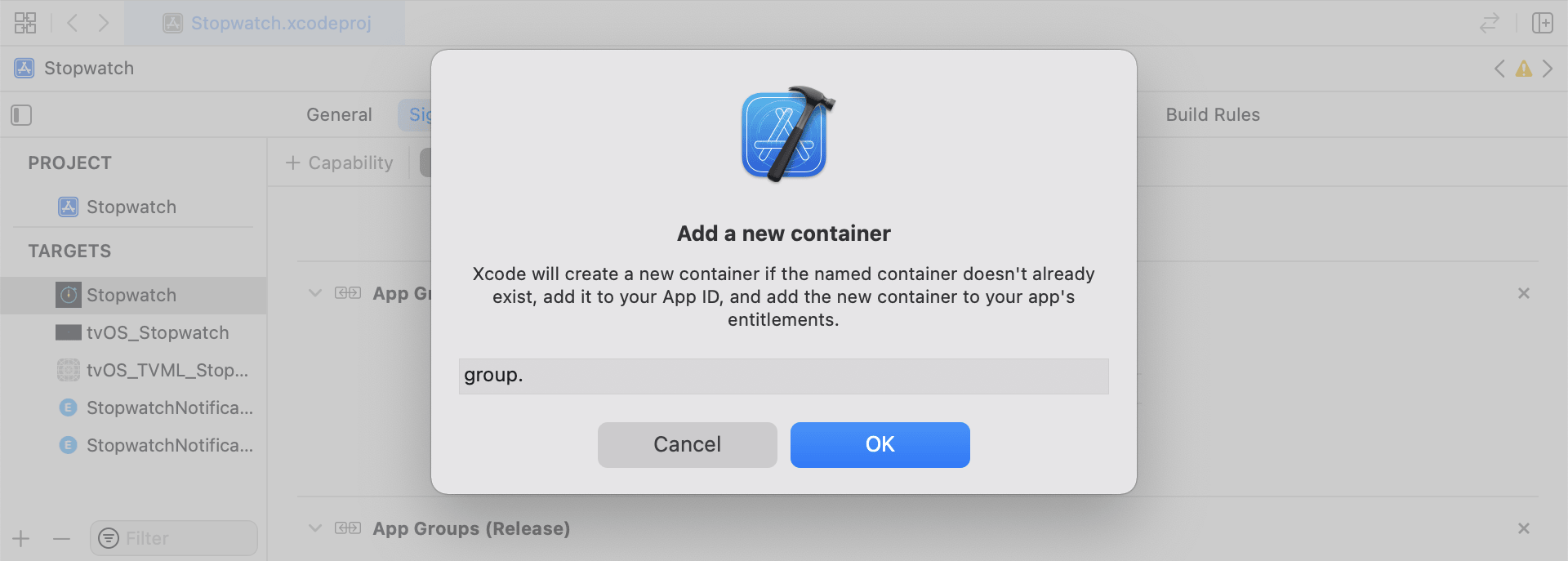
App Groups 기능을 추가합니다. 앱에 앱 그룹이 없는 경우, 메인 앱 타겟의 기능으로 이동하여 App Groups을 켜고 “+” 버튼을 클릭합니다. 앱의 번들 ID를 사용하여 앱 그룹을 생성합니다. 예를 들어 앱의 번들 ID가 com.company.appname인 경우, 앱 그룹의 이름을 group.com.company.appname.xyz로 지정할 수 있습니다. 메인 앱 타겟과 콘텐츠 확장 타겟 모두에서 App Groups이 켜져 있는지 확인합니다.
2단계: 코드 스니펫 통합
다음 코드 스니펫은 커스텀 이벤트, 커스텀 속성 및 사용자 속성을 저장하고 전송하는 방법에 대한 유용한 참조 자료입니다. 이 가이드에서는 UserDefaults를 기준으로 설명하지만, 코드 표현은 헬퍼 파일 RemoteStorage 형태로 제공됩니다. 또한 사용자 속성을 전송 및 저장할 때 사용되는 추가 헬퍼 파일 UserAttributes 및 EventName Dictionary가 있습니다. 모든 헬퍼 파일은 이 가이드의 끝에서 찾을 수 있습니다.
커스텀 이벤트 저장
커스텀 이벤트를 저장하려면 분석을 새 디자인으로 생성해야 합니다. 이는 사전을 생성하고, 메타데이터를 채운 다음, 헬퍼 파일을 통해 데이터를 저장하는 방식으로 수행됩니다.
- 이벤트 메타데이터로 사전 초기화
- 이벤트 데이터를 검색 및 저장할
userDefaults초기화 - 기존 배열이 있으면 새 데이터를 기존 배열에 추가하고 저장
- 기존 배열이 없으면 새 배열을
userDefaults에 저장
func saveCustomEvent(with properties: [String: Any]? = nil) {
// 1
let customEventDictionary = Dictionary(eventName: "YOUR-EVENT-NAME", properties: properties)
// 2
let remoteStorage = RemoteStorage(storageType: .suite)
// 3
if var pendingEvents = remoteStorage.retrieve(forKey: .pendingCustomEvents) as? [[String: Any]] {
pendingEvents.append(contentsOf: [customEventDictionary])
remoteStorage.store(pendingEvents, forKey: .pendingCustomEvents)
} else {
// 4
remoteStorage.store([customEventDictionary], forKey: .pendingCustomEvents)
}
}
- (void)saveCustomEvent:(NSDictionary<NSString *, id> *)properties {
// 1
NSDictionary<NSString *, id> *customEventDictionary = [[NSDictionary alloc] initWithEventName:@"YOUR-EVENT-NAME" properties:properties];
// 2
RemoteStorage *remoteStorage = [[RemoteStorage alloc] initWithStorageType:StorageTypeSuite];
NSMutableArray *pendingEvents = [[remoteStorage retrieveForKey:RemoteStorageKeyPendingCustomEvents] mutableCopy];
// 3
if (pendingEvents) {
[pendingEvents addObject:customEventDictionary];
[remoteStorage store:pendingEvents forKey:RemoteStorageKeyPendingCustomAttributes];
} else {
// 4
[remoteStorage store:@[ customEventDictionary ] forKey:RemoteStorageKeyPendingCustomAttributes];
}
}
커스텀 이벤트를 Braze로 전송
SDK가 초기화된 후가 알림 콘텐츠 앱 확장에서 저장된 분석을 로깅하기에 가장 좋은 시점입니다. 이는 보류 중인 이벤트를 반복하고, “Event Name” 키를 확인하고, Braze에서 적절한 값을 설정한 다음, 다음에 이 기능이 필요할 때를 위해 저장소를 지우는 방식으로 수행할 수 있습니다.
- 보류 중인 이벤트 배열을 반복
pendingEvents사전의 각 키-값 페어를 반복- “Event Name” 키를 명시적으로 확인하여 값을 적절히 설정
- 다른 모든 키-값은
properties사전에 추가 - 개별 커스텀 이벤트 로깅
- 저장소에서 모든 보류 중인 이벤트 제거
func logPendingCustomEventsIfNecessary() {
let remoteStorage = RemoteStorage(storageType: .suite)
guard let pendingEvents = remoteStorage.retrieve(forKey: .pendingCustomEvents) as? [[String: Any]] else { return }
// 1
for event in pendingEvents {
var eventName: String?
var properties: [AnyHashable: Any] = [:]
// 2
for (key, value) in event {
if key == PushNotificationKey.eventName.rawValue {
// 3
if let eventNameValue = value as? String {
eventName = eventNameValue
} else {
print("Invalid type for event_name key")
}
} else {
// 4
properties[key] = value
}
}
// 5
if let eventName = eventName {
logCustomEvent(eventName, withProperties: properties)
}
}
// 6
remoteStorage.removeObject(forKey: .pendingCustomEvents)
}
- (void)logPendingEventsIfNecessary {
RemoteStorage *remoteStorage = [[RemoteStorage alloc] initWithStorageType:StorageTypeSuite];
NSArray *pendingEvents = [remoteStorage retrieveForKey:RemoteStorageKeyPendingCustomEvents];
// 1
for (NSDictionary<NSString *, id> *event in pendingEvents) {
NSString *eventName = nil;
NSMutableDictionary *properties = [NSMutableDictionary dictionary];
// 2
for (NSString* key in event) {
if ([key isEqualToString:@"event_name"]) {
// 3
if ([[event objectForKey:key] isKindOfClass:[NSString class]]) {
eventName = [event objectForKey:key];
} else {
NSLog(@"Invalid type for event_name key");
}
} else {
// 4
properties[key] = event[key];
}
}
// 5
if (eventName != nil) {
[[Appboy sharednstance] logCustomEvent:eventName withProperties:properties];
}
}
// 6
[remoteStorage removeObjectForKey:RemoteStorageKeyPendingCustomEvents];
}
커스텀 속성 저장
커스텀 속성을 저장하려면 분석을 새 디자인으로 생성해야 합니다. 이는 사전을 생성하고, 메타데이터를 채운 다음, 헬퍼 파일을 사용하여 데이터를 저장하는 방식으로 수행됩니다.
- 속성 메타데이터로 사전 초기화
- 속성 데이터를 검색 및 저장할
userDefaults초기화 - 기존 배열이 있으면 새 데이터를 기존 배열에 추가하고 저장
- 기존 배열이 없으면 새 배열을
userDefaults에 저장
func saveCustomAttribute() {
// 1
let customAttributeDictionary: [String: Any] = ["YOUR-CUSTOM-ATTRIBUTE-KEY": "YOUR-CUSTOM-ATTRIBUTE-VALUE"]
// 2
let remoteStorage = RemoteStorage(storageType: .suite)
// 3
if var pendingAttributes = remoteStorage.retrieve(forKey: .pendingCustomAttributes) as? [[String: Any]] {
pendingAttributes.append(contentsOf: [customAttributeDictionary])
remoteStorage.store(pendingAttributes, forKey: .pendingCustomAttributes)
} else {
// 4
remoteStorage.store([customAttributeDictionary], forKey: .pendingCustomAttributes)
}
}
- (void)saveCustomAttribute {
// 1
NSDictionary<NSString *, id> *customAttributeDictionary = @{ @"YOUR-CUSTOM-ATTRIBUTE-KEY": @"YOUR-CUSTOM-ATTRIBUTE-VALUE" };
// 2
RemoteStorage *remoteStorage = [[RemoteStorage alloc] initWithStorageType:StorageTypeSuite];
NSMutableArray *pendingAttributes = [[remoteStorage retrieveForKey:RemoteStorageKeyPendingCustomAttributes] mutableCopy];
// 3
if (pendingAttributes) {
[pendingAttributes addObject:customAttributeDictionary];
[remoteStorage store:pendingAttributes forKey:RemoteStorageKeyPendingCustomAttributes];
} else {
// 4
[remoteStorage store:@[ customAttributeDictionary ] forKey:RemoteStorageKeyPendingCustomAttributes];
}
}
커스텀 속성을 Braze로 전송
SDK가 초기화된 후가 알림 콘텐츠 앱 확장에서 저장된 분석을 로깅하기에 가장 좋은 시점입니다. 이는 보류 중인 속성을 반복하고, Braze에서 적절한 커스텀 속성을 설정한 다음, 다음에 이 기능이 필요할 때를 위해 저장소를 지우는 방식으로 수행할 수 있습니다.
- 보류 중인 속성 배열을 반복
pendingAttributes사전의 각 키-값 페어를 반복- 해당 키와 값으로 개별 커스텀 속성 로깅
- 저장소에서 모든 보류 중인 속성 제거
func logPendingCustomAttributesIfNecessary() {
let remoteStorage = RemoteStorage(storageType: .suite)
guard let pendingAttributes = remoteStorage.retrieve(forKey: .pendingCustomAttributes) as? [[String: Any]] else { return }
// 1
pendingAttributes.forEach { setCustomAttributesWith(keysAndValues: $0) }
// 4
remoteStorage.removeObject(forKey: .pendingCustomAttributes)
}
func setCustomAttributesWith(keysAndValues: [String: Any]) {
// 2
for (key, value) in keysAndValues {
// 3
if let value = value as? [String] {
setCustomAttributeArrayWithKey(key, andValue: value)
} else {
setCustomAttributeWithKey(key, andValue: value)
}
}
}
- (void)logPendingCustomAttributesIfNecessary {
RemoteStorage *remoteStorage = [[RemoteStorage alloc] initWithStorageType:StorageTypeSuite];
NSArray *pendingAttributes = [remoteStorage retrieveForKey:RemoteStorageKeyPendingCustomAttributes];
// 1
for (NSDictionary<NSString*, id> *attribute in pendingAttributes) {
[self setCustomAttributeWith:attribute];
}
// 4
[remoteStorage removeObjectForKey:RemoteStorageKeyPendingCustomAttributes];
}
- (void)setCustomAttributeWith:(NSDictionary<NSString *, id> *)keysAndValues {
// 2
for (NSString *key in keysAndValues) {
// 3
[self setCustomAttributeWith:key andValue:[keysAndValues objectForKey:key]];
}
}
사용자 속성 저장
사용자 속성을 저장할 때는 업데이트되는 속성 유형(email, first_name, phone_number 등)을 구분하기 위해 커스텀 오브젝트를 생성하는 것이 좋습니다. 이 오브젝트는 UserDefaults에서 저장/검색할 수 있어야 합니다. 이를 수행하는 방법의 한 가지 예시는 UserAttribute 헬퍼 파일을 참조하세요.
- 해당 유형으로 인코딩된
UserAttribute오브젝트 초기화 - 이벤트 데이터를 검색 및 저장할
userDefaults초기화 - 기존 배열이 있으면 새 데이터를 기존 배열에 추가하고 저장
- 기존 배열이 없으면 새 배열을
userDefaults에 저장
func saveUserAttribute() {
// 1
guard let data = try? PropertyListEncoder().encode(UserAttribute.userAttributeType("USER-ATTRIBUTE-VALUE")) else { return }
// 2
let remoteStorage = RemoteStorage(storageType: .suite)
// 3
if var pendingAttributes = remoteStorage.retrieve(forKey: .pendingUserAttributes) as? [Data] {
pendingAttributes.append(contentsOf: [data])
remoteStorage.store(pendingAttributes, forKey: .pendingUserAttributes)
} else {
// 4
remoteStorage.store([data], forKey: .pendingUserAttributes)
}
}
- (void)saveUserAttribute {
// 1
UserAttribute *userAttribute = [[UserAttribute alloc] initWithUserField:@"USER-ATTRIBUTE-VALUE" attributeType:UserAttributeTypeEmail];
NSError *error;
NSData *data = [NSKeyedArchiver archivedDataWithRootObject:userAttribute requiringSecureCoding:YES error:&error];
if (error != nil) {
// log error
}
// 2
RemoteStorage *remoteStorage = [[RemoteStorage alloc] initWithStorageType:StorageTypeSuite];
NSMutableArray *pendingAttributes = [[remoteStorage retrieveForKey:RemoteStorageKeyPendingUserAttributes] mutableCopy];
// 3
if (pendingAttributes) {
[pendingAttributes addObject:data];
[remoteStorage store:pendingAttributes forKey:RemoteStorageKeyPendingUserAttributes];
} else {
// 4
[remoteStorage store:@[data] forKey:RemoteStorageKeyPendingUserAttributes];
}
}
사용자 속성을 Braze로 전송
SDK가 초기화된 후가 알림 콘텐츠 앱 확장에서 저장된 분석을 로깅하기에 가장 좋은 시점입니다. 이는 보류 중인 속성을 반복하고, Braze에서 적절한 커스텀 속성을 설정한 다음, 다음에 이 기능이 필요할 때를 위해 저장소를 지우는 방식으로 수행할 수 있습니다.
pendingAttributes데이터 배열을 반복- 속성 데이터에서 인코딩된
UserAttribute오브젝트 초기화 - 사용자 속성 유형(이메일)에 따라 특정 사용자 필드 설정
- 저장소에서 모든 보류 중인 사용자 속성 제거
func logPendingUserAttributesIfNecessary() {
let remoteStorage = RemoteStorage(storageType: .suite)
guard let pendingAttributes = remoteStorage.retrieve(forKey: .pendingUserAttributes) as? [Data] else { return }
// 1
for attributeData in pendingAttributes {
// 2
guard let userAttribute = try? PropertyListDecoder().decode(UserAttribute.self, from: attributeData) else { continue }
// 3
switch userAttribute {
case .email(let email):
user?.email = email
}
}
// 4
remoteStorage.removeObject(forKey: .pendingUserAttributes)
}
- (void)logPendingUserAttributesIfNecessary {
RemoteStorage *remoteStorage = [[RemoteStorage alloc] initWithStorageType:StorageTypeSuite];
NSArray *pendingAttributes = [remoteStorage retrieveForKey:RemoteStorageKeyPendingUserAttributes];
// 1
for (NSData *attributeData in pendingAttributes) {
NSError *error;
// 2
UserAttribute *userAttribute = [NSKeyedUnarchiver unarchivedObjectOfClass:[UserAttribute class] fromData:attributeData error:&error];
if (error != nil) {
// log error
}
// 3
if (userAttribute) {
switch (userAttribute.attributeType) {
case UserAttributeTypeEmail:
[self user].email = userAttribute.userField;
break;
}
}
}
// 4
[remoteStorage removeObjectForKey:RemoteStorageKeyPendingUserAttributes];
}
헬퍼 파일
RemoteStorage 헬퍼 파일
enum RemoteStorageKey: String, CaseIterable {
// MARK: - Notification Content Extension Analytics
case pendingCustomEvents = "pending_custom_events"
case pendingCustomAttributes = "pending_custom_attributes"
case pendingUserAttributes = "pending_user_attributes"
}
enum RemoteStorageType {
case standard
case suite
}
class RemoteStorage: NSObject {
private var storageType: RemoteStorageType = .standard
private lazy var defaults: UserDefaults = {
switch storageType {
case .standard:
return .standard
case .suite:
return UserDefaults(suiteName: "YOUR-DOMAIN-IDENTIFIER")!
}
}()
init(storageType: RemoteStorageType = .standard) {
self.storageType = storageType
}
func store(_ value: Any, forKey key: RemoteStorageKey) {
defaults.set(value, forKey: key.rawValue)
}
func retrieve(forKey key: RemoteStorageKey) -> Any? {
return defaults.object(forKey: key.rawValue)
}
func removeObject(forKey key: RemoteStorageKey) {
defaults.removeObject(forKey: key.rawValue)
}
func resetStorageKeys() {
for key in RemoteStorageKey.allCases {
defaults.removeObject(forKey: key.rawValue)
}
}
}
@interface RemoteStorage ()
@property (nonatomic) StorageType storageType;
@property (nonatomic, strong) NSUserDefaults *defaults;
@end
@implementation RemoteStorage
- (id)initWithStorageType:(StorageType)storageType {
if (self = [super init]) {
self.storageType = storageType;
}
return self;
}
- (void)store:(id)value forKey:(RemoteStorageKey)key {
[[self defaults] setValue:value forKey:[self rawValueForKey:key]];
}
- (id)retrieveForKey:(RemoteStorageKey)key {
return [[self defaults] objectForKey:[self rawValueForKey:key]];
}
- (void)removeObjectForKey:(RemoteStorageKey)key {
[[self defaults] removeObjectForKey:[self rawValueForKey:key]];
}
- (void)resetStorageKeys {
[[self defaults] removeObjectForKey:[self rawValueForKey:RemoteStorageKeyPendingCustomEvents]];
[[self defaults] removeObjectForKey:[self rawValueForKey:RemoteStorageKeyPendingCustomAttributes]];
[[self defaults] removeObjectForKey:[self rawValueForKey:RemoteStorageKeyPendingUserAttributes]];
}
- (NSUserDefaults *)defaults {
if (!self.defaults) {
switch (self.storageType) {
case StorageTypeStandard:
return [NSUserDefaults standardUserDefaults];
break;
case StorageTypeSuite:
return [[NSUserDefaults alloc] initWithSuiteName:@"YOUR-DOMAIN-IDENTIFIER"];
}
} else {
return self.defaults;
}
}
- (NSString*)rawValueForKey:(RemoteStorageKey)remoteStorageKey {
switch(remoteStorageKey) {
case RemoteStorageKeyPendingCustomEvents:
return @"pending_custom_events";
case RemoteStorageKeyPendingCustomAttributes:
return @"pending_custom_attributes";
case RemoteStorageKeyPendingUserAttributes:
return @"pending_user_attributes";
default:
[NSException raise:NSGenericException format:@"Unexpected FormatType."];
}
}
UserAttribute 헬퍼 파일
enum UserAttribute: Hashable {
case email(String?)
}
// MARK: - Codable
extension UserAttribute: Codable {
private enum CodingKeys: String, CodingKey {
case email
}
func encode(to encoder: Encoder) throws {
var values = encoder.container(keyedBy: CodingKeys.self)
switch self {
case .email(let email):
try values.encode(email, forKey: .email)
}
}
init(from decoder: Decoder) throws {
let values = try decoder.container(keyedBy: CodingKeys.self)
let email = try values.decode(String.self, forKey: .email)
self = .email(email)
}
}
@implementation UserAttribute
- (id)initWithUserField:(NSString *)userField attributeType:(UserAttributeType)attributeType {
if (self = [super init]) {
self.userField = userField;
self.attributeType = attributeType;
}
return self;
}
- (void)encodeWithCoder:(NSCoder *)encoder {
[encoder encodeObject:self.userField forKey:@"userField"];
[encoder encodeInteger:self.attributeType forKey:@"attributeType"];
}
- (id)initWithCoder:(NSCoder *)decoder {
if (self = [super init]) {
self.userField = [decoder decodeObjectForKey:@"userField"];
NSInteger attributeRawValue = [decoder decodeIntegerForKey:@"attributeType"];
self.attributeType = (UserAttributeType) attributeRawValue;
}
return self;
}
@end
EventName Dictionary 헬퍼 파일
extension Dictionary where Key == String, Value == Any {
init(eventName: String, properties: [String: Any]? = nil) {
self.init()
self[PushNotificationKey.eventName.rawValue] = eventName
if let properties = properties {
for (key, value) in properties {
self[key] = value
}
}
}
}
@implementation NSDictionary (Helper)
- (id)initWithEventName:(NSString *)eventName properties:(NSDictionary *)properties {
self = [self init];
if (self) {
dict[@"event_name"] = eventName;
for(id key in properties) {
dict[key] = properties[key];
}
}
return self;
}
@end